
Plugin Settings
The Settings page is where you tune how the plugin works. You can find it here:
WordPress Admin → Webkul WC Addons → Power BI Connector → Settings
It has three tabs: General, Authentication, and WooCommerce API. Let's look at each one.
General Tab
This tab holds the basic options that control plugin behavior.
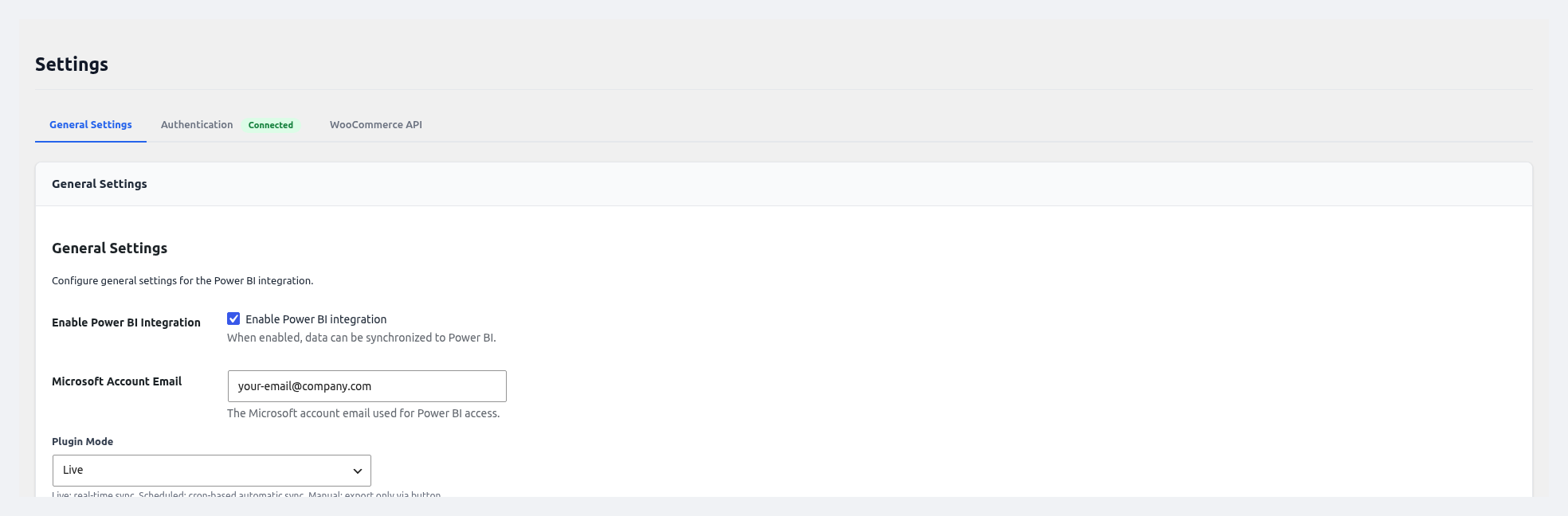 The General tab — master toggle, Microsoft email, plugin mode, and alert email.
| Field | Type | What it does |
|---|---|---|
| Enable Power BI Integration | Toggle | Master on/off switch. When off, sync stops but your keys stay saved. |
| Microsoft Account Email | The Power BI user the plugin pushes as. Usually the same email you sign in to Power BI with. | |
| Plugin Mode | Dropdown | How data syncs — see the table below. |
| Alert Email | Where alert emails go. | |
| Save Changes | Button | Writes your settings. |
The Three Plugin Modes
| Mode | When to pick it |
|---|---|
| Live | Pushes rows to Power BI right away on every WooCommerce event. Best for near real-time dashboards. |
| Scheduled | Runs on a cron schedule — hourly, twice daily, daily, or weekly. Low overhead. Most users pick this. |
| Manual | Only runs when you click "Sync Now" or run a CLI command. Good for dev and staging. |
After you pick Scheduled, head to the Sync & Scheduler page to set the frequency.
Authentication Tab
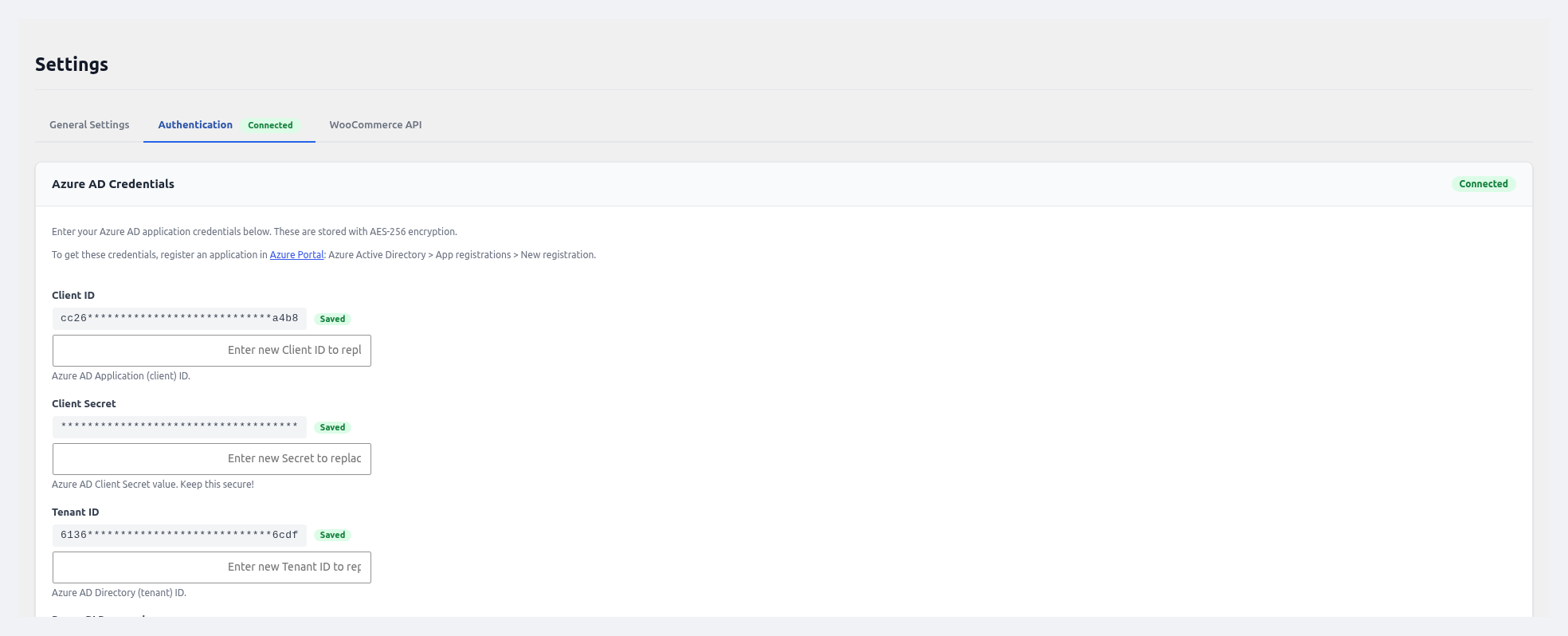 The Authentication tab with Client ID, Secret, Tenant ID, and Test Connection.
This tab stores the Azure AD keys the plugin uses to talk to Power BI. Every value is encrypted with AES-256-CBC before it hits the database. You will never see your keys in plain text.
| Field | Where it came from |
|---|---|
| Client ID | Azure → App registration → Overview |
| Client Secret | Azure → Certificates & secrets → Value column |
| Tenant ID | Azure → App registration → Overview |
| PBI Password (optional) | Microsoft account password — for ROPC auto-refresh only |
| Save Credentials | Saves and encrypts your values |
| Test Connection | Runs a 3-step check: decrypt keys → get token → call Power BI API |
Saved keys show as dots (••••••••••••). If you want to update a value, just type a new one over the dots and click save.
Turn on ROPC for silent refresh
Want sync to run for months without a manual sign-in? Fill in both the Microsoft Email (General tab) and the PBI Password here. The plugin will then refresh tokens on its own. You need two things for this to work:
- Azure → Authentication → Allow public client flows = Yes
- The Microsoft account must not have MFA turned on (use a service account)
What Test Connection Tells You
| Result | Meaning | What to do |
|---|---|---|
| ✅ Connection successful | Everything works | Nothing. You're good. |
| ⚠️ Credentials valid but refresh failed | Token expired and ROPC is off | Re-run OAuth from the wizard or fill in the password |
| ❌ Invalid client secret | Secret is wrong or expired | Make a new secret in Azure and save it |
| ❌ Application not found | Wrong Tenant ID or Client ID | Double-check both values |
WooCommerce API Tab (Multi-Store)
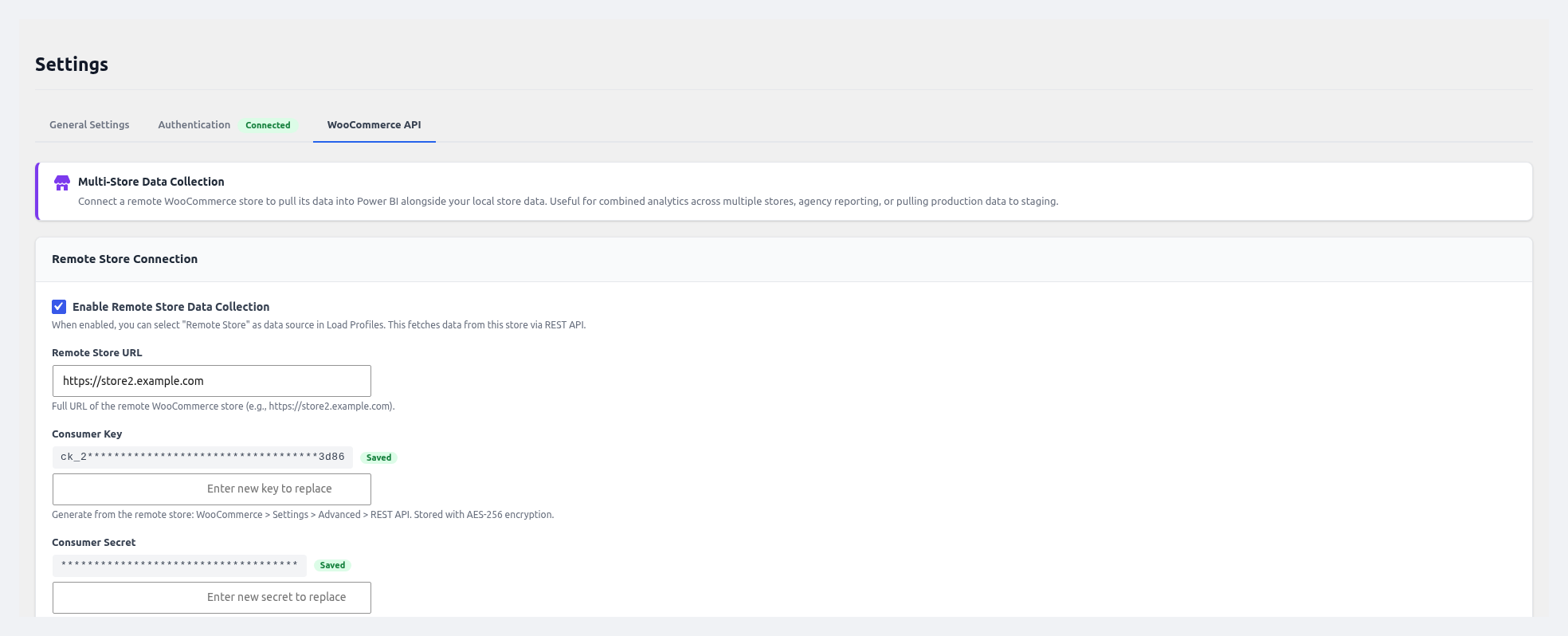 The WooCommerce API tab for multi-store — remote store URL and REST API keys.
Use this tab when you want the plugin to pull data from a different WordPress site. This is how you sync many stores to one Power BI workspace.
| Field | What it does |
|---|---|
| Enable Remote Store | Turns the remote connection on or off |
| Remote Store URL | Full URL of the other WooCommerce site (with https://) |
| Consumer Key | REST API key from the remote store |
| Consumer Secret | REST API secret from the remote store |
| Save WC API Settings | Encrypts and stores the keys |
| Test WC Connection | Calls the remote's system status endpoint to confirm it works |
How to Get the Remote Keys
Follow these steps on the remote WordPress site:
- Sign in to the remote WordPress admin.
- Open
WooCommerce → Settings → Advanced → REST API. - Click Add key.
- Fill in the form:
- Description:
Power BI Connector - User: An admin account
- Permissions: Read (Read-only is enough)
- Description:
- Click Generate API key.
- Copy both keys right away. The secret is shown only once.
Which Entities Work with Remote Stores
When you turn on Remote Store, these five entities can sync from the remote site:
- Orders
- Products
- Customers
- Product Categories
- Coupons
Every row gets a source_store column so you can tell stores apart in Power BI.
Avoid double-counting
If both your local site and your remote sync the same data, filter your Power BI reports by source_store. Otherwise, your numbers will be off.
Advanced — Import, Export, and Reset
At the bottom of the Settings page you will find these helpful buttons:
- Export Settings — Download a JSON backup of all your settings (keys are excluded for safety).
- Import Settings — Restore from a JSON backup.
- Reset Plugin — Wipe all keys, profiles, logs, and start fresh.
Reset is final
Once you reset, you cannot undo it. Use it only when you really want a clean slate.