
QuickBooks Dashboard & Intelligence
The Dashboard (tab=dashboard) serves as your operational cockpit and financial intelligence center in WooCommerce QuickBooks Connector. Introduced in v4.0.0, it aggregates real-time sync KPIs, visualizes 7-day activity trends, isolates records requiring attention, and streams live financial metrics directly from Intuit QuickBooks Online without slowing down your WordPress admin.
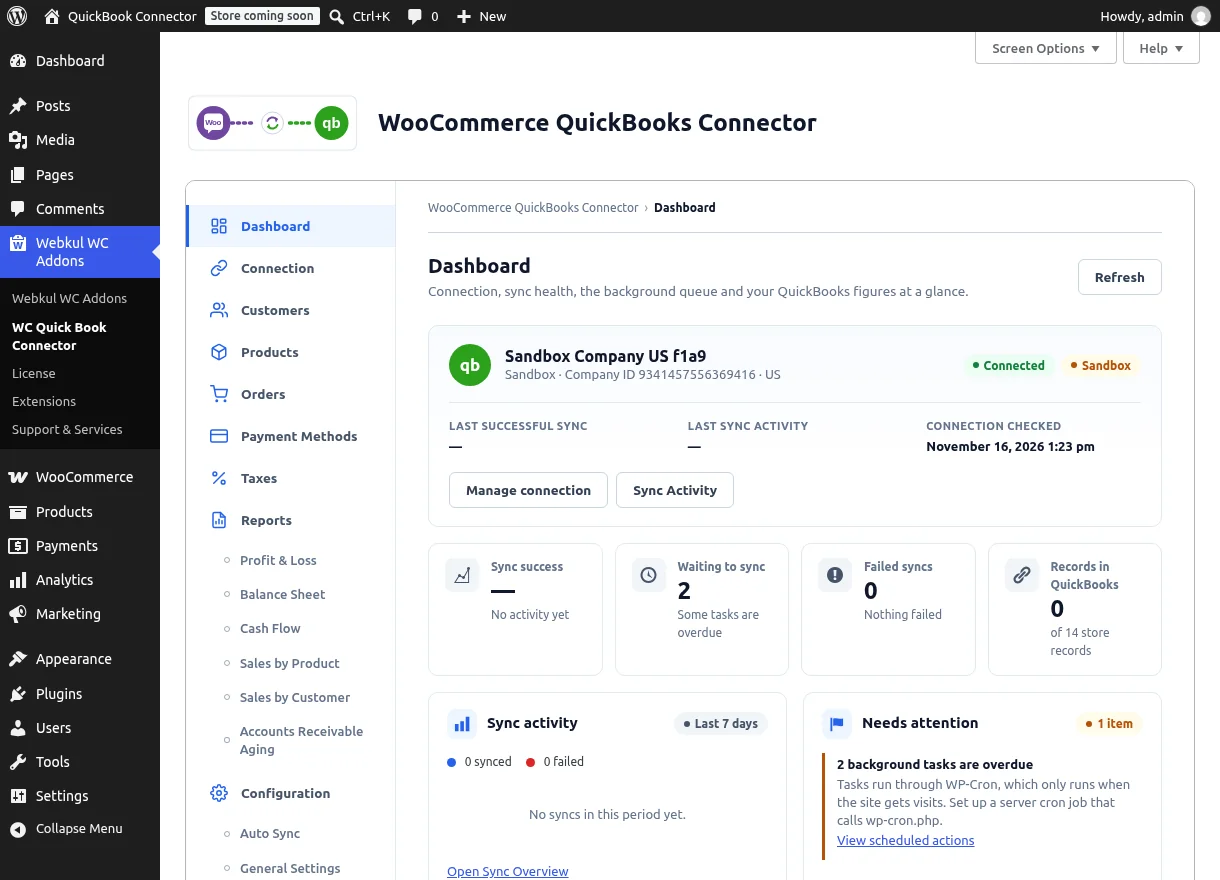
Connection Status & Company Overview
At the top of the dashboard, the Connection Card provides instantaneous verification of your link to Intuit:
- Environment Mode: Clearly badges whether the connector is operating in
Sandbox(for testing) orProduction(live commercial accounting). - Connected Company: Displays the legal business entity name registered in QuickBooks Online (e.g. Sandbox Company US f1a9).
- Company Realm ID: Shows the unique Intuit Company Identifier (e.g.
9341457556369416). - OAuth Token Health: Shows active token validity and automated background renewal countdown.
Executive Sync KPIs
Below the connection banner, 4 interactive KPI metric cards provide instant visibility over synchronized entity volumes:
7-Day Sync Activity Chart & Health Gauges
The dashboard provides visual tracking for weekly sync volume across all core entities:
- Daily Trend Line: Displays successful vs failed transactions day-by-day over the rolling past week.
- Coverage Gauges: Visual circular dials displaying the percentage of catalog inventory mapped to active QuickBooks Income and Expense accounts.
- Action Scheduler Health: Real-time indicator displaying the Action Scheduler queue status, average latency, and background worker state.
Needs Attention Queue & 1-Click Resolution
When an order or item fails synchronization (due to temporary Intuit network timeouts, tax rate discrepancies, or missing account mappings), it is immediately isolated in the Needs Attention Table at the bottom of the dashboard:
- Record ID & Type: Identifies whether the failed entity is an Order, Customer, or Product.
- QuickBooks Error Diagnostic: Displays human-readable error messages (e.g. Error 6240: Duplicate Document Number or AccountRef required).
- Action Buttons:
- Sync Now: Re-triggers synchronization immediately via AJAX.
- View Order: Opens the WooCommerce order edit page in a new tab.
- Ignore / Clear: Dismisses transient alerts once resolved in QuickBooks directly.
Live Financial Snapshot Widget
Store owners can monitor financial performance directly on the dashboard tab:
- Today's Gross Sales: Total synchronized revenue recorded in QuickBooks today.
- Open Receivables (A/R): Current unpaid invoices awaiting customer payment.
- QuickBooks Bank Balance: Live balance of your primary mapped deposit account (retrieved via Intuit REST API).
- Deep Link to Reports: 1-click access to the Reports tab for full Profit & Loss, Balance Sheet, and Aging statements.
Next step: Explore Embedded Financial Reports →