
Sync Monitor
The Sync Monitor is your operational control center in WooCommerce QuickBooks Connector. Introduced in v4.0.0, it replaces disparate legacy log tables with a unified monitoring suite featuring real-time sync KPIs, activity timelines, detailed JSON payload inspectors, and one-click failure retries.
Open Webkul WC Addons → WC Quick Book Connector → Sync Monitor.
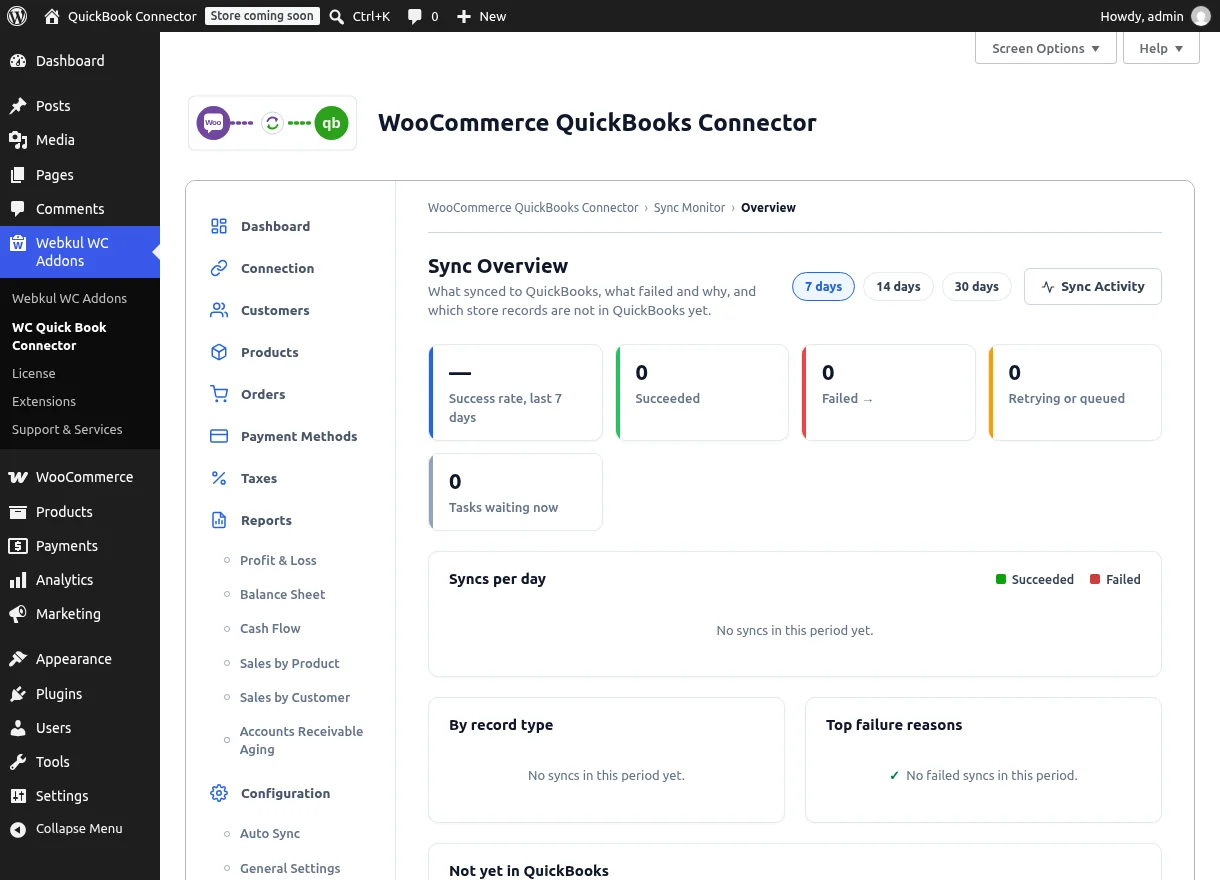
Monitor Architecture & Sub-Tabs
The Sync Monitor consolidates sync administration into three specialized sub-tabs:
| Sub-Tab | Purpose & Capabilities |
|---|---|
| Overview | Visual sync health KPIs, 7/14/30-day activity trends, and real-time reconciliation queues of store records not yet exported to QuickBooks. |
| Activity | Granular event-by-event sync logs for every entity with detailed payload inspectors, error messages, and one-click manual retry buttons. |
| Logs | Direct access to WooCommerce system logs (wc-quickbook-errors, wc-quickbook-sync) with severity filters, log download, and purge options. |
1. Overview Sub-Tab
The Overview tab presents high-level synchronization health at a glance:
- KPI Metric Cards — displays Total Records Synced, overall Success Rate (%), Pending Queue Items, and Failed Records.
- Sync Activity Chart — toggle between 7 Days, 14 Days, and 30 Days to observe sync execution volumes and success-to-failure ratios over time.
- Store Records Not in QuickBooks Yet — dynamic reconciliation panels that list:
- Unsynced Products — WooCommerce catalog items pending initial export or modification sync.
- Unsynced Orders — customer purchases ready for export with status pills and totals.
- Unsynced Customers — registered buyers not yet matched to QuickBooks customer profiles.
2. Activity Sub-Tab
The Activity sub-tab provides a comprehensive audit trail of every synchronization transaction:
| Column | Details |
|---|---|
| Entity Type | Customer, Product, Order, Payment, Refund Receipt, Deposit, or Journal Entry |
| Record ID / SKU | WooCommerce record identifier, order number, or product SKU |
| Direction | WooCommerce → QuickBooks (Export) or QuickBooks → WooCommerce (Import/Webhook) |
| Trigger Source | Auto Sync (event trigger), Webhook (real-time IPN), or Manual Export (admin bulk action) |
| Status | Green Success badge or red Failed badge |
| Message / Error | Detailed message returned by the synchronization engine or Intuit API error code (e.g. Error 6240: Duplicate Name) |
| Actions | View Details (modal popup with raw JSON) and Retry |
Payload & Response Inspector
Clicking View Details opens an interactive inspector showing the exact request JSON dispatched to QuickBooks and Intuit's raw response. This makes troubleshooting schema mismatches, missing accounts, or tax validation issues straightforward.
One-Click Retries
- Locate any failed row in the Activity table (marked with a red Failed badge).
- Click the Retry button on the row.
- The sync engine immediately re-queues the record and attempts re-synchronization with QuickBooks Online.
- You can also select multiple failed rows and execute Bulk Retry from the bulk actions dropdown.
3. Logs Sub-Tab
The Logs sub-tab connects directly to the underlying WooCommerce logging system located under wp-content/uploads/wc-logs/:
- Log Selection — view live entries from
wc-quickbook-errorsorwc-quickbook-sync. - Severity Filtering — filter entries by severity level: All, Critical / Error, Warning, Info, or Debug.
- Download Log File — export the entire raw log as a text file for Webkul support tickets or offline audit.
- Clear / Purge Log — delete obsolete log entries to reclaim disk space.
Action Scheduler Background Engine
All background synchronization tasks, webhook event processing, and bulk queue batches are powered by WooCommerce Action Scheduler:
- No WP-Cron Dependency — sync jobs do not rely on storefront traffic and execute reliably via server crons or runner threads.
- Automatic 3x Exponential Retries — temporary network drops or Intuit rate-limiting (HTTP 429) automatically reschedule with backoff intervals.
- Concurrency Safety — token refresh mutex locks prevent race conditions during high-volume parallel order exports.
Automated Failure Email Alerts
Rather than checking the Sync Monitor manually, enable Email Notifications in General Settings to automatically receive digest reports and immediate failure alerts delivered to your administrative email address.
Related Features
- Auto Sync Settings — configure background triggers and 2-way stock sync
- Export Order Settings — transaction types, fee mappings, and rounding adjustments
- Orders — manual export controls and WooCommerce orders sync column
- Changelog — full release history of new features and fixes