Smart Barcode Scan and Ordering
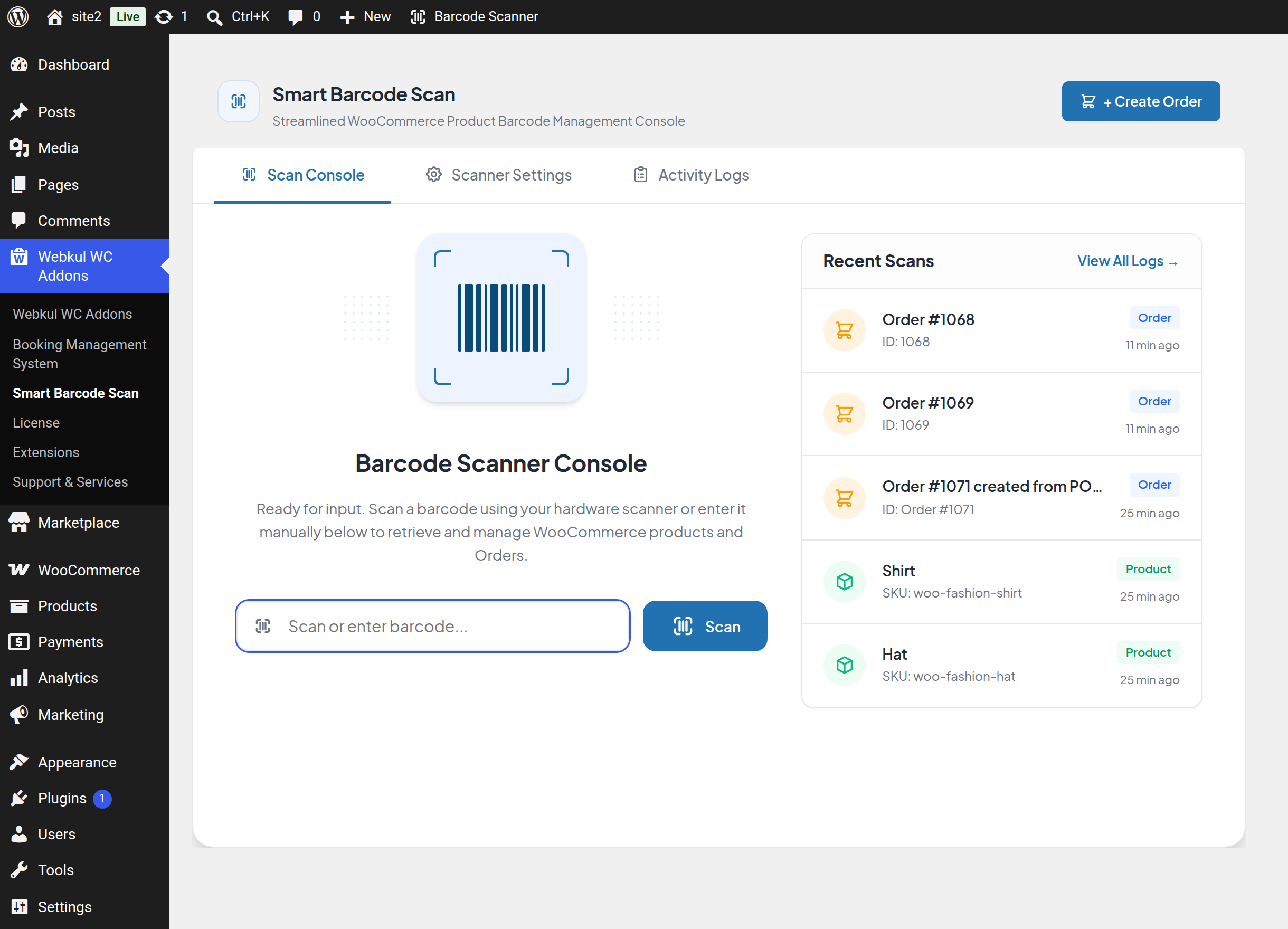
Smart Barcode Scan and Ordering turns a barcode into the fastest way to work in your WooCommerce admin. Point a hardware scanner at a product label or an order label — or simply type the code — and the console finds the matching product or order and opens it in a working popup where you can correct stock, fix a price, change an order status, or build a brand-new order.
This documentation is written for store owners, shop managers and counter staff. It follows the way the feature is actually used, not the way it is built.
Where to start
| If you want to… | Read |
|---|---|
| Understand what the extension does and whether it fits your store | Overview |
| See the complete feature list at a glance | Features |
| Install it, activate the licence and find the menu | Getting Started |
| Learn the scan screen and the quick scanner in the toolbar | Scanner Console |
| Look up a product by barcode and read its details | Product Scanning |
| Correct stock levels, prices, SKU or EAN | Inventory Management |
| Look up an order by scanning it | Order Scanning |
| Move orders through Picked, Packed and Shipped | Order Status |
| Build a counter order from scanned items | Create Order |
| Attach an existing customer or register a new one | Customer Details |
| Fill in billing and shipping information | Billing & Shipping |
| Understand how totals, tax, shipping and coupons are calculated | Taxes & Order Totals |
| Review, search or clear the scan history | Scan Logs |
| Configure which fields a barcode is matched against | Scanner Settings |
| Install and use the QuickScan mobile app | QuickScan Mobile App |
| Record a shipping code and verify a delivery | Shipping Code & Delivery OTP |
| Give a courier a restricted account | Delivery Agent Role |
| Fix a problem | Troubleshooting · FAQ |
Note
Everything in this guide happens inside Webkul WC Addons → Smart Barcode Scan. No customer-facing page is added to your storefront by the console, and no changes are made to your theme.