
Billing & Shipping
Address details serve two purposes in the console: they end up on the WooCommerce order, and the billing address decides which shipping methods and tax rates apply. This page explains both the new-order fields and the (different) behaviour when editing an existing order.
Billing on a new order
Open the Create Order tab and expand Billing in the sidebar.
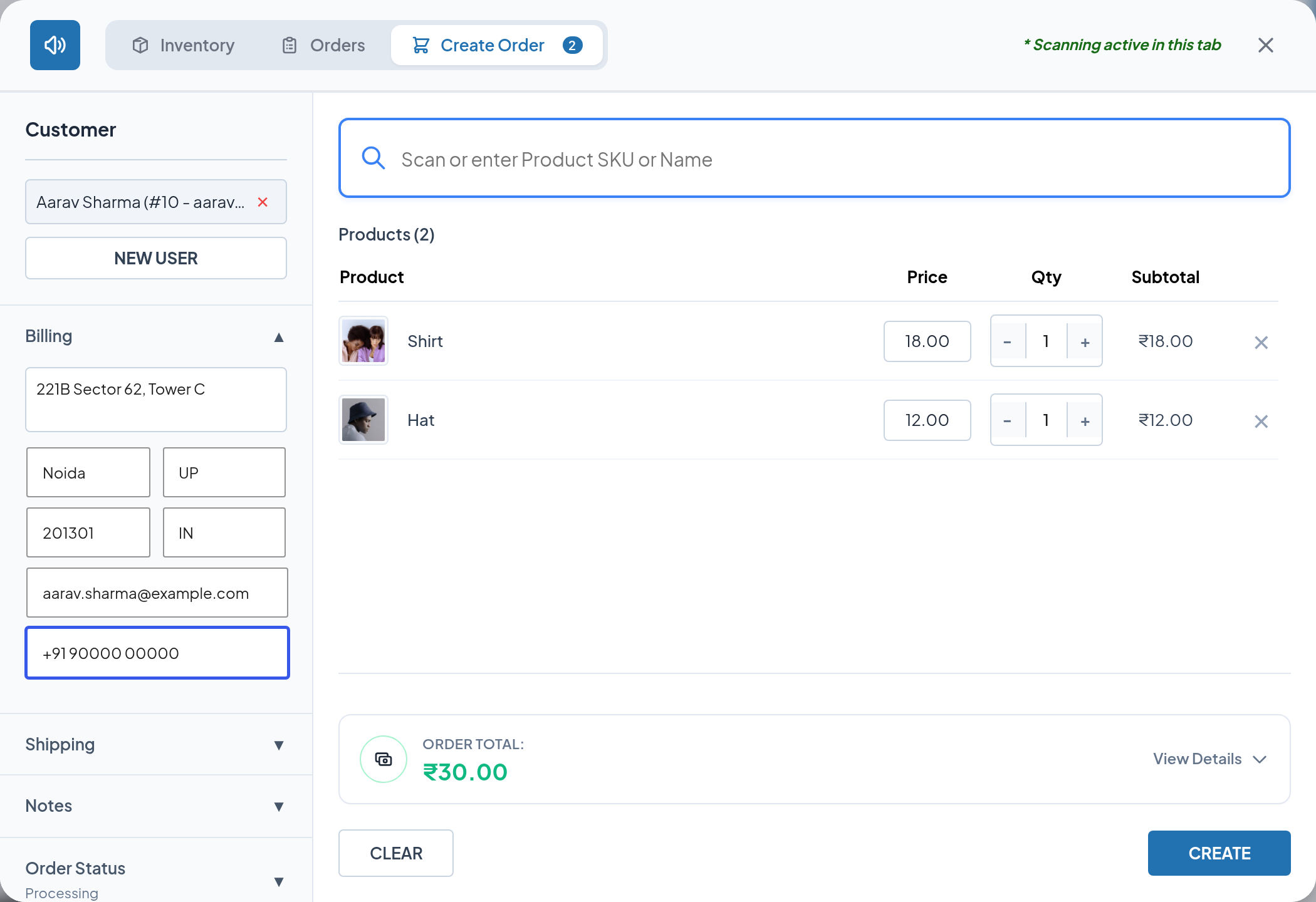
| Field | Goes to | Notes |
|---|---|---|
| Enter billing address | Billing address line 1 | Keep it to a single line — see the warning below |
| City | Billing city | |
| State | Billing state | Enter the state code (UP) or the full name (Uttar Pradesh) |
| Postcode | Billing postcode | |
| Country (Code) | Billing country | Enter the two-letter code (IN, GB, US) or the full country name |
| Billing Email | Billing email | Used for WooCommerce order emails and for coupon validation |
| Billing Phone | Billing phone |
State and country accept either a code or a full name — the console converts a recognised name to the WooCommerce code before saving. Codes are the safer choice because they always match.
Warning
Keep the address box to one line. The console maps the address block onto the WooCommerce fields by position, so a second line typed into the address box is stored as address line 2 and pushes the city, state, postcode and country onto the wrong fields. Put anything extra — a floor, a landmark, a company name — on the same line, separated by commas.
Shipping on a new order
Expand Shipping. The fields mirror the billing ones, plus a checkbox.
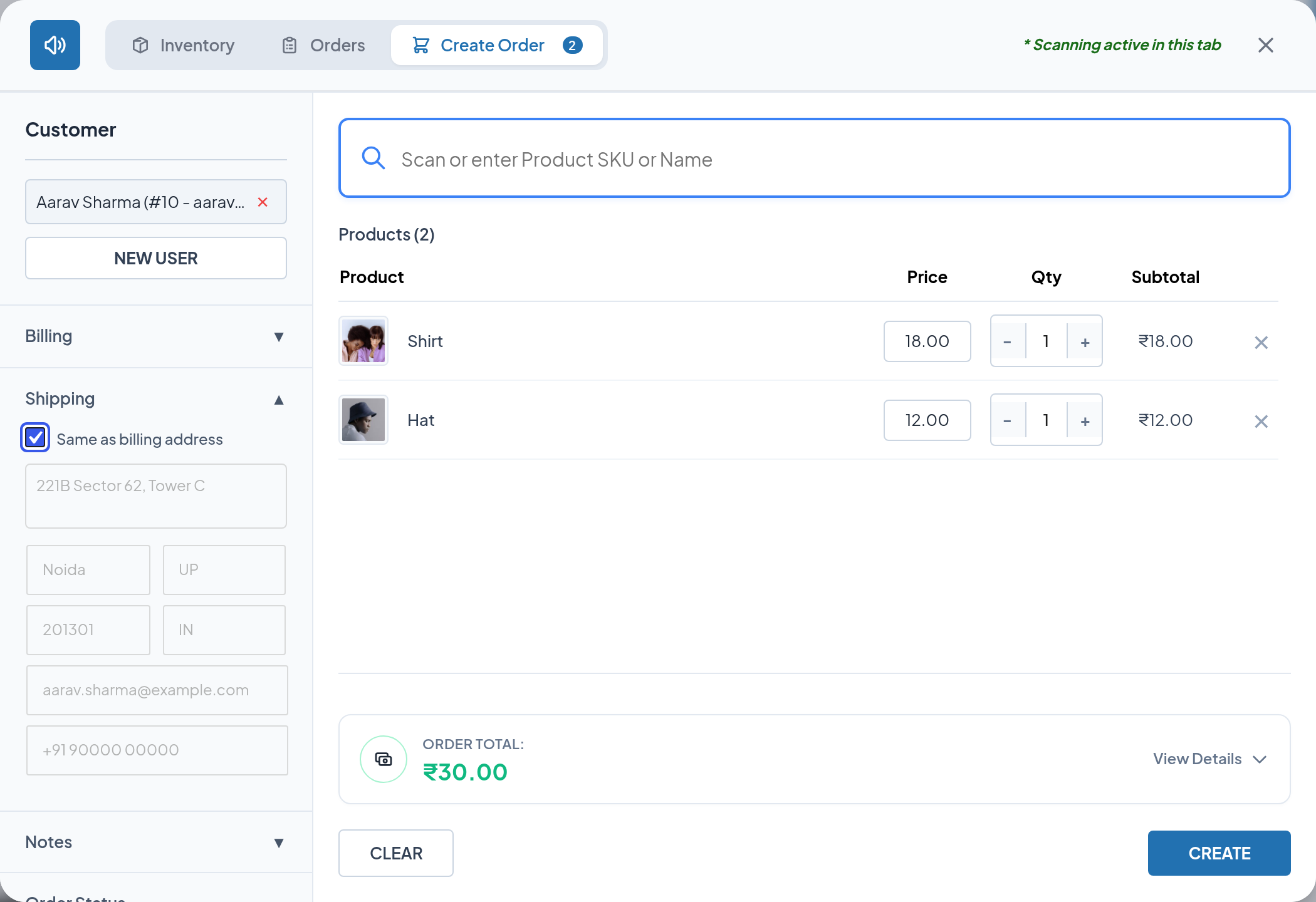
| Field | Goes to |
|---|---|
| Same as billing address | Copies every billing value into shipping and locks the shipping fields |
| Enter shipping address | Shipping address line 1 |
| City, State, Postcode, Country (Code) | The matching shipping fields |
| Shipping Email | Stored on the order as a shipping email |
| Shipping Phone | Shipping phone |
Untick Same as billing address at any time to unlock the fields and enter a separate delivery address.
Tips
Attach the customer first (Customer Details). Their saved billing and shipping details are filled in for you and you only need to correct what has changed.
What billing affects beyond the order record
- Shipping rates. Calculate Shipping uses the billing country, state, city and postcode. If they are empty, your WooCommerce store address is used. Fill in billing before calculating, and recalculate if you change it afterwards.
- Coupon validation. The billing email — or the attached customer's account email — is what the console checks a coupon's usage restrictions against.
- Tax. Tax in the console preview is estimated from your store's base-location rates. WooCommerce recalculates the definitive tax when the order is created, using its own address rules. See Taxes & Order Totals.
Checking the result
After the order is created, open it in WooCommerce and confirm the Billing and Shipping blocks read the way you expect.
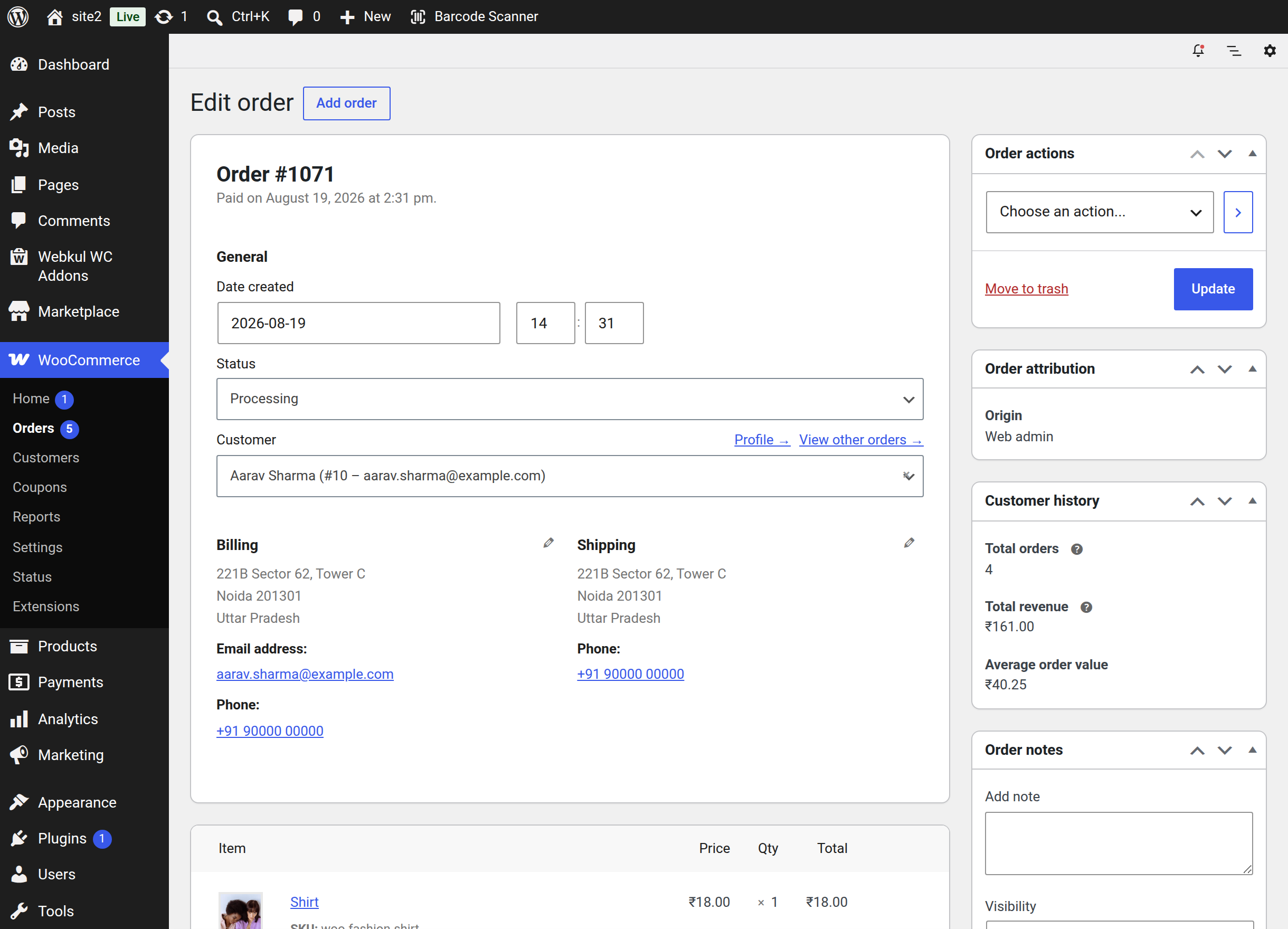
If the city or postcode has landed in the wrong place, it is almost always the multi-line address problem described above — correct it in the WooCommerce order editor and use a single line next time.
Editing addresses on an existing order
The Orders tab of the scan popup also has Billing and Shipping sections, but they behave differently: each is a single free-text box, not a set of fields.
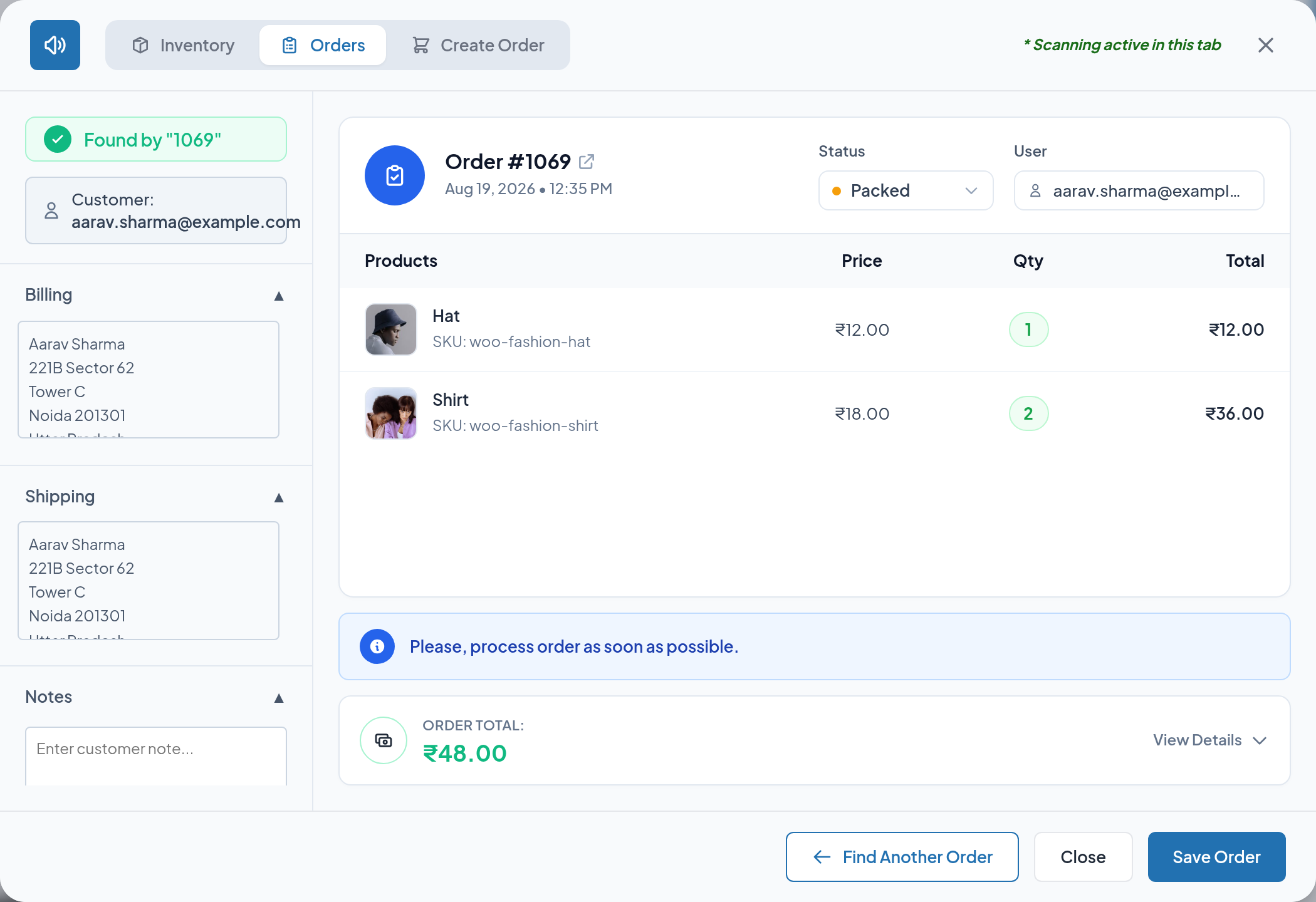
- Scan or search for the order.
- Expand Billing or Shipping.
- Edit the text.
- Click Save Order.
Warning
When you save, the console stores the first line as the customer's first and last name and the remaining lines as address line 1. It then clears the company, address line 2, city, state, postcode and country on that address. Use this for a quick fix to a hand-written address on a packing slip. When the individual address fields matter — for tax, for a shipping integration, or for reporting — edit the order in WooCommerce → Orders instead, where each field is separate.
The Notes section on the same panel edits the order's customer note and has no such caveat.
Next step
- Taxes & Order Totals — how shipping, tax and discounts reach the final figure.
- Order Scanning — the rest of the order screen.