Scanner Settings
The Scanner Settings tab controls how barcodes are matched and how the console behaves while your staff scan. Go to Webkul WC Addons → Smart Barcode Scan → Scanner Settings.
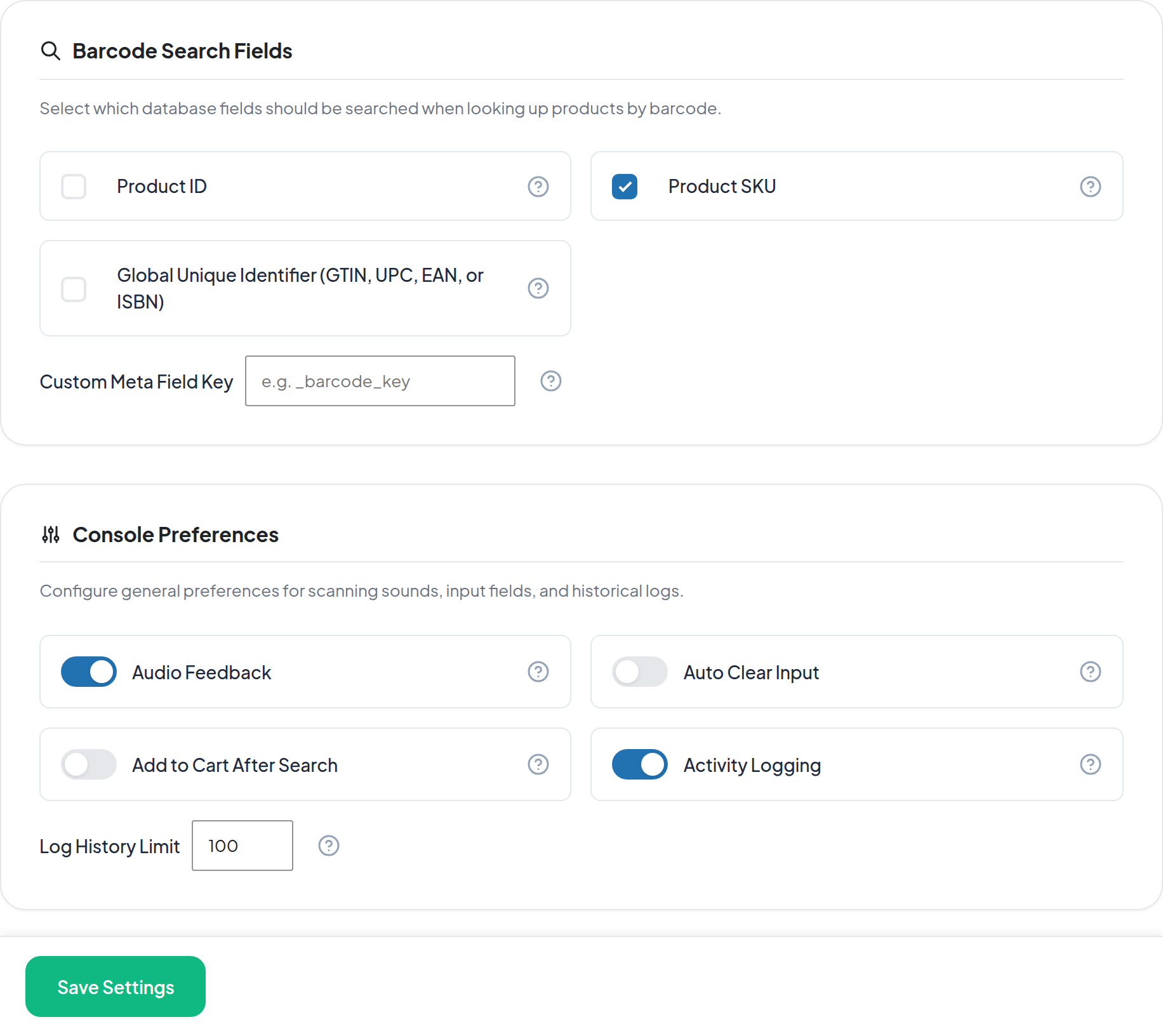
Make your changes and click Save Settings. A confirmation — Settings Saved! — appears and the new settings take effect immediately, including in any scan popup that is already open.
Barcode Search Fields
These decide which product fields a scanned code is checked against. Tick every field your labels actually use; ticking fields you do not use only slows lookups down.
| Setting | Description | Default |
|---|---|---|
| Product ID | Match the scanned value against the WooCommerce product ID. Only applied when the value is numeric | Off |
| Product SKU | Match the scanned value against the product SKU, exactly | On |
| Global Unique Identifier (GTIN, UPC, EAN, or ISBN) | Match against WooCommerce's global unique identifier field — the one shown as GTIN, UPC, EAN, or ISBN on the product's Inventory tab | Off |
| Custom Meta Field Key | The meta key of any other field that holds your barcode, for example one added by an import or another plugin. Leave blank if you do not have one | Empty |
Fields are searched in the order listed above, and the first match wins.
Note
A search by product name always runs after these fields, whether or not anything is ticked. That is why typing a product name into the scan box finds the product even with every checkbox cleared.
Tips
Custom Meta Field Key is also used to look up orders. If your orders carry a barcode or consignment number in a custom field, entering that key here lets staff scan it to open the order.
Choosing the right fields
| Your labels contain | Tick |
|---|---|
| The SKU printed as a barcode | Product SKU |
| A retail EAN / UPC / GTIN barcode from the manufacturer | Global Unique Identifier |
| The WooCommerce product ID, printed in-house | Product ID |
| A code stored by another plugin or an import | Enter its meta key in Custom Meta Field Key |
Console Preferences
| Setting | Description | Default |
|---|---|---|
| Audio Feedback | Play a tone after each scan — one sound for a match, another for a failure. Lets operators keep their eyes on the shelf | On |
| Auto Clear Input | Empty the scan box automatically after each successful scan, so the next item can be scanned immediately | Off |
| Add to Cart After Search | Add every scanned product to the Create Order cart automatically, with a quantity of 1 | Off |
| Activity Logging | Record scans and changes in the Activity Logs tab | On |
| Log History Limit | How many log entries to keep. Accepts 10–500 | 100 |
When to change them
- Audio Feedback — leave on for shelf and packing-bench work. Turn it off in a quiet showroom, or mute it for one session with the speaker button in the scan popup.
- Auto Clear Input — turn on for stock counts and any workflow where staff scan many items in a row.
- Add to Cart After Search — turn on for a till or trade counter, where almost every scan is a sale. Leave off for stock work, or every product you look at ends up in the cart.
- Activity Logging — leave on. Turning it off stops new entries being recorded but keeps the ones you already have.
- Log History Limit — raise it if you review scan history days later; lower it if you only ever check the last few actions.
Important
Log History Limit must be between 10 and 500. The form will not submit a value outside that range.
Where these settings apply
Every setting applies to the whole site, not to individual users, and takes effect for:
- The Scan Console tab.
- The scan popup, including its Inventory, Orders and Create Order tabs.
- The quick Barcode Scanner in the WordPress toolbar.
Saving settings is itself recorded in Activity Logs under the source Settings, with every value listed — so you can see when a barcode field was turned off and by whom.
Next step
- Product Scanning — how the search fields are used in practice.
- Scan Logs — the history these settings control.