
Taxes & Order Totals
Two different totals appear in the console, and it is worth knowing which is which:
- The running total in Create Order is a live preview, worked out in the browser while you build the cart.
- The totals on a scanned order are the figures WooCommerce itself stored when the order was created.
The running total in Create Order
The ORDER TOTAL block sits at the bottom of the item list. Click View Details to expand the breakdown.
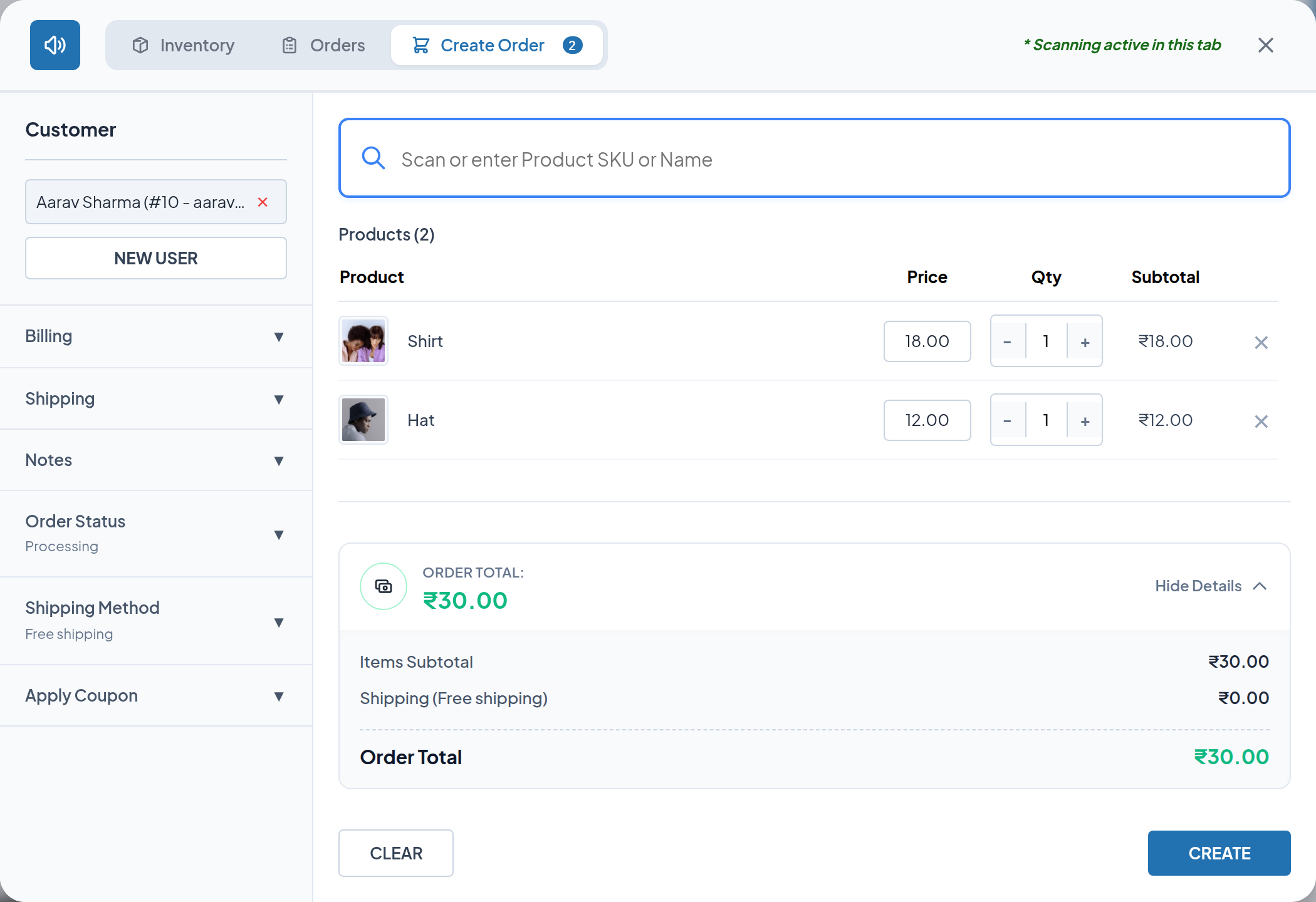
| Line | Shown when | How it is worked out |
|---|---|---|
| Items Subtotal | Always | For each item: its sale price if one is set, otherwise its regular price, multiplied by the quantity |
| Coupon Discount | A coupon is applied and the discount is above zero | Estimated from the coupon's type and restrictions — see below |
Shipping (method) | A shipping method is selected, or the cost is above zero | The cost of the selected method |
| Tax (incl.) / Tax (excl.) | WooCommerce taxes are enabled and the tax is above zero | Product tax plus shipping tax — see below |
| Order Total | Always | The final figure, matching the collapsed ORDER TOTAL |
How tax is estimated
Tax appears only when taxes are enabled in WooCommerce (WooCommerce → Settings → General → Enable taxes). With taxes turned off, no tax line is shown and no tax is added.
When taxes are on:
- Each item uses the rate for its own tax class, falling back to the standard rate if that class has no rate defined.
- Items whose tax status is None are skipped.
- With prices entered exclusive of tax, the tax is added on top of the line total, and the label reads Tax (excl.).
- With prices entered inclusive of tax, the tax already contained in the price is shown separately and is not added again, and the label reads Tax (incl.).
Important
The rates used for this preview come from your store's base location — the country and state set in WooCommerce → Settings → General. They are not recalculated for the customer's address. If your store charges tax based on the customer's address, the preview is an estimate; the definitive tax is calculated by WooCommerce when the order is created.
How shipping tax is handled
When you click Calculate Shipping, each returned method carries its own cost and its own tax status:
- A taxable method contributes shipping tax. If WooCommerce returned a tax amount for the rate, that amount is used; otherwise the standard base rate is applied to the shipping cost.
- A method whose tax status is None contributes no tax.
- Shipping tax is added into the single Tax line rather than being shown separately.
With tax-inclusive pricing, the method dropdown shows the tax-inclusive cost so the figure matches what the customer pays.
How coupon discounts are estimated
Applying a coupon validates it against your store first, then the console estimates the discount by working through the cart:
- Items excluded by product ID or by product category are skipped.
- If the coupon is limited to specific products or categories, only those items count.
- If the coupon excludes sale items, items currently on sale are skipped.
- Percentage coupons take that percentage of every eligible line.
- Fixed product coupons take the fixed amount off each eligible unit, never more than the unit price.
- Fixed cart coupons take the fixed amount off the eligible subtotal, never more than that subtotal.
The total discount is capped at the items subtotal, so a cart can never fall below zero.
Note
This is a preview. The amounts recorded on the finished order are recalculated by WooCommerce, which applies its own coupon rules — including minimum and maximum spend, per-user limits and individual-use restrictions.
What happens when the order is created
Clicking CREATE hands the cart to WooCommerce, which:
- Adds each product at the quantity you set.
- Adds the selected shipping method as a shipping line.
- Calculates the totals, including tax, using your live WooCommerce tax settings.
- Applies each coupon you added and recalculates the totals again.
- Saves the order in the status you chose.
Because step 3 and step 4 are WooCommerce's own calculations, the saved order is authoritative. Always confirm the total on the created order rather than relying on the preview when the two could differ — for example when tax is charged by customer address.
Totals on a scanned order
Scan an existing order and click View Details on its ORDER TOTAL block.
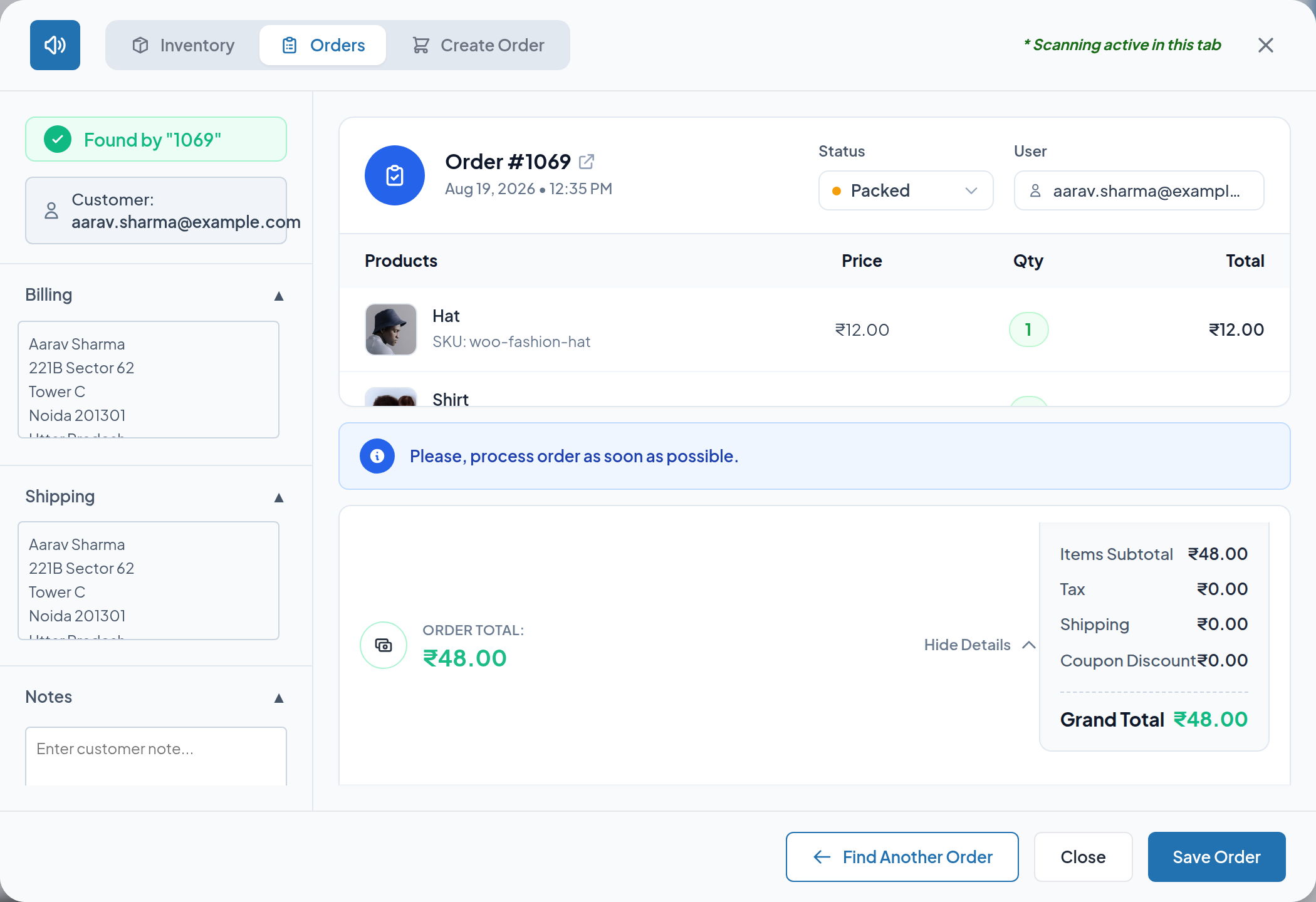
This breakdown reads straight from the order:
| Line | Source |
|---|---|
| Items Subtotal | The order's item subtotal |
| Each tax line, by its own label | The tax lines recorded on the order, each combining its item tax and shipping tax |
| Shipping | The order's shipping total |
| Each coupon, by its code | The coupon lines recorded on the order, shown as a negative amount |
| Any fee, by its name | The fee lines recorded on the order |
| Grand Total | The order total |
When an order has no tax lines, a single Tax row is shown with the order's total tax — normally zero. When it has no coupons, a single Coupon Discount row is shown with the order's discount total.
All amounts are formatted in the order's own currency, which may differ from your current store currency for older orders.
Next step
- Create Order — the full order-building flow.
- Order Scanning — the rest of the order screen.