
Customer Details
An order created from the console can be a guest order or be linked to a user account. Linking it means the customer sees the order in My account → Orders, and their purchase history and lifetime value stay accurate.
The Customer section sits at the top of the Create Order sidebar.
Attaching an existing customer
- Open the Create Order tab.
- Type into Link order to user. Searching starts from the first character.
- Pick the right account from the dropdown.
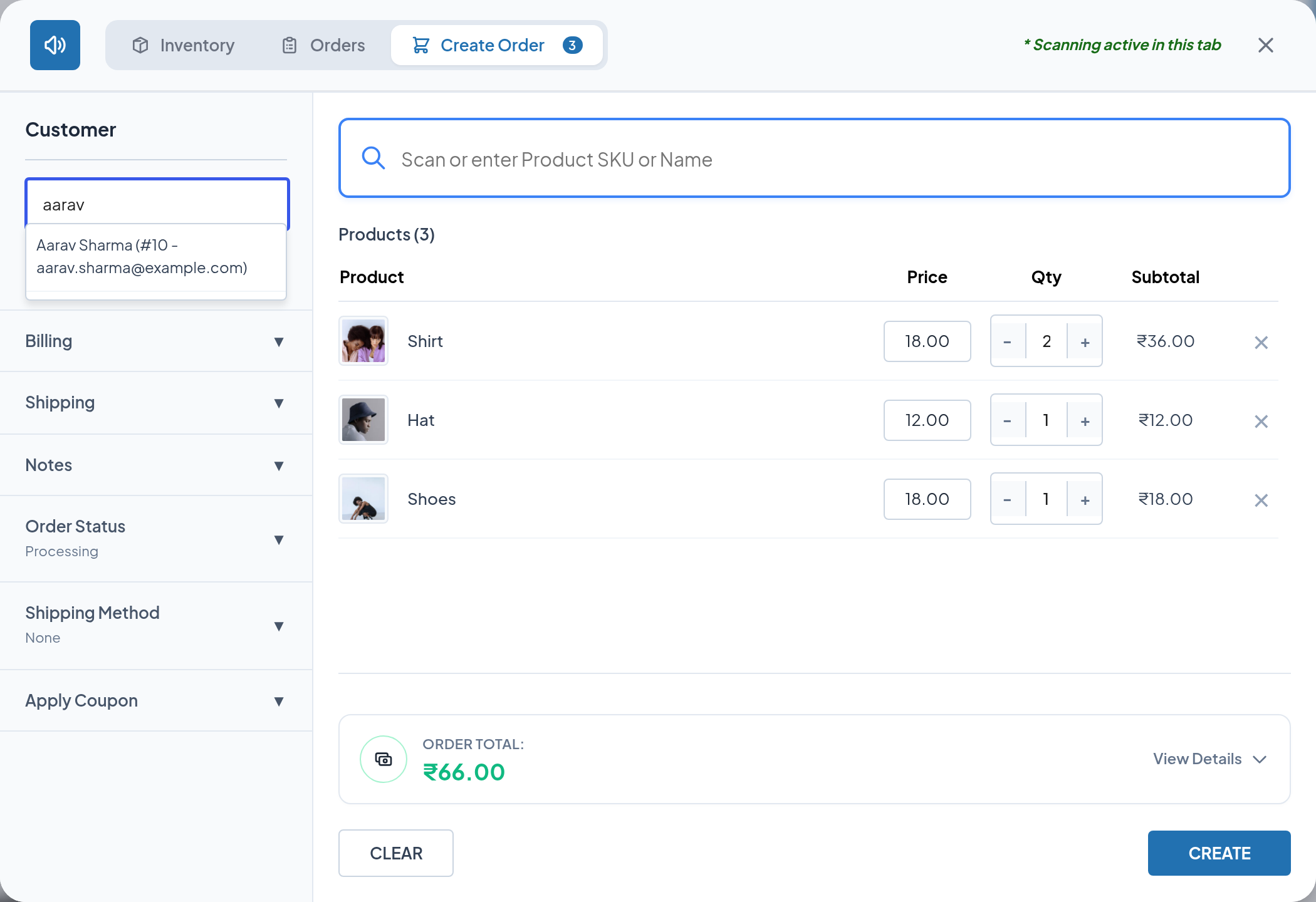
The search matches on the account username, its URL name and its email address. If nothing matches, it falls back to searching the customer's first name and last name. Up to 15 accounts are listed.
Each result is shown as Display name (#user ID – email address), so two people with the same name are still easy to tell apart.
What happens when you select someone
The account is attached to the order and the sidebar fills in from their saved WooCommerce customer profile:
| Section | Filled from the customer's saved details |
|---|---|
| Billing | Address, city, state, postcode, country, phone, email |
| Shipping | Address, city, state, postcode, country, phone; email is set to their account email |
Anything the customer has not saved is left blank for you to complete. Anything already saved can be overwritten for this order without changing their stored profile.
Detaching a customer
Click the ✕ beside the selected customer. The order becomes a guest order; the address fields keep whatever is currently in them, so clear or replace them if they belonged to the previous customer.
Tips
A guest order is perfectly valid. Fill in at least a billing email if you want WooCommerce to be able to email the customer about it.
Registering a new customer
If the person in front of you has no account, you can create one without leaving the order screen.
- Click NEW USER in the sidebar.
- Fill in the form.
- Click Add New User.
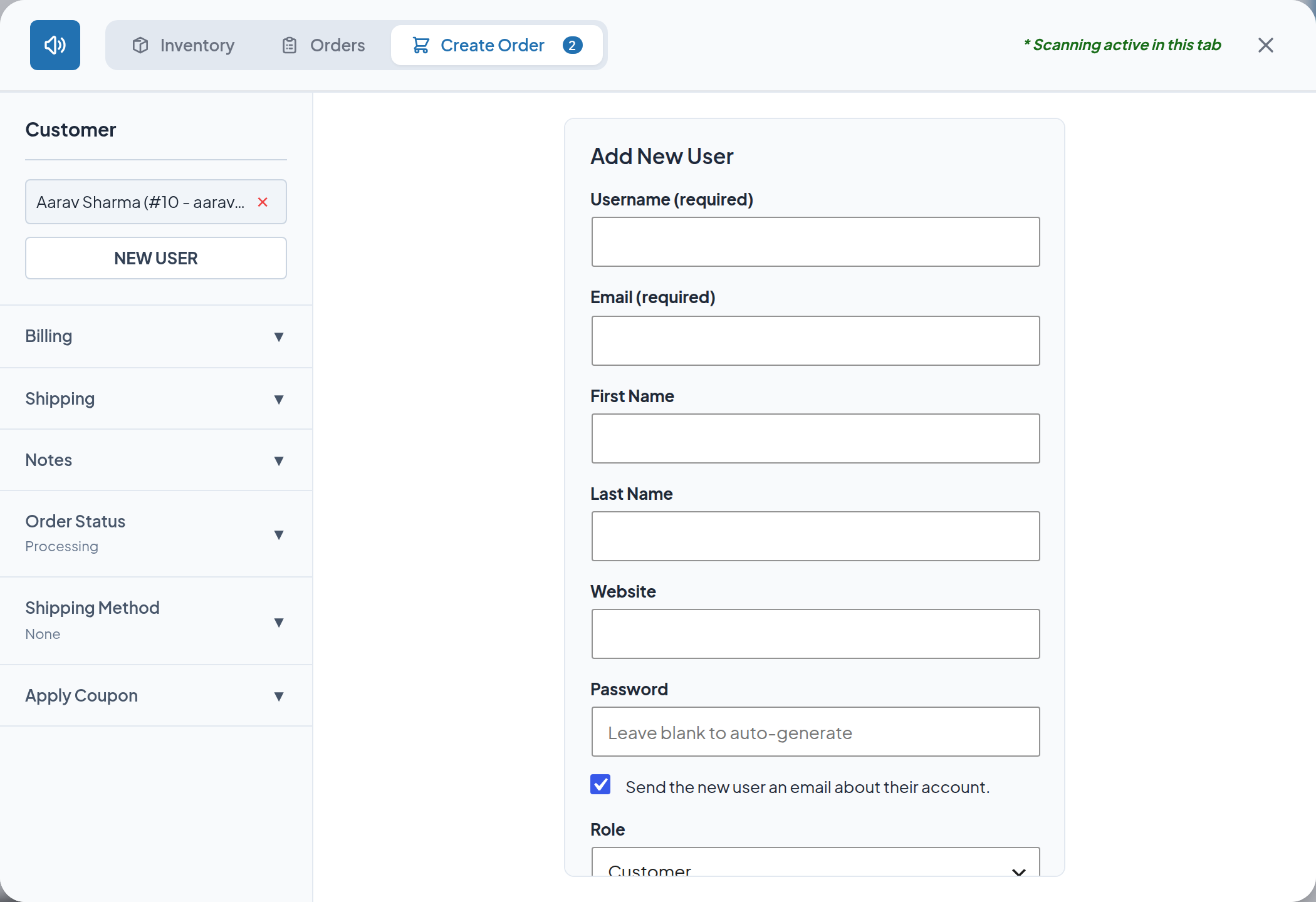
| Field | Required | Notes |
|---|---|---|
| Username | Yes | Must not already exist |
| Yes | Must be a valid address that is not already registered | |
| First Name | No | Also saved as the billing and shipping first name |
| Last Name | No | Also saved as the billing and shipping last name |
| Website | No | Saved on the WordPress profile |
| Password | No | Leave blank and a strong password is generated automatically |
| Send the new user an email about their account | — | Ticked by default; sends the standard WordPress new-account email |
| Role | — | Defaults to Customer; every role on your site is available |
The new account is created with the details you entered, its WooCommerce billing name, billing email and shipping name are filled in, and it is attached to the order immediately.
Click Cancel to go back to the cart without creating anyone.
Validation messages
| Message | Cause |
|---|---|
| Username is required. | The Username field was left empty |
| This username is already registered. Please choose another one. | That username is taken |
| Valid email is required. | The email is missing or malformed |
| An account is already registered with your email address. | That email already belongs to an account — search for it instead |
Important
The Role dropdown lists every role on your site, including Administrator. Leave it on Customer unless you have a specific reason not to: a counter sale should never create an account with elevated permissions.
Note
The account-created email is sent by WordPress. If your site cannot send mail, the account is still created correctly — only the notification fails. Give the customer their password another way, or ask them to use the "Lost your password?" link.
How the customer appears on the order
Once the order is created:
- The WooCommerce order editor shows the linked account in its Customer field.
- The order appears under WooCommerce → Customers against that account.
- Scanning the order later shows the account's email in the Customer and User fields of the Orders tab.
- For a guest order, the console shows the billing email instead, or Guest when there is none.
Next step
- Billing & Shipping — completing the address details.
- Create Order — the rest of the order flow.