QuickScan Mobile App
Besides the admin console, the extension registers a set of front-end routes under /scanner/. Those routes are the store half of QuickScan, a separate mobile-shaped scanning app that runs inside a native application shell.
QuickScan puts your catalogue, your orders and a camera scanner in a phone, which is what makes stock counts in the aisle and deliveries at the door practical. This page covers how to install it, who can sign in, and what each screen does.
Install QuickScan
QuickScan is published for both Android and iOS. Both apps talk to the same /scanner/ routes on your store, so the sign-in rules, the screens and the delivery checks described on this page are the same on either platform.
Before you hand the app to staff, check two things on the store side:
- Smart Barcode Scan and Ordering is installed and activated — see Getting Started.
- Permalinks are not set to Plain — go to Settings → Permalinks, choose any other structure and save. On Plain, the routes the app talks to return a 404.
Android (Google Play)
| Detail | Value |
|---|---|
| App | QuickScan, published by Webkul |
| Store listing | play.google.com/store/apps/details?id=com.quickscan.android |
| Platform | Android phones and handhelds |
iOS (App Store)
| Detail | Value |
|---|---|
| App | QuickScan Mobile App, sold by Webkul Software Private Limited |
| Store listing | apps.apple.com/us/app/quickscan-mobile-app/id6805107352 |
| Platform | iPhone (iOS 15.0 or later) and iPad (iPadOS 15.0 or later) |
Tips
On the App Store the app is listed as QuickScan Mobile App, and the developer shown is Mobikul, Webkul's mobile app brand. It is the same QuickScan app — if staff search the store, tell them to look for that name.
Sign in and start scanning
Install the app on the phone, tablet or handheld and sign in with a WordPress account that has either the Manage WooCommerce capability or the Delivery Agent role — see Who can sign in below. The home screen opens once you are signed in, and you can scan a product or order barcode straight away.
Important
The /scanner/ web address is not usable from an ordinary browser — installing the app is what makes it work. Chrome, Safari, Firefox and Edge are all redirected to your store's My account page, because the extension serves these routes only to the app shell. If you type /scanner/ into a browser and land on My account, that is the expected behaviour, not a fault. Every screenshot below was captured inside the app, which is why they are phone-shaped.
Who can sign in
| Requirement | Behaviour if not met |
|---|---|
| Signed in to WordPress, with either the Manage WooCommerce capability or the Delivery Agent role | A sign-in screen is shown instead of the app |
| Opened from a Turbo Native or Hotwire Native app shell | The request is redirected to My account |
| Permalinks set to anything other than Plain | The /scanner/ URLs return a 404 |
The screens
Home
The landing screen greets the signed-in user and puts a single search box at the top. Below it are counts of your products and orders, and a Recent Activity list of the last few items the app resolved, each with its status.
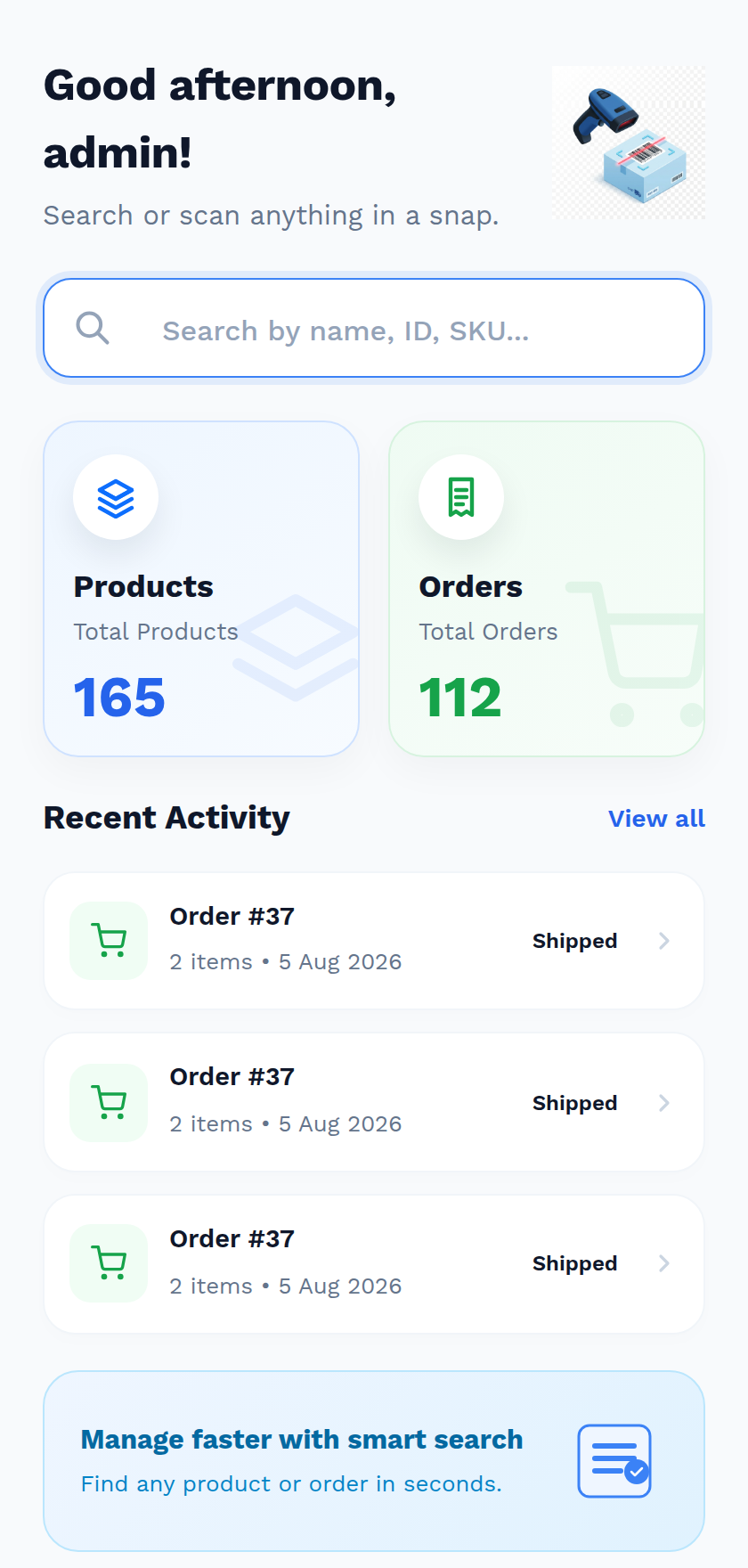
Anything scanned or searched here is matched against product ID, SKU, the global unique identifier (GTIN/UPC/EAN/ISBN) and the product name, then against the order ID — the same idea as the admin console, and it takes you straight to the matching detail screen.
Products
/scanner/product/ lists your catalogue with a search box, and shows each product's image, name, SKU, price (with the sale price when there is one) and an In Stock or Out of Stock badge.
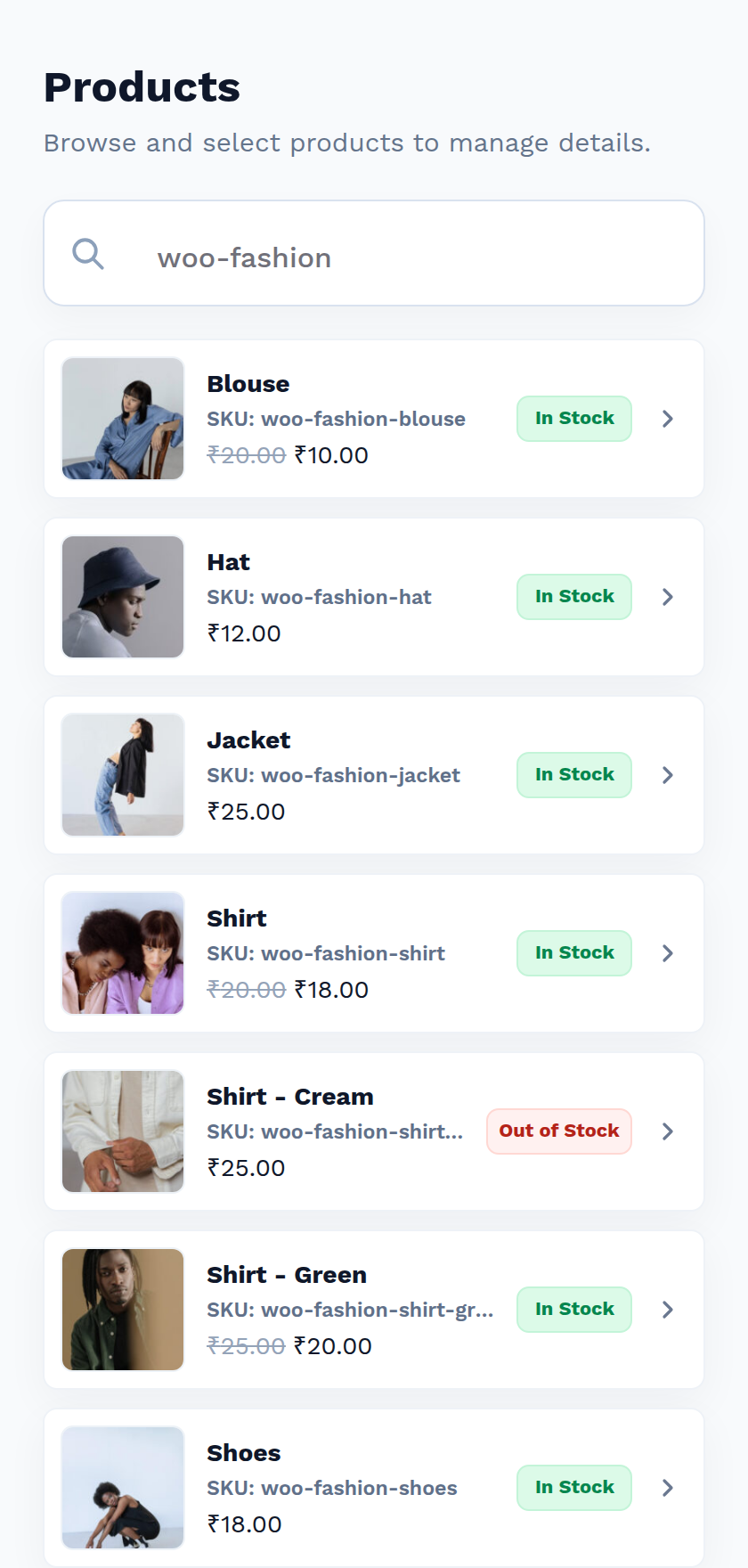
Scanning a variable product's parent barcode opens this list filtered to the scanned value, so the operator can pick the right variation.
Product detail
Tapping a product — or scanning a simple product or a variation — opens its detail screen on the Details tab: image, name, price, ID, description, and a Product Information panel with the SKU, category, featured flag, tax status and shipping class.
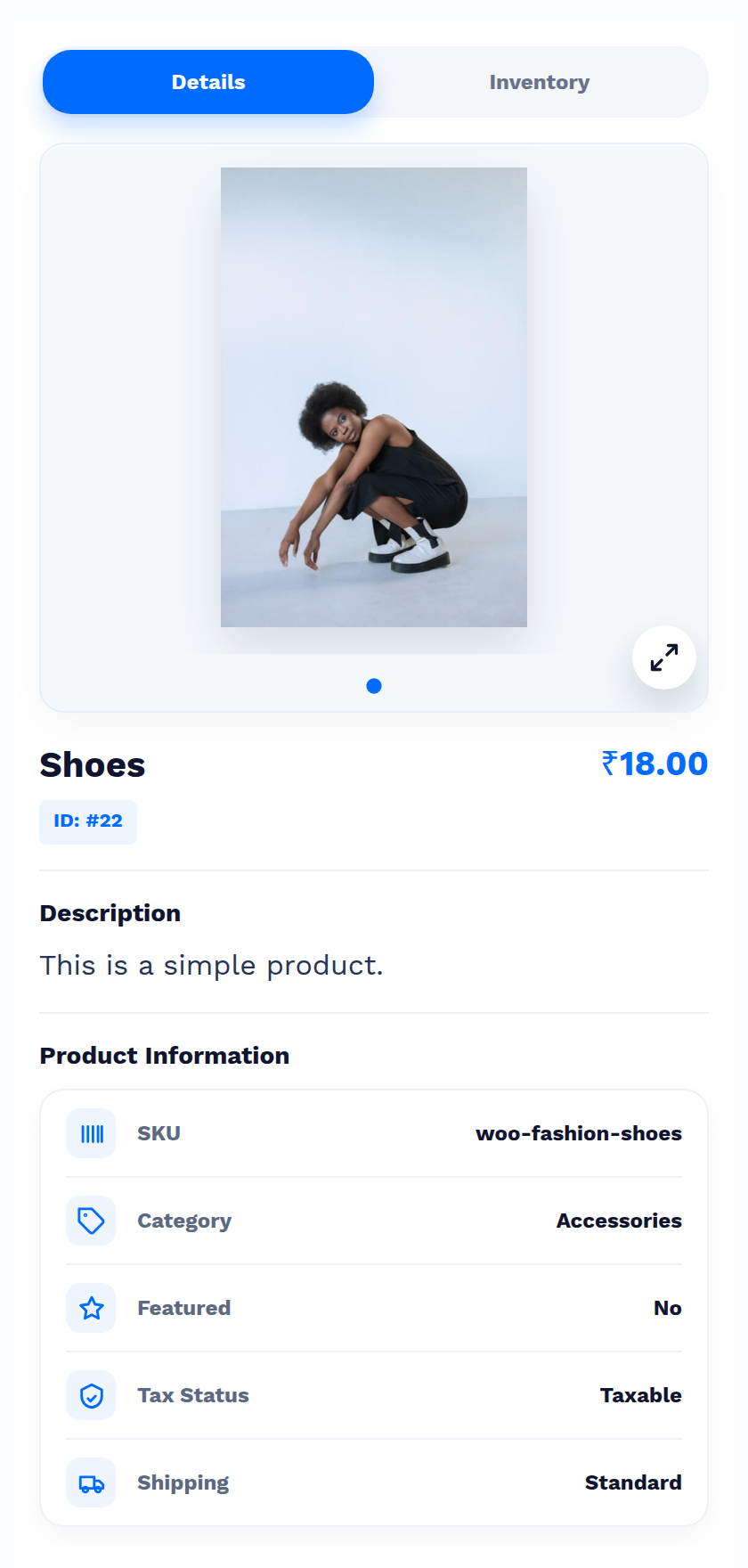
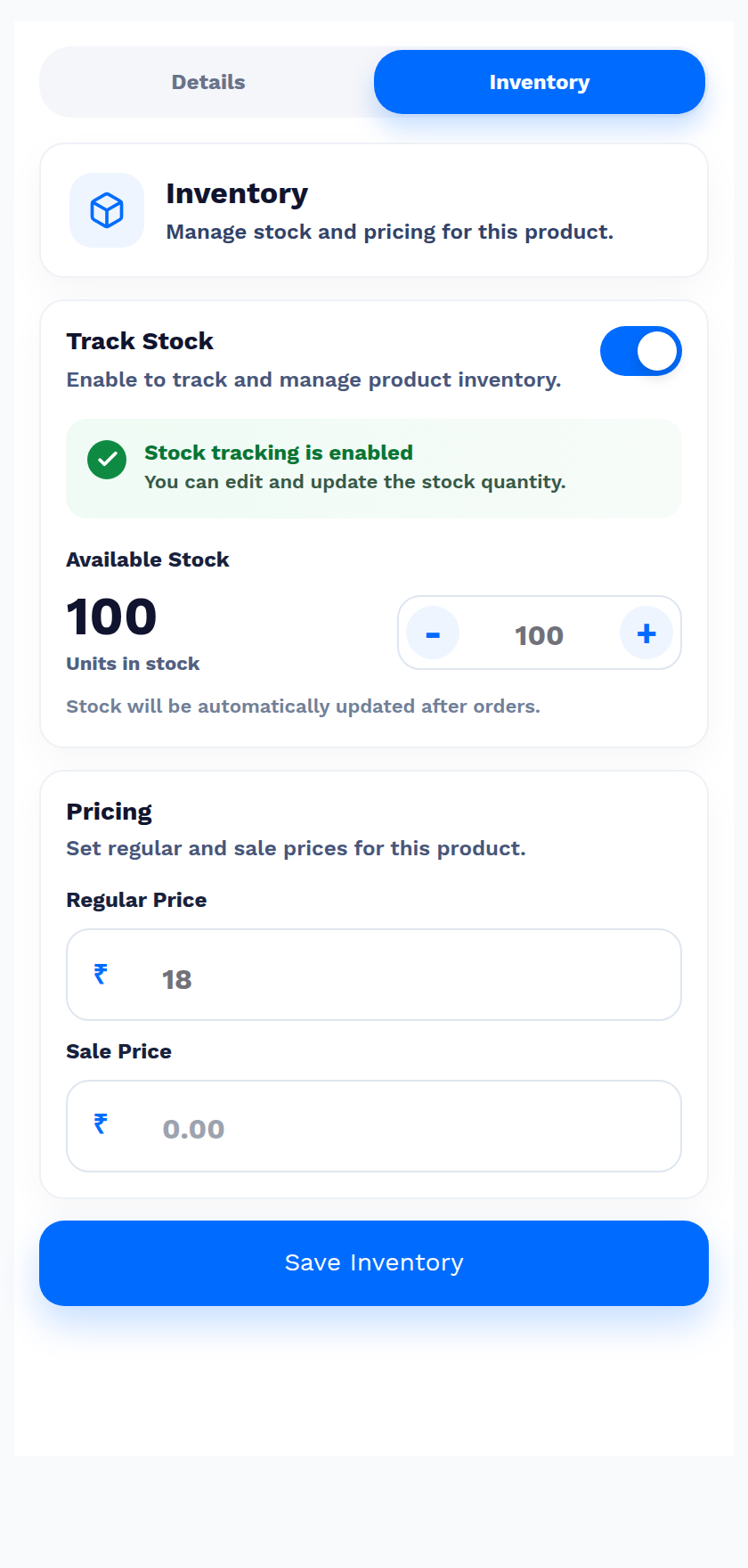
The Inventory tab is the editable half: a Track Stock switch, the available stock with a stepper, and the regular and sale prices, saved with Save Inventory.
Note
Unlike the admin console's Inventory tab, this screen has an explicit Track Stock switch, so it does not force stock management on. See Inventory Management for the console's behaviour.
Orders
/scanner/order/ lists orders with the customer, item count, date, status and total. /scanner/order/<id>/ opens one order: its status selector, the customer, the billing and shipping addresses, the line items with quantities and totals, and the order total with a View Details breakdown.
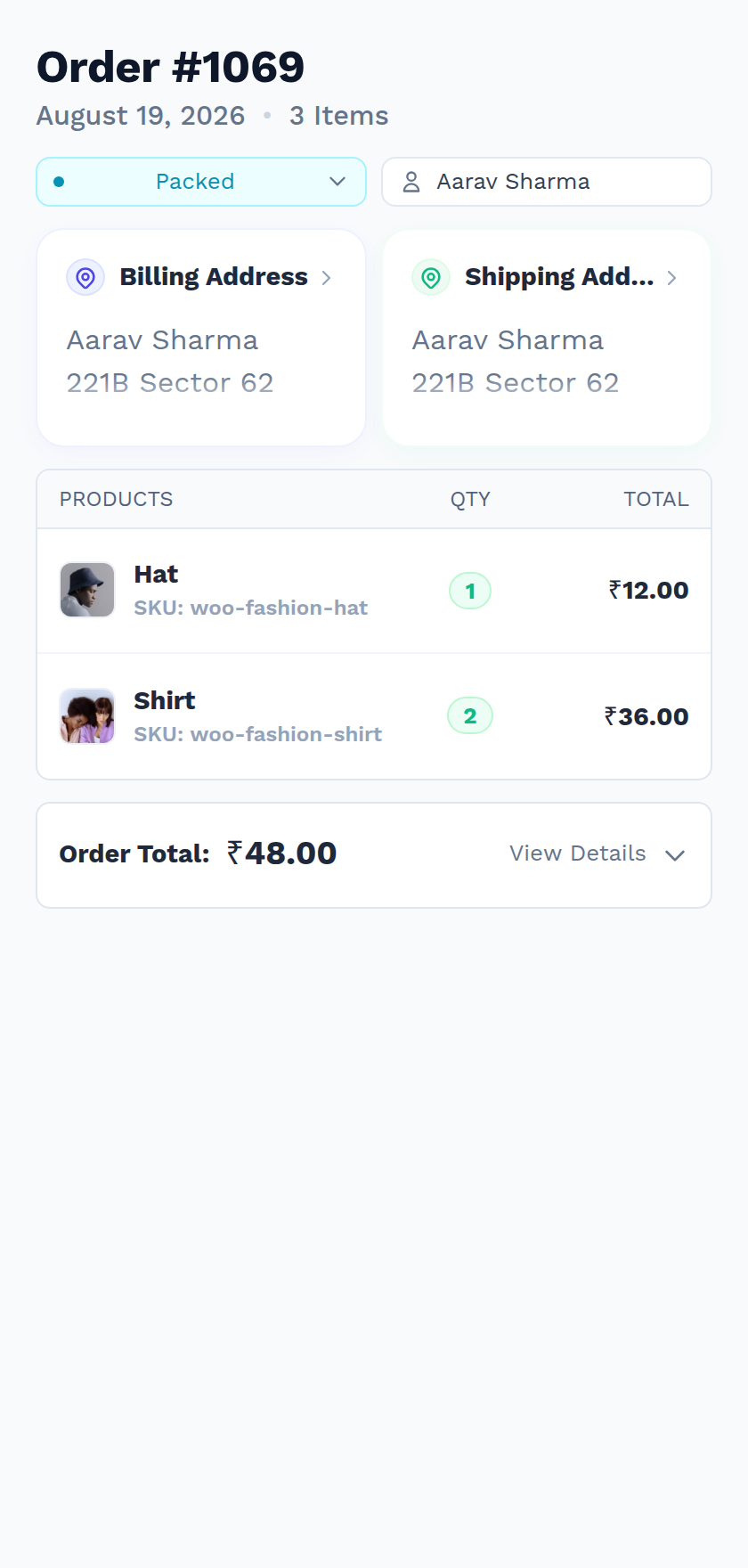
Scanning the same order again advances it one fulfilment stage. Two stages ask for something first — see The shipping code and The delivery OTP. A delivery agent sees a reduced version of this screen; see What a delivery agent sees in the app.
Scan history
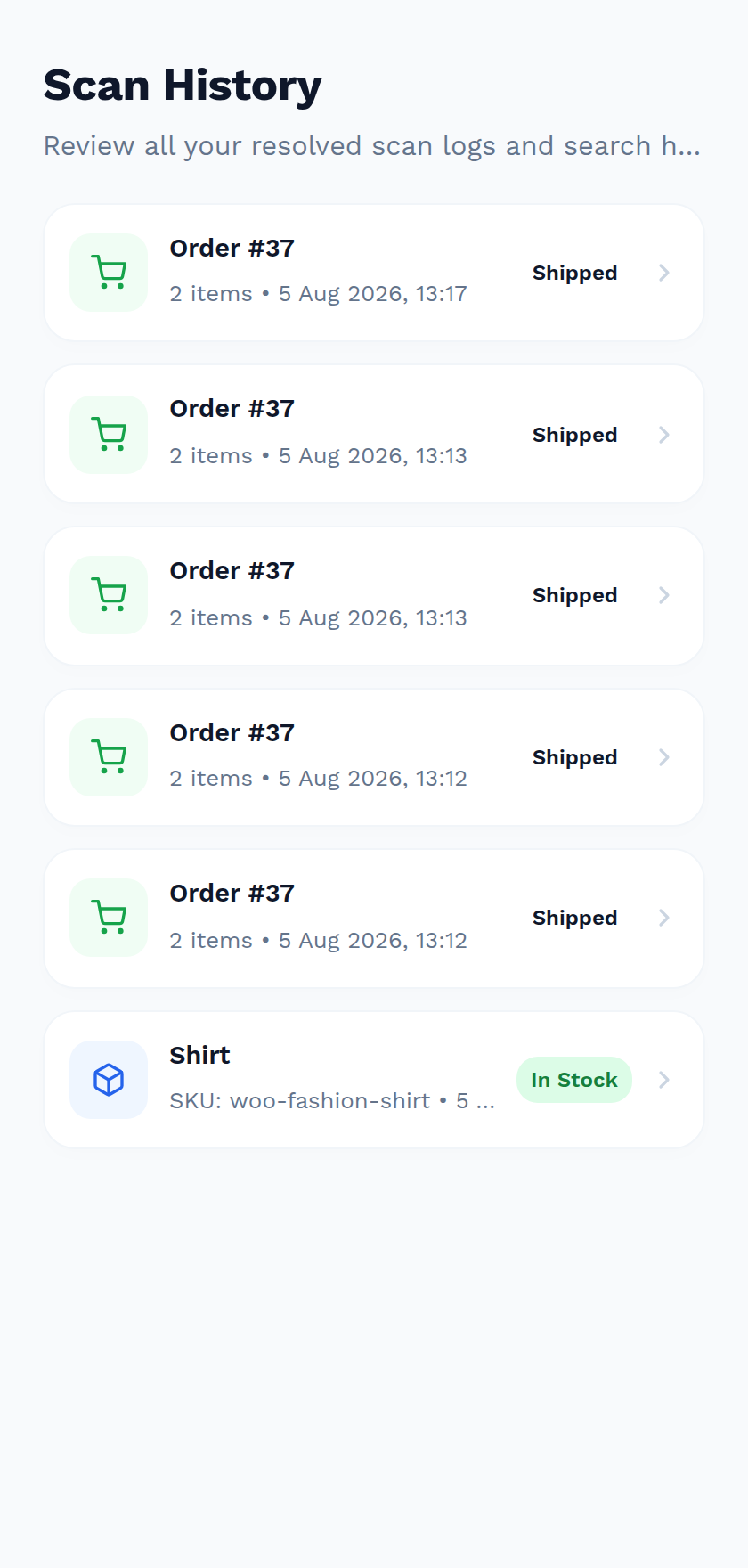
/scanner/history/ lists everything this app has resolved, newest first, with the item, its identifier, the timestamp and the status at the time.
Settings
/scanner/settings/ shows the signed-in account and a Log Out action that ends the scanner session.
Moving an order through fulfilment
Scanning an order that is already open advances it one stage, exactly as the admin console does — the full chain is on Order Status.
Two stages stop and ask for something first, and one of them is the only thing a courier is allowed to do at all:
- Shipping Code & Delivery OTP — the code an order needs before it can be Shipped, and the customer's six-digit code that closes the delivery.
- Delivery Agent Role — the restricted account couriers sign in with, and what it can see.
How it relates to the admin console
They are separate tools reading the same WooCommerce data:
| Admin console | QuickScan app | |
|---|---|---|
| Where | Webkul WC Addons → Smart Barcode Scan, in a browser | The QuickScan app on Android or iOS |
| Who | Users who can manage WooCommerce | The same, plus the Delivery Agent role |
| Scan history | Activity Logs tab | Its own separate history at /scanner/history/ |
| Stock editing | Inventory tab (always enables stock management) | Inventory tab with a Track Stock switch |
| Create Order | Yes | No |
| Order QR labels | Yes, from the WooCommerce order list | No |
| OTP on Shipped → Completed | Confirmation prompt only | Enforced for delivery agents |
Because the two keep separate histories, a scan made in the mobile app does not appear in the console's Activity Logs, and vice versa.
Troubleshooting the app
| Symptom | Cause | Fix |
|---|---|---|
/scanner/ redirects to My account in a browser | Opened outside the app | Expected. Use the QuickScan app, or use the admin console |
| The app shows a 404 or an empty screen | Permalinks are set to Plain, or the rewrite rules are stale | Settings → Permalinks, choose any non-plain structure and save |
| A sign-in screen appears in the app | Not signed in, or the account has neither Manage WooCommerce nor Delivery Agent | Sign in with an account that has one of them |
| Staff cannot find QuickScan on the App Store | The iOS listing is named QuickScan Mobile App, by Mobikul | Open the App Store listing directly, or search for that name |
| The App Store says the app is not compatible | The device is below iOS or iPadOS 15.0 | Update the device, or use an Android handheld or the admin console |
Next step
- Shipping Code & Delivery OTP — the two checkpoints that end a delivery.
- Delivery Agent Role — the courier account and what it can see.
- Scanner Console — the admin console, which is what most stores use day to day.
- Troubleshooting — other common problems.