Scanner Console
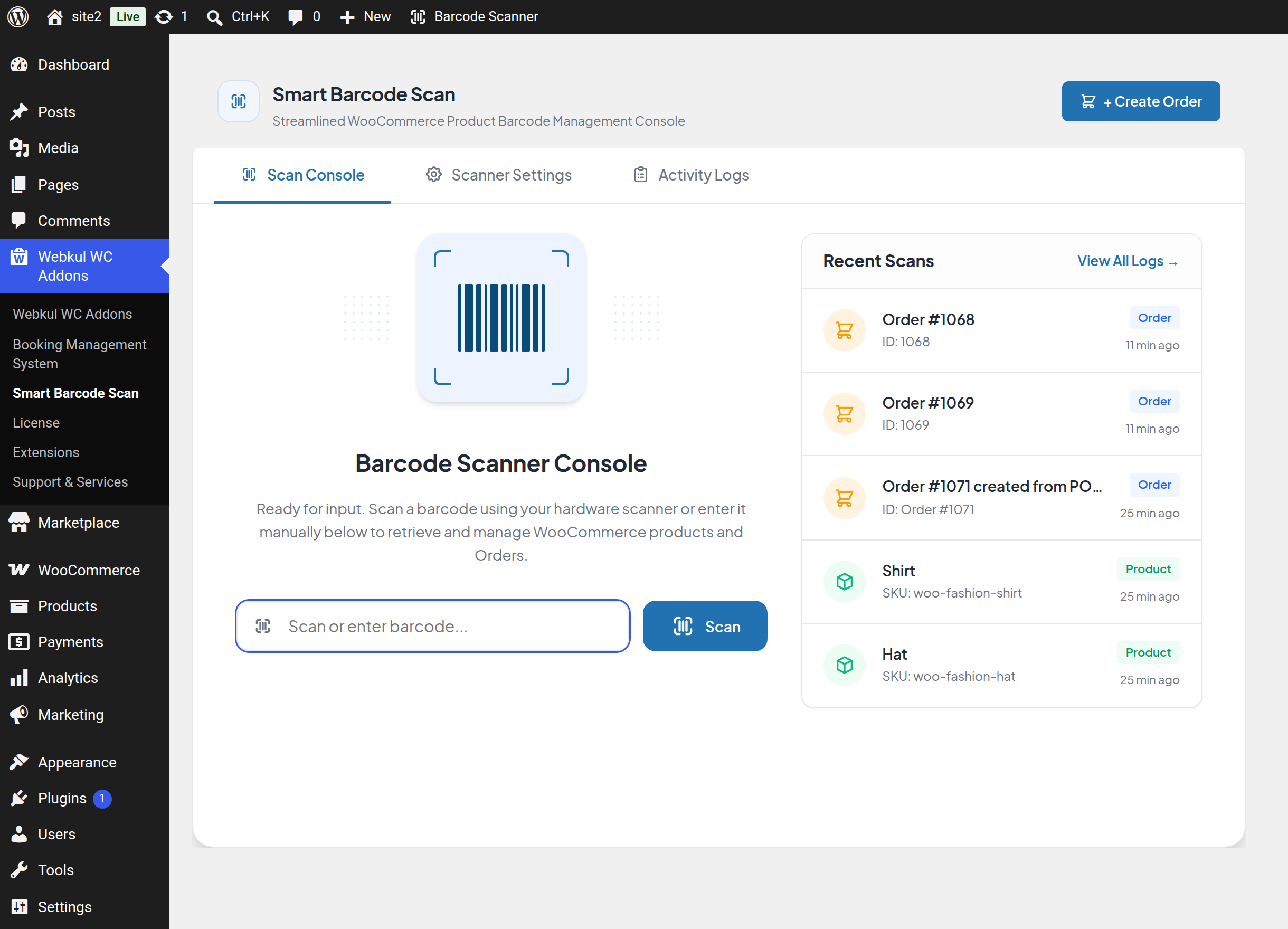
The Scan Console is the home screen of Smart Barcode Scan and Ordering. It is deliberately simple: one input, one button, and a list of what was scanned recently.
Go to Webkul WC Addons → Smart Barcode Scan. The page opens on the Scan Console tab.
Scanning
The cursor is placed in the scan box automatically when the page loads, so a hardware scanner works immediately — most scanners type the code and press Enter, which submits the form.
You can also type a code by hand and click Scan.
- Place the cursor in Scan or enter barcode… (click the barcode graphic above the box if focus was lost).
- Scan the label or type the code.
- Press Enter or click Scan.
While the lookup runs, the button shows a spinner and the message "Searching barcode…" appears below the box.
What happens on a match
A popup opens over the console with the record loaded:
| Match | Popup opens on | What you can do |
|---|---|---|
| A product | Inventory tab | Read and edit the product, add it to a counter order — see Product Scanning |
| An order | Orders tab | Read the order, edit addresses and notes, change the status — see Order Scanning |
| Both a product and an order | Inventory tab | The order is loaded too; switch to the Orders tab to see it |
If Audio Feedback is enabled, a success tone plays. If Activity Logging is enabled, the scan is written to the log and appears at the top of Recent Scans.
If Auto Clear Input is enabled, the scan box empties itself so the next item can be scanned straight away.
What happens when nothing matches
The console shows a red message under the scan box — "Product or Order not found for the scanned barcode." — plays the error tone, and re-selects the text you scanned so you can overwrite it by scanning again.
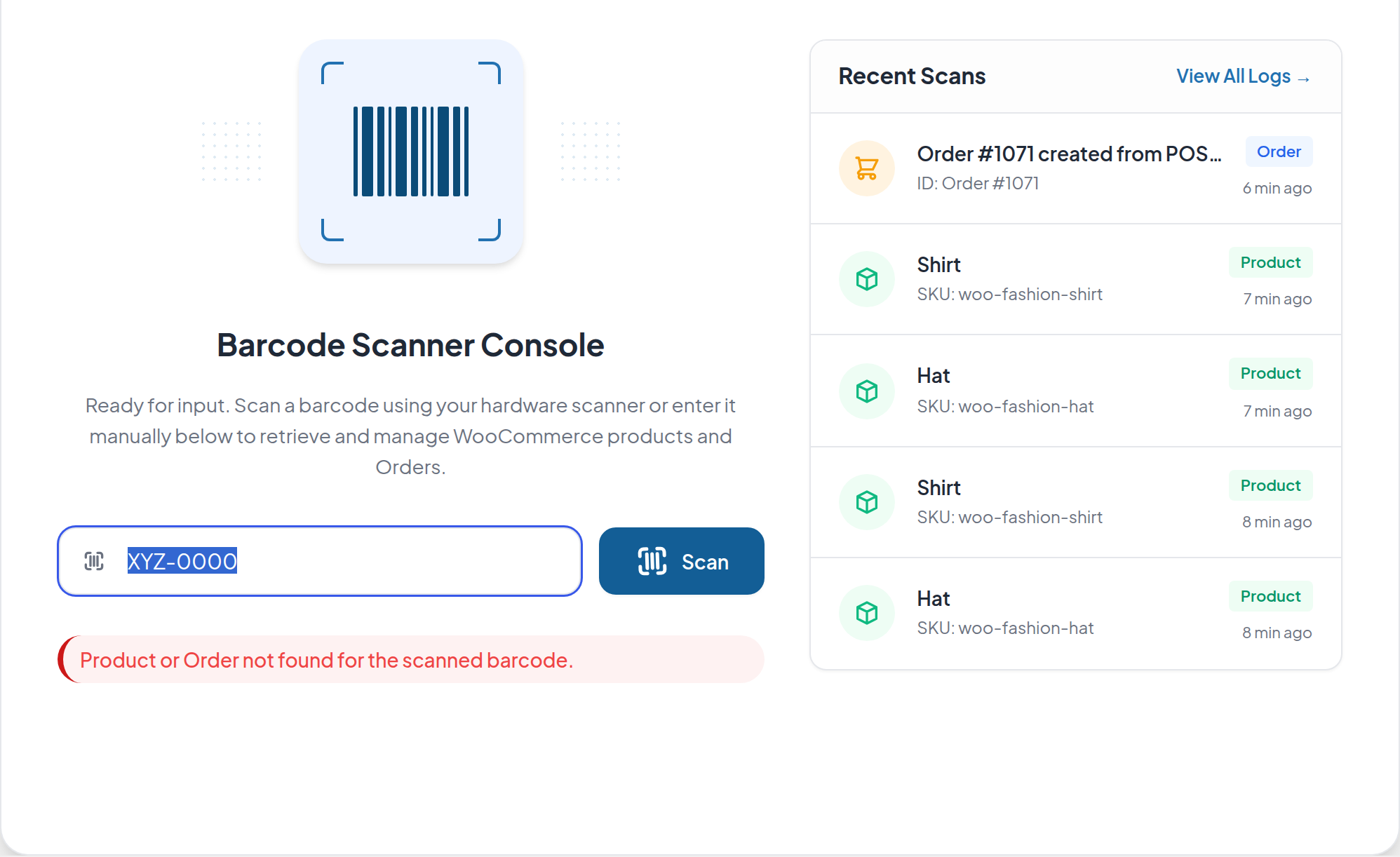
If this happens on a code you expect to work, check Scanner Settings — the field holding that code may not be selected for searching.
Recent Scans
The panel on the right lists the five most recent entries from the activity log, newest first. Each row shows:
- The resolved product name, or
Order #<id>for an order. - The scanned value, labelled SKU:, ID: or Code: depending on what was matched.
- A coloured badge — Product, Order or Coupon.
- How long ago the scan happened.
Click View All Logs → to jump to the Activity Logs tab.
If nothing has been scanned yet, the panel shows "No recent scans available."
The popup workspace
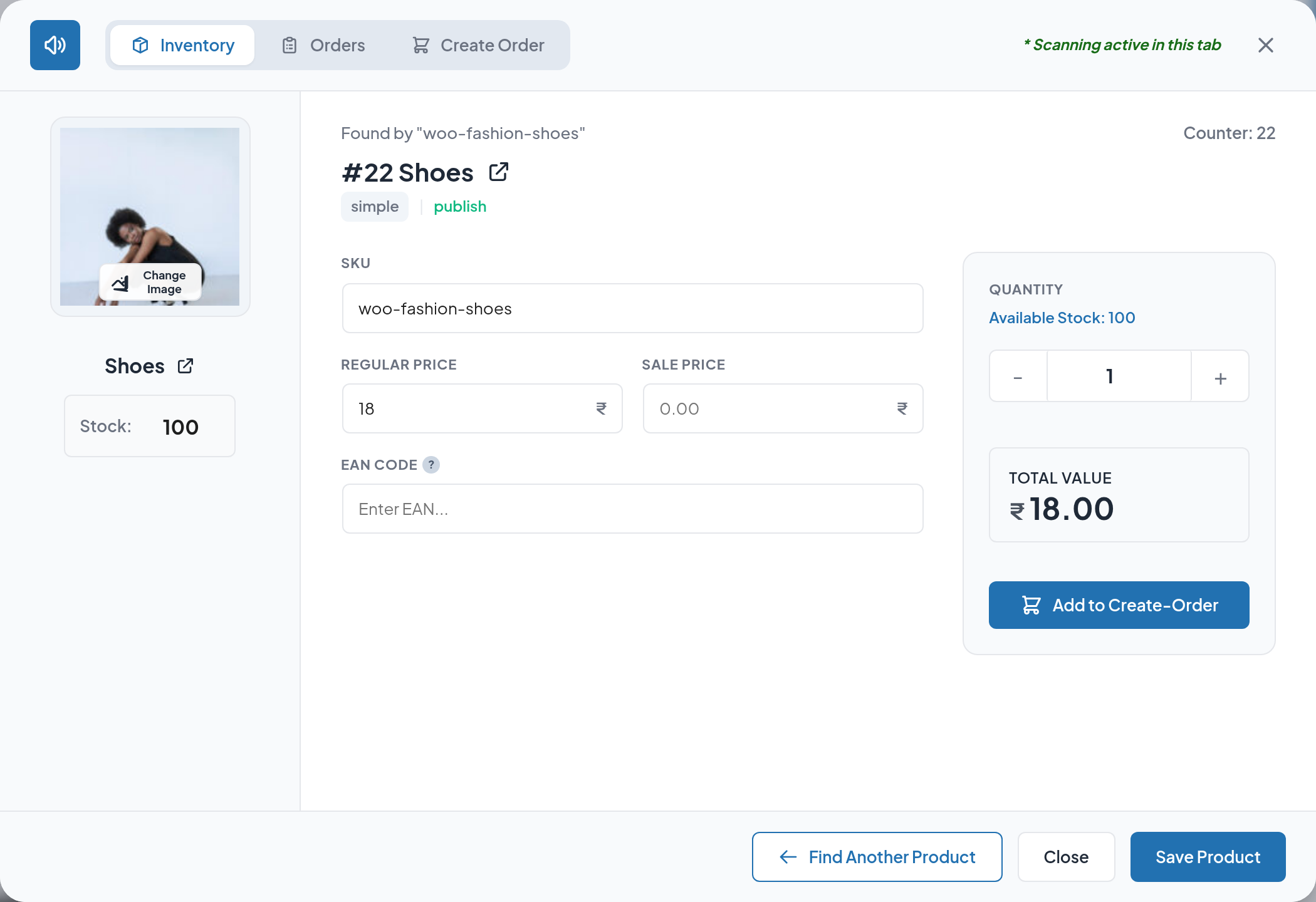
Every scan result opens in the same popup, which has three tabs:
| Tab | Purpose |
|---|---|
| Inventory | The scanned product: details, stock, prices, and Add to Create-Order |
| Orders | The scanned order: customer, items, totals, addresses, notes and status |
| Create Order | The counter-order builder, with a badge showing how many items are in the cart |
Scanning from inside the popup
The note " Scanning active in this tab"* in the popup header is important: you do not have to close the popup to scan the next item. Anything typed by a scanner while the popup is open — as long as the cursor is not inside a text field — is captured and looked up.
This is what makes continuous scanning practical:
- Scan another product → the popup switches to that product.
- Scan an order → the popup switches to the Orders tab with that order.
- Scan the order that is already open in the Orders tab → the order advances one fulfilment stage. See Order Status.
- With Add to Cart After Search enabled, each scanned product is added to the Create Order cart automatically.
Sound toggle
The speaker button at the top-left of the popup mutes or unmutes the scan tone for the current session. It is disabled (and shows the tooltip "Sound disabled in Settings") when Audio Feedback is switched off in Scanner Settings.
Keyboard shortcuts inside the popup
Pressing Enter triggers the primary action of the active tab:
| Active tab | State | Enter does |
|---|---|---|
| Inventory | A product is loaded | Save Product |
| Inventory | No product loaded | Search |
| Orders | An order is loaded | Save Order |
| Orders | No order loaded | Search |
| Create Order | — | CREATE |
Closing the popup
Close dismisses the popup without saving. Find Another Product / Find Another Order clears the loaded record and returns to the search screen inside the same tab, which is faster than closing and re-scanning.
The quick scanner in the toolbar
You do not have to be on the console page to scan. A Barcode Scanner item is added to the WordPress toolbar on every admin screen.
- Click Barcode Scanner in the toolbar.
- A small scan card opens in the middle of the screen with the cursor in the input.
- Scan or type a code and press Enter.
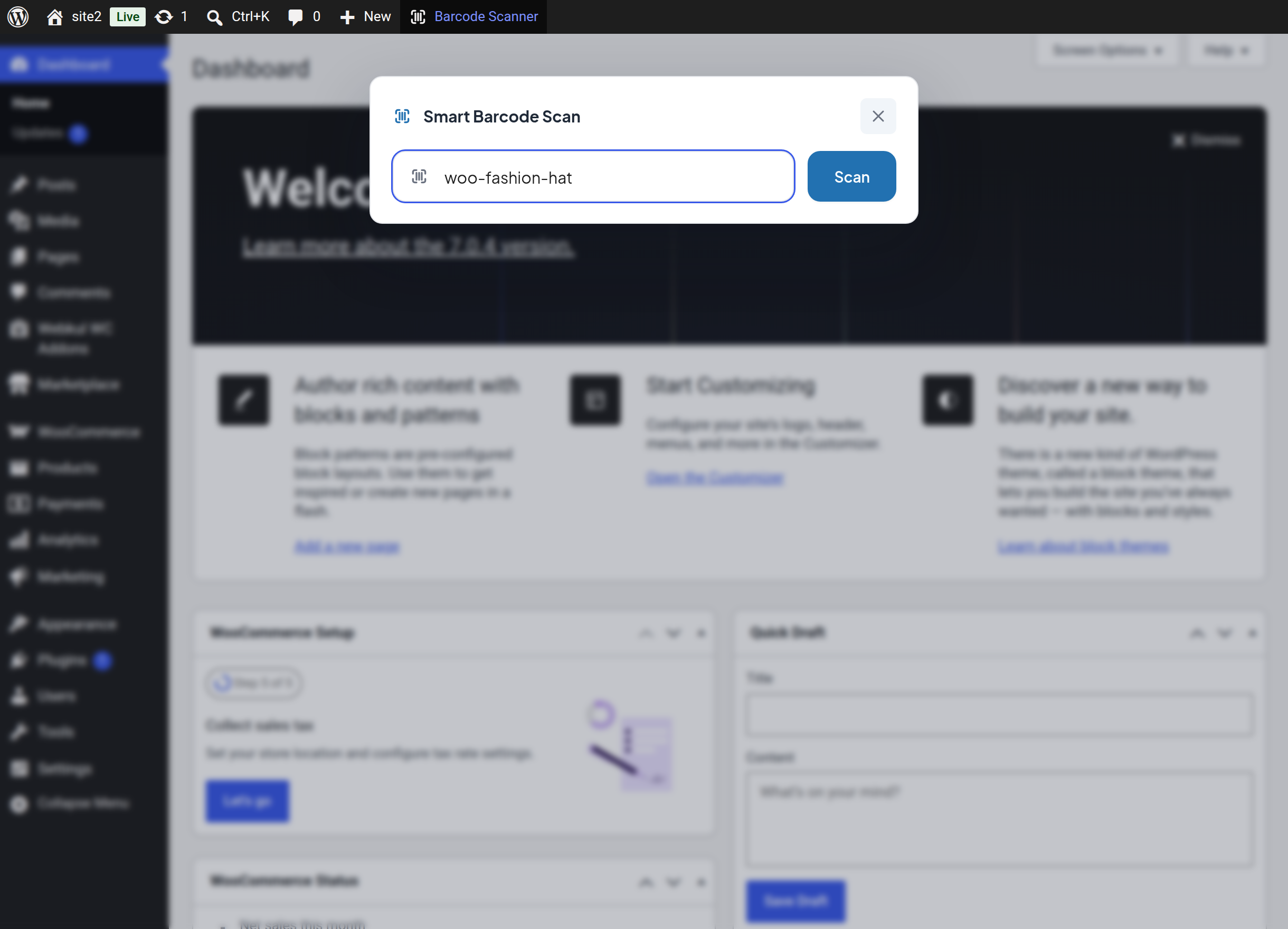
On a match, the same popup workspace opens over whatever page you were on, so you can correct a stock level while in the middle of another task and carry on afterwards. On a failure, the error message appears in the card and the code stays selected for a re-scan.
The quick scanner shares the same cart as the console, so items added here appear in Create Order on the console page too.
Tips
The quick scanner only appears for users who can manage WooCommerce and only while the licence is active.
Next step
- Product Scanning — read and act on a scanned product.
- Order Scanning — read and act on a scanned order.
- Create Order — build a counter order from scanned items.