Getting Started
This page takes you from a downloaded ZIP file to a working scan console.
Requirements
| Requirement | Minimum |
|---|---|
| WordPress | 5.0 |
| PHP | 7.4 |
| WooCommerce | 5.0 (tested up to 8.5) |
| Licence | A valid purchase code activated on the License page |
The extension declares compatibility with WooCommerce High-Performance Order Storage (HPOS), so it works whether your store uses the legacy posts tables or the custom order tables.
Important
WooCommerce must be installed and active. Without it, the extension deactivates its own functionality and shows the admin notice "Smart Barcode Scan and Ordering is activated but not effective. It requires WooCommerce in order to work."
Install the extension
Download the plugin ZIP from your CodeCanyon or Webkul Store account.
In WordPress, go to Plugins → Add New.

Click Upload Plugin.

Choose the ZIP file you downloaded and click Install Now.

Click Activate Plugin.

Activate your licence
The console is licence-gated. Until a purchase code is validated, the Smart Barcode Scan page shows "You are not authorized. Kindly enter the purchase code for the module on the License page to activate it." and the scan endpoints refuse to respond.
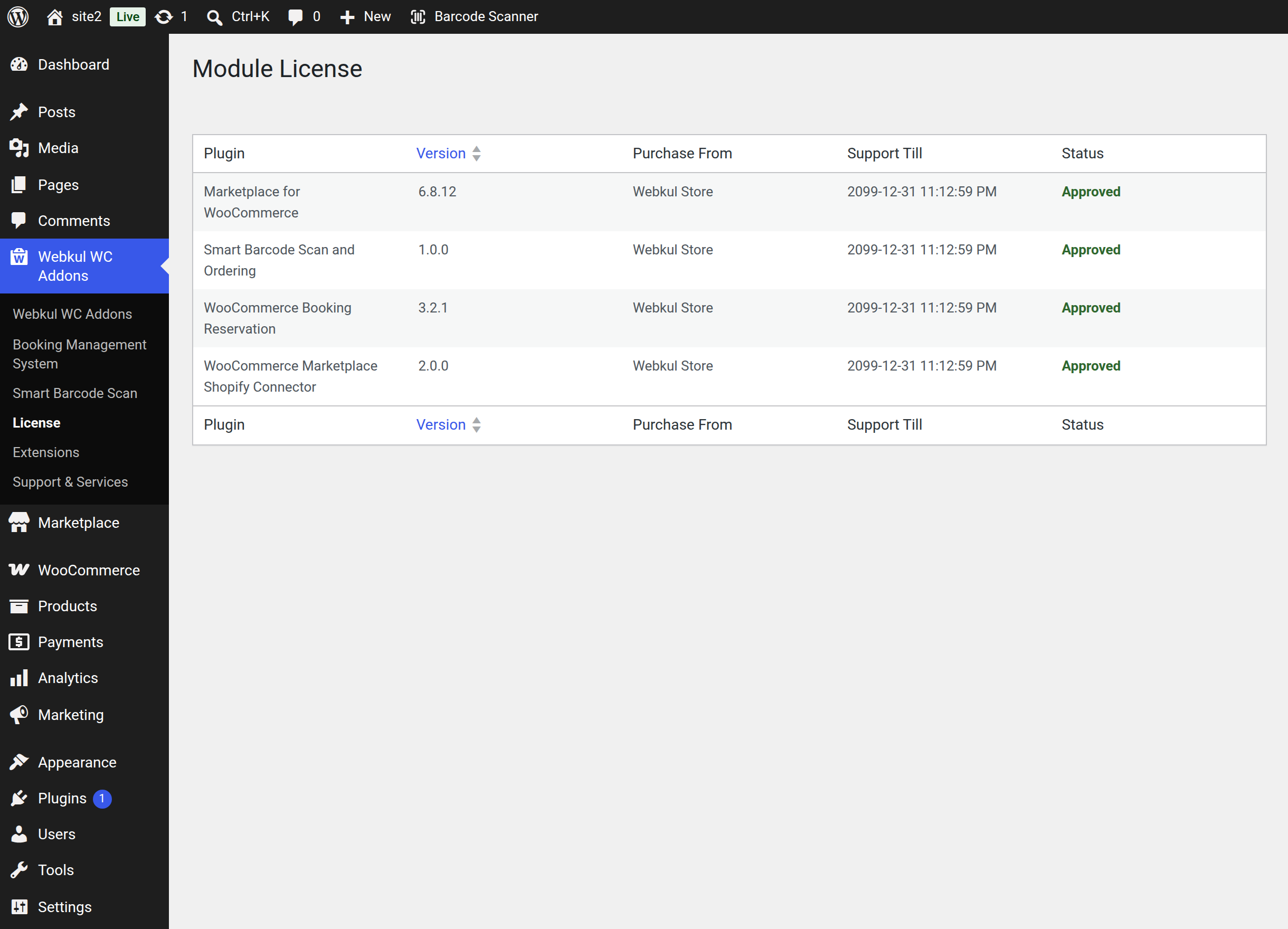
- Go to Webkul WC Addons → License.
- Find Smart Barcode Scan and Ordering in the table.
- Choose where you purchased it, paste your purchase code and click Activate.
Once the licence is approved, the row shows the plugin version, the purchase source, the support-till date and an Approved status.
Warning
Everything in the console — the scan box, product and order editing, order creation, settings and logs — is refused while the licence is inactive. If the console suddenly stops responding, check this page first.
Set your permalinks
If you also intend to use the QuickScan mobile app, WordPress permalinks must not be set to Plain. Go to Settings → Permalinks and choose any other structure, then save.
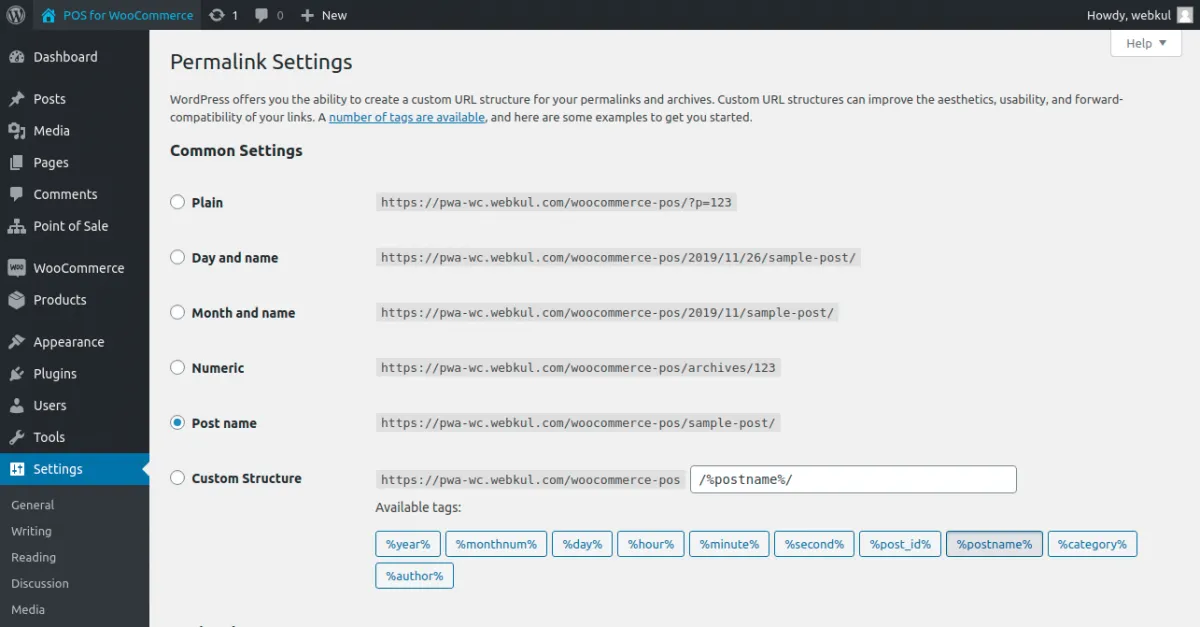
This is not required for the admin console, which works on any permalink setting.
Open the console
Go to Webkul WC Addons → Smart Barcode Scan. The page opens on the Scan Console tab with the cursor already in the scan box.
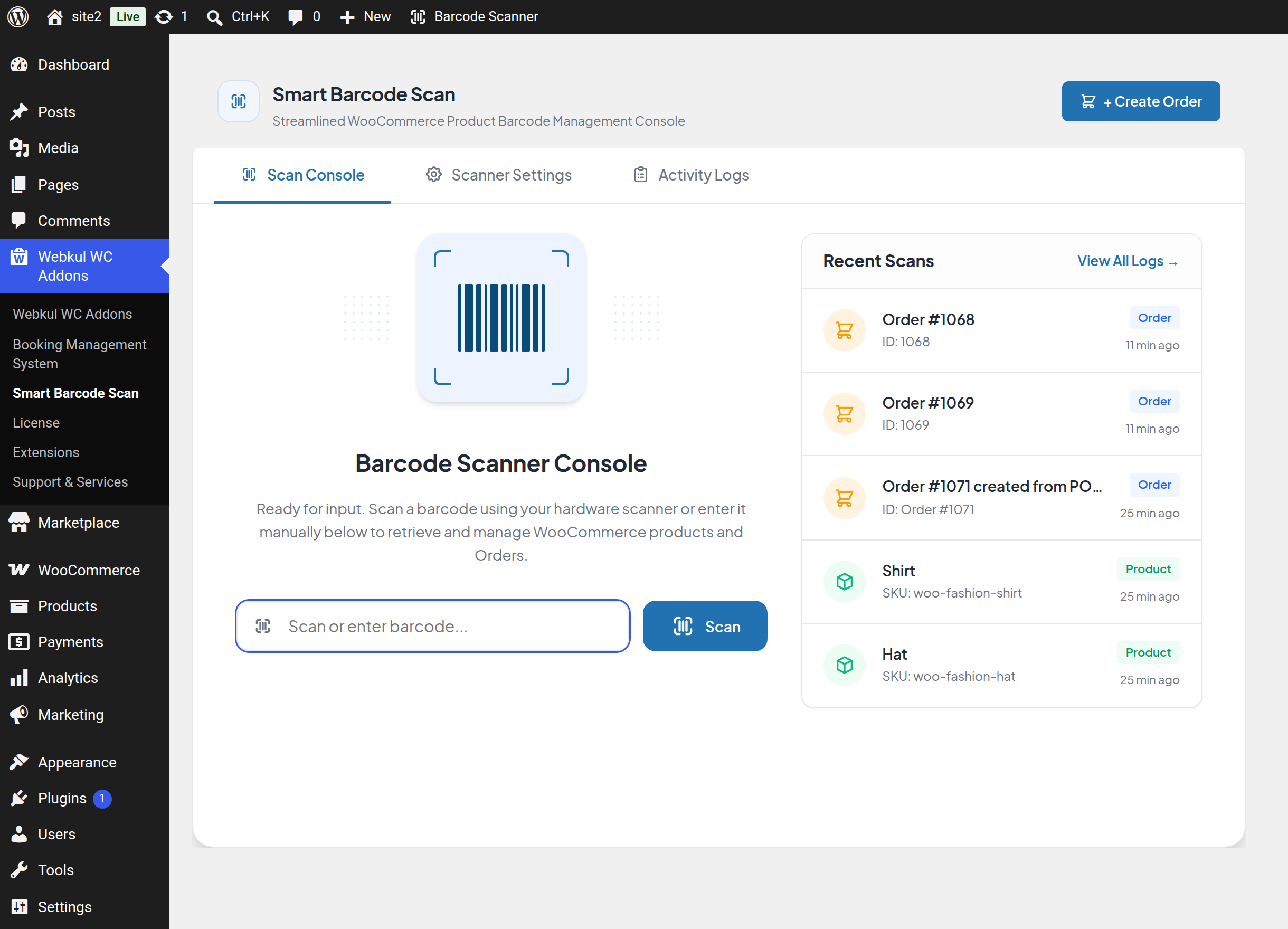
The three tabs across the top are:
- Scan Console — the scan box and the Recent Scans panel.
- Scanner Settings — which fields a barcode is matched against, plus console preferences.
- Activity Logs — the searchable history of everything the console has done.
The + Create Order button in the top-right corner opens the order builder directly.
Recommended first configuration
Before your staff start scanning, spend a minute on Scanner Settings:
- Tick every field your barcodes actually contain. Product SKU is enabled out of the box; add Product ID and Global Unique Identifier (GTIN, UPC, EAN, or ISBN) if your labels use them.
- If your barcodes live in a custom field added by another plugin or an import, enter that field's meta key in Custom Meta Field Key.
- Leave Audio Feedback on so operators hear a success or error tone without looking at the screen.
- Turn on Auto Clear Input if staff scan many items in a row.
- Set Log History Limit to how many entries you want to keep (10–500).
Full details are in Scanner Settings.
Next step
Learn the day-to-day screen in Scanner Console.