
Order Status
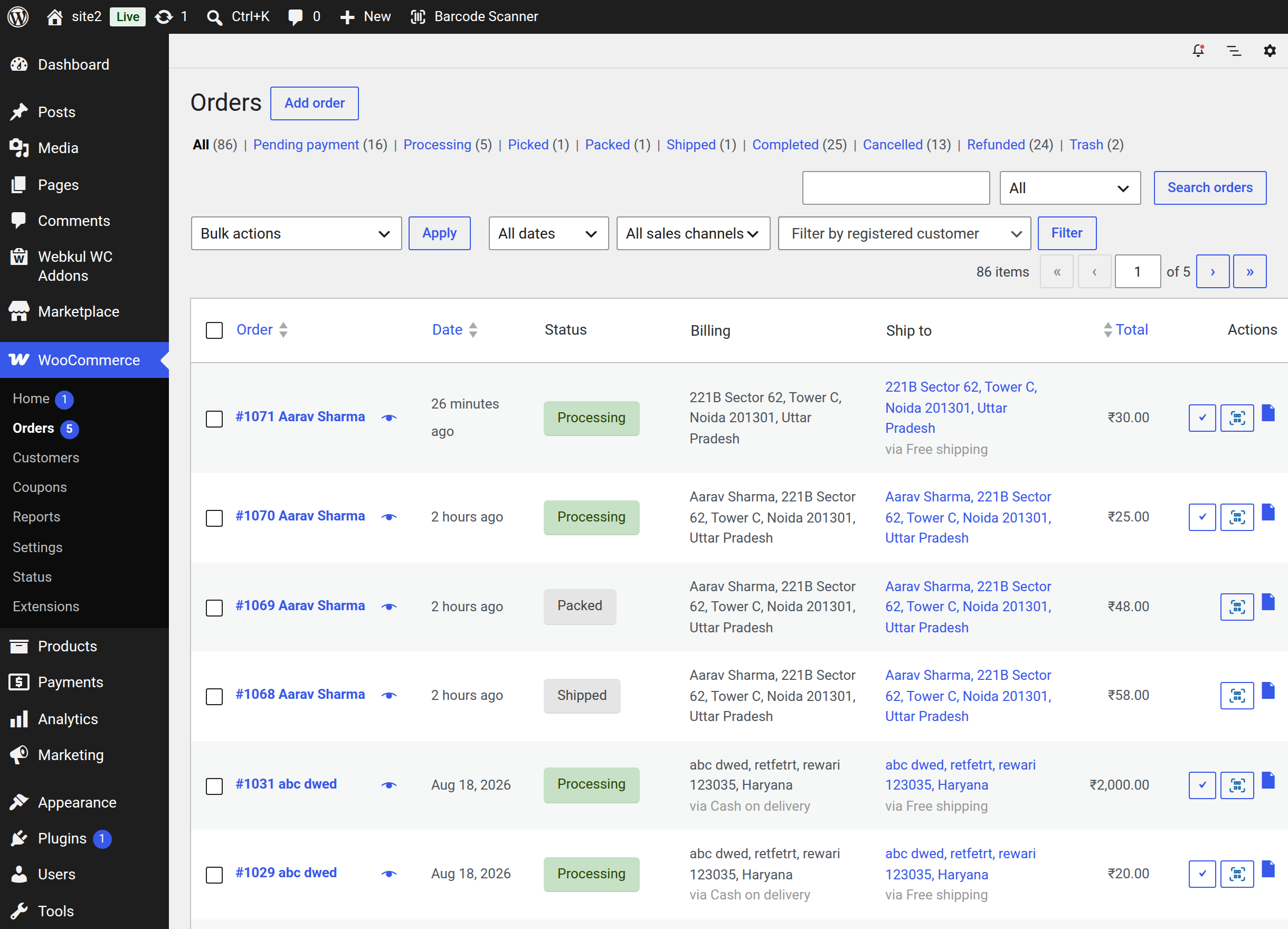
Smart Barcode Scan and Ordering adds three order statuses to WooCommerce and a way to move an order through them by scanning it. This gives a packing bench real checkpoints instead of one long jump from Processing to Completed.
The added statuses
| Status | Meaning |
|---|---|
| Picked | The items have been collected from the shelves |
| Packed | The parcel has been packed and is ready to hand over |
| Shipped | The parcel has left the building; a tracking code is recorded |
They appear immediately after Processing everywhere WooCommerce lists order statuses — the status filters at the top of WooCommerce → Orders, the Status dropdown on the order edit screen, the bulk-actions menu, and WooCommerce reports.
Advancing an order by scanning it
This is the fastest route and the one the extension is designed around.
- Scan the order label. The popup opens on the Orders tab with the order loaded.
- Scan the same order label again.
- The order moves one stage forward, a success message names the new status, and the popup refreshes with the updated order.
Scan it again for the next stage. The chain is:
| Current status | Next status after a scan |
|---|---|
| Pending payment · On hold | Processing |
| Processing | Picked |
| Picked | Packed |
| Packed | Shipped — a tracking code is required |
| Shipped | Completed — a confirmation is required |
| Completed | Stays Completed: "Order #<id> is already Completed." |
Any other status (Cancelled, Refunded, Failed, Draft) is left untouched and the console simply reports the current status.
Every advance writes an order note in WooCommerce — "Status updated via Barcode Scanner scan." — and an entry in the scan history.
Note
The order must be open in the Orders tab for a re-scan to advance it. Scanning an order while you are on the Inventory or Create Order tab loads it instead.
The tracking-code prompt
An order cannot become Shipped without a shipping/tracking code. When you advance a Packed order, or select Shipped in the Status dropdown, the console asks for one.
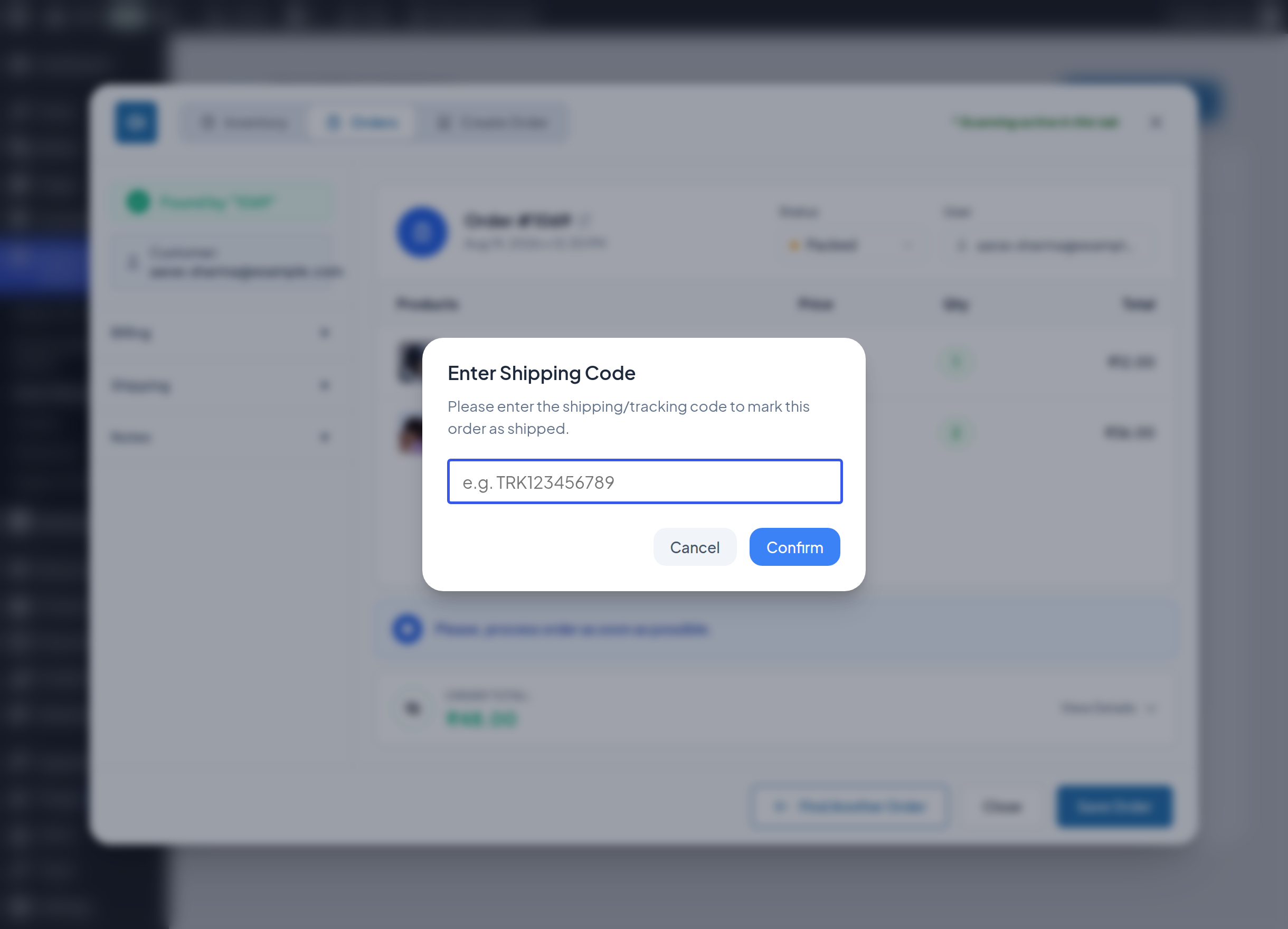
- Type the carrier's tracking code (for example
TRK123456789). - Click Confirm.
Leaving it empty stops the change — "Shipping code is required before marking this order as shipped." — and the order stays Packed. Nothing is partly saved. Cancel abandons the status change the same way.
The code is stored on the order and is shown again the next time that order is opened, in the console or in the QuickScan app. It is free text: nothing checks it against a carrier, so a typo is saved as typed.
What the OTP is
Every order placed on your store is given a six-digit verification code the moment it is created. It exists so that a courier cannot mark a delivery complete without the customer being present to hand the code over. Nothing switches it on — there is no setting for it, and it is generated for every order regardless of how the order was placed.
The customer reads it on their own order page, at My account → Orders → View, in a panel above the order details: the six digits, a short instruction to share them with the delivery agent, and a QR code carrying the same digits so the agent can scan rather than type. It is not included in any email.
It is enforced only against the Delivery Agent role. When a delivery agent marks an order Completed in the QuickScan app, the app asks for the code and refuses a wrong one with "Incorrect OTP. Verification failed." See Shipping Code & Delivery OTP for that flow.
The OTP confirmation in the console
Because a store manager is trusted, the console does not ask you for the code — it only reminds you that you are closing the order without the customer's verification.
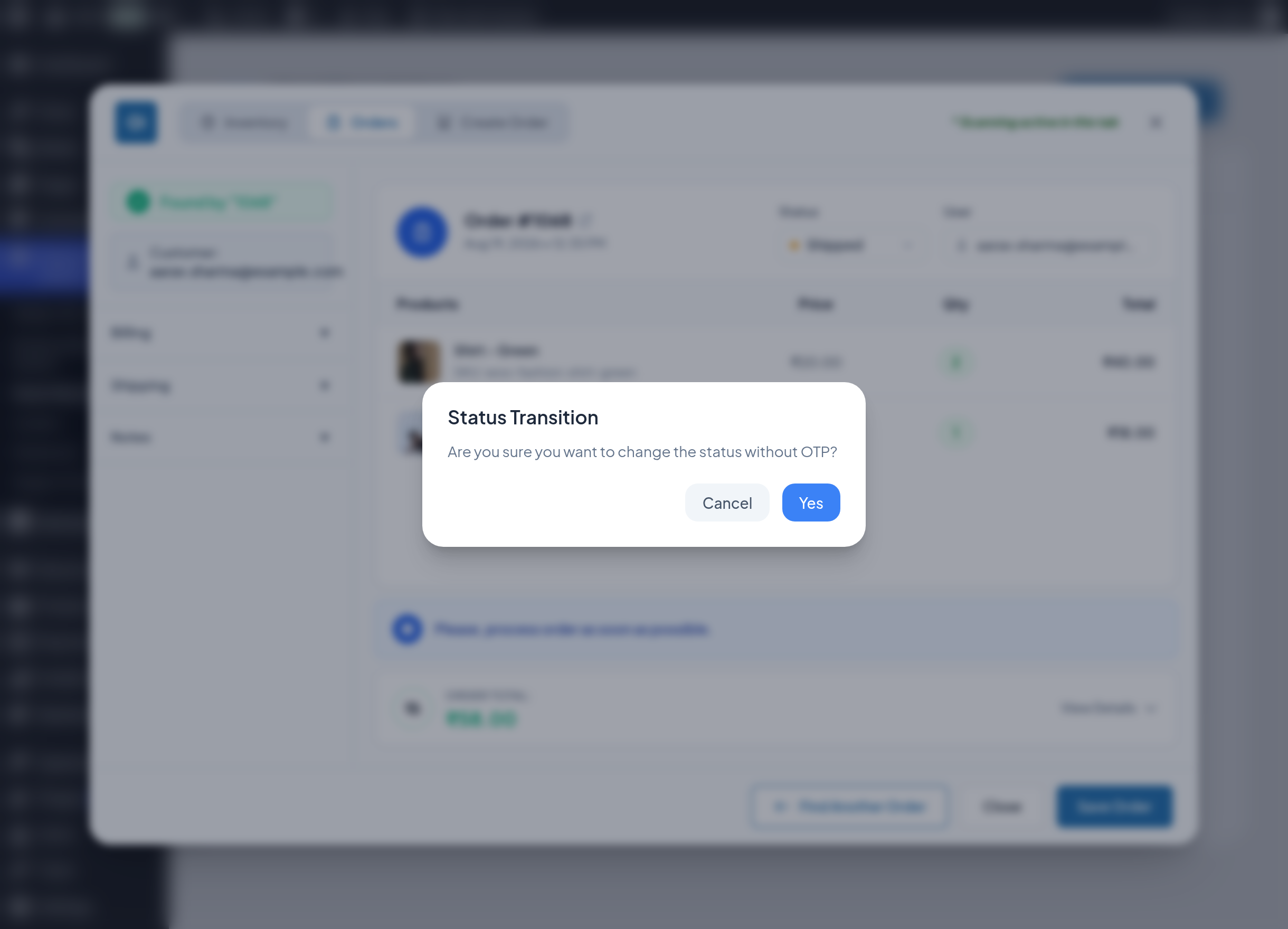
Click Yes to proceed, or Cancel to leave the order as Shipped.
The same confirmation appears in the standard WooCommerce order screens: changing an order's status from Shipped to Completed on the order edit page, or using the "complete" action in the orders list, prompts "Are you sure you want to change the status without OTP?" before it proceeds.
Note
This is a prompt, not a permission check. Anyone who can manage WooCommerce can close a Shipped order this way. The code is what stops a delivery agent from doing it unsupervised.
Warning
Orders placed before you activated the extension have no code. A delivery agent can never complete those — close them from the console instead.
Setting a status directly
You do not have to follow the chain. With an order open in the Orders tab:
- Click the Status dropdown in the order header.
- Choose any WooCommerce status.
- Click Save Order.
The tracking-code prompt and the OTP confirmation still apply to the Packed → Shipped and Shipped → Completed transitions when you use the dropdown.
Important
Choosing a status in the dropdown does not save it on its own — you must click Save Order. Advancing by scanning, on the other hand, saves immediately.
Setting the status when creating an order
New orders built in the Create Order tab carry whatever status you choose in the Order Status section of its sidebar. The default is Processing. See Create Order.
Changing several orders at once
The three statuses are available as WooCommerce bulk actions:
- Go to WooCommerce → Orders.
- Tick the orders you want.
- Choose Change status to picked, Change status to packed or Change status to shipped from Bulk actions.
- Click Apply.
Warning
The bulk actions are standard WooCommerce status changes. They do not ask for a tracking code, so orders bulk-moved to Shipped will have no code recorded. Use the scan flow, or the Status dropdown in the console, whenever the tracking code matters.
Next step
- Order Scanning — the rest of the order screen.
- Scan Logs — the record of every status change made through the console.