
Shipping Code & Delivery OTP
Two checkpoints sit at the end of the fulfilment chain, and both exist to make a handover provable: an order cannot be marked Shipped without a shipping code, and a delivery agent cannot mark one Completed without the customer's verification code.
This page covers both, and what your customer sees while it happens. The chain they sit on is described on Order Status.
The shipping code
An order cannot leave Packed without a shipping code. When you advance a Packed order — or pick Shipped from the status list — the app opens an Enter shipping code sheet before it will save anything:
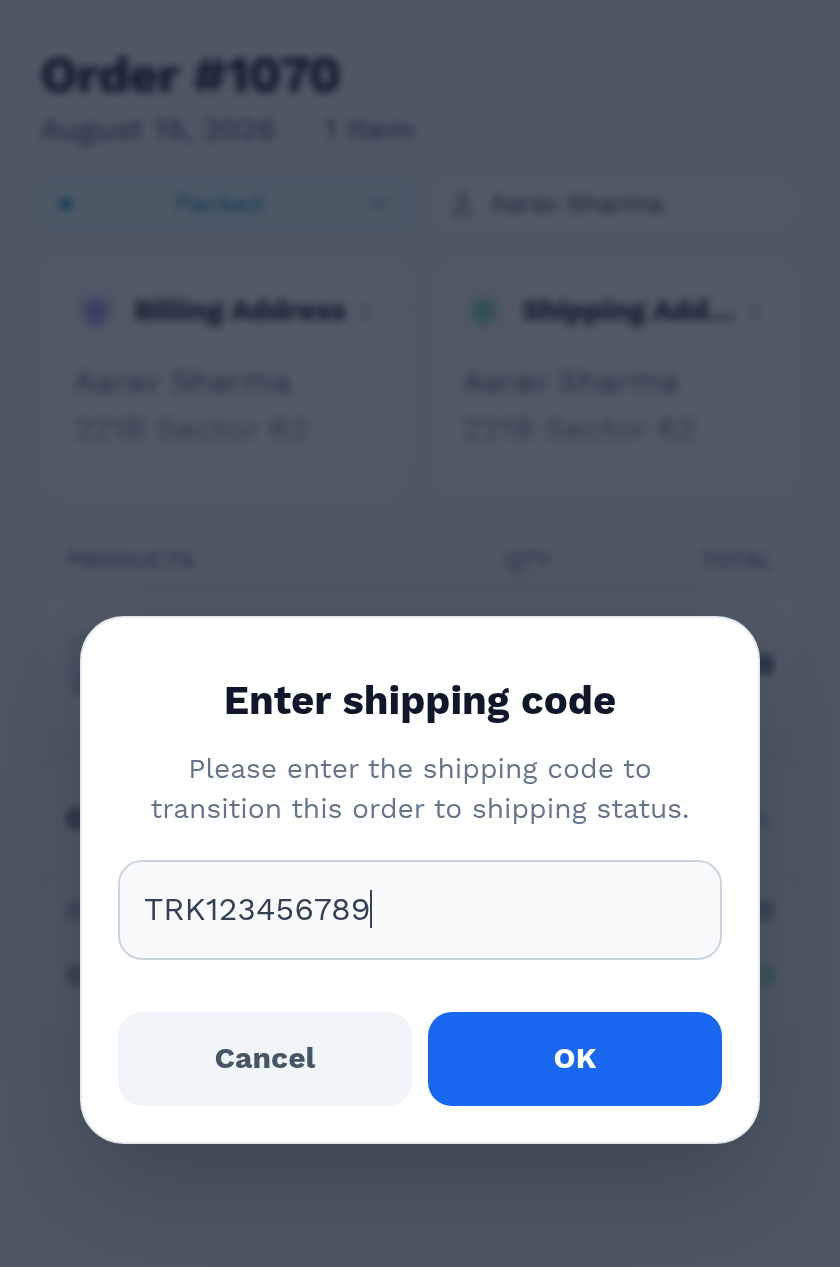
- Type the carrier's tracking code and tap OK.
- Leaving it empty stops the change: "Shipping code is required before marking this order as shipped." The order stays Packed — nothing is half-saved.
- The code is stored on the order and shown again whenever that order is opened, in the app or in the admin console.
Note
The code is free text. Nothing checks it against a carrier, so a typo is saved as typed. It is a record for your staff and your customer, not a live tracking lookup.
The delivery OTP
Every order placed on your store is given a six-digit verification code the moment it is created. You do not switch this on and there is no setting for it.
Where the customer finds it. On their own order page — My account → Orders → View — above the order details, in a green panel: the six digits, the line "Please share this OTP or show the QR code to the delivery agent to mark your order as complete.", and a QR code of the same digits so the agent can scan instead of typing.
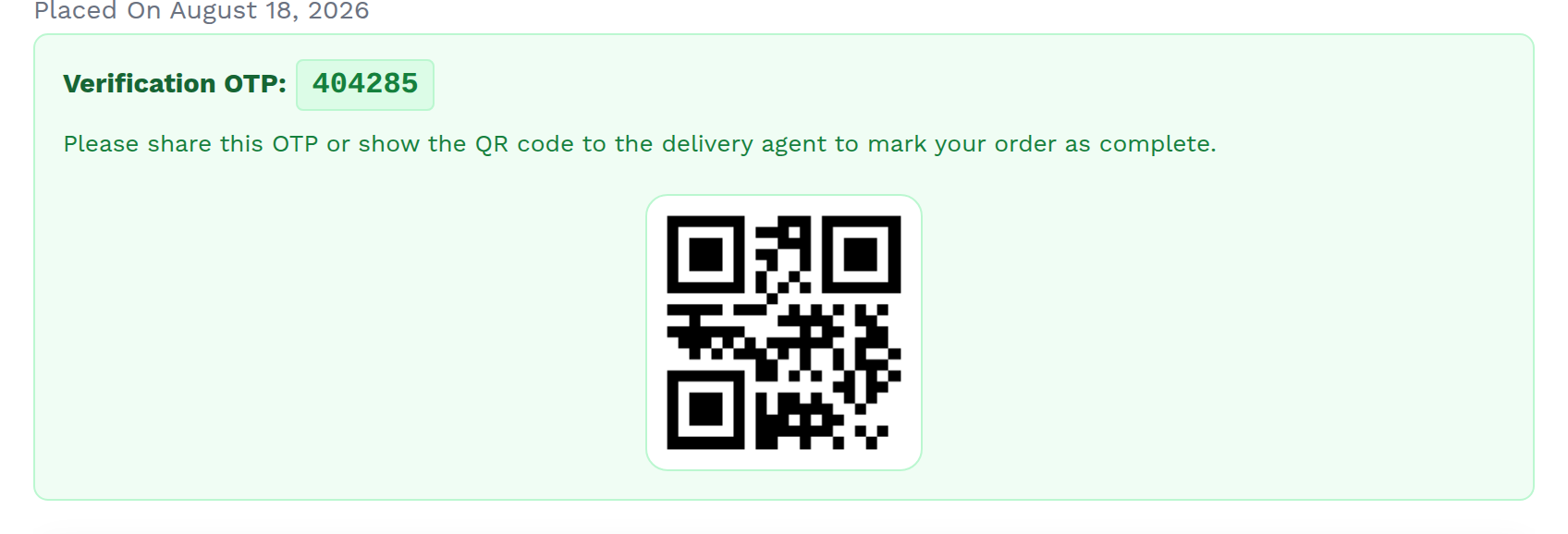
Where it is used. When a delivery agent marks an order Completed, the app asks for it:
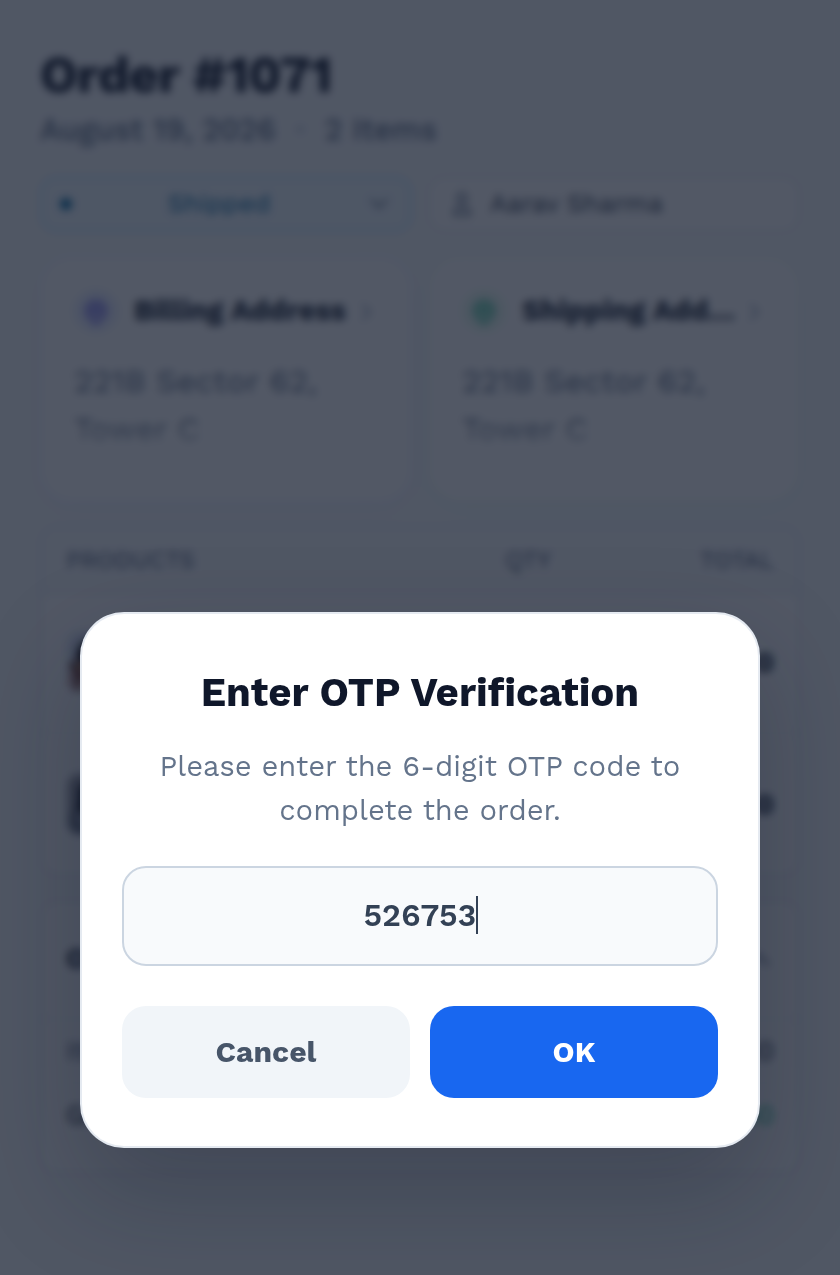
A wrong or missing code is refused with "Incorrect OTP. Verification failed." and the order stays Shipped. That is the whole point: an agent cannot close a delivery without the customer being there to hand over the code.
Important
Staff who can manage WooCommerce are never asked for the OTP. The console only shows a "Are you sure you want to change the status without OTP?" confirmation, which is a reminder, not a check — see Order Status. The code is enforced against delivery agents only.
Warning
Orders placed before you activated the extension have no code, and a delivery agent can never complete them — the app will refuse every code entered. There is no screen for adding or regenerating one. Close those orders from the admin console instead.
The QR image on the customer's order page is generated by an external service. If your store is offline or that service is blocked, the QR will not appear; the six digits still will, and typing them works exactly the same.
What the customer sees
The extension also adds a delivery timeline to the customer's View Order page, below the OTP panel. It fills in as your staff scan:
| Step | Shown to the customer as | Reached when the order becomes |
|---|---|---|
| 1 | Order Placed — "Your order has been placed successfully." | Pending payment |
| 2 | Processing — "We are preparing your order." | Processing |
| 3 | Picked — "Items gathered for your order." | Picked |
| 4 | Packed — "Order is packed and ready." | Packed |
| 5 | Shipped — "Your order is on the way." | Shipped |
| 6 | Delivered — "Your order has been delivered successfully." | Completed |
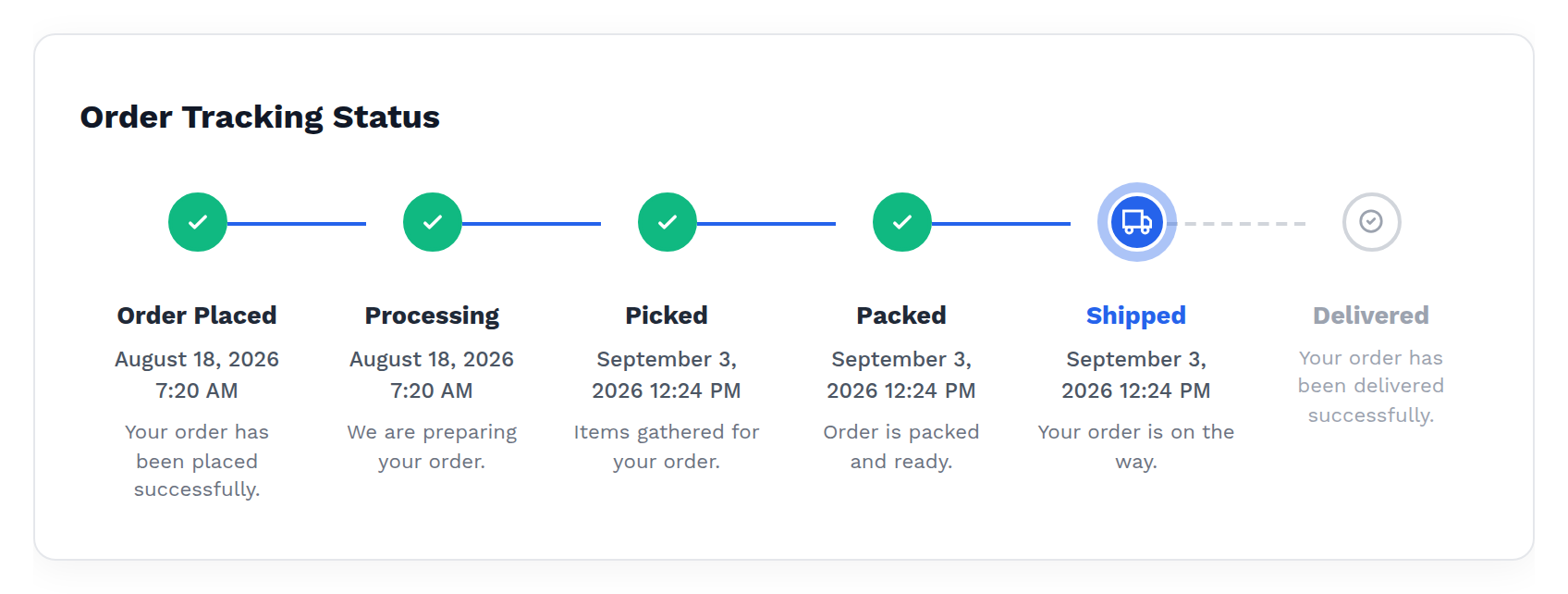
Note the last step reads Delivered, not Completed — the customer sees delivery language, your staff see the WooCommerce status.
A Cancelled, Failed or Refunded order replaces the timeline with a single panel naming the status and when it changed.
Separately, the extension registers a Barcode Scanner - Order Status Change email that goes to the customer's billing address on every status change, carrying the old and new status, the order details and a QR code of the order. It appears under WooCommerce → Settings → Emails, where you can edit its subject and heading or switch it off. It does not contain the OTP — the order page is the only place the customer can read that.
Troubleshooting
| Symptom | Cause | Fix |
|---|---|---|
| "Shipping code is required before marking this order as shipped." | The shipping-code sheet was left empty | Enter the carrier's code and confirm. The order stays Packed until you do |
| "Incorrect OTP. Verification failed." | The six digits do not match the order's code, or the order has no code because it predates the extension | Read the code from the customer's My account → Orders → View page. For an older order with no code, complete it from the admin console |
| The customer cannot see a QR code, only digits | The external QR service is unreachable from your store | Nothing to fix — reading out the six digits works exactly the same |
| A customer says they got no email about a status change | The Barcode Scanner - Order Status Change email is switched off, or the order has no billing email | Check WooCommerce → Settings → Emails |
Next step
- Delivery Agent Role — the account that is actually asked for the code.
- Order Status — the full Picked, Packed, Shipped chain.