Product Scanning
Scanning a product is the most common thing your staff will do with this extension. This page covers how a code is matched, what you see when it matches, and what you can do next.
The flow
- Open Webkul WC Addons → Smart Barcode Scan (or click Barcode Scanner in the toolbar).
- Scan the product label, or type the code and click Scan.
- The console identifies the product.
- The popup opens on the Inventory tab with the product's information.
- From there you can correct the product, or add it to a counter order.
How a barcode is matched to a product
The console tries several fields, in this order, and stops at the first match:
| Order | Field searched | Enabled by |
|---|---|---|
| 1 | Product ID — only when the scanned value is numeric | The Product ID checkbox in Scanner Settings |
| 2 | Product SKU — exact match | The Product SKU checkbox in Scanner Settings |
| 3 | Global Unique Identifier (GTIN, UPC, EAN or ISBN) and/or your Custom Meta Field Key — exact match | The Global Unique Identifier checkbox and/or a value in Custom Meta Field Key |
| 4 | Product name — WordPress search across published products and variations | Always active |
If no product matches, the console then looks for an order: first by numeric order ID, then by your Custom Meta Field Key stored on the order. See Order Scanning.
Both simple products and individual variations can be matched. A variation shows its attributes (for example Colour: Green) in the popup.
Note
Search by product name always runs, even if none of the checkboxes are ticked. It only looks at published products; the ID, SKU and identifier searches also find drafts and other statuses.
Tips
If a barcode does not resolve, first confirm the value really is stored in one of the searched fields, then confirm that field is ticked in Scanner Settings.
Searching without a scanner
You do not need a hardware scanner. Inside the popup, the Inventory tab shows a Find Your Product screen whenever no product is loaded.
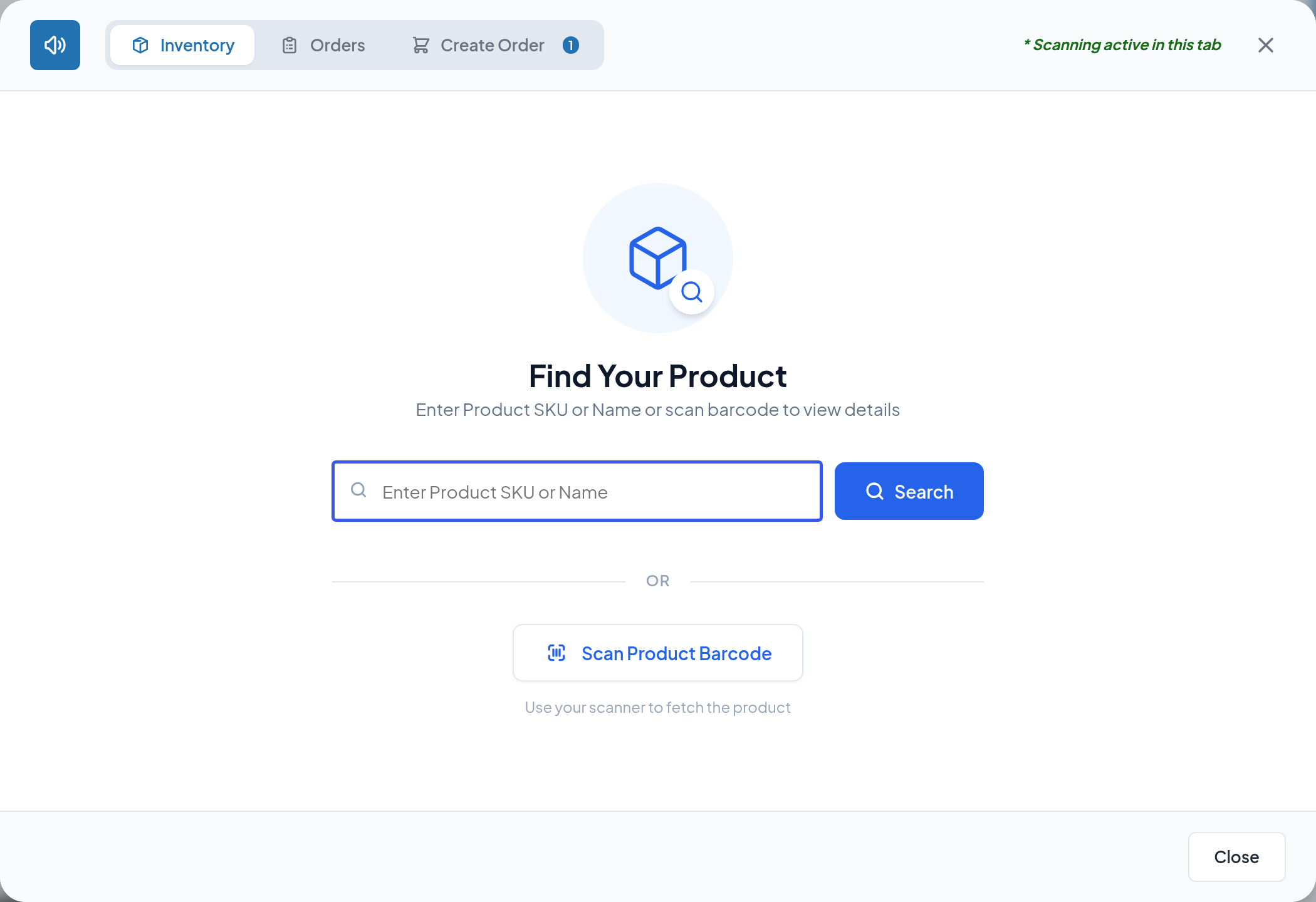
Type the SKU, ID or name into the box and click Search. The placeholder text tells you which fields are currently searchable, based on your settings.
The Scan Product Barcode button below the separator is a reminder, not a camera: clicking it simply tells you to scan with your hardware scanner. The scan itself is captured by the popup automatically.
What the product popup shows
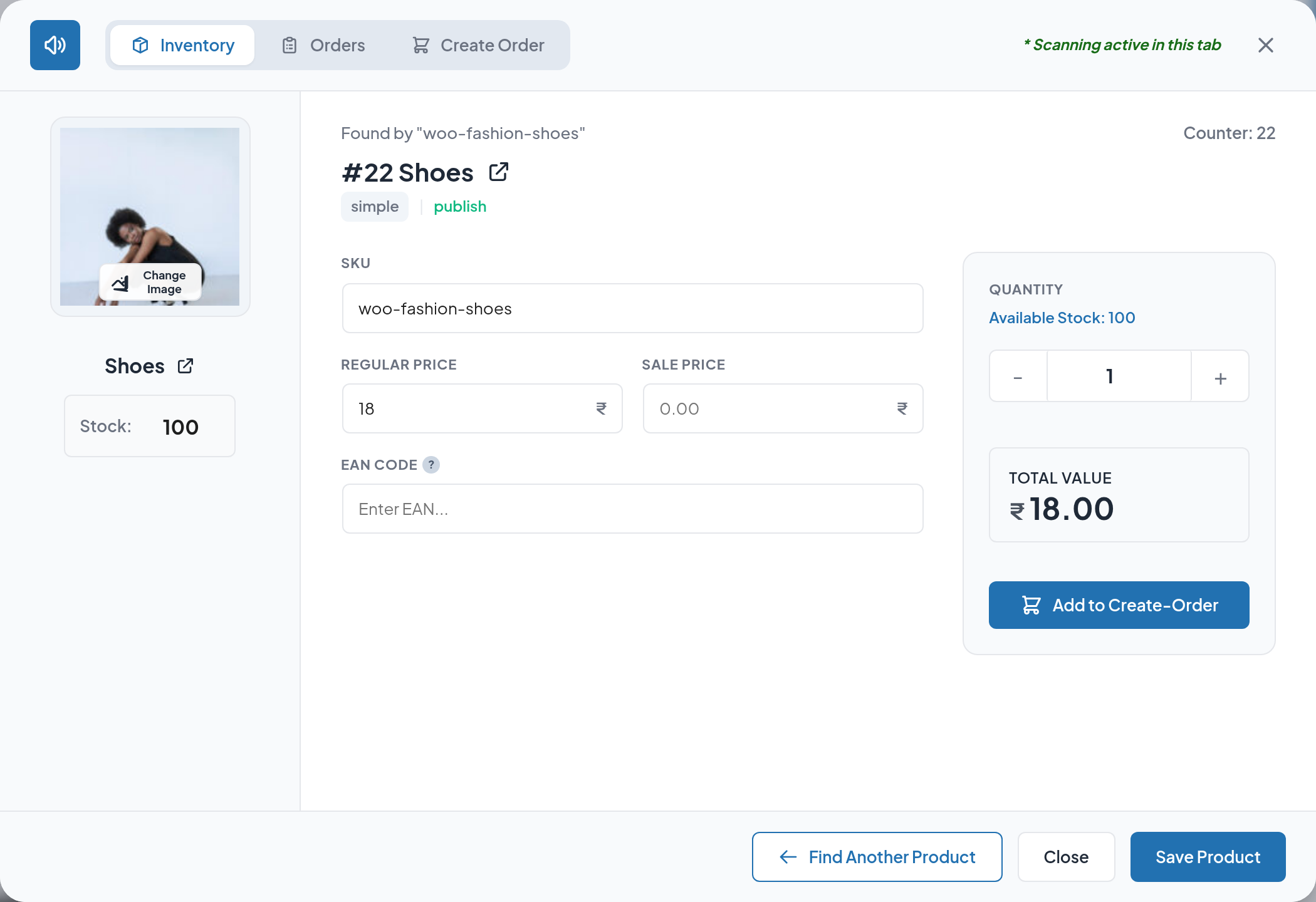
Header strip
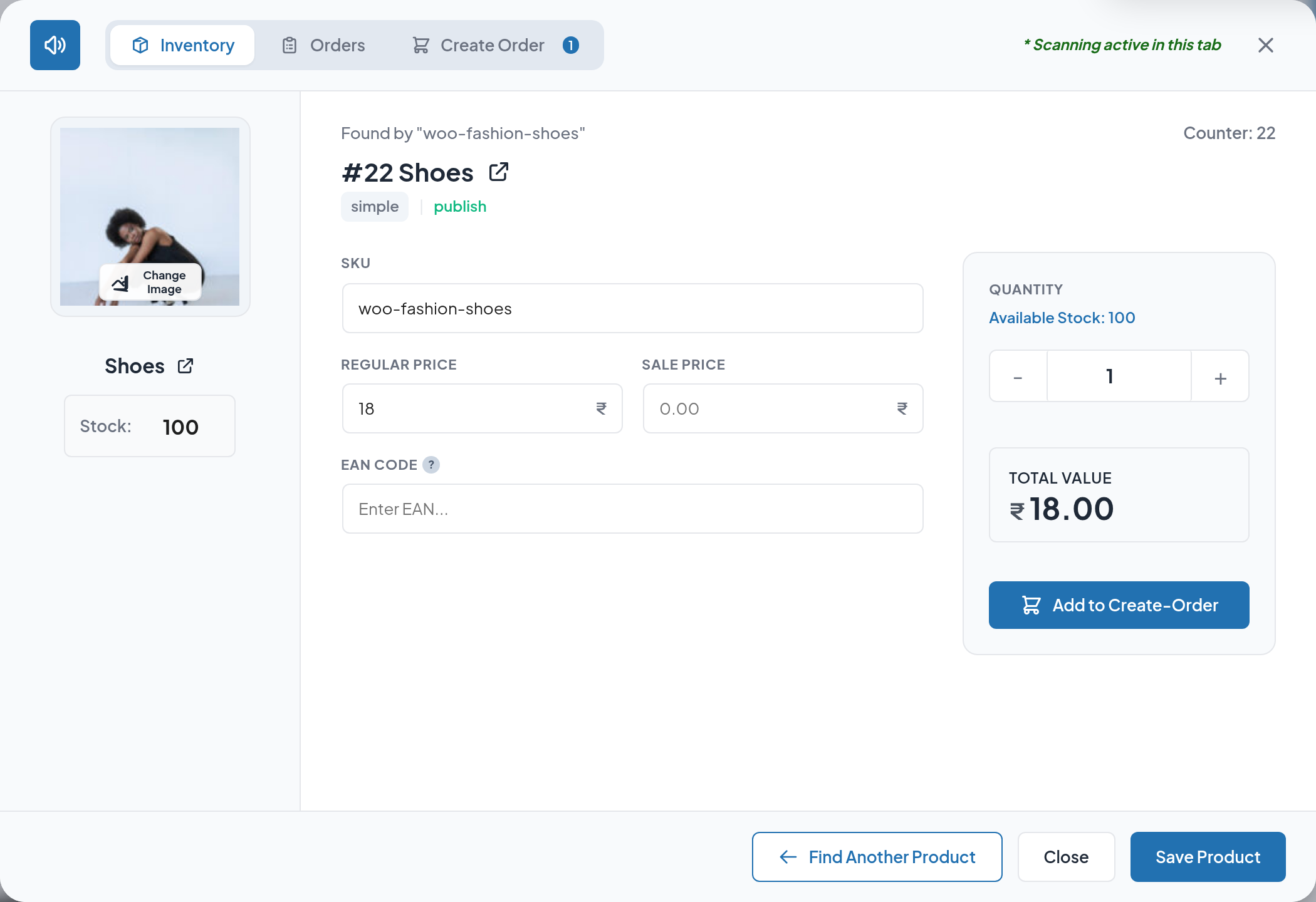
- Found by "…" — the exact value that produced this match, so an operator can confirm they scanned the right label.
- Counter:
<id>— the WooCommerce product ID.
Identity
- #ID and product name, with an external-link icon that opens the full WooCommerce product editor in a new tab.
- Type badge —
simple,variation,variable, and so on. - Status badge —
publish,draft, and so on.
Product image
The thumbnail on the left is clickable. Click it to open the WordPress media library and pick a different image; the new image is applied when you click Save Product.
Editable fields
| Field | What it is |
|---|---|
| Stock | The stock quantity, when the product tracks stock. When it does not, a read-only In Stock / Out of Stock indicator is shown instead |
| SKU | The product SKU |
| Regular price | The product's regular price, in your store currency |
| Sale price | The product's sale price |
| EAN Code | The WooCommerce global unique identifier (GTIN, UPC, EAN or ISBN) |
Editing these is covered in Inventory Management.
Quantity panel
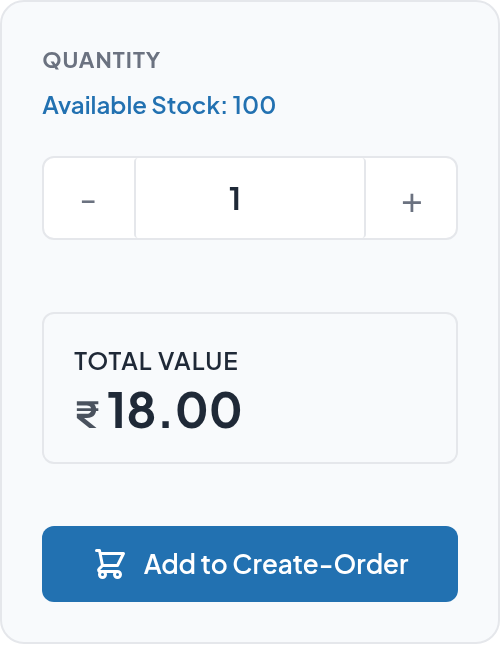
The panel on the right is about ordering, not stock. It shows:
- Available Stock:
<n>for stock-managed products, or In Stock / Out of Stock for products that do not track stock. - A stepper for the quantity to add to the counter order.
- Total Value — quantity × the active price (sale price if set, otherwise regular price).
- Add to Create-Order.
Adding a scanned product to an order
Click Add to Create-Order to place the product in the counter-order cart at the quantity shown. A confirmation appears and the Create Order tab badge increases.
Rules that apply when adding:
- Variable parent products cannot be added. You are asked to scan a specific variation instead. The button is greyed out for them.
- Out-of-stock products cannot be added. The button is disabled when a stock-managed product has zero stock, or when a non-stock-managed product is marked Out of Stock.
- Quantity is capped at available stock. Raising the stepper past the recorded stock shows "Max available stock is
<n>" and holds the quantity at the maximum. - Scanning the same product again increases the quantity of the existing cart line rather than creating a second line.
If Add to Cart After Search is enabled in Scanner Settings, every scanned product is added to the cart automatically with a quantity of 1, without you clicking anything.
Continuing to scan
Because scanning stays active inside the popup, you can work through a whole shelf without touching the mouse:
- Scan the next product → the popup swaps to it.
- Click Find Another Product to clear the current one and return to the search screen.
- Click Close to dismiss the popup entirely.
Every successful scan is written to the Activity Logs with the barcode, the resolved product, the price and the stock level at the time of the scan.
Next step
- Inventory Management — correct stock, prices and identifiers.
- Create Order — turn the cart into a WooCommerce order.