Scan Logs
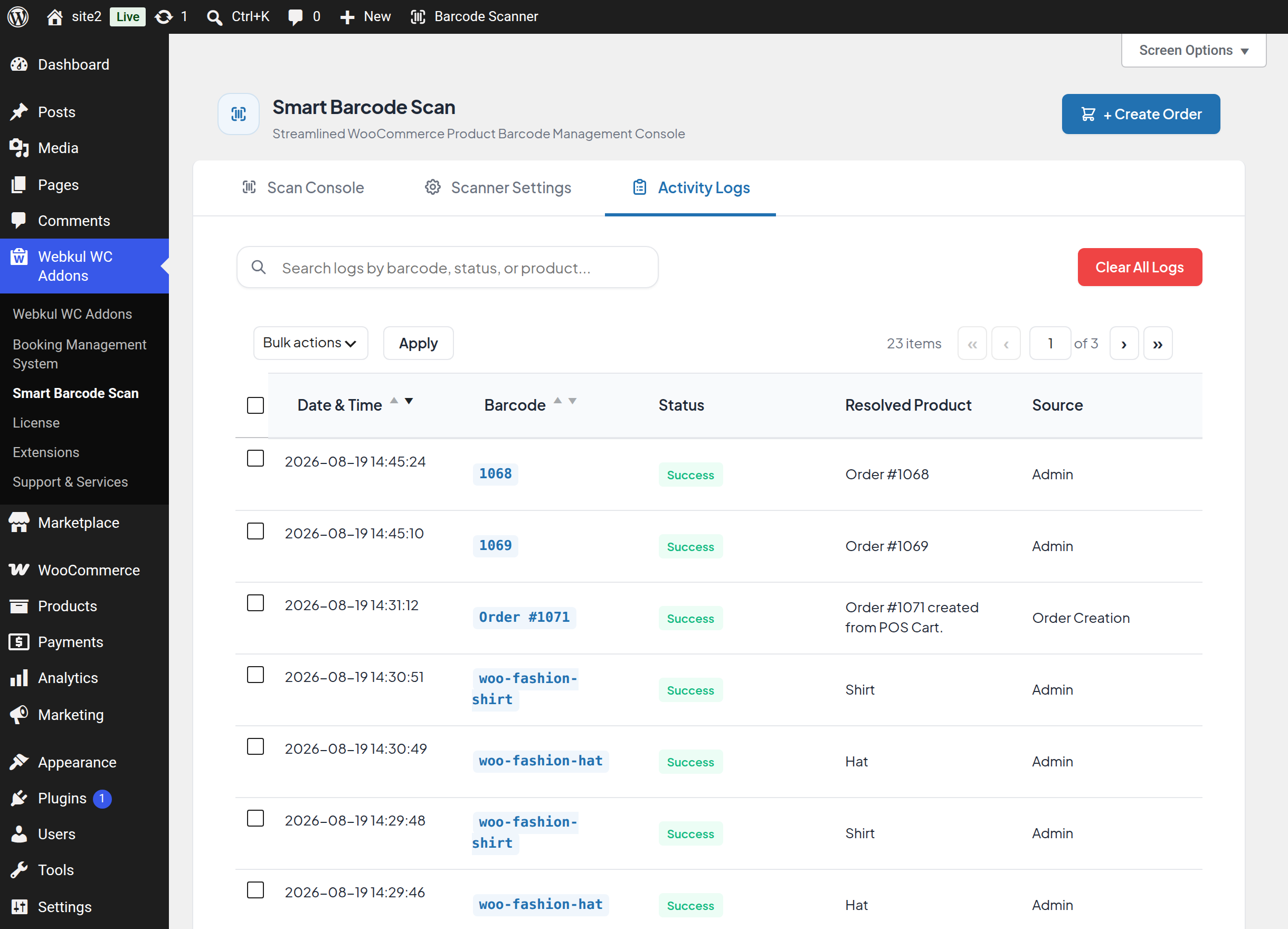
Every action the console takes is recorded so you can answer the question "who changed this, and when?" without guessing. The record lives in the Activity Logs tab of Webkul WC Addons → Smart Barcode Scan.
What is recorded
| Event | Source shown | What the entry contains |
|---|---|---|
| A barcode is scanned and matches a product | Admin | The barcode, the product name, ID, SKU, price and stock at the time |
| A barcode is scanned and matches an order | Admin | The barcode, the order ID, status, customer and total |
| A barcode matches both | Admin | Both blocks, under Product & Order Found |
| A product is saved from the Inventory tab | Product Update | Product ID and name, SKU, regular price, sale price, stock quantity, EAN code |
| An order is saved from the Orders tab | Order Update | Order ID, status, billing and shipping addresses, customer note, shipping code |
| An order is created in the Create Order tab | Order Creation | Order ID, status, the items and quantities, billing email and phone, shipping method and cost, order total |
| Settings are saved | Settings | Every setting and its new value |
Each entry also records the date and time (in your site's timezone) and the display name of the user who triggered it.
Note
Failed scans are not written to the log. The log records what the console did, not every key an operator pressed.
Important
Logging is controlled by the Activity Logging switch in Scanner Settings. While it is off, nothing new is recorded — existing entries are kept.
The table columns
| Column | Contents |
|---|---|
| Checkbox | Selects the row for a bulk action |
| Date & Time | When it happened, plus a Delete action on hover |
| Barcode | The scanned value, or the order reference for order events |
| Status | Success or Failed |
| Resolved Product | The product name, Order #<id>, or a short description of the change |
| Source | Admin, Product Update, Order Update, Order Creation or Settings |
Reading the full detail of an entry
Click anywhere on a row to expand it. A dark detail panel opens underneath with the summary — Date & Time, Action Type, Barcode, Status, Triggered By, Target Item — and the full Details / Action Context block.
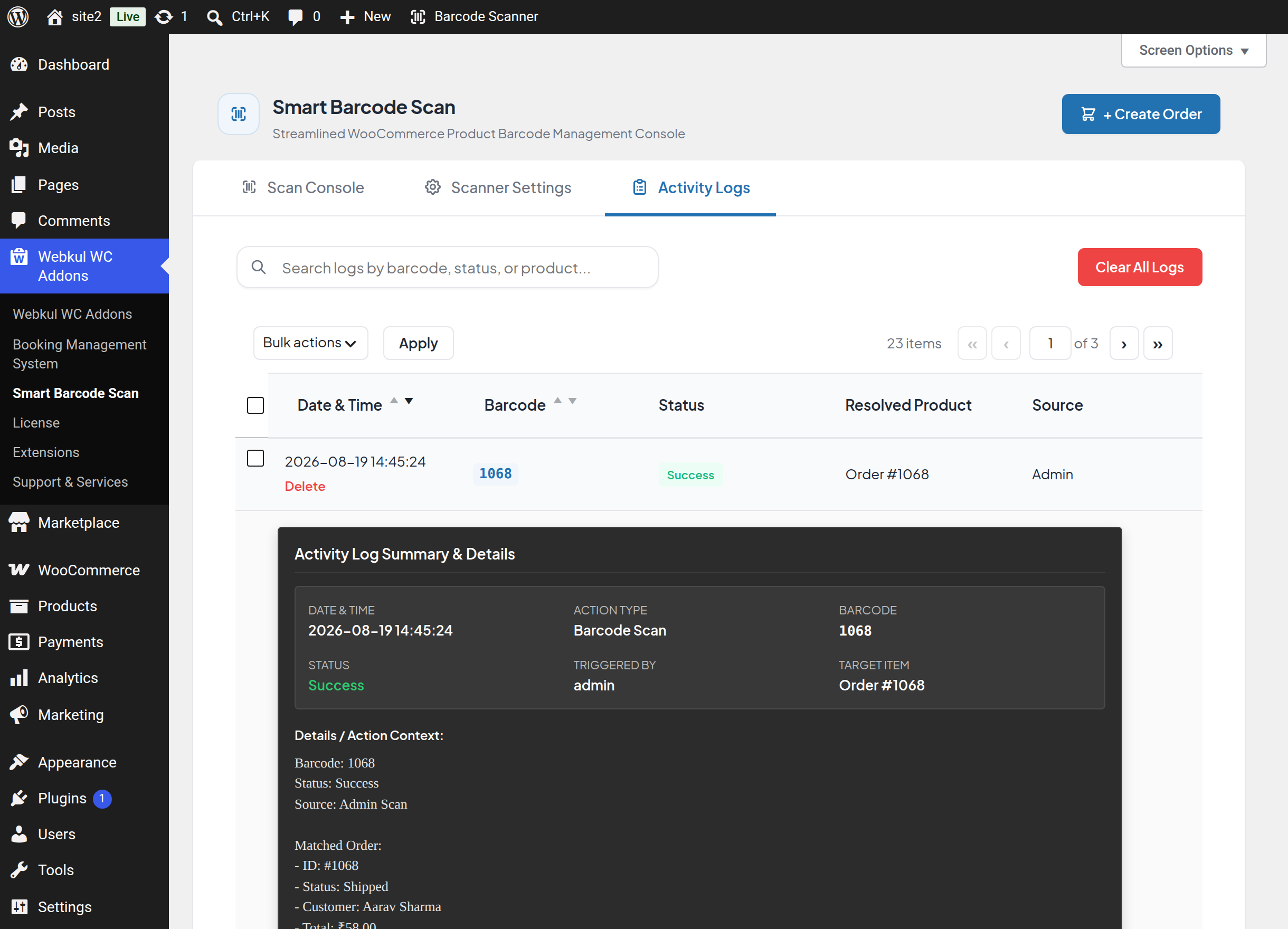
Click the row again to collapse it.
Searching
Type into Search logs by barcode, status, or product… above the table. The list filters as you type, matching against the barcode, the resolved product, the status and the source. Searching resets the table to page 1.
Clear the box to see everything again.
Sorting
Date & Time and Barcode are sortable — click the column heading to toggle between ascending and descending. The table opens sorted by Date & Time, newest first.
The other columns are not sortable.
Pagination
The table shows 10 entries per page by default, with the standard WordPress pager above and below it: item count, first/previous/next/last buttons and a page number box you can type into.
To change how many rows appear per page:
- Open the Activity Logs tab.
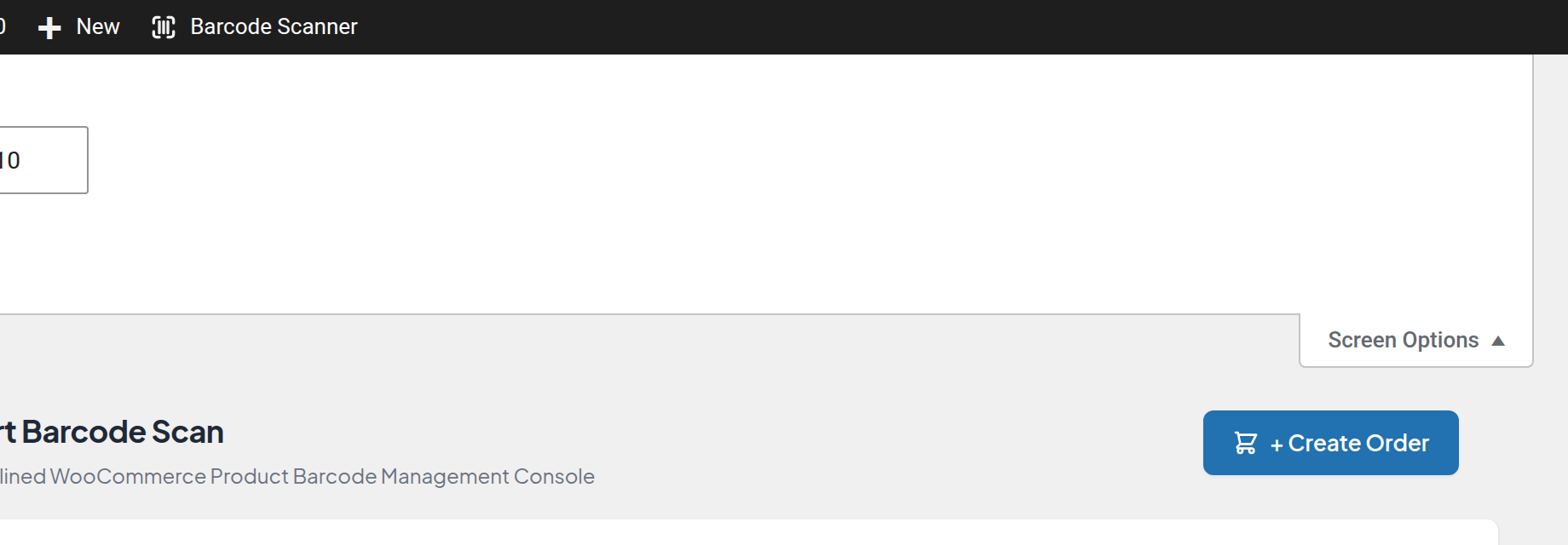
- Click Screen Options at the top right of the screen.
- Set Logs per page and click Apply.
Tips
Screen Options is only shown while the Activity Logs tab is open. It is hidden on the Scan Console and Scanner Settings tabs, where it has nothing to configure.
Deleting entries
One entry
Hover over a row and click Delete under the date. The entry is removed straight away and the table reloads.
Several entries
- Tick the rows you want to remove.
- Choose Delete from Bulk actions.
- Click Apply.
The console confirms how many entries were deleted. If nothing is ticked it tells you "No logs selected."; if the action is left on the default it tells you "Please select a valid bulk action."
Everything
Click Clear All Logs at the top right of the tab. The entire history is removed.
Warning
Deletion is immediate and cannot be undone — there is no confirmation prompt on Clear All Logs. Export or screenshot anything you need to keep before clearing.
How much history is kept
The Log History Limit setting decides how many entries are retained. It accepts a value between 10 and 500, and the default is 100. When the limit is reached, the oldest entries are dropped as new ones arrive.
Choose a value that covers the period you actually review — a busy store scanning all day will overwrite 100 entries quickly.
The history is stored in a protected folder inside your WordPress uploads directory, not in the database, and is not reachable from a browser. The file is rotated automatically if it ever grows past 5 MB.
What is not in this tab
Scans made in the QuickScan mobile app are kept in their own separate history and do not appear here. The Activity Logs tab shows the admin console's activity only. See QuickScan Mobile App.
Next step
- Scanner Settings — turn logging on or off and set the history limit.