Overview
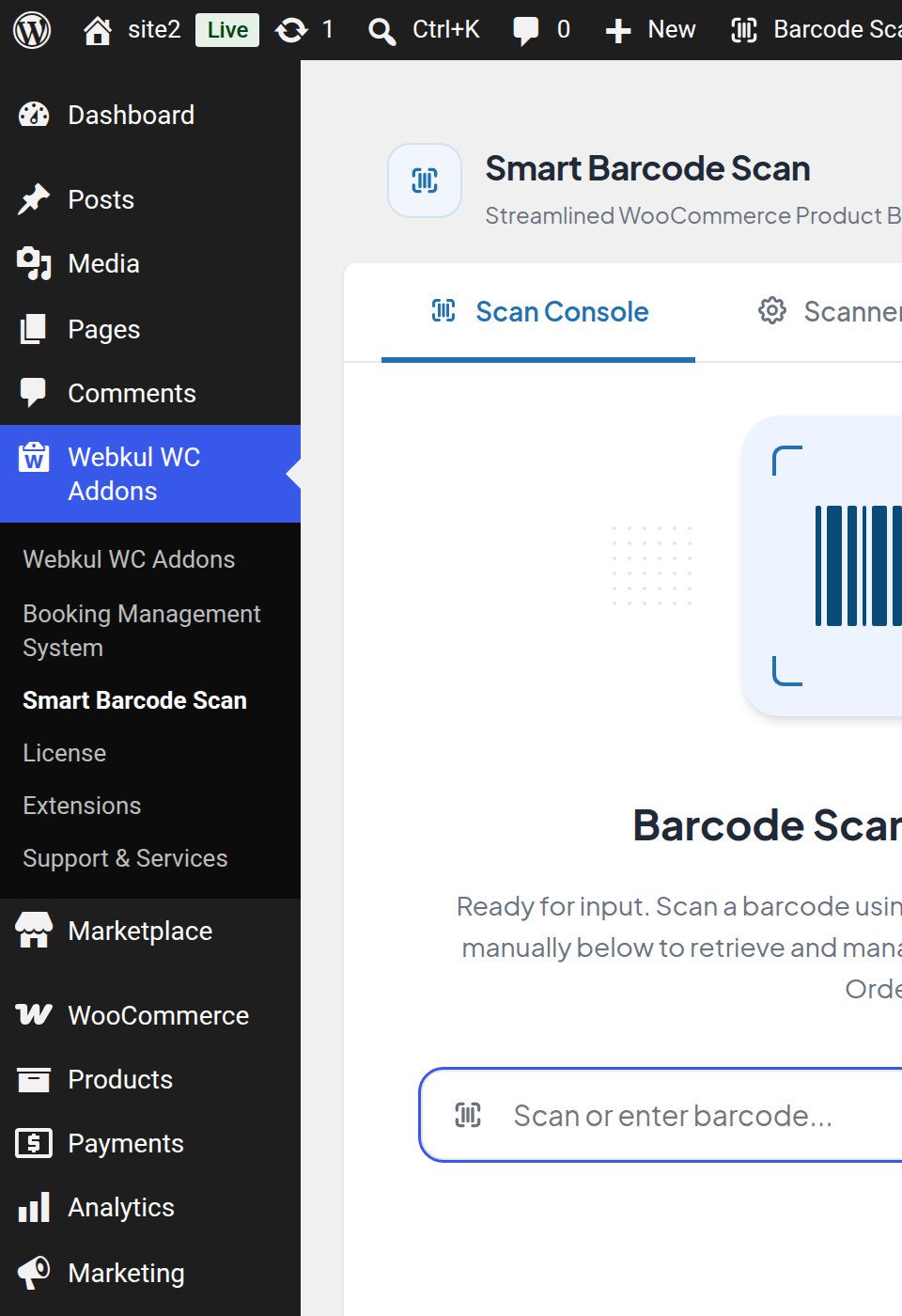
Smart Barcode Scan and Ordering adds a barcode-driven console to your WooCommerce admin. Instead of searching for a product in the Products list or hunting for an order number, your staff scan the label in front of them and the right record opens immediately, ready to work on.
What the extension does
The console is built around a single scan box. Whatever you scan or type is matched, in order, against your products and then your orders:
- A product match opens the Inventory tab, where you can read and correct the product's stock, SKU, prices, EAN code and image, and add it to a counter order.
- An order match opens the Orders tab, where you can read the customer, line items and totals breakdown, edit the addresses and customer note, and change the order status.
- No match shows a clear error message and, if audio feedback is on, an error tone — so the operator knows to re-scan without looking away from the shelf.
Alongside the scan box, the extension provides:
- A Create Order screen for building counter or over-the-phone orders from scanned items.
- Three extra WooCommerce order statuses — Picked, Packed and Shipped — that sit between Processing and Completed.
- Order QR labels that can be generated, downloaded or printed from the WooCommerce order list.
- An Activity Logs tab that records every scan and every change made through the console.
- A quick scanner in the WordPress toolbar, so you can scan from any admin page without navigating to the console first.
Who uses it
| Role | What they can do |
|---|---|
| Administrator | Everything: scan, edit products and orders, create orders, change settings, manage logs |
| Shop Manager | Everything above — the console is available to any user with the Manage WooCommerce capability |
The console does not introduce its own permission screen. If a user can manage WooCommerce, they can use Smart Barcode Scan; if they cannot, the menu item is not shown to them and the underlying actions are refused.
Note
The extension also powers QuickScan, a separate mobile app available on Google Play and the App Store. It is not part of the admin console and behaves differently — see QuickScan Mobile App.
Why it is useful
- Stock counts stop being a two-screen job. Scan a shelf label, read the recorded quantity, type the counted quantity, save, move on.
- Price corrections happen at the shelf. Regular price, sale price and SKU are editable directly in the scan popup.
- Counter sales become one flow. Scan the items a walk-in customer is holding, attach their account, choose a status, and the WooCommerce order is created with correct stock deduction.
- Fulfilment gains structure. Picked and Packed give warehouse staff two checkpoints that plain WooCommerce does not have, and an order cannot be marked Shipped without a tracking code.
- Nothing is untraceable. The Activity Logs tab shows what was scanned, what changed and who did it.
What it does not do
Being explicit about the boundaries saves time later:
- The console does not take payment. Orders created here are ordinary WooCommerce orders in whichever status you choose; no payment gateway is called.
- It does not scan with a camera in the browser. The admin console reads whatever a hardware scanner or your keyboard types into the scan box.
- It does not add variable parent products to an order. Scan the barcode of a specific variation instead.
- The Activity Logs tab covers console activity only. Scans made in the QuickScan mobile app are stored separately and are not shown in this tab.
Where everything lives
| Area | Location in WordPress |
|---|---|
| Scan Console, Scanner Settings, Activity Logs | Webkul WC Addons → Smart Barcode Scan |
| Quick scanner | Barcode Scanner in the WordPress toolbar (top bar) |
| Order QR labels | WooCommerce → Orders → row action / Actions column / bulk action |
| Picked, Packed, Shipped statuses | WooCommerce → Orders status filters, order edit screen, bulk actions |
| Licence activation | Webkul WC Addons → License |
Next step
Continue with Features for the complete list of what the extension adds, or go straight to Getting Started to install it, activate the licence and open the console for the first time.