
Features
This page is the complete catalogue of what Smart Barcode Scan and Ordering adds to your WooCommerce store, grouped the way you will use it. Every entry links to the page that explains it step by step.
If you are evaluating the extension, read this page top to bottom. If you already have it installed, use the table below to jump to the workflow you need.
Feature summary
| Feature | What it gives you | Read more |
|---|---|---|
| Scan Console | One scan box that finds a product or an order from any barcode | Scanner Console |
| Toolbar quick scanner | Scan from any admin screen without leaving the page you are on | Scanner Console |
| Multi-field barcode matching | One code matched against product ID, SKU, GTIN/UPC/EAN/ISBN, a custom field, product name and order ID | Scanner Settings |
| Inventory quick edit | Correct stock, SKU, prices, EAN code and the product image inside the scan popup | Inventory Management |
| Order quick edit | Change status, addresses and the customer note on a scanned order | Order Scanning |
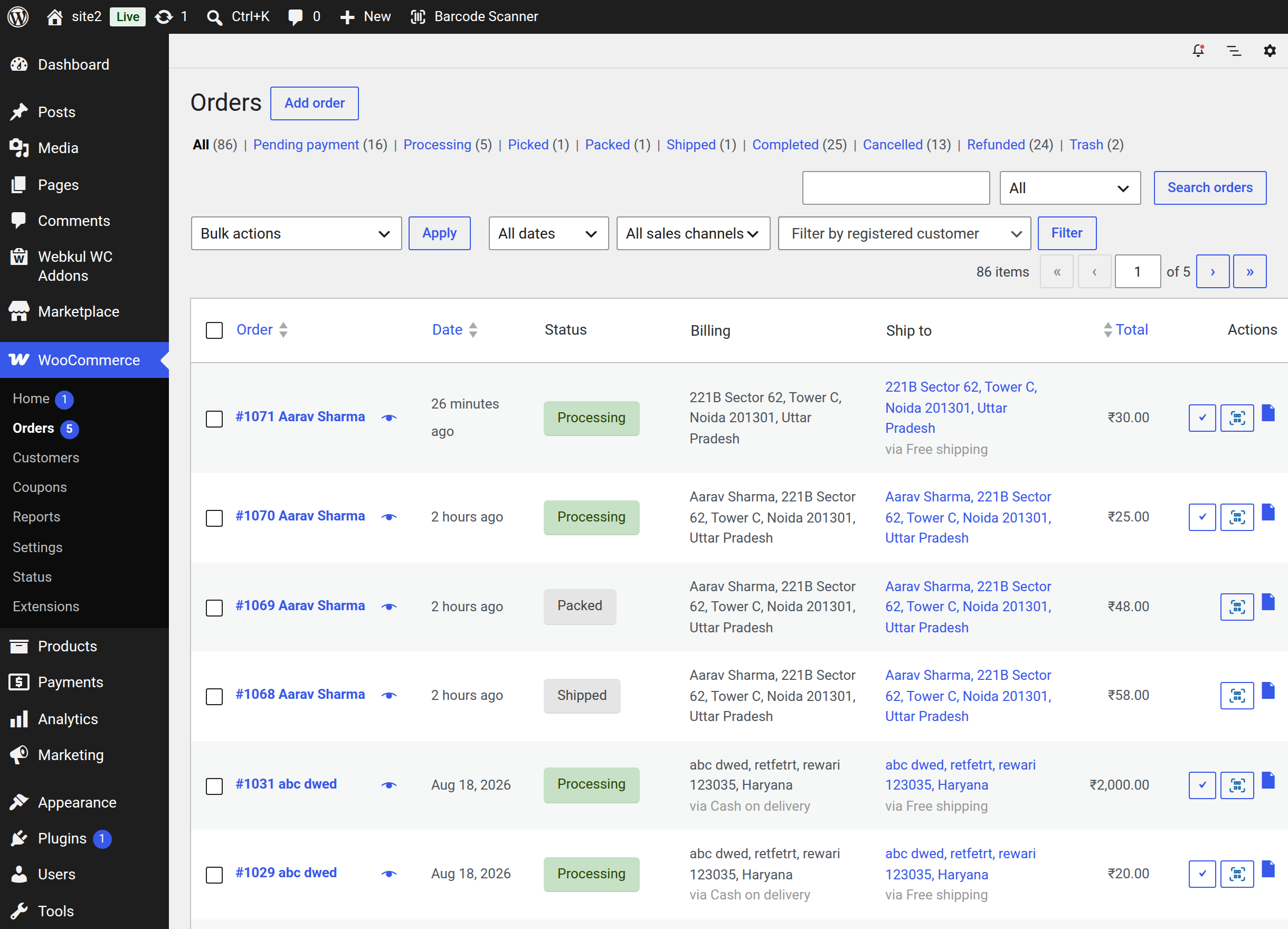
| Picked · Packed · Shipped | Three extra fulfilment statuses between Processing and Completed | Order Status |
| Scan-to-advance | Re-scanning an open order moves it one stage forward | Order Status |
| Create Order | Build a counter or phone order from scanned items and create it in WooCommerce | Create Order |
| Customer attach & register | Search an existing customer or register a new user mid-order | Customer Details |
| Shipping & coupons | Calculate live shipping rates and validate a coupon before the order is created | Taxes & Order Totals |
| Order QR labels | Generate, download, print or bulk-generate QR labels from the order list | Order Scanning |
| Activity Logs | A searchable, timestamped record of every scan and every change | Scan Logs |
| Scanner Settings | Control matching fields, scan sound, auto-clear, auto-add and log retention | Scanner Settings |
| QuickScan mobile app | Scan from a phone with the Android or iOS app | QuickScan Mobile App |
| Delivery Agent role | A courier account that can only close Shipped orders, and only with the customer's code | Delivery Agent Role |
| Delivery verification code | A six-digit code per order, shown to the customer, required from a delivery agent | Shipping Code & Delivery OTP |
| Customer delivery timeline | An Order Placed to Delivered progress tracker on the customer's order page | What the customer sees |
| Status-change email | A WooCommerce email to the customer on every status change | What the customer sees |
Barcode scanning
A single console for every lookup
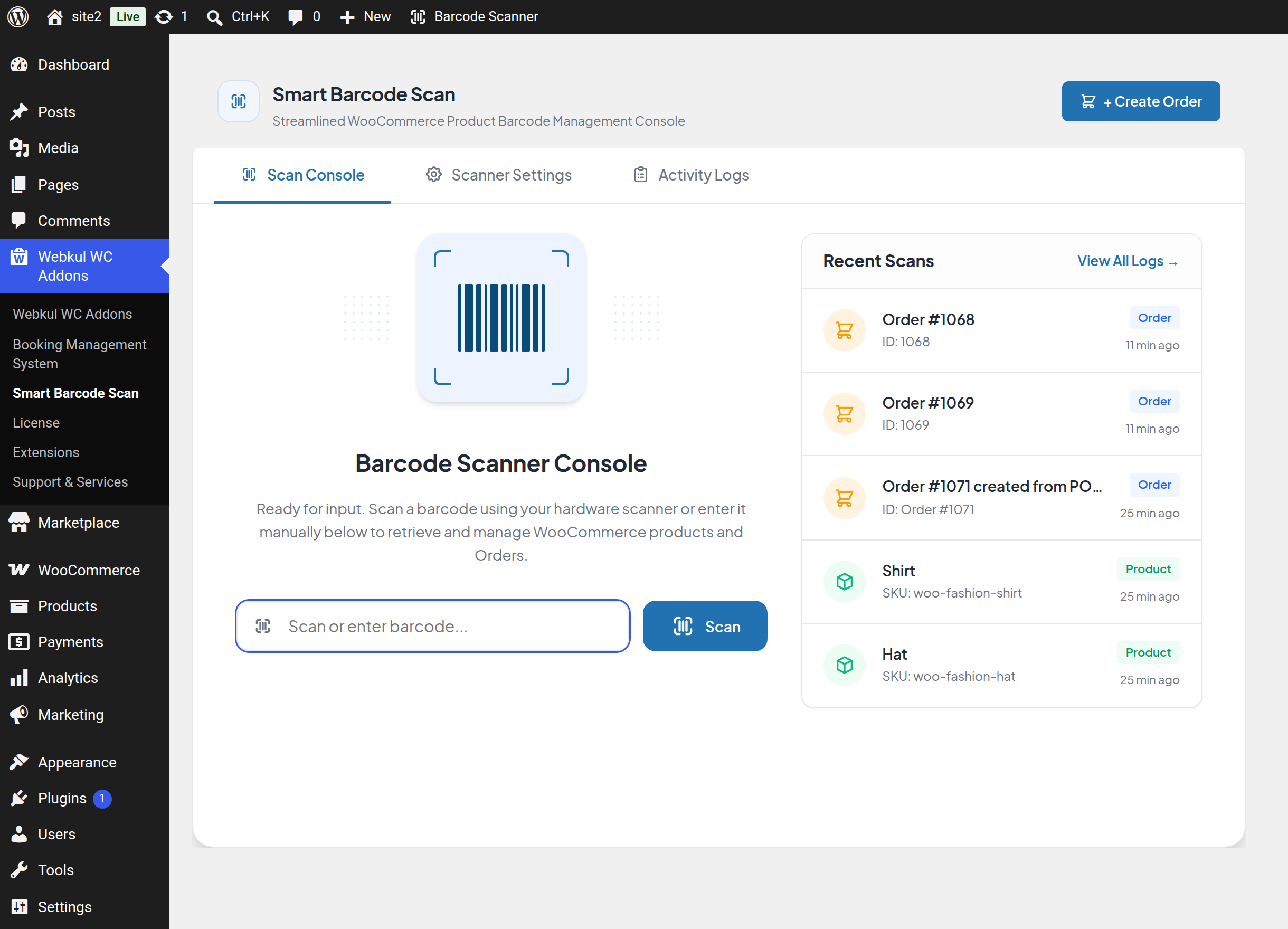
The console lives at Webkul WC Addons → Smart Barcode Scan and opens on the Scan Console tab. The cursor is placed in the scan box automatically, so a hardware scanner works the moment the page loads — most scanners type the code and press Enter, which submits the lookup.
- Works with any hardware barcode scanner that behaves like a keyboard, and with codes typed by hand.
- A Recent Scans panel lists the five latest lookups with the resolved name, the scanned value, a Product / Order / Coupon badge and how long ago it happened.
- On a match, a popup workspace opens over the console with the record already loaded.
- On a failure, the console shows "Product or Order not found for the scanned barcode." and re-selects the code so the next scan overwrites it.
Scan from anywhere in wp-admin
A Barcode Scanner item is added to the WordPress toolbar on every admin screen. It opens a small scan card in the middle of whatever page you are on, and a match opens the same popup workspace — so a stock correction never costs you your place in another task. The quick scanner shares its cart with the console.
Keep scanning without closing the popup
The popup workspace has three tabs — Inventory, Orders and Create Order, the last one badged with the number of items in the cart — and it stays open while you keep scanning. Anything a scanner types while the popup is open, as long as the cursor is not in a text field, is looked up straight away: another product replaces the one on screen, an order switches the popup to the Orders tab, and re-scanning the order already open advances it a stage.
Two more touches keep an operator's hands on the scanner: a speaker button mutes the scan tone for the current session, and Enter triggers the primary action of whichever tab is active — Save Product, Save Order or CREATE.
What a barcode is matched against
One scanned value is checked against several fields in a fixed order, and the first match wins:
| Order | Matched against | Condition |
|---|---|---|
| 1 | Product ID | Only when Product ID is enabled and the scanned value is numeric |
| 2 | Product SKU | Exact match, only when Product SKU is enabled |
| 3 | GTIN, UPC, EAN or ISBN | Only when Global Unique Identifier is enabled |
| 4 | Your own custom meta field | Only when a Custom Meta Field Key is configured |
| 5 | Product or variation name | Always runs, on published products only |
| 6 | Order ID | Only when the value is numeric and nothing above matched |
| 7 | Order custom meta field | Uses the same custom key, for codes stored on orders |
Product variations are found directly — scan the variation's own label and its attributes are shown in the popup, and it is added to an order as that variation rather than its parent.
Scanning feedback
- Audio feedback — a success or error tone on every scan, so an operator working down a shelf never has to look at the screen. On by default.
- Auto clear input — empties the scan box after each successful scan, ready for the next item.
- Add to cart after search — drops every successfully scanned product straight into the Create Order cart, which turns the console into a till.
Products and inventory
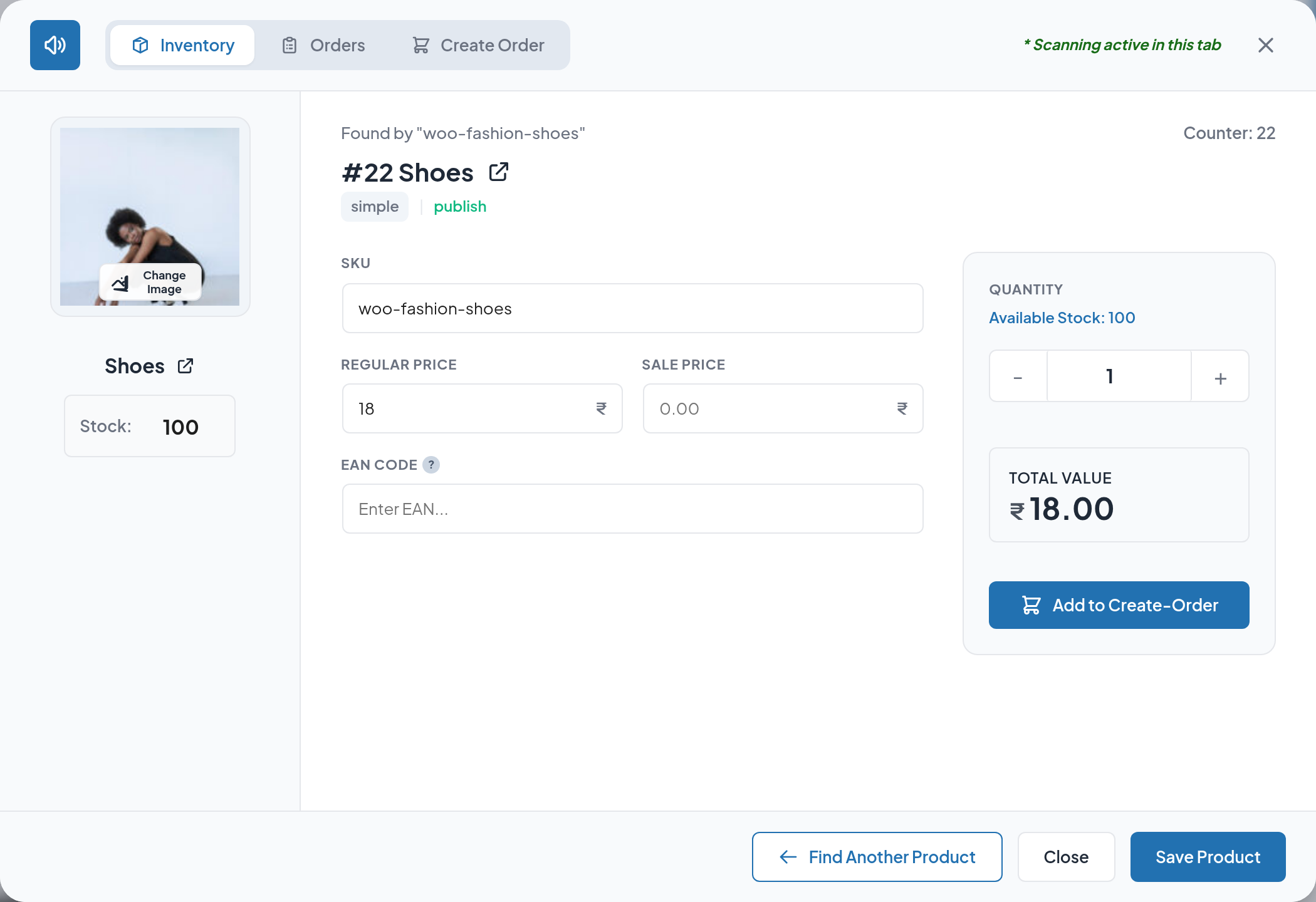
Scanning a product opens the Inventory tab of the popup with everything about that product on one screen: image, product type, publish status, stock status, current price and stock level.
These fields are editable in place and saved without leaving the popup:
| Field | Notes |
|---|---|
| SKU | The code your labels are usually printed from |
| Regular price | In your store currency |
| Sale price | Leave blank to remove a sale |
| Stock quantity | The counted quantity, typed or stepped |
| EAN code | WooCommerce's GTIN, UPC, EAN, or ISBN field |
| Product image | Chosen from the WordPress media library |
Warning
Saving from the Inventory tab always switches Manage stock on for that product and writes the quantity you entered. If a product is deliberately sold without stock tracking, do not save it from the popup — see Inventory Management.
Orders
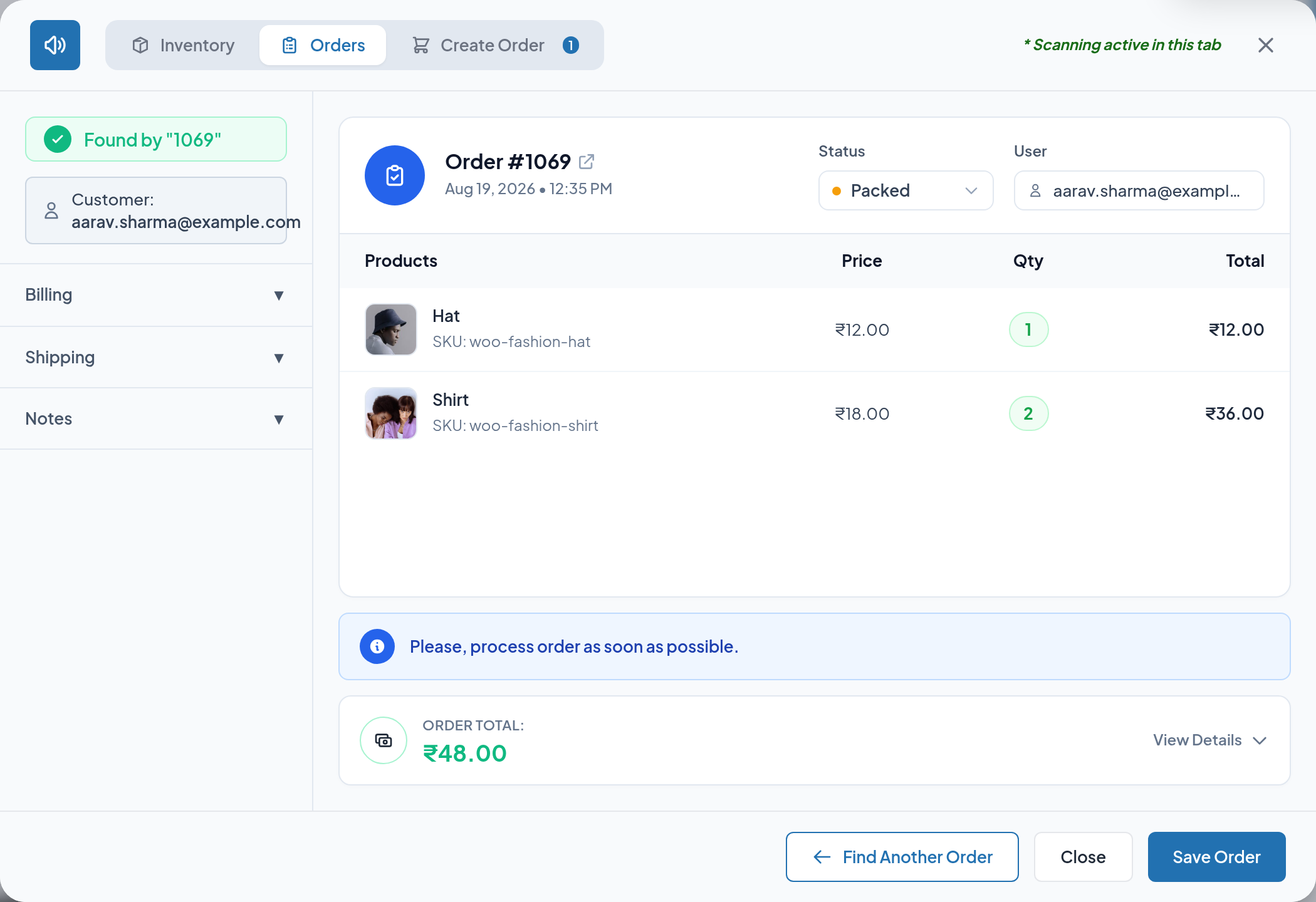
Scanning an order — or typing its ID — opens the Orders tab with the order laid out in collapsible sections: customer, line items, the full totals breakdown, billing and shipping addresses and the customer note.
Editable from the popup:
- Order status, including the three fulfilment statuses this extension adds. A status change writes the order note "Status updated via Smart Barcode Scan."
- Billing address and shipping address.
- Customer note.
- A shipping code when one is required to advance the order.
Warning
The address boxes in the popup are free text. Saving them keeps the name and the first address line and clears company, address line 2, city, state, postcode and country. Use the WooCommerce order edit screen when a structured address must be preserved.
Order QR labels
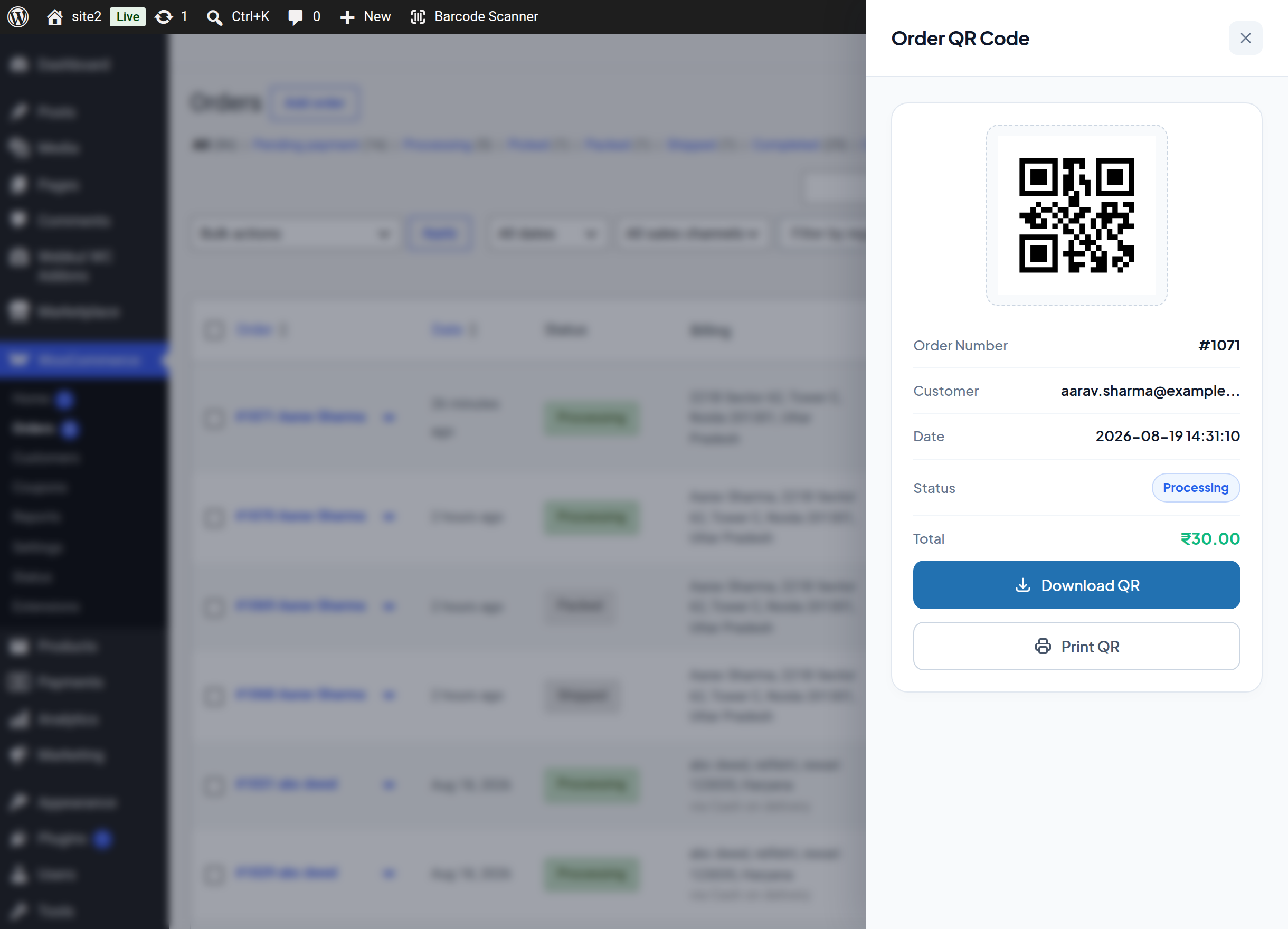
Every order in WooCommerce → Orders can carry a scannable QR label:
- A Generate QR row action and a button in the Actions column.
- A Generate QRs bulk action for a whole batch of orders.
- A drawer showing the QR code together with the order number, customer, date, status and total, with Download QR and Print QR.
Both the legacy order screen and High-Performance Order Storage are supported.
Note
If Print Barcode Products and Orders for WooCommerce is also active on your store, the QR label features are hidden so the two extensions do not duplicate each other.
Fulfilment statuses
The extension registers three WooCommerce order statuses — Picked, Packed and Shipped — placed immediately after Processing. They appear in the order list filters, the order edit screen, the bulk actions menu and WooCommerce reports, exactly like the built-in statuses.
Scanning an order that is already open in the Orders tab advances it one stage:
Pending / On hold → Processing → Picked → Packed → Shipped → Completed
- Packed → Shipped asks for a shipping code first, and the change is refused if it is left empty — so nothing can ship without a tracking reference.
- Shipped → Completed asks for confirmation before it goes through. The same confirmation is added to the WooCommerce order edit screen and to the order list's Complete action.
- Orders in any other status are left untouched, and a Completed order stays Completed.
Counter ordering
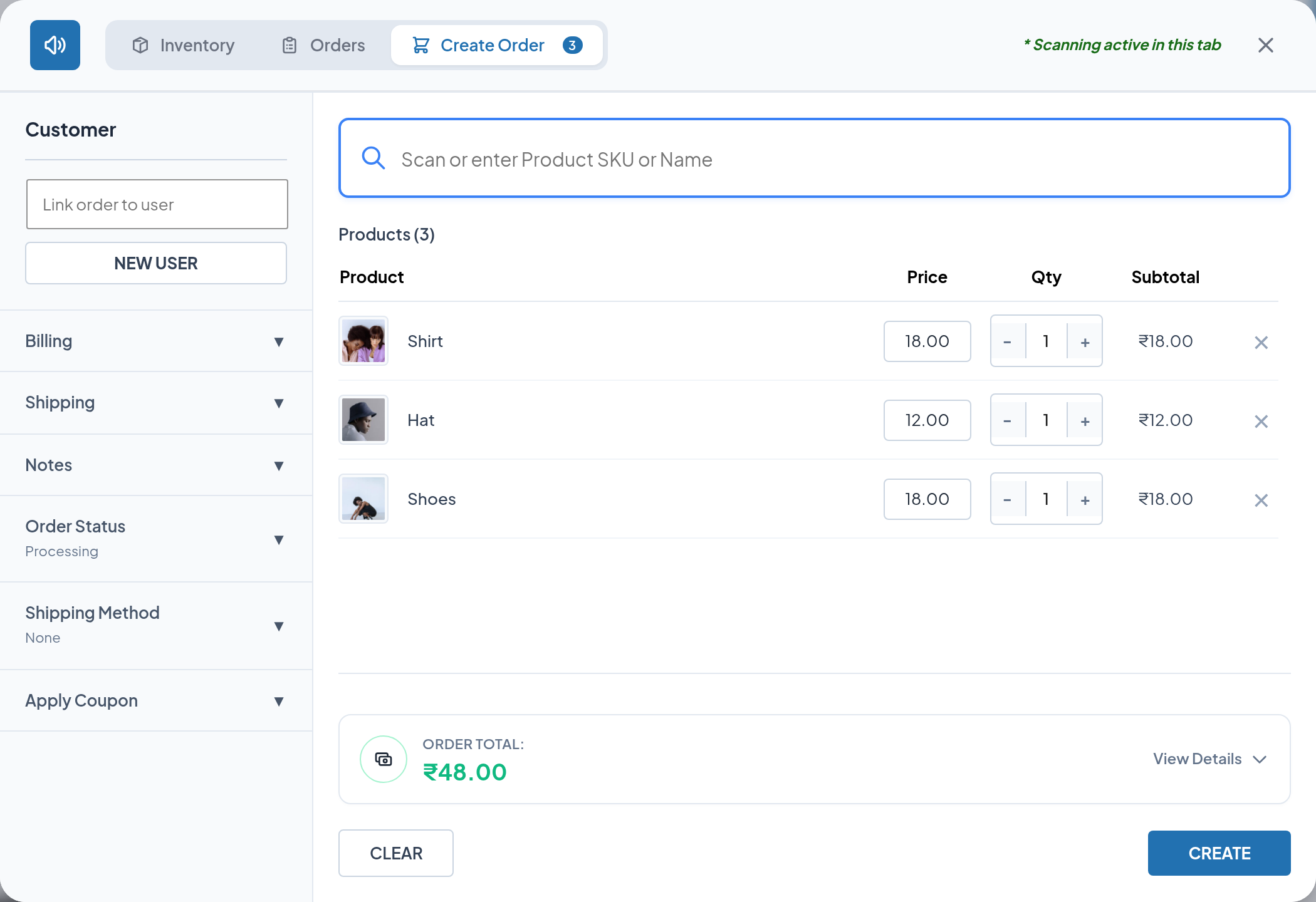
+ Create Order turns scanned items into a real WooCommerce order.
| Capability | What it does |
|---|---|
| Scan-to-cart | Each scan adds a line; scanning the same item again increases its quantity |
| Stock-aware quantities | Quantity is capped at the available stock when stock is managed, and out-of-stock items are refused |
| Shared cart | The cart is the same one the toolbar quick scanner fills, and it survives navigating between admin pages |
| Customer search | Find an existing customer by username, name or email address; billing and shipping are filled from their WooCommerce profile |
| New user registration | Create a WordPress user without leaving the screen, with an optional welcome email and any site role |
| Billing & shipping | Full address, email and phone, with Same as billing address to mirror and lock the shipping block |
| Calculate shipping | Builds a package from the cart and the destination and returns your live shipping rates with cost and tax |
| Coupons | Validated against existence, expiry, usage limit and product/category rules before it is accepted |
| Order status | Any WooCommerce status, including Picked, Packed and Shipped; Processing by default |
| Customer note | Written onto the created order |
Creating the order runs the normal WooCommerce pipeline — totals are calculated, coupons applied, stock reduced — and the finished order opens in a new tab.
Note
No payment gateway is called. The order is created in whichever status you choose, and you take payment however you normally do at the counter.
Auditing and logs
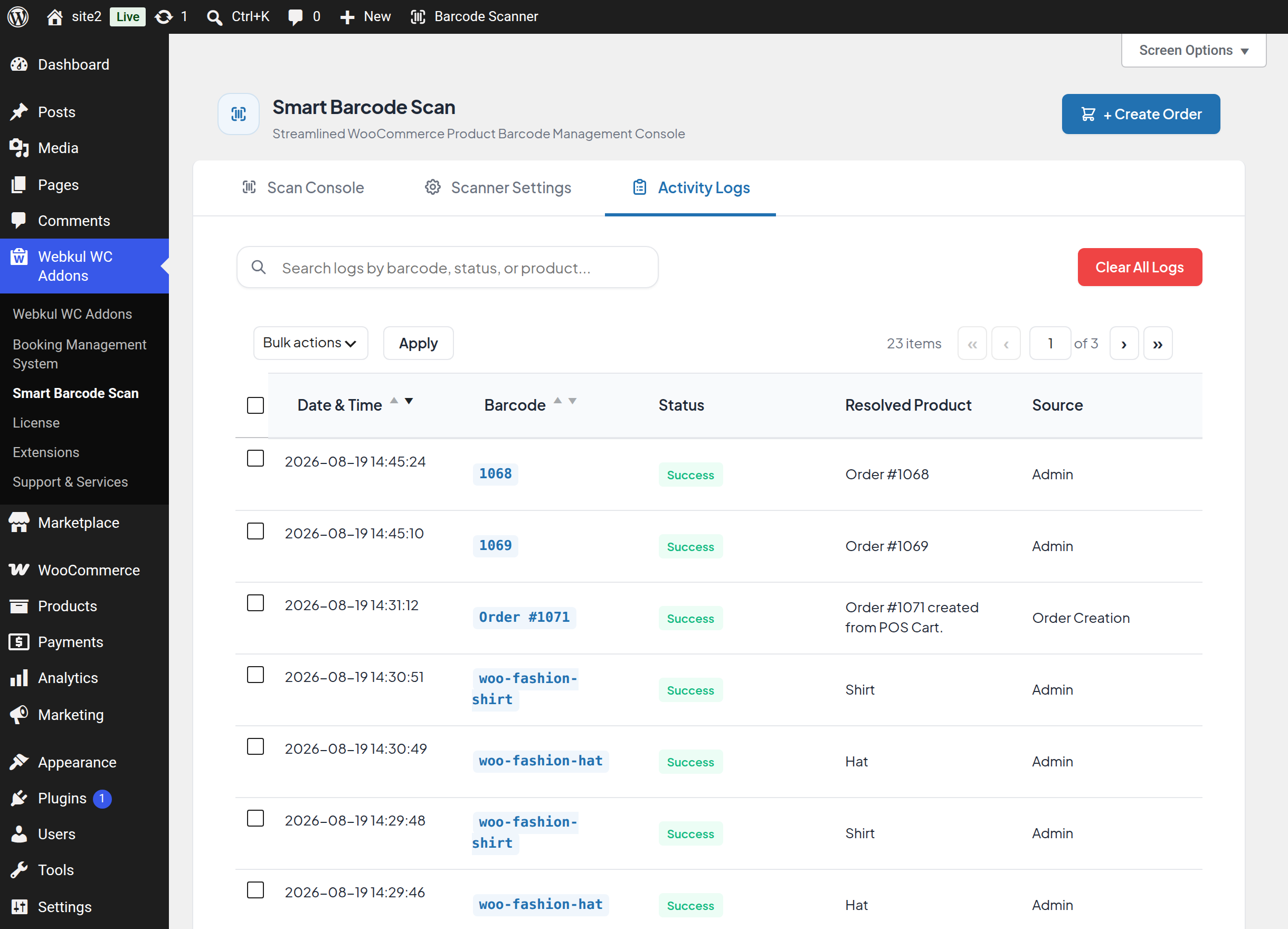
Everything done through the console is recorded in the Activity Logs tab: scans, product edits, order edits, order creation and settings changes.
- Each entry stores the date and time, the scanned barcode, success or failure, the resolved product or order, the action type and the user who performed it.
- Search across barcode, product, status and source; sort by date or barcode.
- Click any row to expand the full detail panel.
- Delete a single row, delete a selection in bulk, or Clear All Logs.
- A Logs per page screen option controls pagination, and a Log History Limit setting caps how many entries are kept.
Settings
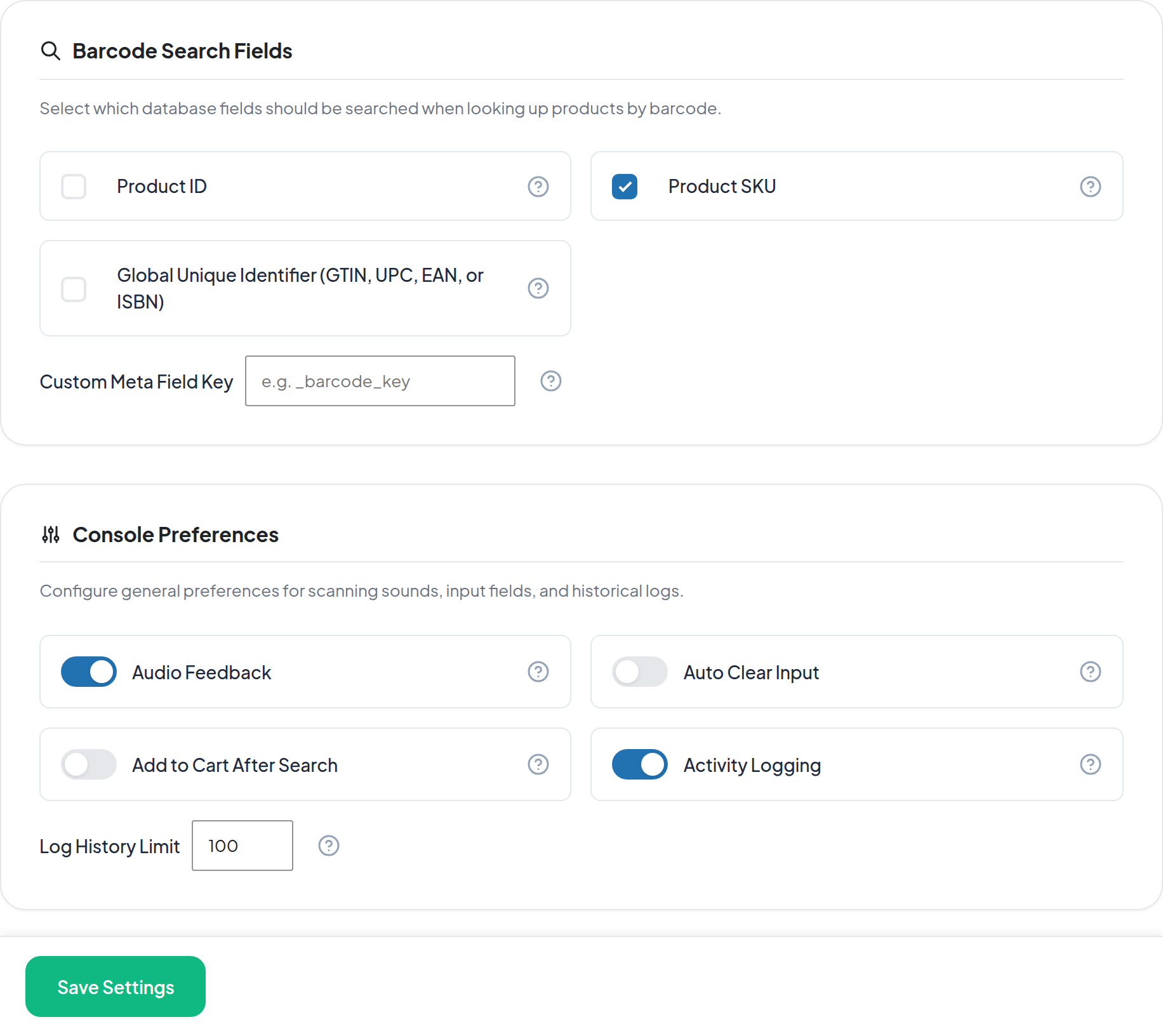
All console behaviour is controlled from the Scanner Settings tab, and applies store-wide.
| Setting | Purpose | Default |
|---|---|---|
| Product ID | Match scanned numeric values against product IDs | Off |
| Product SKU | Match scanned values against SKUs | On |
| Global Unique Identifier (GTIN, UPC, EAN, or ISBN) | Match against WooCommerce's global unique identifier field | Off |
| Custom Meta Field Key | Match against a barcode field added by an import or another plugin | Empty |
| Audio Feedback | Play a tone on scan success and failure | On |
| Auto Clear Input | Empty the scan box after each successful scan | Off |
| Add to Cart After Search | Send every scanned product straight to the Create Order cart | Off |
| Activity Logging | Record console activity in the Activity Logs tab | On |
| Log History Limit | How many log entries to keep, between 10 and 500 | 100 |
QuickScan mobile app
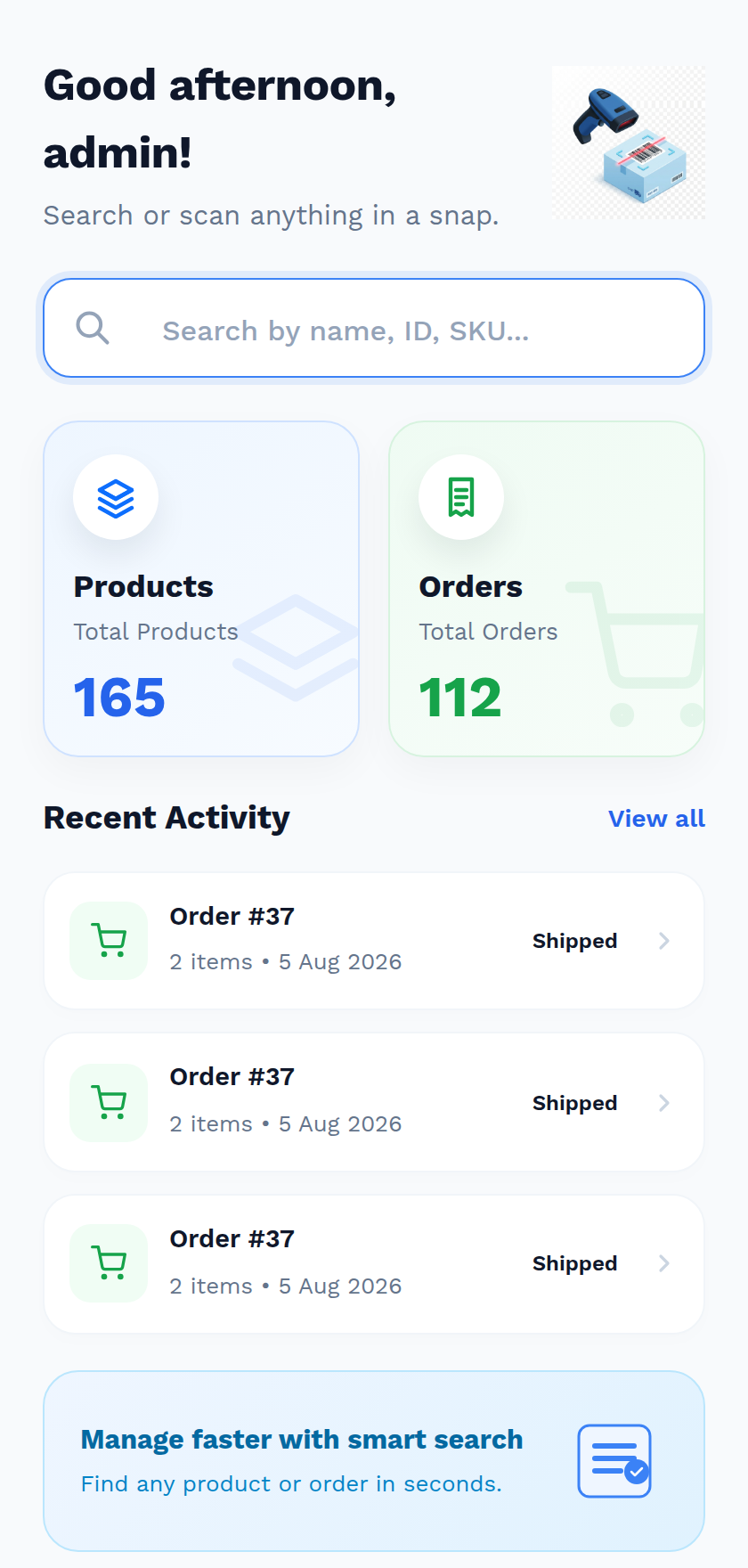
Alongside the admin console, the extension powers QuickScan, a phone app with its own product, order, history and settings screens. It is published on Google Play for Android and on the App Store for iPhone and iPad.
It is not a mobile version of the console, and its /scanner/ routes do not open in an ordinary browser — a normal browser visiting /scanner/ is redirected to My Account. See QuickScan Mobile App for how to install it, who can sign in, and what each screen offers.
Access, security and compatibility
| Area | Detail |
|---|---|
| Who can use the console | Any user with the Manage WooCommerce capability — Administrator and Shop Manager by default |
| Permission model | No extra permission screen to configure; users without the capability never see the menu item and every underlying action is refused |
| Request protection | Every action from the console is checked against the current user's capability, a security token and the licence state |
| Order storage | Compatible with WooCommerce High-Performance Order Storage (HPOS) as well as the legacy order tables |
| Requirements | WordPress 5.0+, PHP 7.4+, WooCommerce 5.0+ (tested up to 8.5) |
| Licence | Features unlock once the purchase code is activated on Webkul WC Addons → License |
| Translations | Fully translation-ready; a .pot file ships with the extension |
Limits worth knowing before you buy
- The console reads whatever a hardware scanner or your keyboard types into the scan box; it does not open a device camera in the browser.
- Variable parent products cannot be added to an order — scan the specific variation instead.
- Orders created from the console do not charge a payment gateway.
- The Activity Logs tab covers console activity only; scans made in the QuickScan app are stored separately.
Next step
- Getting Started — install the extension, activate the licence and open the console.
- Scanner Console — learn the scan screen itself.
- Create Order — build your first counter order.