
Order Scanning
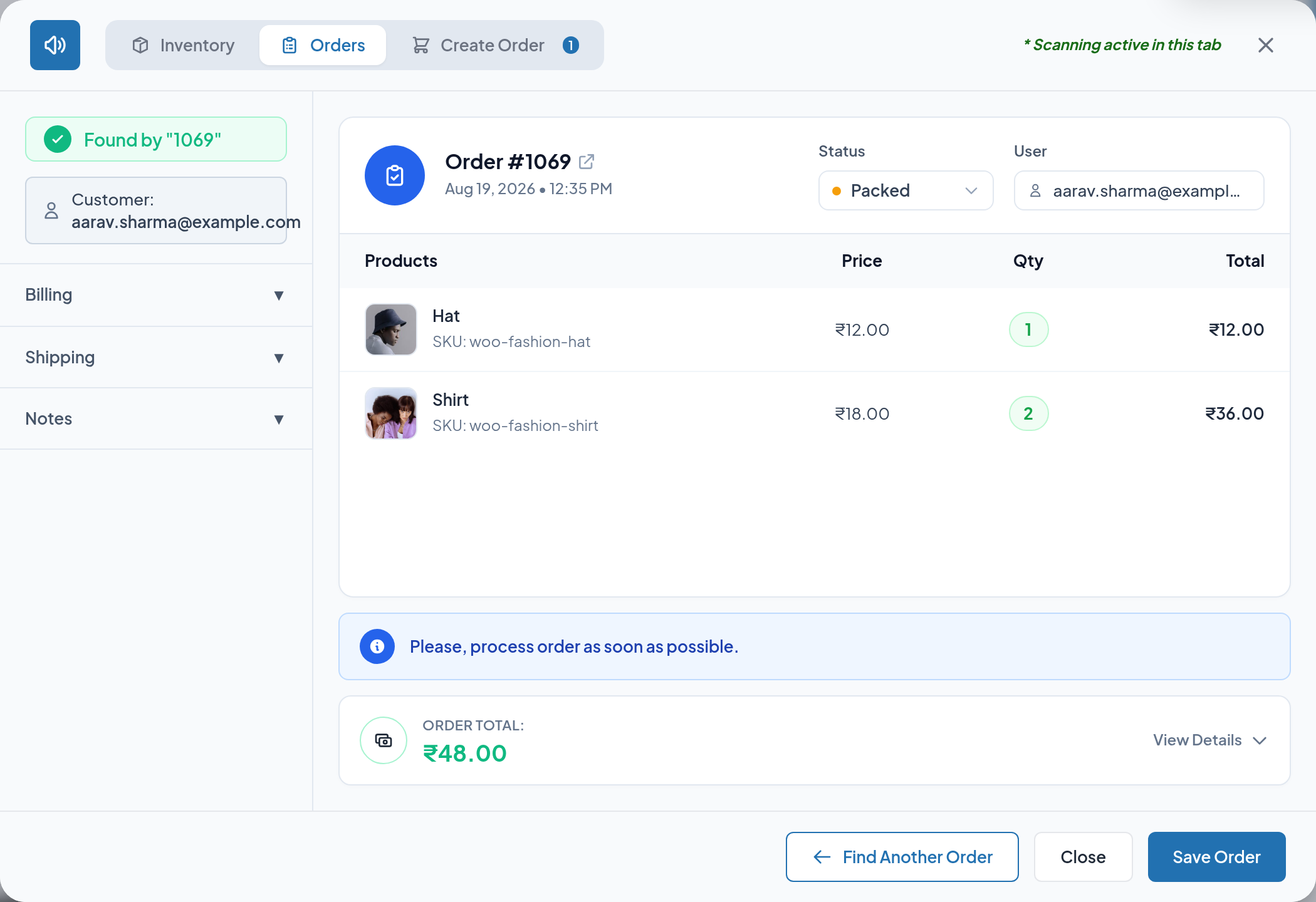
The Orders tab turns an order label into a working order screen. Scan the QR code on a packing slip, or type the order number, and the console loads the order with its customer, line items, totals and addresses.
The flow
- Open Webkul WC Addons → Smart Barcode Scan.
- Scan the order QR label, or type the order ID and click Scan.
- The console identifies the order.
- The popup opens on the Orders tab with the order's information.
- From there you can change the status, edit addresses and the customer note, or advance the order through fulfilment by scanning it again.
How a code is matched to an order
An order is looked up only after the product search has come up empty. Two things can match:
| Order | Field searched | Notes |
|---|---|---|
| 1 | Order ID | Only when the scanned value is numeric |
| 2 | Custom Meta Field Key stored on the order | Only when a key is configured in Scanner Settings |
This is why order QR labels generated by the extension encode the plain order ID — see Order QR labels below.
Note
If a numeric code matches both a product ID and an order ID, the product wins and the popup opens on the Inventory tab. The order is still loaded — switch to the Orders tab to see it.
Searching without a scanner
When the Orders tab has no order loaded it shows a Find Your Order screen.
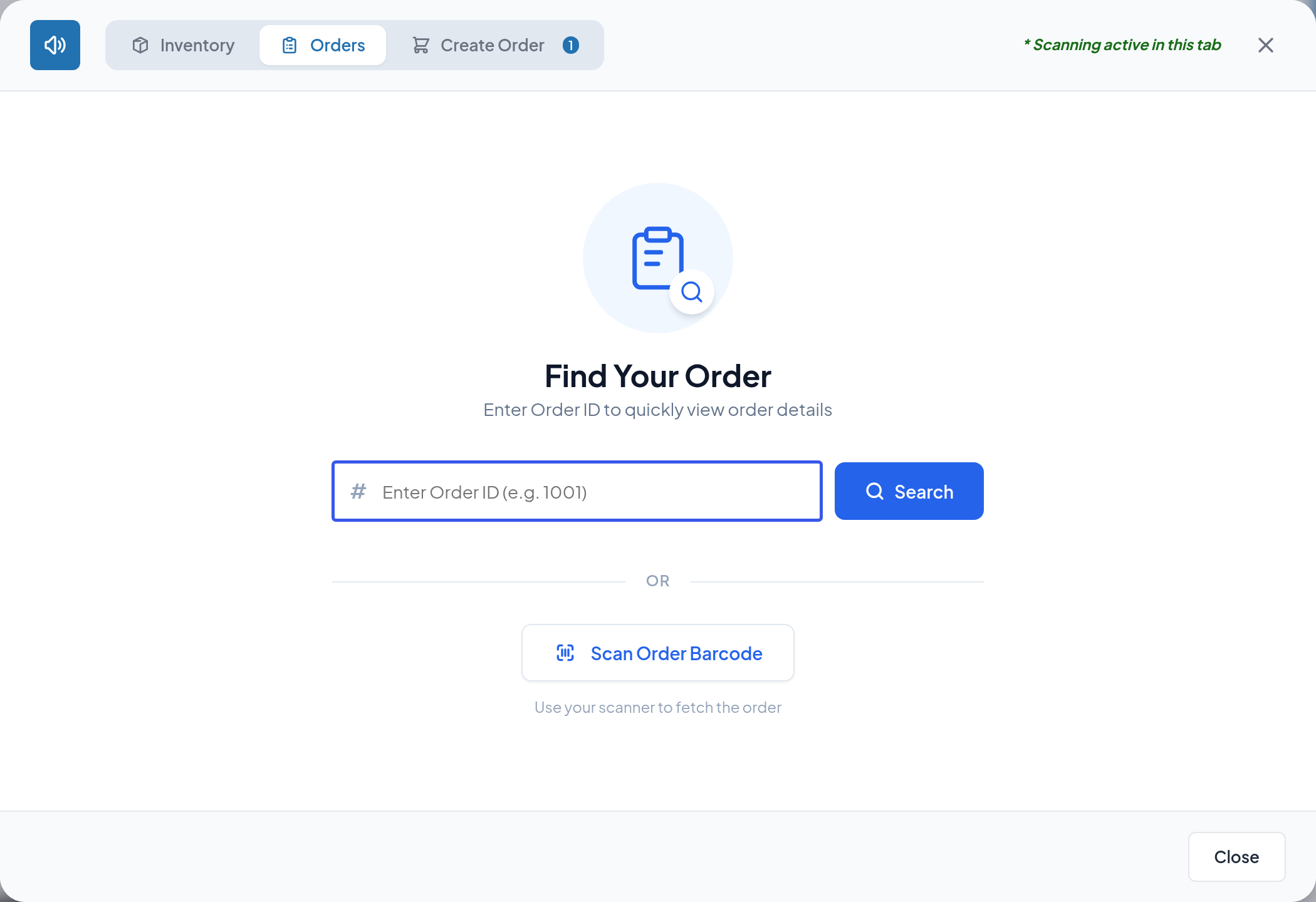
Type the order ID (for example 1069) and click Search.
What the order popup shows
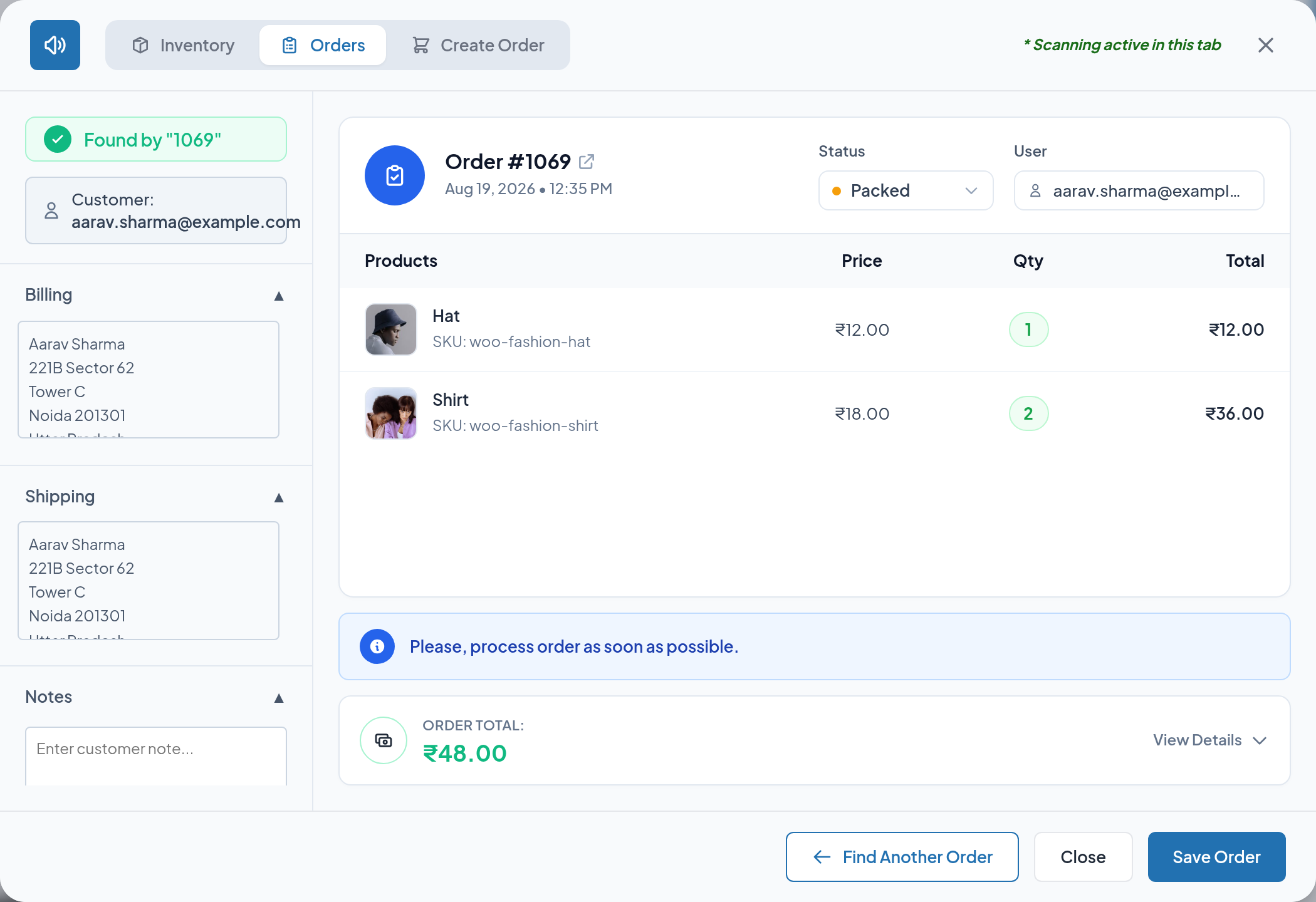
Left column
- Found by "…" — the value that produced the match.
- Customer — the account email for a registered customer, the billing email for a guest, or Guest when neither exists.
- Three collapsible sections: Billing, Shipping and Notes.
Main panel
- Order #
<id>with an external-link icon that opens the full WooCommerce order editor in a new tab. - The date and time the order was created.
- Status — a dropdown listing every WooCommerce status, including Picked, Packed and Shipped.
- User — the customer identifier, read-only here.
- The line items table: product image, name, item meta or SKU, unit price, quantity and line total.
- A reminder banner, "Please, process order as soon as possible.", shown on every order that is not yet Completed.
- ORDER TOTAL with a View Details toggle.
Totals breakdown
Click View Details on the total block to expand the breakdown.
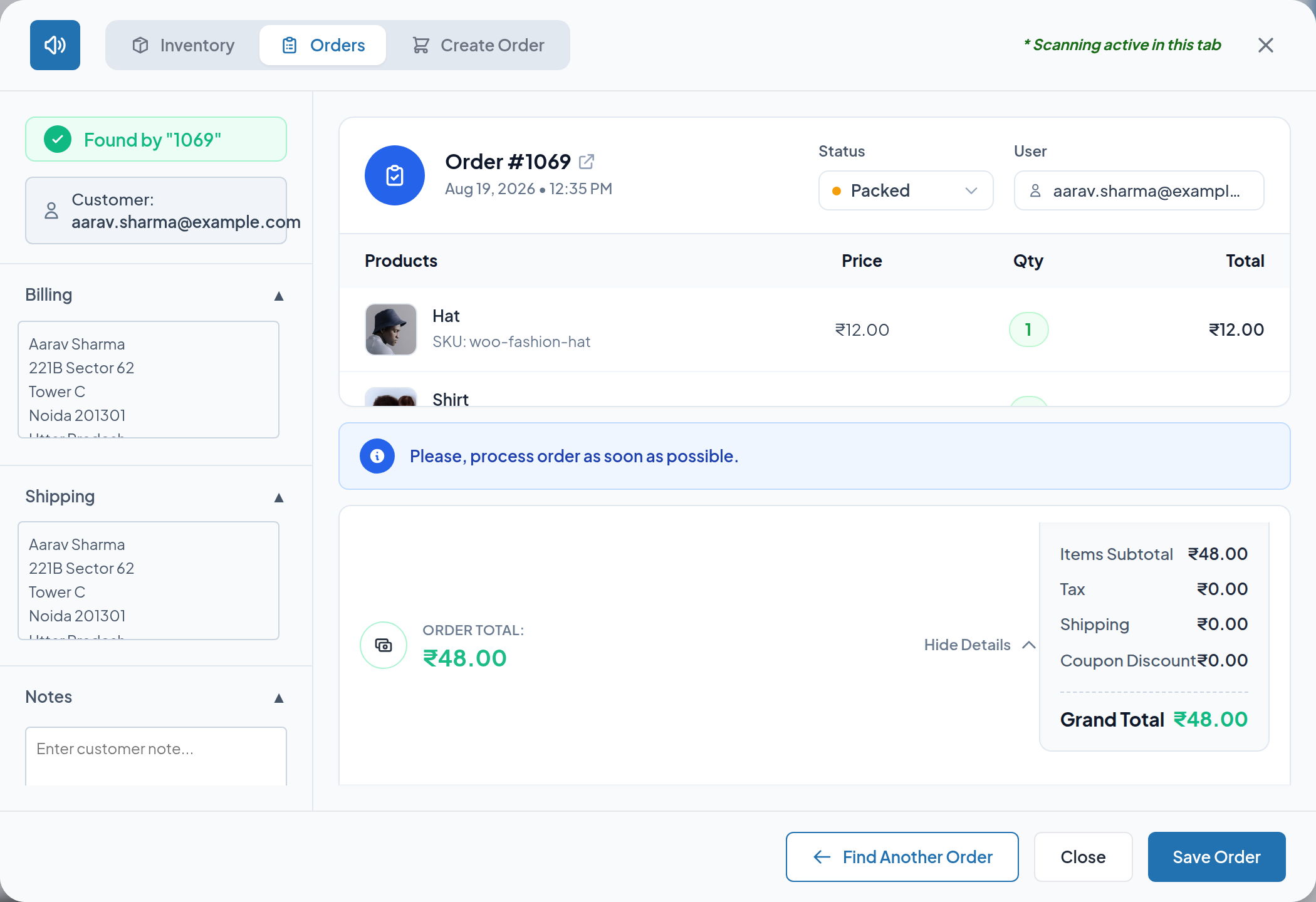
The breakdown lists Items Subtotal, each tax line recorded on the order, Shipping, each coupon applied, any fees, and the Grand Total. These are the figures WooCommerce stored on the order — see Taxes & Order Totals for how they are produced.
Editing an order
Expand a section on the left, make your change, and click Save Order. A confirmation — "Order details successfully updated." — appears and the popup closes.
| Section | What you can change |
|---|---|
| Billing | The billing address, as free text |
| Shipping | The shipping address, as free text |
| Notes | The customer note attached to the order |
| Status (main panel) | The order status |
Warning
The Billing and Shipping boxes here are plain text areas, not structured address forms. When you save, the first line is stored as the customer's first and last name, the remaining lines are stored as address line 1, and the company, address line 2, city, state, postcode and country fields on the order are cleared. Use this for a quick correction to a hand-written address; use the WooCommerce order editor when you need the individual address fields to stay intact.
Changing the status here also writes an order note — "Status updated via Smart Barcode Scan." — so the change is traceable in WooCommerce. Status rules, including the tracking-code and OTP prompts, are covered in Order Status.
Advancing an order by scanning it
With an order open in the Orders tab, scanning that same order again advances it one fulfilment stage instead of reloading it. This is the intended packing-bench workflow: scan the label once to open the order, scan it again each time the parcel moves forward.
The full chain and its prompts are documented in Order Status.
Order QR labels
Every order in WooCommerce → Orders gains a QR action, so you can produce a scannable label without a separate labelling tool.
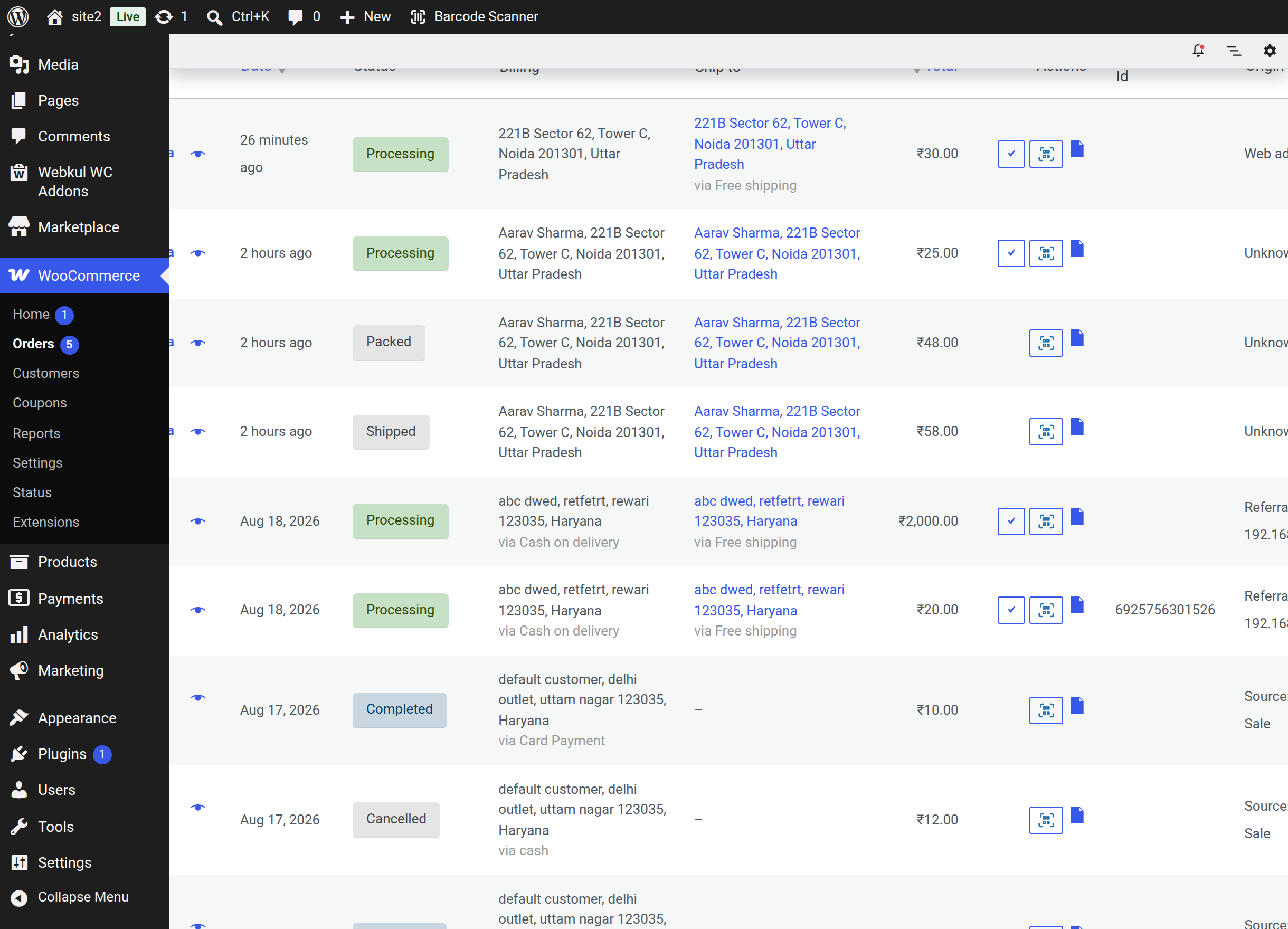
For a single order
- Go to WooCommerce → Orders.
- Click Generate QR in the row actions, or the QR button in the Actions column.
- A drawer slides in from the right with the QR code and a summary: order number, customer, date, status and total.
- Click Download QR to save the image, or Print QR to send it straight to a printer.
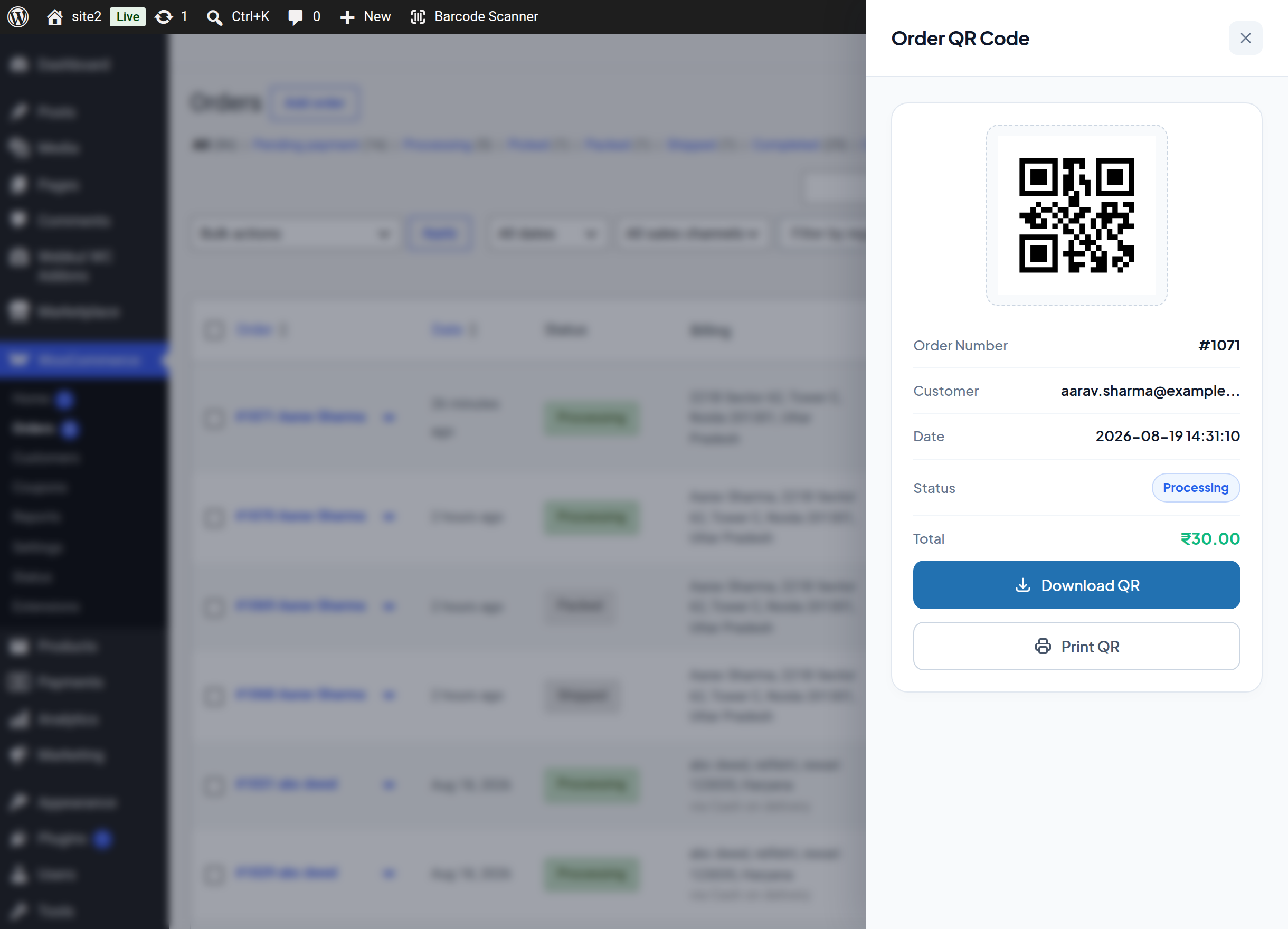
For several orders at once
- Tick the orders you want.
- Choose Generate QRs from Bulk actions and click Apply.
- The drawer opens with a QR code for each selected order.
The QR encodes the order ID, which is exactly what the console's order lookup expects.
Note
These QR actions are hidden when Webkul's Print Barcode Products and Orders for WooCommerce plugin is active, so that the two extensions do not add duplicate buttons to the same screen.
Next step
- Order Status — the Picked, Packed and Shipped workflow.
- Create Order — build a new order instead of editing one.