
Create Order
The Create Order tab is a counter-sale builder. Scan the items a customer is holding, attach their account, fill in whatever address details you need, and create a real WooCommerce order — stock deduction, order notes and all.
Opening it
There are three ways in:
- Click + Create Order in the top-right of the Smart Barcode Scan page.
- Click the Create Order tab inside the scan popup.
- Turn on Add to Cart After Search in Scanner Settings, then just start scanning — items land in the cart automatically.
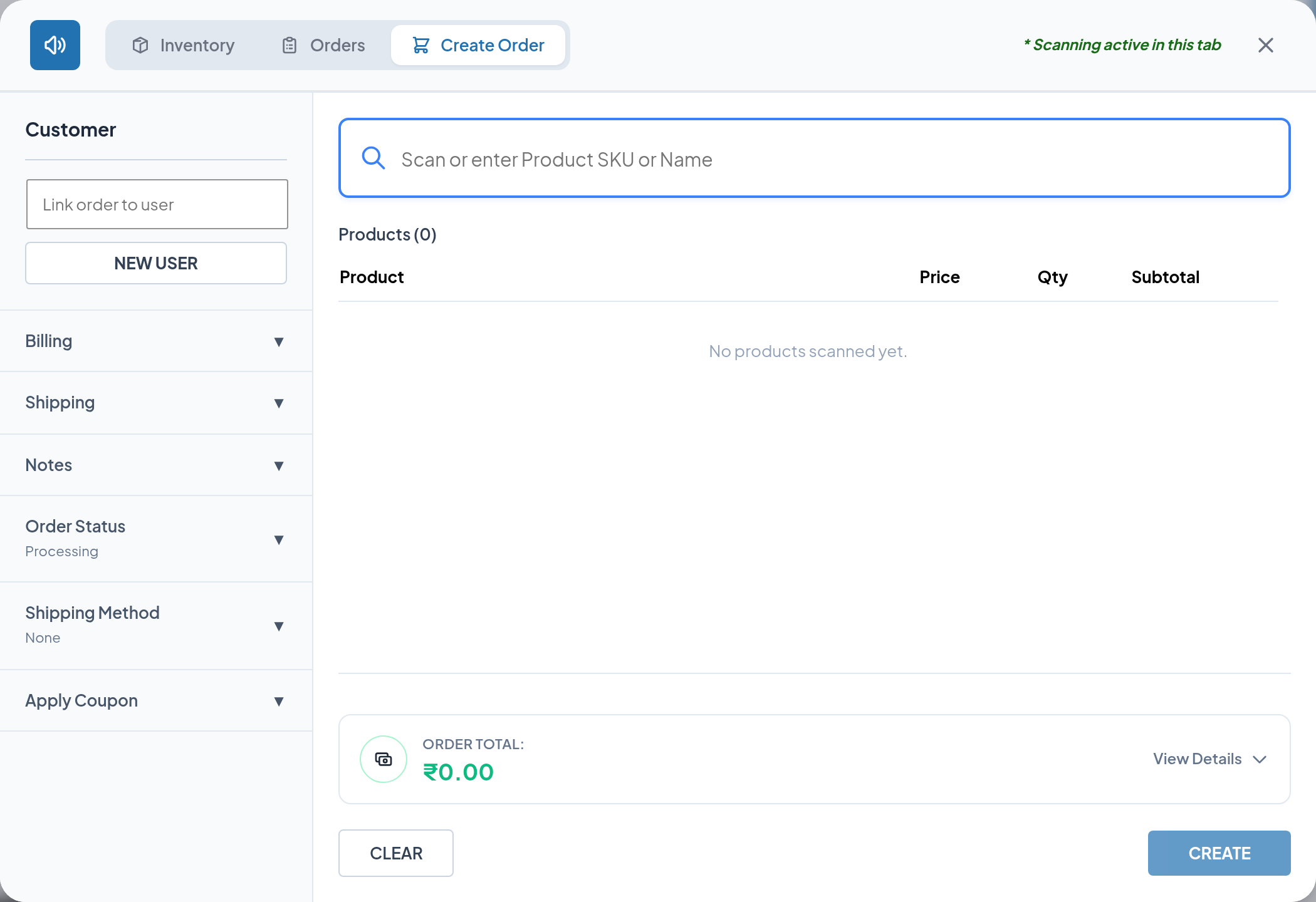
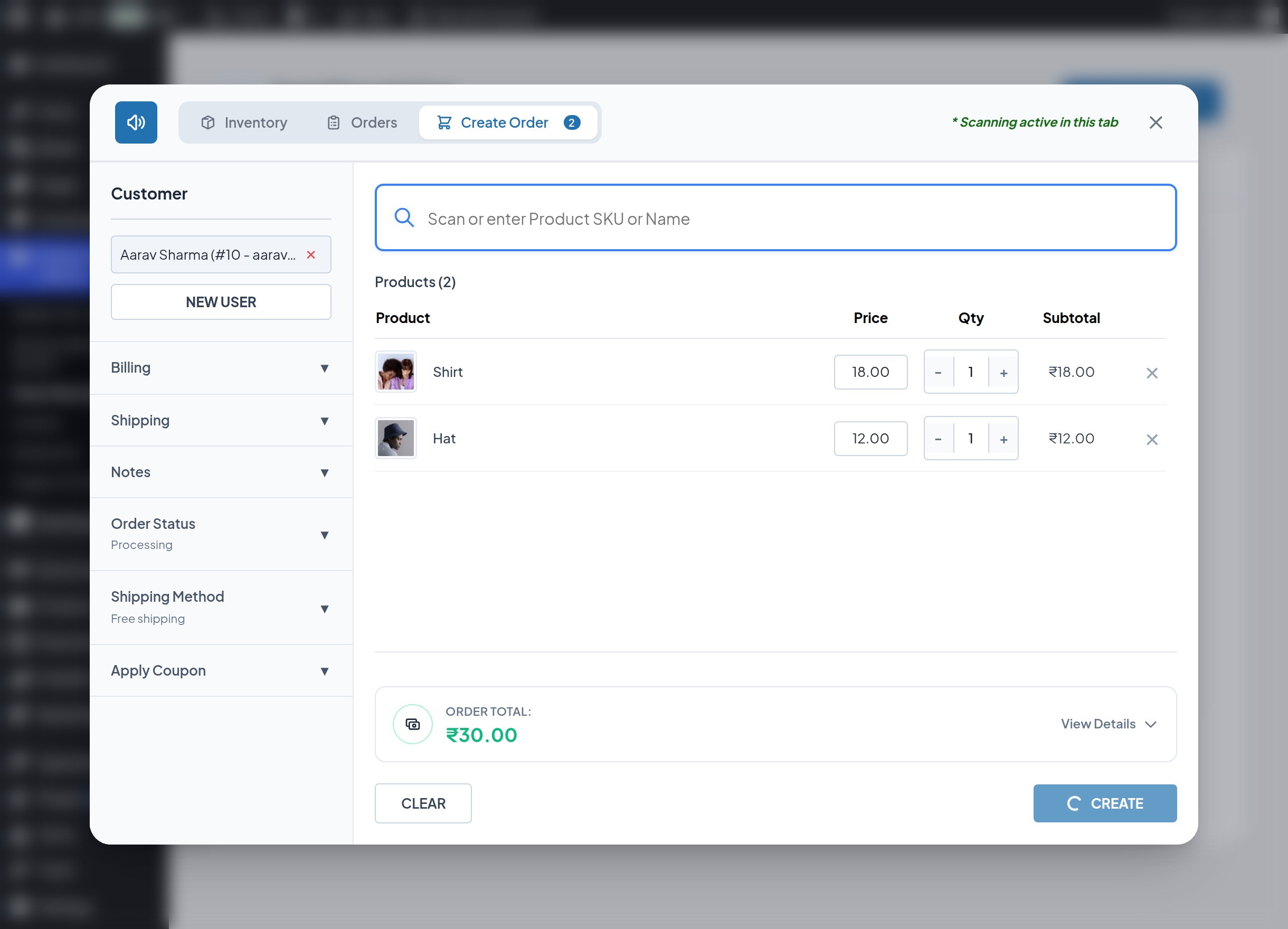
The screen has two halves: a sidebar of collapsible sections on the left for customer and order settings, and the item list with the scan bar on the right.
The full flow
- Scan the products into the cart.
- Adjust quantities — the console keeps you inside available stock.
- Attach or create the customer.
- Fill in billing and shipping details.
- Add a customer note if you need one.
- Choose the order status.
- Calculate shipping and pick a method.
- Apply a coupon if the customer has one.
- Check the totals.
- Create the order.
- Verify the result in WooCommerce.
Step 1 — Scan products into the cart
The wide box at the top of the item list is the cart's own scan bar. It is focused when the tab opens, so a hardware scanner works straight away.
Scan a product label, or type a SKU, ID or product name and press Enter. The product is added to the list and the box empties itself, ready for the next item.
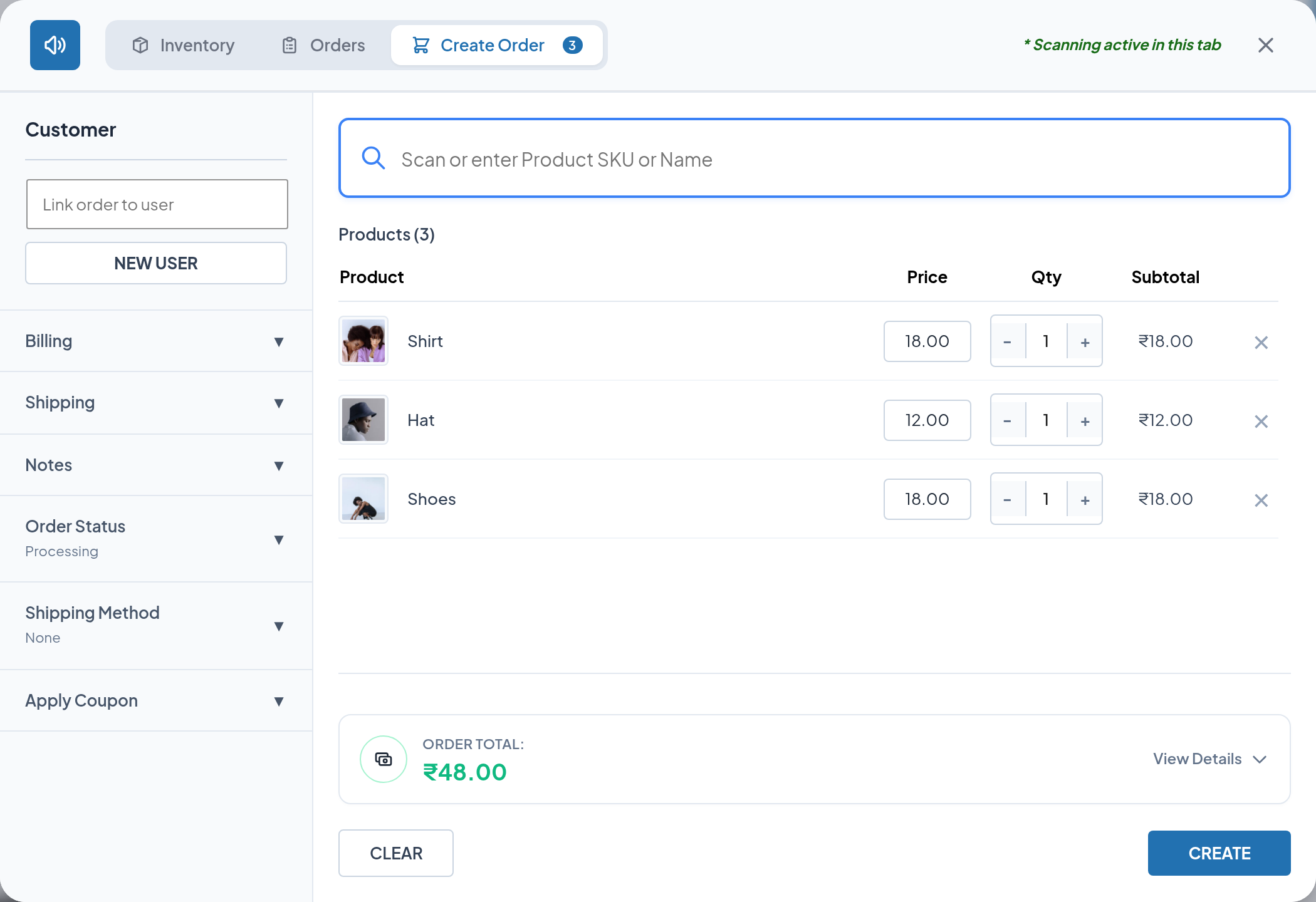
Each row shows the product image, name, unit price, a quantity stepper, the line subtotal and a ✕ to remove it. The header shows Products (n) and the Create Order tab badge shows the same count.
Points worth knowing:
- Scanning the same product twice increases the quantity of the existing row rather than adding a second one.
- Variable parent products are refused — scan a specific variation.
- Out-of-stock products are refused — see Inventory Management.
- The unit price used is the product's sale price when one is set, otherwise its regular price.
- The cart is kept in your browser, so it survives closing the popup and moving between admin pages. It is cleared when the order is created or when you click CLEAR.
You can also add items from the Inventory tab of a scanned product using Add to Create-Order, which lets you set the quantity before adding.
Step 2 — Adjust quantities
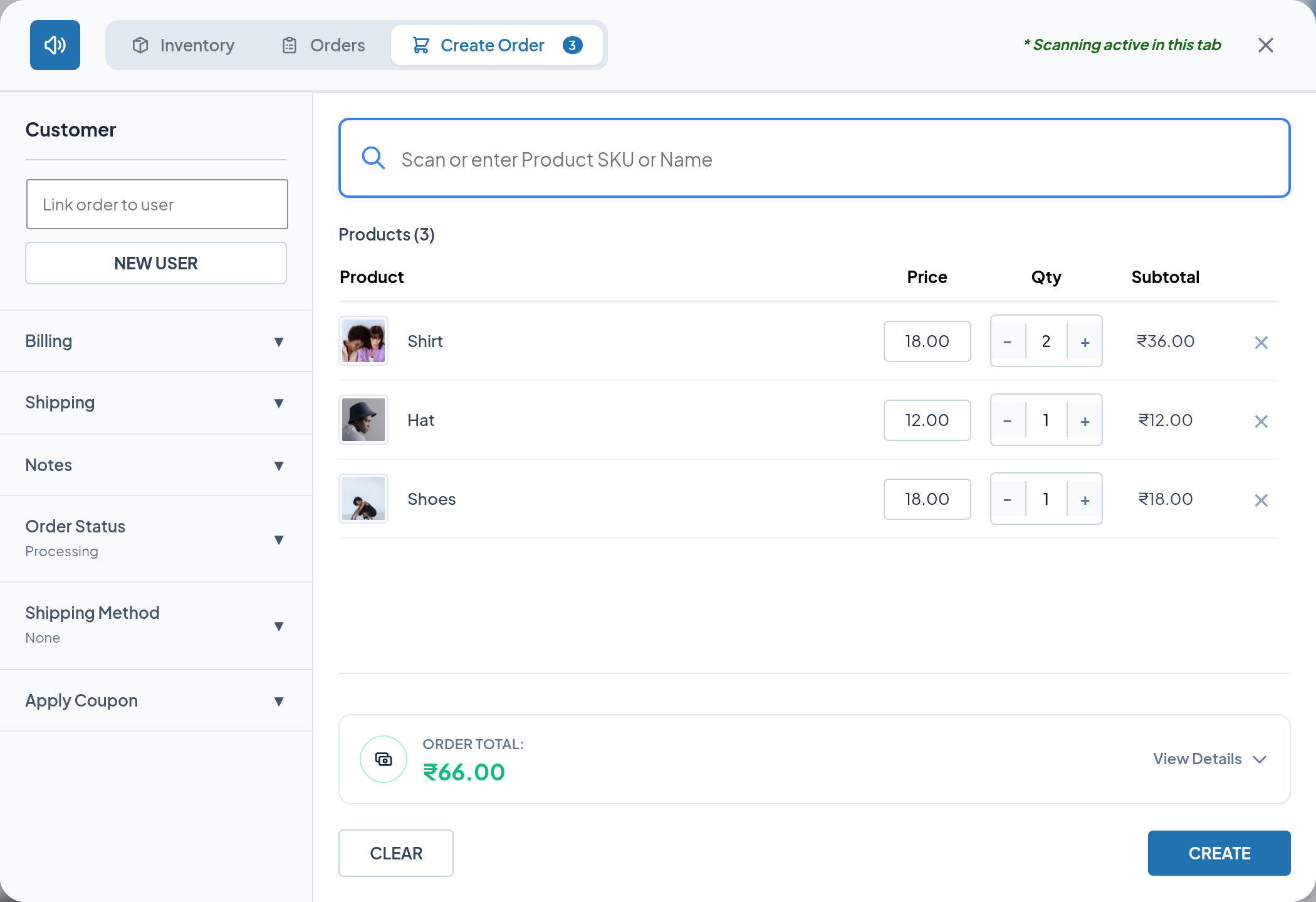
Use the − and + buttons, or type directly into the quantity box.
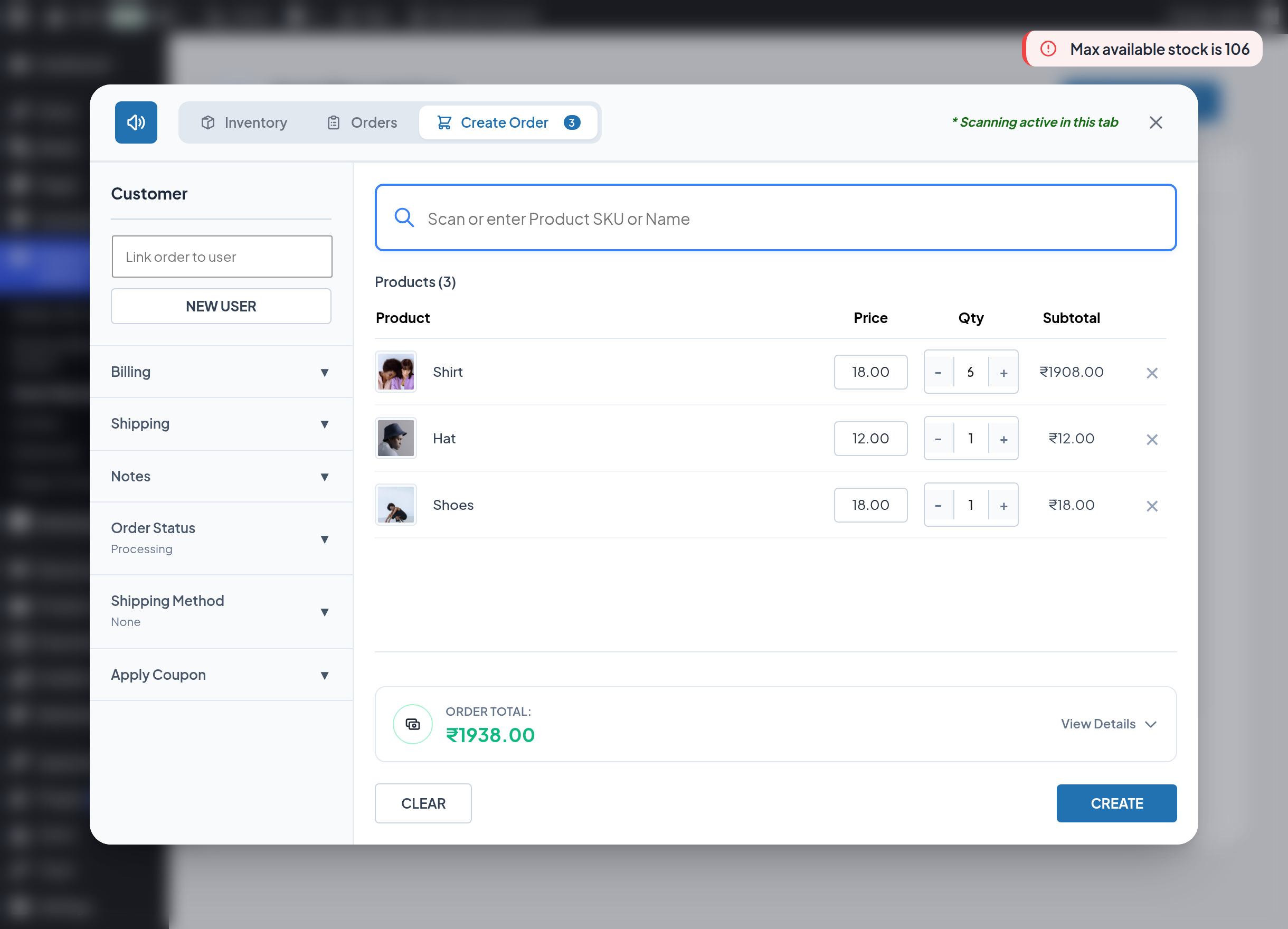
For stock-managed products the quantity is capped at the available stock. Typing a larger number reduces it to the maximum and shows "Max available stock is <n>".
Click ✕ at the end of a row to remove that item, or CLEAR at the bottom of the screen to empty the cart and reset the shipping method and coupons.
Step 3 — Attach a customer
In the sidebar, type a name, username or email into Link order to user. Matching accounts appear in a dropdown; click one to attach it.
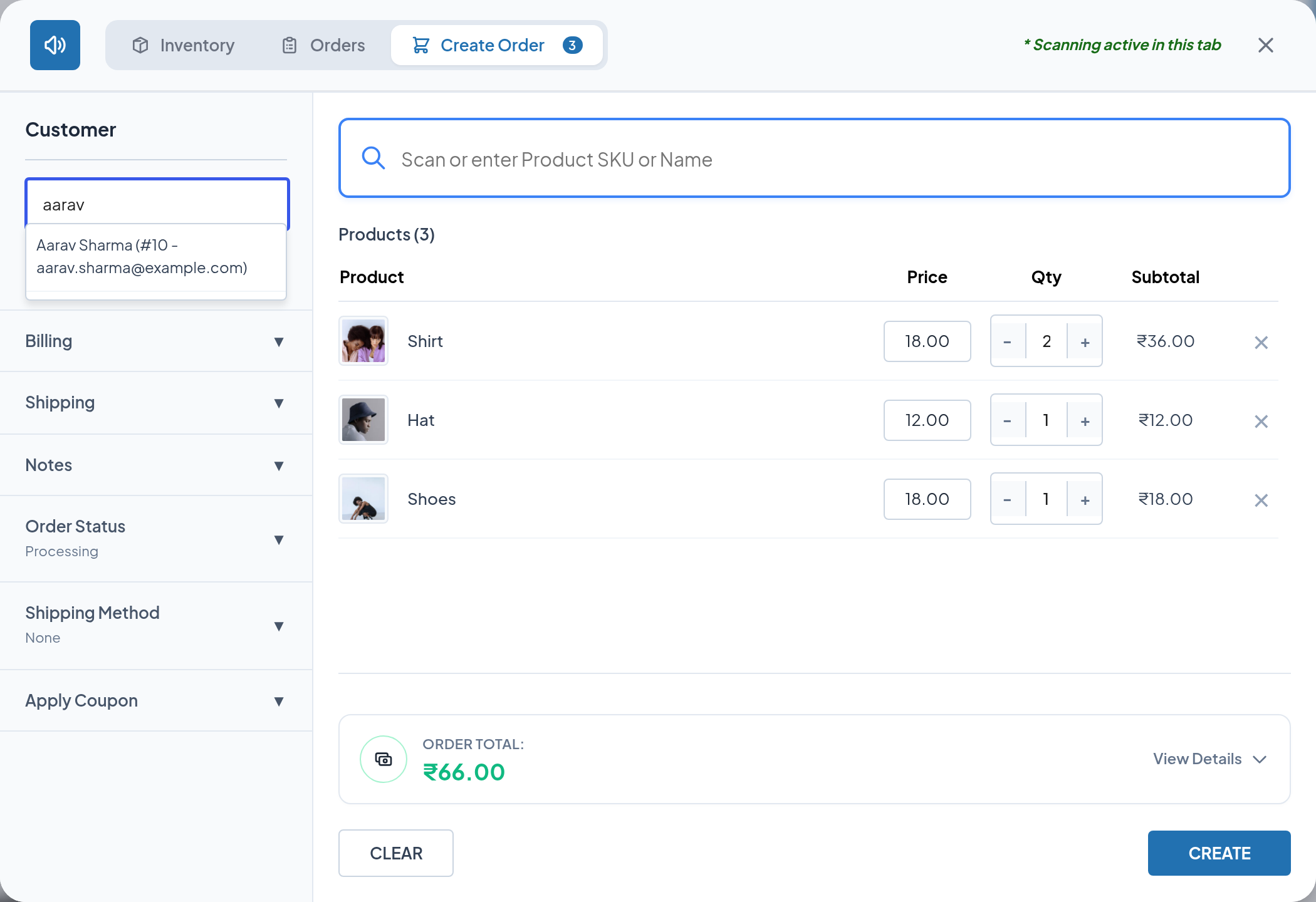
Selecting a customer fills the billing and shipping sections from their saved account details. Click the ✕ beside the selected customer to detach them and leave the order as a guest order.
To register someone who does not have an account yet, click NEW USER. Full details of both flows are in Customer Details.
Step 4 — Fill in billing and shipping
Expand Billing and enter the address, city, state, postcode, country code, email and phone.
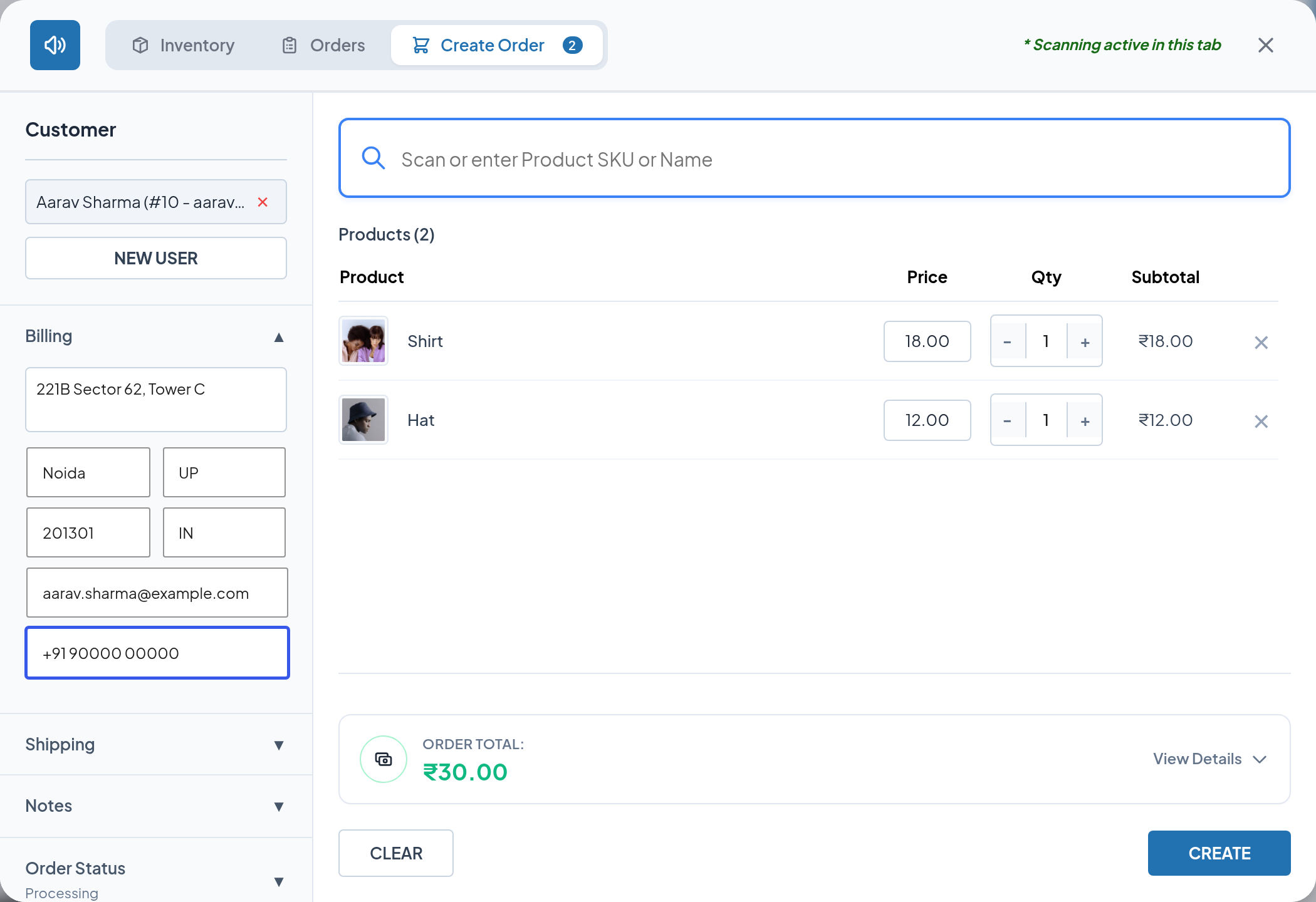
Expand Shipping and either tick Same as billing address — which copies and locks the billing values — or enter separate shipping details.
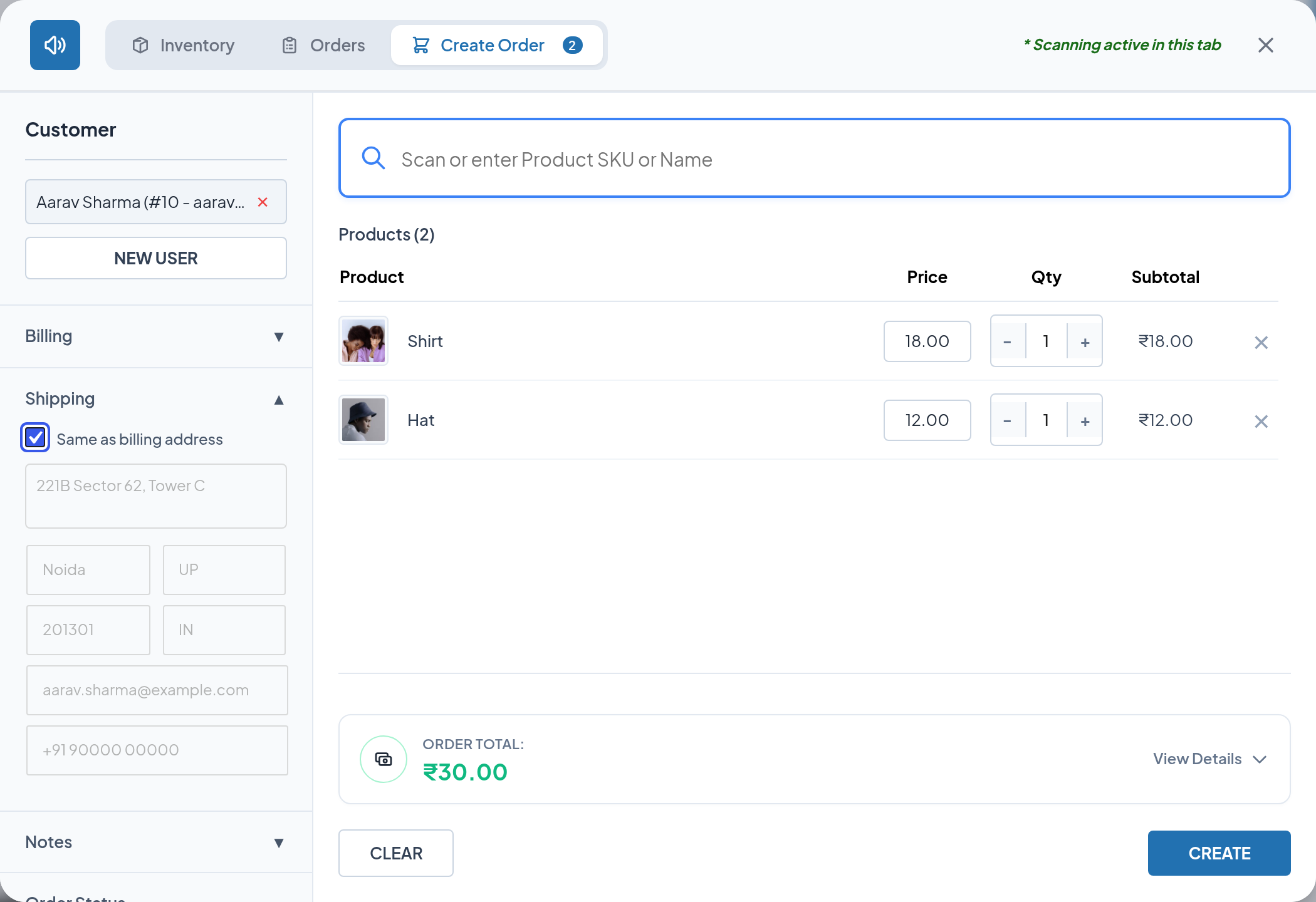
Field-by-field guidance, including the country and state formats that work best, is in Billing & Shipping.
Step 5 — Add a customer note
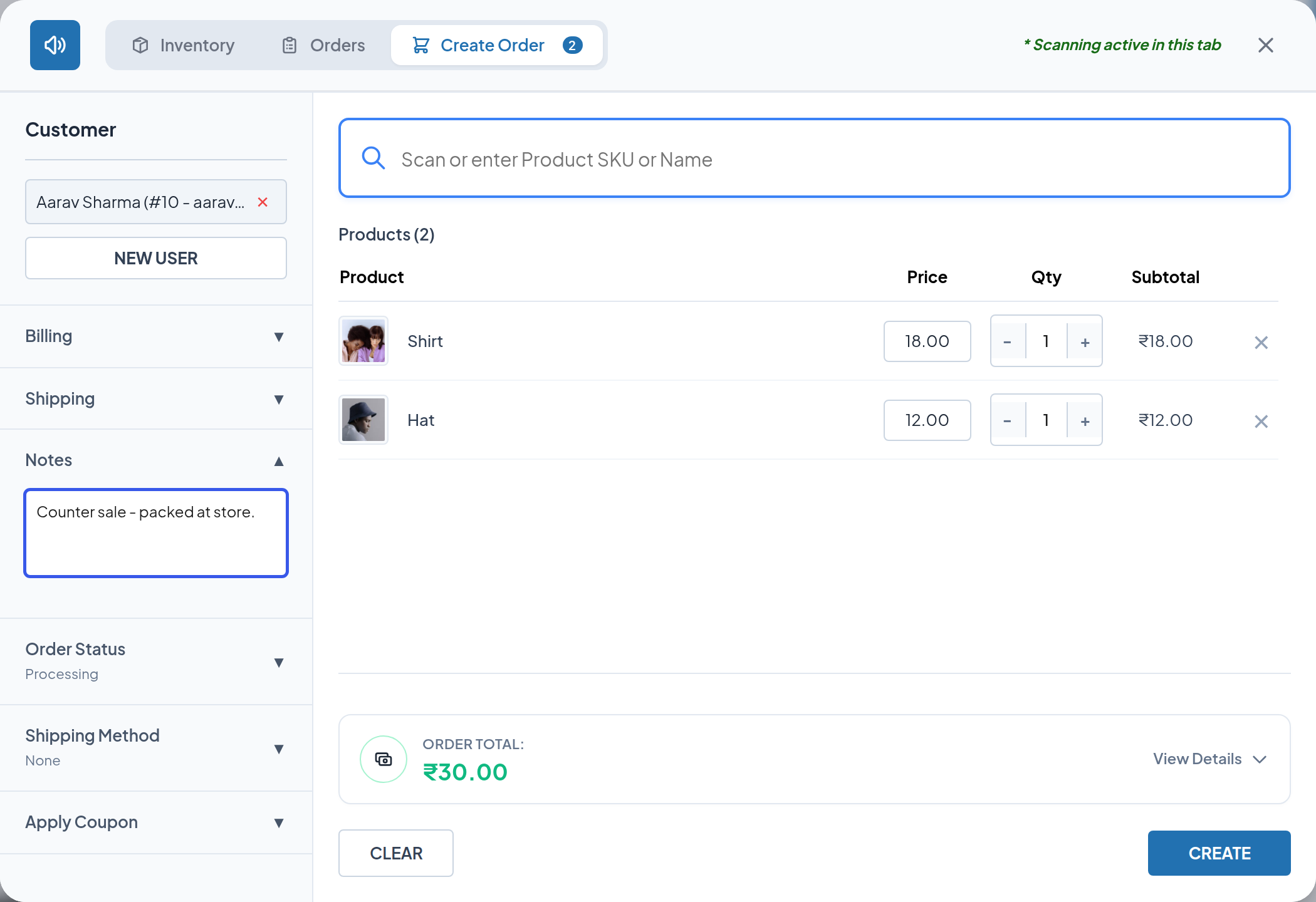
Expand Notes and type anything that should appear on the order as the customer-provided note — "Counter sale — packed at store", a delivery instruction, and so on.
Step 6 — Choose the order status
Expand Order Status and pick the status the new order should be created in. The collapsed header always shows the current choice, so you can see it at a glance.
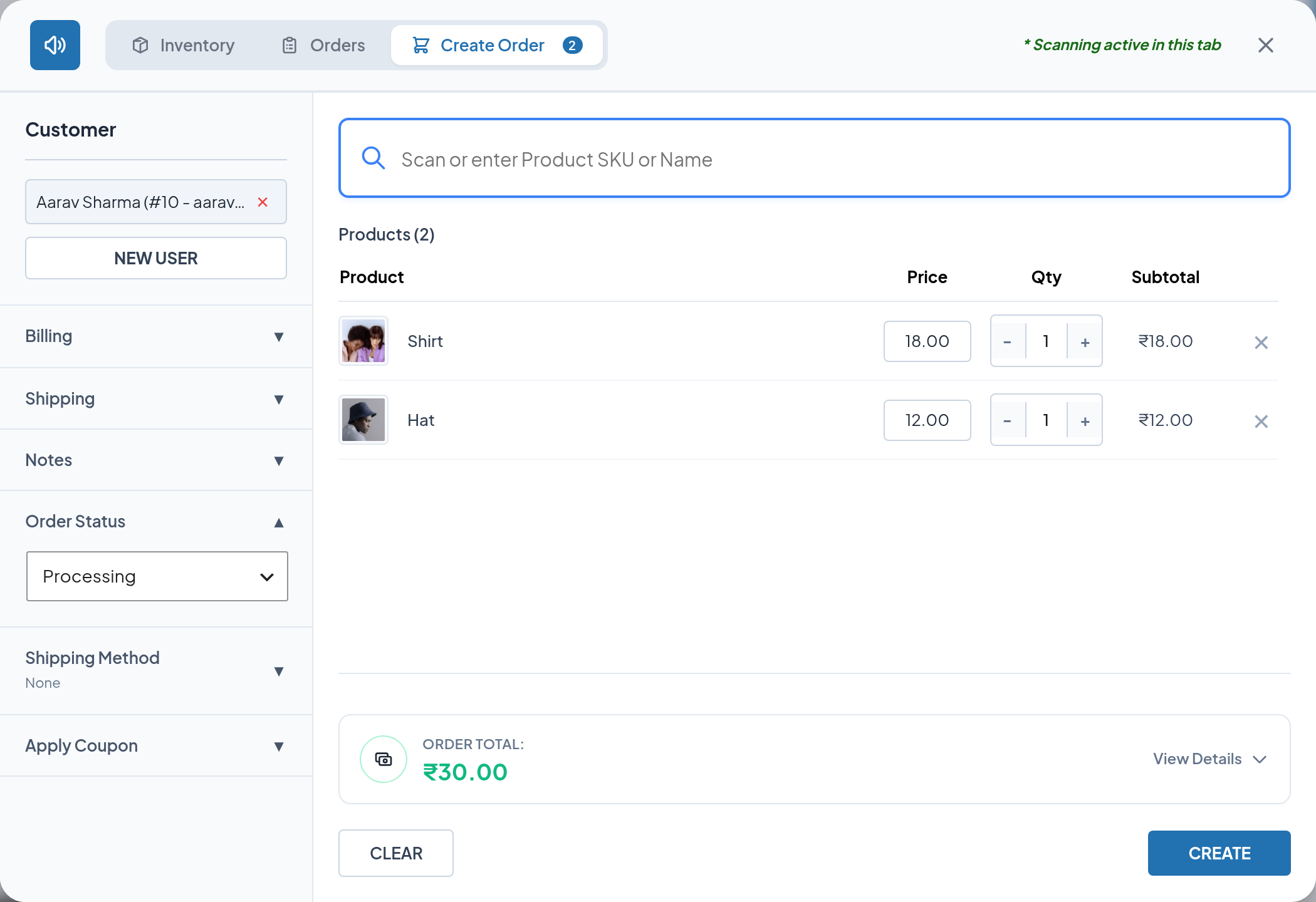
The list includes every WooCommerce status plus Picked, Packed and Shipped. The default is Processing.
Tips
Processing is the right choice for a normal counter sale: WooCommerce reduces stock and sends its usual new-order emails. Choose Completed for a walk-out sale that is already fulfilled, or Pending payment for an order the customer will pay for later.
Step 7 — Calculate shipping
Expand Shipping Method and click Calculate Shipping. The console asks WooCommerce which methods apply to the cart and the billing address you entered, then selects the first one automatically.
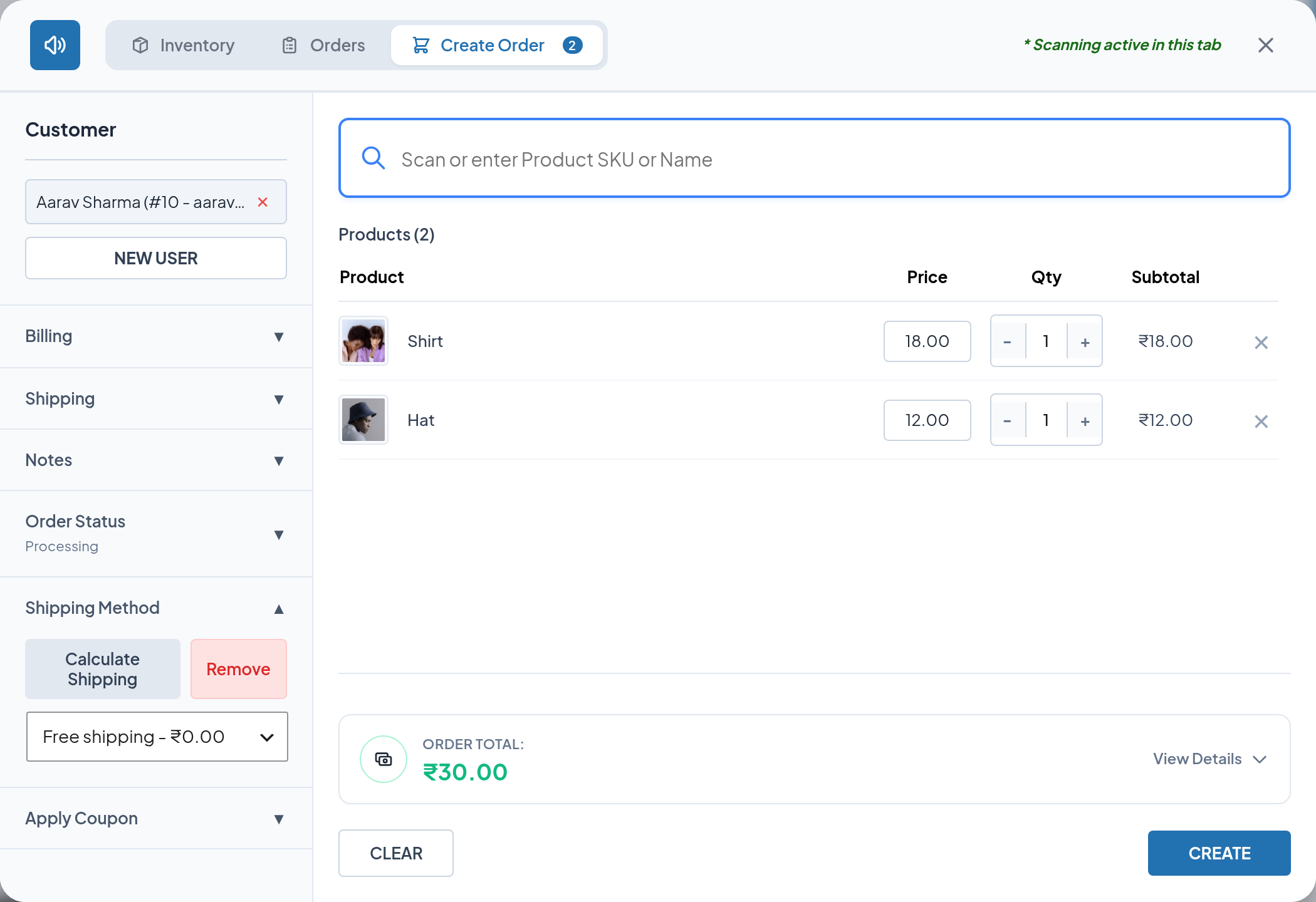
- Choose a different method from the dropdown if more than one is available.
- Click Remove to drop the shipping line entirely.
- If nothing applies to the address, the console reports "No shipping methods available for this address."
- With an empty cart it reports "Please add products to cart first."
The collapsed header shows the selected method, or None.
Note
Shipping is calculated for the billing country, state, city and postcode. If those are blank, your WooCommerce store address is used instead. Fill in billing before calculating, and recalculate if you change the address afterwards.
Step 8 — Apply a coupon
Expand Apply Coupon, type the code and click Apply.
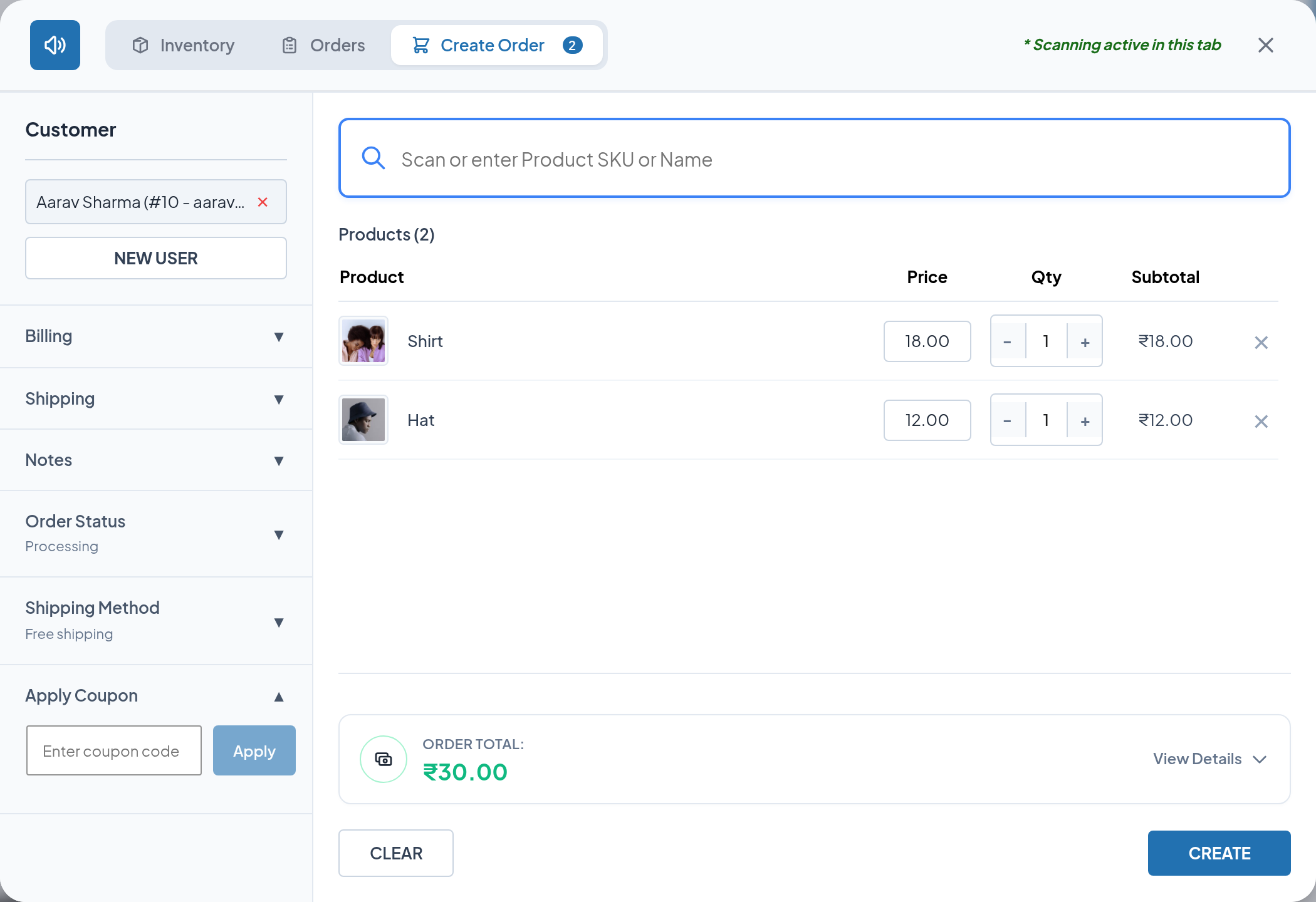
The coupon is validated against your store before it is accepted — an unknown code, an expired coupon, one that has hit its usage limit, or one that is not valid for this cart or customer is refused with the reason. Valid coupons appear as removable badges showing the code and the discount.
Apply more than one coupon by repeating the process; applying the same code twice is refused.
Note
Discounts shown in the console are an estimate based on the coupon's type, its product and category restrictions, and its "exclude sale items" setting. The final amounts are recalculated by WooCommerce when the order is created, which is what the customer is charged.
Step 9 — Check the totals
Click View Details on the ORDER TOTAL block to expand the breakdown: items subtotal, coupon discount, shipping and tax, followed by the order total.
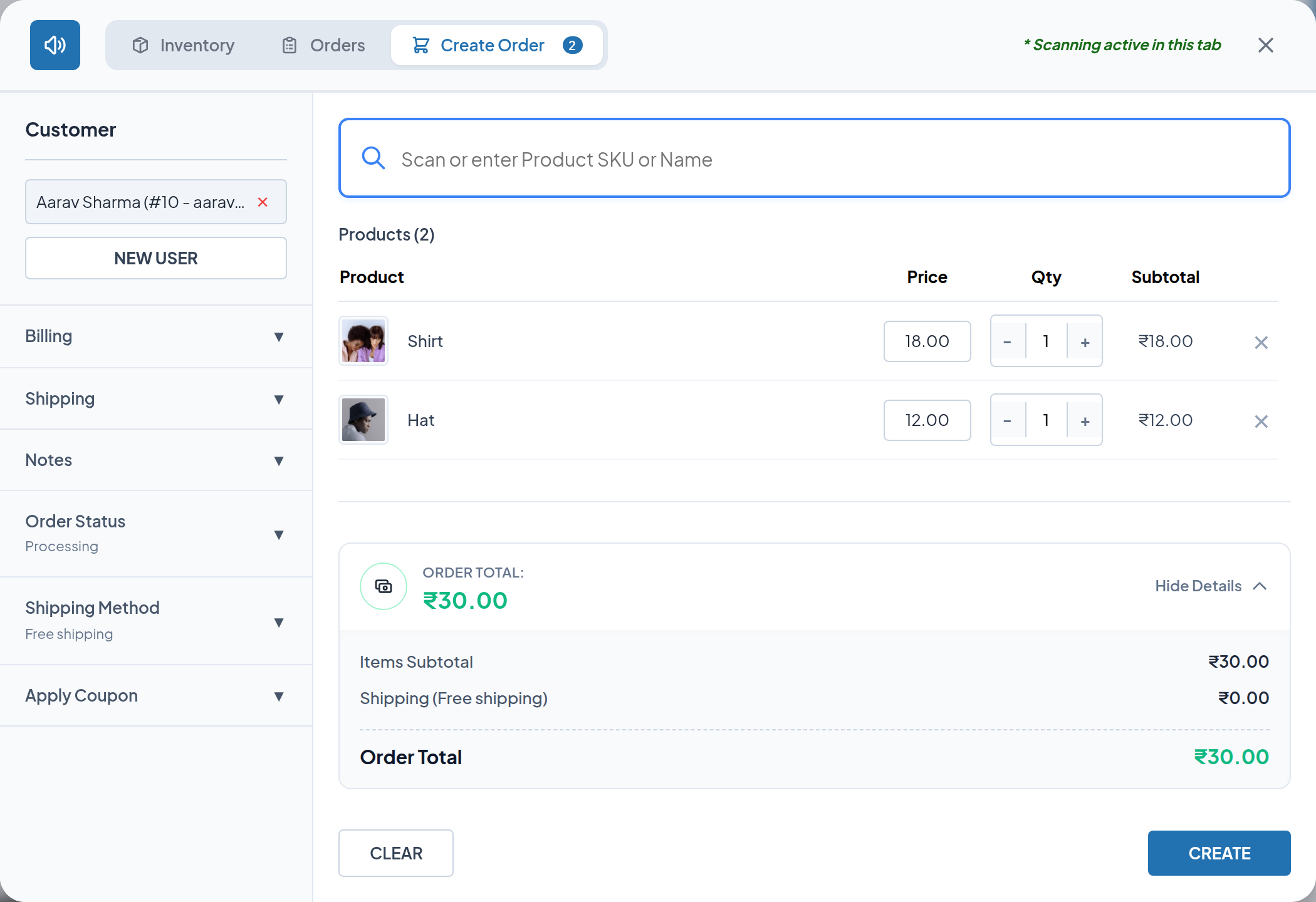
How each line is produced — and how tax-inclusive pricing changes what you see — is explained in Taxes & Order Totals.
Step 10 — Create the order
Click CREATE. The button shows a spinner while the order is written.
When it succeeds:
- A confirmation names the new order — "Order #
<id>created!". - The cart, shipping method and coupons are cleared, ready for the next customer.
- The new order opens in the WooCommerce order editor in a new browser tab.
The CREATE button is disabled while the cart is empty.
Step 11 — Verify the order
The order that opens is an ordinary WooCommerce order. Check that it has the right customer, addresses, line items, status and total.
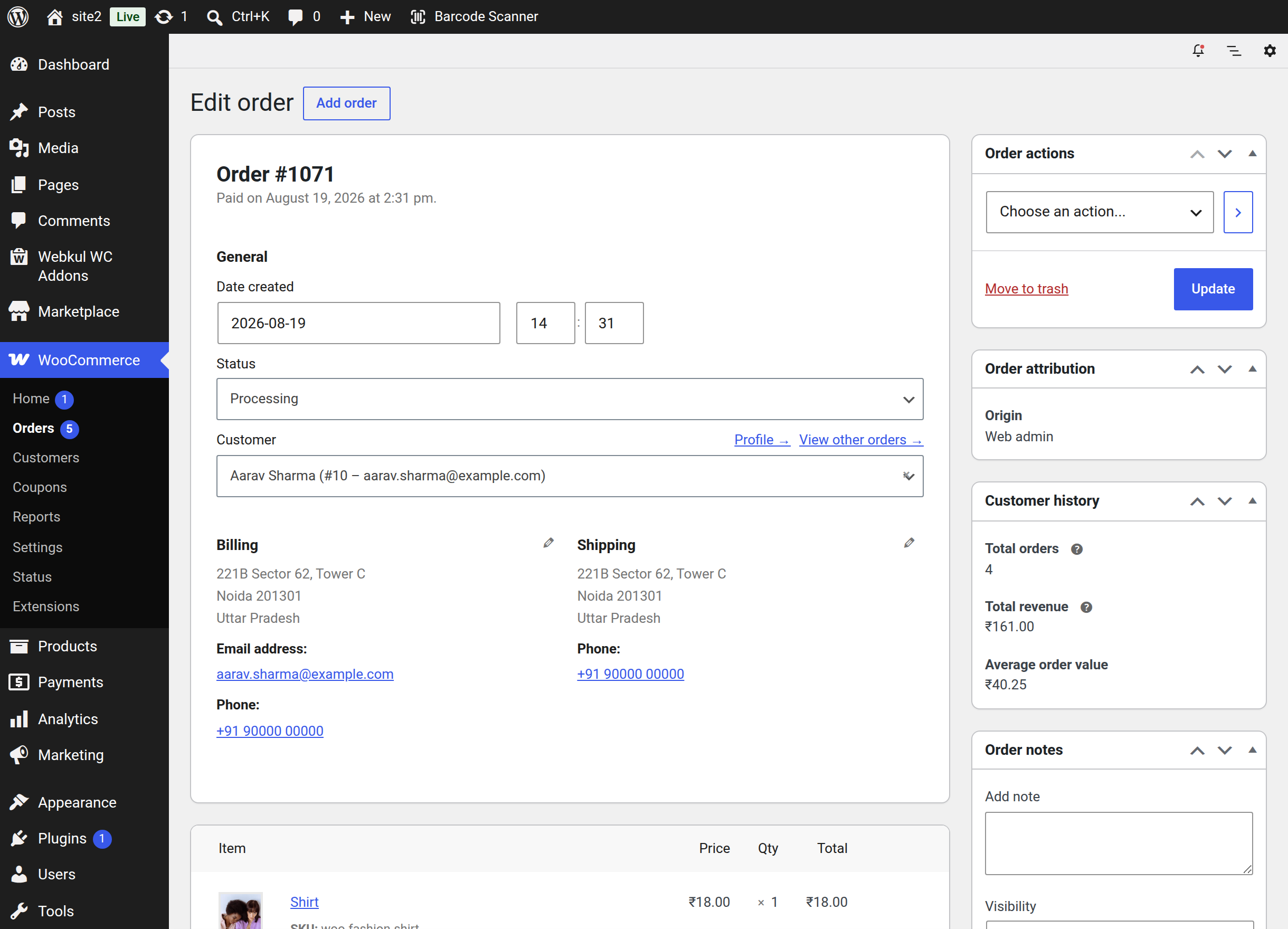
WooCommerce records the usual notes on it — the status change, stock reductions such as "Stock levels reduced: Shirt (106→105)", and any emails it attempted to send.
The console also records the creation in Activity Logs under the source Order Creation, with the items, billing contact details, shipping method and order total.
Practical tips
- Keep the cursor in the scan bar and let the scanner do the typing; only reach for the mouse when you need the sidebar.
- Attach the customer before calculating shipping, so their saved address is used.
- If a customer changes their mind about an item, remove the row rather than clearing the whole cart.
- The cart is per browser. Two staff members on two computers each have their own cart.
Next step
- Customer Details — attaching and creating customers.
- Billing & Shipping — the address fields in detail.
- Taxes & Order Totals — how the numbers are worked out.