
Inventory Management
The Inventory tab is a quick-edit form for the scanned product. It exists so a stock count or a price correction can be finished at the shelf, without opening the full WooCommerce product editor.
Updating a product
- Scan the product, or search for it from the Inventory tab.
- Edit any of the fields described below.
- Click Save Product (or press Enter).
A confirmation — "Product details successfully updated." — appears and the popup closes.
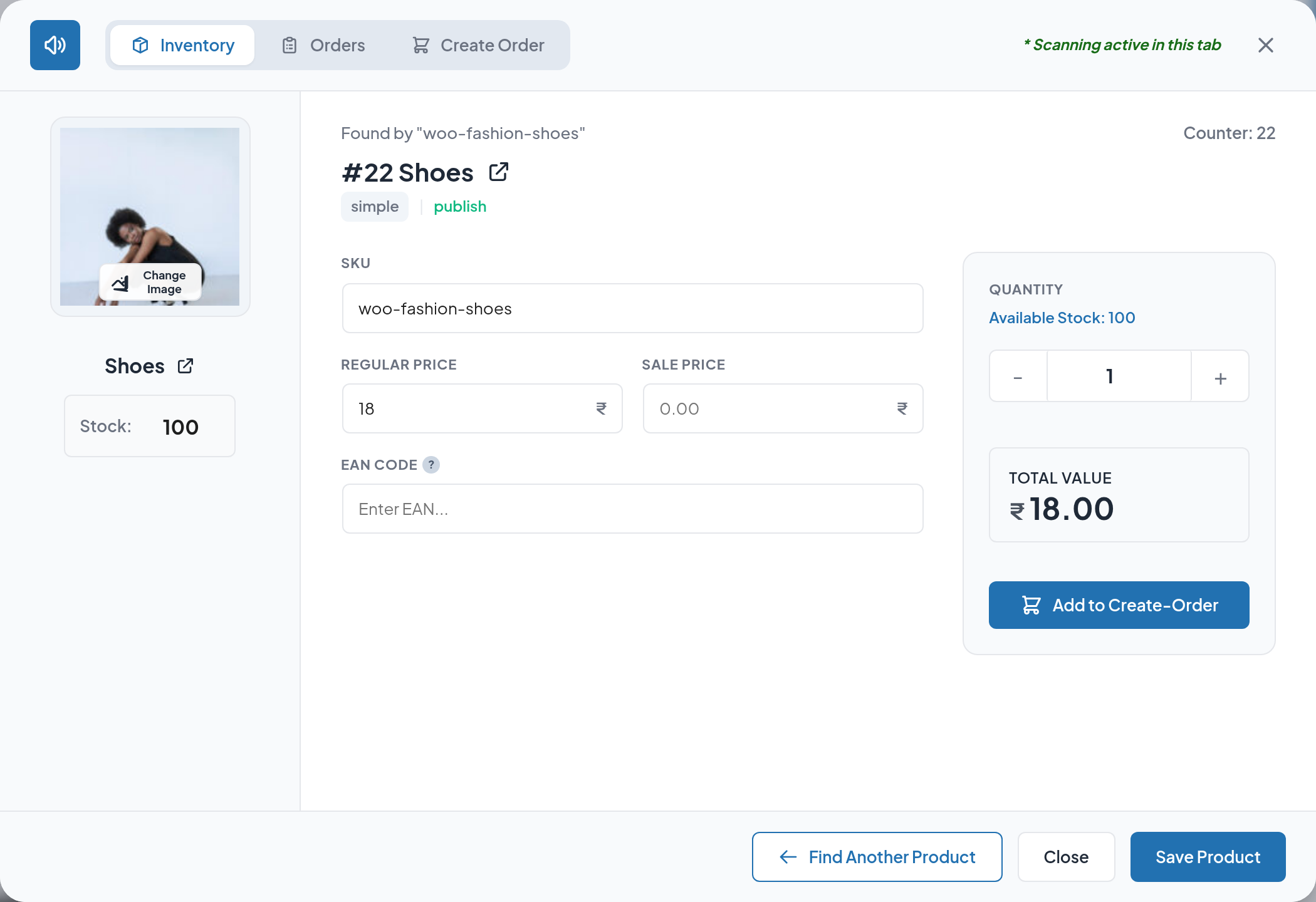
The fields you can change
| Field | Effect when saved |
|---|---|
| Stock | Sets the product's stock quantity |
| SKU | Replaces the product SKU |
| Regular price | Sets the regular price |
| Sale price | Sets the sale price — clear it to remove the sale |
| EAN Code | Sets the WooCommerce global unique identifier (GTIN, UPC, EAN or ISBN) |
| Product image | Click the thumbnail, pick an image in the media library, then save |
All five fields are written to the same product record WooCommerce uses, so the change is visible immediately in Products, on the storefront and in reports.
Warning
Save Product always turns on WooCommerce stock management for that product and stores the value in the Stock field as its quantity. For a product that deliberately does not track stock — a service, a made-to-order item, a virtual product — use the standard WooCommerce product editor instead of saving from this popup, or the product will start tracking stock at the quantity shown (0 for products that were not tracking stock before).
Note
The EAN Code field is saved exactly as shown. If you leave it blank on a product that already had a global unique identifier, saving clears that identifier — and any barcode label printed from it will stop resolving.
Reading the stock state
The popup surfaces stock in three places, and they mean different things:
| Where | Meaning |
|---|---|
| Stock: box under the product image | The recorded quantity — editable |
| Out of stock red badge | Shown when a stock-managed product's quantity is 0 |
| In Stock / Out of Stock grey field | Shown instead of a quantity when the product does not track stock; read-only here |
Available Stock: <n> in the Quantity panel | The ceiling used when adding this product to a counter order |
Stock restrictions when ordering
The console will not let staff sell stock that is not there. These rules apply everywhere a product is added to the counter order — the Quantity panel, automatic add-on-scan, and the Create Order scan bar:
| Situation | What happens |
|---|---|
| Stock-managed product with quantity 0 | Out of stock — the item is refused and Add to Create-Order is disabled |
| Non-stock-managed product marked Out of Stock | The item is refused and Add to Create-Order is disabled |
| Cart already holds the full available stock | "Max available stock is <n>" — nothing more is added |
| A quantity above available stock is typed | The quantity is reduced to the maximum and "Max available stock is <n>" is shown |
| Product does not track stock and is In Stock | No cap — any quantity may be added |
| Variable parent product | Refused: "Variable product cannot be added directly. Please scan a specific variation." |
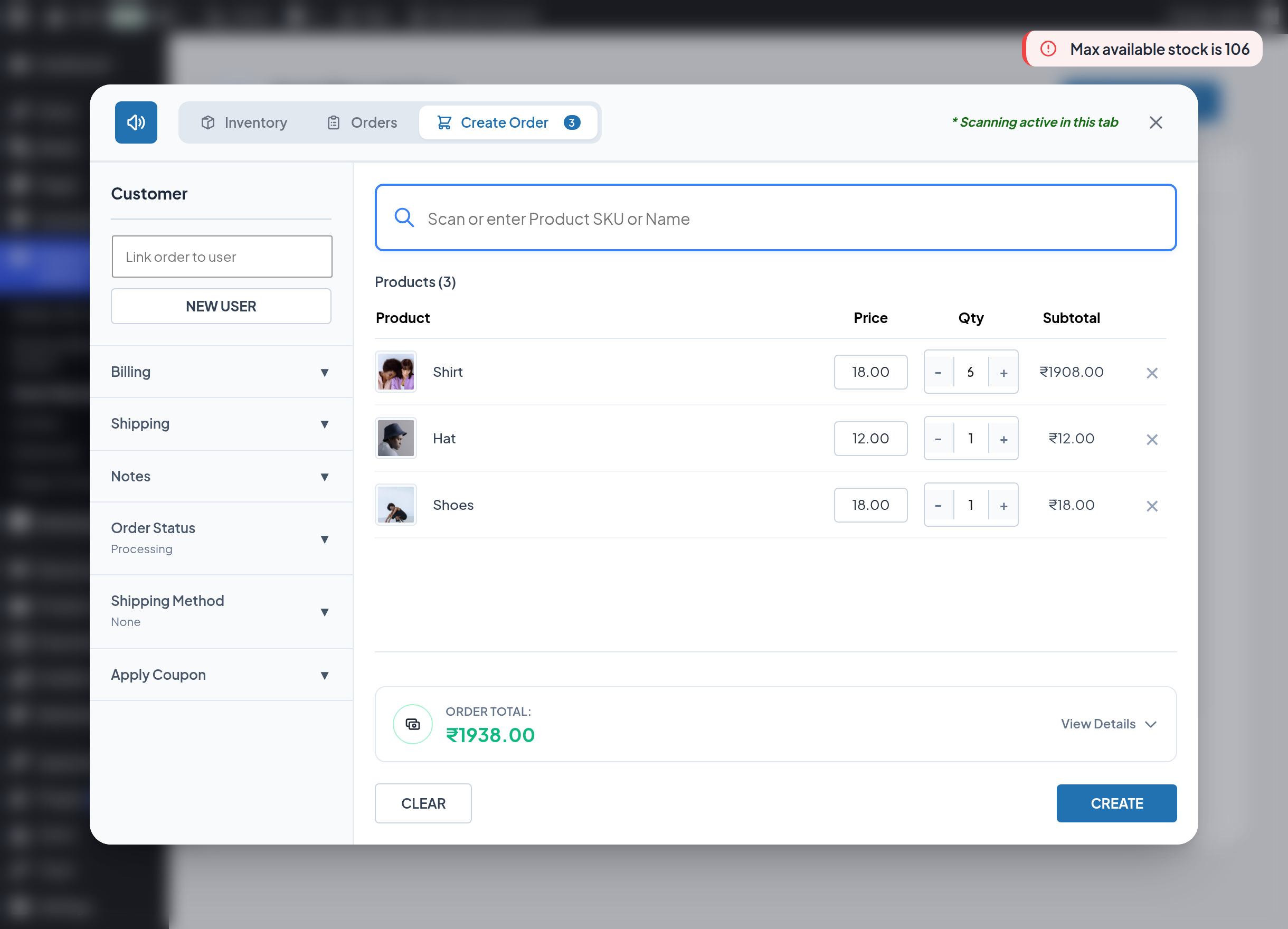
Important
The cap uses the stock figure loaded when the product was scanned. If you change the Stock field in the popup, the new figure becomes the cap for the Quantity panel immediately — but re-scan the product if you want the cart to pick up a stock change made elsewhere in the meantime.
Stock deduction on order creation
Adding an item to the counter order does not reserve or reduce stock. Stock is reduced by WooCommerce itself when the order is created in a status that triggers reduction — for example Processing — exactly as it would be for a storefront order. The reduction is recorded in the order's notes, such as "Stock levels reduced: Shirt (106→105)".
A practical stock-count routine
- Turn on Auto Clear Input and Audio Feedback in Scanner Settings.
- Open the console and scan the first shelf label.
- Read the Stock: value, type the counted quantity, press Enter to save.
- Scan the next label — the popup switches to the new product without you closing anything.
- When finished, open Activity Logs and review the Product Update entries; each one records the previous scan values and the quantity that was saved.
Next step
- Create Order — build an order from the products you have scanned.
- Scan Logs — review what was changed and by whom.