
Assigning Products to Warehouses
Assigning a product to a warehouse lets that warehouse's manager see it, splits its orders by warehouse, credits its sales to the warehouse's income, and includes it in auto sync.
Both lists are under Webkul WC Addons → Warehouse Manager → Products.
Assign products
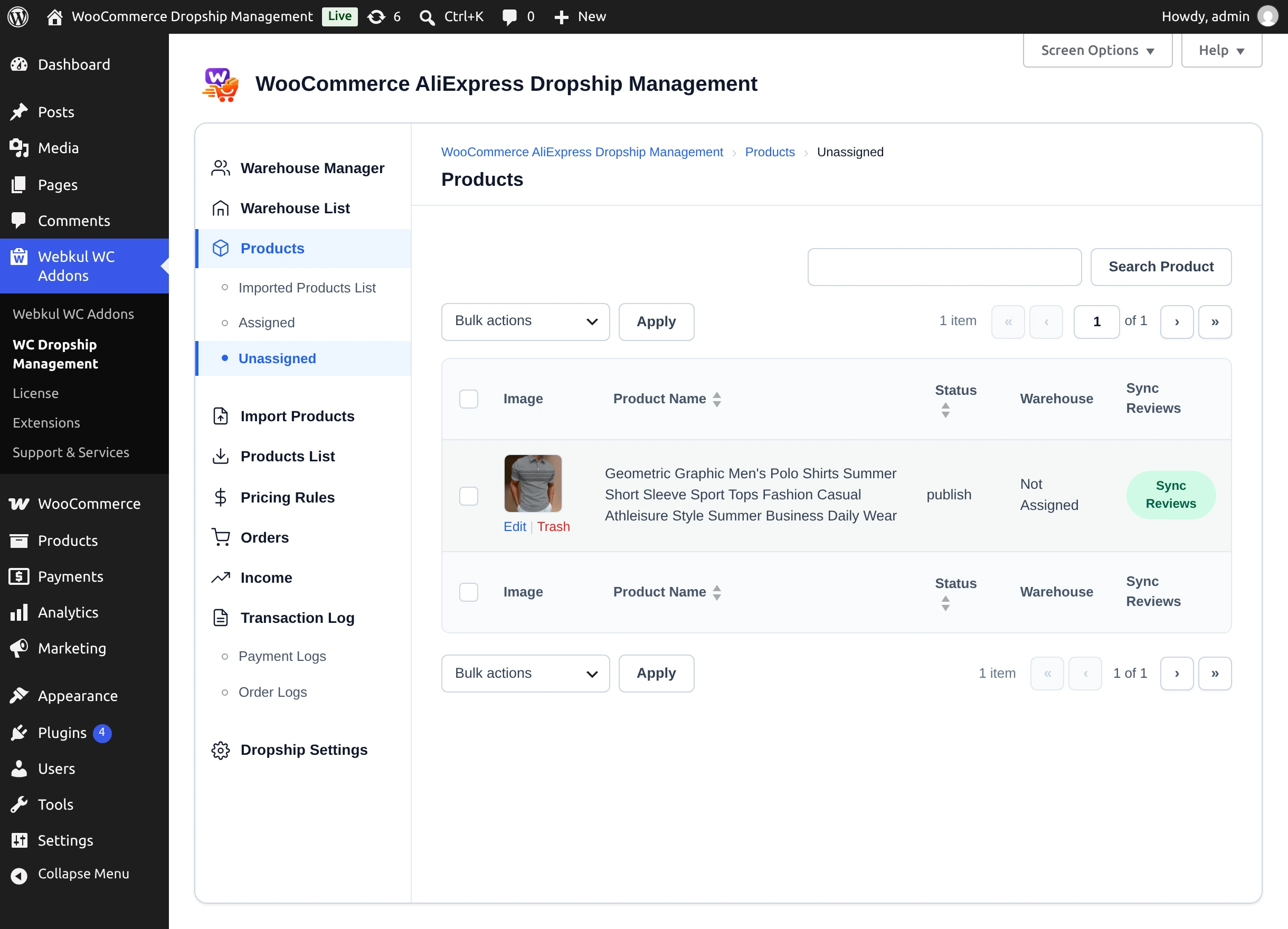
- Open Unassigned. It lists published AliExpress products that have no warehouse.
- Tick the products.
- In Bulk actions, choose the warehouse to assign them to — each warehouse appears as its own action — and select Apply.
- You see "Product(s) Assigned Successfully!" and the products move to Assigned.
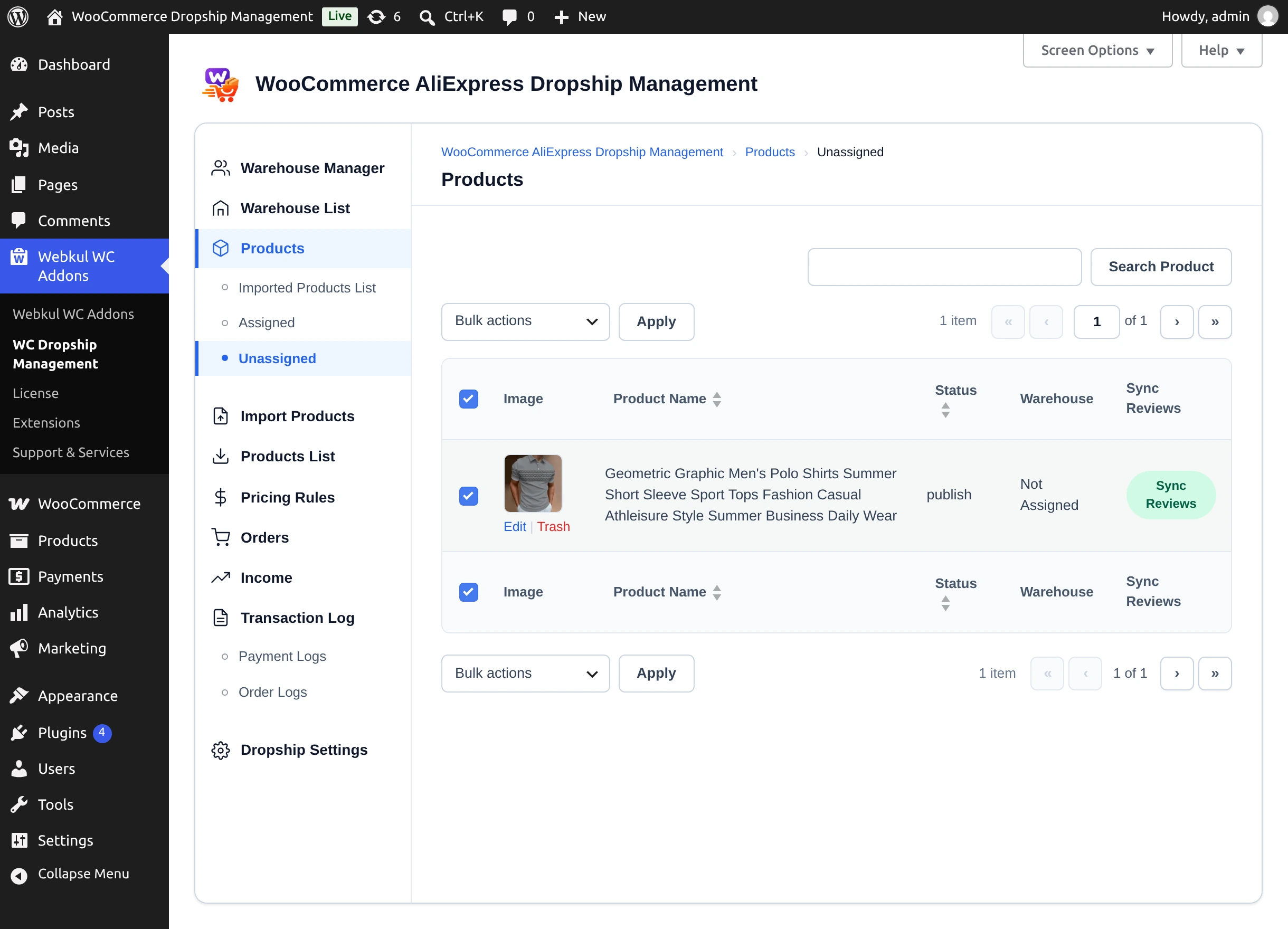
A product belongs to one warehouse at a time. You can also assign new products automatically with Default Product Warehouse in Product Setting.
Review and unassign products
Assigned lists every assigned product with its Warehouse Manager, Warehouse Title, Price, and Status. Filter by warehouse with Select Warehouse.
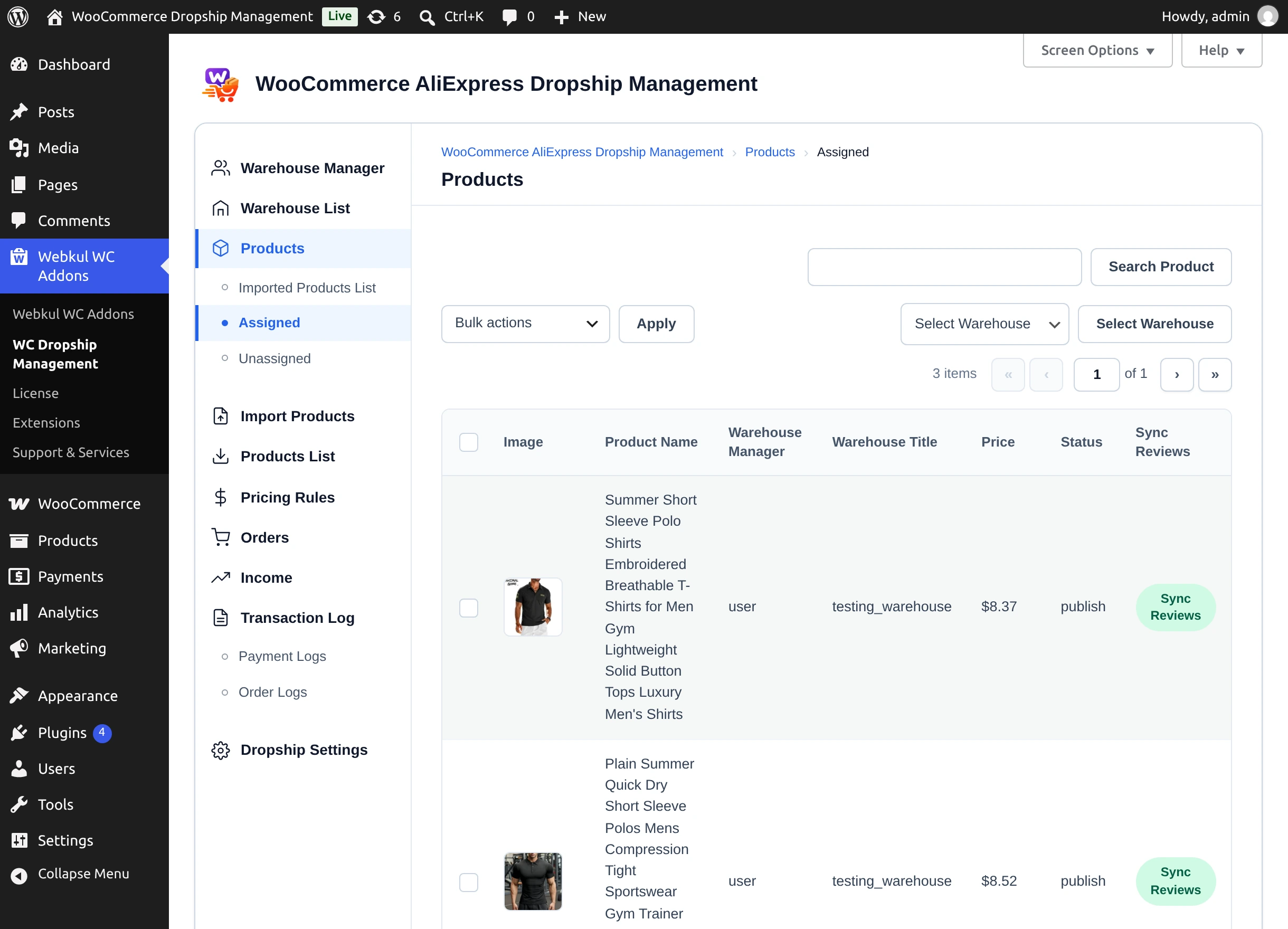
To unassign, tick products, choose Unassign Products in Bulk actions, and select Apply ("Product(s) UnAssigned Successfully!").
Sync Reviews
The Sync Reviews column on both lists adds fetched AliExpress reviews to the WooCommerce product:
| Button | Meaning |
|---|---|
| Sync Reviews | Reviews were fetched and are waiting. Select it to add them to the product. |
| Already synced | Reviews have been added. |
| No Reviews Available | No reviews were fetched for this product. |
While syncing, notices report "Fetching reviews.", "Finished Fetching. N reviews.", and "Finished Importing. N reviews.". With Send reviews to draft on, the reviews wait for approval under Comments. See Reviews Settings.
Next step
See every imported product and its warehouse on the AliExpress tab.