
Chrome Extension
The WooCommerce AliExpress Importer Chrome extension lets you import products while you browse AliExpress. It adds import controls to AliExpress pages and sends the products you pick to your store's Imported Products List.
If you have not installed it yet, see Install the Chrome extension.
What the extension adds to AliExpress
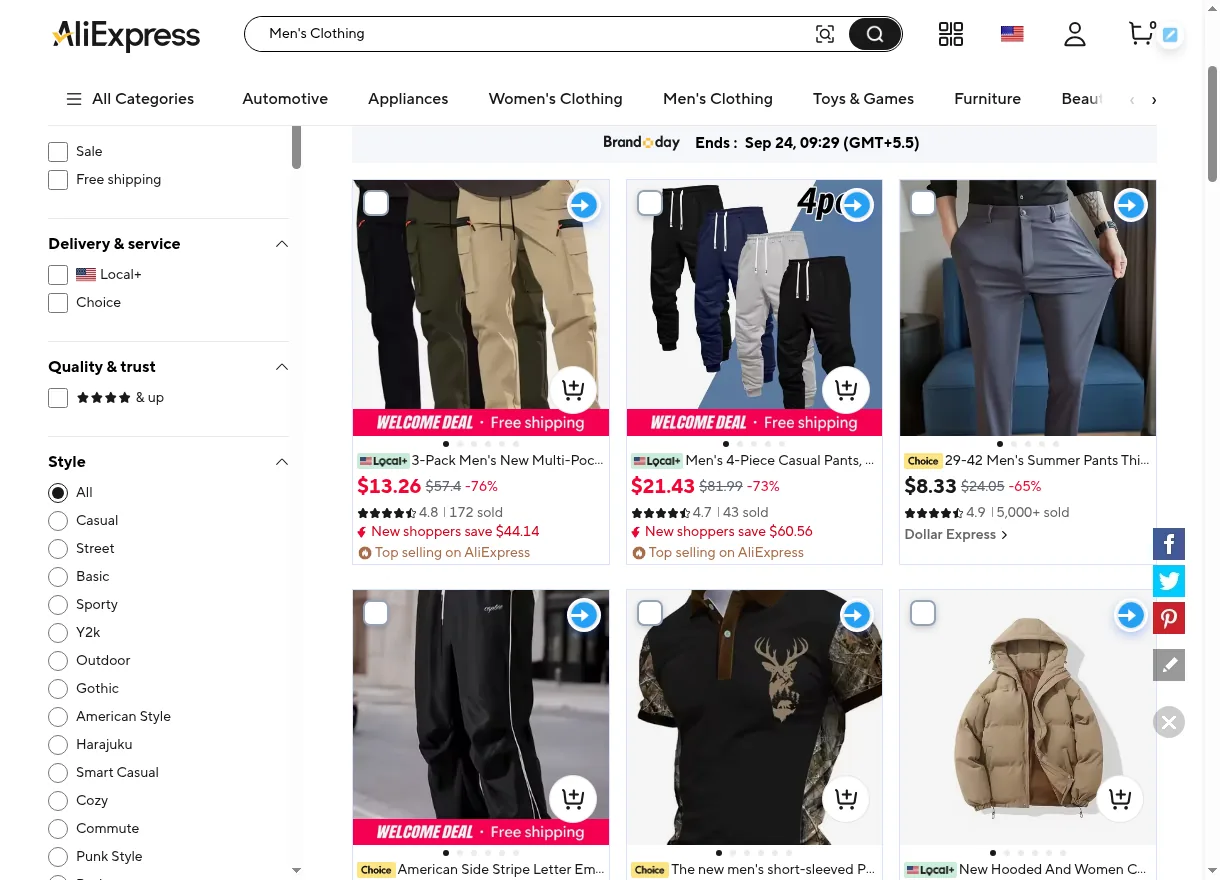
On AliExpress listing, category, and search pages, every product card gets:
- an orange border,
- a blue import arrow at the top-right (tooltip "Click Here To Import"), which opens the edit dialog for that product, and
- a checkbox at the top-left (tooltip "Select for bulk import") for bulk import.
A pencil button at the top-right of the page (tooltip "Update Authentication Details") lets you connect to a store or change the connection.
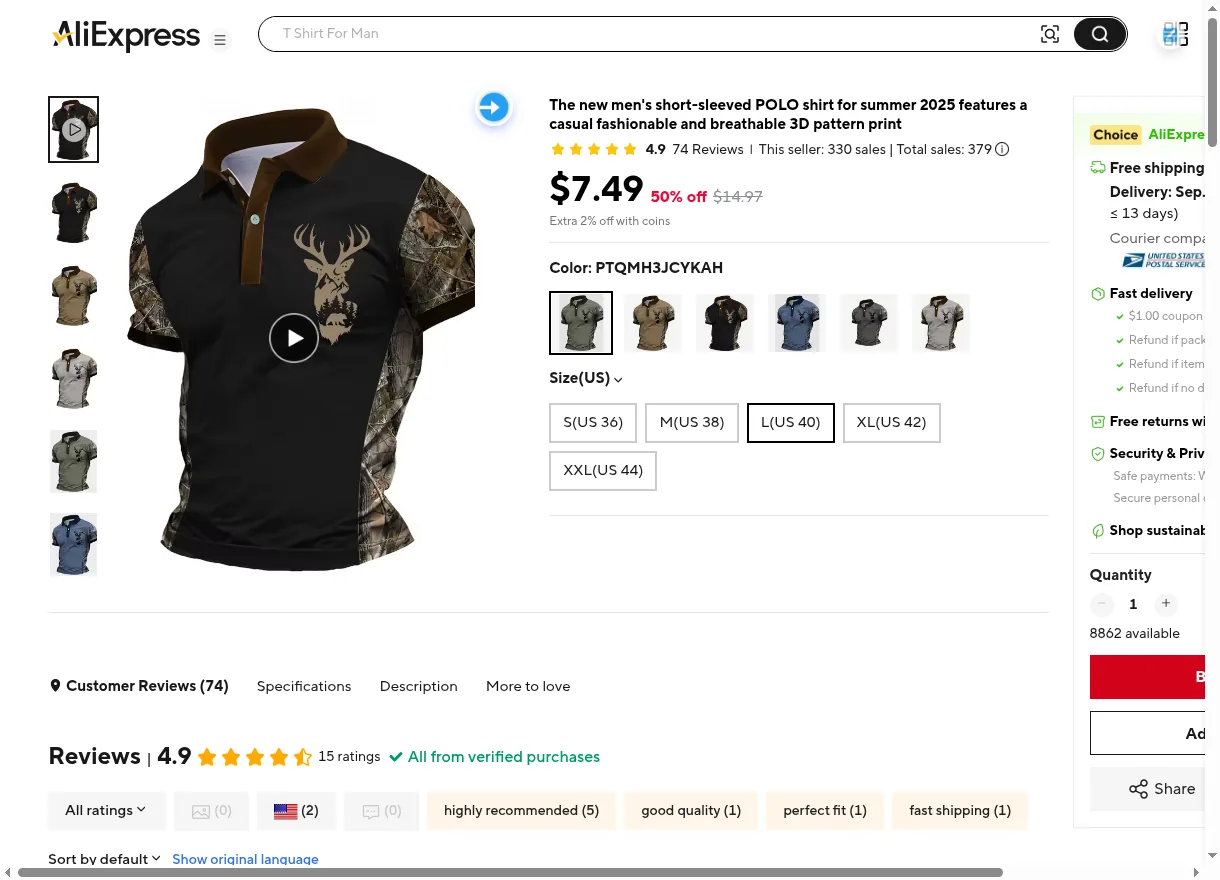
On a product page, the blue import arrow (tooltip "Click Here To Import Product") appears beside the product title and price.
Connect the extension to your store
You need your store address and the Username and Token from Account Setting (or step 2 of the setup wizard).
- Open any AliExpress page and select the pencil button at the top-right. If the extension is not connected yet, selecting any import control opens the same dialog.
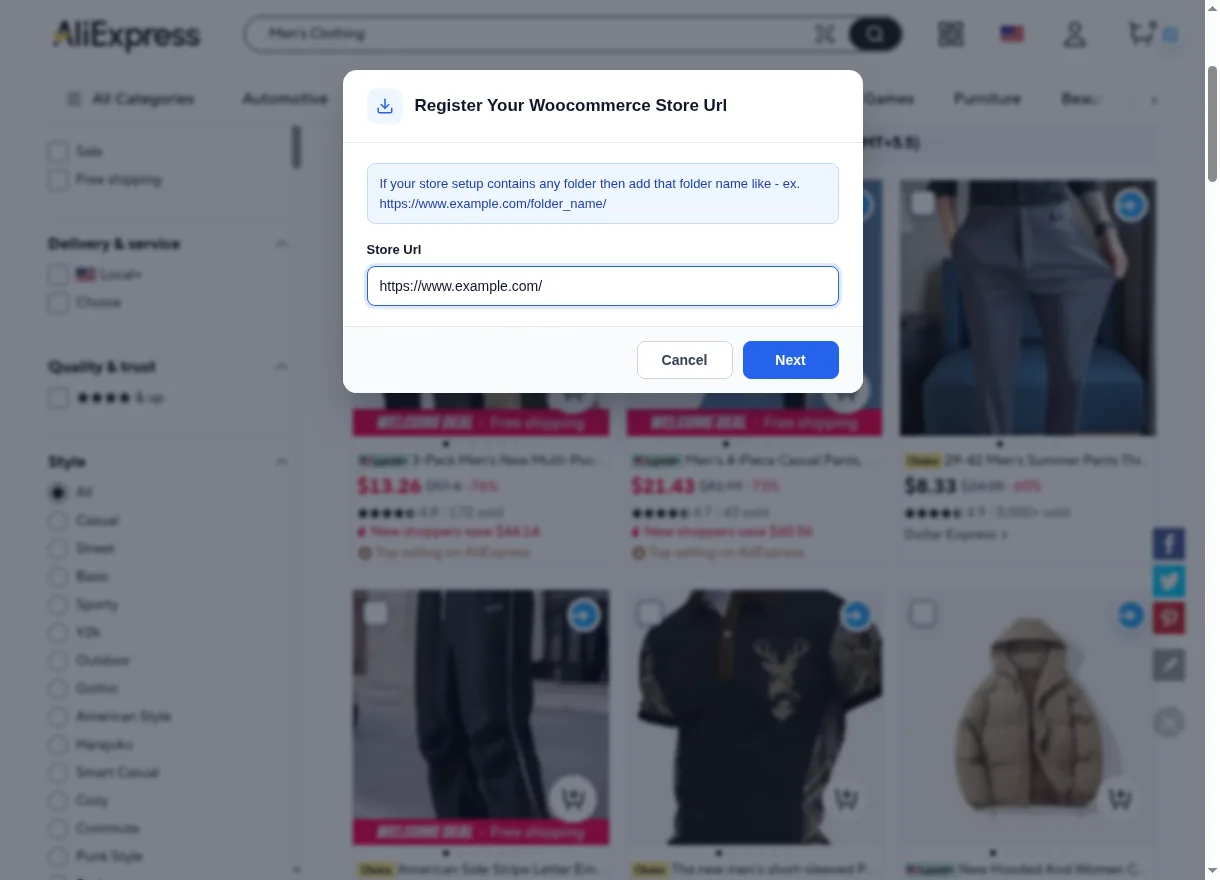
- In Register Your Woocommerce Store Url, enter your store's address in Store Url — for example
https://www.example.com/. If WordPress is installed in a folder, include it, e.g.https://www.example.com/folder_name/. Select Next.
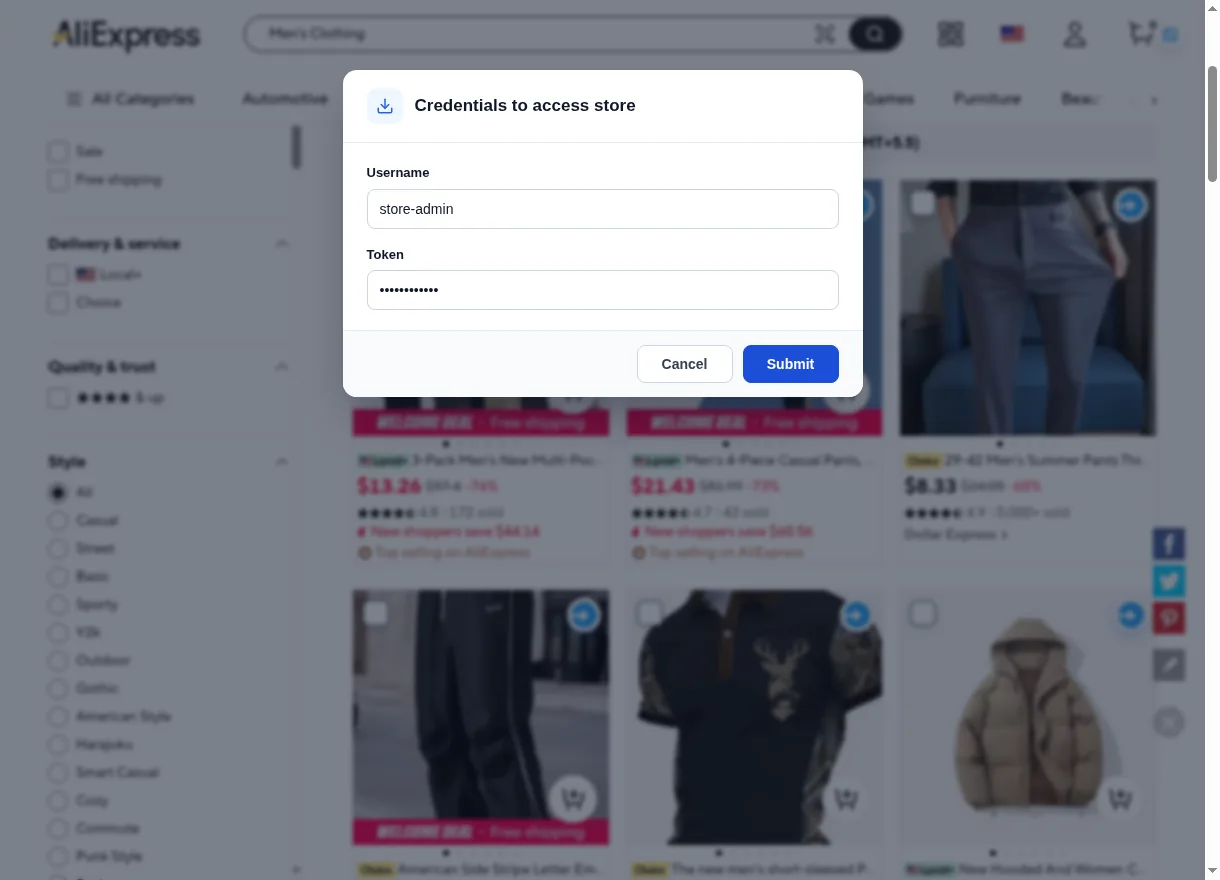
- In Credentials to access store, enter the Username and Token from Account Setting, and select Submit.
- On success you see "Success: Authenticated successfully!" and the page reloads, ready to import.
The connection is remembered in this browser for that AliExpress site. If you later change the Username or Token in your store, select the pencil button and connect again.
Which address to enter
Enter the address of your storefront (the site home page), not the wp-admin address. The extension checks it and shows "Error: Url Validation failed, try again!" if the plugin cannot be reached there.
Import a single product
- Open the product on AliExpress (or find it on a listing page).
- Select the blue import arrow.
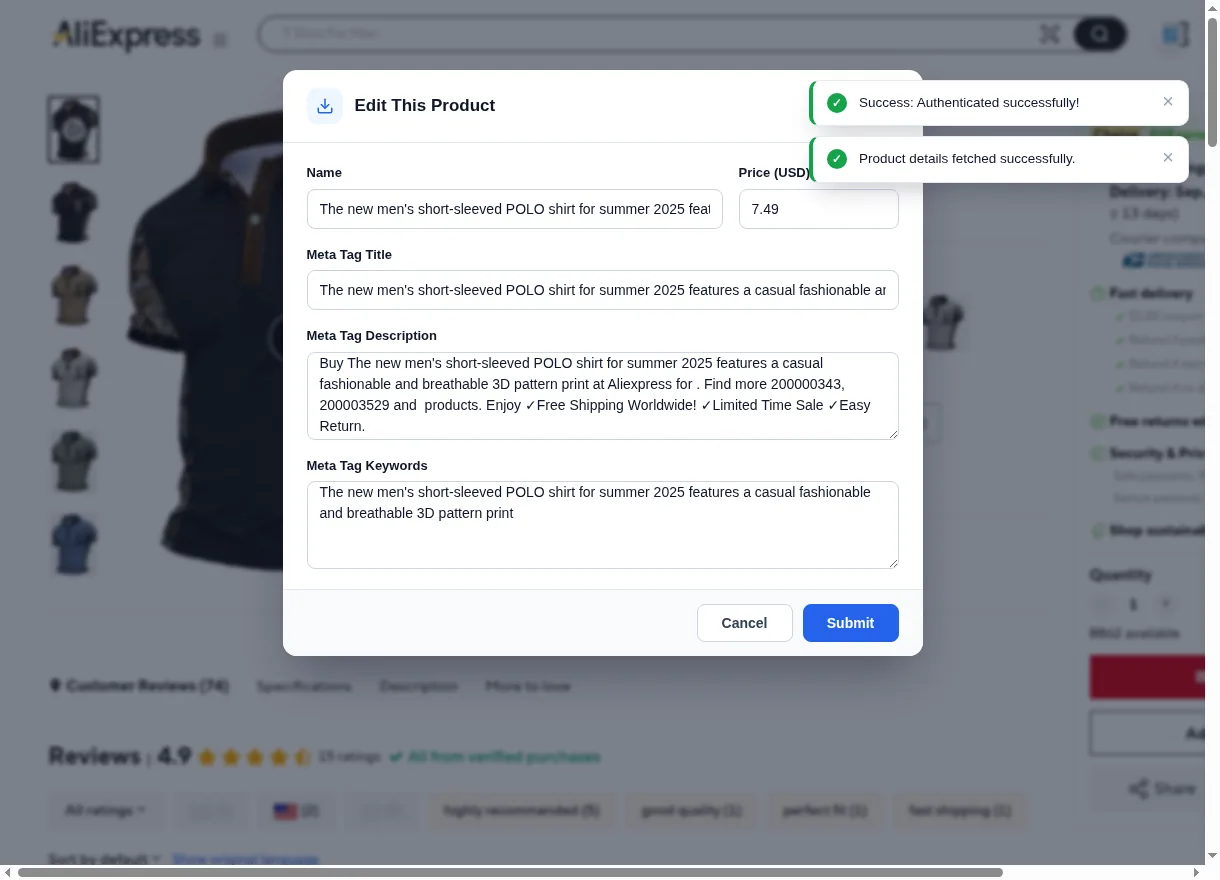
- The extension reads the product ("Product details fetched successfully.") and opens Edit This Product:
| Field | Use |
|---|---|
| Name | Product name in your store (3–255 characters). |
| Price | Selling price, shown in your store's currency. |
| Import Reviews Out of N | Shown when the product has reviews. Choose None to skip reviews; otherwise reviews follow your Reviews Settings. |
| Meta Tag Title | SEO title. |
| Meta Tag Description | SEO description. |
| Meta Tag Keywords | SEO keywords. |
- Select Submit. You see "Product Imported Successfully" (or "Product Updated Successfully" if it was already in your import list), followed by the review result.
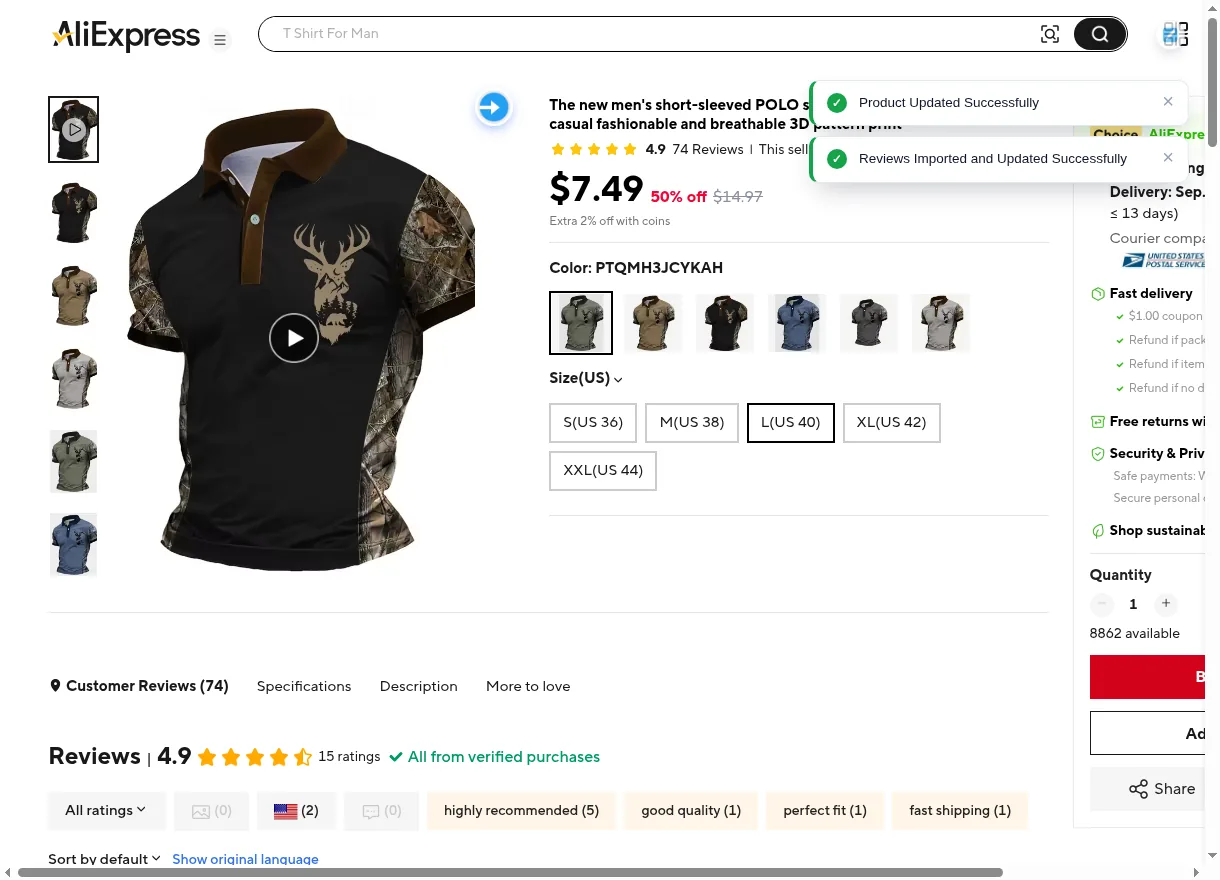
A changed Name or Price replaces the AliExpress values when the WooCommerce product is created; a changed price scales all variation prices proportionally. The meta fields are saved to the product's SEO fields.
The product is not live yet
The extension adds the product to the Imported Products List. Open it in your store and run Create Product to make it a WooCommerce product — see Imported Products List.
The toolbar popup
Selecting the extension's icon in the Chrome toolbar opens a small popup titled WooCommerce AliExpress Importer. Store connection and importing are handled on the AliExpress page itself, not in the popup.
Next step
Import many products at once with Bulk Import from AliExpress.