
Orders
The Orders screen lists customer orders that contain AliExpress products, so you can see what still needs to be ordered from AliExpress and place it.
Go to Webkul WC Addons → Warehouse Manager → Orders.
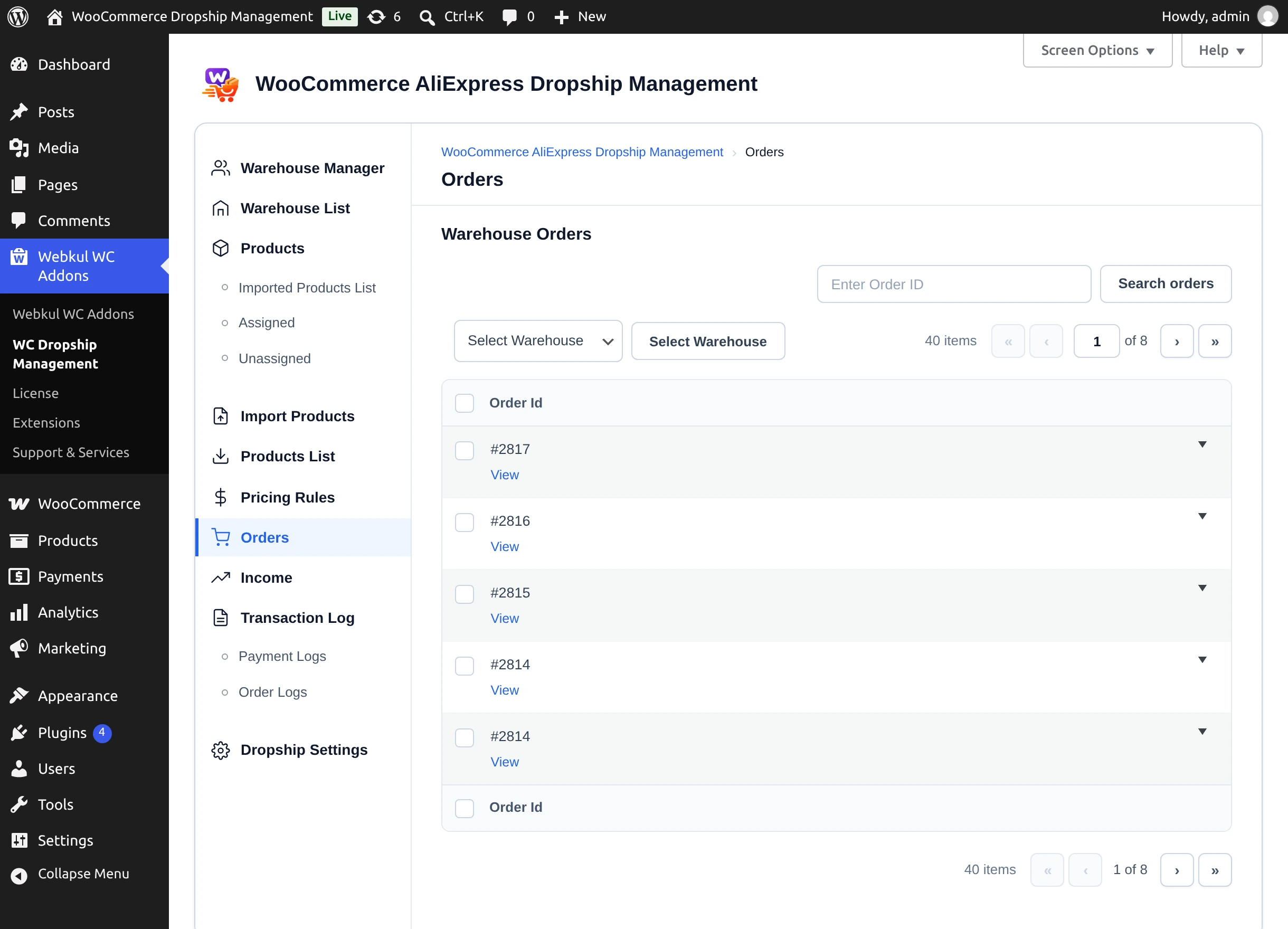
An order that contains products from two warehouses appears once for each warehouse. Products that are not assigned to any warehouse are grouped under No warehouse (administrators only), with the hint "Assign a warehouse to its products".
| Column | Shows |
|---|---|
| Order Id | WooCommerce order number, with a View link. |
| Warehouse | Warehouse the row belongs to. |
| Order Date | Sortable. |
| Billing Name | Customer's billing name. |
| Total Price | Total of this warehouse's items, and the item count. |
| Status | The WooCommerce order status, plus the AliExpress placement status: Placed, N of M placed, or Not placed. |
| Place Order | The action for placing the order on AliExpress — depends on the fulfilment mode. |
Find an order with Enter Order ID and Search orders (numbers only), or filter by warehouse with Select Warehouse.
The Place Order column
| You see | Meaning |
|---|---|
| Place Order button | API mode, not placed yet. Opens the order placement dialog — see Placing Orders via the API. |
| API Order #… badge | Placed through the API; the number is the AliExpress order number. |
| Cancel Order | Shown with an unpaid API order. See Cancel an unpaid API order. |
| Place Order / Place remaining / Place again link | Extension mode. Opens the first ordered product on AliExpress — see Placing Orders with the Extension. |
| Disabled link | "These products have no AliExpress link in your store." — the products were not created from AliExpress. |
Order details
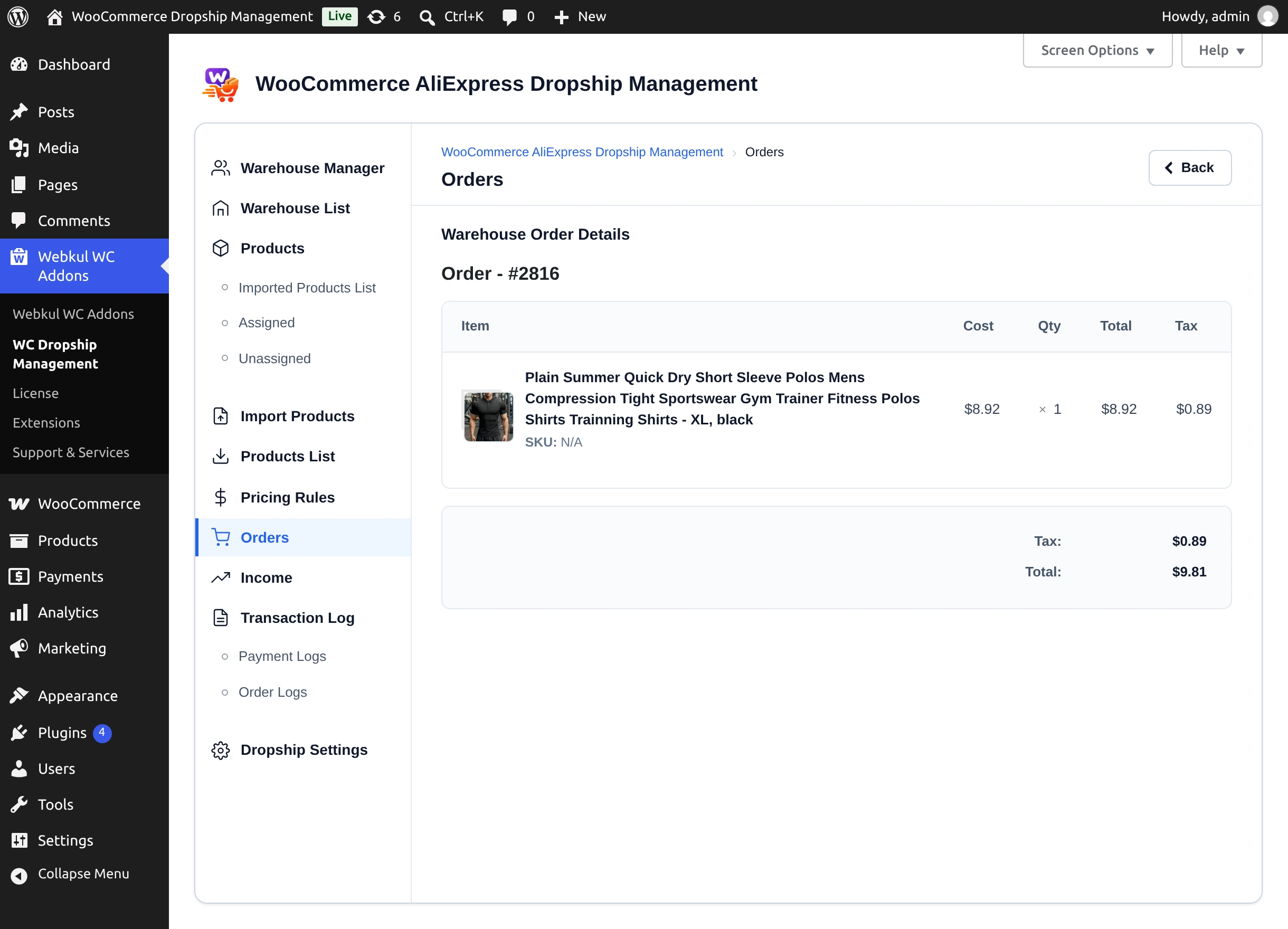
Select View under an order number to open Warehouse Order Details — the order's items from this warehouse with cost, quantity, total, and tax, plus shipping and the order total. Back returns to the list.
Next step
Place orders through the AliExpress API or with the Chrome extension.