
Imported Products List
Every product you import — from the admin, a CSV file, or the Chrome extension — lands here first. From this list you create the WooCommerce products, refresh them from AliExpress, or delete them.
Go to Webkul WC Addons → Warehouse Manager → Products → Imported Products List.
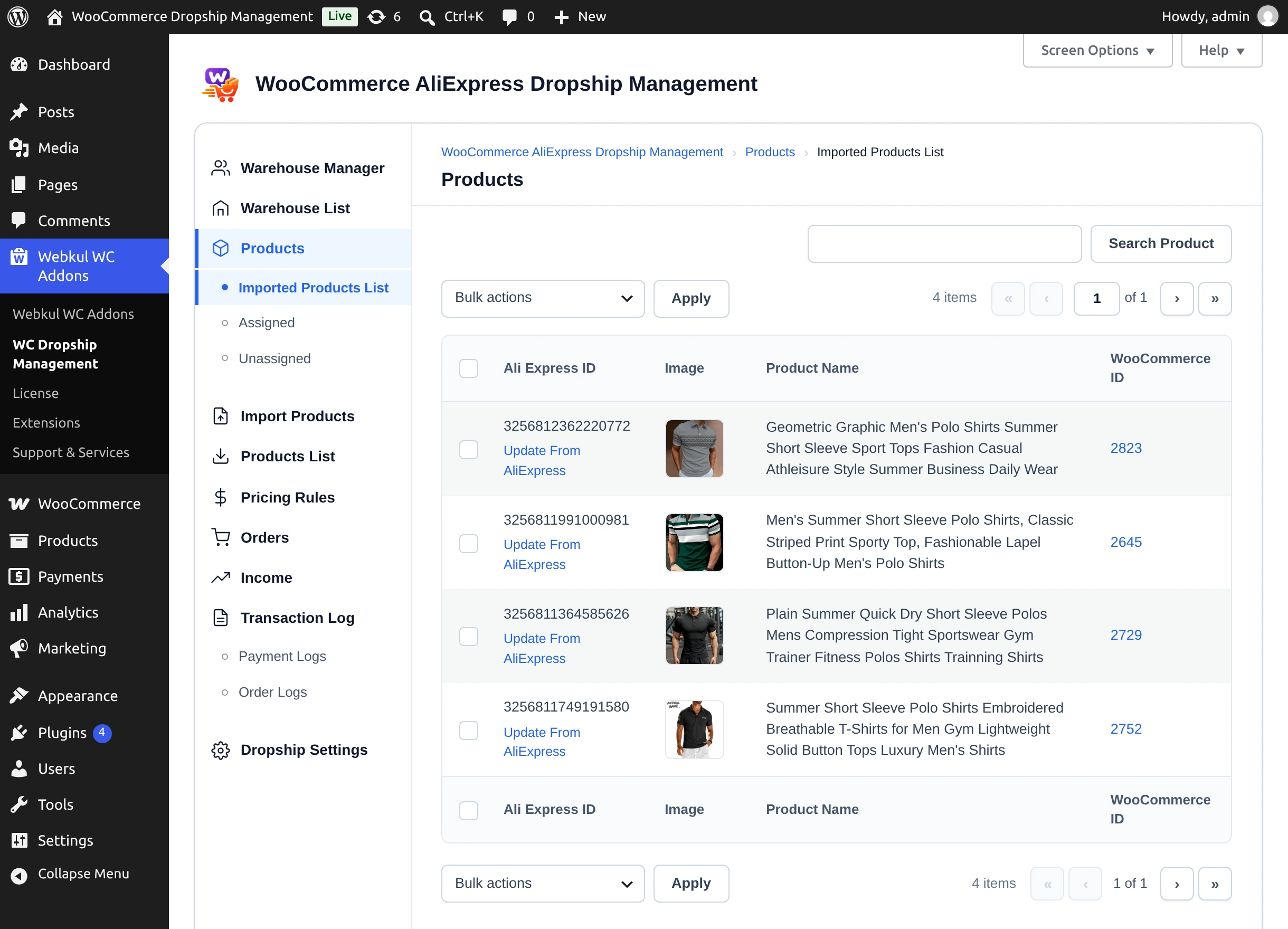
| Column | Shows |
|---|---|
| Ali Express ID | The AliExpress product ID, with an Update From AliExpress link. |
| Image | Main product image. |
| Product Name | AliExpress product title. |
| WooCommerce ID | Linked ID of the WooCommerce product, or N/A if it has not been created yet. |
Use Search Product with Search By Product ID to find an item by its AliExpress ID.
Create WooCommerce products
- Tick the products to create — typically those showing N/A under WooCommerce ID.
- Choose Create Product in Bulk actions and select Apply.
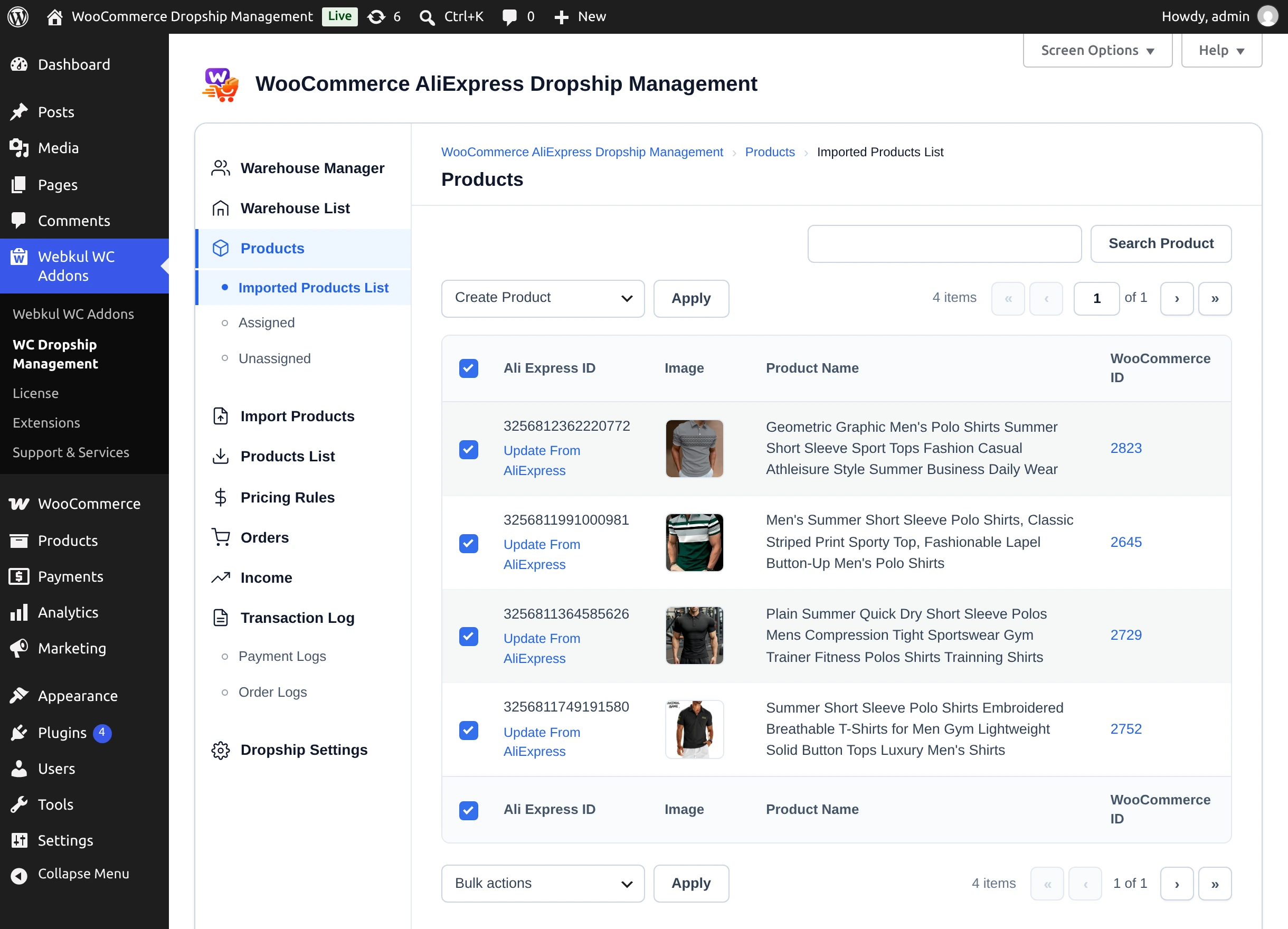
- The Creating Products panel shows progress ("N Products Created Out of M") and a confirmation for each product. Keep the page open until it finishes.
Each product is built from AliExpress data and your Product Setting defaults:
- Type — variable when AliExpress offers more than one option, otherwise simple.
- Name — the name you set in the extension or CSV, otherwise the AliExpress title.
- Categories — the default category, or the AliExpress categories when category import is enabled.
- Status and visibility — from your settings.
- Price — from the price configuration, or the price you set in the extension or CSV.
- Stock — AliExpress stock, or Default Product Stock when none is reported; stock management is turned on.
- Images — downloaded into your Media Library: the first becomes the product image, the rest the gallery; variations get their own images.
- Attributes and variations — AliExpress properties become attributes; option combinations become variations with their own price and stock.
- SKU, weight, and dimensions — from AliExpress where available.
- Description — only when Import Product Description is on.
- SEO meta — meta title, description, and keywords.
- Warehouse — assigned automatically when a Default Product Warehouse is set.
Reviews are added separately with Sync Reviews — see Assigning Products.
Update products from AliExpress
- For one product, select Update From AliExpress under its ID. The notice reads "Product … Updated Successfully."
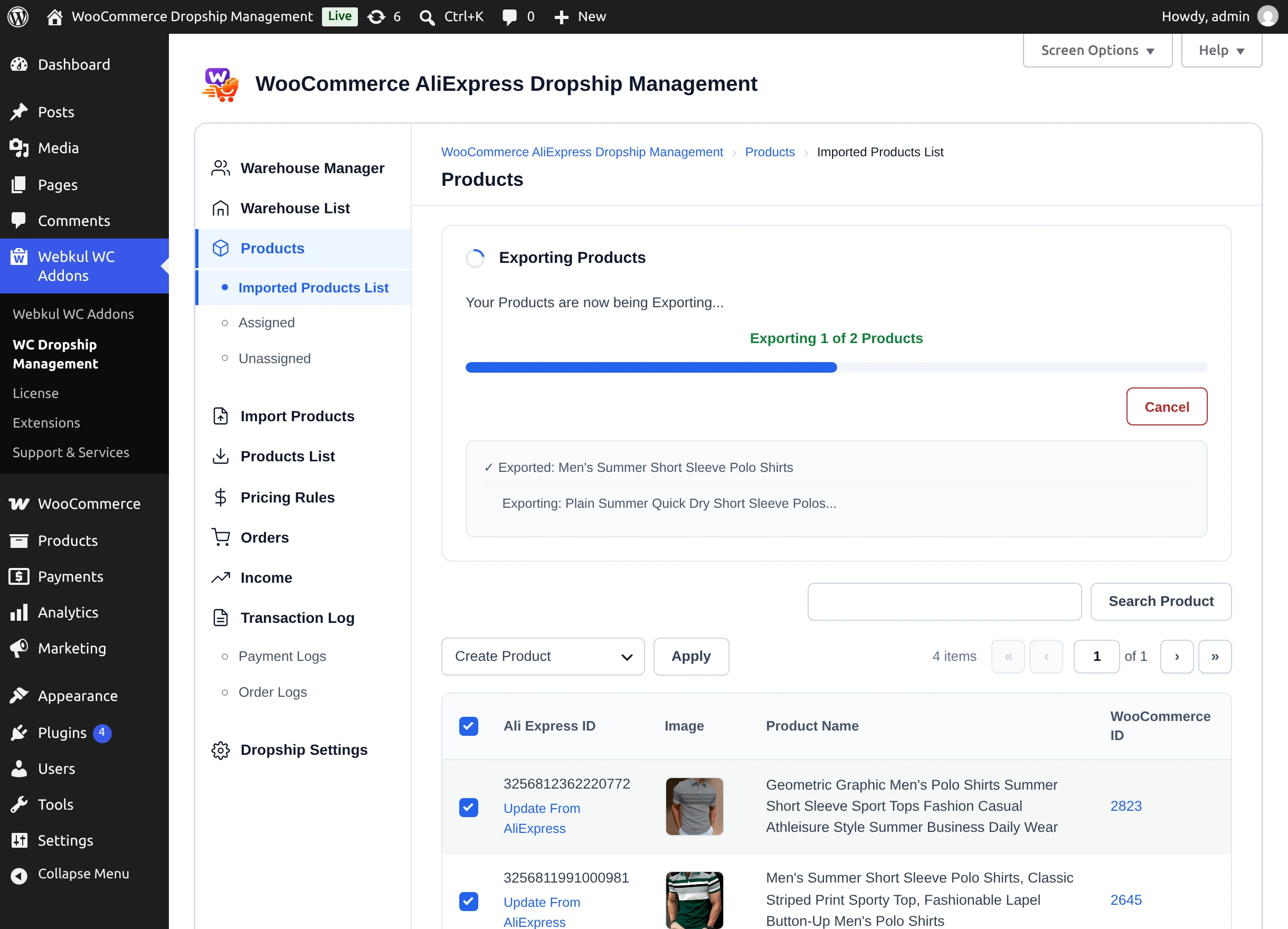
- For several, tick them and choose Update From AliExpress in Bulk actions. The Updating Products panel shows progress.
Updating re-reads the product from AliExpress and overwrites its name, description, categories, status, visibility, price, stock, images, and variations using your current settings. New AliExpress options are added as new variations.
Updates overwrite your edits
Changes you made to an imported product in WooCommerce — a new name, description, or images — are replaced when the product is updated from AliExpress, manually or by auto sync.
Keeping products in sync
With Enable/Disable Auto Syncing set to Enable in Product Setting, products that are assigned to a warehouse are refreshed automatically every set number of hours, in the background, a batch at a time.
Delete products
Tick products, choose Delete Product in Bulk actions, and select Apply.
Deletion is permanent
Delete Product removes the item from the import list and permanently deletes the WooCommerce product, its warehouse assignment, and its fetched reviews. It does not go to the Trash.
Next step
Assign products to warehouses, or review everything imported on the AliExpress tab.