
Pricing Rules
Pricing Rules define your commission on sales of warehouse products. The commission is deducted from the warehouse's income for each order, and the rest becomes the amount payable to the warehouse under Income & Payouts.
Not a selling-price rule
Pricing Rules do not change what customers pay. To set selling prices for imported products, use Default Product Price configuration in Product Setting.
Go to Webkul WC Addons → Warehouse Manager → Pricing Rules.
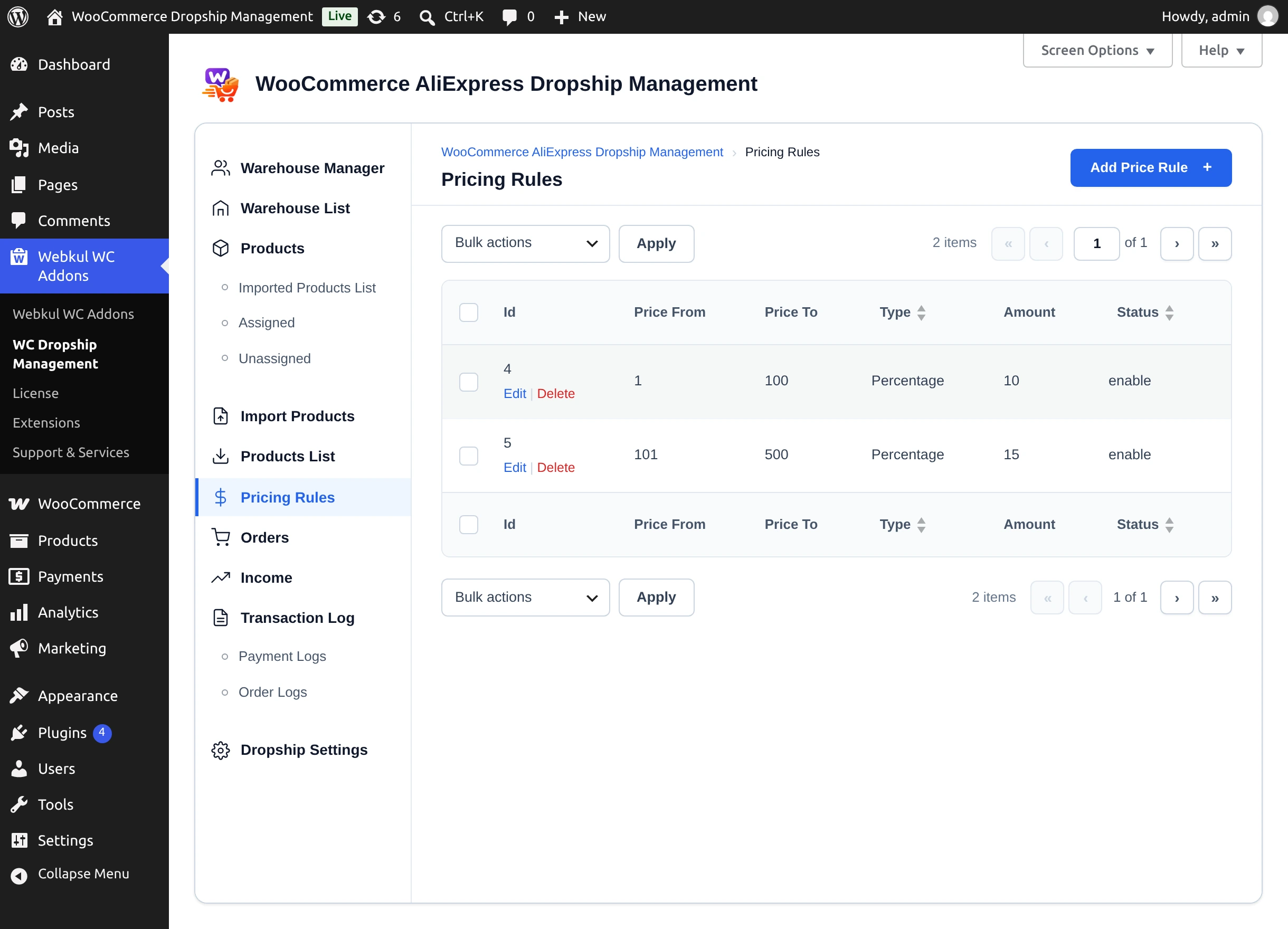
The list shows each rule's Id, Price From, Price To, Type, Amount, and Status.
Add a pricing rule
- Select Add Price Rule.
- Fill in Price Rule Information:
| Field | Description |
|---|---|
| Rule Type * | Percentage — a percentage of the warehouse's order total; Fixed — a fixed amount per order. |
| Cart Total From * | Lower bound of the cart total the rule applies to. |
| Cart Total To * | Upper bound of the cart total. |
| Price * | The commission — a percentage or a fixed amount, depending on the rule type. |
| Select Rule Status * | enable or disable. |
- Select Save Rule ("Price Rule Added Successfully.").
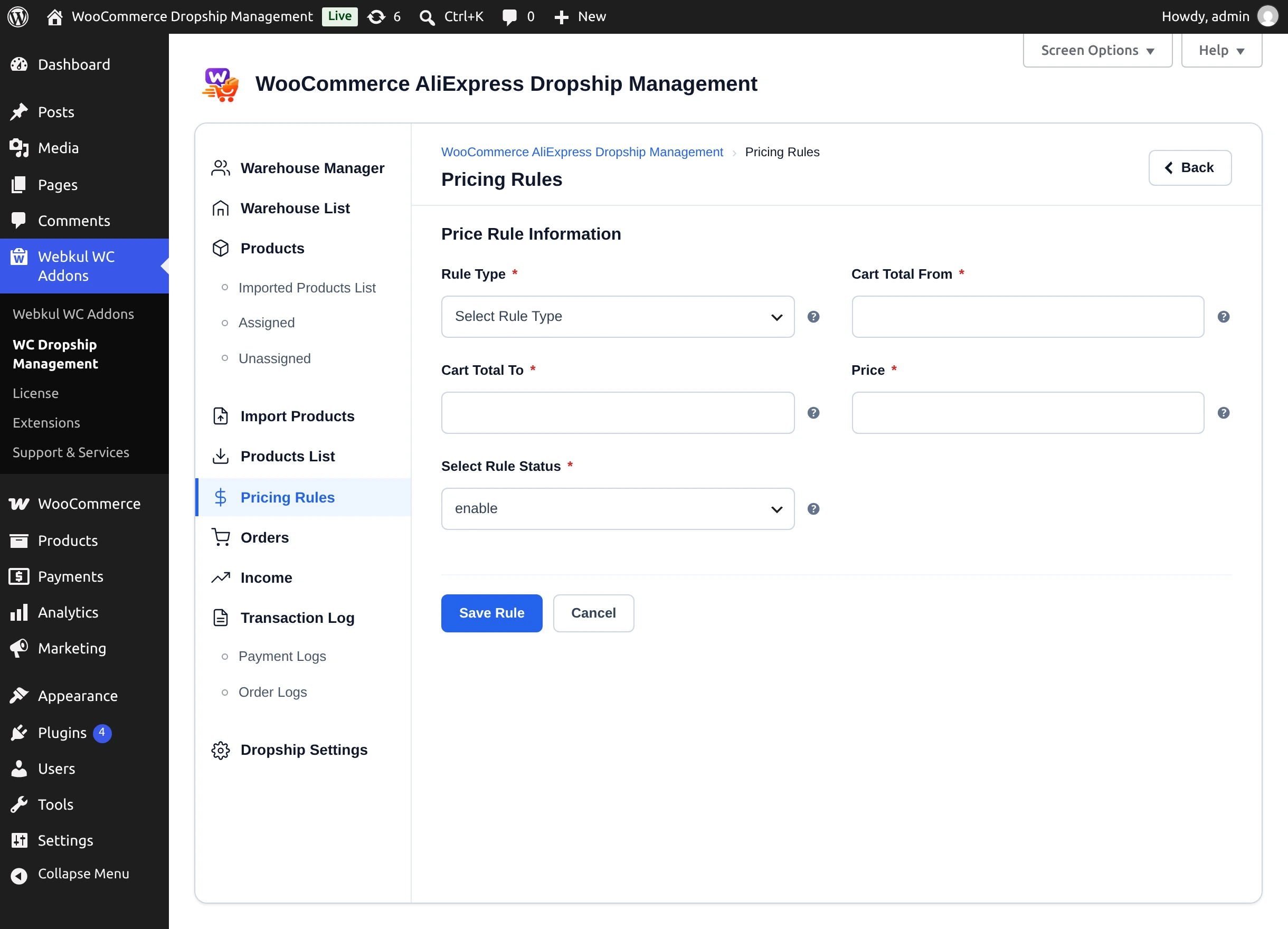
Ranges must not overlap an existing rule — overlapping ranges show "This Price Range Already Entered !". Edit a rule with Edit (Update Rule), and delete with Delete or the bulk Delete Price Rule.
How the commission is calculated
When a customer reaches the order-received (thank-you) page after checkout, the plugin works out, for each warehouse in the order, the total of that warehouse's products plus tax. The first enabled rule that matches gives your commission — the percentage of that total, or the fixed amount — and the remainder is recorded as the warehouse's payable amount. Use whole numbers for amounts: decimals are not stored.
Warehouse managers can view the rules but not change them.
Next step
Handle customer orders on the Orders screen.