
Income & Payouts
For every order containing warehouse products, the plugin records the warehouse's income and your commission from Pricing Rules. The Income screen totals them per warehouse, and Pay records a payout.
Warehouse income
Go to Webkul WC Addons → Warehouse Manager → Income.
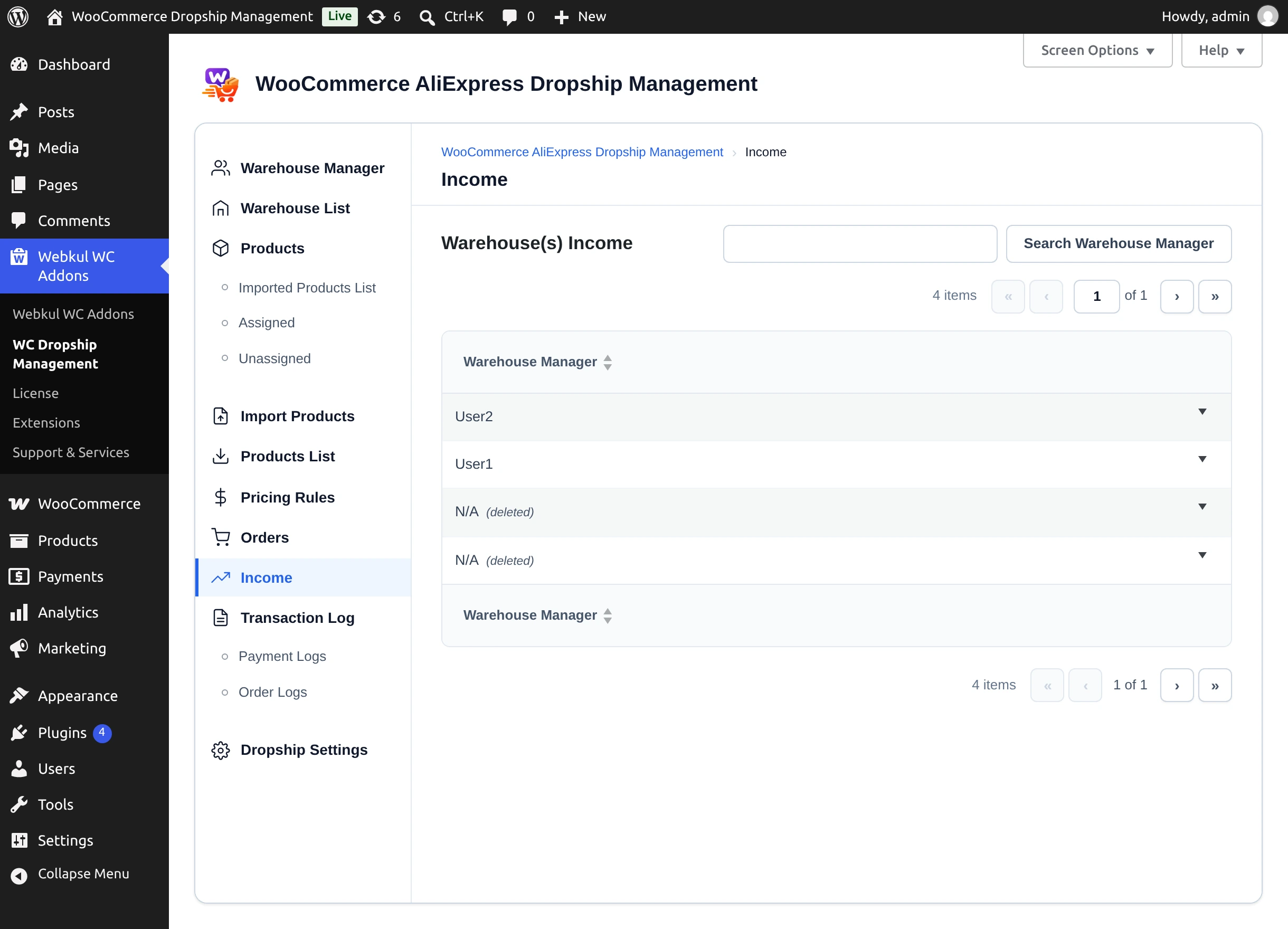
Each row is a supplier (warehouse manager). Expand a row, or view it on a wide screen, to see:
| Column | Meaning |
|---|---|
| Supplier | Warehouse manager. |
| Warehouse | Their warehouse. |
| Admin Income | Your commission from Pricing Rules. |
| Warehouse Income | Item totals of the warehouse's orders. |
| Tax | Tax on those items. |
| Gross Warehouse Income | Warehouse income plus tax. |
| Total Income | Total recorded for the warehouse. |
| Payable Amount | Amount still owed to the warehouse. |
| Paid Amount | Amount already paid out. |
| Action | Pay, or a disabled Paid when nothing is owed. |
Use Search Warehouse Manager to find a supplier.
Record a payout
- Select Pay in the supplier's row.
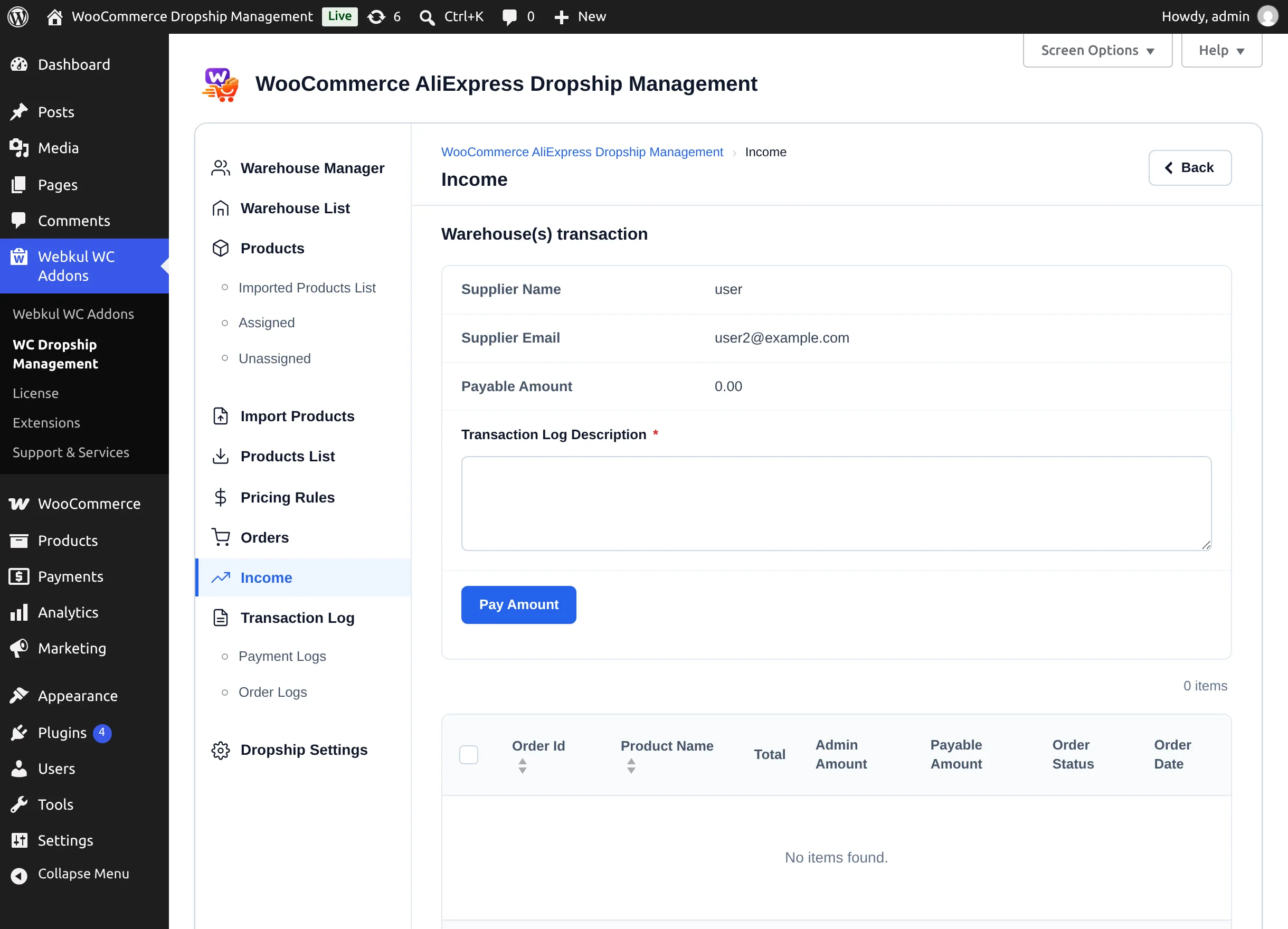
- The Warehouse(s) transaction screen shows the Supplier Name, Supplier Email, and the orders with their Total, Admin Amount, Payable Amount, Order Status, and Order Date.
- Tick the orders you are paying for. Payable Amount adds up the selected orders.
- Enter a Transaction Log Description, such as a bank reference.
- Select Pay Amount. You see "Transaction Log generated Successfully."
Payouts are records only
Pay Amount records the payout; it does not send money. Pay the warehouse through your usual payment method.
Payment Logs
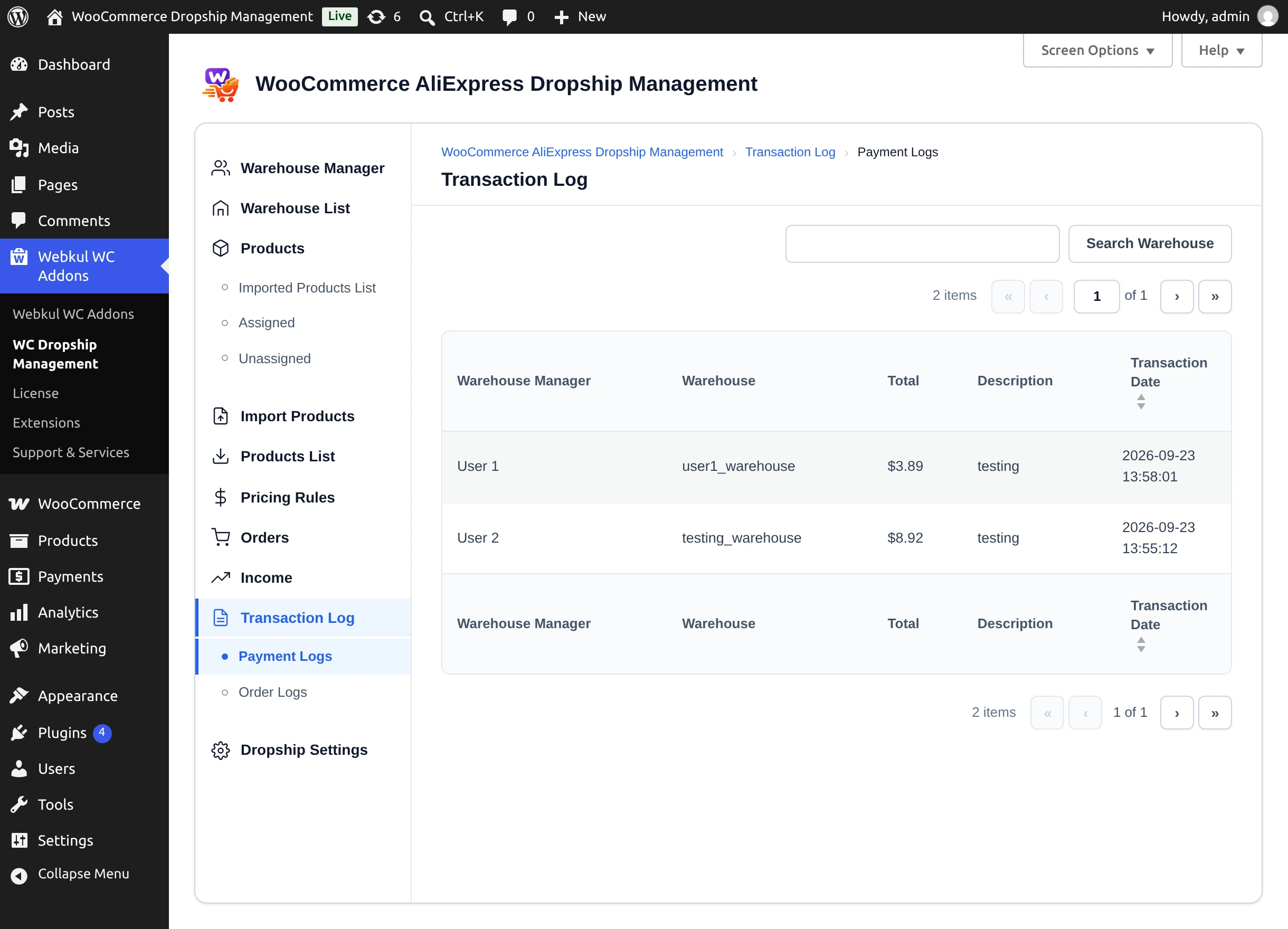
Go to Transaction Log → Payment Logs to see every recorded payout with its Supplier, Warehouse, Total, Description, and Transaction Date. Use Search Warehouse to filter.
Next step
Review AliExpress API activity in Order Logs.