
Warehouse Managers
A warehouse manager is a WordPress user with the dedicated Warehouse Manager role. Each warehouse is run by one manager, who can sign in and see only their own warehouse, products, orders, and income — see Warehouse Manager Panel.
Go to Webkul WC Addons → Warehouse Manager. This is the first screen of the plugin.
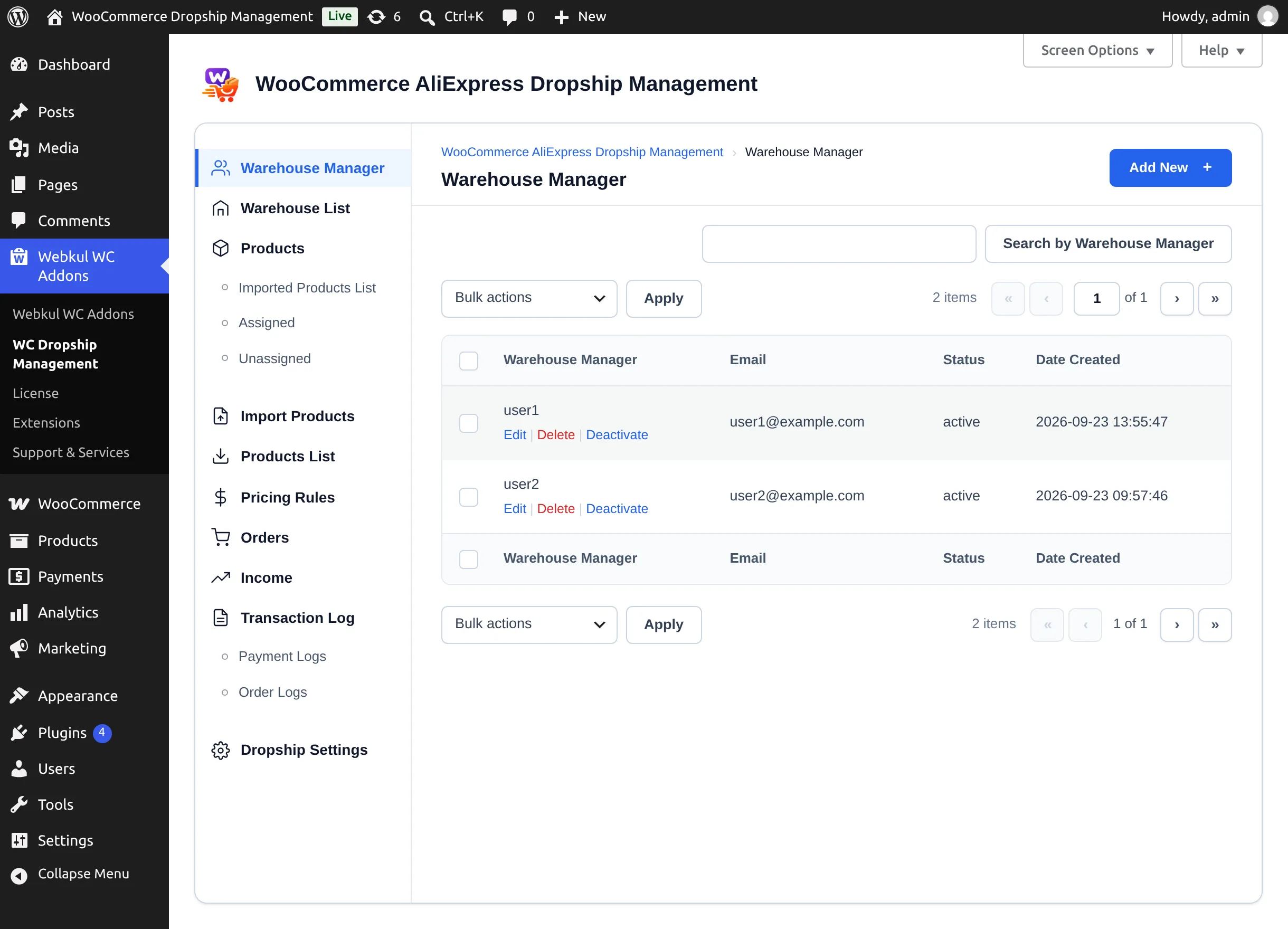
The list shows each manager's Warehouse Manager (username), Email, Status (active or deactive), and Date Created. Use Search by Warehouse Manager to find one.
Add a warehouse manager
- Select Add New.
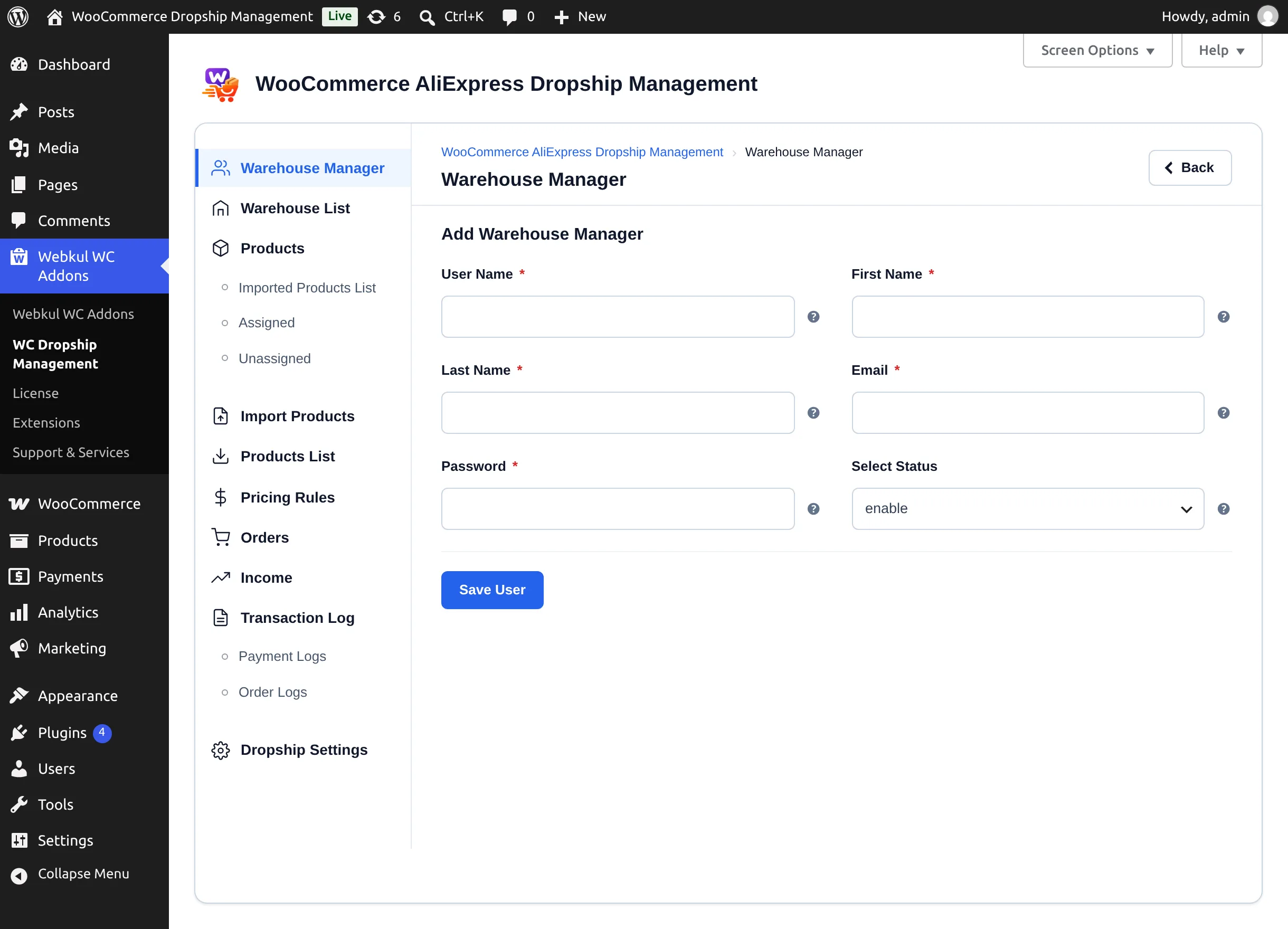
- Fill in the Add Warehouse Manager form:
| Field | Notes |
|---|---|
| User Name * | WordPress username. Cannot be changed later. |
| First Name * | |
| Last Name * | |
| Email * | Must be a valid address not used by another user. |
| Password * | Generated automatically. |
| Select Status | enable or disable. |
- Select Save User. You see "Profile Created Successfully."
The new manager receives an email titled "Welcome! you are now Warehouse Manager" containing their password, and can sign in at your normal WordPress login page.
Edit a manager
Select Edit under the manager's name, change the details, and select Update User ("Profile Updated Successfully.").
Activate, deactivate, or delete
- Deactivate / Activate under a manager's name changes their status. The bulk actions Activate Manager and Deactivate Manager do the same for several managers.
- Delete (or the bulk Delete Manager) opens a confirmation dialog. Confirming deletes the WordPress user and their warehouse; the warehouse's products become unassigned.
Deactivating does not block sign-in
A deactivated manager is hidden from the Select Warehouse User list when you create a warehouse, but can still sign in to WordPress. To remove someone's access completely, delete the manager or change their role under Users.
Next step
Create a warehouse for the manager.