
Bulk Import from AliExpress
New in 3.0.0, the Chrome extension imports many products at once, straight from AliExpress listing, category, and search pages.
Connect the extension first — see Connect the extension to your store.
Select products
- Open an AliExpress listing, category, or search page.
- Tick the checkbox at the top-left of each product you want. Selected cards are highlighted.
- A selection bar appears at the bottom of the page:
- N selected — how many products are selected,
- Select all on this page — adds every product on the page that has not been imported,
- Clear — empties the selection,
- Import selected — starts the import (shows Import first 50 when more than 50 are selected).
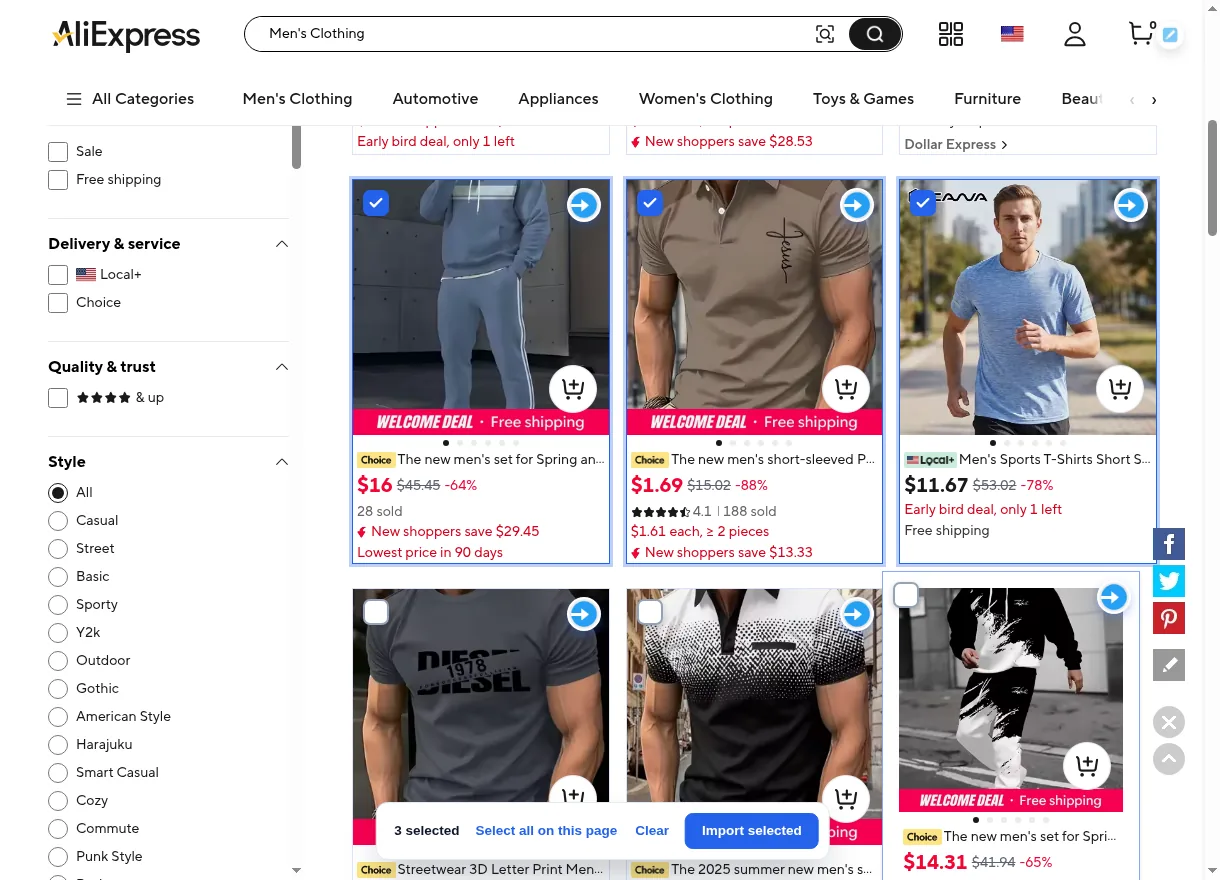
Your selection is kept while you move between result pages in the same tab, so you can collect products from several pages before importing.
Run the import
Select Import selected. A Bulk import status card shows "Importing 1 of N…", the product being imported, a progress bar, and running counts (imported · already in your list · failed).
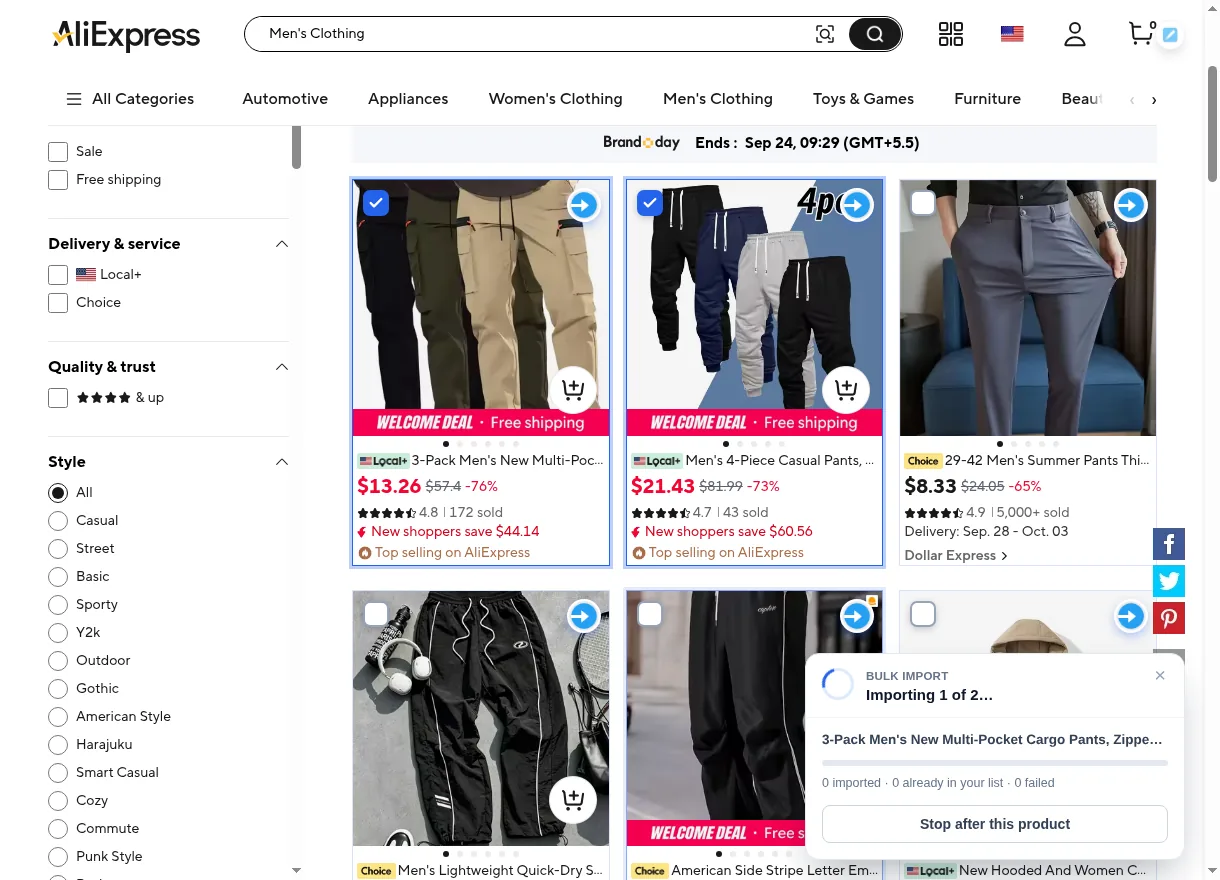
- Products are imported one at a time, with a short pause between them.
- Products already in your import list are skipped, not duplicated.
- Reviews follow your Reviews Settings. There is no edit dialog in bulk mode — each product keeps its AliExpress name and price.
- Select Stop after this product to end the run early.
Review the summary
When the run ends, the card shows Import finished, Import finished with problems, or Import stopped, with the final counts. Failed products are listed with their reason, and any products still selected beyond the first 50 are noted.
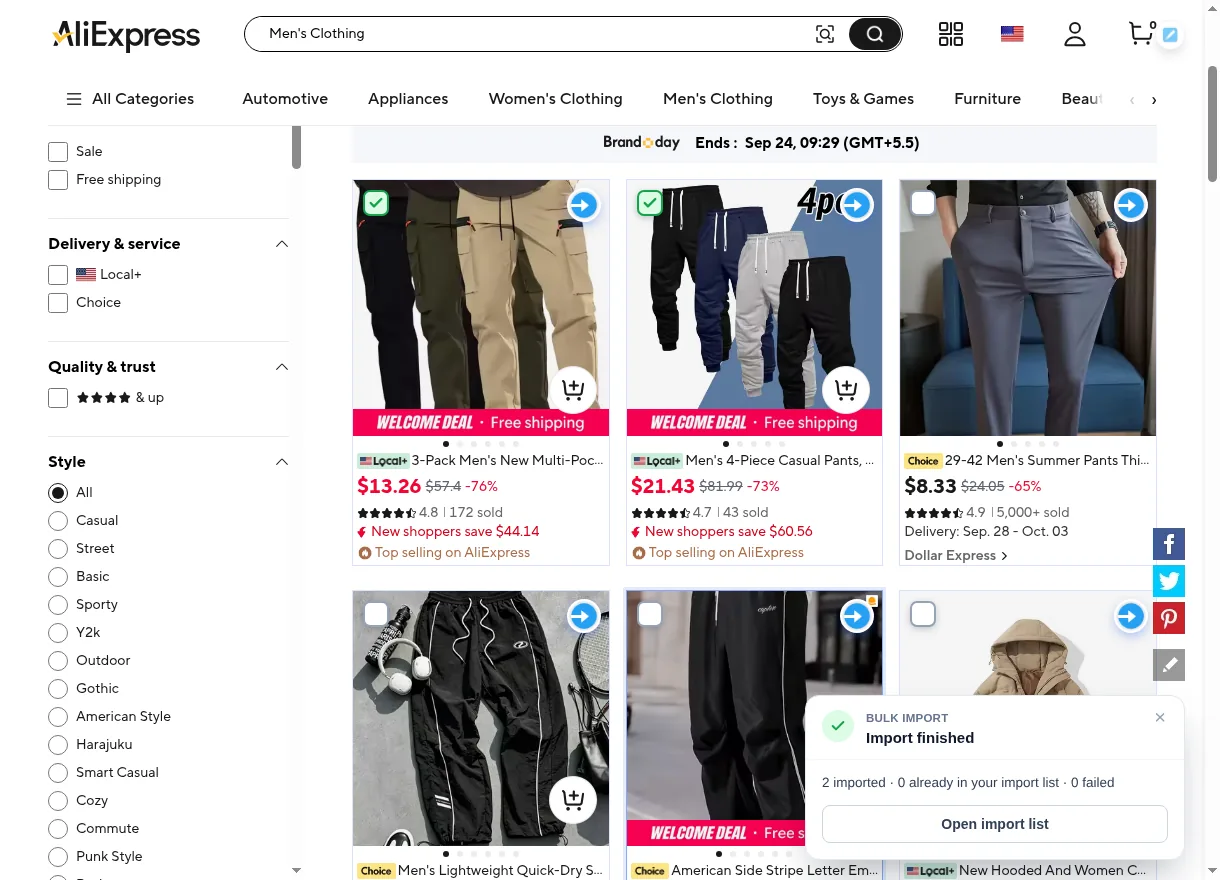
- Retry failed tries the failed products again.
- Open import list opens the Imported Products List in your store, where you run Create Product.
Imported cards on the page show the tooltip "Imported to your store".
If a product fails
"Could not find this product on the page." means the card could not be read — open the product and import it with the single-product arrow. "Could not reach your store." means the store connection failed — check the store URL with the pencil button. See Troubleshooting.
Next step
Create the imported products in WooCommerce from the Imported Products List.