
Setup Wizard
New in 3.0.0, the setup wizard configures the plugin in five short steps: Welcome, App Credentials, Connection, Import Settings, and Ready. It opens automatically after activation, and whenever an administrator opens Webkul WC Addons → Warehouse Manager before setup is complete.
Skipping and re-running
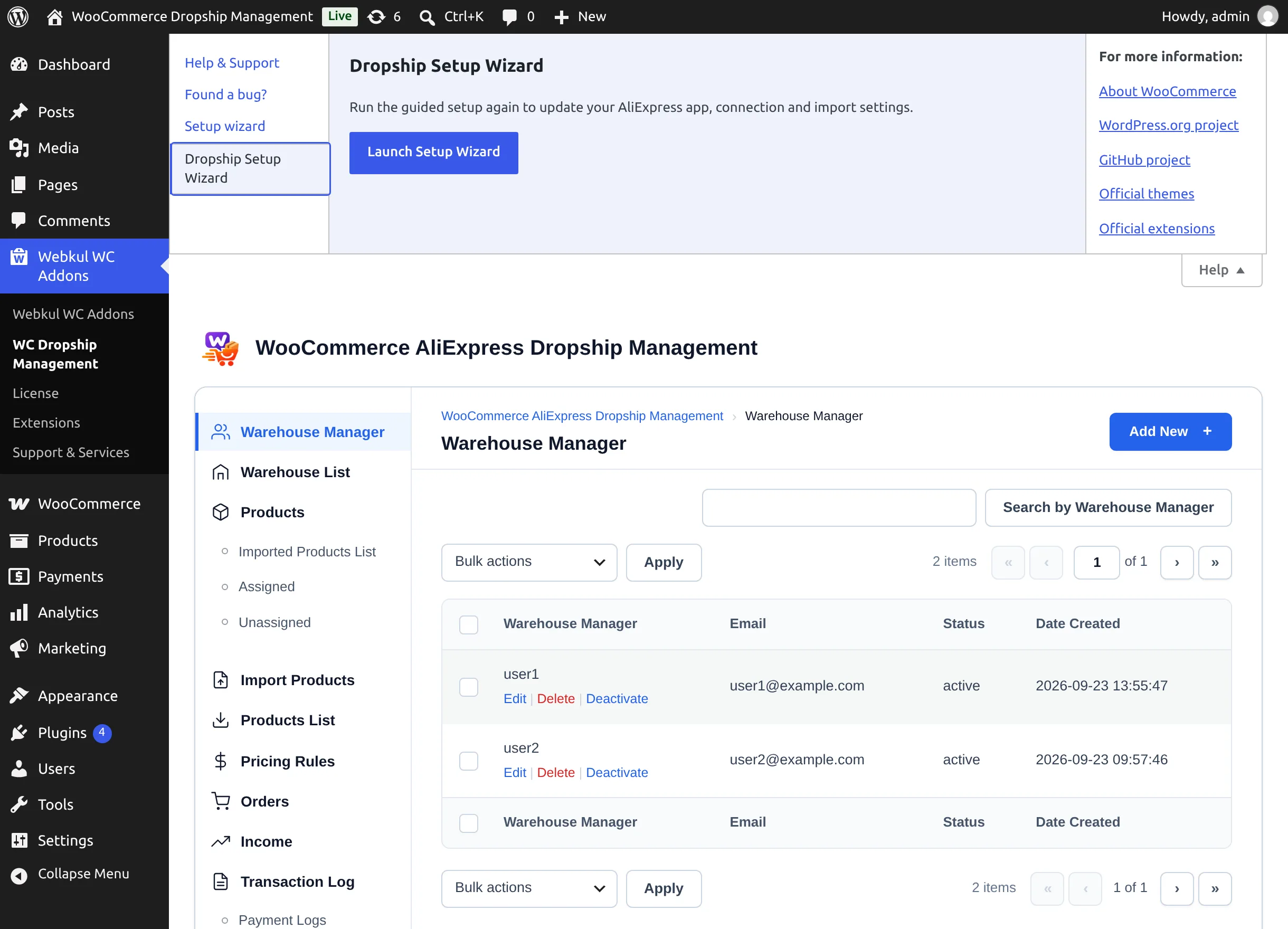
Skip Setup on the first step closes the wizard and takes you to the plugin with the message "Setup wizard skipped." — nothing is saved, and you can configure everything later from Dropship Settings. To run the wizard again, open the plugin, expand the Help tab at the top-right of the screen, choose Dropship Setup Wizard, and select Launch Setup Wizard.
Every step's side panel links to the User Guide, a Watch Video walkthrough, and Need Support.
Step 1 — Welcome
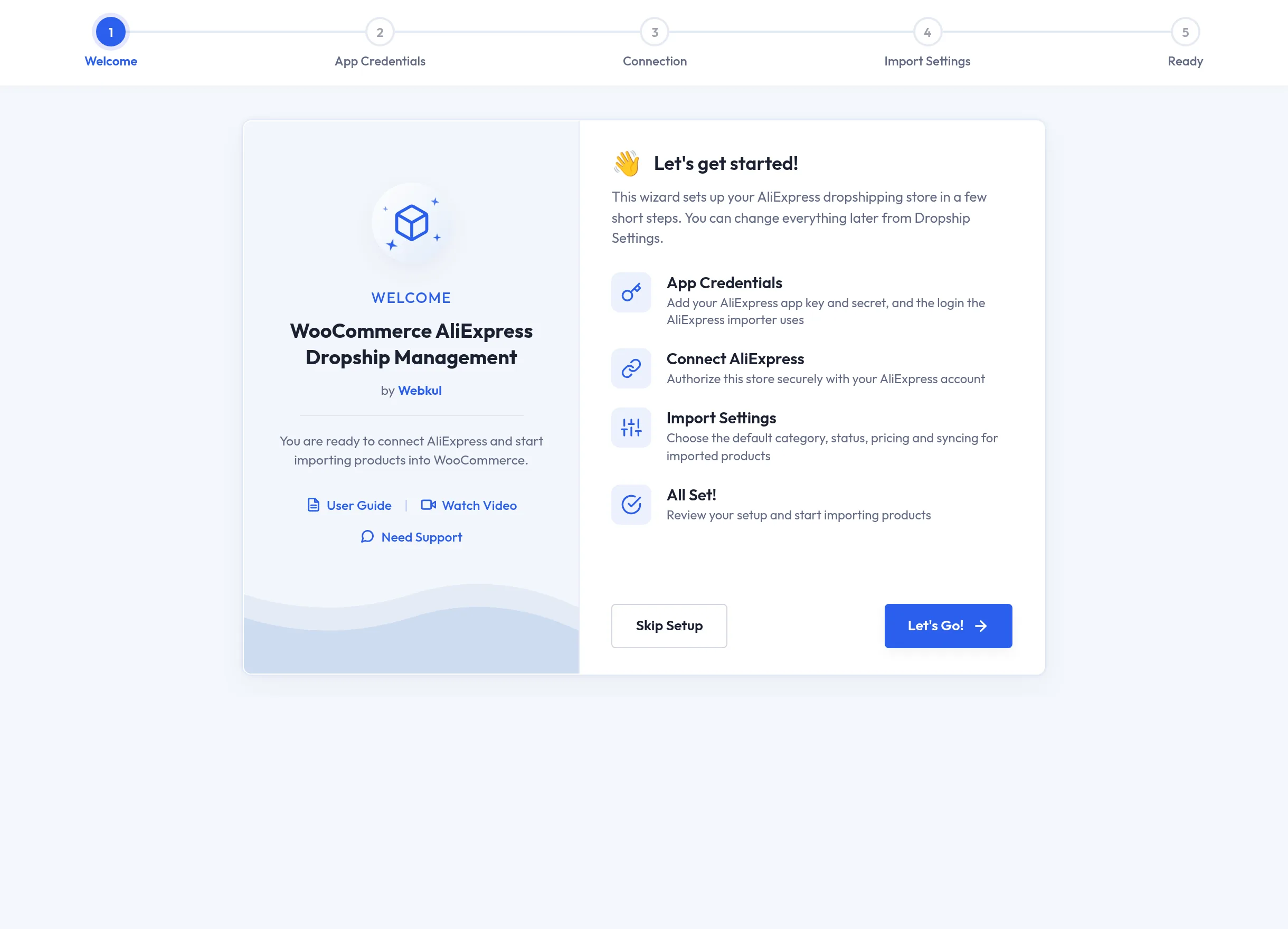
The "Let's get started!" screen lists what the wizard will set up. Select Let's Go! to begin, or Skip Setup to leave.
Step 2 — App Credentials
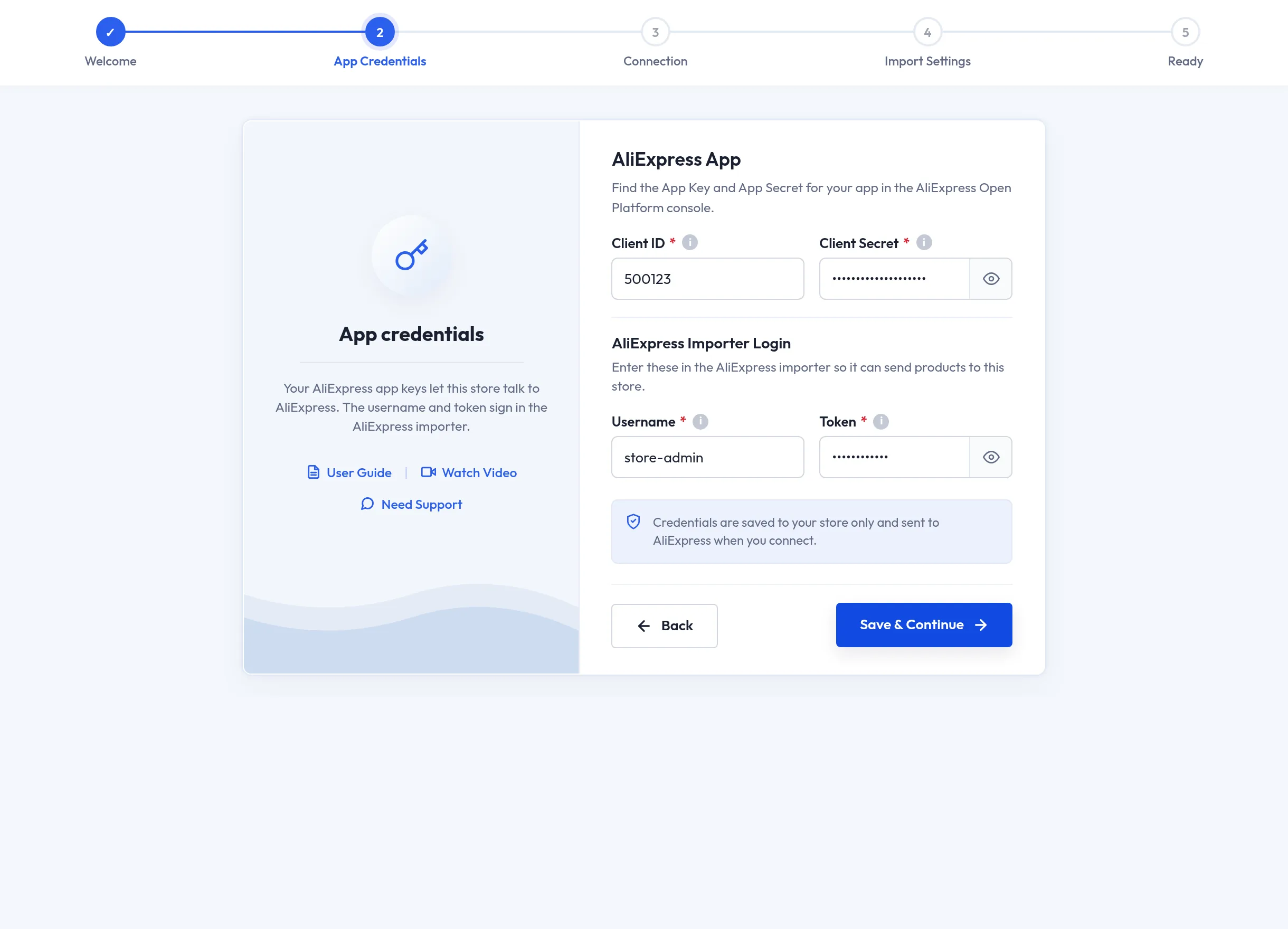
Enter two pairs of credentials. All four fields are required.
| Section | Field | What to enter |
|---|---|---|
| AliExpress App | Client ID | The App Key of your AliExpress application. |
| Client Secret | The App Secret of your AliExpress application. | |
| AliExpress Importer Login | Username | A username of your choice. The Chrome extension signs in to your store with it. |
| Token | A secret token of your choice for the extension. Changing it signs the extension out. |
Select Save & Continue. The credentials are saved to your store only and sent to AliExpress when you connect.
Fields always start empty
When you re-run the wizard, these fields are empty even though values are saved. Whatever you enter replaces the saved values — so re-enter all four, or skip ahead with the stepper instead of saving. See Get your AliExpress app credentials for where to find the App Key and App Secret.
Step 3 — Connection
Authorize the store with your AliExpress account.
- Select Connect AliExpress. A secure AliExpress window opens.
- Sign in to AliExpress and approve access. The status card shows "Waiting for AliExpress…" while you do.
- When you return, the card shows Connected to AliExpress — "This store can import products and place orders on AliExpress." Select Continue.
The Callback URL field shows the address AliExpress returns you to (your site's wp-admin/admin.php?page=manage-dropship&tab=wc-dropship-settings). Copy it with the copy button and add it as the callback URL of your app in the AliExpress Open Platform console if it asks for one.
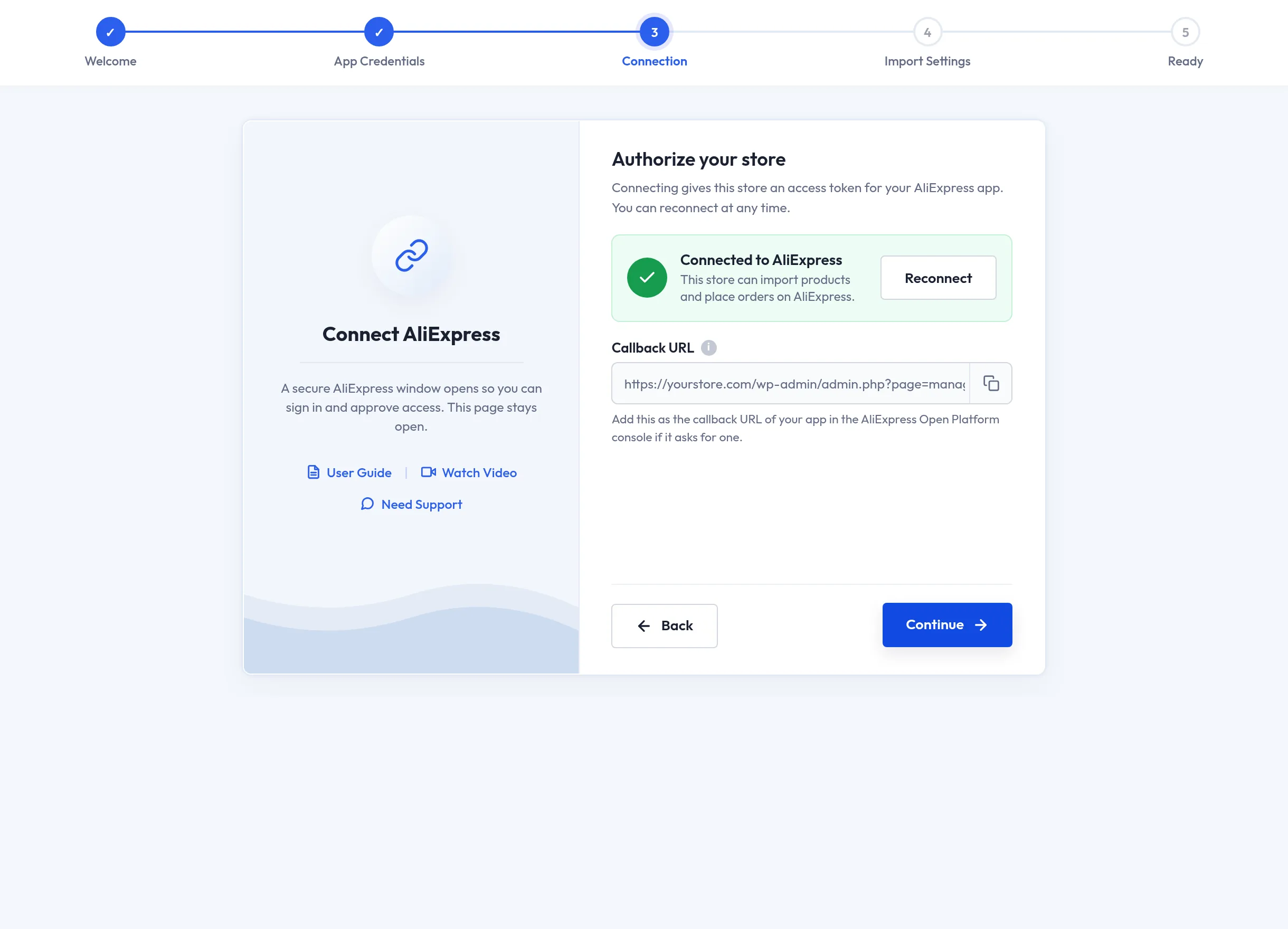
Continue stays disabled until the store is connected. To finish later, select Connect later — you can connect any time with Dropship Connect under Account Setting. Once connected, the button changes to Reconnect.
Allow pop-ups
If you see "Your browser blocked the AliExpress window. Allow pop-ups for this site and try again.", allow pop-ups for your WordPress admin and select Connect AliExpress again.
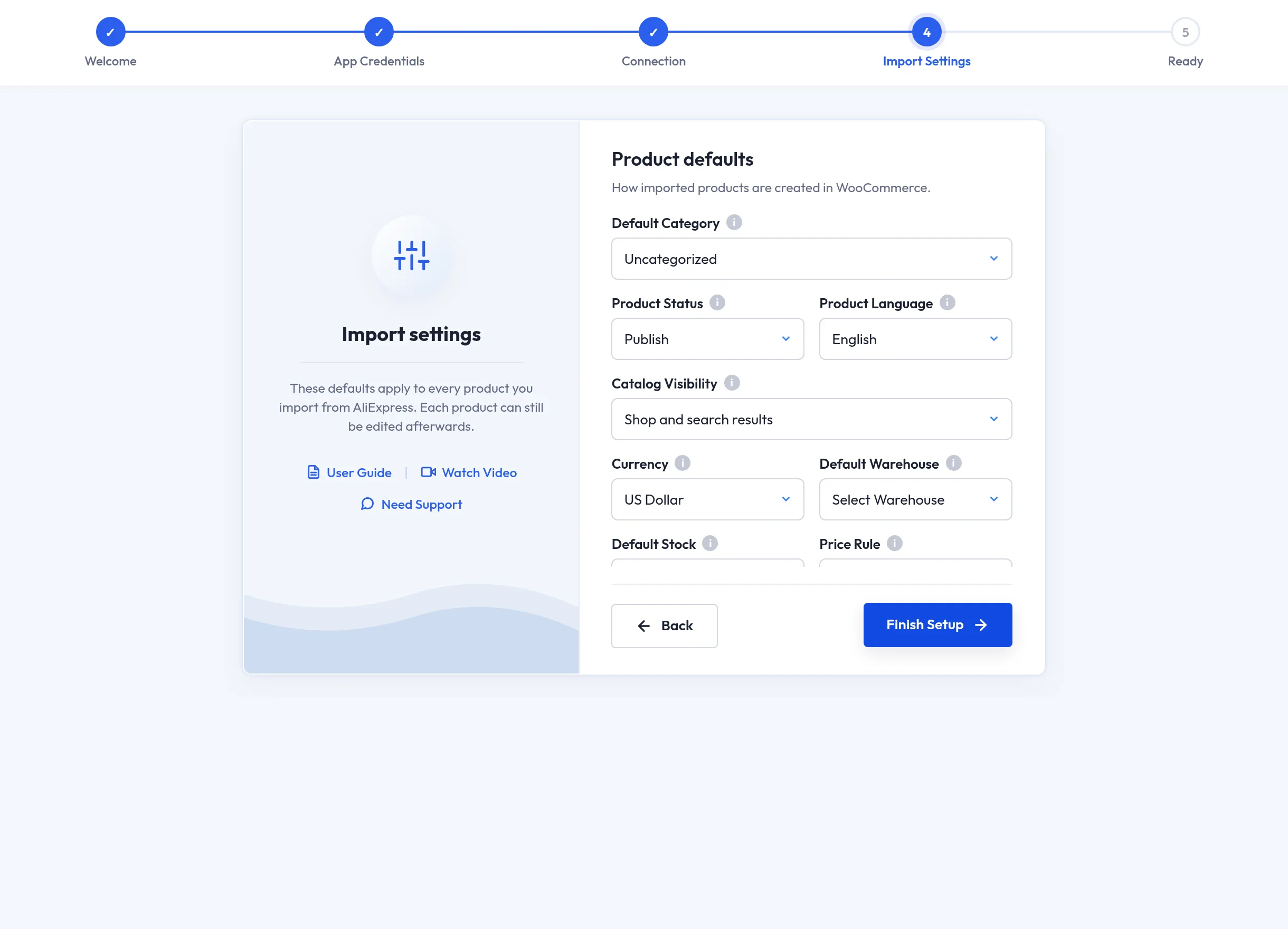
Step 4 — Import Settings
Choose the defaults applied to every product you import. Each product can still be edited afterwards.
Product defaults
| Setting | Meaning |
|---|---|
| Default Category | WooCommerce category given to imported products. |
| Product Status | Publish, Pending Review, or Draft. |
| Product Language | Language product details are imported in. |
| Catalog Visibility | Shop and search results, Shop only, Search results only, or Hidden. |
| Currency | Currency prices are imported in. |
| Default Warehouse | Warehouse imported products are assigned to. Only warehouses that have a manager are listed. |
| Default Stock | Stock quantity used when AliExpress reports no stock for a product. |
| Price Rule | Same as AliExpress, Custom Price, Increase Price, or Decrease Price. The last three show an Adjustment (%) or Custom Price field. |
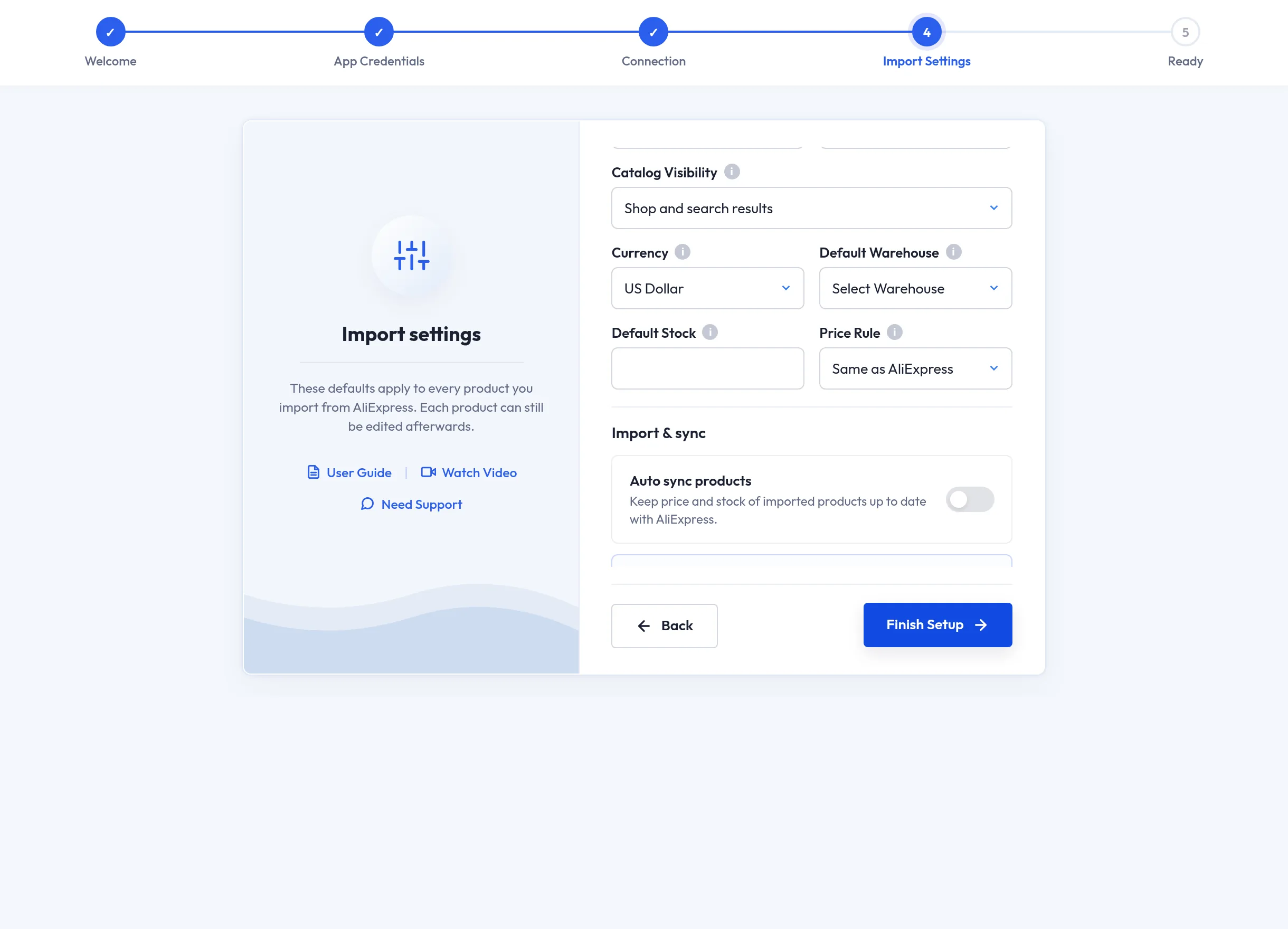
Import & sync
| Toggle | Effect |
|---|---|
| Auto sync products | Keeps price and stock of imported products up to date with AliExpress. Turning it on shows Sync every (hours) — default 24. |
| Import AliExpress categories | Creates the product's AliExpress categories in WooCommerce. |
| Import product description | Brings in the description and specifications from AliExpress. |
| Leave out description images | Imports the description text without its images. |
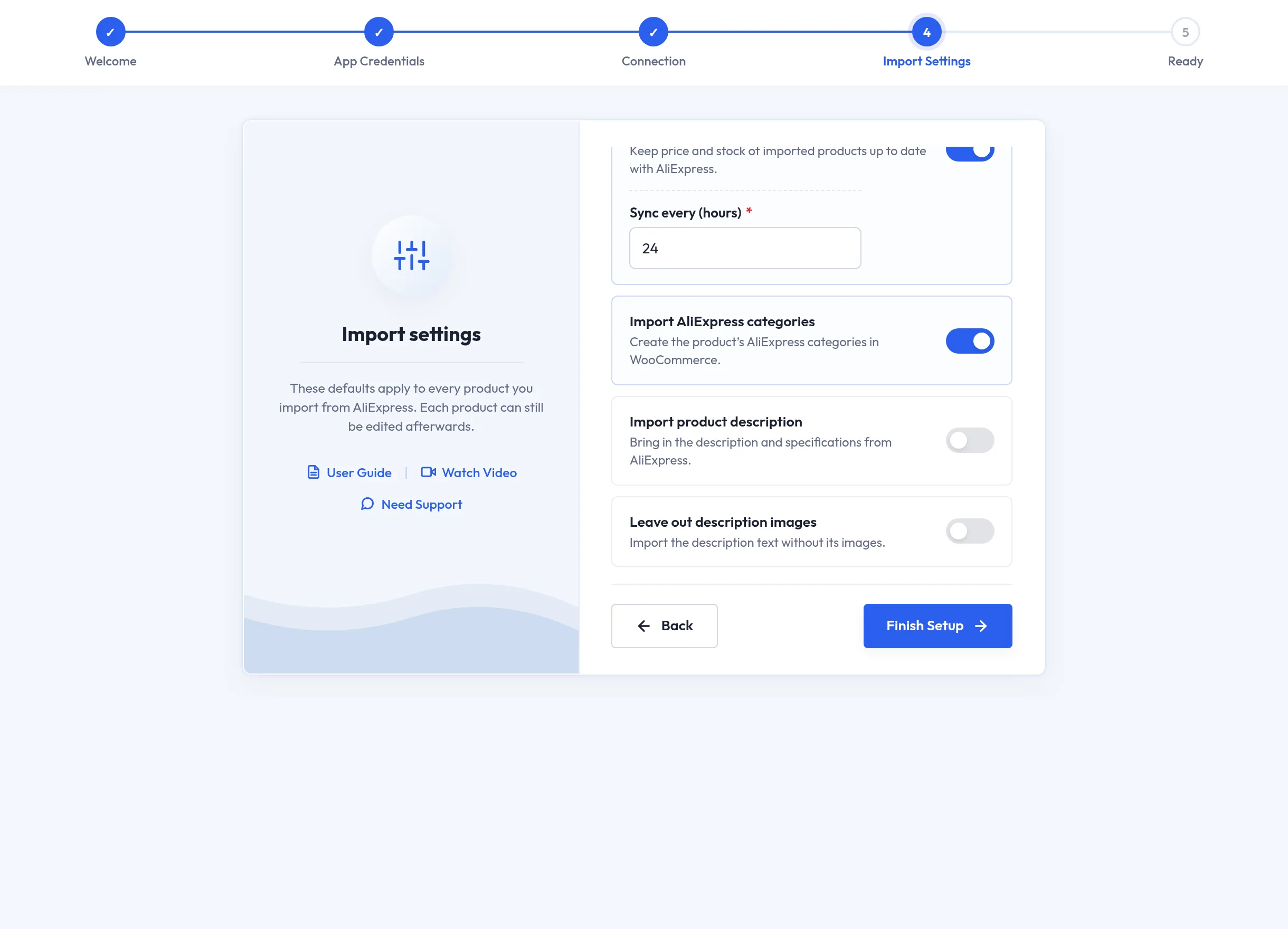
Select Finish Setup. These are the same options as Product Setting.
Step 5 — Ready
"You're ready to go!" confirms the setup. The Setup Summary shows the app key ending, the connection state, how products are imported (status · category), and the auto sync interval.
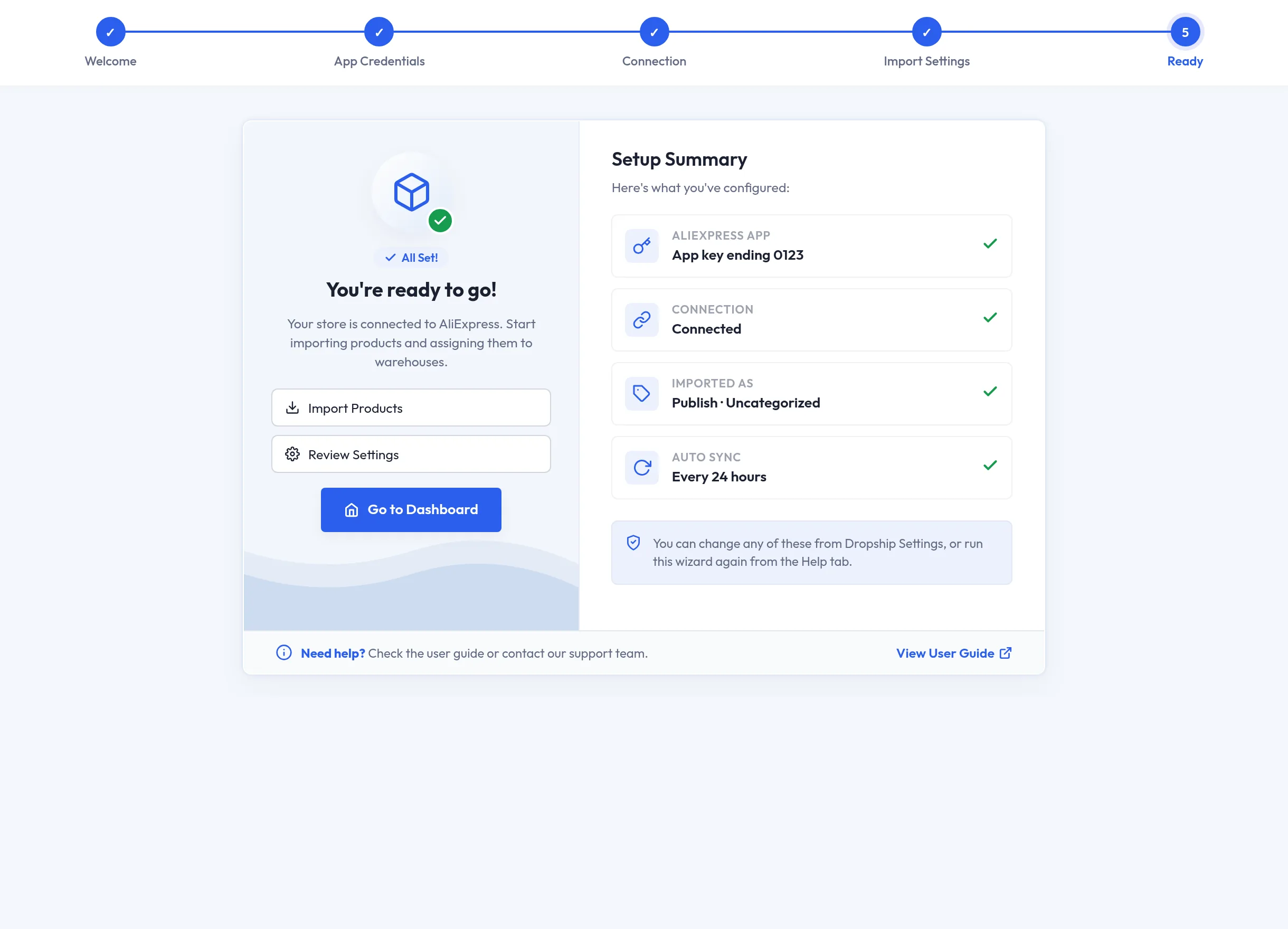
- Import Products opens the Imported Products List.
- Review Settings opens Product Setting.
- Go to Dashboard opens the plugin.
Next step
Install and connect the Chrome extension, or start importing from the admin.