
Importing Products from the Admin
New in 3.0.0, the Import Products screen imports AliExpress products without the browser extension — by pasting product links or IDs, or by uploading a CSV file.
Go to Webkul WC Addons → Warehouse Manager → Import Products. The screen is available to administrators only.
Import from links or product IDs
- Select From URL.
- In AliExpress product links or IDs, paste one link or product ID per line — up to 50 at a time. The counter below the box shows how many products were recognized; duplicate lines are skipped.
- Leave Skip products already in the import list ticked to skip products you already imported, or untick it to re-import them and refresh their data.
- Select Import products.
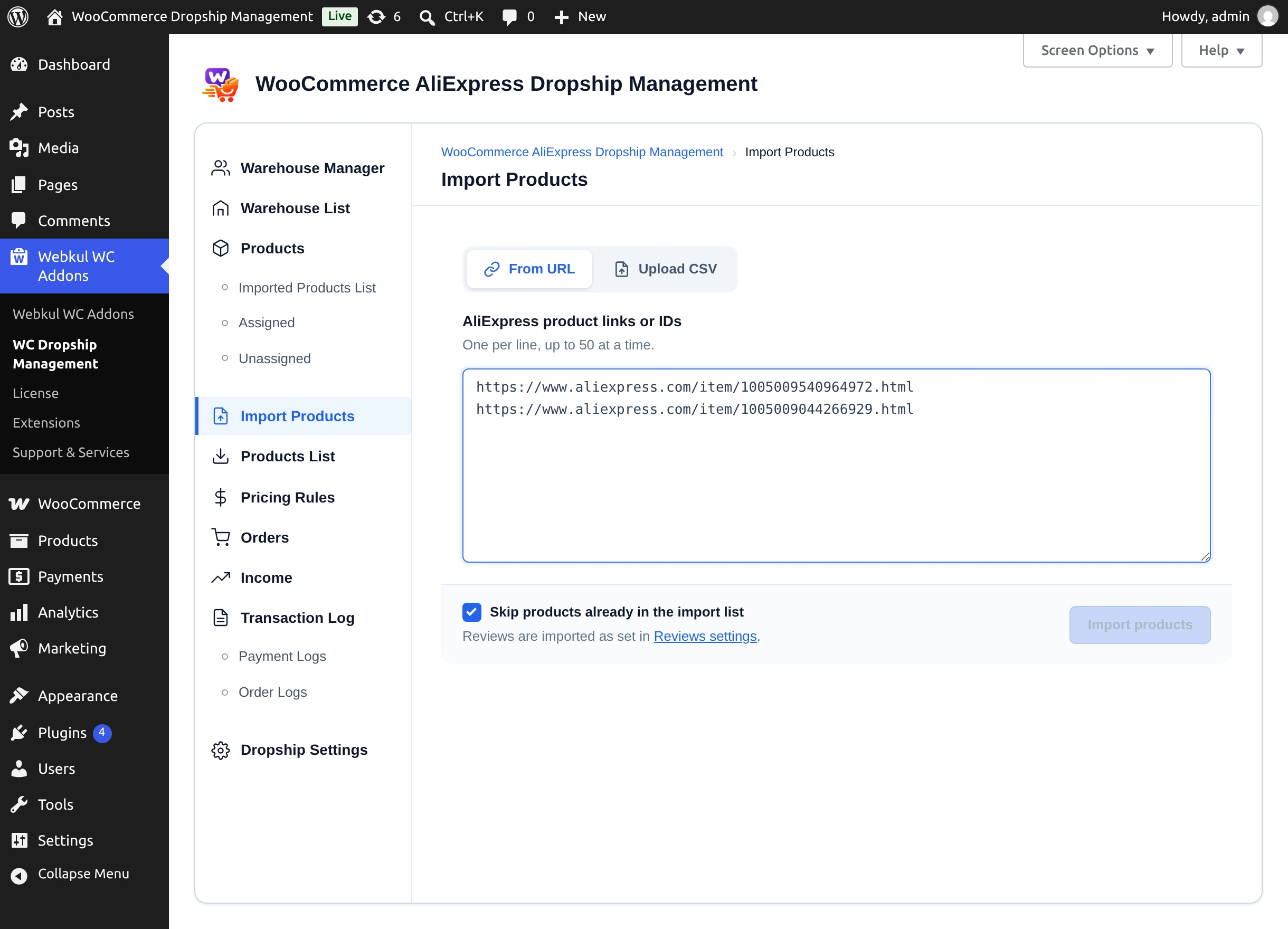
Accepted formats include:
- product links such as
https://www.aliexpress.com/item/1005009540964972.htmlfrom any AliExpress domain, - bare product IDs such as
1005009044266929, - links that carry the ID as a
productIdoritemIdparameter.
Import from a CSV file
- Select Upload CSV.
- Select Download sample CSV to see the format.
- Drop your file on Choose a CSV file or drop it here, or select it. The plugin reads it and reports how many products are ready and which rows have problems.
- Select Import products.
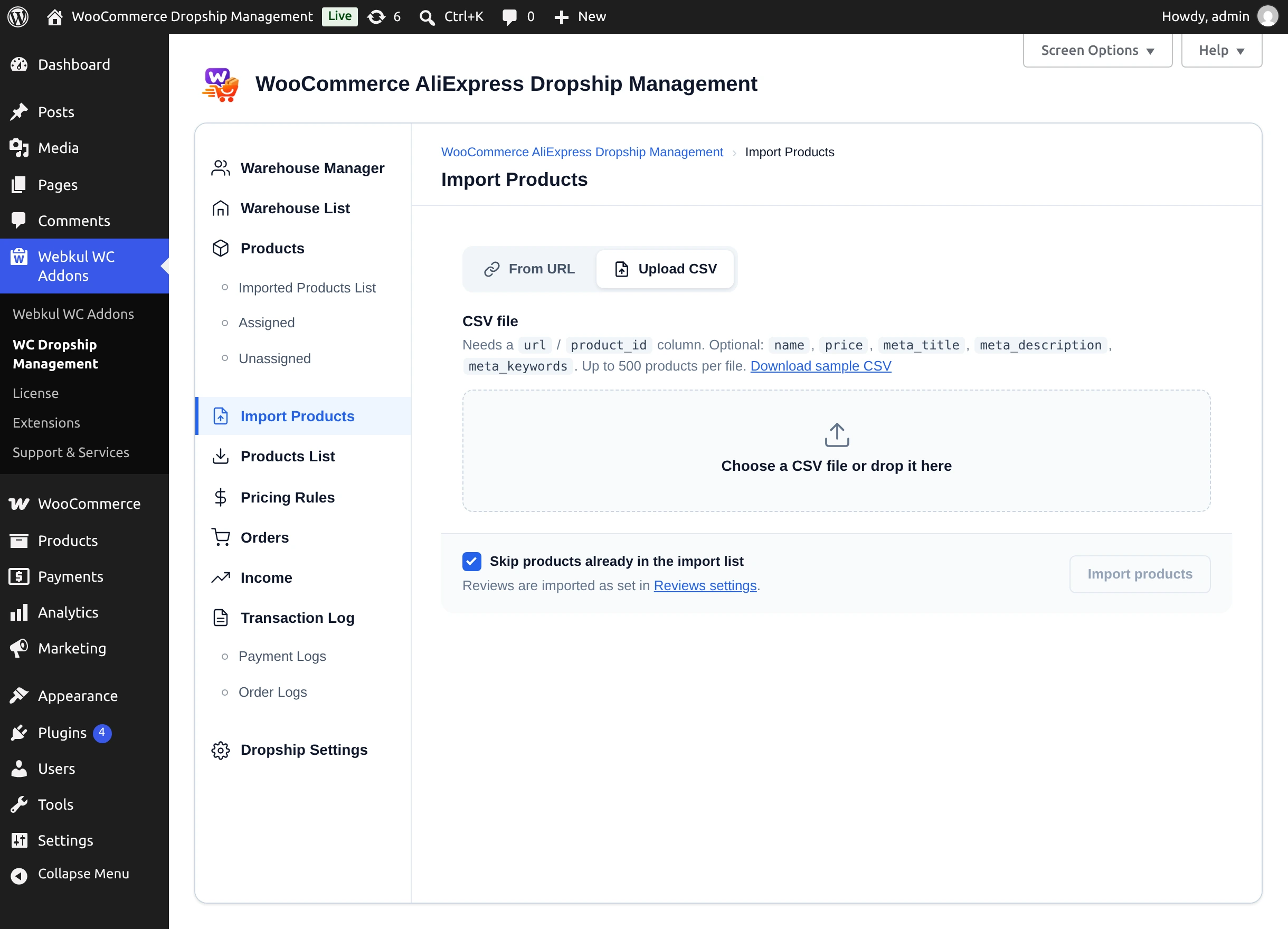
| Column | Required | Notes |
|---|---|---|
url or product_id | One of them | AliExpress product link or product ID. |
name | No | Product name to use (3–255 characters). |
price | No | Selling price to use (a number above 0). |
meta_title | No | SEO title. |
meta_description | No | SEO description. |
meta_keywords | No | SEO keywords. |
Limits: a .csv file of up to 2 MB and 500 products, with column names in the first row. Common alternative headings such as link, product_url, id, or title are also recognized.
url,product_id,name,price,meta_title,meta_description,meta_keywords
https://www.aliexpress.com/item/1005009540964972.html,,,,,,
,1005009044266929,Retro Straight Leg Denim Jeans,27.90,Retro Straight Leg Jeans,"Loose fit retro jeans in pure colours, sizes 28 to 38.","jeans, denim, retro"
Names, prices, and meta values from the CSV are applied when you create the WooCommerce product.
Follow the results
Products are imported one at a time. The results table shows each product's status — Waiting, Importing…, Imported, Updated, Already in import list, or Failed — and whether reviews were imported. The summary line reads, for example, "1 imported · 0 updated · 1 already in the import list · 0 failed".
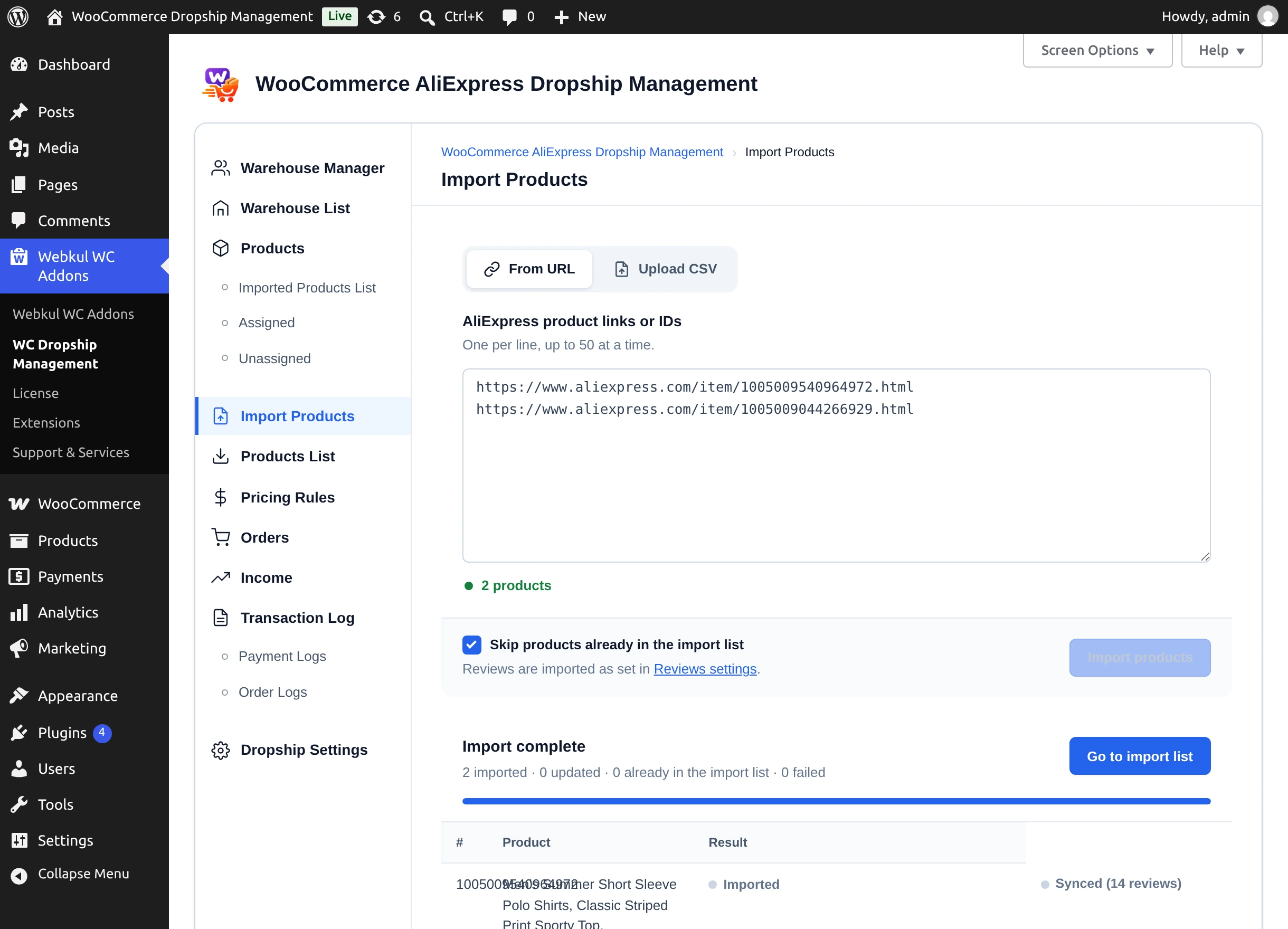
- Stop ends the run after the current product.
- Retry failed imports the failed products again.
- Go to import list opens the Imported Products List.
Keep the page open until the import finishes — leaving asks "Products are still being imported. Leave this page?"
Why a product fails
"AliExpress does not ship this product to …" means the product is not sold to your store's country. "AliExpress returned no details for this product." usually means it was removed. "The Access Token is Invalid or Expired" means you need to reconnect under Account Setting. See the Error Message Index.
Next step
Create the imported products in WooCommerce from the Imported Products List.