
Auctions for WooCommerceAuctions for WooCommerce
Buy Now
View Demo
  • Getting Started

    • Introduction
    • Quick Start
    • Features
    • Installation
    • First-Time Setup
    • Onboarding Tour
  • Admin Guide

    • Admin Overview
    • Dashboard
    • All Auctions
    • Add / Edit Auction
    • Bids
    • Reports
    • Events
    • Wallet
    • Disputes
    • Blocked Users
    • Fraud Detection
    • Tools (Import / Export)
    • Settings
    • Design Studio
    • Pending Review
    • Audit Log
  • Auction Mechanics

    • Auction Types
    • Bidding Engine
    • Anti-Sniping
    • Bid Increments
    • Reserve & Buy Now
    • Auto-Relist
    • Watchlist
  • Customer Experience

    • Customer Overview
    • My Auctions
    • My Wallet
    • Withdrawal
    • Single Auction Page
    • Notifications
  • Wallet & Payments

    • Wallet System
    • Auto-Charge
    • Stripe Connect
    • Monetization Fees
  • Multi-Vendor & Integrations

    • Multi-Vendor Compatibility
    • Twilio SMS
    • Firebase Push
    • Two-Factor Auth
    • Captcha
    • Social Login
    • Subscription Gate
    • Elementor & Gutenberg
  • Premium Features

    • Smart Features
    • Psychology Triggers
    • Gamification
    • Fraud Detection
    • Compliance
    • Social Sharing
    • Email Notifications
  • Developer

    • REST API
    • Hooks & Filters
    • JS Events
    • Database Schema
    • Shortcodes
    • Options Reference
    • WP-CLI
  • Help

    • Troubleshooting
    • FAQ
    • Glossary
    • Changelog
Support
Buy Now
View Demo
  • Getting Started

    • Introduction
    • Quick Start
    • Features
    • Installation
    • First-Time Setup
    • Onboarding Tour
  • Admin Guide

    • Admin Overview
    • Dashboard
    • All Auctions
    • Add / Edit Auction
    • Bids
    • Reports
    • Events
    • Wallet
    • Disputes
    • Blocked Users
    • Fraud Detection
    • Tools (Import / Export)
    • Settings
    • Design Studio
    • Pending Review
    • Audit Log
  • Auction Mechanics

    • Auction Types
    • Bidding Engine
    • Anti-Sniping
    • Bid Increments
    • Reserve & Buy Now
    • Auto-Relist
    • Watchlist
  • Customer Experience

    • Customer Overview
    • My Auctions
    • My Wallet
    • Withdrawal
    • Single Auction Page
    • Notifications
  • Wallet & Payments

    • Wallet System
    • Auto-Charge
    • Stripe Connect
    • Monetization Fees
  • Multi-Vendor & Integrations

    • Multi-Vendor Compatibility
    • Twilio SMS
    • Firebase Push
    • Two-Factor Auth
    • Captcha
    • Social Login
    • Subscription Gate
    • Elementor & Gutenberg
  • Premium Features

    • Smart Features
    • Psychology Triggers
    • Gamification
    • Fraud Detection
    • Compliance
    • Social Sharing
    • Email Notifications
  • Developer

    • REST API
    • Hooks & Filters
    • JS Events
    • Database Schema
    • Shortcodes
    • Options Reference
    • WP-CLI
  • Help

    • Troubleshooting
    • FAQ
    • Glossary
    • Changelog
Support
  • Getting Started

    • Introduction
    • Quick Start
    • Feature Catalog
    • Installation
    • First-Time Setup
    • Onboarding Tour
  • Admin Guide

    • Admin Overview
    • Dashboard
    • All Auctions
    • Add / Edit Auction
    • Bids
    • Reports
    • Events
    • Wallet (Admin)
    • Disputes
    • Blocked Users
    • Fraud Detection
    • Tools
    • Settings
    • Design Studio
    • Pending Review
    • Audit Log
  • Auction Mechanics

    • Auction Types
    • Bidding Engine
    • Anti-Sniping (Soft Close)
    • Bid Increments
    • Reserve & Buy Now
    • Auto-Relist
    • Watchlist
  • Customer Experience

    • Customer Experience Overview
    • My Auctions
    • My Wallet
    • Withdrawal
    • Single Auction Page
    • Customer Notifications
  • Wallet & Payments

    • Wallet System
    • Wallet Auto-Charge
    • Stripe Connect
    • Monetization
  • Multi-Vendor & Integrations

    • Multi-Vendor Compatibility
    • Twilio SMS
    • Firebase (Push Notifications)
    • Two-Factor Authentication
    • Captcha
    • Social Login
    • Subscription Gate
    • Elementor & Gutenberg
  • Premium Features

    • Smart Features
    • Psychology Triggers
    • Gamification
    • Fraud Detection
    • Compliance
    • Social Sharing
    • Email Notifications
  • Developer

    • REST API
    • Hooks & Filters
    • JavaScript Events
    • Database Schema
    • Shortcodes
    • Options Reference
    • WP-CLI
  • Help

    • Troubleshooting
    • FAQ
    • Glossary
    • Changelog

Onboarding Tour

A guided walkthrough for new admins — written in the order you'd actually click.
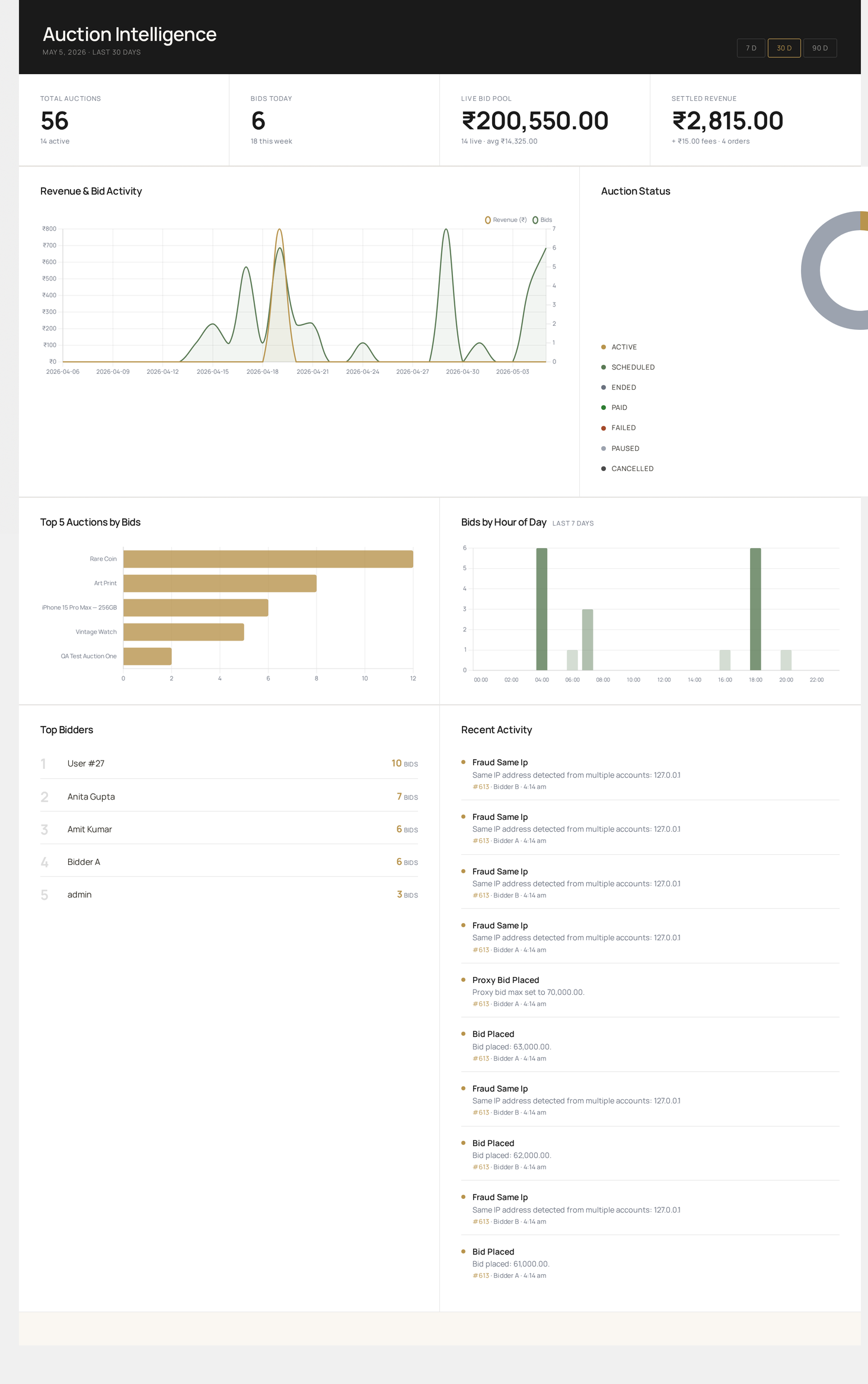
What you'll see on the very first click — the Auctions dashboard with KPIs, charts and the live activity feed

Open the dashboard

WP Admin → WooCommerce → Webkul Addons → Auctions Dashboard

You'll land on the analytics shell. On a fresh install everything reads zero — that's expected.

The header shows three range buttons: 7 D / 30 D / 90 D. They re-query the dashboard data for that window. Default is 30 days.

Tour the dashboard

The dashboard has four rows.

Row 1 — KPI cards

CardWhat it counts
Total AuctionsEvery auction in the database, regardless of status
Bids TodayBids placed since 00:00 in your site timezone
Live Bid PoolSum of current_price across active + scheduled lots
Settled RevenuePlatform revenue from completed auction-flagged orders

Row 2 — Charts

ChartWhat it shows
Revenue & Bid ActivityDual-axis line: revenue (gold) and bid count (emerald) per day
Auction StatusDonut: active / scheduled / ended / paid / failed / paused / cancelled

Row 3 — More charts

ChartWhat it shows
Top 5 Auctions by BidsHorizontal bar — most-contested lots in the range
Bids by Hour of DayHeat-bar of bid traffic by hour, last 7 days

Row 4 — Lists

ListWhat it shows
Top Bidders5 most active users in the range
Recent ActivityLast 10 entries from the auction log table

Full Dashboard reference →

Open Settings

Auctions → Settings

Settings has 8+ tabs. The order to explore them on day one:

  1. General — poll interval, anti-snipe defaults, currency display
  2. Bidding — increment defaults, retraction, cooldown
  3. Auction Types — enable / disable formats you'll offer
  4. Notifications — email triggers
  5. Wallet — top-up product, min/max
  6. Compliance — age, KYC, terms
  7. Fraud — rate limits, IP rules
  8. Integrations — Stripe, Twilio, Firebase, Klaviyo, etc.

Settings reference →

Create your first auction

Auctions → Add Auction

The form is one screen, top-to-bottom:

  1. Product — link to existing or create new
  2. Auction Type — Standard for first try
  3. Start Price / Reserve / Buy Now
  4. Bid Increment — fixed or variable
  5. Schedule — start / end date, anti-snipe window, max-extension cap
  6. Item Condition — new / used / refurbished / for-parts
  7. Images — pulled from the linked product
  8. Publish

Add Auction reference →

Watch a bid land

After your auction is live, place a bid as a customer in another browser. Then:

  • Auctions → All Auctions — bid_count and current_price updated
  • Auctions → Bids — your test bid appears with IP / user agent
  • Auctions → Audit Log — hash-chain entry recorded
  • Customer's email inbox — bid-placed confirmation
  • Bidder's My Auctions tab — auction shown under Active Bids

If any of these don't happen, see Troubleshooting.

Brand it

Auctions → Design Studio

Live iframe preview on the right; controls on the left. Tweak:

  • Bid form colors / spacing / button shape
  • Countdown timer color stops
  • Badge style on shop pages

Click Save. Changes propagate site-wide.

Design Studio →

Where to go next

You want to...Read
Configure every optionSettings
Pay vendors / run a marketplaceMulti-Vendor
Take feesMonetization
Build a custom integrationREST API, Hooks & Filters
Run an event with multiple lotsEvents
Detect fraud automaticallyFraud Detection
Prev
First-Time Setup