
Auctions for WooCommerceAuctions for WooCommerce
Buy Now
View Demo
  • Getting Started

    • Introduction
    • Quick Start
    • Features
    • Installation
    • First-Time Setup
    • Onboarding Tour
  • Admin Guide

    • Admin Overview
    • Dashboard
    • All Auctions
    • Add / Edit Auction
    • Bids
    • Reports
    • Events
    • Wallet
    • Disputes
    • Blocked Users
    • Fraud Detection
    • Tools (Import / Export)
    • Settings
    • Design Studio
    • Pending Review
    • Audit Log
  • Auction Mechanics

    • Auction Types
    • Bidding Engine
    • Anti-Sniping
    • Bid Increments
    • Reserve & Buy Now
    • Auto-Relist
    • Watchlist
  • Customer Experience

    • Customer Overview
    • My Auctions
    • My Wallet
    • Withdrawal
    • Single Auction Page
    • Notifications
  • Wallet & Payments

    • Wallet System
    • Auto-Charge
    • Stripe Connect
    • Monetization Fees
  • Multi-Vendor & Integrations

    • Multi-Vendor Compatibility
    • Twilio SMS
    • Firebase Push
    • Two-Factor Auth
    • Captcha
    • Social Login
    • Subscription Gate
    • Elementor & Gutenberg
  • Premium Features

    • Smart Features
    • Psychology Triggers
    • Gamification
    • Fraud Detection
    • Compliance
    • Social Sharing
    • Email Notifications
  • Developer

    • REST API
    • Hooks & Filters
    • JS Events
    • Database Schema
    • Shortcodes
    • Options Reference
    • WP-CLI
  • Help

    • Troubleshooting
    • FAQ
    • Glossary
    • Changelog
Support
Buy Now
View Demo
  • Getting Started

    • Introduction
    • Quick Start
    • Features
    • Installation
    • First-Time Setup
    • Onboarding Tour
  • Admin Guide

    • Admin Overview
    • Dashboard
    • All Auctions
    • Add / Edit Auction
    • Bids
    • Reports
    • Events
    • Wallet
    • Disputes
    • Blocked Users
    • Fraud Detection
    • Tools (Import / Export)
    • Settings
    • Design Studio
    • Pending Review
    • Audit Log
  • Auction Mechanics

    • Auction Types
    • Bidding Engine
    • Anti-Sniping
    • Bid Increments
    • Reserve & Buy Now
    • Auto-Relist
    • Watchlist
  • Customer Experience

    • Customer Overview
    • My Auctions
    • My Wallet
    • Withdrawal
    • Single Auction Page
    • Notifications
  • Wallet & Payments

    • Wallet System
    • Auto-Charge
    • Stripe Connect
    • Monetization Fees
  • Multi-Vendor & Integrations

    • Multi-Vendor Compatibility
    • Twilio SMS
    • Firebase Push
    • Two-Factor Auth
    • Captcha
    • Social Login
    • Subscription Gate
    • Elementor & Gutenberg
  • Premium Features

    • Smart Features
    • Psychology Triggers
    • Gamification
    • Fraud Detection
    • Compliance
    • Social Sharing
    • Email Notifications
  • Developer

    • REST API
    • Hooks & Filters
    • JS Events
    • Database Schema
    • Shortcodes
    • Options Reference
    • WP-CLI
  • Help

    • Troubleshooting
    • FAQ
    • Glossary
    • Changelog
Support
  • Getting Started

    • Introduction
    • Quick Start
    • Feature Catalog
    • Installation
    • First-Time Setup
    • Onboarding Tour
  • Admin Guide

    • Admin Overview
    • Dashboard
    • All Auctions
    • Add / Edit Auction
    • Bids
    • Reports
    • Events
    • Wallet (Admin)
    • Disputes
    • Blocked Users
    • Fraud Detection
    • Tools
    • Settings
    • Design Studio
    • Pending Review
    • Audit Log
  • Auction Mechanics

    • Auction Types
    • Bidding Engine
    • Anti-Sniping (Soft Close)
    • Bid Increments
    • Reserve & Buy Now
    • Auto-Relist
    • Watchlist
  • Customer Experience

    • Customer Experience Overview
    • My Auctions
    • My Wallet
    • Withdrawal
    • Single Auction Page
    • Customer Notifications
  • Wallet & Payments

    • Wallet System
    • Wallet Auto-Charge
    • Stripe Connect
    • Monetization
  • Multi-Vendor & Integrations

    • Multi-Vendor Compatibility
    • Twilio SMS
    • Firebase (Push Notifications)
    • Two-Factor Authentication
    • Captcha
    • Social Login
    • Subscription Gate
    • Elementor & Gutenberg
  • Premium Features

    • Smart Features
    • Psychology Triggers
    • Gamification
    • Fraud Detection
    • Compliance
    • Social Sharing
    • Email Notifications
  • Developer

    • REST API
    • Hooks & Filters
    • JavaScript Events
    • Database Schema
    • Shortcodes
    • Options Reference
    • WP-CLI
  • Help

    • Troubleshooting
    • FAQ
    • Glossary
    • Changelog

Quick Start

Five minutes to a live auction.
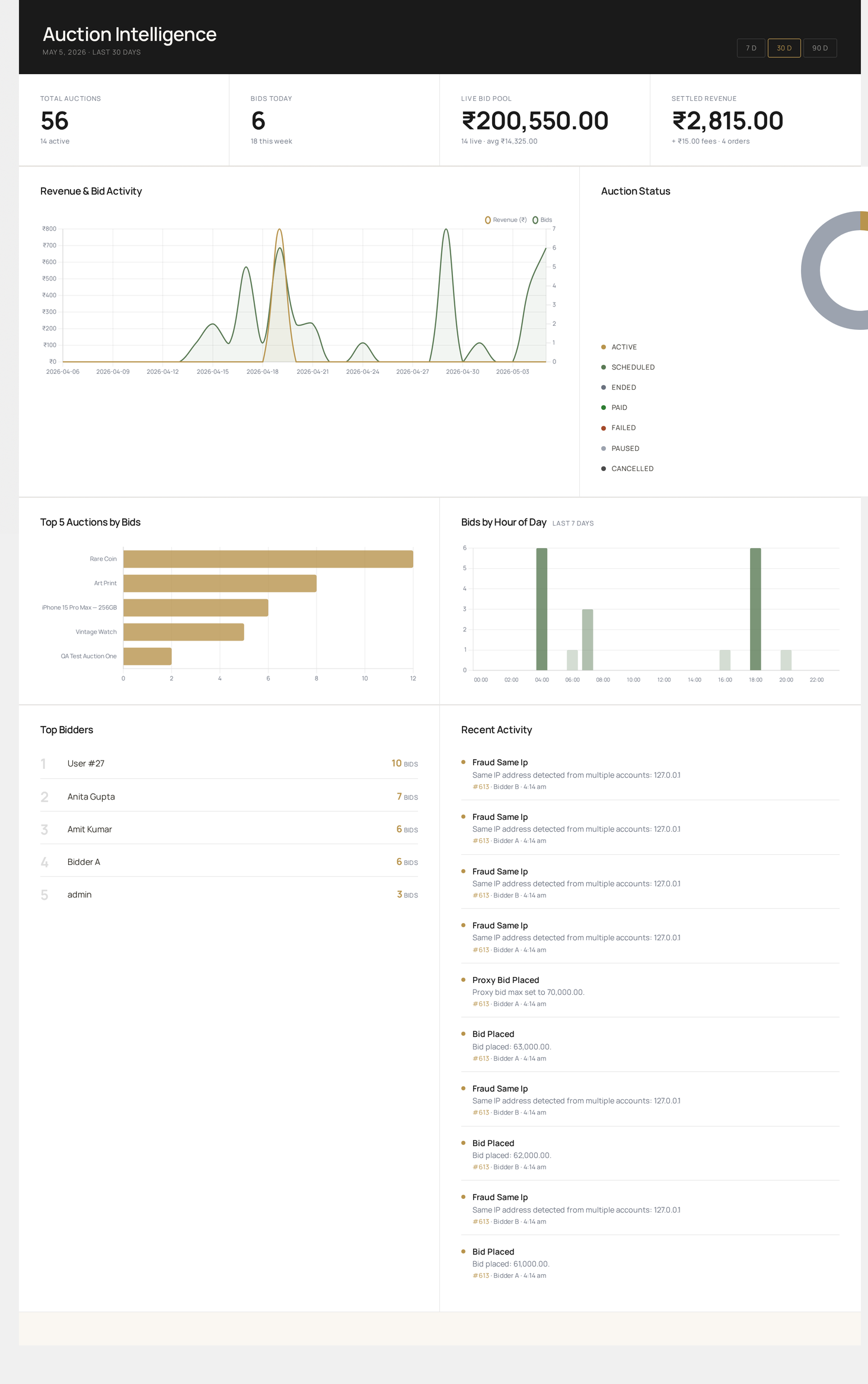
Auctions admin home — the dashboard you land on after activation, with KPIs, charts and a live activity feed

Prerequisites

  • WordPress 6.0+ with WooCommerce 8.0+ active
  • An active license / purchase code (or development mode for local testing)
  • HTTPS enabled (or localhost for development)

1. Install and activate

Upload the plugin zip via Plugins → Add New → Upload Plugin, then click Activate.

On activation, the plugin creates its database tables (auctions, bids, watchlist, wallet, audit log, etc.) and adds the Auctions menu under WooCommerce → Webkul Addons.

Development mode

For local testing where you don't want to enter a purchase code, contact Webkul support — they can tell you how to enable dev mode for your environment.

2. Open the dashboard

Visit WooCommerce → Webkul Addons → Auctions Dashboard.

You'll see the analytics shell with empty KPIs — that's expected. The dashboard fills in once you publish auctions and start receiving bids.

Dashboard reference →

3. Configure the basics

Open Auctions → Settings and set, at minimum:

TabFieldValue
GeneralDefault poll interval30 seconds
GeneralAnti-snipe window / extension60s / 120s (recommended)
BiddingDefault bid incrementcurrency-appropriate (e.g. 1 for USD)
NotificationsCustomer & admin emailsenable the ones you want

Full settings reference →

4. Create your first auction

Auctions → Add Auction, then fill in:

  1. Product link — pick an existing WooCommerce product, or click Create New to spin one up
  2. Auction type — start with Standard (Forward)
  3. Start price — what bidding opens at
  4. Reserve price — the secret minimum you'll accept (set to start price if you don't want a reserve)
  5. Bid increment — fixed amount per bid
  6. Start / End date — when the auction goes live and closes
  7. Anti-snipe window / extension — last-minute extension protection

Click Publish. The auction is now live (or scheduled, if you set a future start date).

Add-Auction field reference →

5. Test a bid as a customer

  1. Open a different browser / incognito window
  2. Log in as a customer (any non-admin role)
  3. Visit the auction page on the storefront
  4. Place a bid above the start price + increment

You should see:

  • Live bid counter increment immediately
  • Countdown timer keeps ticking
  • An "Outbid" email if a second bidder beats the first
  • The bid appearing in Auctions → Bids in admin

6. View customer endpoints

While logged in as the customer, visit My Account. You'll see three new tabs:

EndpointPurpose
My Auctions — /my-account/my-auctions/Active bids, won, lost, watchlist
My Wallet — /my-account/my_wallet/Top up, transfer, view ledger
Withdrawal — /my-account/wkwc_withdrawal/Request payout

Customer endpoints reference →

What to do next

GoalRead
Brand the bid form, badges, countdown colorsDesign Studio
Enable anti-sniping, proxy bidding, retractionBidding Engine
Take fees, listing charges, buyer's premiumMonetization
Pay vendors, run a marketplaceMulti-Vendor
Detect fraud, block users, enforce KYCFraud Detection, Compliance
Connect to email / push / Stripe ConnectIntegrations
Prev
Introduction
Next
Feature Catalog