
WooCommerce POS - Admin Configuration & Settings Guide
POS Configurations Performed by the Admin
The POS system provides multiple configuration options that allow the admin to control inventory warnings, order behavior, customer management, payments, appearance, and more. Below is a detailed overview of all available configurations.
POS Cron Configurations
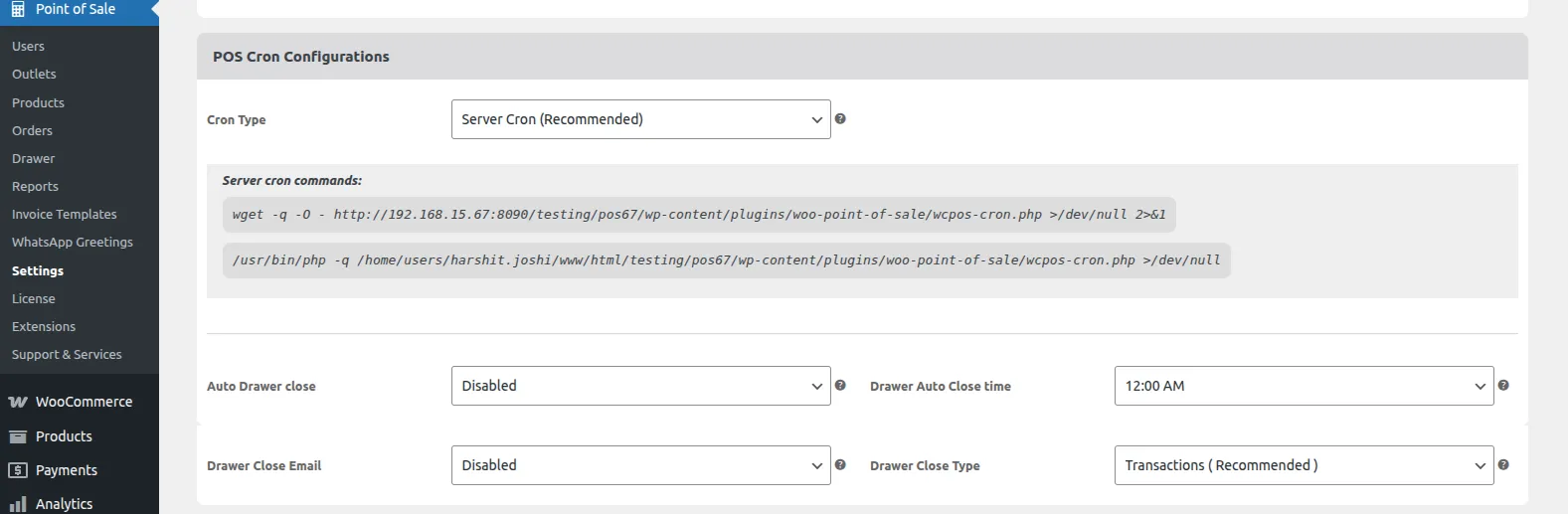
These settings help administrators manage cash drawer lifecycle operations and automatic reports.
| Configuration Setting | Description |
|---|---|
| Quantity for Low Stock Warning | Enter the minimum quantity threshold to trigger low stock alerts. |
| Amount to Increase After Round-Off | Define the amount that will be added after order total round-off. |
| Auto Drawer Close | Enable or disable automatic closing of the POS drawer. |
| Drawer Auto Close Time | Set the time at which the drawer will automatically close (e.g., 12:00 AM). |
| Drawer Close Email | Enable or disable email notifications for admins when the drawer is closed. |
| Drawer Close Type | Select the method by which the drawer will be closed (manual or automatic). |
Order Configuration
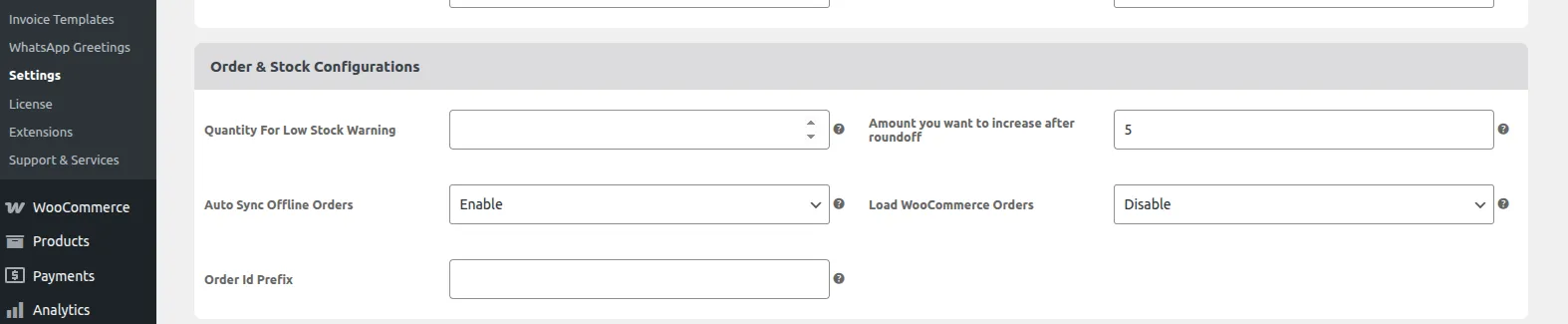
Configure order-handling rules, offline synchronization, and billing behavior.
| Configuration Setting | Description |
|---|---|
| Quantity for Low Stock Warning | Set the minimum product quantity to trigger low stock warnings. |
| Amount to Increase After Round-Off | Define the amount (e.g. 5) that will be added after rounding off the order total. |
| Auto Sync Offline Orders | Enable to automatically sync offline POS orders once the internet connection is restored. |
| Load WooCommerce Orders | Enable or disable syncing of general online WooCommerce orders to POS outlets. |
| Order ID Prefix | Enter a custom prefix to be prepended to POS order IDs for distinct sales tracking. |
WhatsApp Greetings Settings

Configure how automated customer receipts and greetings are sent via WhatsApp.
| Setting Name | Description |
|---|---|
| Send WhatsApp Message to Client | Enable to allow sending WhatsApp messages directly from the POS interface. |
| Send Order Receipt to Client | Enable to send the order receipt message to the customer via WhatsApp. |
| Send Automatic Order Receipt | Enable automatic dispatch of order receipts via WhatsApp immediately upon transaction completion. |
| Send Message to Multiple Clients | Enable to authorize broadcasting messages to multiple selected customers. |
Barcode Settings
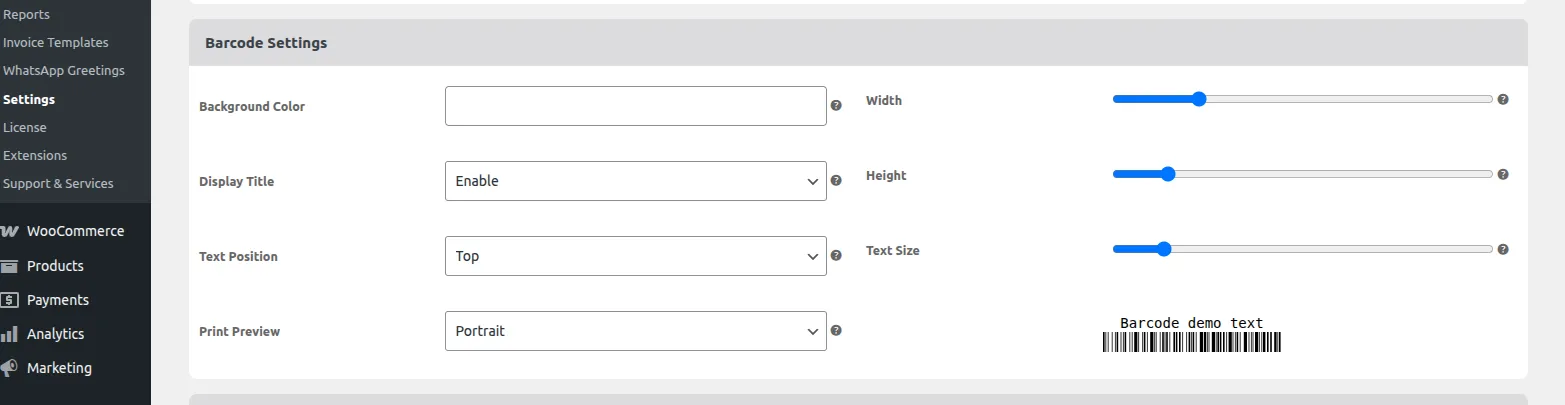
Customize the visual output and formatting of product barcode labels.
| Setting Name | Description |
|---|---|
| Background Color | Select the background color for the barcode label. |
| Width | Define the horizontal width/thickness of the barcode lines. |
| Display Title | Enable to show the product title/name on the barcode label. |
| Height | Set the vertical height of the barcode. |
| Text Position | Choose the position of the barcode text (e.g., Top or Bottom). |
| Text Size | Define the size of the text displayed with the barcode. |
| Print Preview | Preview the barcode layout structure before sending it to the printer. |
Customer Details
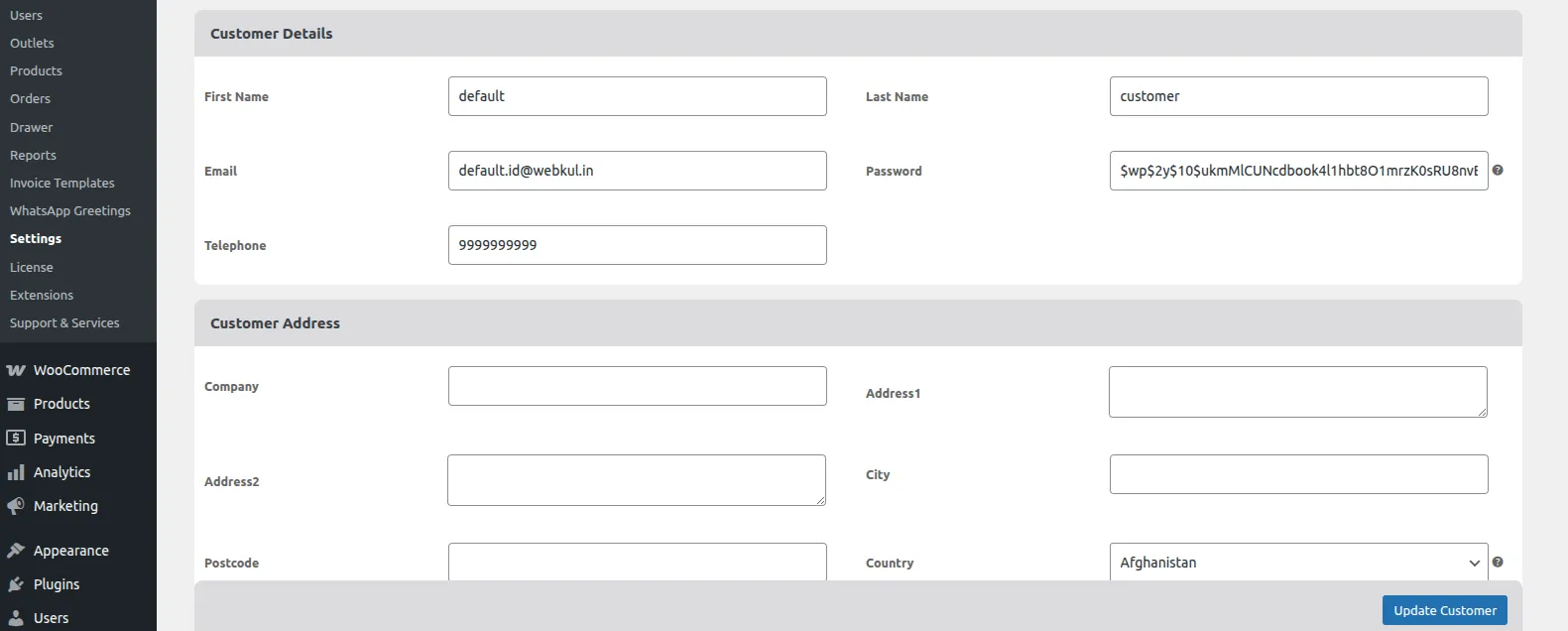
Admins can add or manage customer information in POS. Below are the configurable fields:
First Name Default value:
defaultLast Name Default value:
customerEmail Default value:
[email protected]Password Default value (hashed):
$wp$2y$10$ukmMlCUNcdbook4l1hbt8O1mrzK0sRU8nvBrUCLzTe5i23RHLmD6STelephone Default value:
9999999999
Customer Address
Company Enter the customer's company name (if applicable).
Address1 Primary street address.
Address2 Secondary street address (optional).
City Customer's city.
Postcode Customer's postal code.
Country Customer's country.
Payment Methods
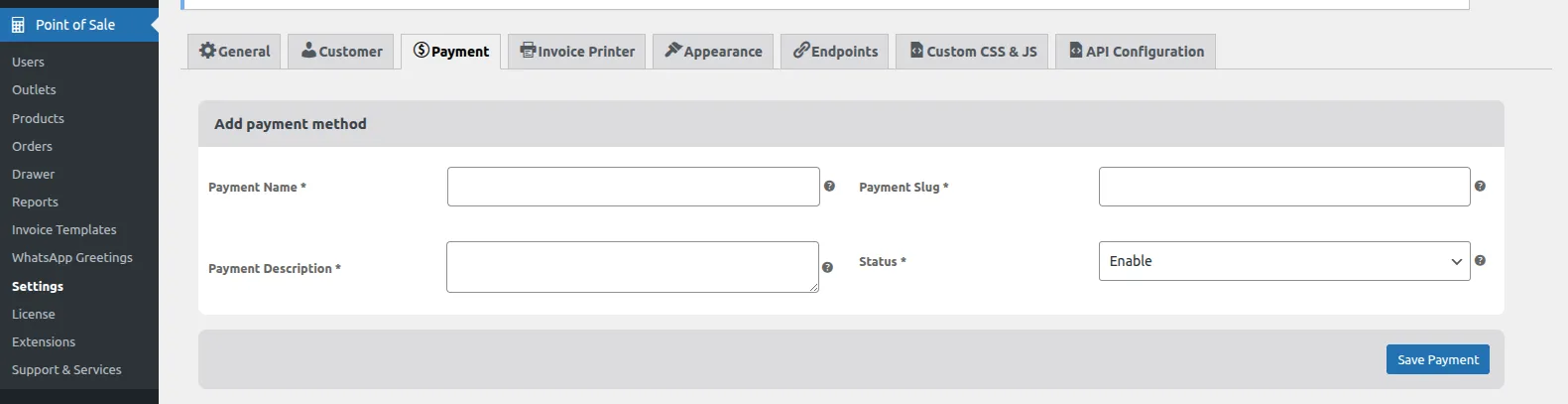
Admins can configure payment methods for record-keeping and checkout purposes.
Click the Add New button to create a payment method.
Admin can Edit or Delete existing payment methods.
Enter the following details:
- Payment Name
- Payment Slug
- Payment Description
Enable or disable payment methods as required.
The added payment method must be selected in the respective outlet to be usable.
Invoice Printer
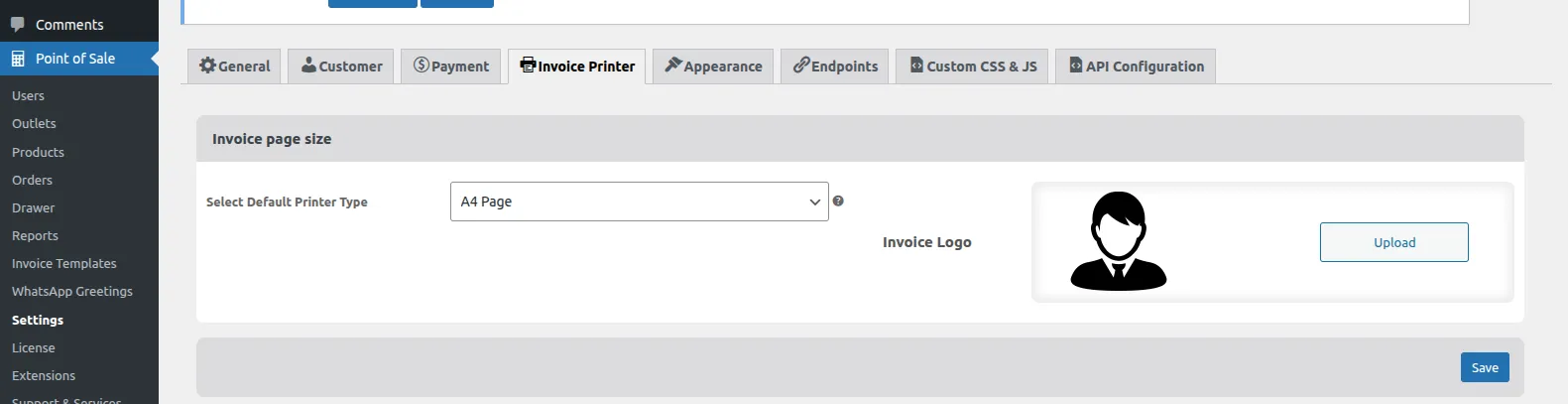
- Admin can configure printer settings.
- Select and set a default printer type for invoice printing.
Appearance Settings
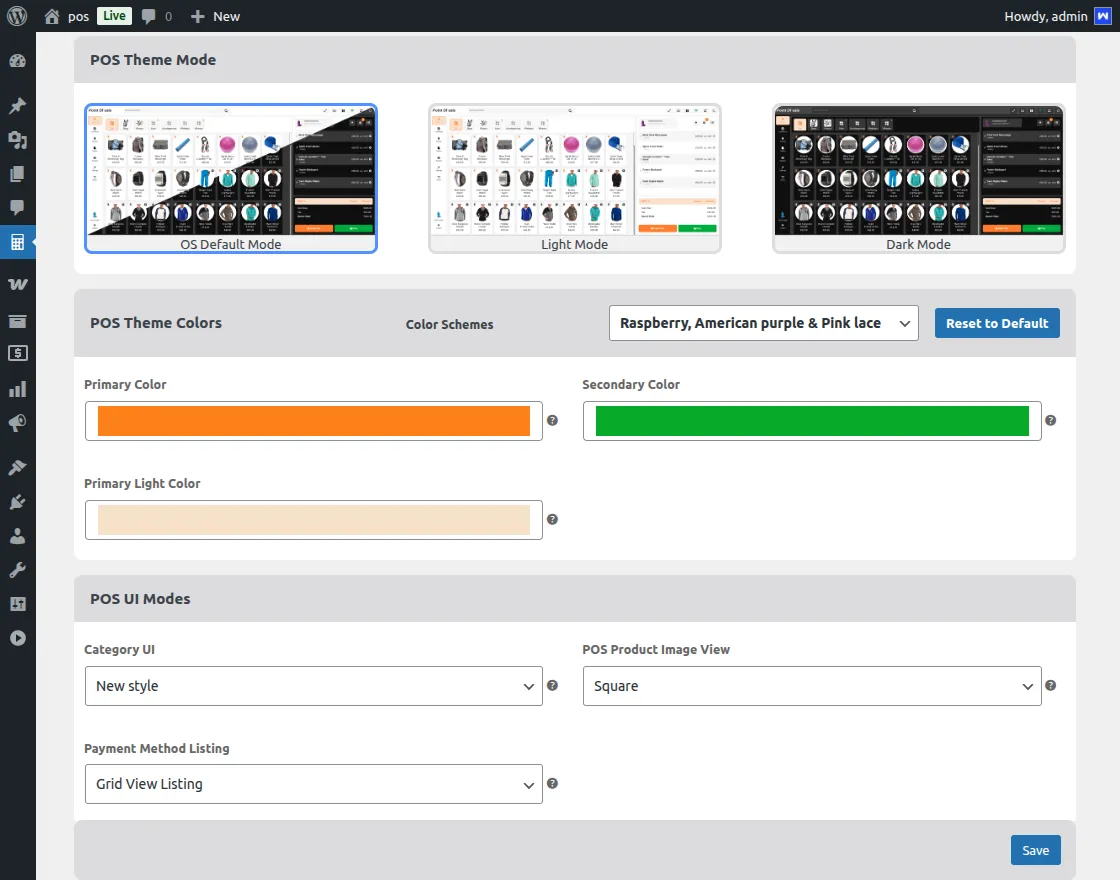
Personalize theme elements, product image shapes, and layout styles across the cashier terminal.
| Visual Configuration | Options / Choices | Description |
|---|---|---|
| POS Theme Mode | Light / Dark | Choose the default theme style for the POS terminal. |
| Color Schemes | Dropdown Select | Select from predefined color schemes or customize manually. |
| Category UI | Old UI / New UI | Choose the visual layout style for product categories. |
| POS Product Image View | Circle / Square / Rounded | Set the shape style of product images on the catalog grid. |
| Payment Method Listing Views | Grid View / Grid with Currency / Dropdown | Select the layout style of payment methods at checkout. |
| Dark Theme | Terminal Override | Can be toggled manually by cashiers directly on the front-end screen. |
Module Translation
Admins can translate the POS module into different languages.
- Save the translation file in the WordPress
languagesdirectory. - Run the following command:
wp i18n make-json wc_pos-xx_YY.po --no-purge