
WooCommerce POS – Payment Methods & Checkout Configuration
A flexible and transparent payment system is a critical component of any modern Point of Sale solution. WooCommerce Point of Sale (POS) provides administrators with complete control over payment methods, their presentation at checkout, and how transactions are recorded—ensuring a smooth and reliable payment experience for both sales agents and customers.
This article explains how payment methods are configured and managed in WooCommerce POS, along with available views and advanced payment options such as split payments.
Payment Methods Management
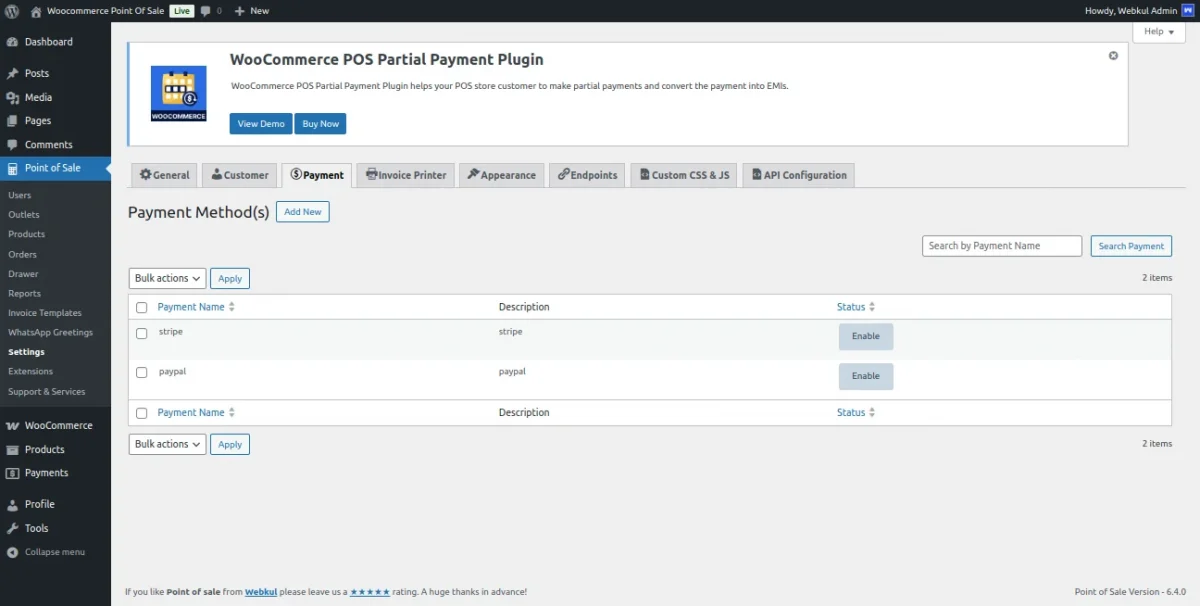
WooCommerce POS allows administrators to configure multiple payment methods for recording purposes. These payment methods are displayed to sales agents during checkout at the POS panel.
Adding a New Payment Method
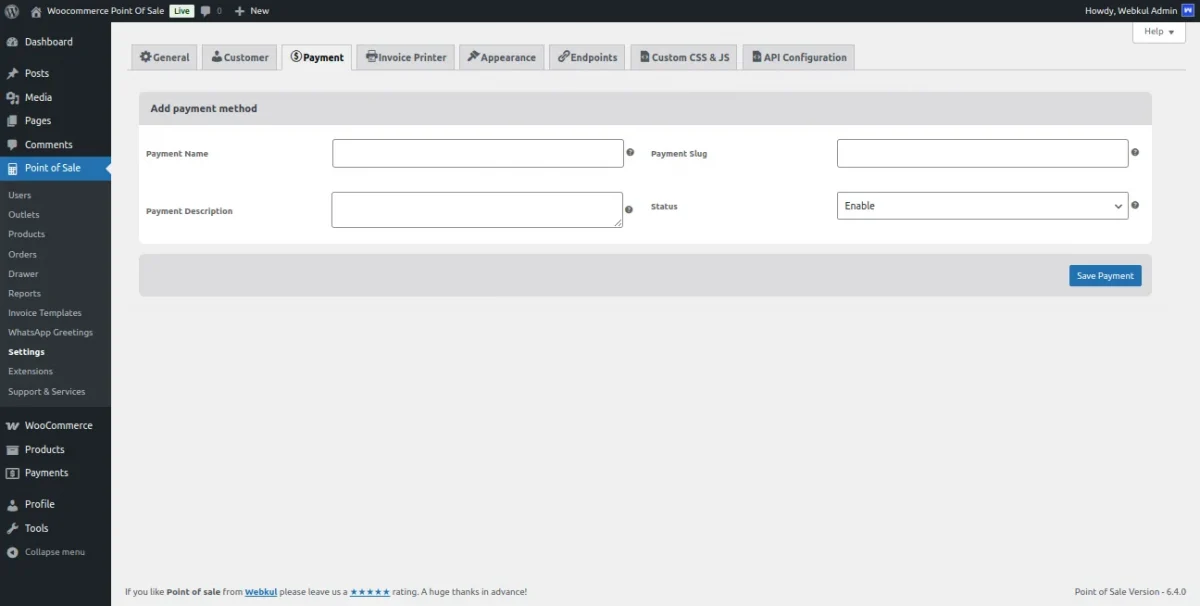
To add a new payment method:
- Navigate to the Payment Methods section.
- Click on the Add New button.
- Enter the required details:
- Payment Name
- Slug
- Description
- Enable or disable the payment method as required.
- Save the configuration.
Admins can also edit or delete any existing payment method at any time.
Important Configuration Note
Important: Any newly added payment method must be assigned to the respective outlet. Only payment methods selected for an outlet will be visible to POS users during checkout.
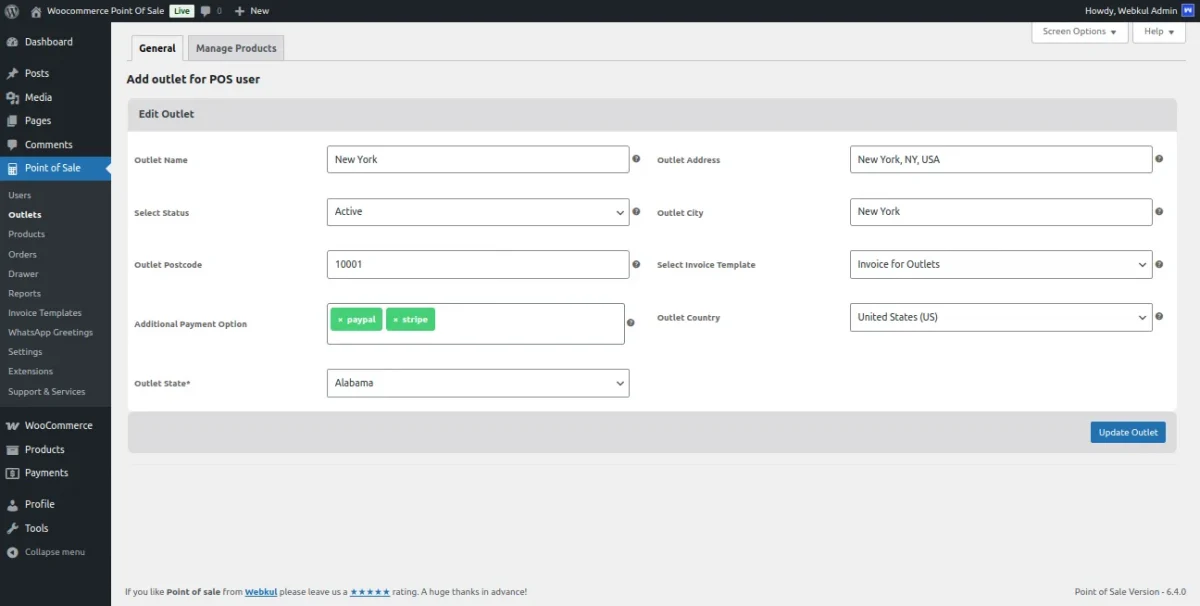
This ensures that different outlets can support different payment workflows based on their operational needs.
Payment Views Configuration
WooCommerce POS provides multiple display options for payment methods at checkout. Admins can choose the view that best suits their store layout and cashier workflow.
Available Payment Method Views
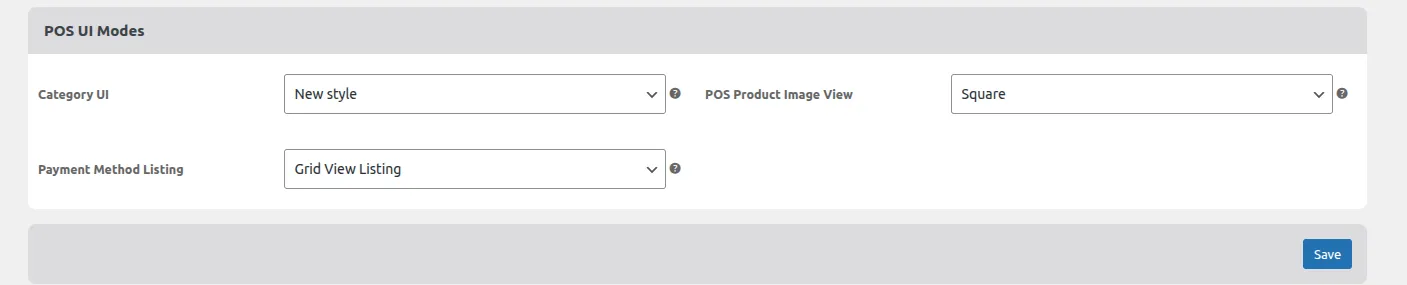
1. Grid View Listing
- Displays payment options in a standard grid layout
- Clean and simple presentation
- Ideal for environments with fewer payment methods
2. Grid with Currency Listing
- Displays payment options in a grid layout
- Includes a currency icon for better visual identification
- Useful for quick recognition during fast-paced checkout
3. Dropdown Listing
- Displays payment methods in a dropdown menu
- Saves screen space
- Best suited for setups with many payment options
These views help tailor the checkout experience to the store’s operational style.
Split Payments
WooCommerce POS supports split payment functionality, allowing customers to pay using multiple payment methods in a single transaction.
Split Payment Capabilities
- Customers can divide the total amount across:
- Cash
- Card
- Other enabled payment methods
- All split payments are accurately recorded in the POS
- Enhances flexibility for customers and reduces checkout friction
Other Payment Features
WooCommerce POS also supports a wide range of external and offline payment methods.
Other Payment Highlights
- Includes all admin-enabled payment methods such as:
- PayPal
- Sunmi Terminal (Credit/Debit Cards)
- And other supported gateways
- Monetary transactions are processed outside the POS system
- POS records:
- The payment method used
- The amount received via each method
Practical Use Case
A POS agent can:
- Accept full payment in cash
- Accept card payments via an external terminal
- Split payment between cash and card
This approach allows businesses to maintain accurate transaction records without restricting how payments are actually collected.