
Order Management in WooCommerce Point of Sale
Efficient order management is a core feature of WooCommerce Point of Sale (POS), allowing POS users to handle sales from product selection to checkout, including customer management, discounts, cart holds, offline orders, and synchronization with the WooCommerce online store.
Processing POS Orders
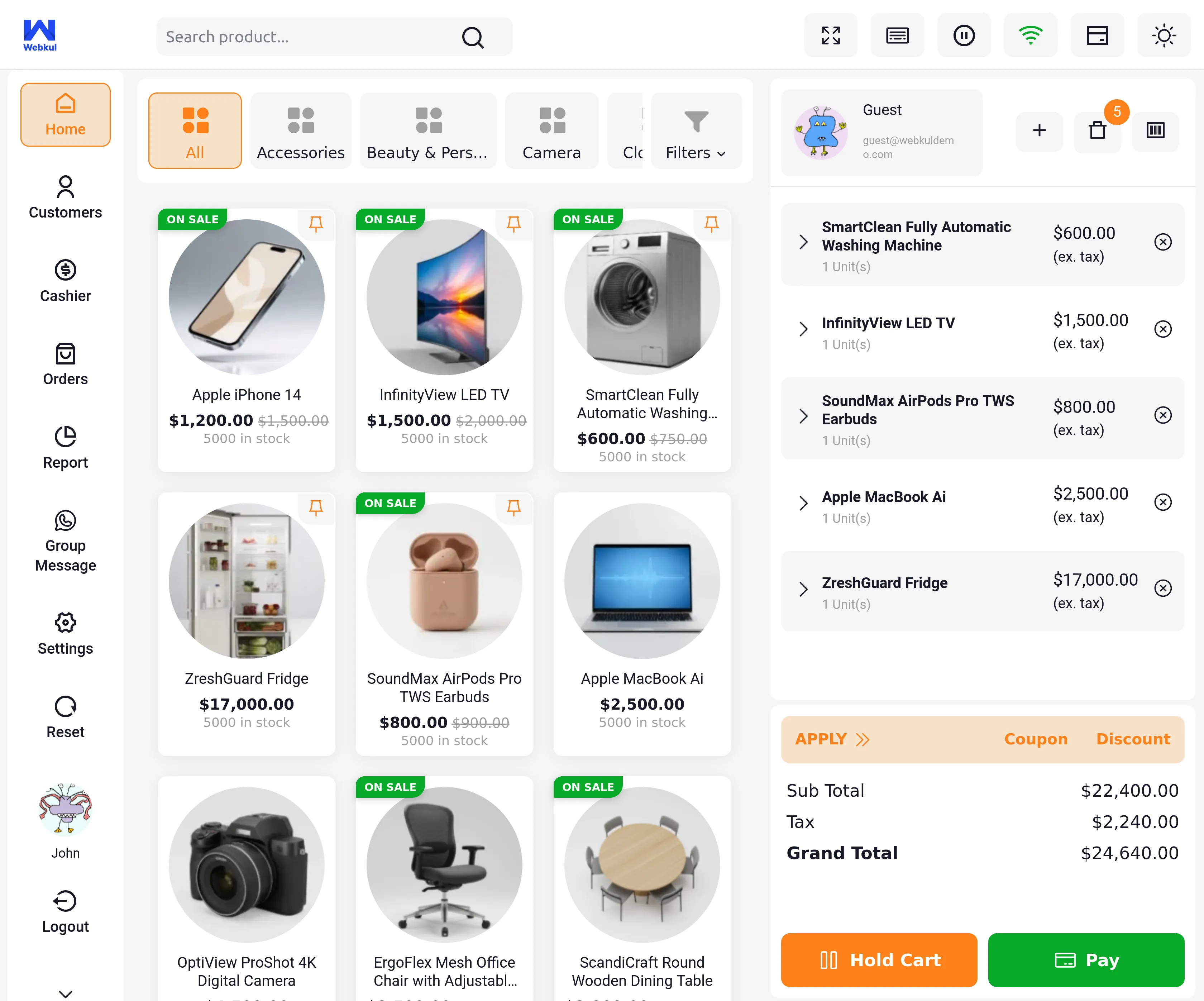
POS users can manage complete sales activity directly from the panel, including:
- Adding products to the cart
- Adding customer details
- Holding carts for later processing
- Paying for orders
All these details are accessible and manageable from the POS dashboard.
Adding Products to Cart
POS users have multiple methods to add products to the cart:
- Barcode Scanning: Add products using SKU or Product ID
- Manual Search: Type the product name in the search bar and add it to the cart
- Category Browsing: Navigate through product categories and select items
- Custom Products: Add products not available on the website but present in the physical store
Adding Custom Products
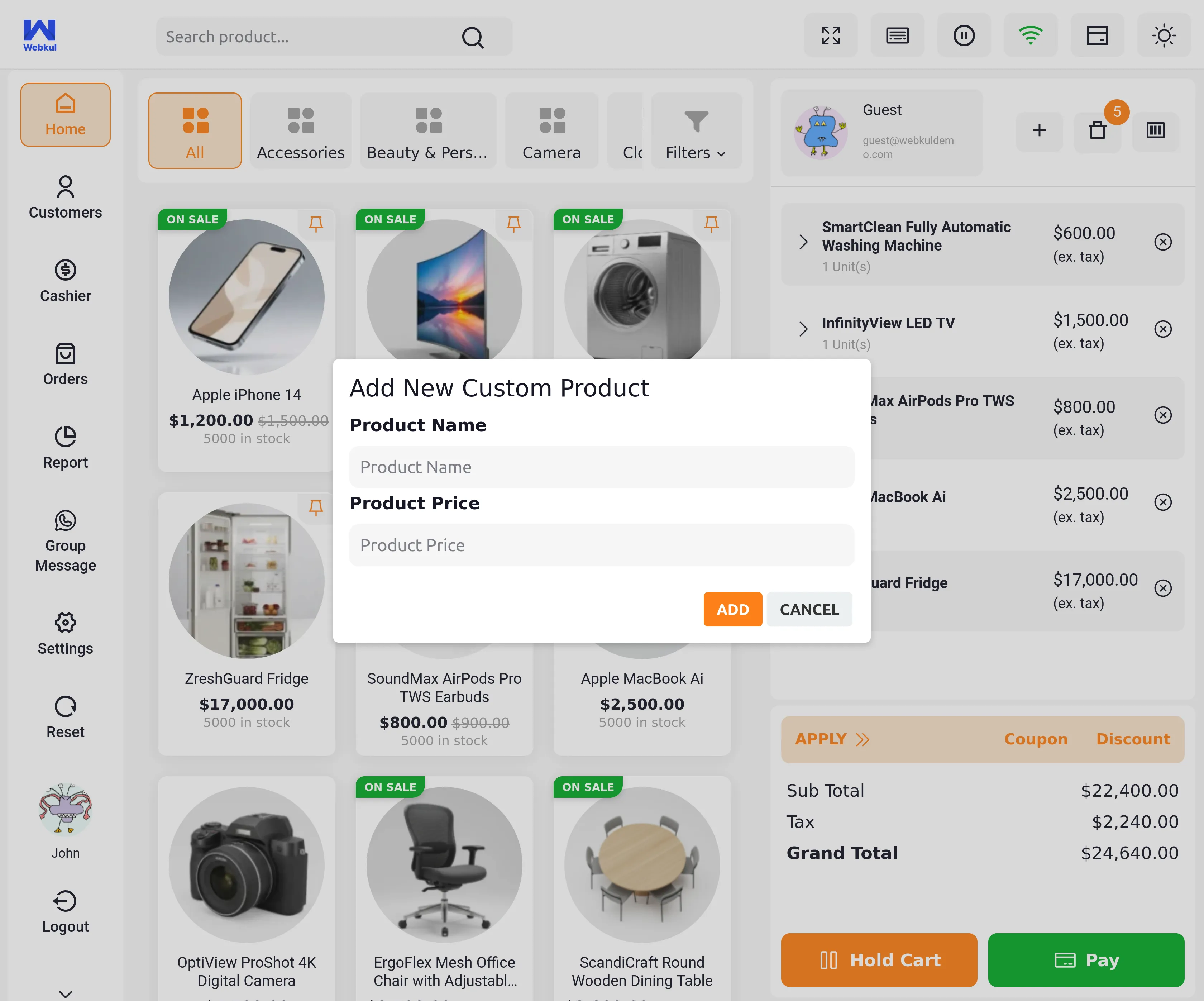
- Click the plus sign button
- Enter product details such as name and price
- Click Add to include the product in the cart for checkout
Customer Management
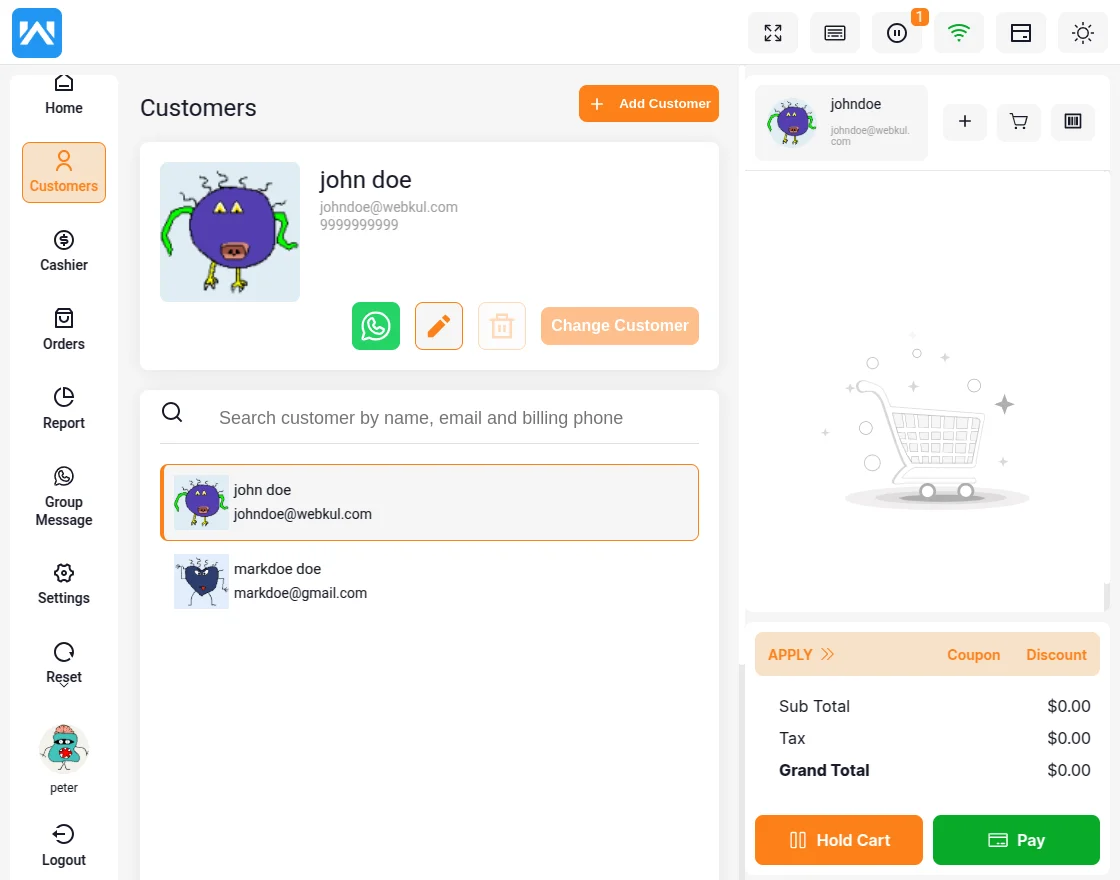
After adding products, POS users can manage customer details:
- Select existing customers from the customer field
- Add new customers on-the-fly
- Use the Default Customer option for walk-in sales
- Update customer information as needed
Once a customer is added, their name appears in the cart for reference.
Checkout Process
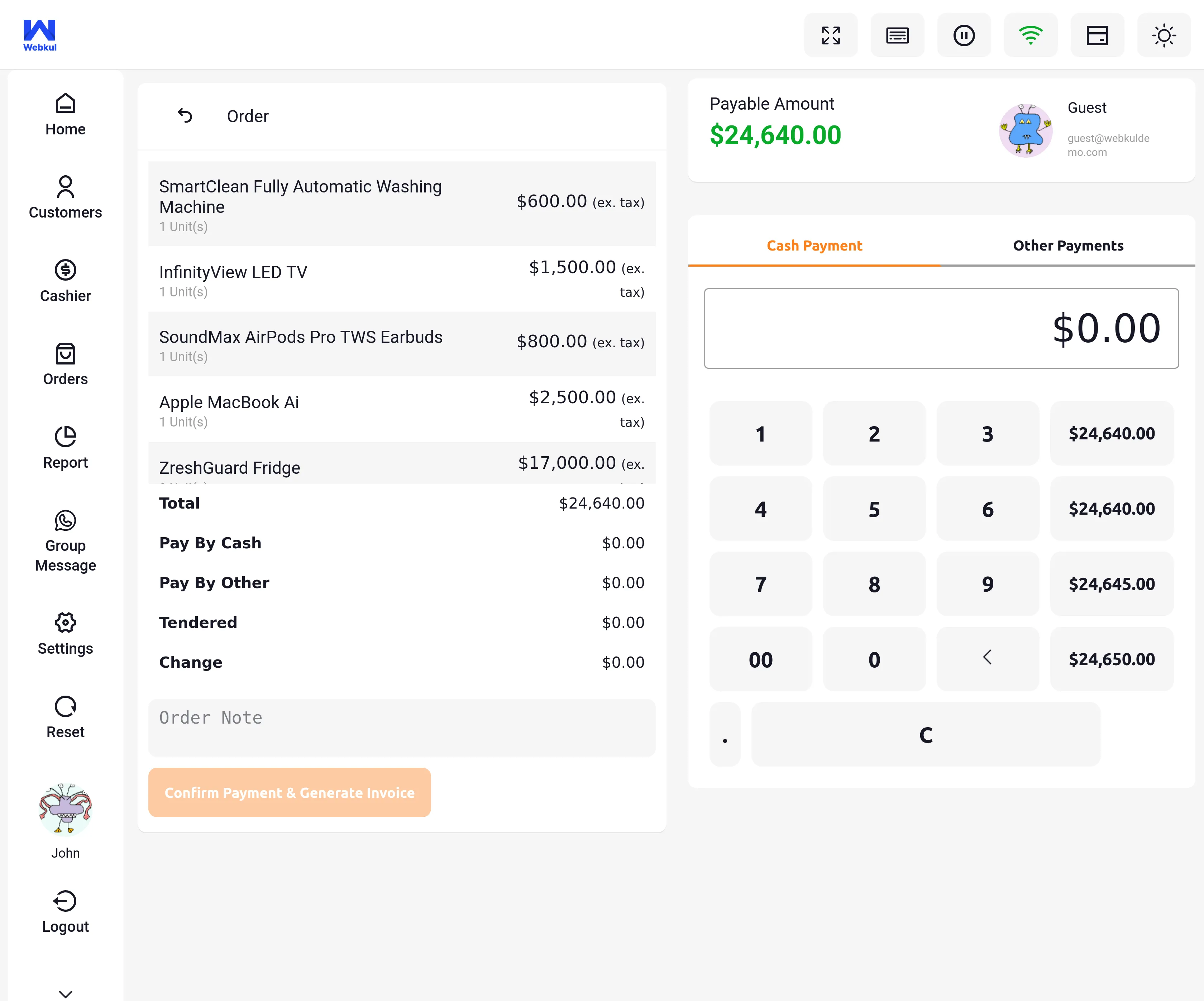
POS supports multiple payment options:
- Cash Payment: Direct cash handling
- Card Payment: Credit/debit card transactions via terminals
- Other Payment Methods: All admin-configured methods such as PayPal or Sunmi Terminal
Key Points:
- Monetary transactions are processed outside the POS system; POS records the payment method used
- Split payments are supported (e.g., part cash, part card)
- POS tracks each payment method separately for accurate reconciliation
Applying Coupons, Discounts & Fees
Since version 7.0.0, all price adjustments are made on the checkout page — after clicking Pay, the action row above the totals offers Apply Coupon, Apply Discount, and Take Fee.
Coupons
- Enter the WooCommerce coupon code in the Apply Coupon popup and hit Apply
- The coupon is validated against your store — all WooCommerce coupon restrictions (minimum spend, product limits, usage limits) are enforced at the POS end
- The applied coupon appears as its own line in the order summary and can be removed again
Discounts
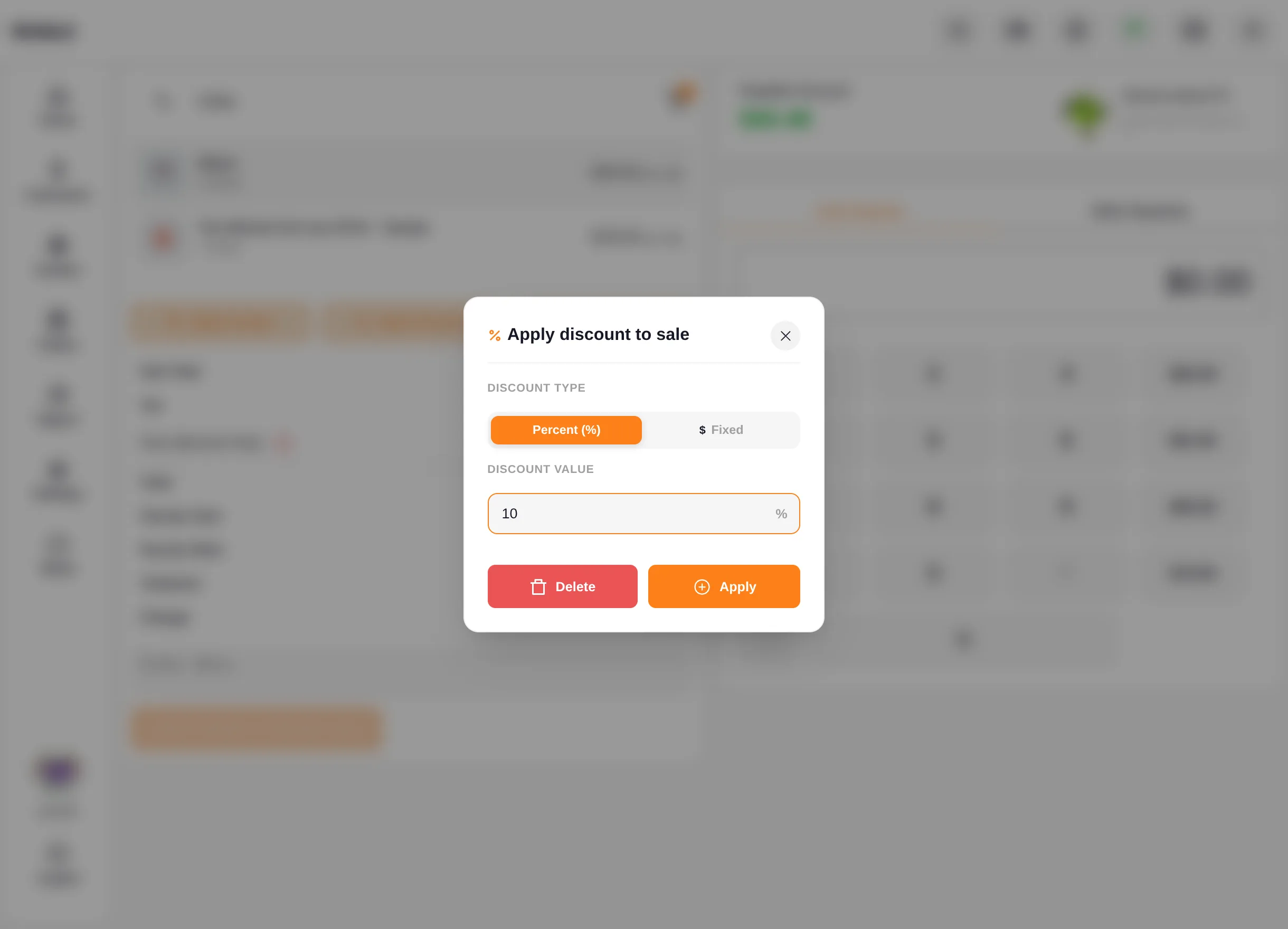
- Discounts can be applied percentage-wise or as a flat amount from the Apply Discount popup
- The Total updates automatically to reflect the discounted amount
Fees
- The Take Fee popup adds a named percentage or fixed fee (e.g., a card surcharge) to the sale
See Checkout Discounts & Coupons and Checkout Fees for the complete workflows.
Offline Orders
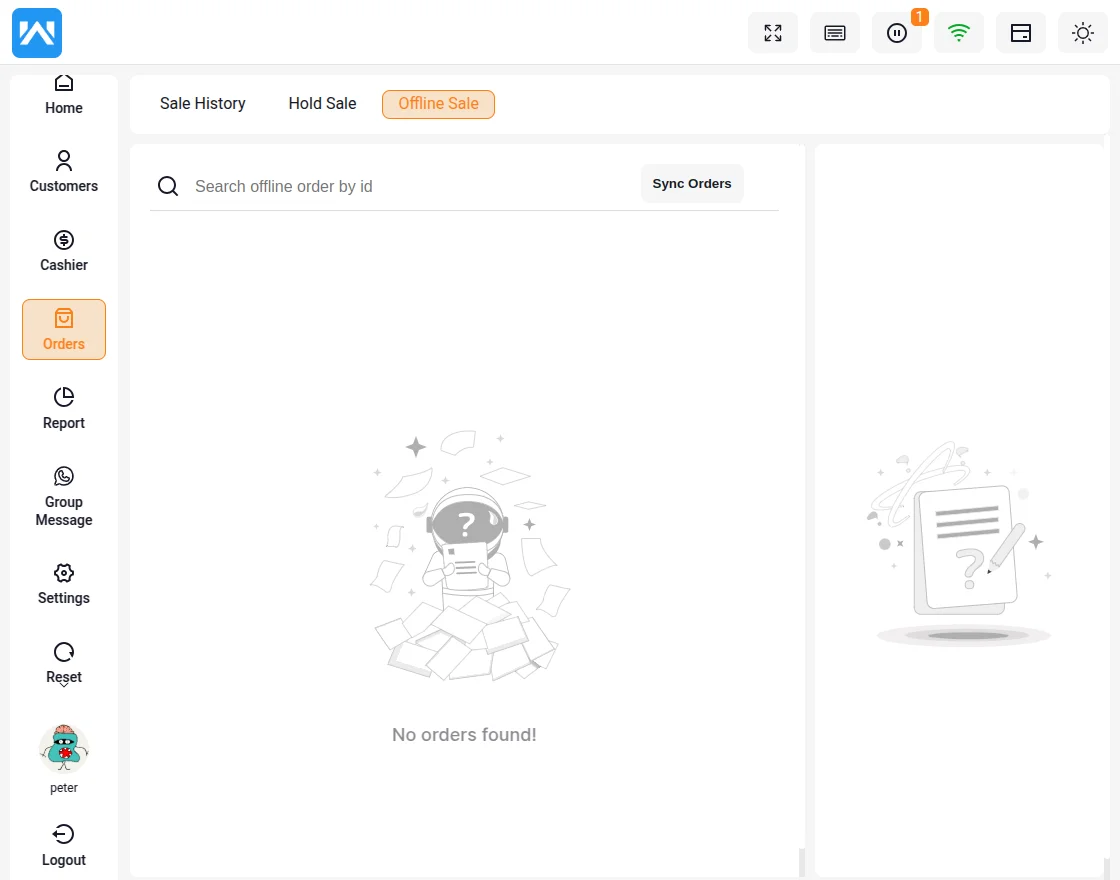
Offline sales are stored locally and can be managed as follows:
- Access offline sales under POS > Order > Offline Sales
- Use the Sync Order button to synchronize offline orders with the online store
- Offline functionality works only with Master Stock Inventory
Order Management for Admins
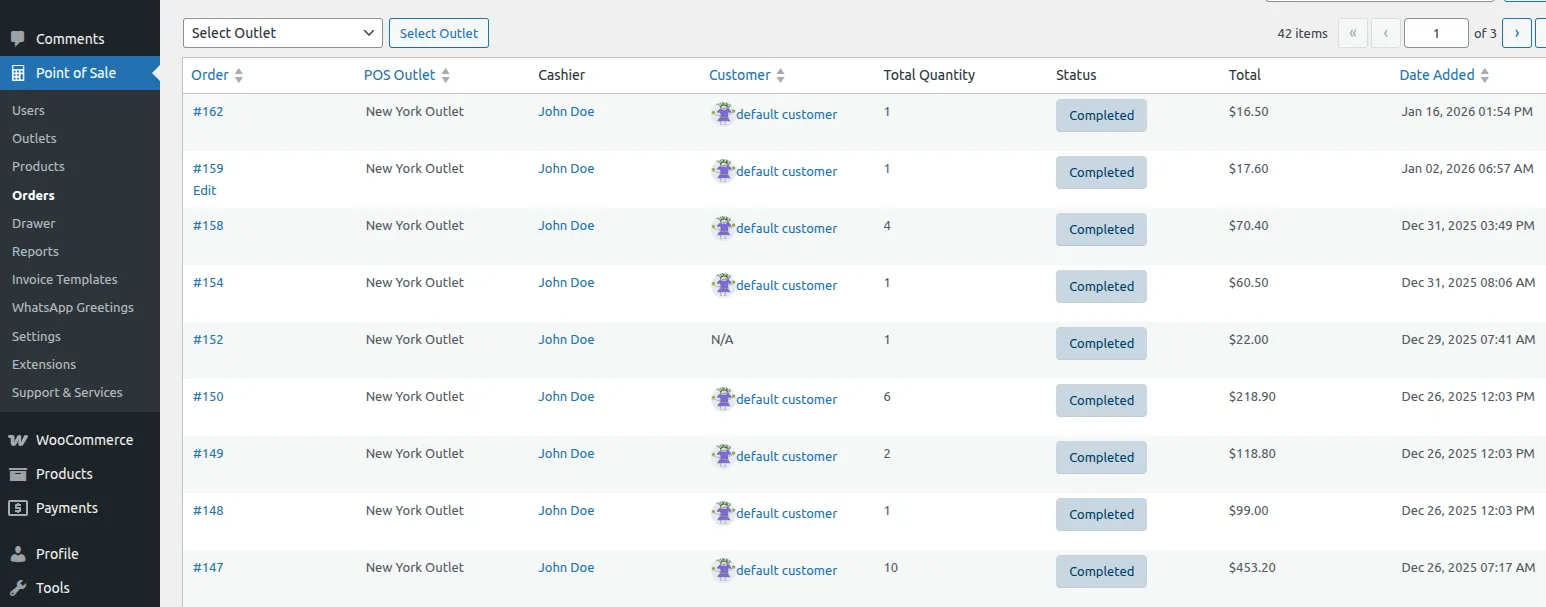
Admins can manage orders via WooCommerce Point of Sale > Orders:
- View the list of all orders
- Click a specific order (e.g., #211) to access detailed information
WooCommerce Website Orders
Orders placed on the WooCommerce website are visible in the POS:
- POS displays online orders with the channel name WooCommerce
- POS orders display with the channel name POS
- Refunds initiated on the website by admins are also visible in the POS for the respective order
This integration ensures complete visibility and synchronization between online and in-store sales, allowing admins and POS users to manage orders efficiently from a single platform.