
WooCommerce Point of Sale - Installation & Setup Guide
Prerequisites
Essential Requirements
Before installation, ensure you have:
| Requirement | Specification |
|---|---|
| WordPress | Version 6.5 or higher (tested up to 7.0) |
| WooCommerce | Version 9.1 or higher (tested up to 10.9) |
| PHP | Version 7.4 or higher (tested up to 8.4) |
| MySQL | 5.6+ or MariaDB 10.1+ |
| Memory Limit | Minimum 256MB (512MB recommended) |
| WooCommerce Setup | Products, payment gateways, and shipping configured |
| User Permissions | Administrator access to WordPress |
Server Requirements
- SSL Certificate: Recommended for secure transactions
- Cron Job Access: For scheduled synchronization
- Node.js: Version 14+ (for full WhatsApp/Node features)
- File Permissions: Write access to WordPress directories
- API Access: REST API must be enabled
What You'll Need
- Purchase Code from Webkul
- WooCommerce Store with products
- Admin Credentials for WordPress
- Barcode Scanner (optional but recommended)
- Thermal Printer (optional for receipts)
Step-by-Step Installation
Method 1: WordPress Admin Dashboard (Recommended)
Step 1: Access Plugin Installation
- Log in to your WordPress Admin Panel
- Navigate to: Plugins → Add New
- Click "Upload Plugin" button at top

Step 2: Upload the Plugin
- Click "Choose File" button
- Select the downloaded
woo-point-of-sale.zipfile - Click "Install Now"
 Step 3: Activate the Plugin
- After successful installation, click "Activate Plugin"
- Wait for activation confirmation message

Check how to activate your WooCommerce plugin through the purchase code.
Method 2: FTP Installation (Alternative)
Step 1: Prepare Files
- Unzip the downloaded package
- Extract the
woo-point-of-salefolder
Step 2: Upload via FTP
- Connect to your server via FTP/SFTP
- Navigate to:
/wp-content/plugins/ - Upload the
woo-point-of-salefolder
Step 3: Activate
- Go to WordPress Admin → Plugins
- Find "WooCommerce Point of Sale"
- Click "Activate"
Post-Installation Checks
- Clear WordPress cache if using caching plugins
- Check for PHP errors in debug log
- Verify plugin appears in installed plugins list
- Ensure no conflicts with other plugins
Initial Configuration
The POS Wizard
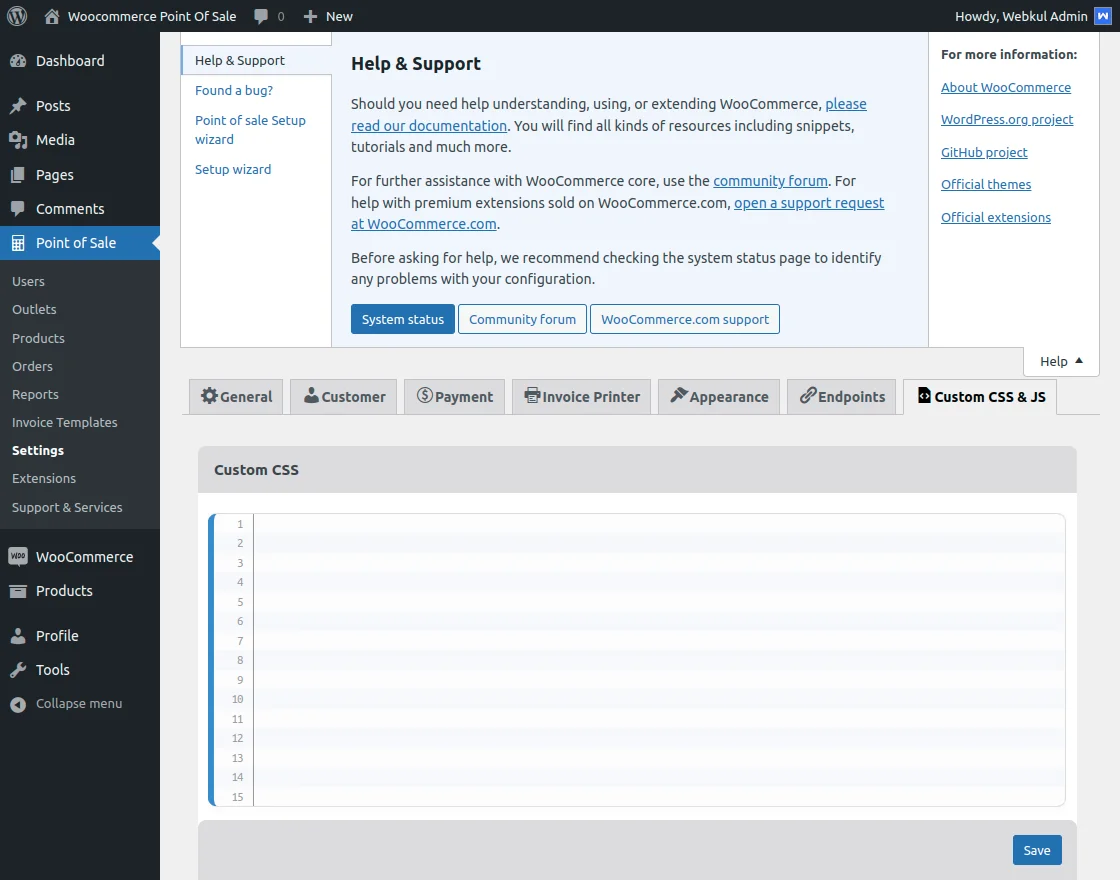
After activating the plugin, under General Settings, the admin will find the Help icon in the top-right menu bar. Once the admin clicks on it, a menu will open as shown in the image below.
Setup Wizard
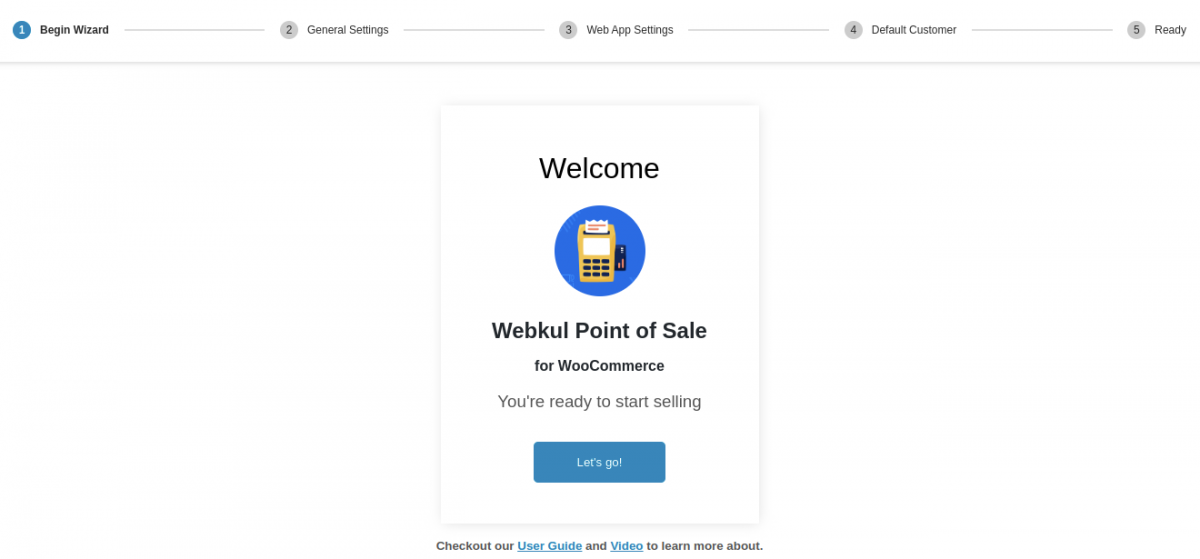
When the admin clicks on the Setup Wizard tab, it redirects to the Wizard Configurations page, as shown in the image below.
Initially, the admin will see the Begin Wizard menu option. To start configuring the POS, the admin needs to click on Let’s go!.
General Settings Configuration
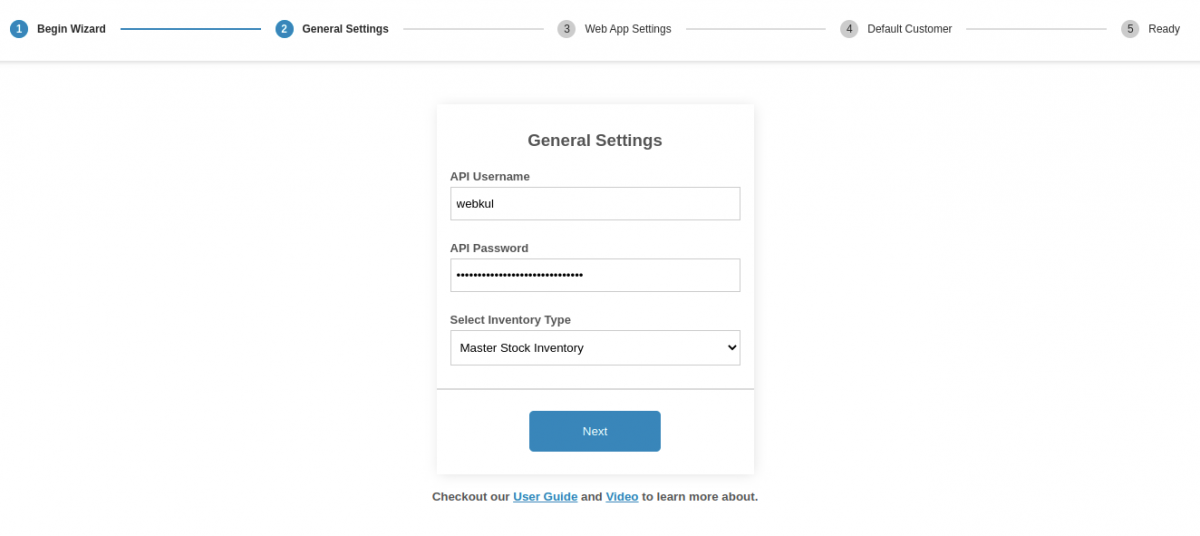
Clicking on Let’s go! navigates the admin to the General Settings page, as shown in the image below. For more details, you can refer to our User Guide and the Quick Initial Setup video tutorial.
Under General Settings, the admin needs to configure the following:
- API Username
- API Password
- Inventory Type
- Default Product Status
- Enable Unit Price Feature
- Enable Emails at POS End
After filling in the details, click on Next! to proceed to the next step.
Web App Settings
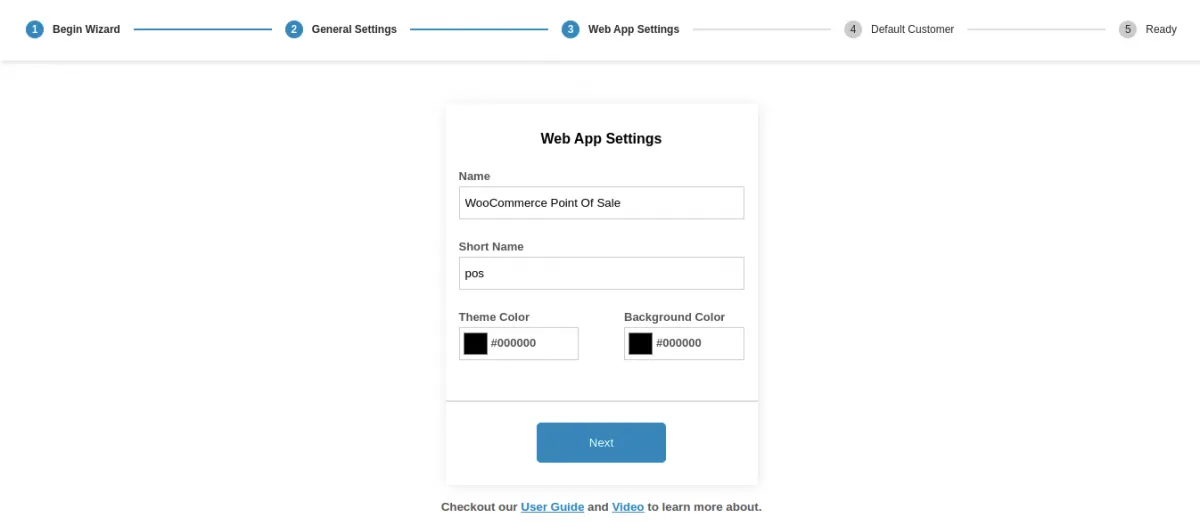
Next, the admin needs to configure the Web App Settings, where the following details are added:
- App Name
- Short Name
- Theme Color
- Background Color
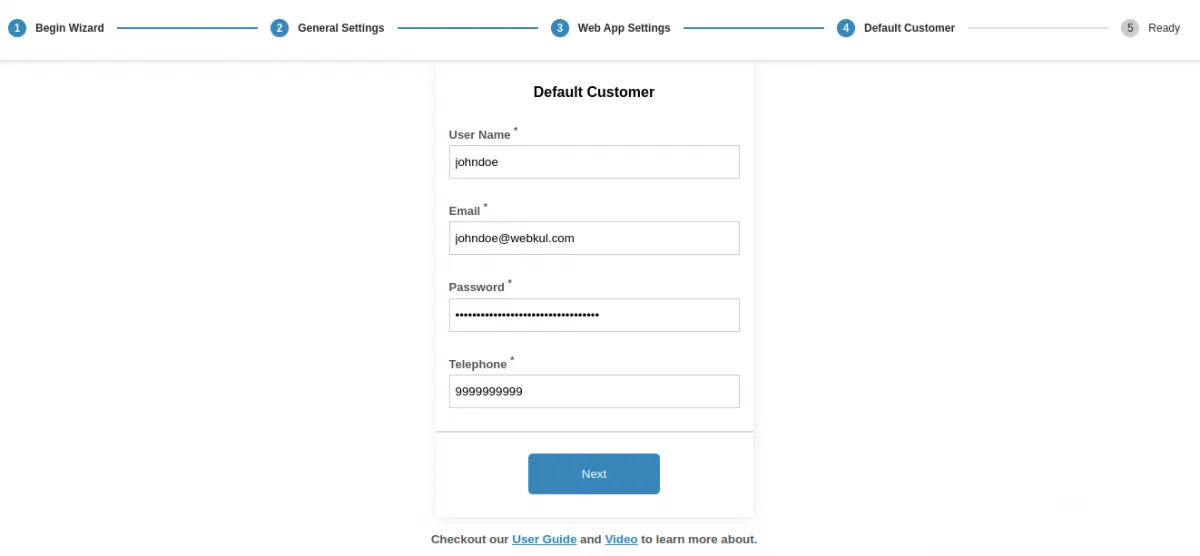
Additionally, the Default Customer Configuration details will be auto-filled, as shown in the image below.
Wizard Completion
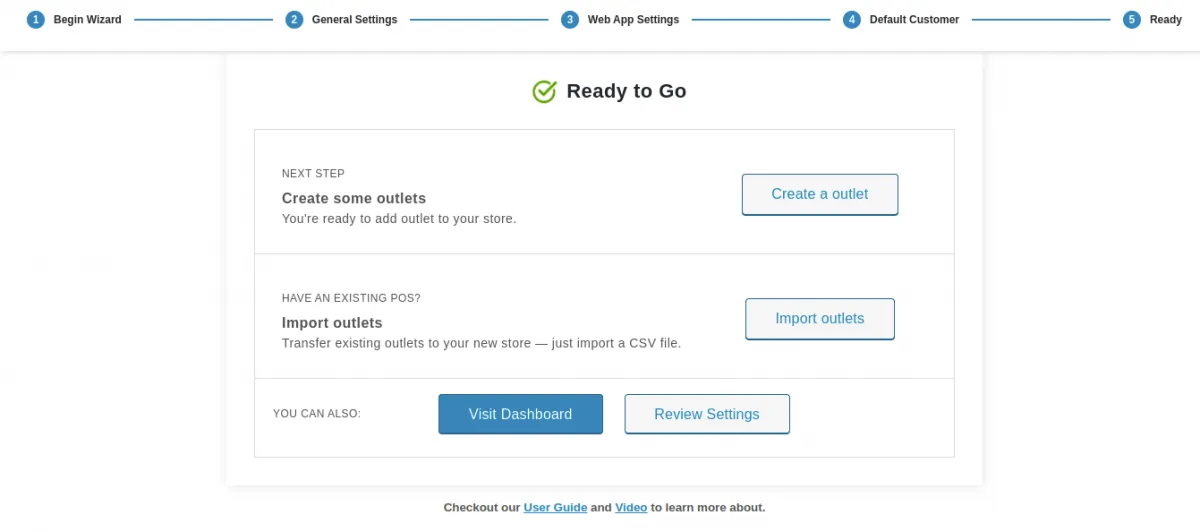
Finally, the admin is redirected to the Ready menu option. From here, the admin can:
- Create an Outlet
- Import Outlets
Once these steps are completed, the POS Wizard setup is finished.
License Activation
Activation Process
Step 1: Locate Purchase Code
- Find purchase code in your Webkul purchase email
- Or access from Webkul client area
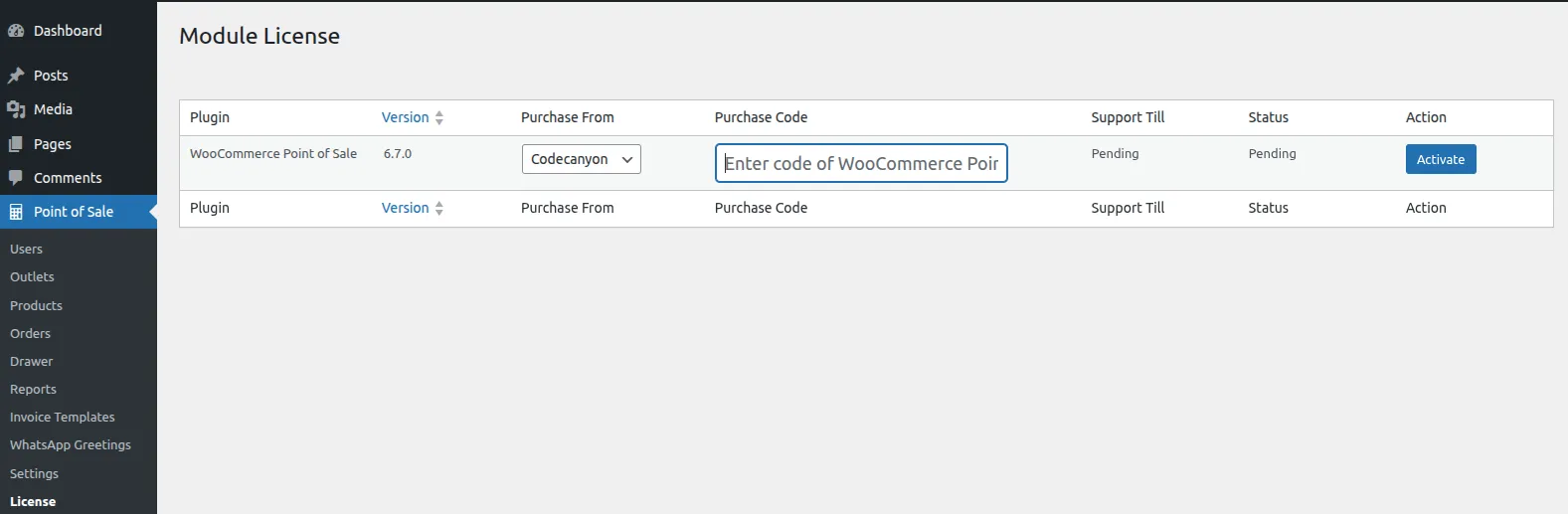
Step 2: Enter License Details
- Navigate to: Point of Sale → Settings → License
- Enter Purchase Code
- Enter Registered Email
- Click "Activate License"
Step 3: Verify Activation
- Green checkmark indicates successful activation
- License details will display expiration date
- Activation status shows in plugin header
License Management
- View License: Check status and expiration
- Renew License: Before expiration for updates
- Transfer License: Move to another domain
- Deactivate: Free up license for reuse
Essential Settings to Configure:
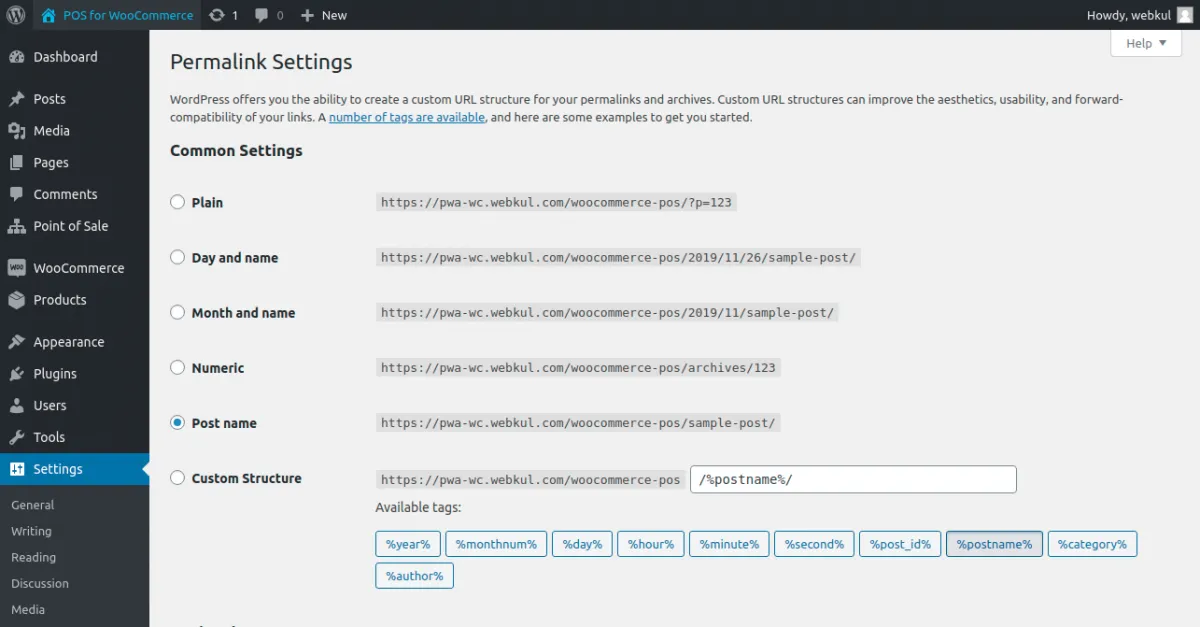
1. Permalink Flush
- Go to: Settings → Permalinks
- Click "Save Changes" (no changes needed)
- This ensures POS endpoints work correctly
2. General Configuration
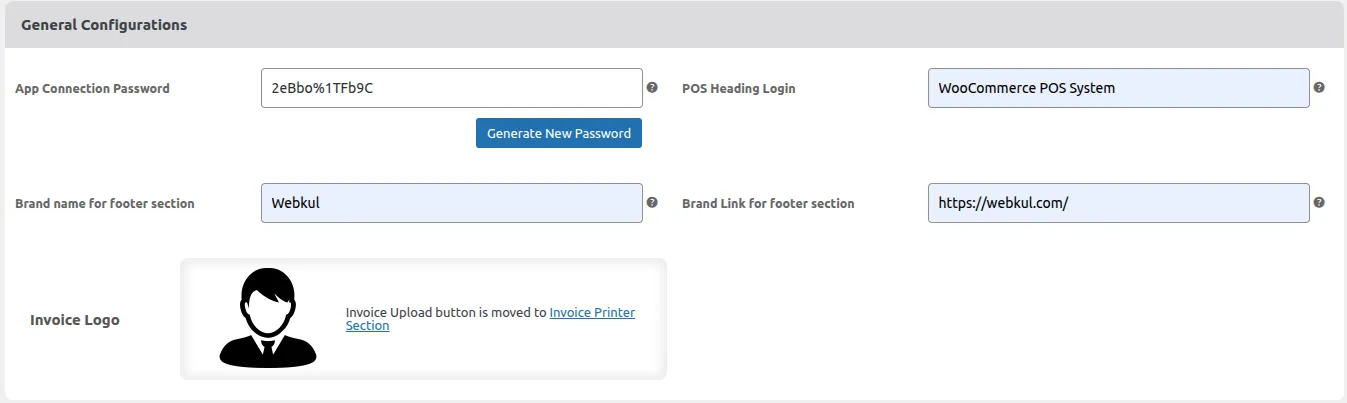 Configure basic connection, branding, and invoice assets for the Point of Sale system.
| Configuration Setting | Default / Sample Value | Description |
|---|---|---|
| App Connection Password | 2eBbo%1TFb9C | Used to authenticate the API connection between the WooCommerce store and the POS mobile app. |
| Generate New Password | Action Button | Generates a new password for the API connection (recommended to clear/change periodically). |
| POS Heading Login | WooCommerce POS System | Defines the heading text displayed on the front-end POS login screen. |
| Brand Name for Footer | Webkul | Specifies the brand name displayed in the footer area of the POS cashier panel. |
| Brand Link for Footer | https://webkul.com/ | Sets the clickable URL linked to the brand name in the footer section. |
| Invoice Logo | File Upload | Allows uploading a custom logo image to display on printed and digital receipts/invoices. |
3. POS Panel Configurations
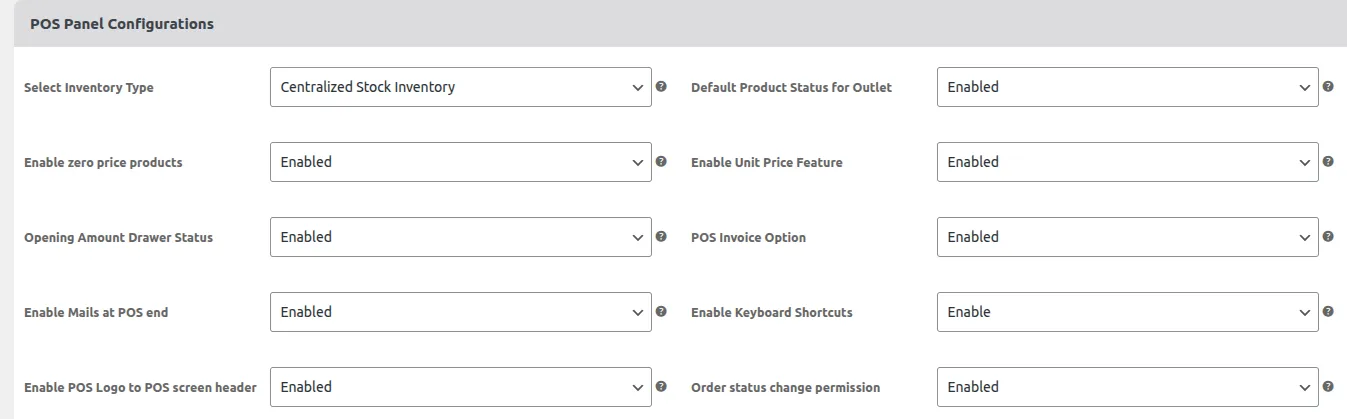 Configure operational logic, cashier capabilities, and interface defaults for the POS grid.
| Configuration Setting | Default State | Description |
|---|---|---|
| Select Inventory Type | Centralized Stock Inventory | Defines if the POS utilizes unified centralized stock levels or separate local inventories. |
| Default Product Status | Enabled | Sets whether products assigned to an outlet are immediately active or inactive. |
| Enable Zero Price Products | Enabled | Allows selling products with a price of $0.00 in the POS interface. |
| Enable Unit Price Feature | Enabled | Enables displaying and calculating pricing based on unit quantities (e.g. weight, volume). |
| Opening Amount Drawer Status | Enabled | Prompts cashiers to enter the starting cash drawer balance at the beginning of their shift. |
| POS Invoice Option | Enabled | Enables the automatic creation and print-readiness of customer invoices/receipts. |
| Enable Mails at POS End | Enabled | Sends order confirmation and invoice emails automatically upon transaction completion. |
| Enable Keyboard Shortcuts | Enabled | Activates key bindings (shortcuts) for rapid checkout operations. |
| Enable POS Logo to Header | Enabled | Displays the custom store/POS logo in the main header of the cashier panel. |
| Order Status Change Permission | Enabled | Authorizes POS cashiers to change the status of orders directly from the POS interface. |
POS Cron Configurations
Here, the admin can configure and manage POS cron jobs and Node server settings.
POS Cron Settings
The admin can:
Set the Cron Type Choose between WP Cron or Server Cron.
Enable / Disable Auto Drawer Close Turn automatic drawer closing on or off.
Set Drawer Time Define the time after which the drawer will close automatically.
Run Cron Commands Execute cron commands from the root directory.
Server Cron Setup
For Server Cron
wget -q -O - https://wpdemo.webkul.com/woocommerce-point-of-sale-115-113-191-18/wp-content/plugins/woo-point-of-sale/wcpos-cron.php >/dev/null 2>&1