WooCommerce POS DocumentationWooCommerce POS Documentation
Buy Now
View Demo
  • Getting Started

    • Point Of Sale
    • Overview
    • Features
    • Installation
  • Setup & Configuration

    • Admin Configuration
    • Outlets & Users
    • Dynamic Theme
    • Notification Tones
    • Variation Layouts
  • Store Operations

    • Products & Inventory
    • Stock Visibility
    • Orders & Drawers
    • Z-Report
    • Cash Management
    • Hold Cart
    • Custom Products
  • Advanced & Hardware

    • Hardware Support
    • Cash Drawer
    • Payment Terminal
    • Payment Integration
    • WhatsApp Notification
    • Multisite Compatibility
    • Reports & Analytics
    • POS Agent Guide
    • Desktop & Mobile
    • FAQ & Notes
  • Core POS System

    • WooCommerce POS Outlet Manager
    • WooCommerce POS Warehouse Management
  • Mobile Apps

    • WooCommerce Flutter Native POS Mobile App
  • Printer Integrations

    • WooCommerce POS Cloud Printer
  • Payment Terminal Integrations

    • WooCommerce Stripe POS Terminal Connector
    • WooCommerce POS Square Payment Terminal Plugin
    • WooCommerce POS PayPal Terminal Reader
    • WooCommerce POS Linkly Terminal Connector
    • WooCommerce POS Stripe Reader M2 Integration
  • Order & Transaction Management

    • POS Order Return & Exchange for WooCommerce
    • WooCommerce POS Partial Payment Plugin
    • POS Booking Reservation Plugin for WooCommerce
    • WooCommerce POS Multicurrency
  • Customer & Loyalty Features

    • WooCommerce & POS Loyalty Management
    • WooCommerce POS Gift Card Plugin
    • WooCommerce POS Happy Hours
    • WooCommerce POS Complimentary Goods
  • Hardware & Barcode Solutions

    • WooCommerce POS Configurable Barcode
    • WooCommerce POS Barcode RFGun
    • WooCommerce POS RFID Card Add-on
    • WooCommerce POS Cloud Printer Add-on
  • Customer Interface & Kiosk

    • WooCommerce POS Customer Kiosk Checkout
    • WooCommerce POS Customer Cart Screen
    • WooCommerce POS QR Code Ordering System
  • Industry-Specific Solutions

    • WooCommerce Restaurant Kitchen POS
    • Delivery Management Addon for WooCommerce POS
  • Advanced Features

    • POS AI Reporting for WooCommerce
Buy Now
View Demo
  • Getting Started

    • Point Of Sale
    • Overview
    • Features
    • Installation
  • Setup & Configuration

    • Admin Configuration
    • Outlets & Users
    • Dynamic Theme
    • Notification Tones
    • Variation Layouts
  • Store Operations

    • Products & Inventory
    • Stock Visibility
    • Orders & Drawers
    • Z-Report
    • Cash Management
    • Hold Cart
    • Custom Products
  • Advanced & Hardware

    • Hardware Support
    • Cash Drawer
    • Payment Terminal
    • Payment Integration
    • WhatsApp Notification
    • Multisite Compatibility
    • Reports & Analytics
    • POS Agent Guide
    • Desktop & Mobile
    • FAQ & Notes
  • Core POS System

    • WooCommerce POS Outlet Manager
    • WooCommerce POS Warehouse Management
  • Mobile Apps

    • WooCommerce Flutter Native POS Mobile App
  • Printer Integrations

    • WooCommerce POS Cloud Printer
  • Payment Terminal Integrations

    • WooCommerce Stripe POS Terminal Connector
    • WooCommerce POS Square Payment Terminal Plugin
    • WooCommerce POS PayPal Terminal Reader
    • WooCommerce POS Linkly Terminal Connector
    • WooCommerce POS Stripe Reader M2 Integration
  • Order & Transaction Management

    • POS Order Return & Exchange for WooCommerce
    • WooCommerce POS Partial Payment Plugin
    • POS Booking Reservation Plugin for WooCommerce
    • WooCommerce POS Multicurrency
  • Customer & Loyalty Features

    • WooCommerce & POS Loyalty Management
    • WooCommerce POS Gift Card Plugin
    • WooCommerce POS Happy Hours
    • WooCommerce POS Complimentary Goods
  • Hardware & Barcode Solutions

    • WooCommerce POS Configurable Barcode
    • WooCommerce POS Barcode RFGun
    • WooCommerce POS RFID Card Add-on
    • WooCommerce POS Cloud Printer Add-on
  • Customer Interface & Kiosk

    • WooCommerce POS Customer Kiosk Checkout
    • WooCommerce POS Customer Cart Screen
    • WooCommerce POS QR Code Ordering System
  • Industry-Specific Solutions

    • WooCommerce Restaurant Kitchen POS
    • Delivery Management Addon for WooCommerce POS
  • Advanced Features

    • POS AI Reporting for WooCommerce
  • Getting Started

    • WooCommerce Point of Sale (POS)
    • Overview
    • Features
    • Installation
  • Setup & Configuration

    • Admin Configuration
    • Outlets & POS Users
    • Dynamic Theme in WooCommerce Point of Sale
    • Notification Tones
    • Variation Card Layouts
  • Store Operations

    • WooCommerce Point of Sale – Products & Inventory Management
    • Stock Visibility Controls
    • Orders & Cash Drawer
    • WooCommerce POS - Cashier Management
    • WooCommerce POS - Hold Cart
    • Z-Report Generation & Printing
    • WooCommerce POS - Custom Product
  • Hardware Integrations

    • WooCommerce POS - Hardware Support
    • WooCommerce POS – Cash Drawer & Cashier Management
    • WooCommerce POS – Payment Methods & Checkout Configuration
    • WooCommerce POS – Payment Terminal Integration
  • Advanced Features

    • WhatsApp Notifications in WooCommerce Point of Sale
    • WooCommerce POS - Multisite Compatibility
    • Reports & Analytics
    • POS Agent Guide
    • Desktop & Mobile POS
  • Help & FAQ

    • FAQ & Notes

Stock Visibility Controls

Introduction

Real-time inventory visibility helps cashiers manage checkout workflows without risking overselling or cashier confusion. WooCommerce Point of Sale (POS) includes flexible Stock Visibility Controls that let store administrators choose whether active stock counts are displayed on product catalog tiles or hidden completely.

This page explains how to configure stock visibility from the admin backend and details how these settings change the cashier experience in the POS register.


Configuration Workflow

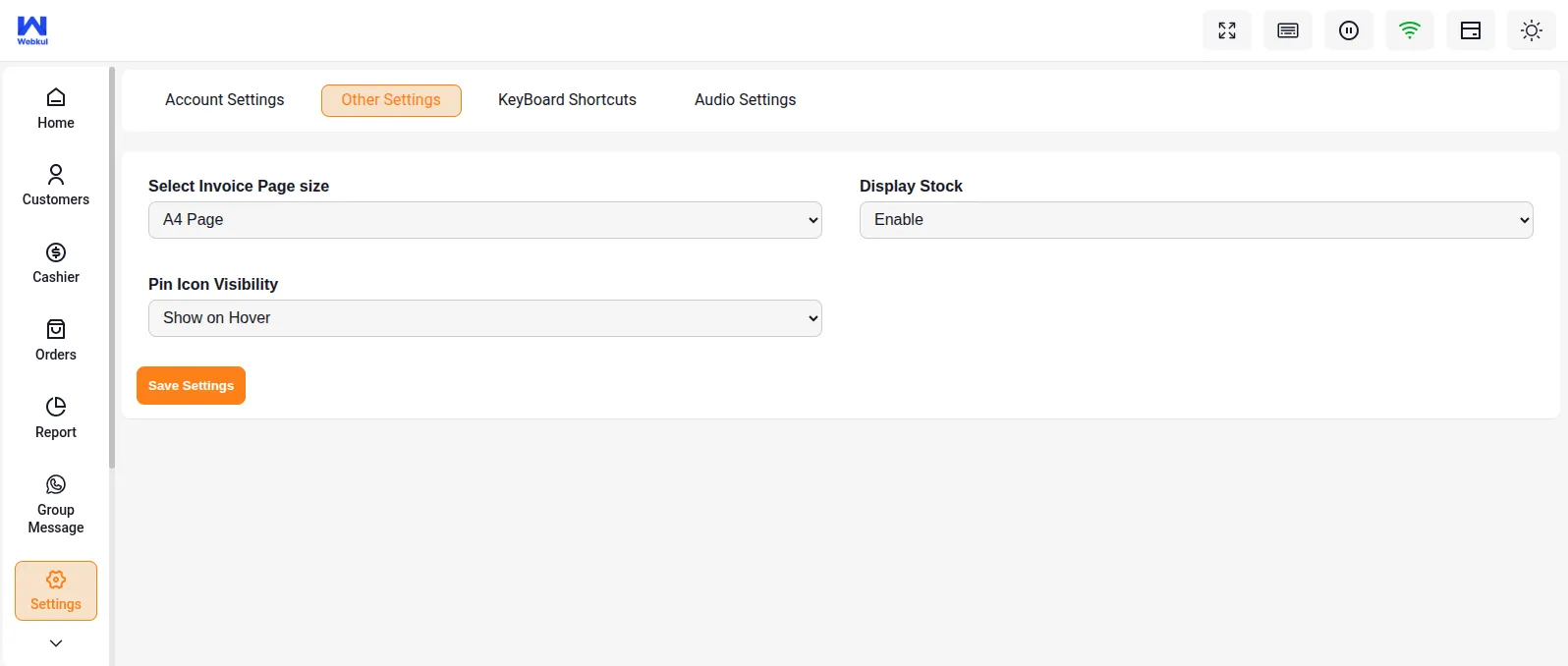
1. Display Stock Setting Enabled

To show product stock quantities in the POS terminal, administrators must first enable the display settings within the WordPress admin dashboard:

  1. Log in to the WordPress Admin Panel.
  2. Navigate to Point of Sale > Settings > Other Settings.
  3. Locate the Display Stock toggle.
  4. Set the toggle to Enabled (or checked).
  5. Save the configuration settings.

Display Stock Setting Enabled


2. Stock Visible in POS

Once the display stock setting is enabled, the active inventory numbers sync directly to the terminal interface.

POS cashiers will see the exact remaining stock levels printed on each product tile in the catalog grid (e.g., "10 In Stock"). This gives them real-time info on what is left in the warehouse or store floor.
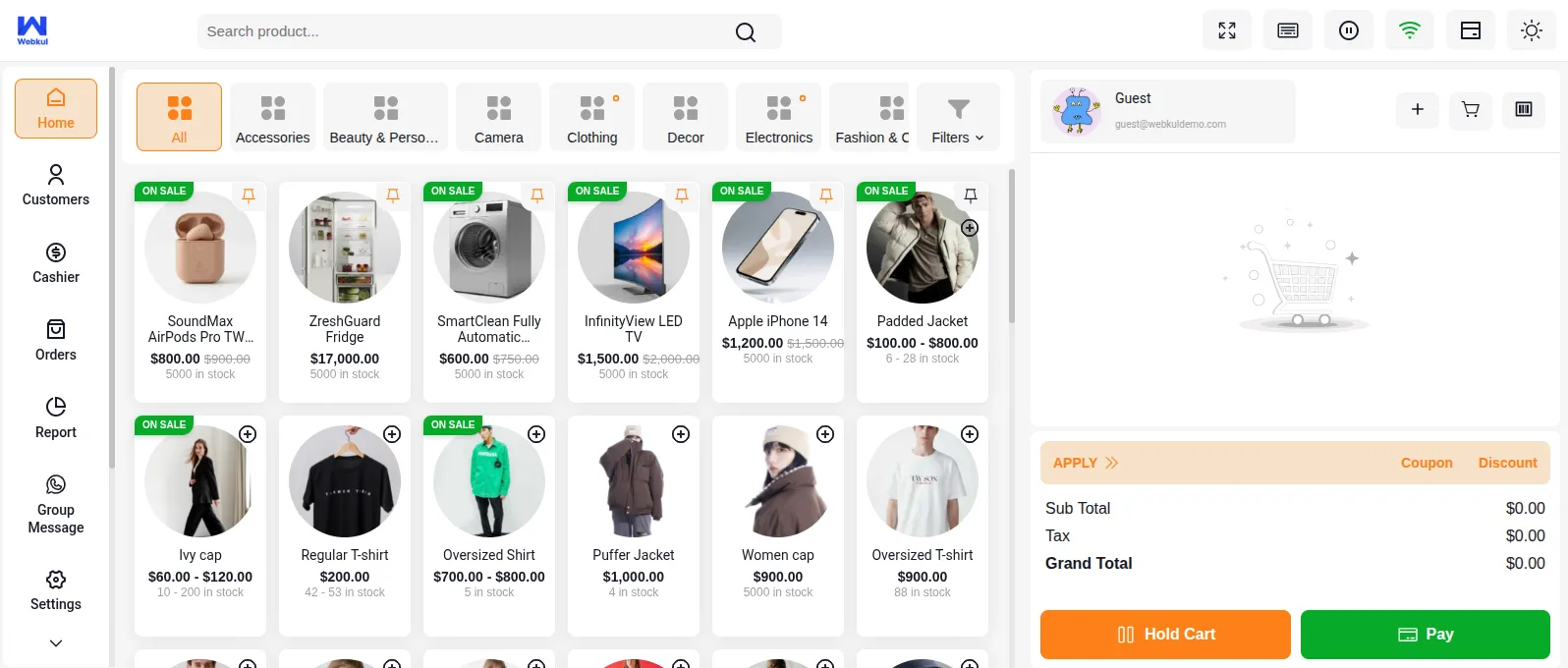
Stock Visible in POS


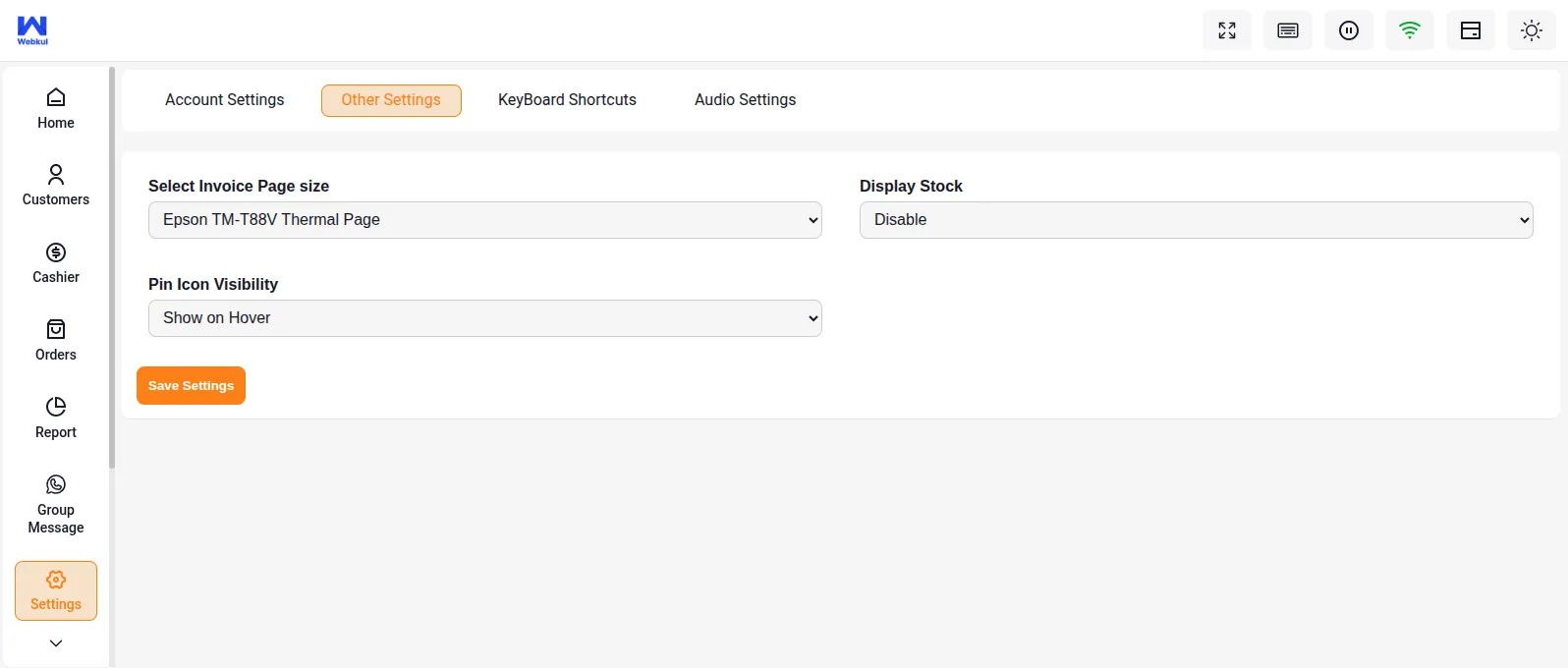
3. Display Stock Setting Disabled

If you want to hide stock counts from terminal agents to maintain a cleaner design or prevent customer visibility, the setting can be deactivated:

  1. Log in to the WordPress Admin Panel.
  2. Navigate to Point of Sale > Settings > Other Settings.
  3. Toggle the Display Stock field to Disabled (or unchecked).
  4. Save the configuration settings.

Display Stock Setting Disabled


4. Stock Hidden in POS

When the display stock setting is disabled, the system suppresses all numeric counts in the register interface.

The product tiles on the POS catalog grid will no longer show any remaining quantity numbers. This is ideal for stores that do not want checkout agents to focus on stock levels or for service-based businesses.
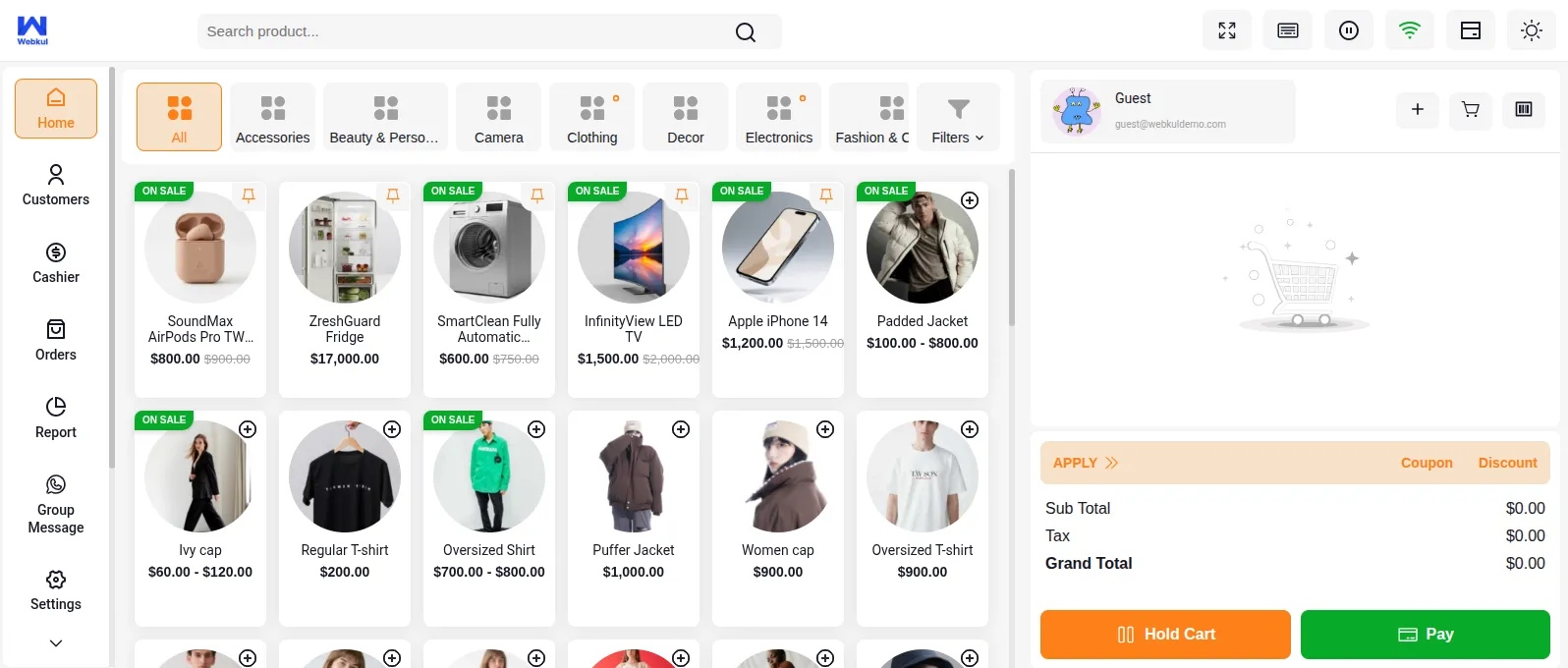
Stock Hidden in POS


Visibility Modes Comparison

The table below contrasts the difference between enabled and disabled stock visibility configurations:

Feature/MetricDisplay Stock EnabledDisplay Stock Disabled
Grid PresentationShows exact numeric quantity on each product tile (e.g., "15 left").Displays product titles and prices with no stock counts.
Cashier FocusIdeal for inventory-centric sales, alerting cashiers to low stock.Focuses strictly on rapid barcode scanning and item selection.
Customer DiscretionVisible to customers standing near the register screen.Keeps specific warehouse stock levels confidential.
Checkout BehaviorCashiers can visually confirm availability before adding to cart.Rely on system warnings at the cart phase if an item is out of stock.

Related Features

  • Inventory & Products Management — Set up multi-location stock levels and sync settings.
  • Key System Features — Understand how the offline engine handles cached inventory listings.
Prev
WooCommerce Point of Sale – Products & Inventory Management
Next
Orders & Cash Drawer