WooCommerce POS DocumentationWooCommerce POS Documentation
Buy Now
View Demo
  • WooCommerce POS

    • Point Of Sale
    • Overview
    • Features
    • Installation
    • Admin Configuration
    • Outlets & Users
    • Reports
    • POS Agent Guide
    • Products & Inventory
    • Hardware Support
    • Paymemt Terminal
    • Paymemt Terminal Integration
    • Cash Drawer
    • Multisite Compatibility
    • Orders & Drawers
    • Hold Cart
    • WhatsApp Notification
    • Dynamic Theme
    • Cash Management
    • Custom Products
    • Desktop & Mobile
    • FAQ & Notes
  • Core POS System

    • WooCommerce POS Outlet Manager
    • WooCommerce POS Warehouse Management
  • Mobile Apps

    • WooCommerce Flutter Native POS Mobile App
  • Printer Integrations

    • WooCommerce POS Cloud Printer
  • Payment Terminal Integrations

    • WooCommerce Stripe POS Terminal Connector
    • WooCommerce POS Square Payment Terminal Plugin
    • WooCommerce POS PayPal Terminal Reader
    • WooCommerce POS Linkly Terminal Connector
    • WooCommerce POS Stripe Reader M2 Integration
  • Order & Transaction Management

    • POS Order Return & Exchange for WooCommerce
    • WooCommerce POS Partial Payment Plugin
    • POS Booking Reservation Plugin for WooCommerce
    • WooCommerce POS Multicurrency
  • Customer & Loyalty Features

    • WooCommerce & POS Loyalty Management
    • WooCommerce POS Gift Card Plugin
    • WooCommerce POS Happy Hours
    • WooCommerce POS Complimentary Goods
  • Hardware & Barcode Solutions

    • WooCommerce POS Configurable Barcode
    • WooCommerce POS Barcode RFGun
    • WooCommerce POS RFID Card Add-on
    • WooCommerce POS Cloud Printer Add-on
  • Customer Interface & Kiosk

    • WooCommerce POS Customer Kiosk Checkout
    • WooCommerce POS Customer Cart Screen
    • WooCommerce POS QR Code Ordering System
  • Industry-Specific Solutions

    • WooCommerce Restaurant Kitchen POS
    • Delivery Management Addon for WooCommerce POS
  • Advanced Features

    • POS AI Reporting for WooCommerce
Buy Now
View Demo
  • WooCommerce POS

    • Point Of Sale
    • Overview
    • Features
    • Installation
    • Admin Configuration
    • Outlets & Users
    • Reports
    • POS Agent Guide
    • Products & Inventory
    • Hardware Support
    • Paymemt Terminal
    • Paymemt Terminal Integration
    • Cash Drawer
    • Multisite Compatibility
    • Orders & Drawers
    • Hold Cart
    • WhatsApp Notification
    • Dynamic Theme
    • Cash Management
    • Custom Products
    • Desktop & Mobile
    • FAQ & Notes
  • Core POS System

    • WooCommerce POS Outlet Manager
    • WooCommerce POS Warehouse Management
  • Mobile Apps

    • WooCommerce Flutter Native POS Mobile App
  • Printer Integrations

    • WooCommerce POS Cloud Printer
  • Payment Terminal Integrations

    • WooCommerce Stripe POS Terminal Connector
    • WooCommerce POS Square Payment Terminal Plugin
    • WooCommerce POS PayPal Terminal Reader
    • WooCommerce POS Linkly Terminal Connector
    • WooCommerce POS Stripe Reader M2 Integration
  • Order & Transaction Management

    • POS Order Return & Exchange for WooCommerce
    • WooCommerce POS Partial Payment Plugin
    • POS Booking Reservation Plugin for WooCommerce
    • WooCommerce POS Multicurrency
  • Customer & Loyalty Features

    • WooCommerce & POS Loyalty Management
    • WooCommerce POS Gift Card Plugin
    • WooCommerce POS Happy Hours
    • WooCommerce POS Complimentary Goods
  • Hardware & Barcode Solutions

    • WooCommerce POS Configurable Barcode
    • WooCommerce POS Barcode RFGun
    • WooCommerce POS RFID Card Add-on
    • WooCommerce POS Cloud Printer Add-on
  • Customer Interface & Kiosk

    • WooCommerce POS Customer Kiosk Checkout
    • WooCommerce POS Customer Cart Screen
    • WooCommerce POS QR Code Ordering System
  • Industry-Specific Solutions

    • WooCommerce Restaurant Kitchen POS
    • Delivery Management Addon for WooCommerce POS
  • Advanced Features

    • POS AI Reporting for WooCommerce
  • WooCommerce POS

    • WooCommerce Point of Sale (POS)
    • Overview
    • Features
    • Installation
    • Admin Configuration
    • Outlets & POS Users
    • WooCommerce Point of Sale – Products & Inventory Management
    • WooCommerce POS - Hardware Support
    • WooCommerce POS – Payment Methods & Checkout Configuration
    • WooCommerce POS – Payment Terminal Integration
    • WooCommerce POS – Cash Drawer & Cashier Management
    • WooCommerce POS - Multisite Compatibility
    • Orders & Cash Drawer
    • WooCommerce POS - Hold Cart
    • WhatsApp Notifications in WooCommerce Point of Sale
    • Dynamic Theme in WooCommerce Point of Sale
    • WooCommerce POS - Cashier Management
    • WooCommerce POS - Custom Product
    • Reports & Analytics
    • POS Agent Guide
    • Desktop & Mobile POS
    • FAQ & Notes

WooCommerce POS - Managing Outlets & POS Users Guide

Point Of Sale - Outlet

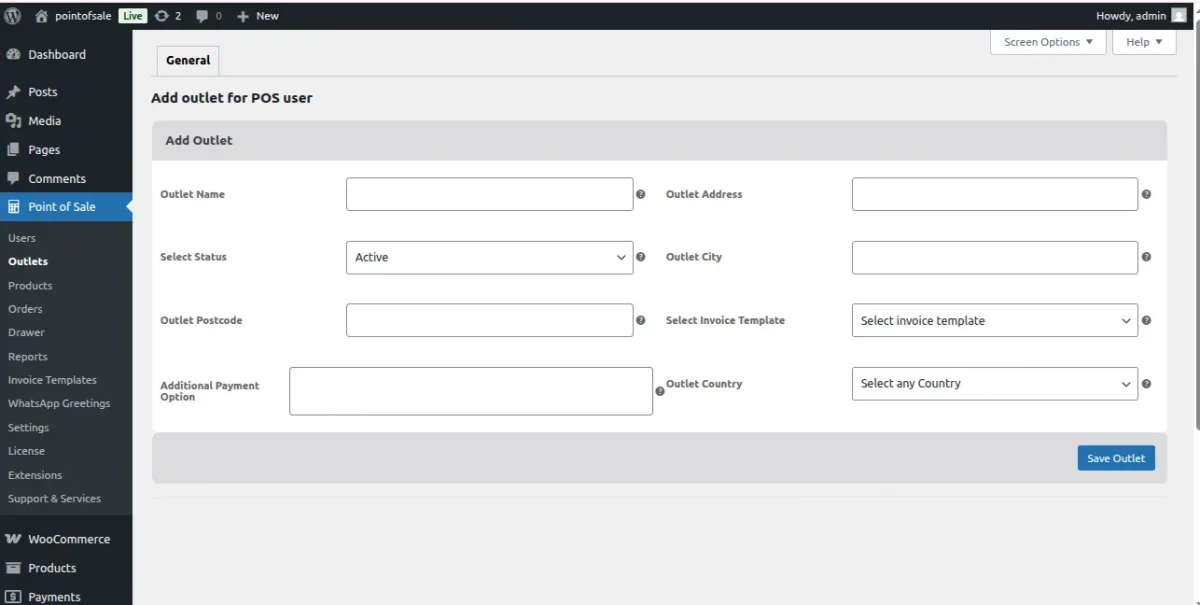
Administrators can efficiently manage physical store locations through the Outlet management system. To begin, navigate to: WooCommerce Point Of Sale > Outlets


Add New Outlet
ManageoutletAndPosUser

  • This action redirects the admin to the Add New Outlet page where outlet details can be configured.

Import Outlets

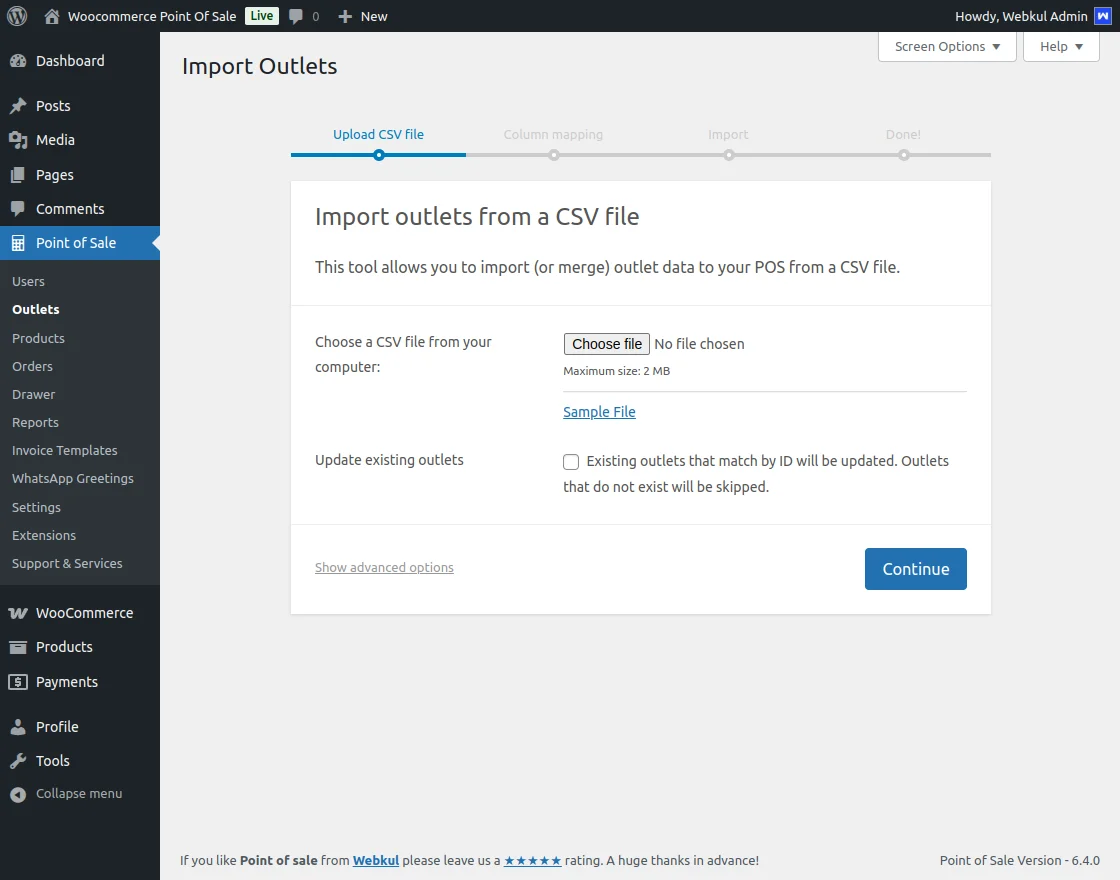
For bulk setup, admins can use the Import Outlets wizard:

  1. Choose Sample File: Select a sample file, such as sample_outlet.csv.
  2. Continue: Click Continue to proceed.

ManageoutletAndPosUser

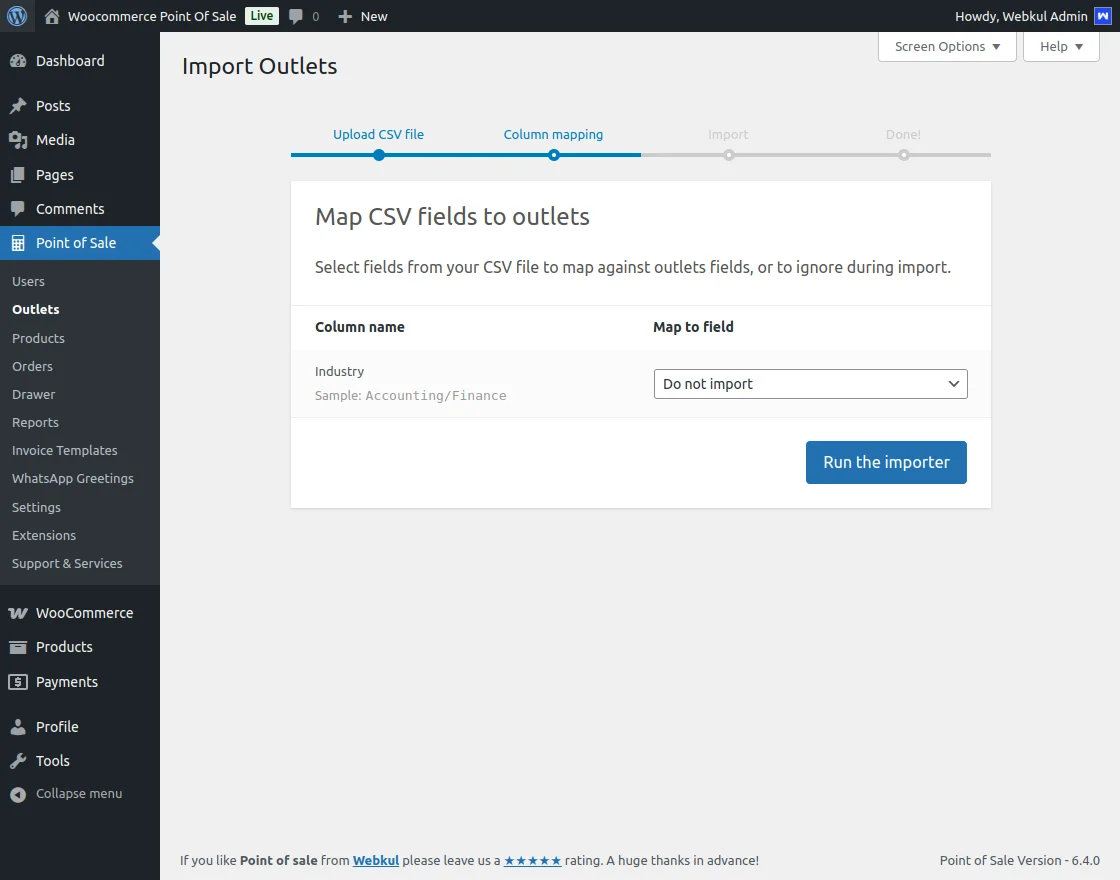
Import Process

ManageoutletAndPosUser

  • Column Mapping: Map CSV fields to appropriate Outlet data fields.
  • Run Import: Click Run the Importer to execute the import process.
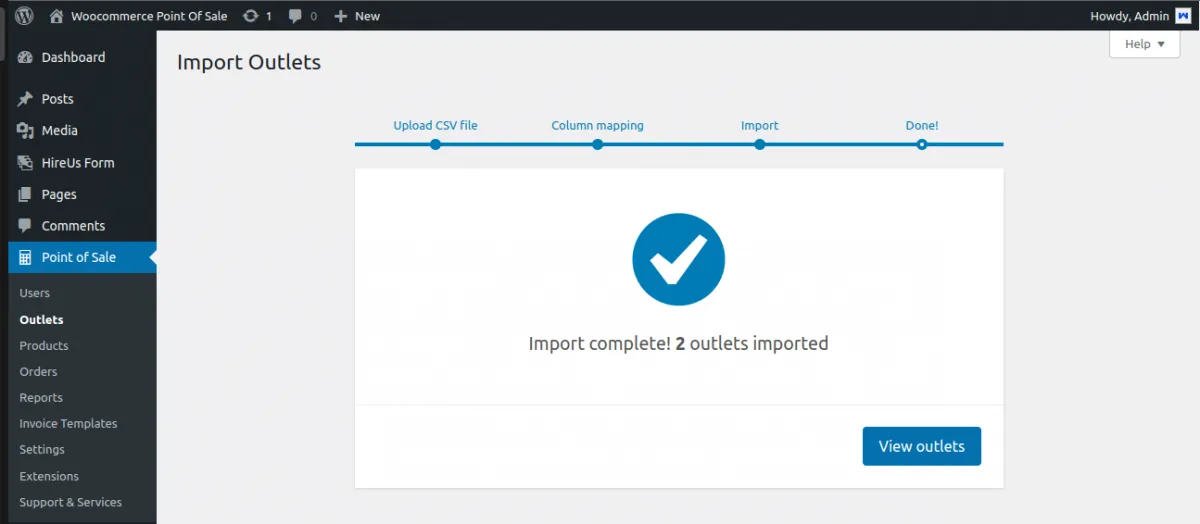
  • Completion: Upon successful import, an "Import Complete" message is displayed.
  • View Outlets: Click View Outlets to see the comprehensive Outlet list.
ManageoutletAndPosUser

Outlet Management Actions

  • POS Login: Redirects to the POS agent login page for that specific outlet.
  • Outlet Report: View detailed reports for each outlet.
  • Bulk Actions: Select multiple outlets to Activate, Deactivate, or Delete them simultaneously.

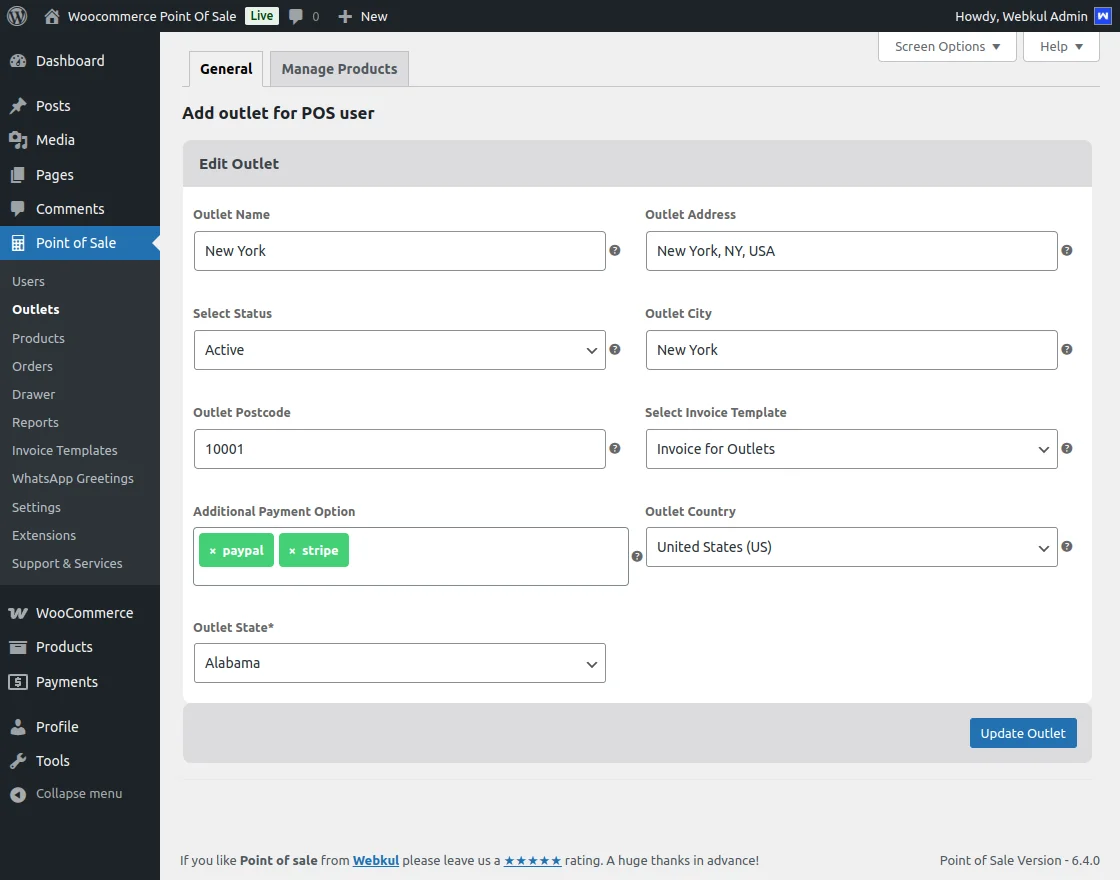
Editing a POS Outlet
ManageoutletAndPosUser

  • Click Edit for the specific outlet on the Outlet List page.
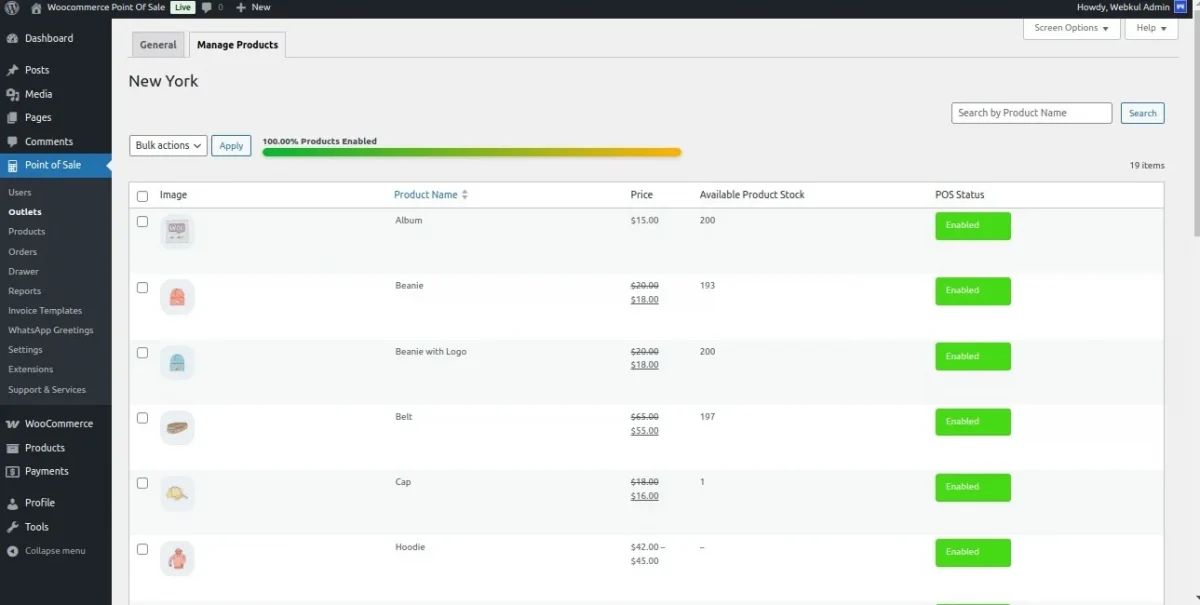
  • Update outlet details and configure Product Assignments.

Product Assignment
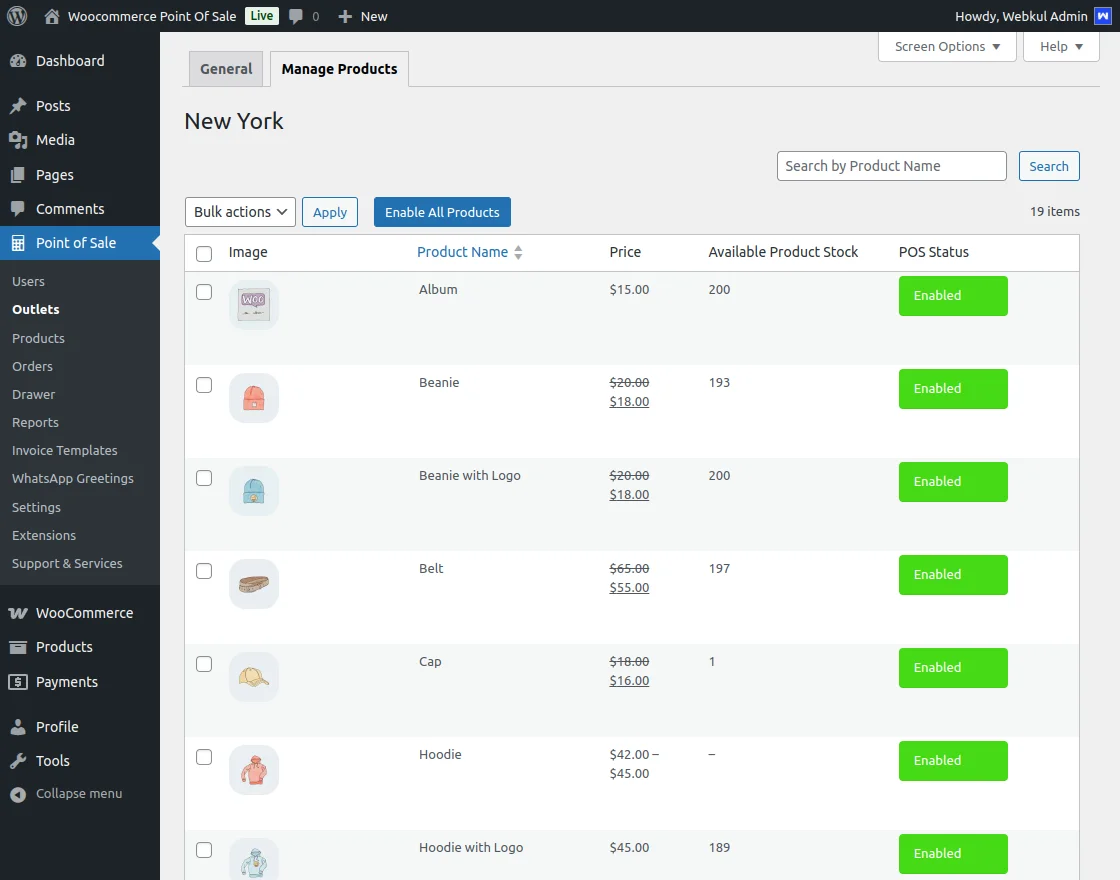
ManageoutletAndPosUser Under the Manage Products tab, administrators can:

  • Enable products for the outlet.
  • Assign POS stock accordingly.
  • Use "Enable All Products" to quickly enable all products for an outlet.

ManageoutletAndPosUser

Add / Manage POS Users

ManageoutletAndPosUser

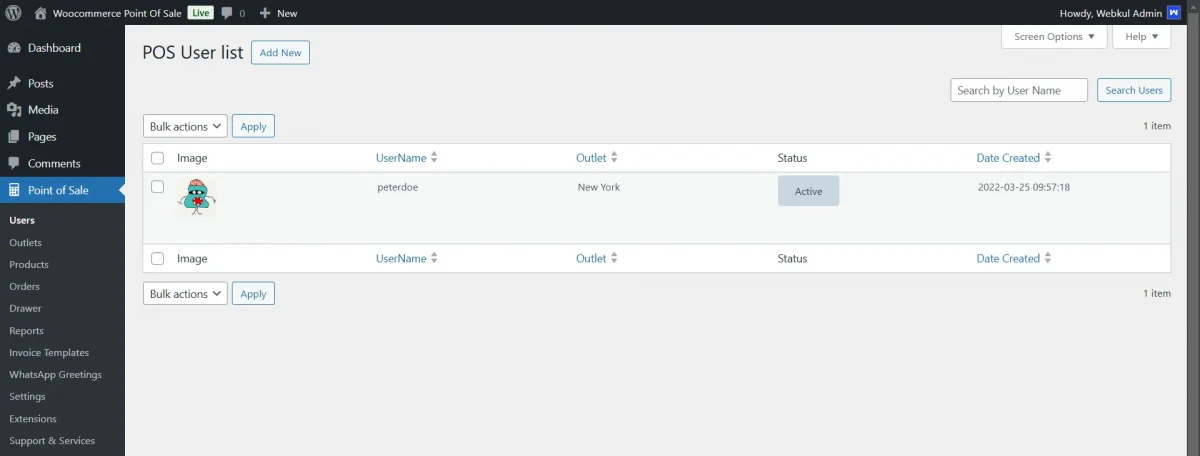
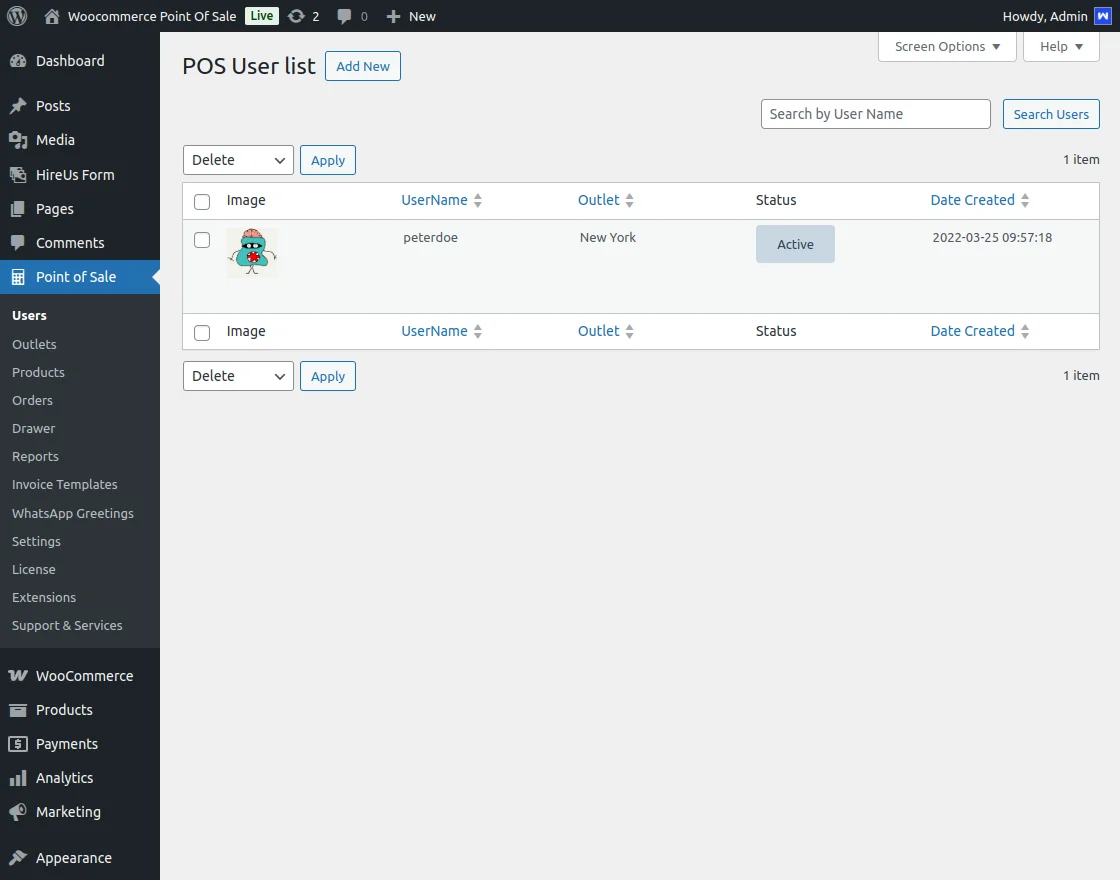
User management is accessible through: Point Of Sale > Users

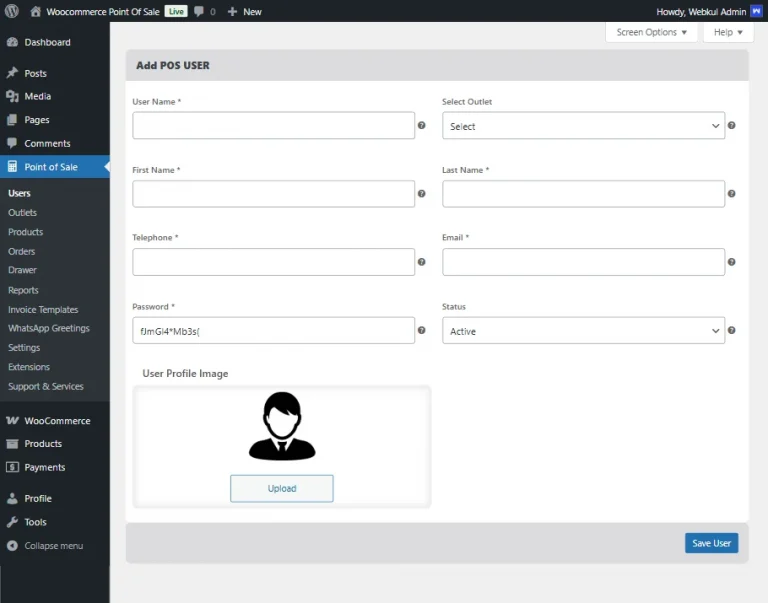
Adding a POS User
ManageoutletAndPosUser

  • Click the "Add New" tab under the Users section.
  • Navigate to Point Of Sale > Users > Add New to create a new POS User.

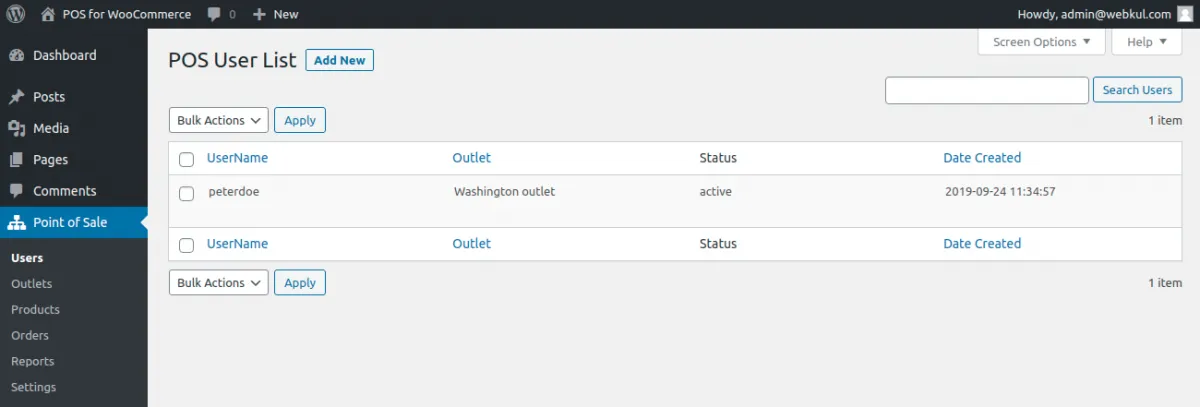
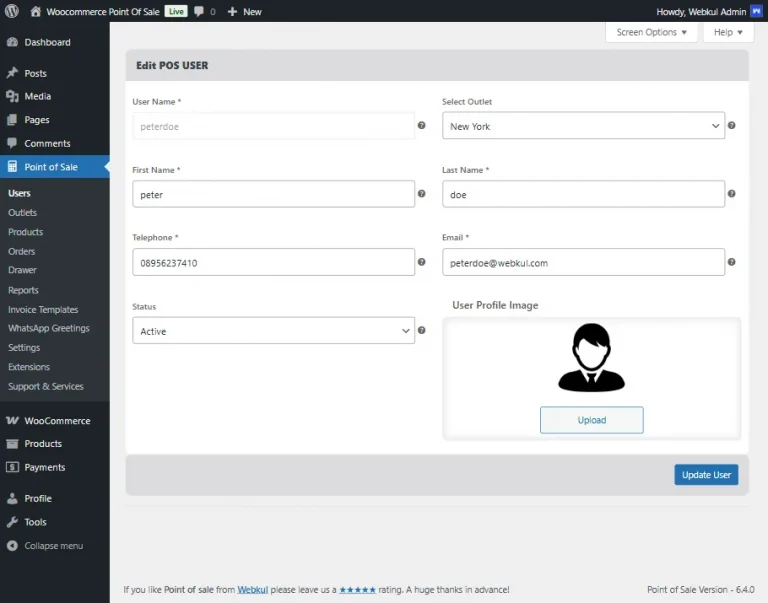
Editing a POS User
ManageoutletAndPosUser

  • Click Users to view the list of POS Users.
  • Click Edit under a username to modify details.
  • Note: Two users can be assigned to the same outlet.
  • Admins can select any user as the default customer for POS.
ManageoutletAndPosUser

Deleting POS Users

ManageoutletAndPosUser

  • Use the bulk action functionality to delete multiple users.

Key Features and Capabilities

Outlet and Agent Management

  • Admin can create multiple store outlets and assign sales agents.
  • Each outlet can have multiple agents assigned.
  • Default user credentials are added in the Setup Wizard.
  • Admin can assign store agents to manage physical stores.

Sales Agent Functionality

  • Sales agents can analyze store reports directly from POS.
  • Monitor sales history, held sales, and offline sales.
  • Search for customers by name or email.

User Features

  • POS users can update their profile image.
  • Admin can set any customer as the default customer for POS.

Login and Navigation
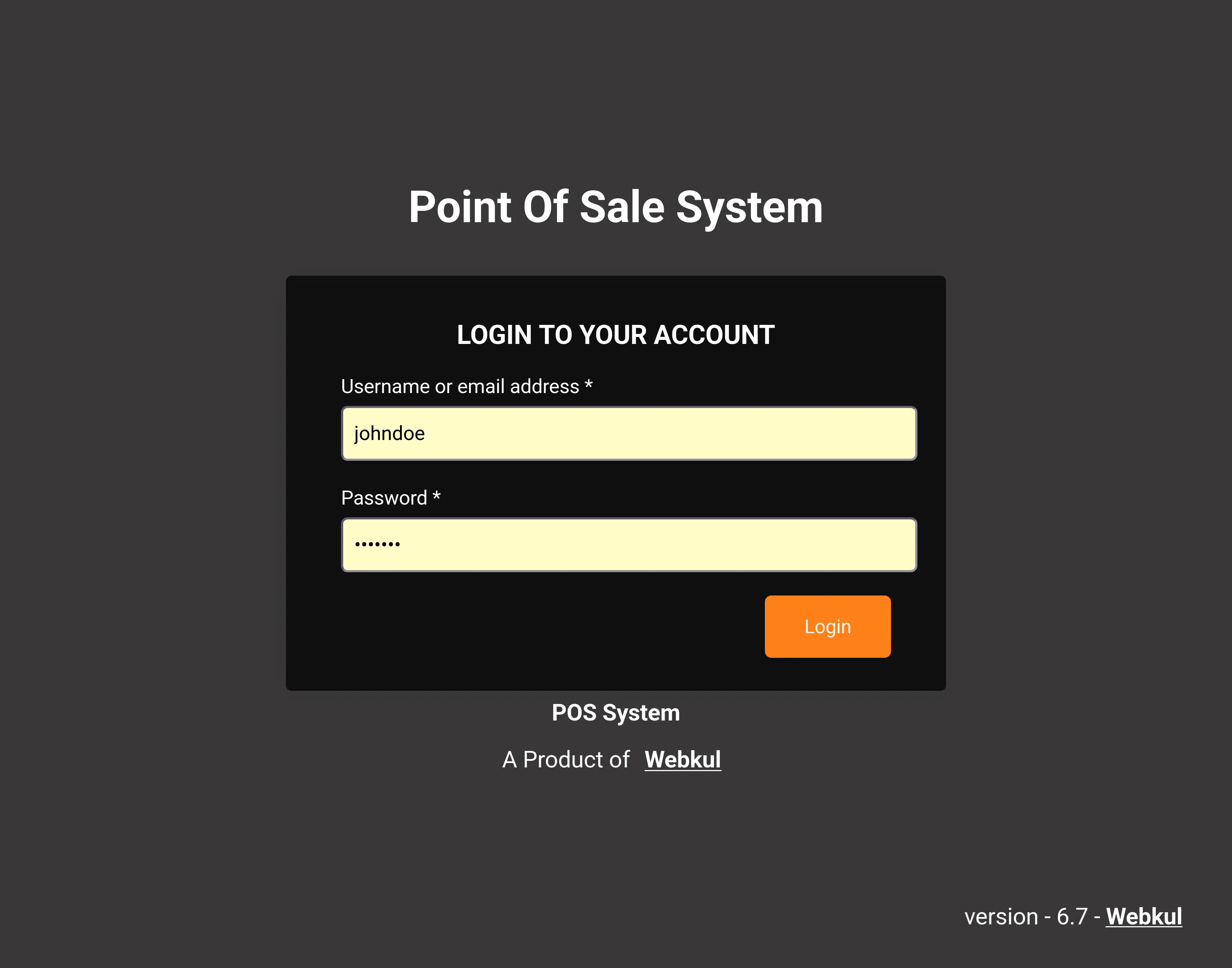
ManageoutletAndPosUser

  • POS agents enter the opening amount for the cash drawer (this popup can be enabled/disabled by admin).
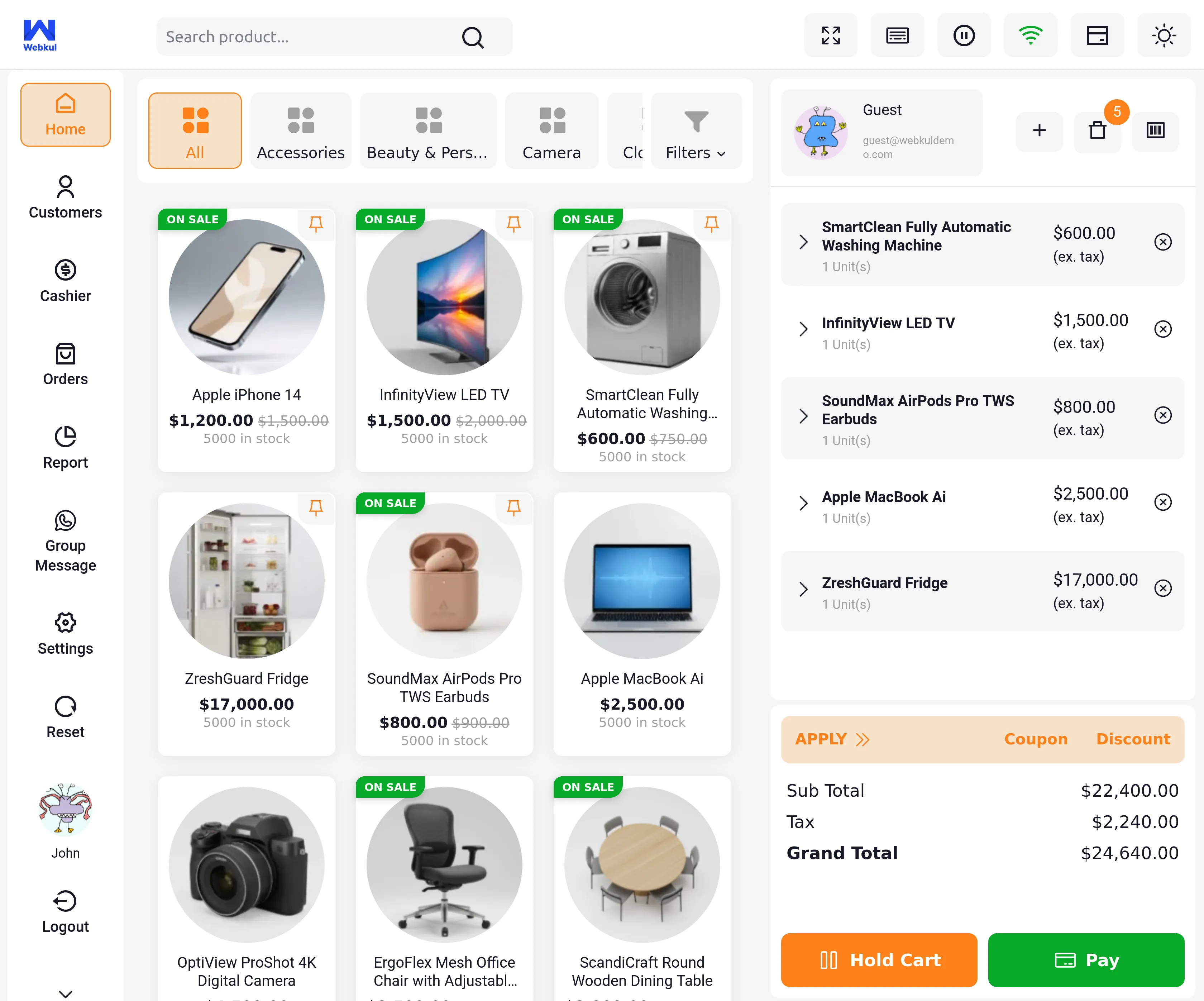
  • Left navigation drawer displays menu options:
    • Home
    • Customer
    • Cashier
    • Orders
    • Report
    • Group Message
    • Settings
    • Reset
    • Logout

ManageoutletAndPosUser


System Functions

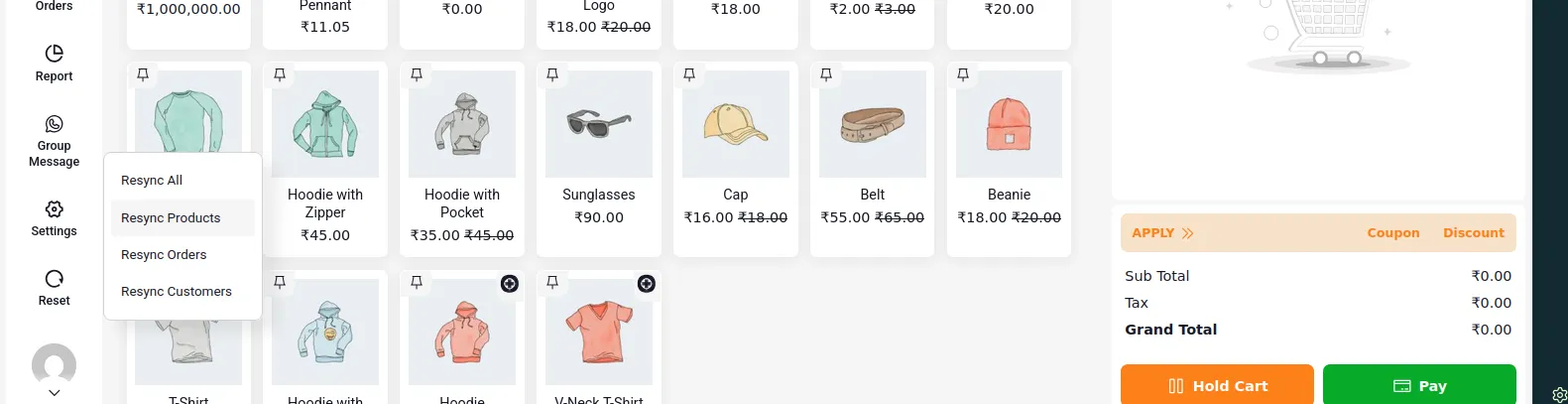
Reset Functionality

The Reset button allows POS users to refresh the POS frontend with the following options:
ManageoutletAndPosUser

  • Resync All: Reset all POS data.
  • Resync Products: Reset products only.
  • Resync Orders: Reset orders only.
  • Resync Customers: Reset customers only.
Prev
Admin Configuration
Next
WooCommerce Point of Sale – Products & Inventory Management