WooCommerce POS DocumentationWooCommerce POS Documentation
Buy Now
View Demo
  • Getting Started

    • Point Of Sale
    • Overview
    • Features
    • Installation
  • Setup & Configuration

    • Admin Configuration
    • Outlets & Users
    • Dynamic Theme
    • Notification Tones
    • Variation Layouts
  • Store Operations

    • Products & Inventory
    • Stock Visibility
    • Orders & Drawers
    • Z-Report
    • Cash Management
    • Hold Cart
    • Custom Products
  • Advanced & Hardware

    • Hardware Support
    • Cash Drawer
    • Payment Terminal
    • Payment Integration
    • WhatsApp Notification
    • Multisite Compatibility
    • Reports & Analytics
    • POS Agent Guide
    • Desktop & Mobile
    • FAQ & Notes
  • Core POS System

    • WooCommerce POS Outlet Manager
    • WooCommerce POS Warehouse Management
  • Mobile Apps

    • WooCommerce Flutter Native POS Mobile App
  • Printer Integrations

    • WooCommerce POS Cloud Printer
  • Payment Terminal Integrations

    • WooCommerce Stripe POS Terminal Connector
    • WooCommerce POS Square Payment Terminal Plugin
    • WooCommerce POS PayPal Terminal Reader
    • WooCommerce POS Linkly Terminal Connector
    • WooCommerce POS Stripe Reader M2 Integration
  • Order & Transaction Management

    • POS Order Return & Exchange for WooCommerce
    • WooCommerce POS Partial Payment Plugin
    • POS Booking Reservation Plugin for WooCommerce
    • WooCommerce POS Multicurrency
  • Customer & Loyalty Features

    • WooCommerce & POS Loyalty Management
    • WooCommerce POS Gift Card Plugin
    • WooCommerce POS Happy Hours
    • WooCommerce POS Complimentary Goods
  • Hardware & Barcode Solutions

    • WooCommerce POS Configurable Barcode
    • WooCommerce POS Barcode RFGun
    • WooCommerce POS RFID Card Add-on
    • WooCommerce POS Cloud Printer Add-on
  • Customer Interface & Kiosk

    • WooCommerce POS Customer Kiosk Checkout
    • WooCommerce POS Customer Cart Screen
    • WooCommerce POS QR Code Ordering System
  • Industry-Specific Solutions

    • WooCommerce Restaurant Kitchen POS
    • Delivery Management Addon for WooCommerce POS
  • Advanced Features

    • POS AI Reporting for WooCommerce
Buy Now
View Demo
  • Getting Started

    • Point Of Sale
    • Overview
    • Features
    • Installation
  • Setup & Configuration

    • Admin Configuration
    • Outlets & Users
    • Dynamic Theme
    • Notification Tones
    • Variation Layouts
  • Store Operations

    • Products & Inventory
    • Stock Visibility
    • Orders & Drawers
    • Z-Report
    • Cash Management
    • Hold Cart
    • Custom Products
  • Advanced & Hardware

    • Hardware Support
    • Cash Drawer
    • Payment Terminal
    • Payment Integration
    • WhatsApp Notification
    • Multisite Compatibility
    • Reports & Analytics
    • POS Agent Guide
    • Desktop & Mobile
    • FAQ & Notes
  • Core POS System

    • WooCommerce POS Outlet Manager
    • WooCommerce POS Warehouse Management
  • Mobile Apps

    • WooCommerce Flutter Native POS Mobile App
  • Printer Integrations

    • WooCommerce POS Cloud Printer
  • Payment Terminal Integrations

    • WooCommerce Stripe POS Terminal Connector
    • WooCommerce POS Square Payment Terminal Plugin
    • WooCommerce POS PayPal Terminal Reader
    • WooCommerce POS Linkly Terminal Connector
    • WooCommerce POS Stripe Reader M2 Integration
  • Order & Transaction Management

    • POS Order Return & Exchange for WooCommerce
    • WooCommerce POS Partial Payment Plugin
    • POS Booking Reservation Plugin for WooCommerce
    • WooCommerce POS Multicurrency
  • Customer & Loyalty Features

    • WooCommerce & POS Loyalty Management
    • WooCommerce POS Gift Card Plugin
    • WooCommerce POS Happy Hours
    • WooCommerce POS Complimentary Goods
  • Hardware & Barcode Solutions

    • WooCommerce POS Configurable Barcode
    • WooCommerce POS Barcode RFGun
    • WooCommerce POS RFID Card Add-on
    • WooCommerce POS Cloud Printer Add-on
  • Customer Interface & Kiosk

    • WooCommerce POS Customer Kiosk Checkout
    • WooCommerce POS Customer Cart Screen
    • WooCommerce POS QR Code Ordering System
  • Industry-Specific Solutions

    • WooCommerce Restaurant Kitchen POS
    • Delivery Management Addon for WooCommerce POS
  • Advanced Features

    • POS AI Reporting for WooCommerce
  • Getting Started

    • WooCommerce Point of Sale (POS)
    • Overview
    • Features
    • Installation
  • Setup & Configuration

    • Admin Configuration
    • Outlets & POS Users
    • Dynamic Theme in WooCommerce Point of Sale
    • Notification Tones
    • Variation Card Layouts
  • Store Operations

    • WooCommerce Point of Sale – Products & Inventory Management
    • Stock Visibility Controls
    • Orders & Cash Drawer
    • WooCommerce POS - Cashier Management
    • WooCommerce POS - Hold Cart
    • Z-Report Generation & Printing
    • WooCommerce POS - Custom Product
  • Hardware Integrations

    • WooCommerce POS - Hardware Support
    • WooCommerce POS – Cash Drawer & Cashier Management
    • WooCommerce POS – Payment Methods & Checkout Configuration
    • WooCommerce POS – Payment Terminal Integration
  • Advanced Features

    • WhatsApp Notifications in WooCommerce Point of Sale
    • WooCommerce POS - Multisite Compatibility
    • Reports & Analytics
    • POS Agent Guide
    • Desktop & Mobile POS
  • Help & FAQ

    • FAQ & Notes

Variation Card Layouts

Introduction

Many products in WooCommerce feature multiple options like sizes, colors, and materials. Managing these variations quickly at the checkout counter is essential for efficient order entry.

WooCommerce Point of Sale (POS) includes a customizable Variation Selection Layout system. This allows store managers and cashiers to choose how product variations are displayed inside the selection pane, matching the layout structure to the specific type of inventory.

This page explains how to configure variation views in the admin backend and details each layout mode.


Layout Configurations

Section 1: Variation View Configuration

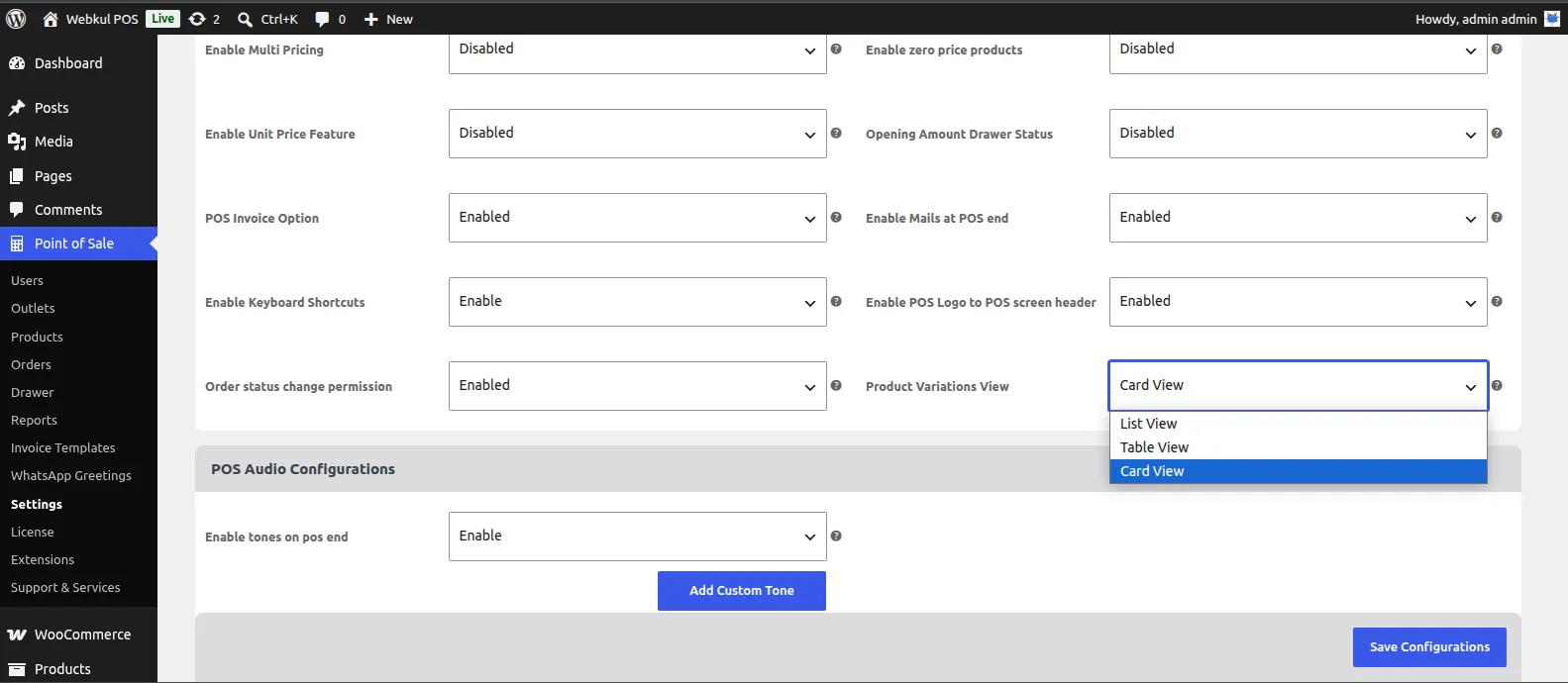
Store administrators can configure the default presentation style for variable products globally. To set the default layout:

  1. Log in to the WordPress Admin Panel.
  2. Navigate to Point of Sale > Settings > Products.
  3. Locate the Product Variation View option.
  4. Select your preferred default display mode: Card View, Table View, or List View.
  5. Save the configuration changes.

Variation View Configuration


Section 2: Card View

The Card View displays variations as a visual grid of thumbnail tiles. When a cashier clicks on a variable product, they are presented with large visual cards containing images and attribute labels.

  • Visual Selection Experience: This mode is highly interactive and visually descriptive, making it easy to identify options by color, pattern, or aesthetic design.
  • Ideal for: Apparel, footwear, accessories, and products where physical appearance is the primary differentiator.
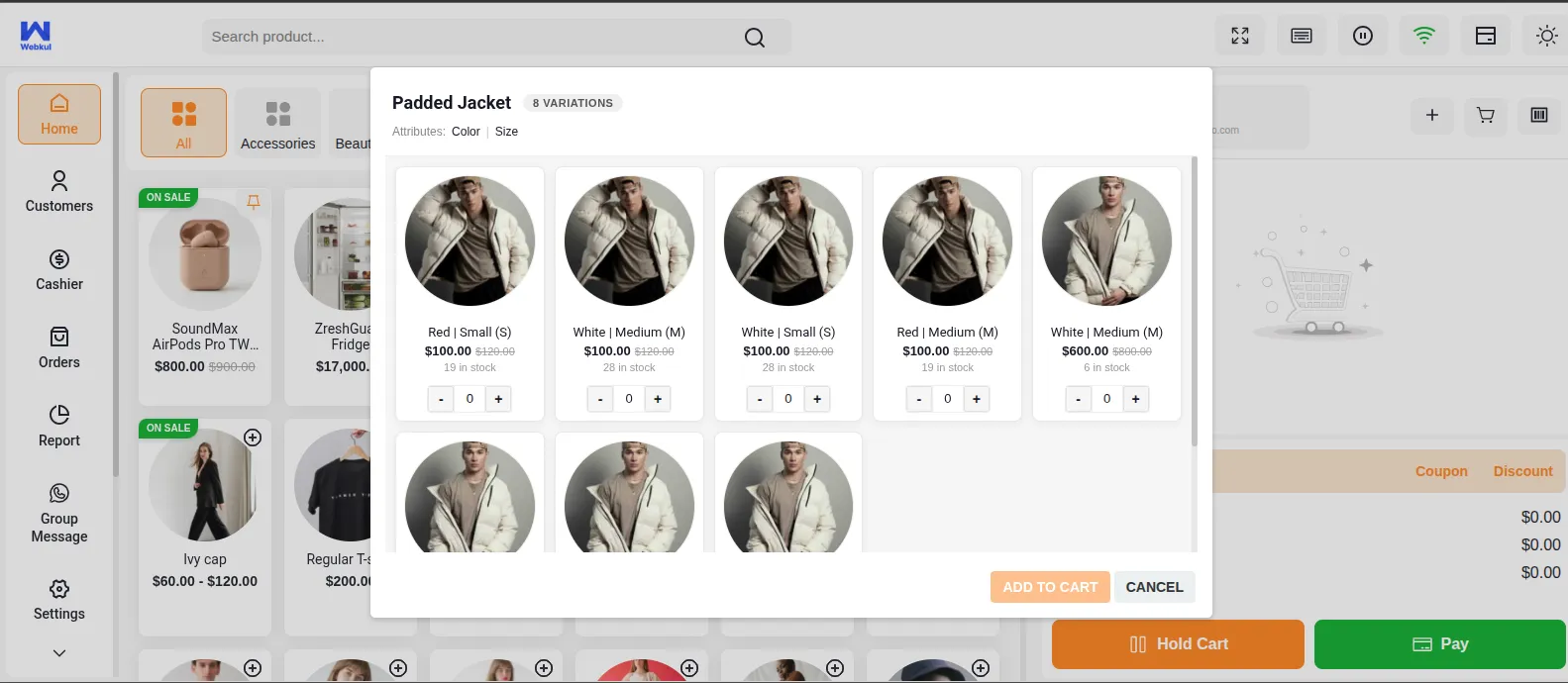
Card View Layout


Section 3: Table View

The Table View presents variations in a structured database-style grid with multiple columns. Cashiers can view detailed attributes, SKUs, exact pricing, and live stock counts side-by-side.

  • Detailed Comparison Layout: Cashiers get full data density on a single screen, allowing them to compare quantities and prices at a glance.
  • Ideal for: Wholesalers, industrial parts, building materials, and high-volume counters where cashiers need quick access to technical details and stock numbers.
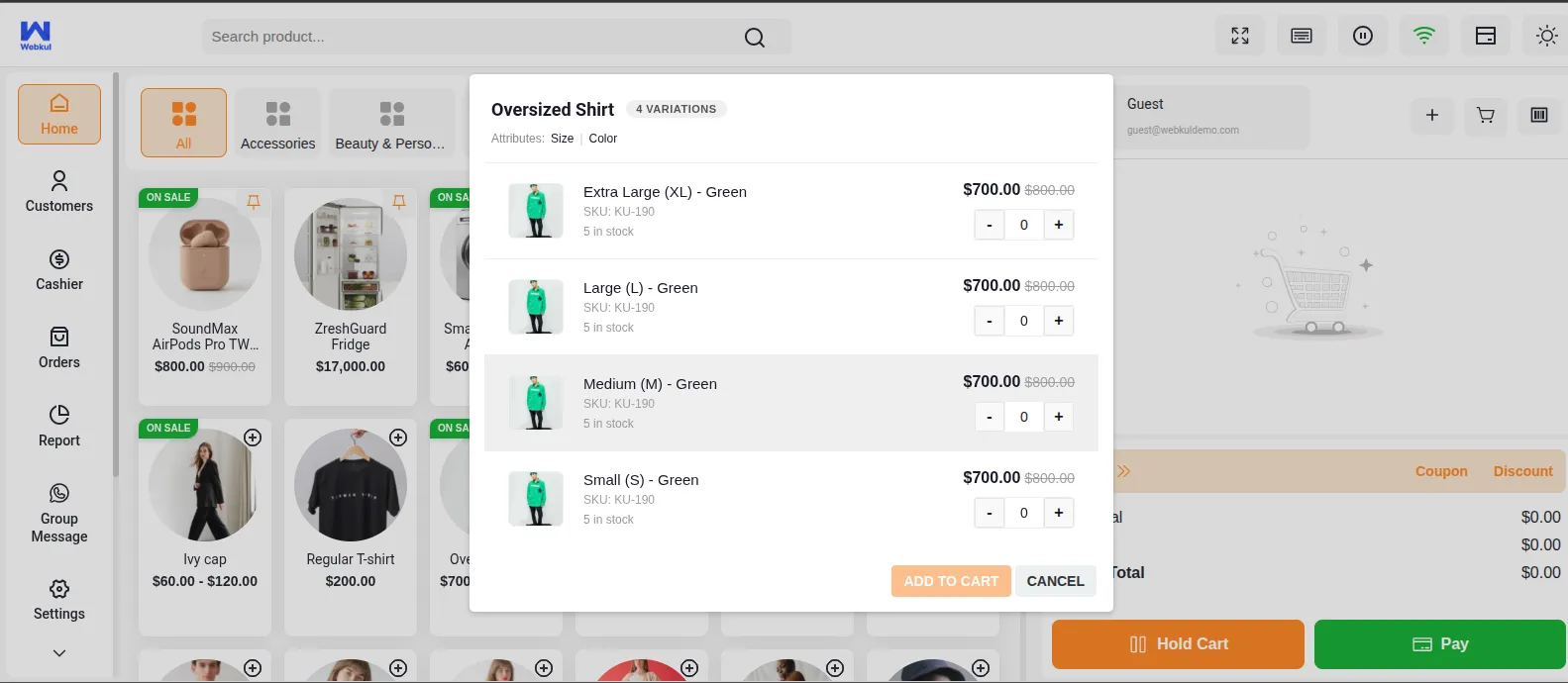
Table View Layout


Section 4: List View

The List View displays variations in a clean, vertical stack of simple text rows. Each row shows the variation attribute and a clear selection button.

  • Compact Selection: Reduces visual clutter and helps cashiers navigate through simple choice lists without thumbnail distractions or wide column tables.
  • Ideal for: Electronics (e.g., storage capacity or RAM options), software licenses, and basic sizes where simple text labels are sufficient.
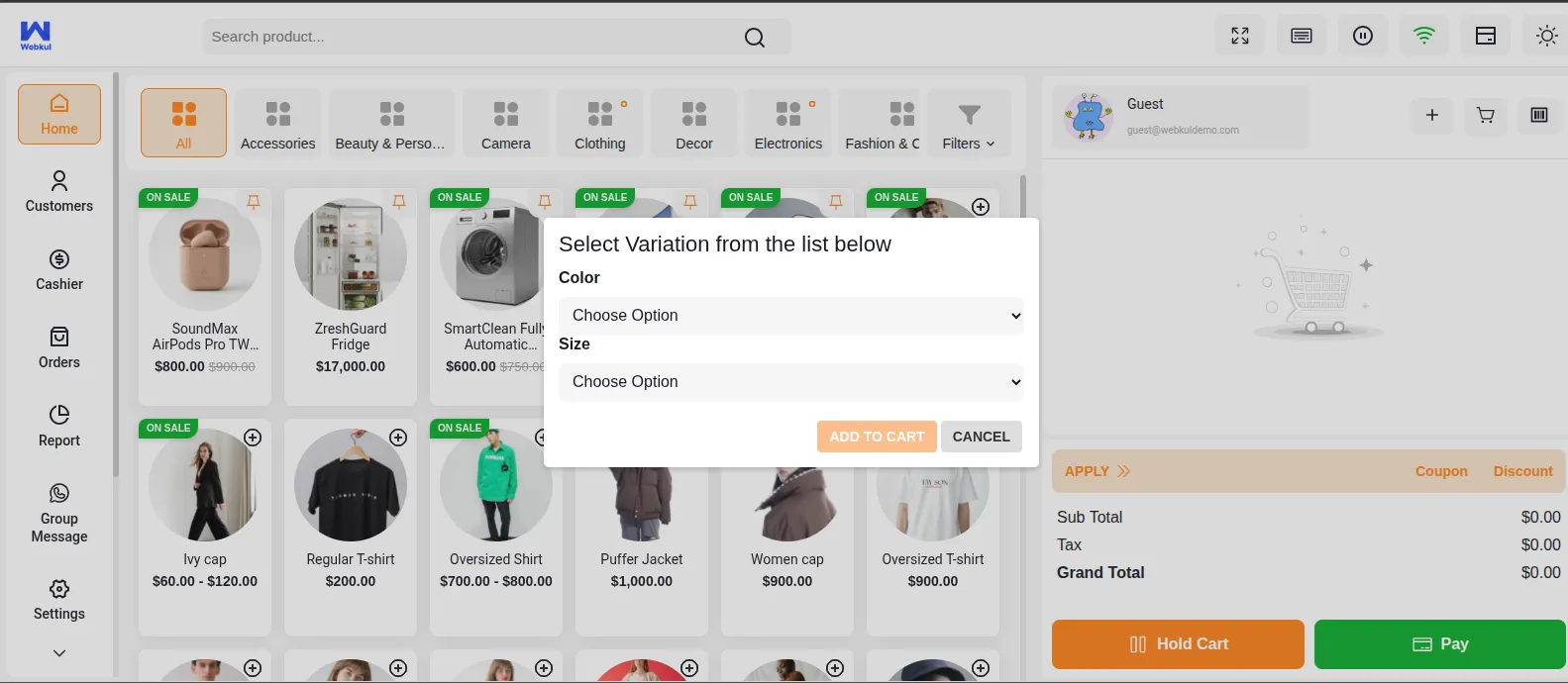
List View Layout


Variation Layouts Comparison

The table below contrasts the features and best fits for each layout option:

Layout ModeBest Use CaseAdvantagesUser Experience
Card ViewRetail outlets selling clothing, fashion items, and visual goods.Image-focused, lets cashiers match visual items instantly.Visual, engaging, and easy to select on touch screens.
Table ViewWholesalers, spare parts dealers, and technical inventory.High data density, displays SKUs, prices, and stock numbers.Structured, detail-heavy, perfect for product comparisons.
List ViewSimple variations like sizes (S/M/L) or capacities (64GB/128GB).Fast vertical scrolling, no visual distraction.Compact, text-focused, optimized for rapid clicking.

Related Features

  • Product & Catalog Management — Set up variations and bulk assign tags in WooCommerce.
  • Dynamic Interface Theme — Align variation layouts with dark mode and active display templates.
Prev
Notification Tones