
WooCommerce POS - Cashier Management
Cashier Tab Overview
Under the "Cashier" tab, the POS agent manages key functionalities including "Close Counter", "Today Cash", and "Sale History".
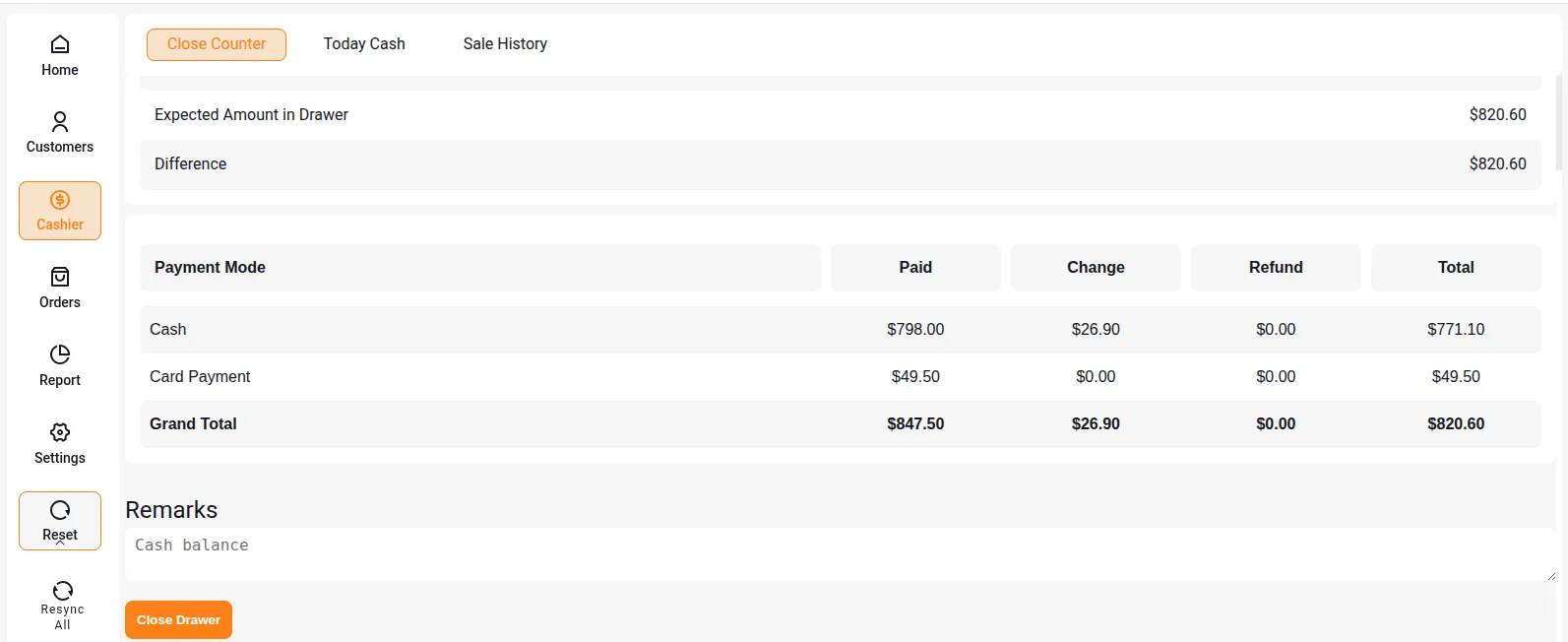
Close Counter
Drawer Amount Details
Displays comprehensive closing information:
- Opening amount (e.g., $1000.00)
- Today's sales total
- Expected amount in the Drawer (e.g., $1519.00)
Counted Drawer Amount
- Display the cash amount collected for the day
- Remarks section for additional notes
- The counted drawer amount is the actual cash collected for a particular day
Closing Drawer Details
- Displays the closing balance details for a particular day
- Shows the difference between the opening and closing amount
- Calculates discrepancies automatically
Today Cash
Current Day Tracking
Displays real-time cash tracking information:
- Cash opening balance (e.g., $1000)
- Current cash balance (e.g., $487.00)
- Current card balance (e.g., $32.00)
Transaction Details
The following information is visible to the POS agent:
- Order ID
- Time of transaction
- Orders placed
- Payment mode used
Sale History
Historical Data View
The POS agent can view the sale history under the Sale History option.
Available Information:
- Cash sale totals for a particular date
- Card sale totals
- Total sales (combined cash and card sales)
Important Note: Data will be visible in this section only when the cash drawer is closed in the "Close Counter" section.
Discount & Coupon Management
Applying Coupons
Coupon Application Process
The WooCommerce POS user can apply a coupon to selected orders if there is a coupon available.
Steps:
- Click on the Apply Coupon button
- Enter the coupon code
- Hit enter to apply
Coupon Confirmation
After successful application:
- User receives a pop-up message "Coupon applied successfully"
- Coupon is visible in the cart under the "coupon" option
- Discount is reflected in the order total
Coupon Limitation
POS does not support Discount Type Coupon - Fixed Product Discount.
Discount Options
Apply Discount to Sale
Discount may be applicable to cart items in two ways:
1. Percentage-wise Discount:
- Select the "%" option on the "Apply discount to sale" tab
- System calculates discount on a percentage basis
- Applies to cart products automatically
2. Flat Discount:
- Enter fixed amount discount
- Applied directly to cart total
Discount Display
The "Grand Total" displays the discounted amount for the products after discount application.
Inline Price Edit
Price Adjustment Feature
In the POS cart, if the POS agent has added items and wants to reduce the price, they can easily edit the price of the product directly.
Features:
- Edit individual product prices in cart
- Discount prices visible on order page
- Discount reflected on invoice
Customer-Based Discount
Creating Customer Group Discounts
Adding customer-based discounts helps enhance store sales by attracting customers. The admin can enter different prices for different customer groups.
Backend Configuration:
- Admin creates coupons for POS products based on different groups
- Add customer email addresses to specific groups
- Configure group-specific discount rules
POS Application: When the POS user chooses a particular customer group, the discount coupon will be automatically applied to that particular order.