
WooCommerce Point of Sale – Products & Inventory Management
Managing products and inventory efficiently is essential for any retail business. WooCommerce Point of Sale (POS) offers a robust and flexible system that allows store owners and administrators to manage products, generate barcodes, and maintain accurate stock levels across stores and outlets—all from a centralized interface.
This article provides a detailed overview of Products and Inventory Management in WooCommerce POS, including barcode generation, master stock handling, and other advanced product features.
Point of Sale Products
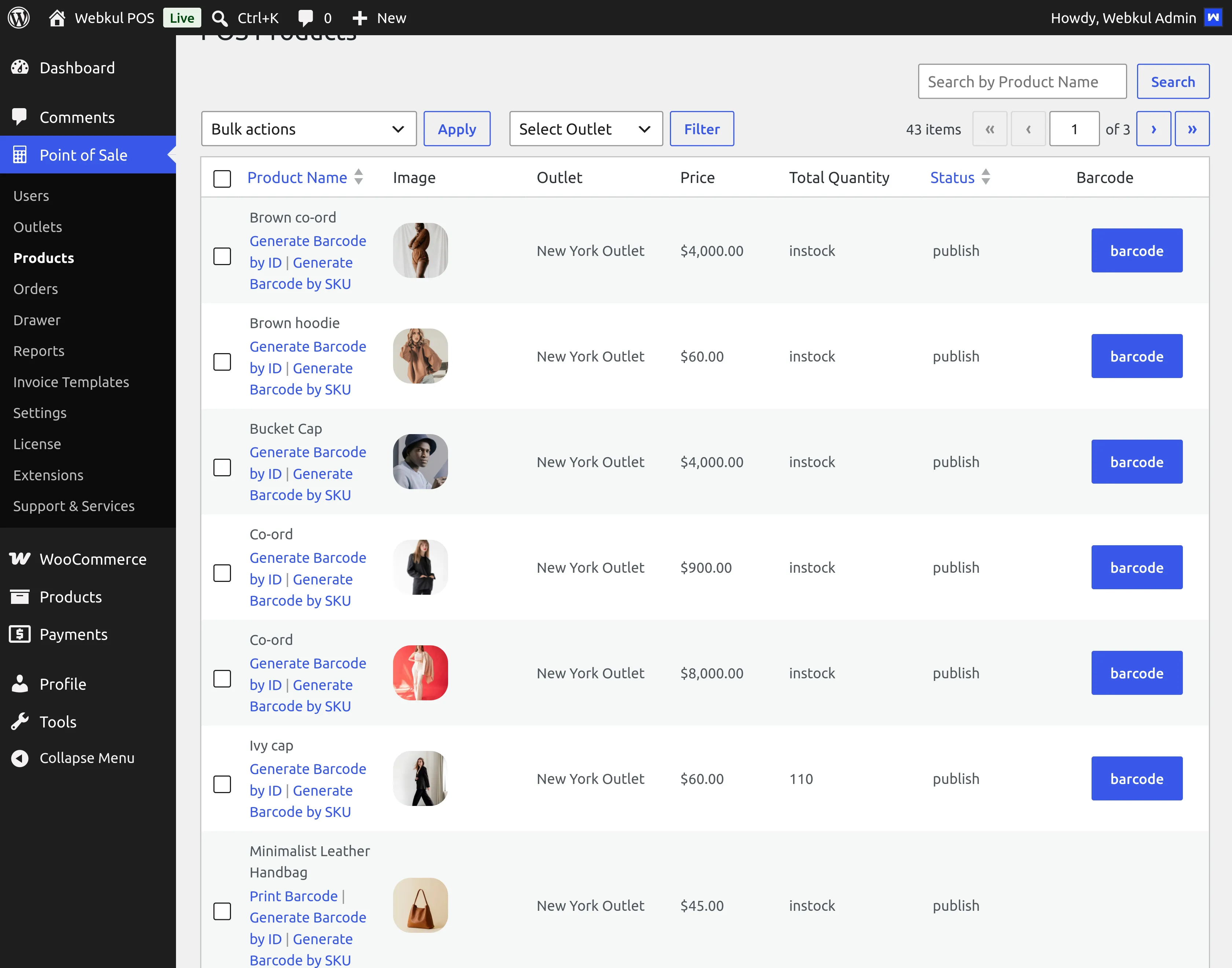
Under the Products menu in WooCommerce POS, administrators can view and manage all store products. This section allows easy access to product data and enables barcode generation, which POS users can later scan during checkout.
Navigation Path:WooCommerce Point of Sale → Products
From here, the admin can generate and print barcodes for products, making in-store checkout faster and more accurate.
Barcode Generation for Products
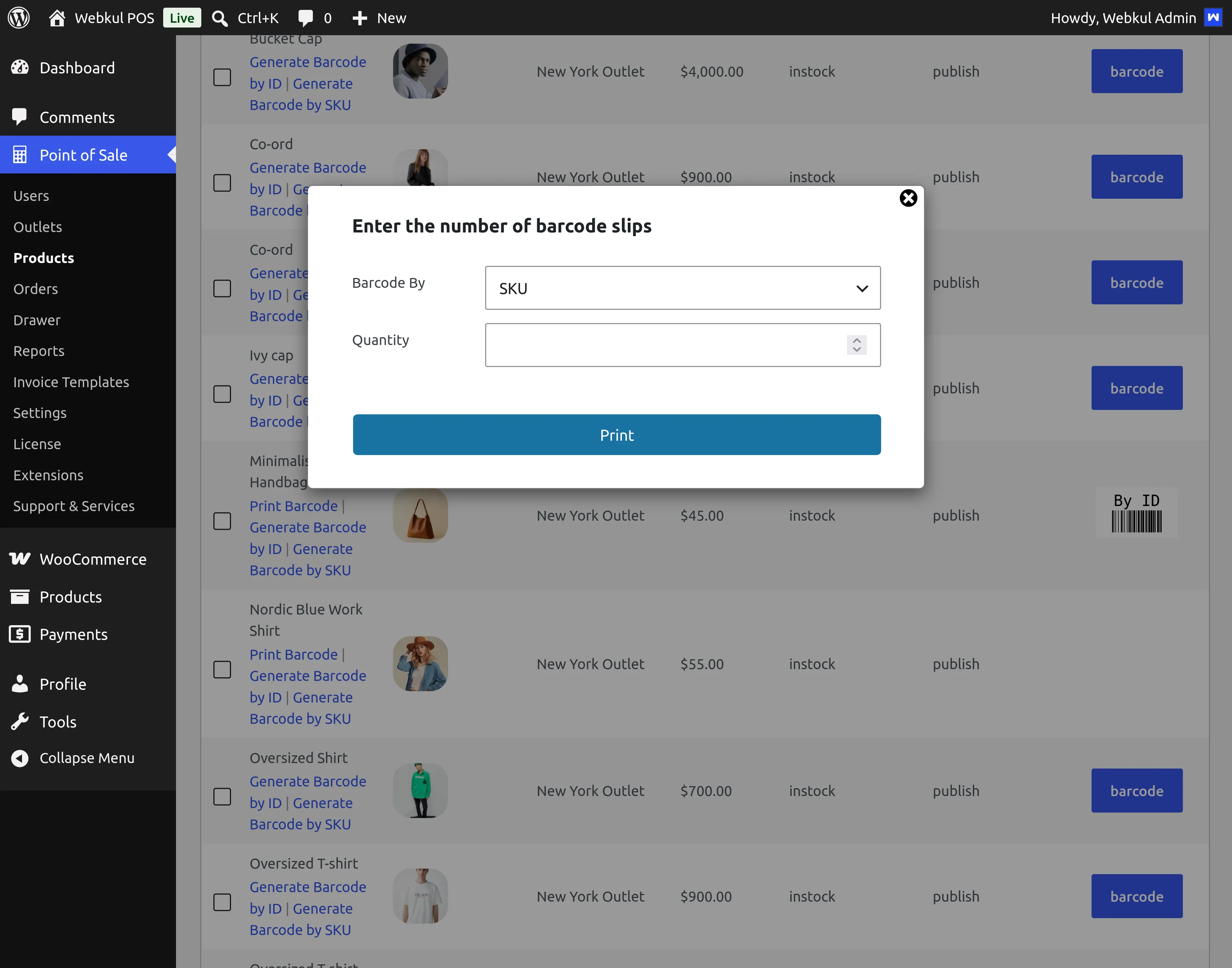
WooCommerce POS allows barcode generation for products based on either Product ID or SKU.
How Barcode Generation Works
- Select one or more products from the product list.
- Choose a barcode generation method from the dropdown:
- Generate Barcode by Product ID
- Generate Barcode by SKU
- Click the Print Barcode button.
- Enter the quantity of barcodes to print.
Key Notes
- Barcodes can be generated using Product ID or SKU.
- POS users can add products to the cart simply by scanning the barcode.
- Printed barcodes can be attached to physical products for quick identification and checkout.
This functionality significantly reduces manual product searches and improves checkout efficiency.
Barcode Generation for Variable Products
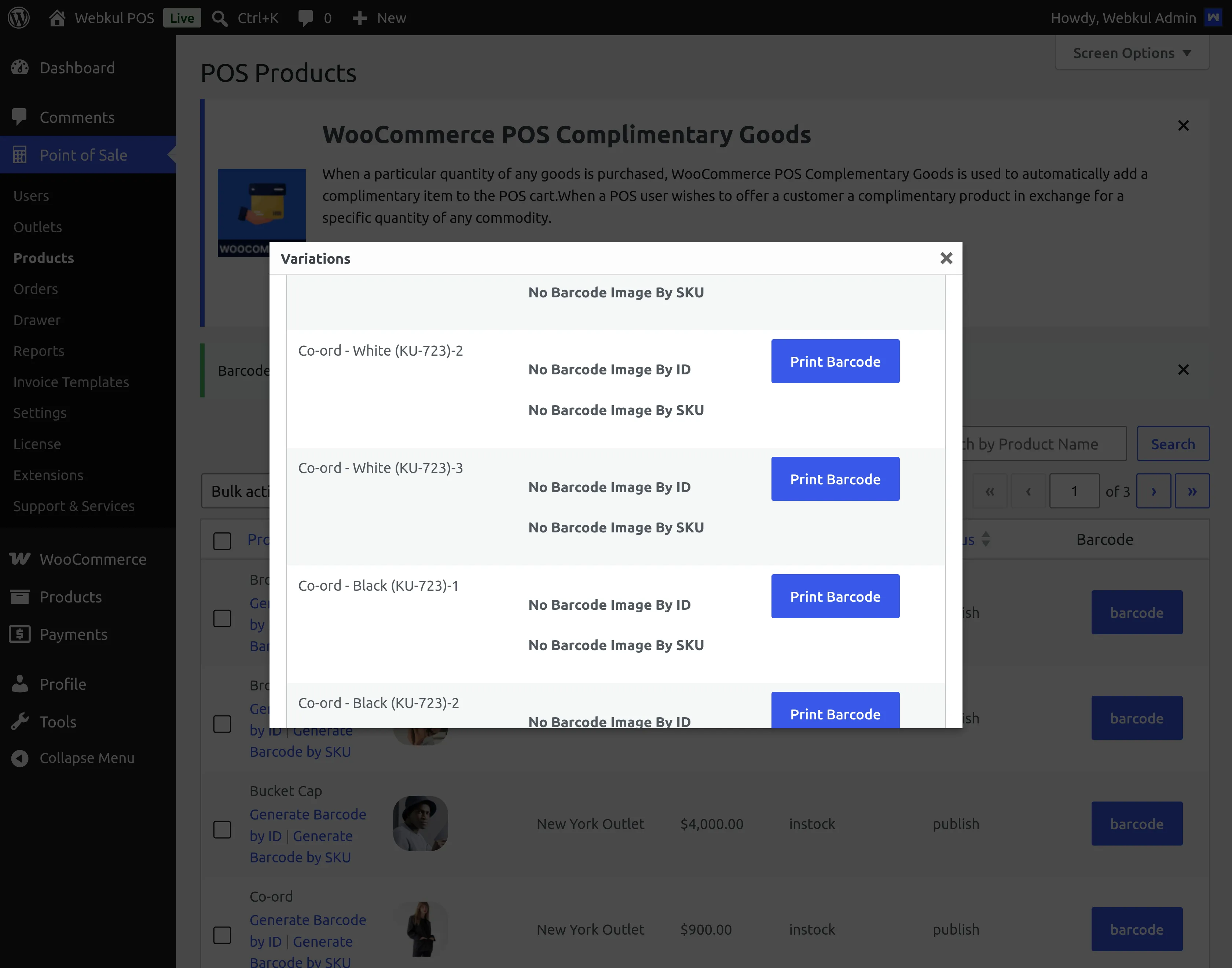
For variable products, WooCommerce POS provides barcode generation at the variation level.
Steps to Generate Barcodes for Variable Products
- Click the Barcode button on the variable product.
- View all available variations.
- Select a variation.
- Choose:
- Generate Barcode by ID, or
- Generate Barcode by SKU
- Generate and print barcodes for each variation as required.
Each variation has its own unique barcode, ensuring accurate identification and inventory tracking at the POS.
Master Stock Management
Master Stock Management allows administrators to control inventory centrally while distributing stock across stores and POS outlets.
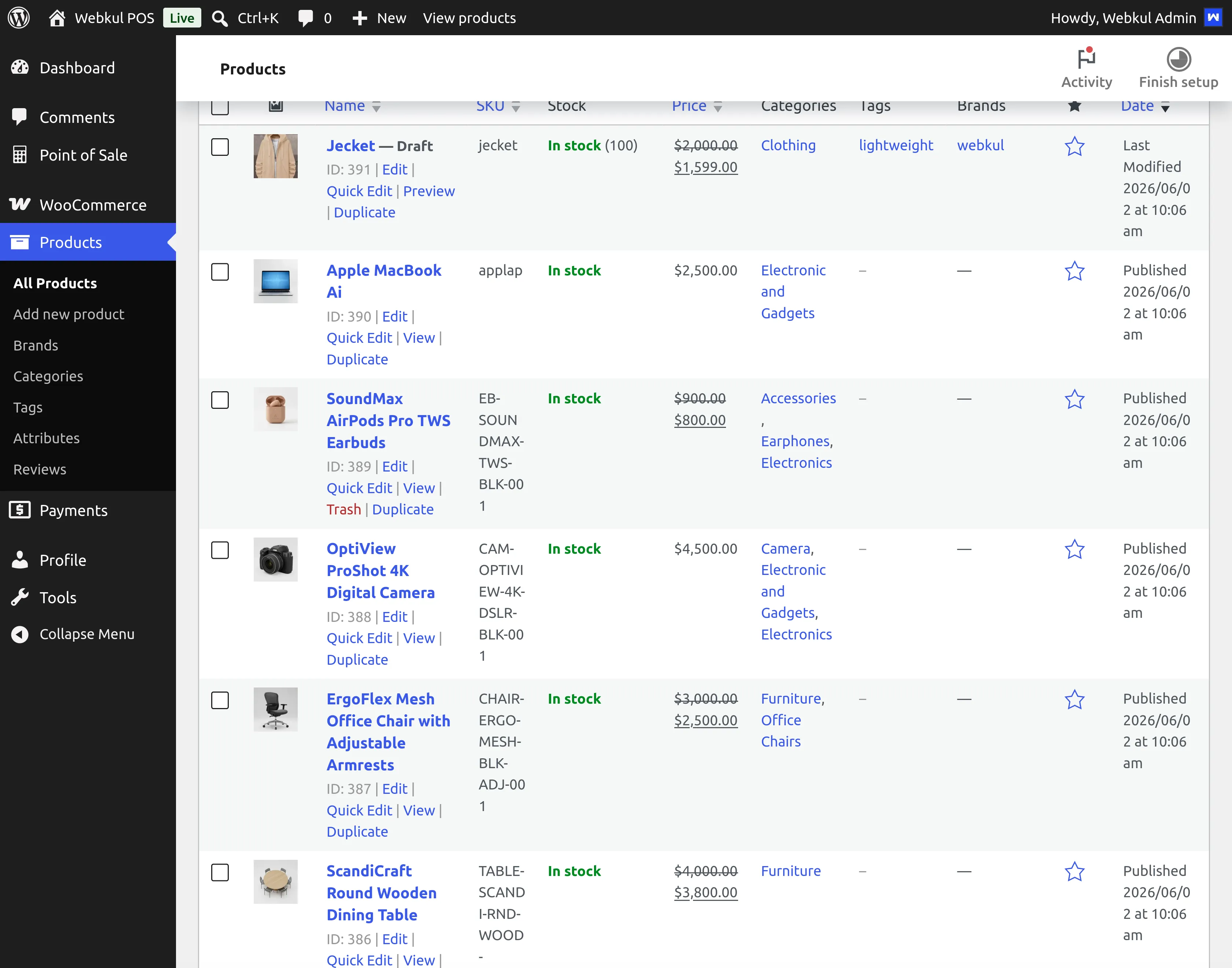
Master Stock for Simple Products
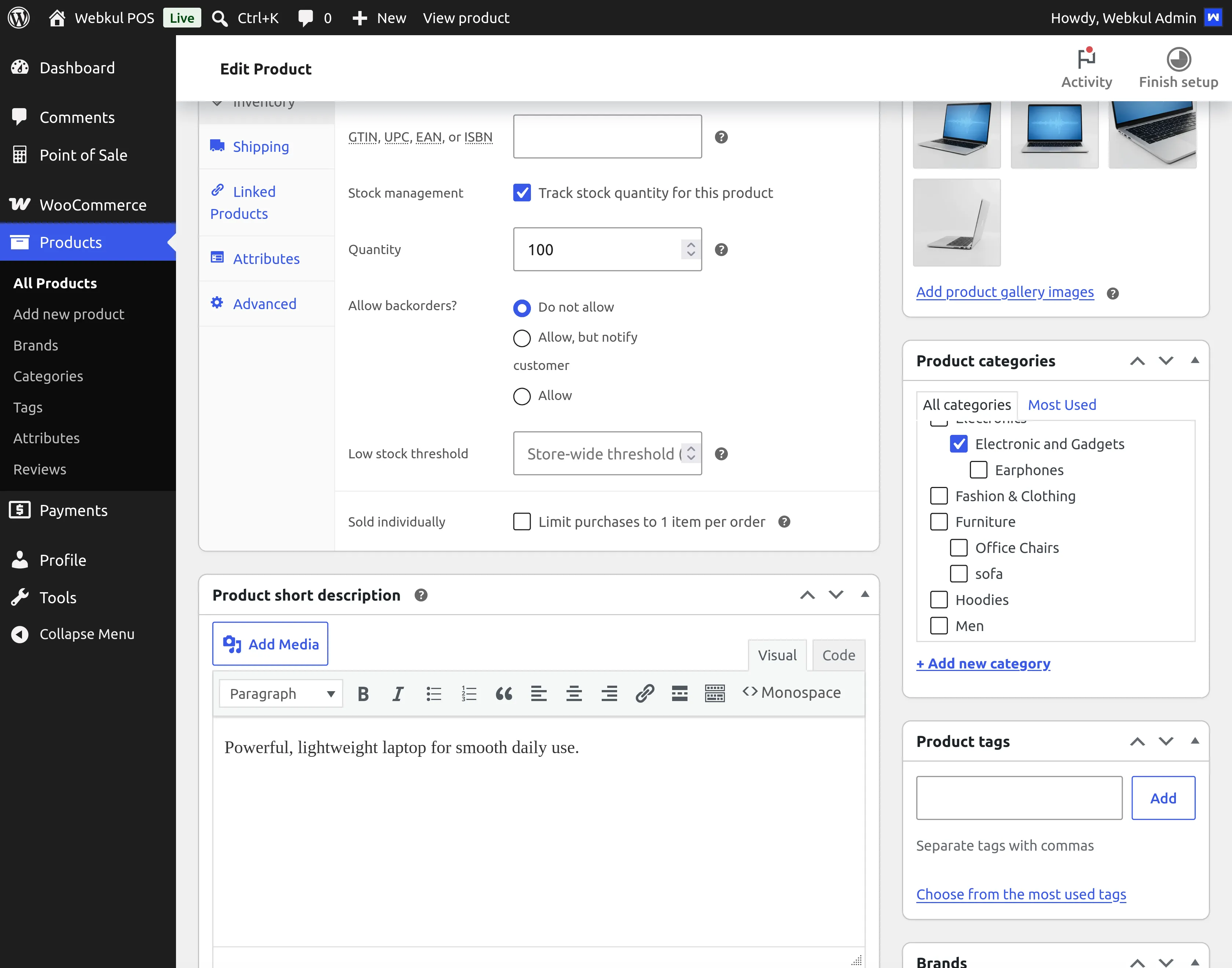
- Go to Products.
- Select multiple simple products.
- Click Edit and apply Master Stock.
- Open the product and navigate to the Master Stock tab.
- Enter the master stock quantity.
- Set the store stock under Stock Quantity.
- Assign POS stock:
- Select an outlet.
- Edit the outlet.
- Navigate to Manage Products.
- Add POS stock for the product.
This ensures consistent inventory tracking across warehouses, stores, and POS outlets.
Master Stock Management for Variable Products
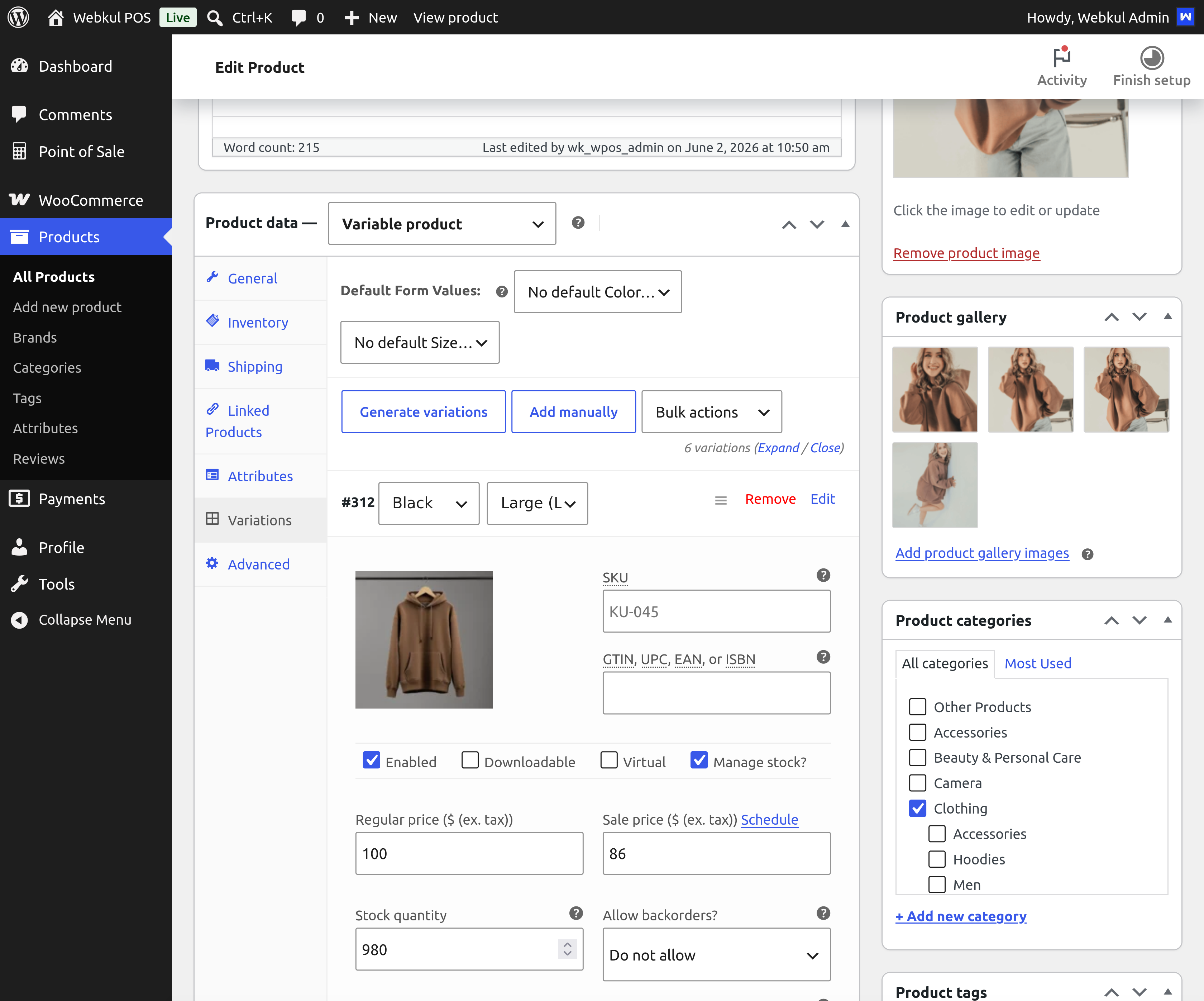
For variable products, stock is managed at the variation level.
Steps for Variable Product Stock Management
- Assign master stock to each variation.
- Set the store stock quantity for each variation.
- Apply master stock to the variable product.
- Assign POS stock to all variations.
- Click Set Variation Stock.
- Enter POS stock quantities for each variation individually.
This granular control ensures accurate inventory management for products with multiple attributes such as size or color.
Out-of-stock variations are always listed
The Set Variation Stock dialog lists every variation, including those with no stock left, and regardless of the WooCommerce Hide out of stock items from the catalog setting. That setting governs your online catalog only — see Out of Stock Products.
Barcode Settings
WooCommerce POS provides customization options for barcode appearance and print layout.
| Configuration Setting | Description / Option |
|---|---|
| Background Color | Customize the background color of the printed barcode labels. |
| Width | Define the horizontal width of the barcode lines. |
| Height | Set the vertical height of the barcode. |
| Display Title | Choose whether to print the product title on the label. |
| Text Position | Adjust the placement of the text (e.g. above or below the barcode). |
| Text Size | Control the font size of the printed product title or SKU text. |
| Print Preview | Preview barcode layout and choose between portrait or landscape mode. |
These settings help ensure barcodes are readable, printer-friendly, and aligned with branding requirements.
Assigning Stock Across Every Outlet
Setting POS stock one outlet at a time works well for a single shop. For several outlets, the Bulk Assignment sheet puts every product and variation in one grid with a column group per outlet, so stock, price and status can be edited across all of them and saved together.
See Bulk Assignment and Per-Outlet Pricing.
Additional Product Features
WooCommerce POS includes several advanced product and inventory features:
- Supports Code-128 barcodes
- POS users can search products by SKU
- Admin or sales agents can set unit prices based on product weight
- POS users can edit item prices directly in the cart
- Customer-based discounts can be applied to selected products
- Admin can switch between old or new Category UI styles
- Low stock warning quantity can be configured
- POS automatically updates product stock when order status changes