
Z-Report Generation & Printing
Introduction
A Z-Report is a vital audit document that summarizes all sales transactions, payment methods, and cash reconciliations when closing out a POS register shift. WooCommerce Point of Sale (POS) includes a built-in Z-Report generation tool that allows store staff and administrators to audit daily sales, calculate cash drawer variances, and print physical summaries.
This page guides you through the step-by-step workflow for register closure, printing, and administrative reconciliation.
Step-by-Step Workflow
Section 1: Drawer Reports from POS
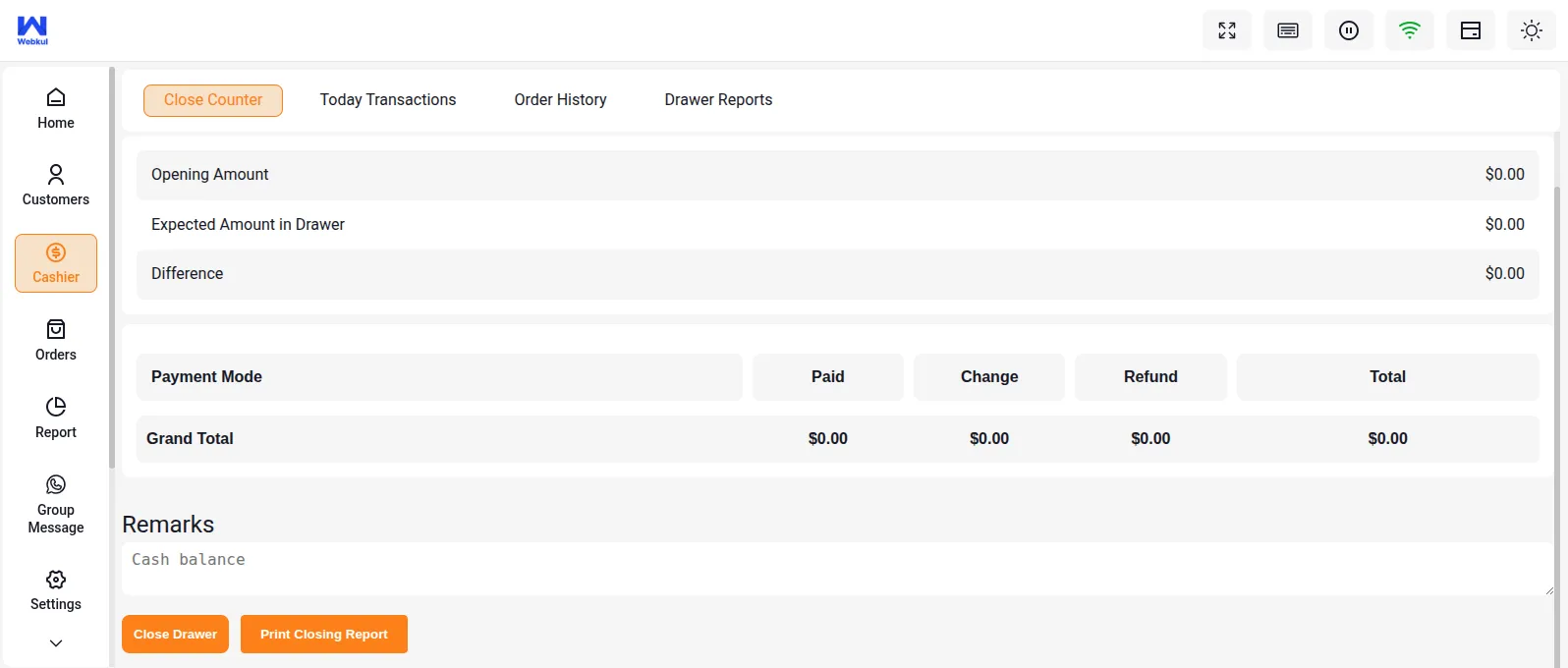
POS cashier agents can inspect their active drawer statistics before closing out their shifts. To access active drawer reports:
- Open the POS register interface.
- Click on the Cashier tab in the side navigation menu.
- Select Drawer Reports (or click on the active drawer status).
- Review opening float amounts, total cash sales, and other ongoing transaction summaries.
Section 2: Closing and Printing Drawer Report
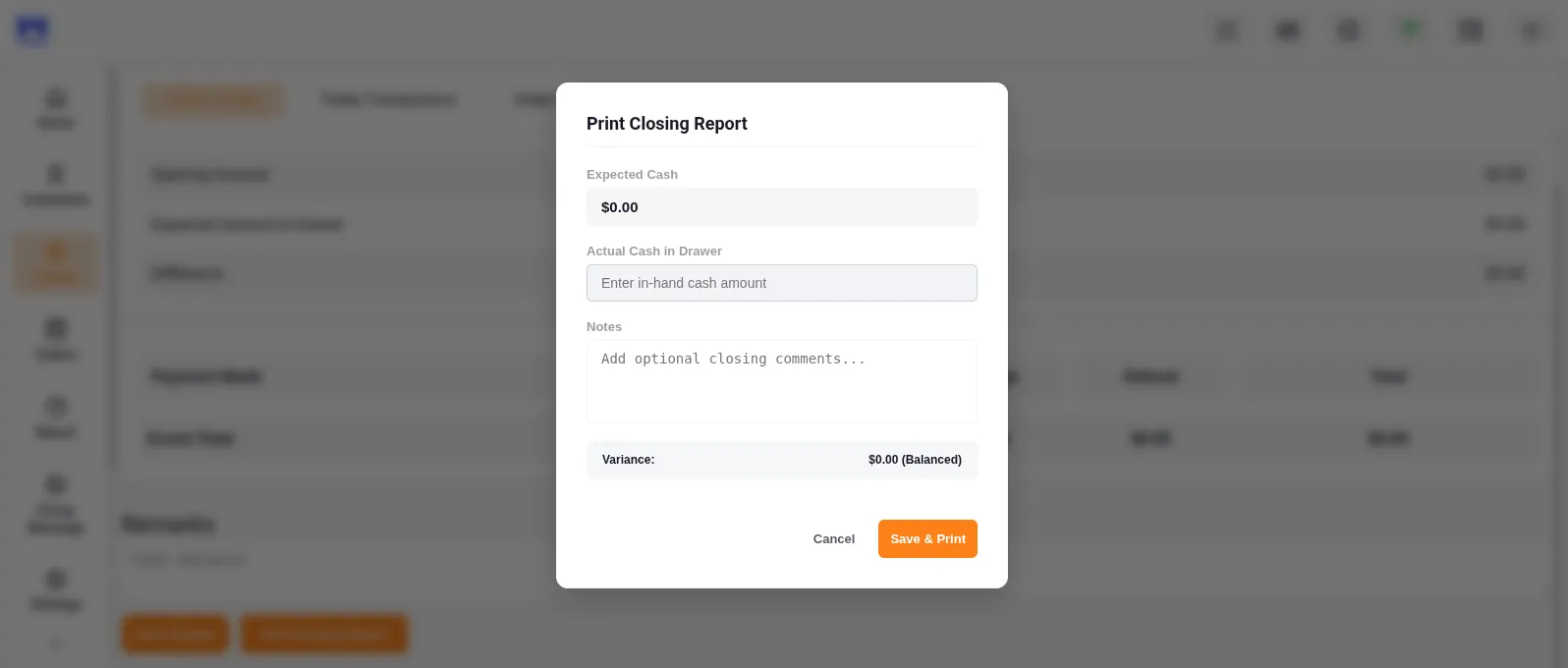
When a cashier's shift ends, they must close out the active drawer register and record physical cash tallies:
- Navigate to the POS side menu and click Cashier.
- Click the Print Closing Report button.
- The Print Closing Report dialog will appear. Cashiers must fill out:
- Expected Cash: Calculated sum of opening float and cash sales (e.g.,
$0.00). - Actual Cash in Drawer: Input the counted cash physically present in the register (e.g., Enter in-hand cash amount).
- Notes: Add optional closing comments or shift handover remarks.
- Variance: Displays the computed difference (e.g.,
$0.00 (Balanced)).
- Expected Cash: Calculated sum of opening float and cash sales (e.g.,
- Click submit to lock the shift and generate the final Z-Report.
Section 3: Printed Z Report
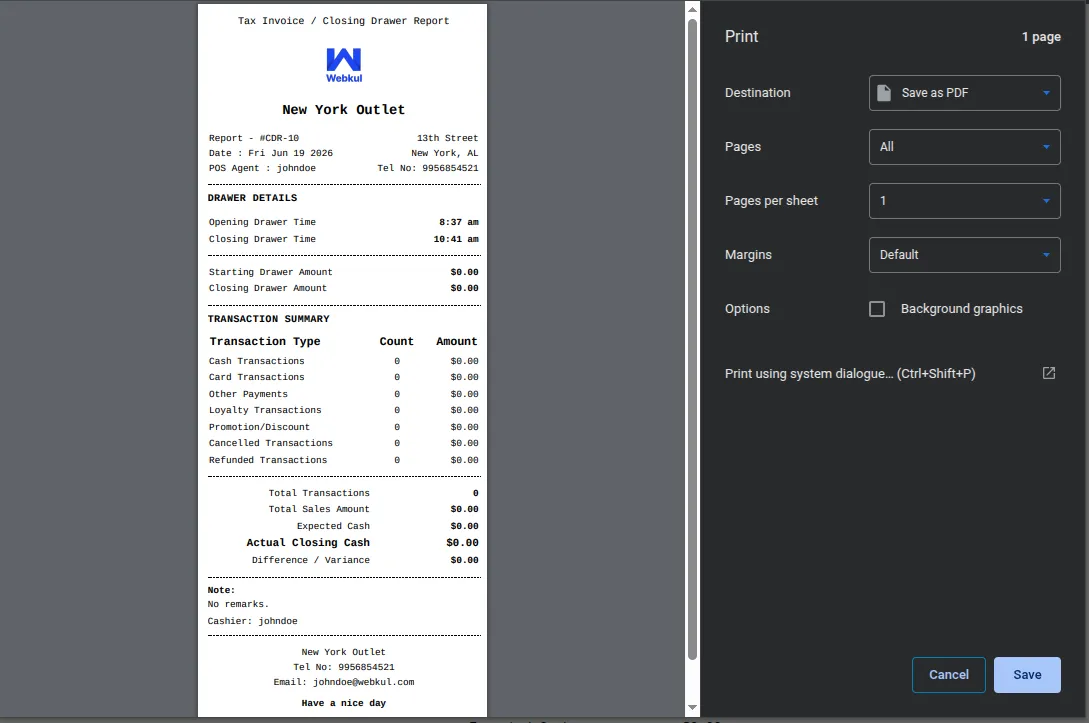
After confirming the register closure details, the system generates a receipt-friendly print layout. Cashiers can preview the details and send the layout to their thermal printers:
- Once the shift is closed, a print preview overlay will appear.
- The printout format is optimized for 80mm and 58mm thermal receipt printers.
- Review the printed totals (opening amount, total sales, payment methods, counted cash, and variance) before finalizing.
Section 4: Drawer Reports History at POS
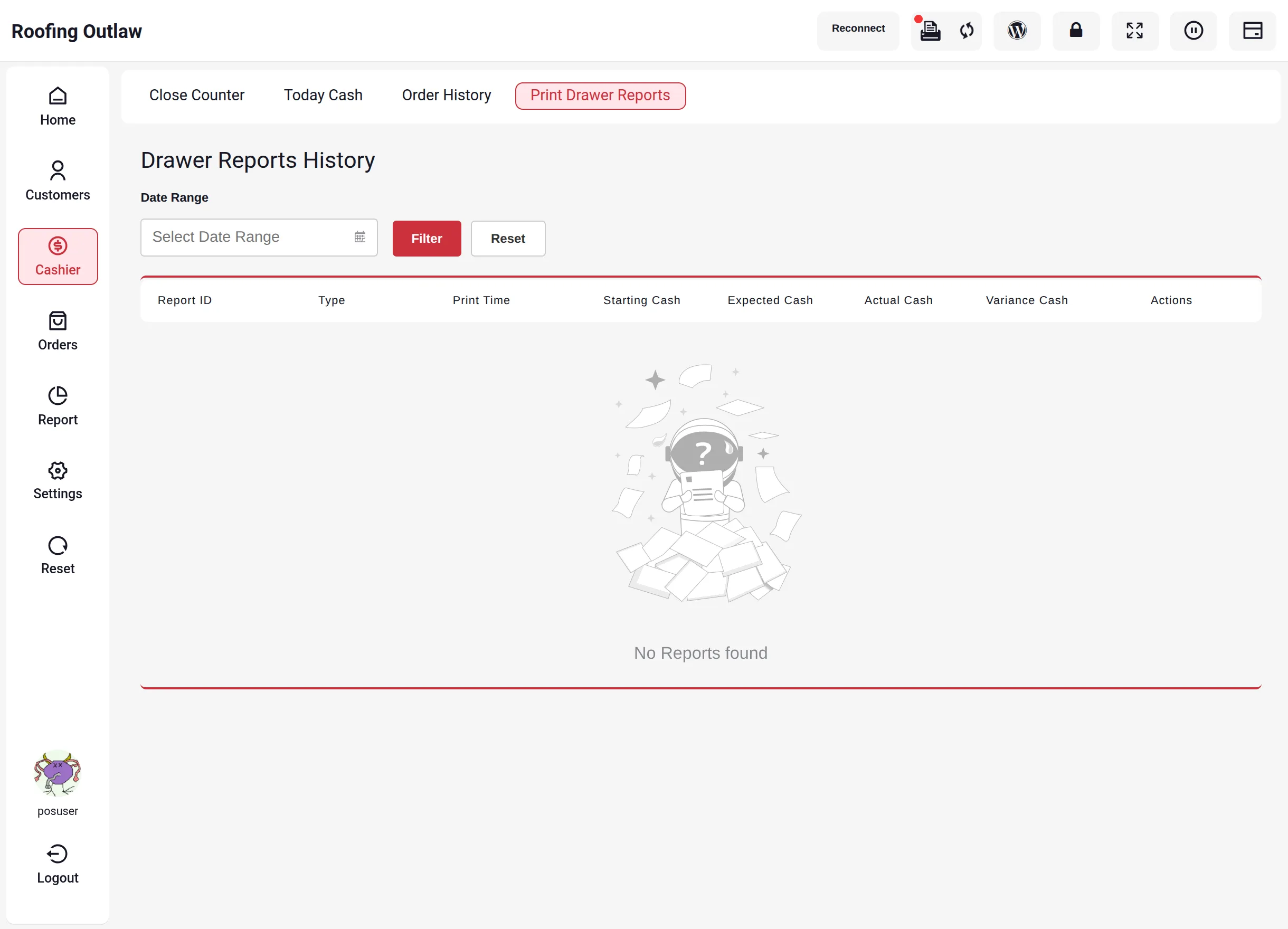
Cashiers can review previously generated reports without leaving the register. The Print Drawer Reports listing was redesigned in version 7.0.0 to match the POS theme and now includes date filtering:
- Open the POS side menu and click Cashier.
- Switch to the Print Drawer Reports tab to open the Drawer Reports History.
- Use the Date Range filter to narrow the archive, then review each entry's Report ID, Type, Print Time, Starting Cash, Expected Cash, Actual Cash, and Variance Cash columns.
- Use the row Actions to reprint a past report when a physical copy is needed.
Reliability improvements in 7.0.0
Drawer report data mismatches, problems when closing the drawer while a report was printing, and transaction totals when another user processes a refund were all fixed in version 7.0.0 — drawer numbers now reconcile consistently across the POS and admin ends.
Section 5: Admin Drawer Report Records
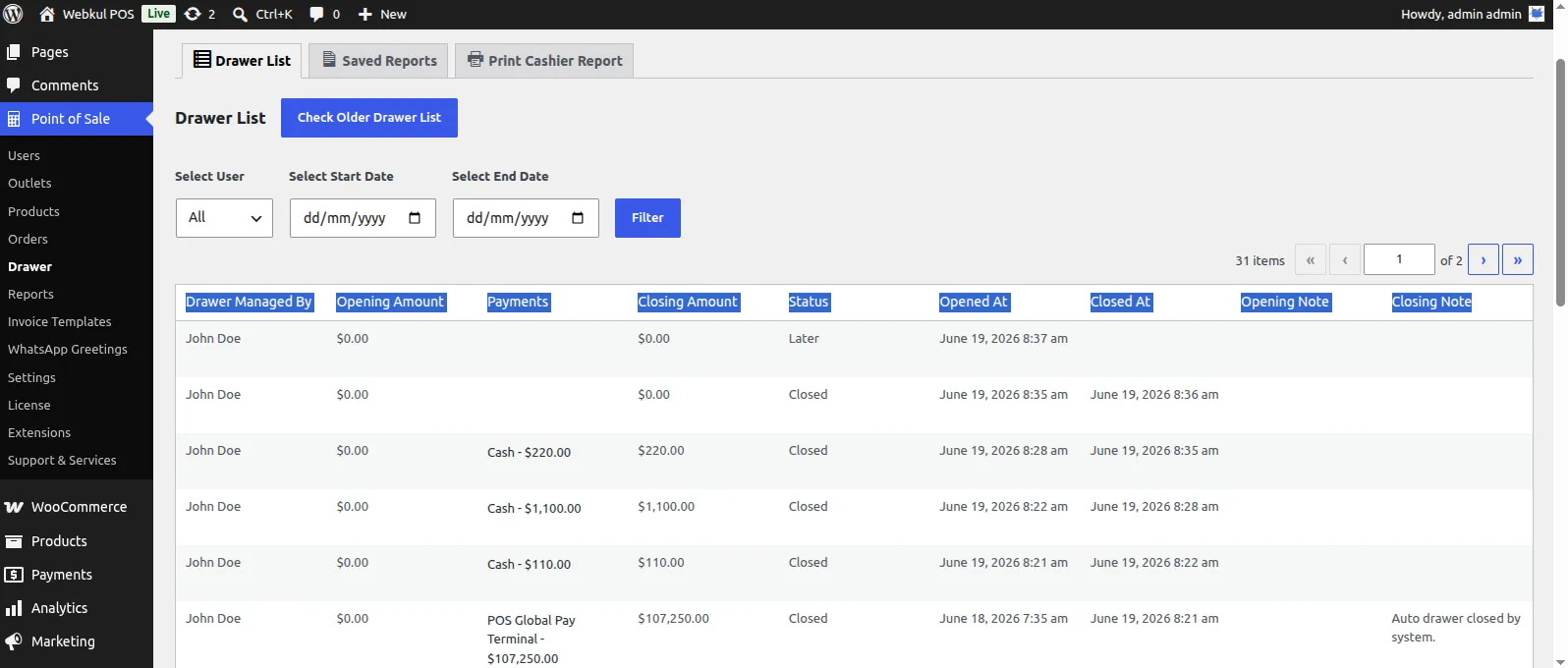
Store managers and administrators can audit drawer shifts centrally from the WordPress dashboard:
- Log in to the WordPress Admin Dashboard.
- Navigate to Point of Sale > Drawer.
- View the Drawer List table containing all shift records:
- Drawer Managed By
- Opening Amount
- Payments
- Closing Amount
- Status
- Opened At & Closed At
- Opening Note & Closing Note
Section 6: Saved Drawer Reports
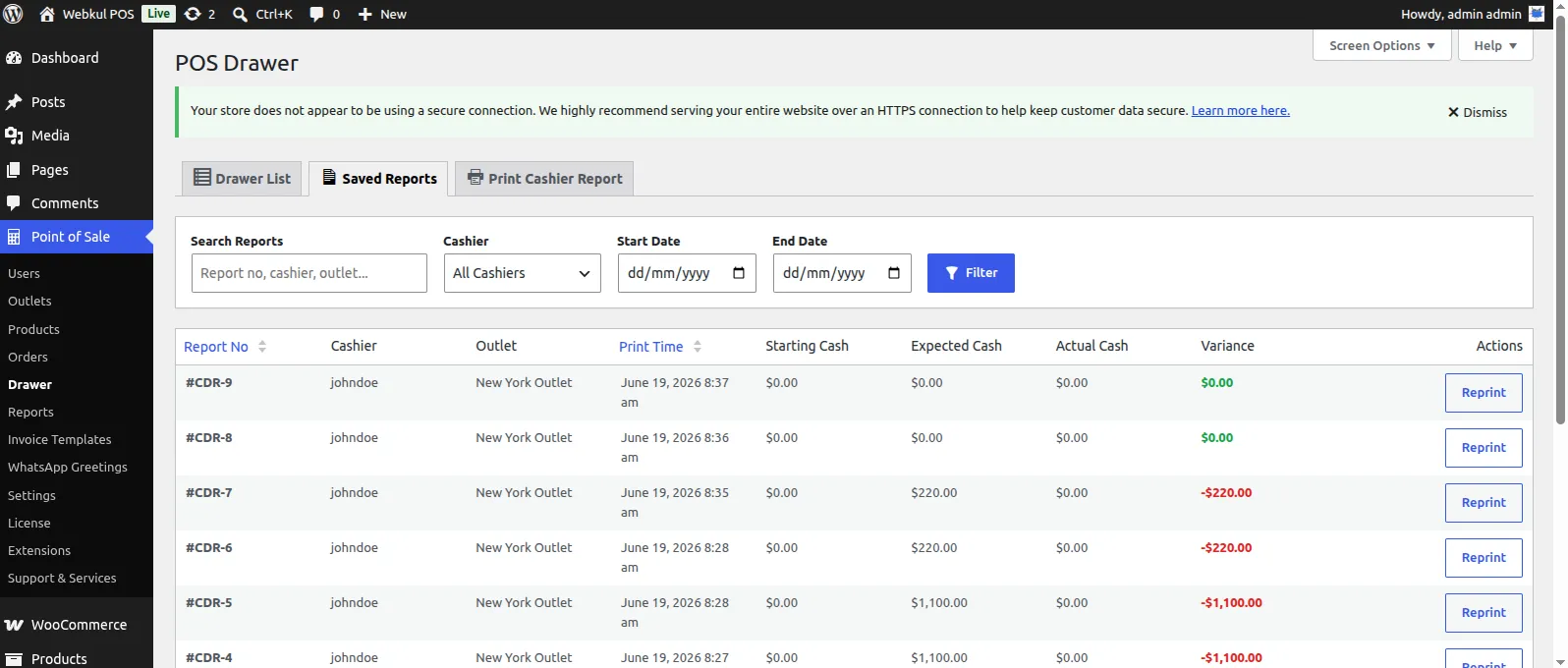
To review historical closing reports and digital exports generated by POS cashiers or backend administrators:
- Navigate to Point of Sale > Drawer in the WordPress admin panel.
- Click on the Saved Reports tab.
- Here, you will find an archive of all saved drawer reports. Administrators can view, download, or search past entries to audit historical ledger entries.
Section 7: Admin Print Report
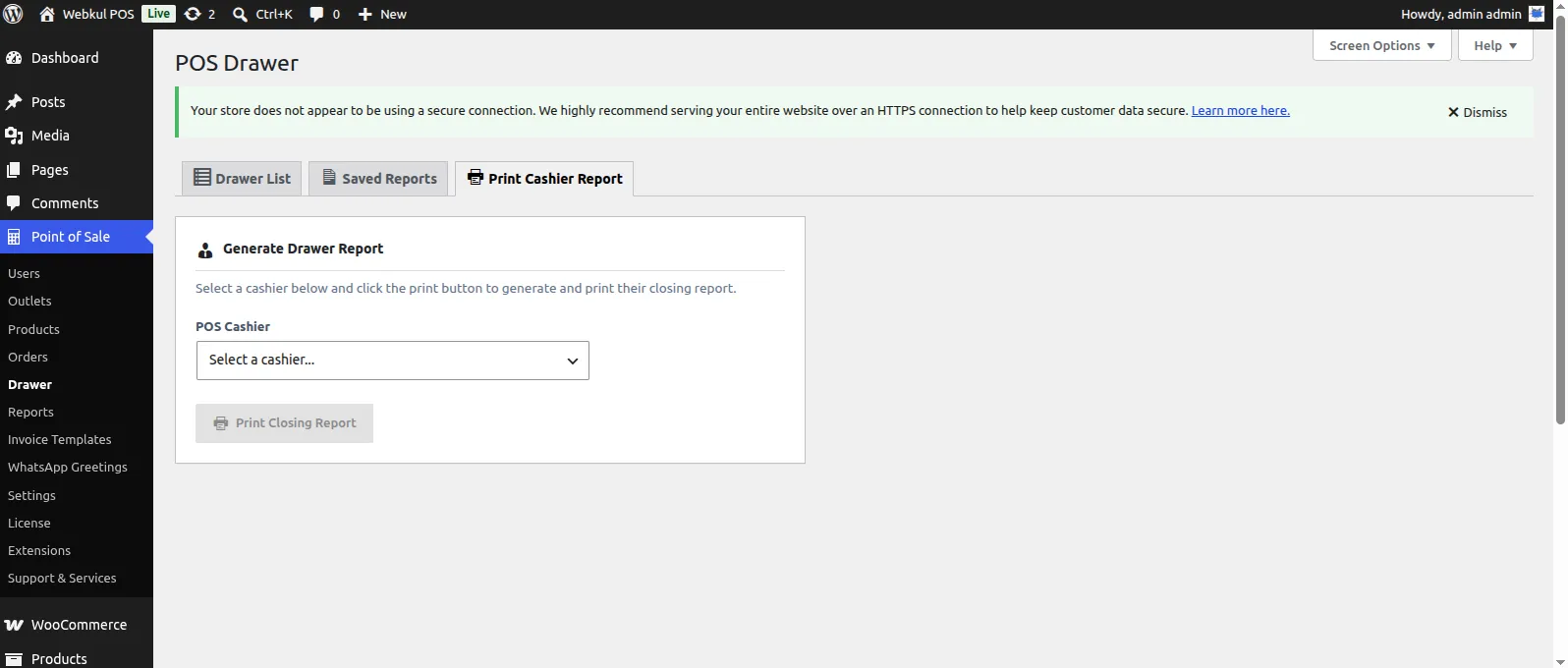
If a physical copy of a past shift report is needed for accounting, administrators can reprint cashier records directly from the WordPress backend:
- Navigate to the Drawer records under Point of Sale.
- Select the specific shift entry you wish to review.
- Click the Print Cashier Report option to generate a print-ready thermal layout of the selected Z-Report.
Benefits
The Z-Report framework provides essential auditing benefits for retail stores:
- Daily Sales Reconciliation: Automatically compiles all cash, card, and digital payment methods, saving cashiers from manual calculation at shift end.
- Cash Drawer Verification: Instantly calculates the difference between expected registers and physical counted cash to identify register variance.
- End-of-Day Reporting: Aggregates transaction summaries into clean, printable receipts to keep as physical records.
- Audit Tracking: Maintains a secure, unalterable digital log of all open/closed register sessions in the database for accounting purposes.
Related Features
- Payments & Terminals — Learn about processing transactions that populate the Z-Report details.
- Cash Drawer Controls — Understand kick-out configurations and cash management protocols.