
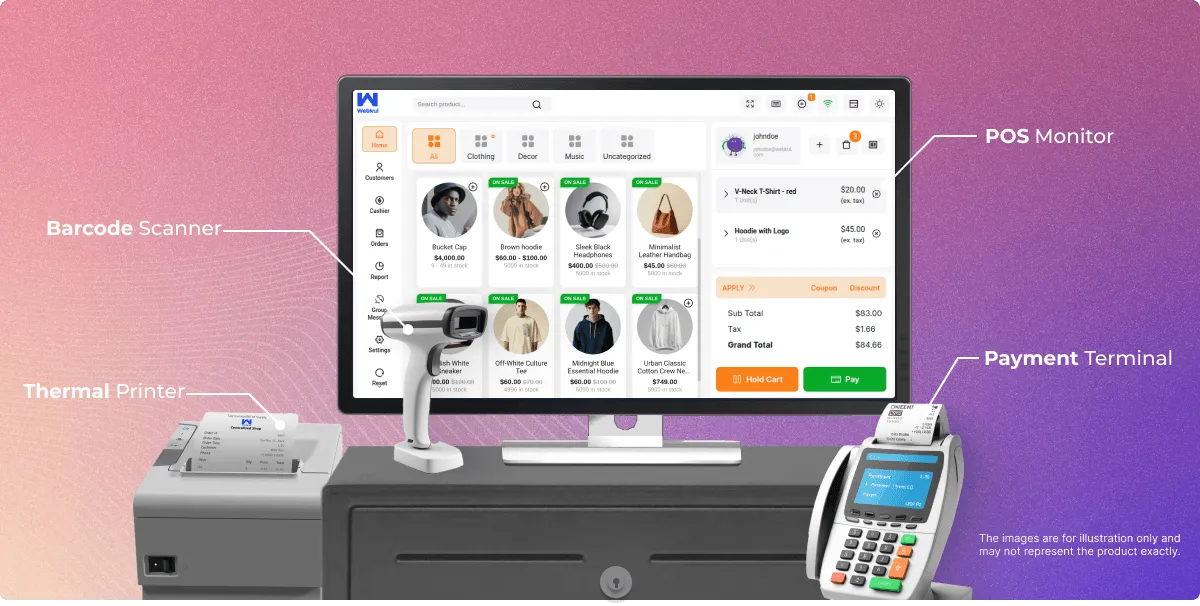
WooCommerce POS - Agent Guide (Step-by-Step Usage)
Login & Dashboard Overview
Accessing the POS System
Login Process:
- POS agent enters login details provided by admin to access front end
- Enter username or email
- Enter password
- Select outlet (if multiple outlets assigned)
- Click Login button
Navigation Menu
Left Navigation Drawer displays menu options:
- Home: Main dashboard and quick access
- Customer: Customer management and search
- Cashier: Point of sale interface and transactions
- Orders: Order management and history
- Report: Sales and performance reports
- Group Message: Broadcast messaging to customers
- Settings: User preferences and configurations
- Reset: Data synchronization options
- Logout: Secure logout from system
Dashboard Features
After Login:
- POS user sees panel with all products assigned to outlet displayed
- Products organized by categories
- Search bar for quick product lookup
- Cart section for order management
Cart Overview:
- Cart option contains all ordered products by customer
- Real-time total calculation
- Product quantity adjustment
- Quick product removal
Theme Configuration
Dark Theme Setup:
- User can configure dark theme for POS page from POS panel
- Theme switching: Open POS panel > click theme switch in right side corner > change to dark mode
- Toggle between light and dark mode as needed
- Preference saves automatically
Theme Benefits:
- Reduced eye strain
- Better visibility in different lighting
- Personal preference accommodation
Latest Additions
Recent releases added the following capabilities to the register:
Checkout Adjustments
The checkout page now hosts every price adjustment: redeem WooCommerce coupons with all store restrictions enforced, apply percentage or fixed discounts, and add named custom fees. See Checkout Discounts & Coupons and Checkout Fees.
Cart Controls
The cart total section can start expanded or collapsed, and an optional Submit button confirms quantity and price edits on expanded cart items in one tap. See Cart Totals & Item Editing.
Multi-Pricing
Administrators can enable multi-pricing for products (Point of Sale → Settings → General → Enable Multi Pricing), letting the register work with more than one price for a product.
Product Filters & Badges
The catalog supports attribute-based filtering for multiple attribute types through the Filters control, alongside On Sale and Featured product filters. Products currently on sale carry an "On Sale" badge on their tiles.
Notification Tones
Sound feedback plays for product selection, drawer close actions, keypad presses, and payment confirmation, with outlet-wise default tones set by the admin and audio settings at the POS end. See Notification Tones.
Variation Layouts & Stock Display
Variable products can present their options in List, Table, or Card view (Variation Layouts), and product tiles show live stock counts based on the Display Stock setting (Stock Visibility).
Product Pin Visibility
Each catalog tile carries a pin icon for keeping frequent sellers at hand; the register's Settings tab lets each POS user choose whether the pin is Always Visible or appears On Hover.
Adding Products to Cart
Product Search Methods
The POS system offers multiple ways to find and add products quickly.
1. Search by Product Name
Using Search Bar:
- Type product name in search bar
- Results appear as you type
- Select desired product from results
- Product automatically adds to cart
Search Tips:
- Use partial names for quick results
- Search is case-insensitive
- Works with product titles
2. Category-Based Search
Category Navigation:
- Click on category icon to view category lists
- Browse through available categories
- Select category to choose product
- View products within that category
- Click on product to add to cart
Category Features:
- Visual category browsing
- Organized product display
- Quick category switching
3. SKU-Based Search
Search by SKU:
- On basis of SKU of product, POS user can search for products
- Enter SKU in search bar
- Exact or partial SKU matching
- Quick product identification
SKU Search Benefits:
- Faster than name search
- More accurate results
- Useful for inventory management
4. Barcode Scanning
Using Barcode Scanner:
- POS users can add product to cart by scanning barcode
- Barcode generated based on SKU or Product ID
- Barcode readers can be used to add products to cart
- Product addition: Add products to cart by both barcodes (product ID or SKU)
Barcode Scanning Process:
- Aim scanner at barcode
- Press trigger to scan
- Product automatically adds to cart
- Quantity adjustable after adding
Compatible Barcodes:
- Code-128 format
- SKU-based barcodes
- Product ID-based barcodes
Adding Variable Products
Variable Product Workflow:
- Search Main Product: Search main product using name or SKU in search bar
- Product Selection: Once main product appears in results
- Variant Selection: Select variant for customer (size, color, etc.)
- Add to Cart: Selected variant adds to cart
Variant Options:
- Size variations
- Color variations
- Material variations
- Any configured product attributes
Adding Custom Products
Custom Product Entry:
For products not available on website but available in physical store:
- Click Plus Sign: Click plus sign (+) button to add custom product
- Enter Product Details:
- Product name
- Product price
- Add to Cart: Click "ADD" button to add custom product to cart
Custom Product Use Cases:
- Unlisted items
- Special orders
- One-time products
- Emergency inventory
Customer Search/Add
Adding Customer to Order
Initial Customer Selection:
- Add customer details: Click on Default Customer option after adding products to cart
- Customer selection interface opens
- Search or add new customer
Searching Existing Customers
Customer Search Options:
- POS users can search for customers by name or email
- Type in search field
- Select from results
Search Features:
- Real-time search results
- Name-based search
- Email-based search
- Phone number search (if enabled)
Adding New Customers
New Customer Entry:
- Enter Customer Details in customer field:
- First Name
- Last Name
- Email Address
- Phone Number
- Address (optional)
- Save Customer: Click save or add button
- Customer Selection: Select customer from customer's field to pay for order
Customer Administration:
- Admin can add customers with details like name, email, telephone and address
- Customers saved for future use
- Customer history tracking
Customer Display in Cart
Customer Confirmation:
- Default Customer Tab: Added customer visible in cart with tab name (e.g., "Johndoe")
- Customer name displayed prominently
- Easy customer verification
- Quick customer change option
Applying Discounts & Coupons
Coupon Application
How to Apply Coupons:
- Coupon Application: POS agent can apply coupon to cart at time of checkout
- Apply Coupon Button: Click Apply Coupon button
- Enter Coupon Code: Type or scan coupon code
- Hit Enter: Press enter to apply coupon to order
Coupon Confirmation:
- Coupon applied successfully pop-up message appears
- Coupon Display: Shows in cart under "coupon" option
- Discount amount visible in cart total
Manual Discount Application
Discount Options:
Discount application available in two ways:
- Percentage-wise discount
- Flat Discount (fixed amount)
Applying Discount:
- "Apply discount to sale" appears on clicking "Discount" option in cart
- Select Discount Type:
- Percentage discount: Select "%" option to tabulate discount on percentage basis
- Flat discount: Enter fixed amount
- Apply Discount: Discount applies to cart
- Grand Total: Displays discounted amount
Customer-Based Discounts
Automatic Discounts:
- Customer-based discount: Applicable for few products
- Discount applies automatically when customer selected
- Based on customer group membership
- No manual intervention needed
Discount Features:
- Loyalty pricing
- VIP customer discounts
- Member pricing
- Group-specific offers
Price Editing
Manual Price Adjustment:
- Price editing: POS user can edit price of items in cart
- Click on price to edit
- Enter new price
- Confirm change
- Useful for special circumstances
Payment Processing
Available Payment Options
Payment Methods:
The system supports multiple payment methods:
- Cash Payment: Primary payment method
- Other Payment: Includes all payment methods enabled by admin such as:
- Paypal
- Sunmi Terminal credit/debit card
- Custom payment gateways
- Digital wallets
Split Payment Feature
Multiple Payment Methods:
- Split Payment: Customer can pay money in cash as well as any other payment method
- Payment Acceptance: Cash, via card, or split payment between card and cash
- Example: Part cash, part card for same transaction
Split Payment Process:
- Select first payment method
- Enter amount for first method
- Select second payment method
- Remaining amount automatically calculated
- Complete transaction
Payment Recording
Transaction Tracking:
- Monetary transactions done outside system
- POS records payment method used
- Payment details stored for reporting
- Reconciliation support
Payment View Options
Other Payment Display Views:
Choose from three display options for payment methods:
- Grid View Listing: Normal grid view with payment method tiles
- Grid With Currency Listing: Grid view with currency icon visible on each payment option
- Dropdown-listing: Dropdown menu for payment method selection
Selecting View:
- Configure in settings
- Choose preferred layout
- Optimize for screen size
- Personal preference
Completing Payment
Checkout Process:
- Review cart contents
- Verify customer details
- Apply discounts/coupons if applicable
- Select payment method(s)
- Enter payment amount(s)
- Process payment
- Generate receipt
Printing Invoices
Invoice Printing Overview
Receipt Generation:
- Invoice printing: User can print invoice for order
- Automatic or manual printing
- Multiple printer support
Invoice Configuration
Admin Settings:
- POS Invoice Option: Admin can select enable/disable to print POS invoices for orders
- Configure default printer
- Set auto-print preferences
Selecting Printer
Printer Options:
POS agent may choose printer option:
- A3: Large format paper
- A4: Standard paper size
- A5: Half A4 size
- Epson TM-T88V Thermal Printer: Receipt printer
- A6: Small format (common for receipts)
Printer Selection:
- Click printer icon or settings
- Select desired printer type
- Preview invoice
Auto-Print Feature
Automatic Printing:
- Auto-print setting: Introduced auto-print enable/disable setting for POS users
- Configure to print automatically after each sale
- Enable/disable per user preference
- Saves time during busy periods
Email Receipts
Digital Receipt Options:
- Order receipt: Admin can send order receipt manually via email after order completion
- Email to customer address
- Backup receipt option
- Environmental alternative to paper
Email Process:
- Complete transaction
- Click email receipt option
- Verify customer email
- Send receipt
Managing Returns
Viewing Refund Information
Refund Visibility:
- Refund visibility: WooCommerce website order refund details visible at POS
- Real-time refund synchronization
- Complete refund information
Processing Refunds
Refund Details:
- Refund initiation: If refund initiates for WooCommerce website order by admin, refund details visible at POS for particular order
- View refund amount
- See refund method
- Track refund status
Refund Information Display:
- Original order details
- Refund amount
- Refund date and time
- Refund reason (if provided)
- Refund method (original payment method)
Return Process
Steps for Returns:
- Search for original order
- View order details
- Check refund status
- Process in-store return if applicable
- Update inventory
- Complete refund transaction
Daily Closing Procedures
Accessing Close Counter
Navigation:
- Close Counter tab: Available under Cashier section
- End-of-day reconciliation
- Cash drawer management
Closing Cash Drawer
End of Day Process:
- Drawer closure: POS agent closes cash drawer at end of day
- Complete reconciliation required
- Accurate counting essential
Drawer Amount Details
The Drawer Amount Details panel presents a clear ledger of the shift's starting and ending figures:
| Metric Name | Value Example | Description |
|---|---|---|
| Opening Amount | $1,000.00 | The starting cash float placed in the drawer at the beginning of the shift. |
| Today's Sales | $2,500.00 | The cumulative total of all cash transactions completed during the current shift. |
| Expected Amount | $3,500.00 | The calculated sum of the opening float plus today's cash sales (Opening Amount + Today's Sales). |
Counted Drawer Amount
Physical Count Entry:
- Counted Drawer Amount: Cash amount collected for particular day
- Count all cash in drawer
- Enter counted amount
- Add remarks if needed
Counting Tips:
- Count carefully
- Separate denominations
- Double-check total
- Note any discrepancies
Closing Drawer Details
Reconciliation Summary:
- Closing Drawer Details: Closing balance details for particular day
- Difference viewing: Between opening and closing amount under Closing Drawer Details
- Shows over/short amount
- Requires explanation for variances
Closing Information:
- Expected closing amount
- Actual counted amount
- Difference (+ or -)
- Remarks field
Today Cash Option
The Today Cash view displays real-time cash flow metrics:
| Balance Type | Description |
|---|---|
| Cash Opening Balance | The starting float amount entered when opening the register. |
| Current Cash Balance | The live, real-time total of cash currently available in the drawer. |
| Current Card Balance | The total volume of transactions processed via credit/debit card. |
Real-time Updates:
- Updates with each transaction
- Track cash flow throughout day
- Monitor payment distribution
Sale History
The Sale History sub-tab under the Cashier section offers a historical breakdown of finalized register sessions:
| Metric / Field | Description |
|---|---|
| Particular Date | The selected calendar date for which sales data is being viewed. |
| Cash Sale | Total cash transactions recorded on the selected date. |
| Card Sale | Total card transactions processed on the selected date. |
| Total Sale Display | The combined revenue of both cash and card sales on that date. |
Note
Historical details in the Sale History screen are populated only after the cash drawer session has been successfully closed via the Close Counter screen.
Completing Daily Close
Final Steps:
- Review all sales for the day
- Count cash drawer
- Enter counted amount
- Review discrepancies
- Add remarks if needed
- Submit drawer close
- Print/email closing report
- Secure cash for deposit