
Quick Start — Wallet Live in 5 Minutes
Who this page is for
You installed (or are about to install) the plugin. You want to see a customer top up and pay with wallet. This page takes you from zero to "first wallet order" in 5 minutes.
What you (and your customers) end up with after these five minutes:
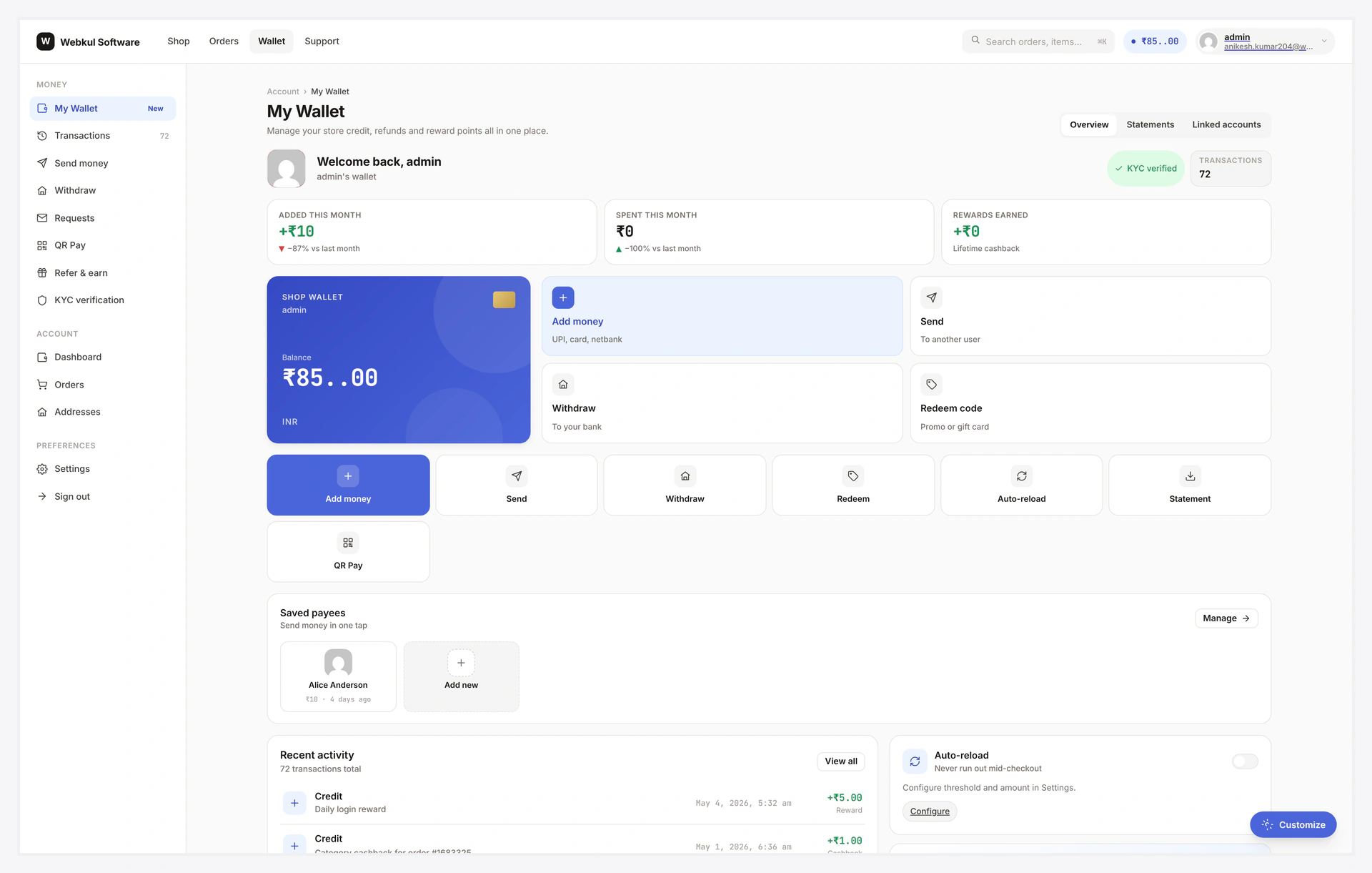
The Big Picture
| Step | Task | Time |
|---|---|---|
| 1 | Install + activate the plugin | 1 min |
| 2 | Enable the wallet payment gateway | 30 sec |
| 3 | Confirm the recharge product wkwc_wallet exists | 30 sec |
| 4 | Top up a test customer (admin manual credit OR buy recharge product) | 1 min |
| 5 | Place a test order paying with wallet | 1 min |
| 6 | Open the ledger to confirm the credit + debit rows | 30 sec |
| Total | About 5 min |
Before You Start
- [ ] WordPress 6.0+
- [ ] WooCommerce 10.0+ active
- [ ] PHP 7.4+
- [ ] You have admin or
manage_woocommercecapability - [ ] At least one shippable test product
- [ ] A test customer account (or willing to register one)
Step-by-Step
1. Install the Plugin
- In WordPress, go to Plugins → Add New → Upload Plugin
- Pick
wp-wallet-system.zip - Click Install Now, then Activate Plugin
The plugin auto-creates the wkwc_wallet recharge product and registers the wallet payment gateway.
Full install guide: Installation.
2. Enable the Wallet Payment Gateway
Go to WooCommerce → Settings → Payments.
| Field | Value |
|---|---|
| Wallet | Toggle ON |
| Title | Pay with Wallet (or whatever you want shown to the customer) |
| Description | Optional one-liner shown under the radio at checkout |
| Min wallet usable | leave blank for no min |
| Max wallet usable | leave blank for full balance use |
Click Save changes.
3. Top Up a Test Customer
You have two ways. Pick whichever suits.
Option A — Admin manual credit (fastest):
- Wallet System → Customer Wallet → Manual Transaction
- Fill in the customer name, amount (e.g.
100), transaction type Credit, and a credit note (e.g.manual top up) - Click Apply
Done. Balance is now 100.
Option B — Customer top-up flow (real journey):
- Log in as the test customer in a private window
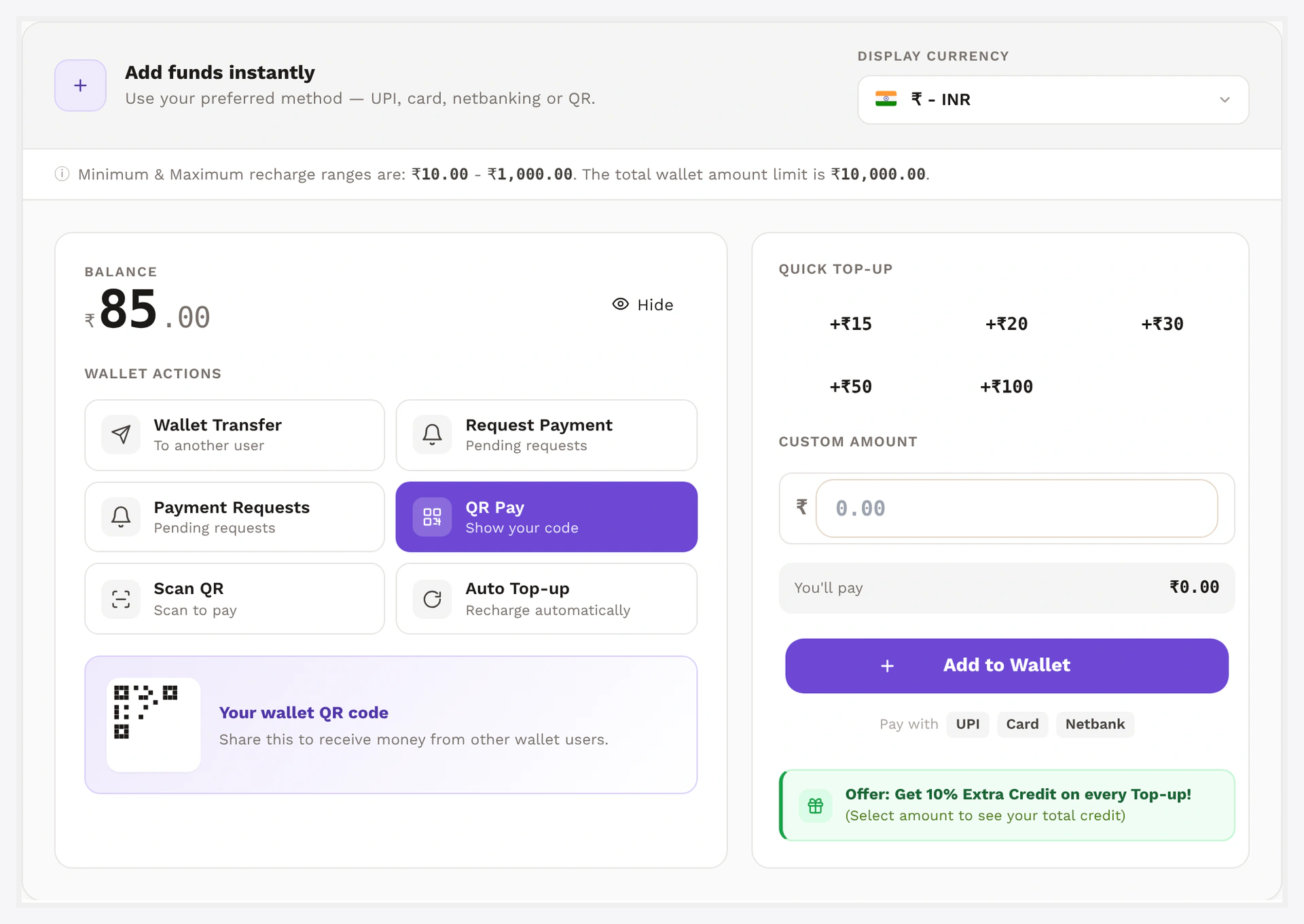
- Visit
/my-account/my_wallet/ - In the Add money panel pick a preset chip (or type a custom amount, e.g.
100) - Click Add to Wallet →
Recharge Your Walletproduct is added to cart
 5. Checkout normally with any other gateway (cash on delivery, test stripe, etc.) 6. Order moves to Completed → wallet auto-credited via
 woocommerce_order_status_completed
5. Pay With Wallet
Still as the test customer:
- Add a normal product to the cart
- Go to checkout
- Under Payment, pick Pay with Wallet (the title you set in step 2)
- Place the order
Order goes to Processing. Wallet balance is debited by the order total. If the order is bigger than the wallet, the customer can split — pay part from wallet and the rest from another gateway (covered in Wallet Payment Gateway).
5. Confirm the Ledger
Go to WooCommerce → Webkul Addons → Wallet → Transactions. You should see two rows:
| Type | Amount | Order |
|---|---|---|
| Credit | +100 | Recharge order # |
| Debit | -X | Test order # |
That is the ledger working. Every move from now on (cashback, refund, transfer, withdrawal) writes a row here.
What to Do Next
Each row links to the Setup page that walks every field of that tab. Pair each setup page with its Feature page for what it does + how customers see it.
| I Want to... | Setup page | Feature page |
|---|---|---|
| Auto-credit % bonus on every top-up | Recharge Settings | Deposit / Top-up Bonus |
| Give cashback on every order | Cashback Settings | Cashback Engine |
| Refund customers to wallet | Checkout Settings | Refund to Wallet |
| Customer-to-customer wallet transfer | Notifications Settings | Wallet Transfer |
| Allow withdrawal (bank / PayPal / Stripe) | Withdrawal Settings + Payout Settings | Withdrawal |
| Block withdrawal until KYC approved | KYC Settings | KYC |
| Run a referral programme with codes | Referral Settings | Referral Program |
| Multi-level commission chain | Multilevel Settings | Multilevel Referral |
| Let approved users checkout on credit | BNPL Settings | Buy Now Pay Later |
| Customer-scan QR to pay another customer | QR Pay Settings | QR Code Payments |
| Bulk credit 1000 customers from CSV | (no settings tab — use the Bulk page directly) | Bulk Credit / Debit |
| Show analytics charts in admin | (no settings tab — visit Analytics page) | Analytics Dashboard |
| Standalone /wallet-central/ experience | Wallet Central Settings | Wallet Central Overview |
When Something Does Not Work
| Problem | Fix |
|---|---|
| Wallet gateway not in checkout | Check it is enabled under WooCommerce → Settings → Payments. Then check the customer's balance is > 0 (gateway hides on zero balance) |
| Recharge product missing | WooCommerce → Status → Tools → Wallet → Recreate recharge product |
| Top-up order completed but balance not credited | Confirm the order has at least one wkwc_wallet-type line item. See Troubleshooting |
Wallet payment failed at checkout | Customer balance < cart total. Allow split payment in gateway settings, or top up more |
| Cashback not credited | Rule active? Min order value met? Check _wkwp_cashback_processed order meta — it guards against double credit |
Withdrawal stuck on pending | Admin needs to approve under Wallet → Withdrawals. KYC may be required first |
Related Pages
- Full Features — every feature listed
- Admin Settings — tour of every settings tab
- First-Time Setup — longer setup walkthrough
- Analytics — read the dashboard