
Cart Totals & Item Editing
Introduction
The cart panel is where cashiers spend most of their time, and WooCommerce Point of Sale (POS) gives store administrators two Appearance settings to tune how it behaves:
- Cart Total Section Display — decide whether the totals breakdown (Sub Total, Tax, Grand Total) starts expanded or collapsed on the register.
- Submit Button on Item Expand — add a Submit button to expanded cart items so quantity and price edits are applied in one deliberate action.
Both settings live in the WordPress admin and take effect for every cashier on the next register load.
Configuration Workflow
1. Open the Appearance Settings
- Log in to the WordPress Admin Panel.
- Navigate to Point of Sale → Settings → Appearance.
- Scroll to the POS UI Modes section.
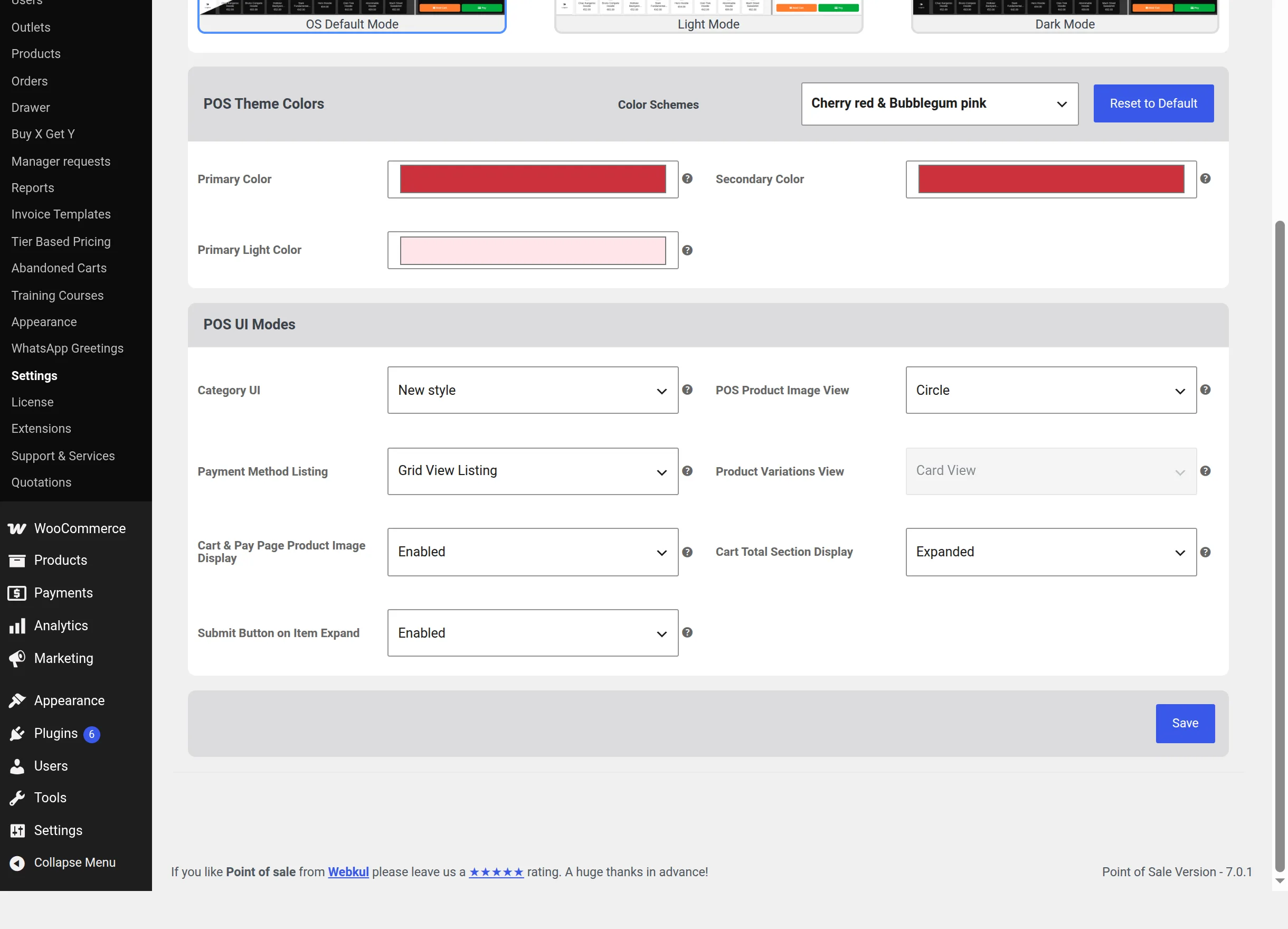
| Setting | Options | Description |
|---|---|---|
| Cart Total Section Display | Expanded (default) / Collapsed | Expand the cart total section by default or collapse it to a single Grand Total bar. |
| Submit Button on Item Expand | Disabled (default) / Enabled | Show a Submit button when an item in the cart list is expanded. |
- Click Save to apply the configuration.
2. Expanded Cart Totals
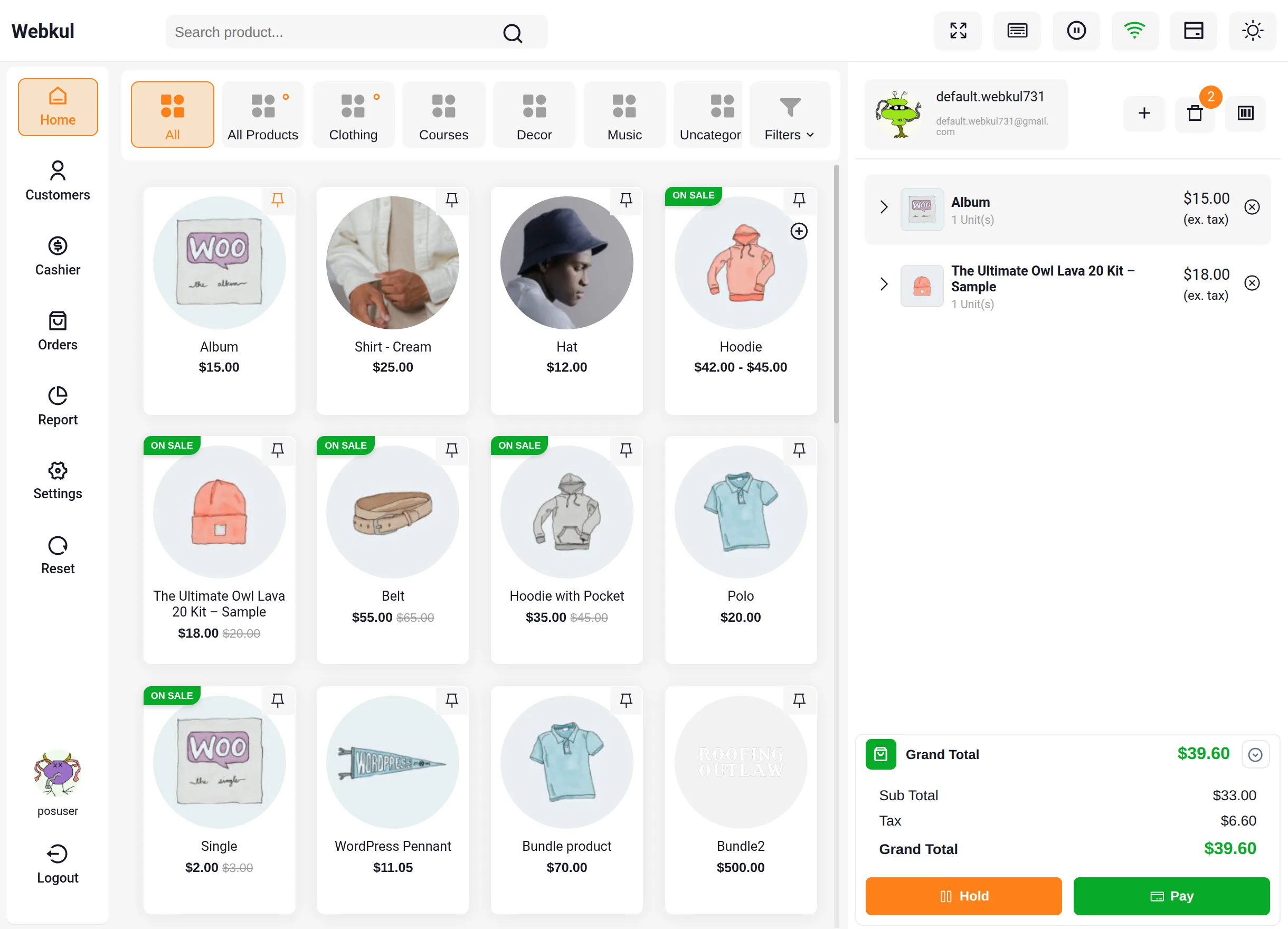
With Cart Total Section Display set to Expanded, the register shows the full totals breakdown under the cart — Sub Total, Tax, and Grand Total — together with the Hold and Pay buttons. Cashiers can still collapse it at any time by clicking the Grand Total header.
3. Collapsed Cart Totals
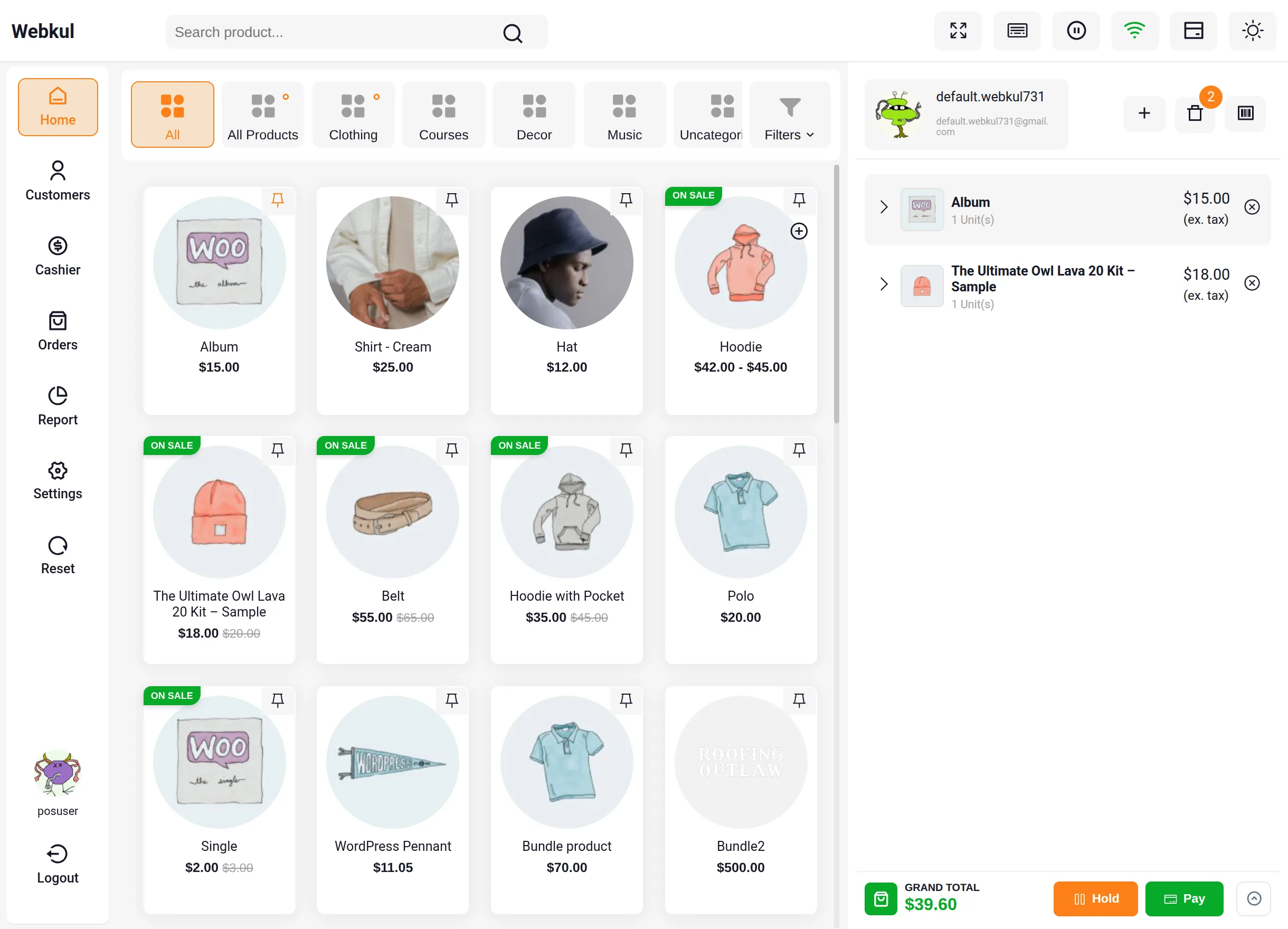
With the section collapsed — by default or after clicking the Grand Total header — the breakdown folds into a single compact bar showing only the Grand Total beside Hold and Pay. This frees vertical space for the item list on smaller screens and long orders; one click on the bar expands the details again.
4. Edit Cart Items with the Submit Button
Clicking the arrow on a cart line expands it to reveal the item editor with Quantity and Price (Per Product) controls.
With Submit Button on Item Expand set to Enabled, the expanded row also shows a Submit button. The cashier types the new quantity or a custom price and confirms both changes with one tap — the cart and Grand Total update only when Submit is pressed, preventing half-typed values from changing the sale.
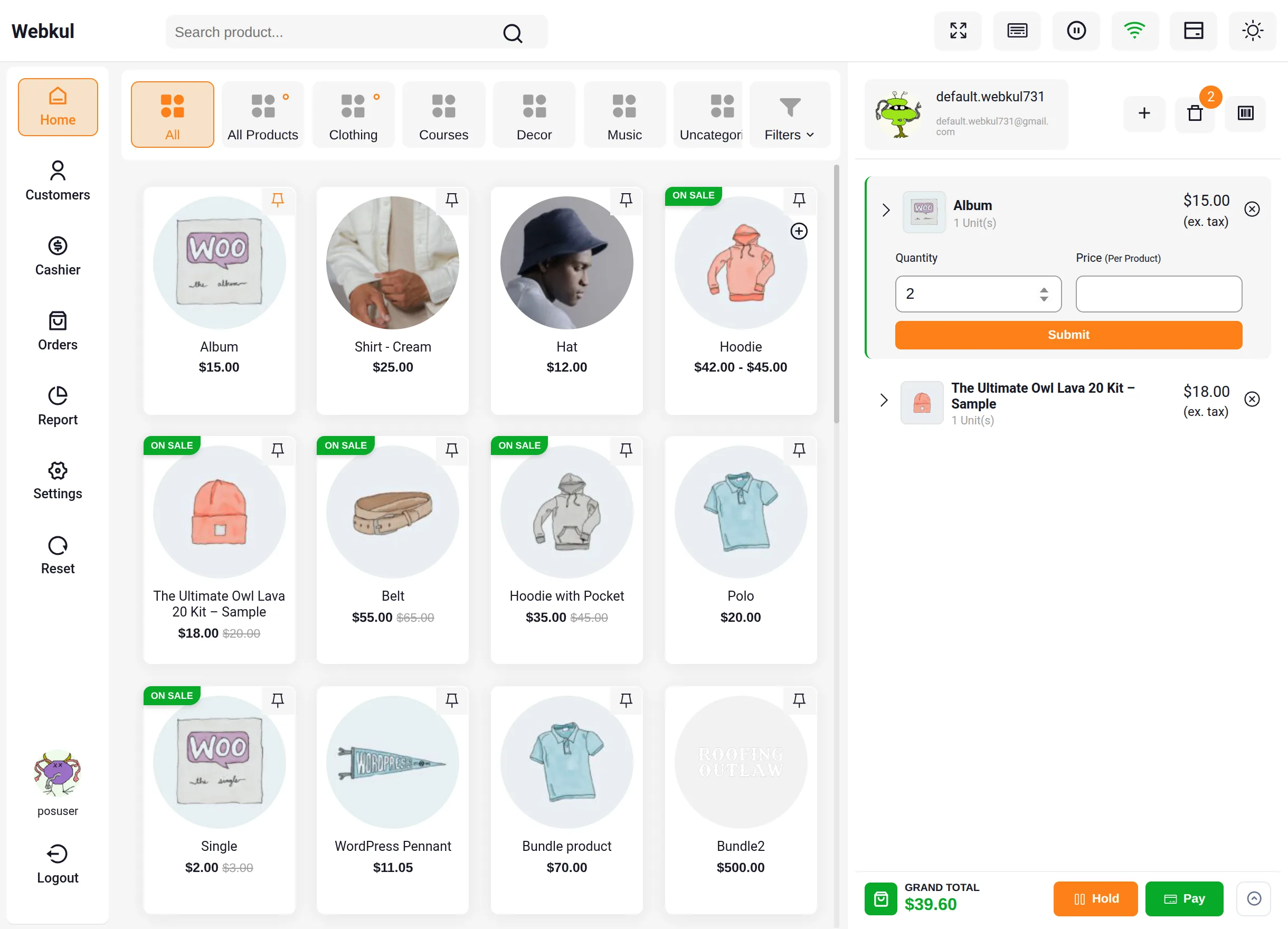
With the setting Disabled (the default), the register keeps its classic behavior where edits are applied as they are entered.
Benefits
- Cleaner register layout: Collapsed totals leave more room for cart items on tablets and small POS screens.
- Fewer input mistakes: The Submit button turns quantity and price edits into a deliberate confirmation, which matters when a custom price needs to be typed while a customer waits.
- Per-store defaults: Administrators set the starting state once; cashiers keep full control at the register.
Related Features
- Checkout Discounts & Coupons — Adjust the order total on the checkout page after the cart is built.
- Orders & Cash Drawers — Manage held carts, checkout, and order synchronization.