
Bulk Assignment
Introduction
Assigning products outlet by outlet is slow once a store has more than a handful of locations. Bulk Assignment puts every product and variation in one spreadsheet-style sheet, with a column group per outlet, so stock, price and status can be reviewed and changed across all outlets at once and saved in a single action.
The sheet behaves like a spreadsheet on purpose: arrow keys move, typing edits, and blocks of cells can be copied out of — or pasted in from — Excel and Google Sheets.
Navigation path:WooCommerce Point of Sale → Outlets → Bulk Assignment
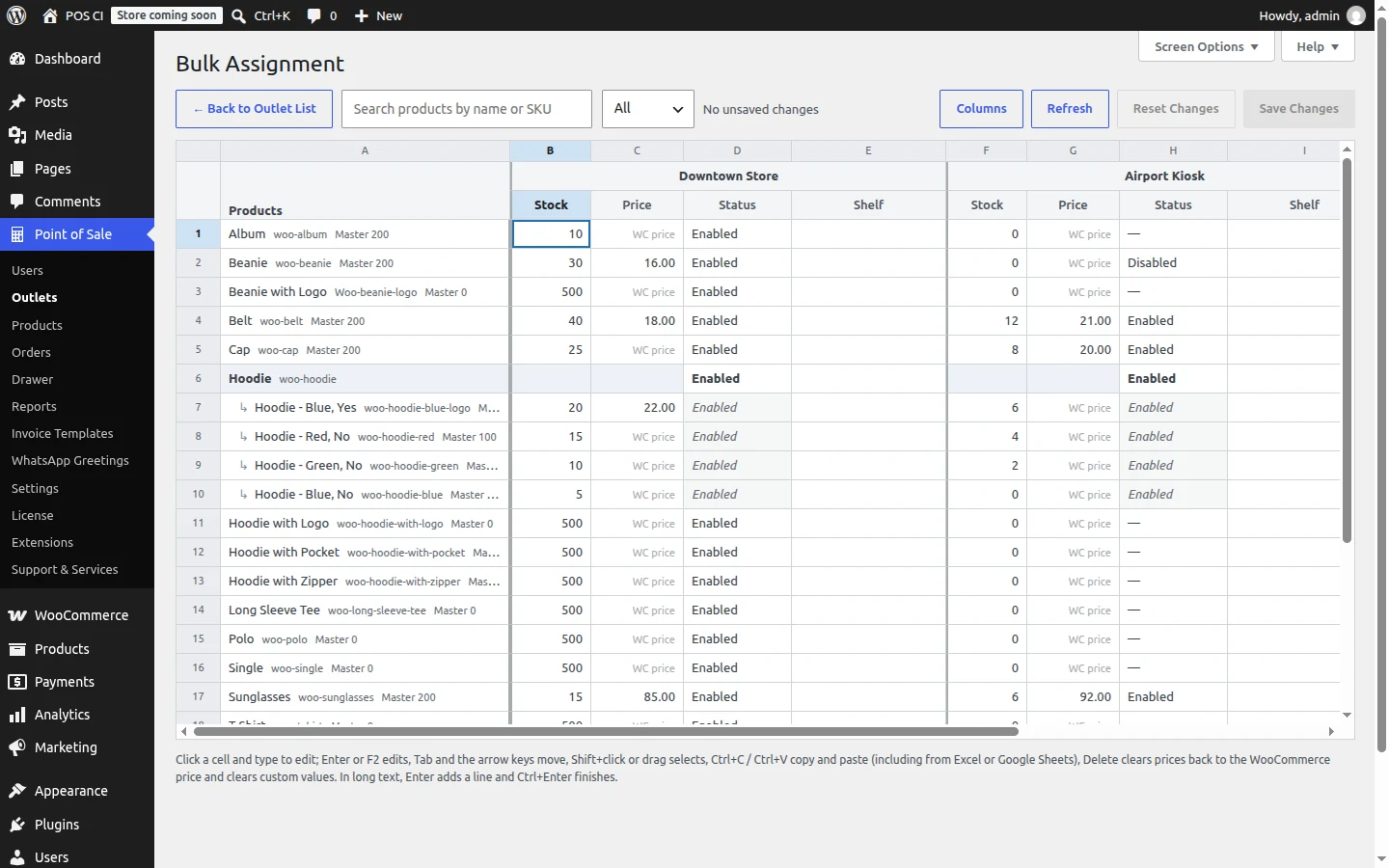
Reading the Sheet
The first column lists every published product with its SKU and master stock. After it comes one group of columns per outlet.
| Column | Meaning |
|---|---|
| Stock | POS stock assigned to that outlet. |
| Price | The outlet's own selling price. WC price means no outlet price is set, so the WooCommerce price applies. See Per-Outlet Pricing. |
| Status | Enabled or Disabled for that outlet. A dash (—) means the product is not assigned to that outlet yet. |
| Custom columns | Any columns you have defined yourself, shown after Status. See Custom columns. |
Outlets appear in the order they were created, and deactivated outlets are still listed and still editable, labelled Inactive.
Variable Products
A variable product is shown as a shaded, bold grouping row, with its variations indented beneath it under a ↳ marker.
- Stock and price belong to the variation. On the parent row these cells are blank and read-only.
- Status belongs to the product. It is edited on the parent row and applies to every variation, which is why a variation's Status cell is read-only and shows the parent's value.
Variations that are disabled in WooCommerce are still listed, labelled Disabled in WooCommerce, so their outlet data can be prepared before they go live.
Editing Cells
Click a cell and start typing to replace its value, or press Enter or F2 to edit the existing one.
| Action | Keys |
|---|---|
| Move between cells | Arrow keys, Tab / Shift + Tab |
| Start editing | Enter, F2, or simply type |
| Commit and move down | Enter |
| Cancel an edit | Esc |
| Select a range | Shift + click, Shift + arrows, or click and drag |
| Copy a range | Ctrl / Cmd + C |
| Paste | Ctrl / Cmd + V |
| Clear prices and custom values | Delete or Backspace |
Copying and Pasting
Copy takes the selected range to the clipboard as tab-separated values, which is exactly what Excel and Google Sheets read and write. Paste works both ways round:
- A single value fills every cell of the selected range.
- A block of copied cells is placed starting at the active cell and clipped to the edge of the sheet.
Values that land on a read-only cell — a parent row's Stock or Price, or a variation's Status — are skipped rather than applied. Status accepts either the status key or its label, in any capitalisation.
Clearing a price
Delete on a Price cell clears the outlet price and returns that product to its WooCommerce price at that outlet. It does not set the price to zero.
Saving Changes
Edited cells are highlighted in amber and counted in the toolbar until they are saved. Nothing is written to the database until Save Changes is clicked.
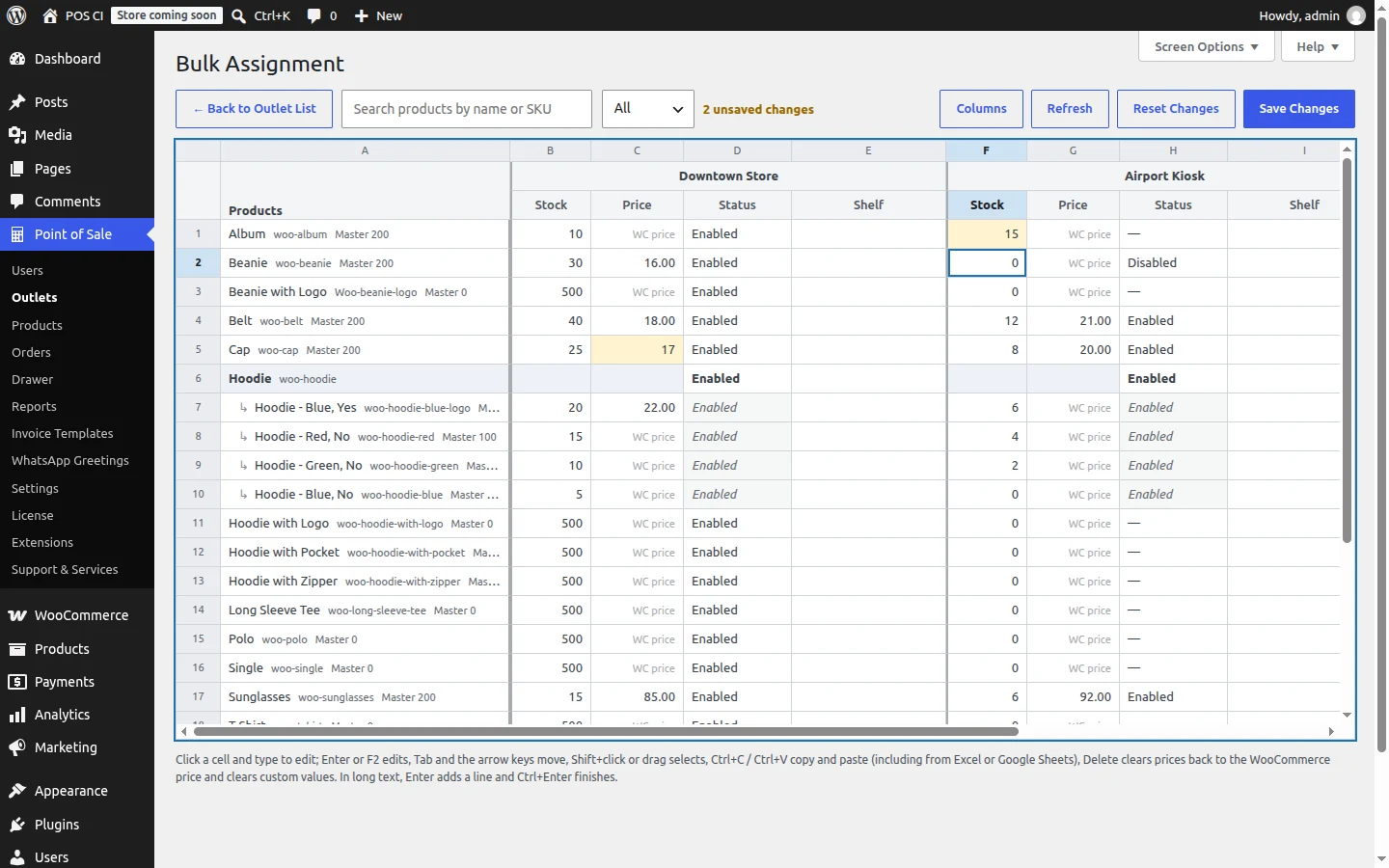
Pending changes survive searching, filtering, paging and refreshing the sheet, so a large edit can be built up across several pages of products and saved once at the end. Leaving the page with unsaved changes prompts for confirmation.
| Button | What it does |
|---|---|
| Save Changes | Writes every pending change. Disabled when there is nothing to save. |
| Reset Changes | Discards every pending change after a confirmation. |
| Refresh | Reloads rows from the database, keeping pending changes. |
When the save completes, a confirmation notice appears above the sheet and the saved values become the new baseline.
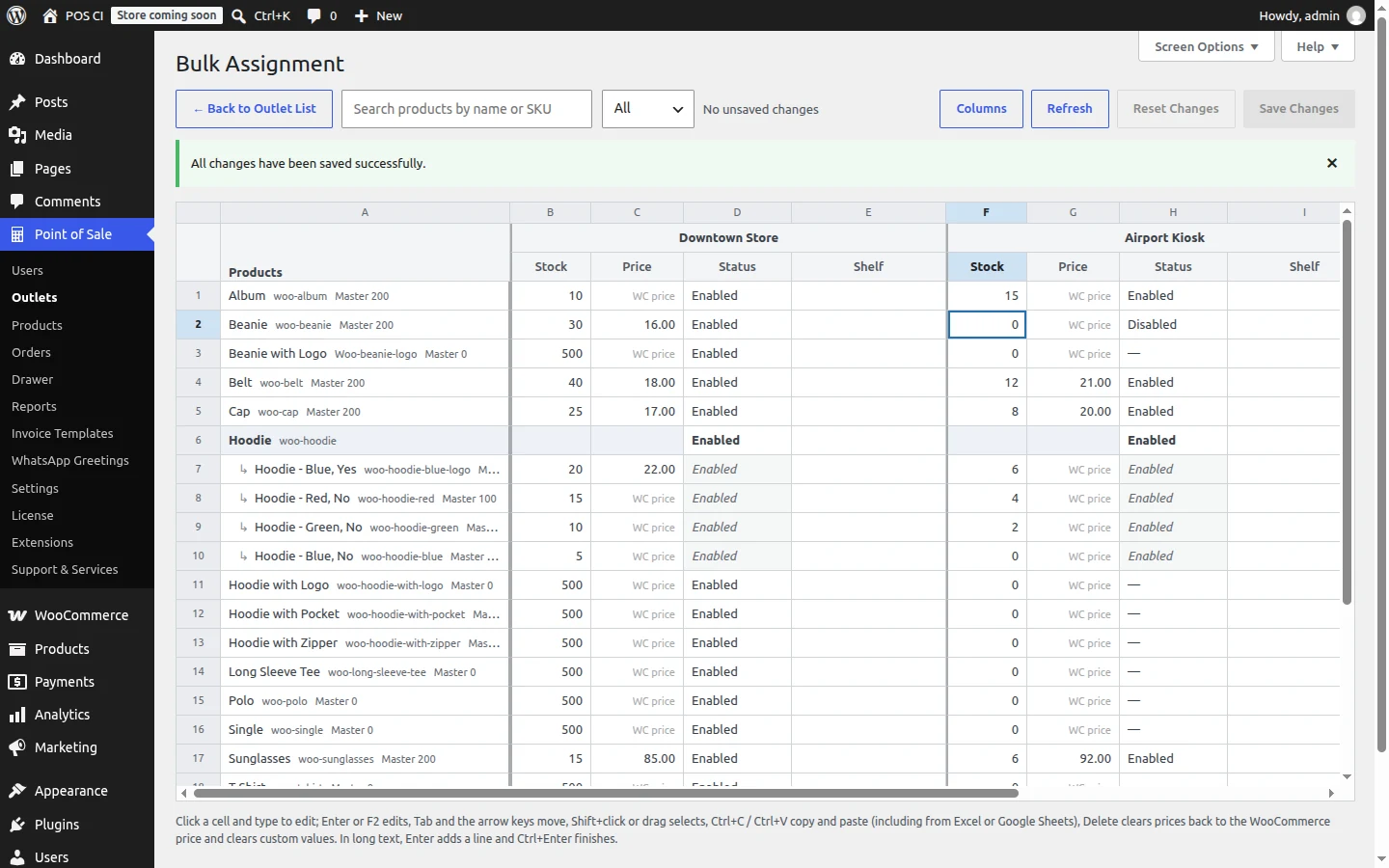
If some changes could not be saved, the notice says so, the affected cells are outlined in red with the reason on hover, and those changes stay pending so they can be corrected and saved again. Valid changes in the same batch are still saved.
Finding Products
The toolbar has a search box and a type filter.
- Search matches a product or variation by name or SKU. A product that matches is listed with all of its variations; a product listed only because one of its variations matched shows just the matching variations.
- Type narrows the sheet to All, Simple or Variable products.
Rows load 50 at a time and the next page loads automatically as the sheet is scrolled.
Rules and Limits
These are enforced when the sheet is saved, so a value that breaks a rule is reported rather than stored.
| Field | Rule |
|---|---|
| Stock | A whole number, zero or greater. The stock given to all outlets for a product cannot exceed its master stock. |
| Stock in centralized inventory | Read-only. WooCommerce owns the quantity in this mode, so only price and status can be edited. |
| Price | A number, zero or greater, entered in the same tax mode as the WooCommerce price field. Leave it empty to use the WooCommerce price. |
| Price of 0 | Rejected while Enable zero price products is disabled in POS settings, because a zero price would hide the product at the register. |
| Status | Enabled or Disabled, set on the product row. |
Setting stock does not change status
Saving a stock of 0 leaves the product enabled. A product is only disabled when its Status cell is changed. Out-of-stock products can still be managed, and can be shown at the register — see Out of Stock Products.
Assigning stock, price or status to an outlet also assigns the product to that outlet if it was not assigned already.
Custom Columns
Beyond stock, price and status, administrators can define their own per-outlet columns — a shelf location, a supplier reference, a per-outlet note — from the Columns button in the toolbar.
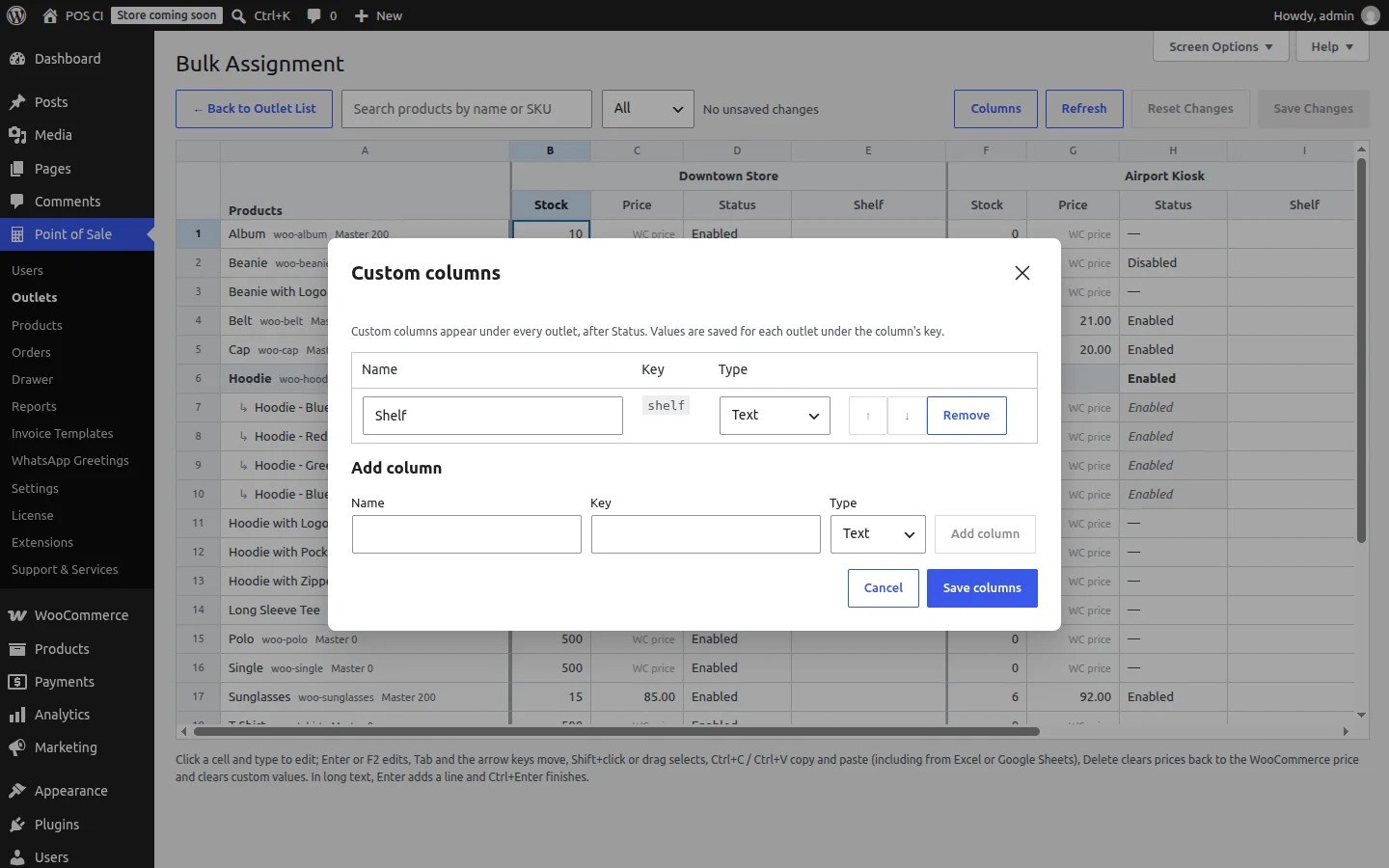
Each column needs a name, a key and a type:
| Type | Accepts |
|---|---|
| Text | A single line, up to 1,000 characters. |
| Long text | Multiple lines, up to 10,000 characters. Press Enter for a new line and Ctrl + Enter to finish editing. |
| Number | A numeric value. |
A custom column appears under every outlet, after Status, and stores its own value for each outlet and product. Values are edited, pasted and saved exactly like any other cell.
Column Keys
The key identifies the column in the database and is fixed once the column is saved, because the stored values are filed under it. Keys must start with a letter and use only lowercase letters, numbers and underscores. The names stock, price and status are reserved.
The label and the order of columns can be changed at any time. A Text column can be changed to Long text and back; a Number column cannot change type.
Removing a Column
Removing a column hides it from the sheet but keeps its stored values. Adding a column with the same key again brings those values back.
Custom values never assign a product
Filling in a custom column does not assign the product to that outlet. Only stock, price and status do that.
For Developers
Custom values are available to code as well as to the sheet:
wkwcpos_get_outlet_product_meta( $outlet_id, $product_id, $key )returns a single value.- Values reach the register with each product as
outlet_meta, and per variation asvar_outlet_meta, filterable throughwkwcpos_outlet_product_meta_for_pos.
Values are stored as plain text with HTML stripped, so escape them for the context you output them in. The register interface does not display custom columns on its own.
When Registers See the Changes
Saved values are picked up by a register on its next load or resync; open registers are not updated live. A changed outlet price refreshes the register's cached product data automatically the next time it loads.
Related Features
- Per-Outlet Pricing — how an outlet price is charged at the register.
- Out of Stock Products — showing out-of-stock items at the register.
- Outlets & POS Users — creating outlets and assigning products one outlet at a time.
- Products & Inventory — master stock, barcodes and inventory setup.