
WooCommerce POS DocumentationWooCommerce POS Documentation
Buy Now
View Demo
  • WooCommerce POS

    • Point Of Sale
    • Overview
    • Features
    • Help Center
    • POS Comparison
    • Installation
    • Admin Configuration
    • Outlets & Users
    • Bulk Assignment
    • Dynamic Theme
    • Notification Tones
    • Variation Layouts
    • Cart Totals & Editing
    • Products & Inventory
    • Stock Visibility
    • Out of Stock Products
    • Per-Outlet Pricing
    • Orders & Drawers
    • Checkout Discounts & Coupons
    • Checkout Fees
    • Z-Report
    • Cash Management
    • Hold Cart
    • Custom Products
    • Hardware Support
    • Cash Drawer
    • Payment Terminal
    • Payment Integration
    • WhatsApp Notification
    • Multisite Compatibility
    • Reports & Analytics
    • POS Agent Guide
    • Desktop & Mobile
    • FAQ & Notes
    • Troubleshooting
  • Core POS System

    • WooCommerce POS Outlet Manager
    • WooCommerce POS Warehouse Management
  • Mobile Apps

    • WooCommerce Flutter Native POS Mobile App
  • Printer Integrations

    • WooCommerce POS Cloud Printer
  • Payment Terminal Integrations

    • WooCommerce Stripe POS Terminal Connector
    • WooCommerce POS Square Payment Terminal Plugin
    • WooCommerce POS PayPal Terminal Reader
    • WooCommerce POS Linkly Terminal Connector
    • WooCommerce POS Stripe Reader M2 Integration
  • Order & Transaction Management

    • POS Order Return & Exchange for WooCommerce
    • WooCommerce POS Partial Payment Plugin
    • POS Booking Reservation Plugin for WooCommerce
    • WooCommerce POS Multicurrency
  • Customer & Loyalty Features

    • WooCommerce & POS Loyalty Management
    • WooCommerce POS Gift Card Plugin
    • WooCommerce POS Happy Hours
    • WooCommerce POS Complimentary Goods
  • Hardware & Barcode Solutions

    • WooCommerce POS Configurable Barcode
    • WooCommerce POS Barcode RFGun
    • WooCommerce POS RFID Card Add-on
    • WooCommerce POS Cloud Printer Add-on
  • Customer Interface & Kiosk

    • WooCommerce POS Customer Kiosk Checkout
    • WooCommerce POS Customer Cart Screen
    • WooCommerce POS QR Code Ordering System
  • Industry-Specific Solutions

    • WooCommerce Restaurant Kitchen POS
    • Delivery Management Addon for WooCommerce POS
  • Advanced Features

    • POS AI Reporting for WooCommerce
Buy Now
View Demo
  • WooCommerce POS

    • Point Of Sale
    • Overview
    • Features
    • Help Center
    • POS Comparison
    • Installation
    • Admin Configuration
    • Outlets & Users
    • Bulk Assignment
    • Dynamic Theme
    • Notification Tones
    • Variation Layouts
    • Cart Totals & Editing
    • Products & Inventory
    • Stock Visibility
    • Out of Stock Products
    • Per-Outlet Pricing
    • Orders & Drawers
    • Checkout Discounts & Coupons
    • Checkout Fees
    • Z-Report
    • Cash Management
    • Hold Cart
    • Custom Products
    • Hardware Support
    • Cash Drawer
    • Payment Terminal
    • Payment Integration
    • WhatsApp Notification
    • Multisite Compatibility
    • Reports & Analytics
    • POS Agent Guide
    • Desktop & Mobile
    • FAQ & Notes
    • Troubleshooting
  • Core POS System

    • WooCommerce POS Outlet Manager
    • WooCommerce POS Warehouse Management
  • Mobile Apps

    • WooCommerce Flutter Native POS Mobile App
  • Printer Integrations

    • WooCommerce POS Cloud Printer
  • Payment Terminal Integrations

    • WooCommerce Stripe POS Terminal Connector
    • WooCommerce POS Square Payment Terminal Plugin
    • WooCommerce POS PayPal Terminal Reader
    • WooCommerce POS Linkly Terminal Connector
    • WooCommerce POS Stripe Reader M2 Integration
  • Order & Transaction Management

    • POS Order Return & Exchange for WooCommerce
    • WooCommerce POS Partial Payment Plugin
    • POS Booking Reservation Plugin for WooCommerce
    • WooCommerce POS Multicurrency
  • Customer & Loyalty Features

    • WooCommerce & POS Loyalty Management
    • WooCommerce POS Gift Card Plugin
    • WooCommerce POS Happy Hours
    • WooCommerce POS Complimentary Goods
  • Hardware & Barcode Solutions

    • WooCommerce POS Configurable Barcode
    • WooCommerce POS Barcode RFGun
    • WooCommerce POS RFID Card Add-on
    • WooCommerce POS Cloud Printer Add-on
  • Customer Interface & Kiosk

    • WooCommerce POS Customer Kiosk Checkout
    • WooCommerce POS Customer Cart Screen
    • WooCommerce POS QR Code Ordering System
  • Industry-Specific Solutions

    • WooCommerce Restaurant Kitchen POS
    • Delivery Management Addon for WooCommerce POS
  • Advanced Features

    • POS AI Reporting for WooCommerce
  • Getting Started

    • WooCommerce Point of Sale (POS)
    • Overview
    • Features
    • WooCommerce POS Comparison
    • Installation
  • Setup & Configuration

    • Admin Configuration
    • Outlets & POS Users
    • Bulk Assignment
    • Dynamic Theme in WooCommerce Point of Sale
    • Notification Tones
    • Variation Card Layouts
    • Cart Totals & Item Editing
  • Store Operations

    • WooCommerce Point of Sale – Products & Inventory Management
    • Stock Visibility Controls
    • Out of Stock Products
    • Per-Outlet Pricing
    • Orders & Cash Drawer
    • Checkout Discounts & Coupons
    • Checkout Fees
    • WooCommerce POS - Cashier Management
    • WooCommerce POS - Hold Cart
    • Z-Report Generation & Printing
    • WooCommerce POS - Custom Product
  • Hardware Integrations

    • WooCommerce POS - Hardware Support
    • WooCommerce POS – Cash Drawer & Cashier Management
    • WooCommerce POS – Payment Methods & Checkout Configuration
    • WooCommerce POS – Payment Terminal Integration
  • Advanced Features

    • WhatsApp Notifications in WooCommerce Point of Sale
    • WooCommerce POS - Multisite Compatibility
    • Reports & Analytics
    • POS Agent Guide
    • Desktop & Mobile POS
  • Help & FAQ

    • POS Help Center
    • FAQ & Notes
    • Troubleshooting
    • Before You Open a Ticket

Out of Stock Products

Introduction

A product that has run out is still worth seeing. A cashier asked for it needs to say "we're out of those" rather than "I can't find it", and whoever restocks the shelf needs to be able to give the outlet a new quantity.

WooCommerce POS handles this in two places:

  • At the register, a setting decides whether out-of-stock products appear with an Out of stock badge or stay hidden. Either way they can never be sold.
  • In the admin, out-of-stock products and variations are always available for stock management, independently of WooCommerce's storefront catalog settings.

Showing Out-of-Stock Products at the Register

Navigation path:WooCommerce Point of Sale → Settings → General → POS Panel Configurations

Set Show Out of Stock Products to Enabled to list them at the register, or Disabled to hide them. The default is Disabled, which matches how earlier versions behaved.
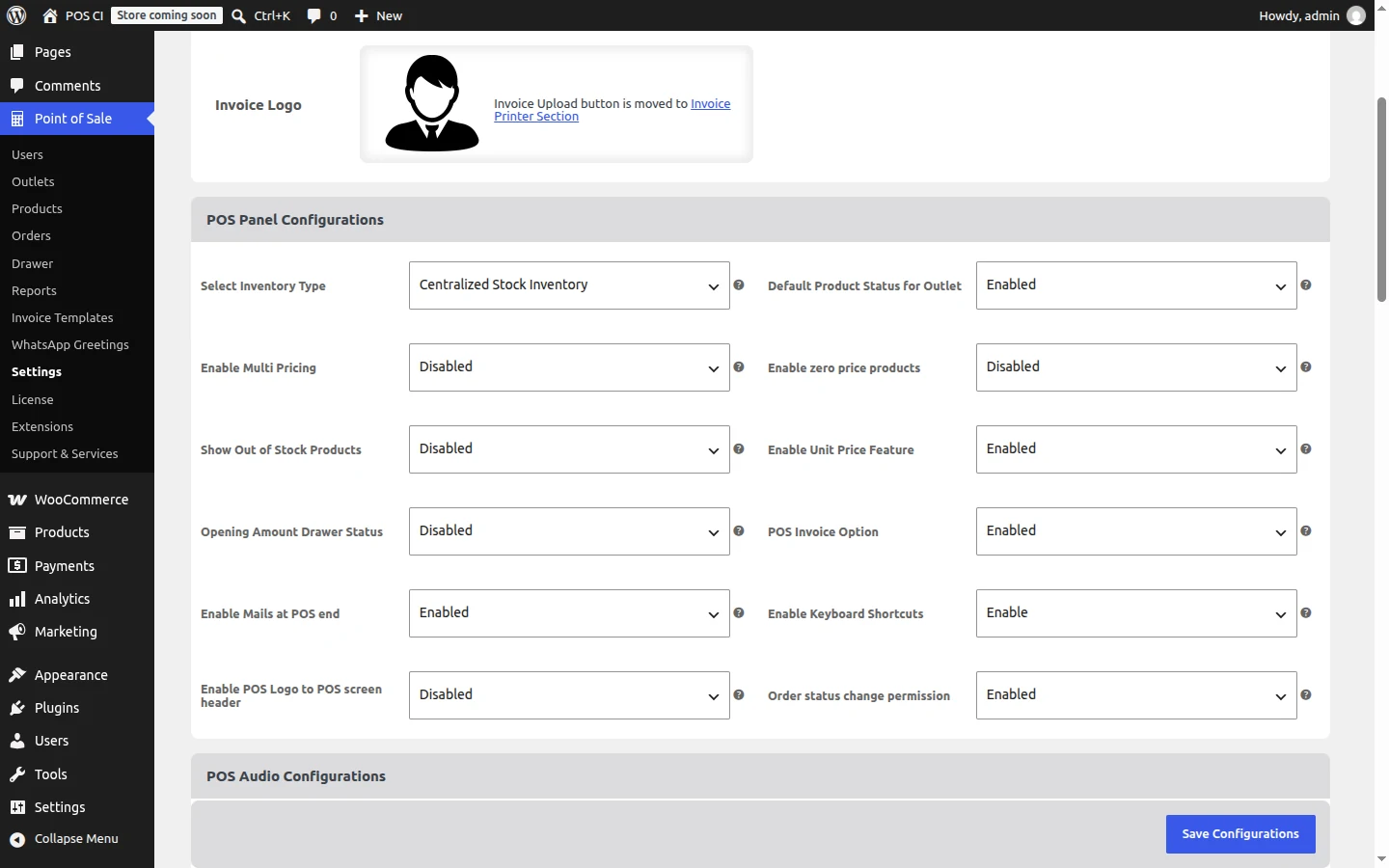
Show Out of Stock Products setting

The setting applies the next time a register is loaded.

With the Setting Enabled

Out-of-stock products appear in the product grid, in category listings and in search results, marked with the existing Out of stock overlay.

  • Tapping one shows No stock available and adds nothing to the cart.
  • In the variation dialog, out-of-stock variations are listed but cannot be selected.
  • In the classic variation dropdowns they appear as disabled options, suffixed with (Out of stock).

With the Setting Disabled

Out-of-stock products are not shown in the grid, in categories or in search, and an exact SKU search does not open one. A product that sells out during a shift disappears from the grid as soon as the screen next refreshes.

Either Way, They Cannot Be Sold

Scanning the barcode of an out-of-stock product or variation shows No stock available and adds nothing — including when the product is hidden. Existing cart and quantity checks are unchanged, and restoring a held cart still flags lines that have gone out of stock.

What counts as out of stock

With Master Stock inventory, an item is out of stock when the outlet has no stock row or its POS stock is zero or less. With Centralized inventory, it is WooCommerce's own quantity, plus the Out of stock and On backorder statuses. Backorders are not sold at the POS.


Managing Out-of-Stock Products in the Admin

WooCommerce has a storefront setting, Hide out of stock items from the catalog, under WooCommerce → Settings → Products → Inventory. It controls what shoppers see in your online catalog.

It does not apply to POS stock management. Whatever that setting says, the POS admin screens still list every product and variation, so an item that has run out is exactly the one you can give new stock to.

This applies to the POS product list, outlet product assignment, POS search, the Bulk Assignment sheet and the Set variation stock dialog.
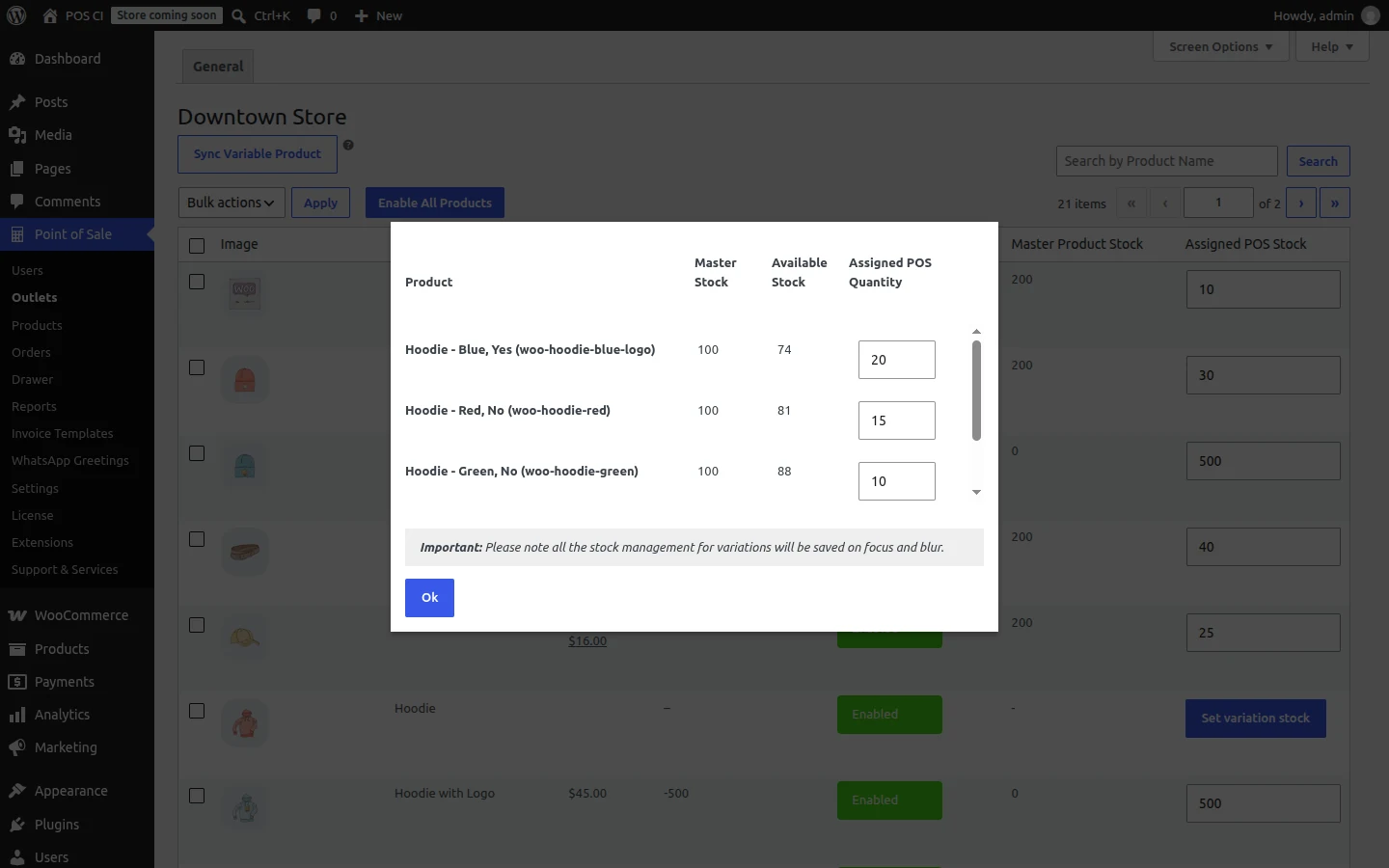
Set variation stock listing out-of-stock variations

In the screenshot above, every variation of the product is out of stock and WooCommerce is hiding the product from the online catalog — and the dialog still lists each variation with its Master Stock, Available Stock and an editable Assigned POS Quantity.

Your storefront is unaffected: WooCommerce continues to hide out-of-stock items from the catalog exactly as it always has.

Zero stock no longer disables a product

Saving an outlet stock of 0 leaves the product Enabled for that outlet. Products are only disabled when their status is changed deliberately. Products already set to Disabled stay that way.


Upgrading

The first time the store runs this version, registers refresh their cached product data once so they pick up out-of-stock products. Cashiers do not need to do anything; the refresh happens on the next register load.


Related Features

  • Stock Visibility Controls — whether stock counts are printed on product tiles.
  • Bulk Assignment — setting outlet stock across every outlet at once.
  • Products & Inventory — master stock and variation stock setup.
Prev
Stock Visibility Controls
Next
Per-Outlet Pricing