
WooCommerce POS DocumentationWooCommerce POS Documentation
Buy Now
View Demo
  • WooCommerce POS

    • Point Of Sale
    • Overview
    • Features
    • Help Center
    • POS Comparison
    • Installation
    • Admin Configuration
    • Outlets & Users
    • Bulk Assignment
    • Dynamic Theme
    • Notification Tones
    • Variation Layouts
    • Cart Totals & Editing
    • Products & Inventory
    • Stock Visibility
    • Out of Stock Products
    • Per-Outlet Pricing
    • Orders & Drawers
    • Checkout Discounts & Coupons
    • Checkout Fees
    • Z-Report
    • Cash Management
    • Hold Cart
    • Custom Products
    • Hardware Support
    • Cash Drawer
    • Payment Terminal
    • Payment Integration
    • WhatsApp Notification
    • Multisite Compatibility
    • Reports & Analytics
    • POS Agent Guide
    • Desktop & Mobile
    • FAQ & Notes
    • Troubleshooting
  • Core POS System

    • WooCommerce POS Outlet Manager
    • WooCommerce POS Warehouse Management
  • Mobile Apps

    • WooCommerce Flutter Native POS Mobile App
  • Printer Integrations

    • WooCommerce POS Cloud Printer
  • Payment Terminal Integrations

    • WooCommerce Stripe POS Terminal Connector
    • WooCommerce POS Square Payment Terminal Plugin
    • WooCommerce POS PayPal Terminal Reader
    • WooCommerce POS Linkly Terminal Connector
    • WooCommerce POS Stripe Reader M2 Integration
  • Order & Transaction Management

    • POS Order Return & Exchange for WooCommerce
    • WooCommerce POS Partial Payment Plugin
    • POS Booking Reservation Plugin for WooCommerce
    • WooCommerce POS Multicurrency
  • Customer & Loyalty Features

    • WooCommerce & POS Loyalty Management
    • WooCommerce POS Gift Card Plugin
    • WooCommerce POS Happy Hours
    • WooCommerce POS Complimentary Goods
  • Hardware & Barcode Solutions

    • WooCommerce POS Configurable Barcode
    • WooCommerce POS Barcode RFGun
    • WooCommerce POS RFID Card Add-on
    • WooCommerce POS Cloud Printer Add-on
  • Customer Interface & Kiosk

    • WooCommerce POS Customer Kiosk Checkout
    • WooCommerce POS Customer Cart Screen
    • WooCommerce POS QR Code Ordering System
  • Industry-Specific Solutions

    • WooCommerce Restaurant Kitchen POS
    • Delivery Management Addon for WooCommerce POS
  • Advanced Features

    • POS AI Reporting for WooCommerce
Buy Now
View Demo
  • WooCommerce POS

    • Point Of Sale
    • Overview
    • Features
    • Help Center
    • POS Comparison
    • Installation
    • Admin Configuration
    • Outlets & Users
    • Bulk Assignment
    • Dynamic Theme
    • Notification Tones
    • Variation Layouts
    • Cart Totals & Editing
    • Products & Inventory
    • Stock Visibility
    • Out of Stock Products
    • Per-Outlet Pricing
    • Orders & Drawers
    • Checkout Discounts & Coupons
    • Checkout Fees
    • Z-Report
    • Cash Management
    • Hold Cart
    • Custom Products
    • Hardware Support
    • Cash Drawer
    • Payment Terminal
    • Payment Integration
    • WhatsApp Notification
    • Multisite Compatibility
    • Reports & Analytics
    • POS Agent Guide
    • Desktop & Mobile
    • FAQ & Notes
    • Troubleshooting
  • Core POS System

    • WooCommerce POS Outlet Manager
    • WooCommerce POS Warehouse Management
  • Mobile Apps

    • WooCommerce Flutter Native POS Mobile App
  • Printer Integrations

    • WooCommerce POS Cloud Printer
  • Payment Terminal Integrations

    • WooCommerce Stripe POS Terminal Connector
    • WooCommerce POS Square Payment Terminal Plugin
    • WooCommerce POS PayPal Terminal Reader
    • WooCommerce POS Linkly Terminal Connector
    • WooCommerce POS Stripe Reader M2 Integration
  • Order & Transaction Management

    • POS Order Return & Exchange for WooCommerce
    • WooCommerce POS Partial Payment Plugin
    • POS Booking Reservation Plugin for WooCommerce
    • WooCommerce POS Multicurrency
  • Customer & Loyalty Features

    • WooCommerce & POS Loyalty Management
    • WooCommerce POS Gift Card Plugin
    • WooCommerce POS Happy Hours
    • WooCommerce POS Complimentary Goods
  • Hardware & Barcode Solutions

    • WooCommerce POS Configurable Barcode
    • WooCommerce POS Barcode RFGun
    • WooCommerce POS RFID Card Add-on
    • WooCommerce POS Cloud Printer Add-on
  • Customer Interface & Kiosk

    • WooCommerce POS Customer Kiosk Checkout
    • WooCommerce POS Customer Cart Screen
    • WooCommerce POS QR Code Ordering System
  • Industry-Specific Solutions

    • WooCommerce Restaurant Kitchen POS
    • Delivery Management Addon for WooCommerce POS
  • Advanced Features

    • POS AI Reporting for WooCommerce
  • Getting Started

    • WooCommerce Point of Sale (POS)
    • Overview
    • Features
    • WooCommerce POS Comparison
    • Installation
  • Setup & Configuration

    • Admin Configuration
    • Outlets & POS Users
    • Bulk Assignment
    • Dynamic Theme in WooCommerce Point of Sale
    • Notification Tones
    • Variation Card Layouts
    • Cart Totals & Item Editing
  • Store Operations

    • WooCommerce Point of Sale – Products & Inventory Management
    • Stock Visibility Controls
    • Out of Stock Products
    • Per-Outlet Pricing
    • Orders & Cash Drawer
    • Checkout Discounts & Coupons
    • Checkout Fees
    • WooCommerce POS - Cashier Management
    • WooCommerce POS - Hold Cart
    • Z-Report Generation & Printing
    • WooCommerce POS - Custom Product
  • Hardware Integrations

    • WooCommerce POS - Hardware Support
    • WooCommerce POS – Cash Drawer & Cashier Management
    • WooCommerce POS – Payment Methods & Checkout Configuration
    • WooCommerce POS – Payment Terminal Integration
  • Advanced Features

    • WhatsApp Notifications in WooCommerce Point of Sale
    • WooCommerce POS - Multisite Compatibility
    • Reports & Analytics
    • POS Agent Guide
    • Desktop & Mobile POS
  • Help & FAQ

    • POS Help Center
    • FAQ & Notes
    • Troubleshooting
    • Before You Open a Ticket

Checkout Discounts & Coupons

Introduction

WooCommerce Point of Sale (POS) brings all price adjustments together on the checkout page. After clicking Pay, the cashier can apply a manual discount, redeem a WooCommerce coupon, or add a fee — all from one screen, right before taking payment.

The Apply Discount and Apply Coupon actions previously lived on the cart page and moved to the checkout page in version 7.0.0, so the whole price negotiation happens in one place while the customer confirms the total.


Step-by-Step Workflow

1. Find the Checkout Actions

  1. Build the cart and click Pay on the POS register.
  2. On the checkout page, locate the action row above the totals: Apply Coupon, Apply Discount, and Take Fee.
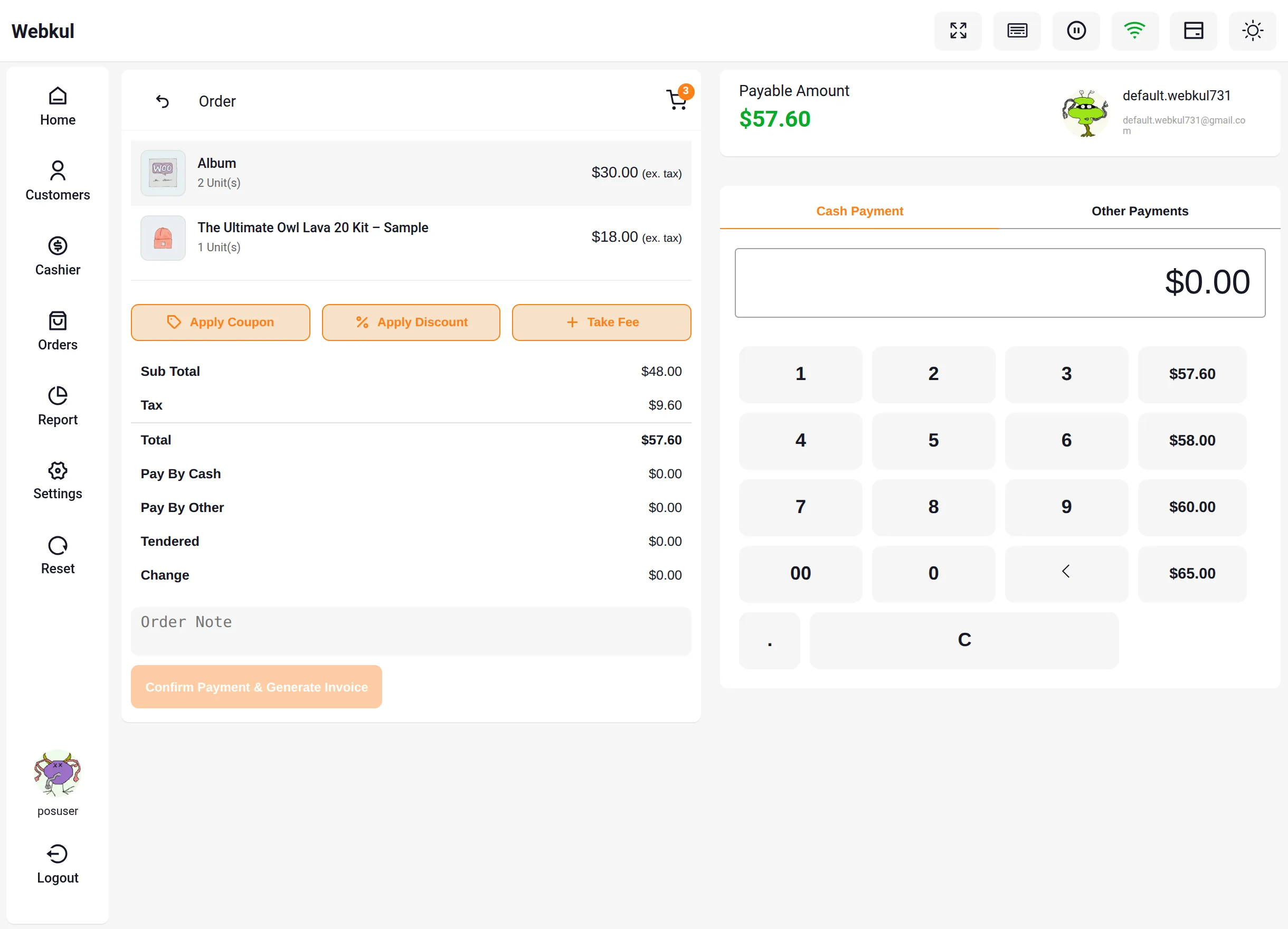
POS Checkout Page


2. Apply a Manual Discount

  1. Click Apply Discount.
  2. The Apply discount to sale popup appears:
    • Discount Type: choose Percent (%) or Fixed amount.
    • Discount Value: enter the percentage or amount to deduct.
  3. Click Apply. The totals show a dedicated Discount line (for example, a 10% discount on a $57.60 order deducts $5.76), or click Delete to remove a discount applied earlier.
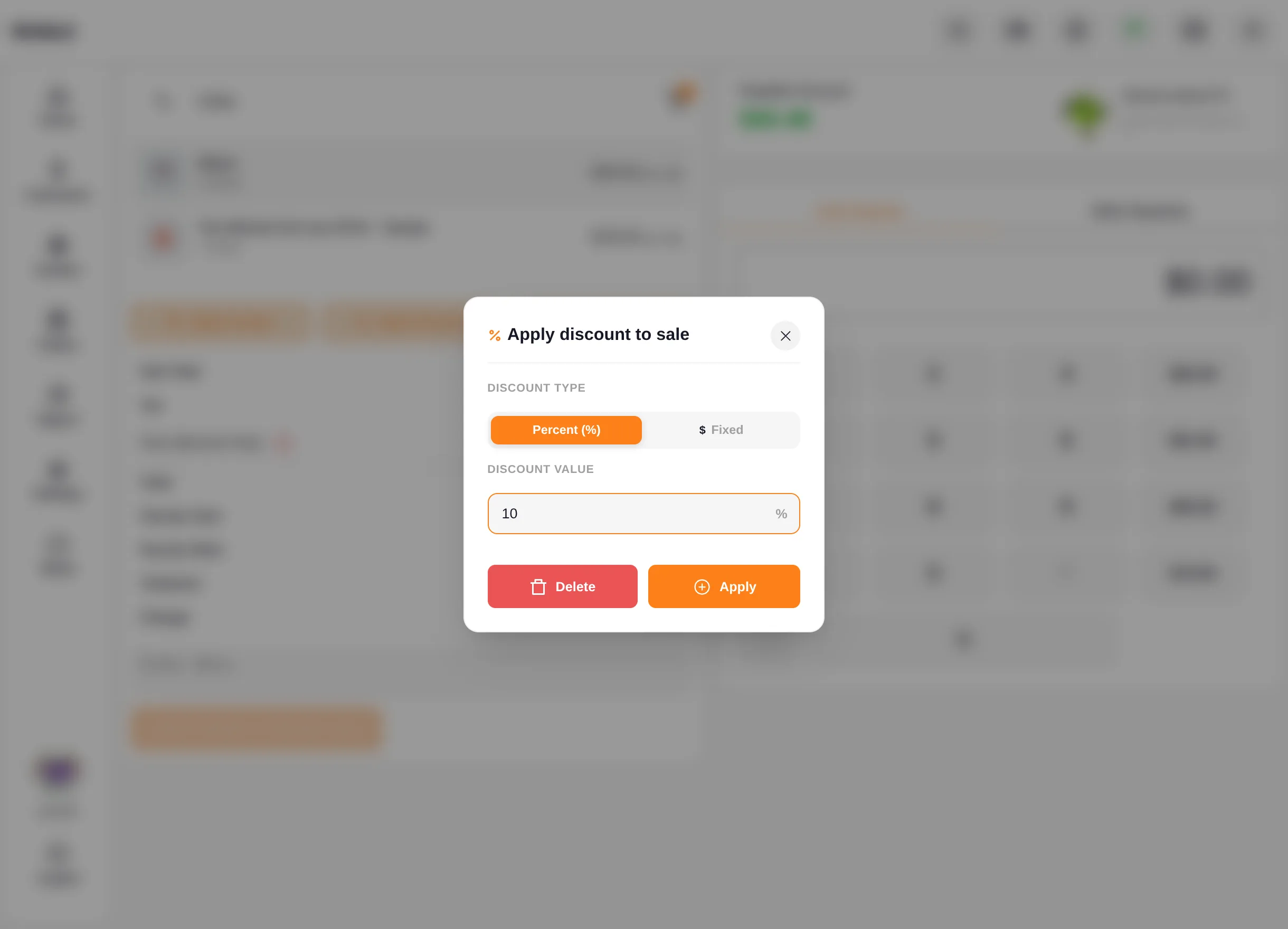
Apply Discount Popup


3. Apply a WooCommerce Coupon

  1. Click Apply Coupon.
  2. Enter the coupon code created in WordPress Admin → Marketing → Coupons and click Apply.
  3. The coupon is validated against your WooCommerce store in real time. On success, the totals show a Coupon (code) line with the deducted amount, and tax is recalculated on the discounted total.
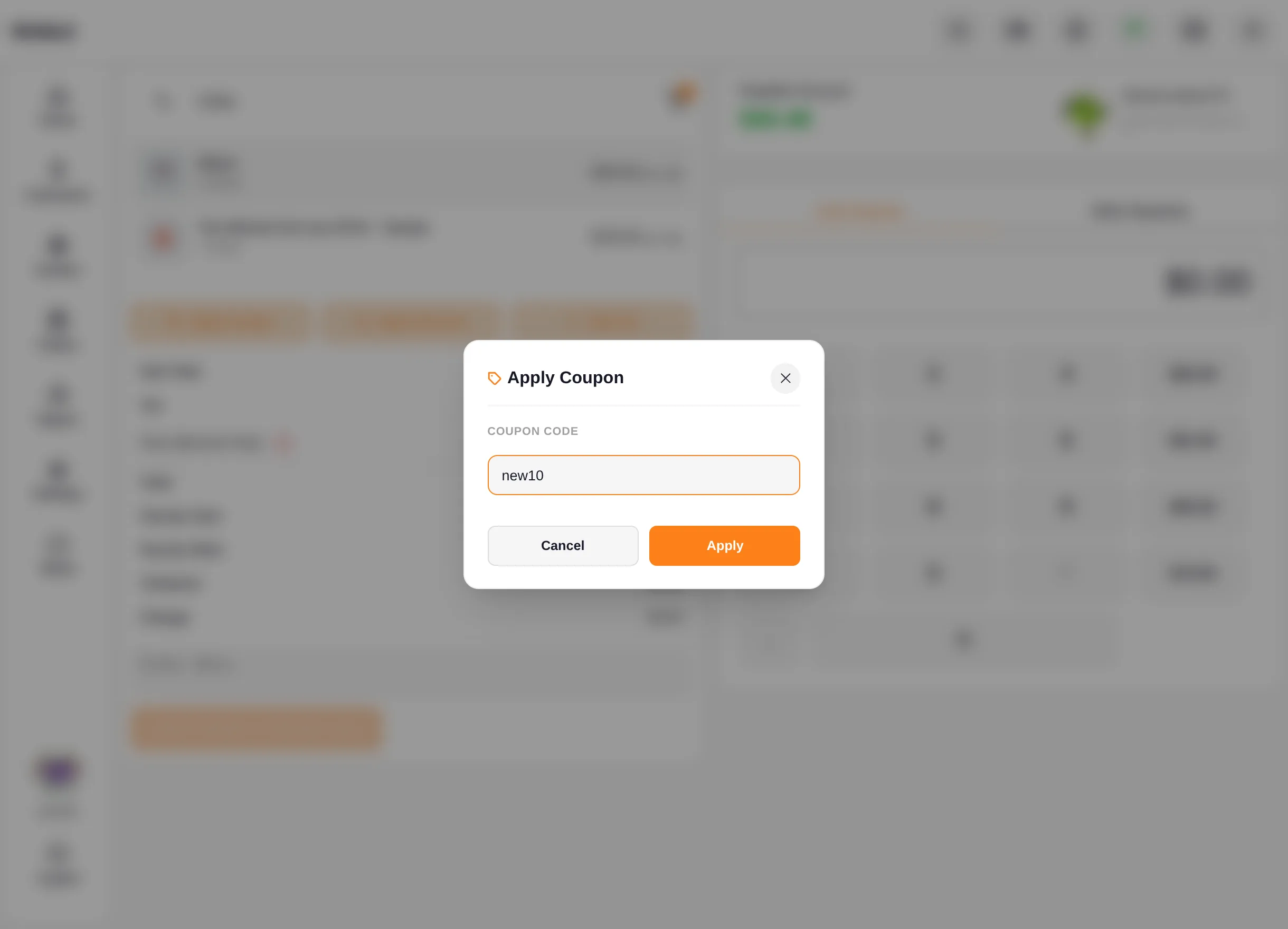
Apply Coupon Popup

An applied coupon can be removed again with the delete icon next to its line in the order summary.
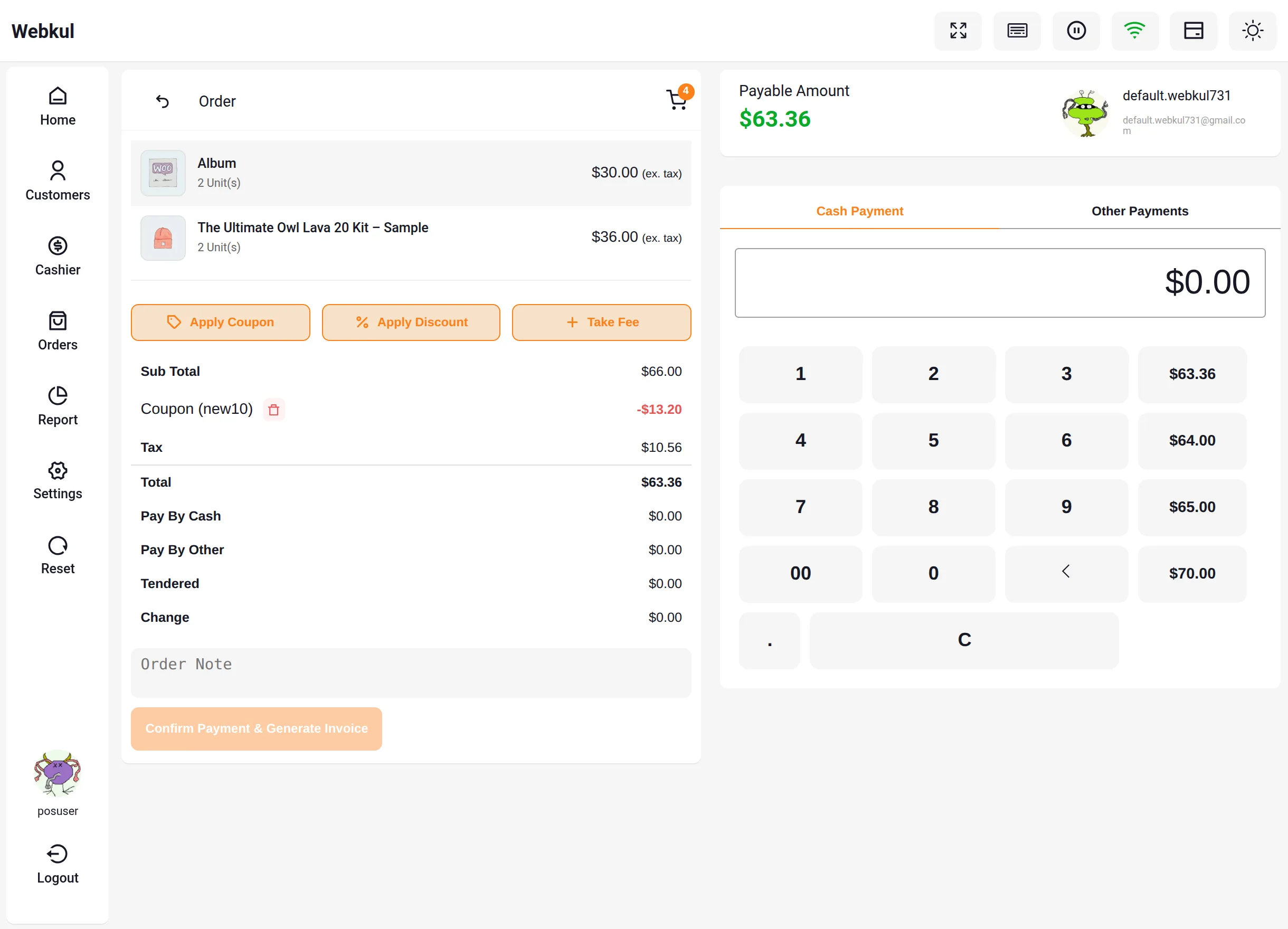
Coupon Applied to Checkout Totals


4. WooCommerce Coupon Restrictions at POS

Every usage restriction configured on the WooCommerce coupon is enforced at the register — the same rules that protect your online store now protect in-store sales:

RestrictionPOS Behavior
Minimum / maximum spendThe coupon is rejected when the cart total is outside the configured range.
Products & categoriesInclude and exclude lists limit which cart items the coupon can discount.
Individual use onlyBlocks combining the coupon with other coupons.
Usage limits & expiryExhausted or expired coupons are rejected.

When a restriction is not met, the cashier sees the exact WooCommerce error message — for example, “The minimum spend for coupon "new10" is $50.00.” — so they can explain the requirement to the customer.
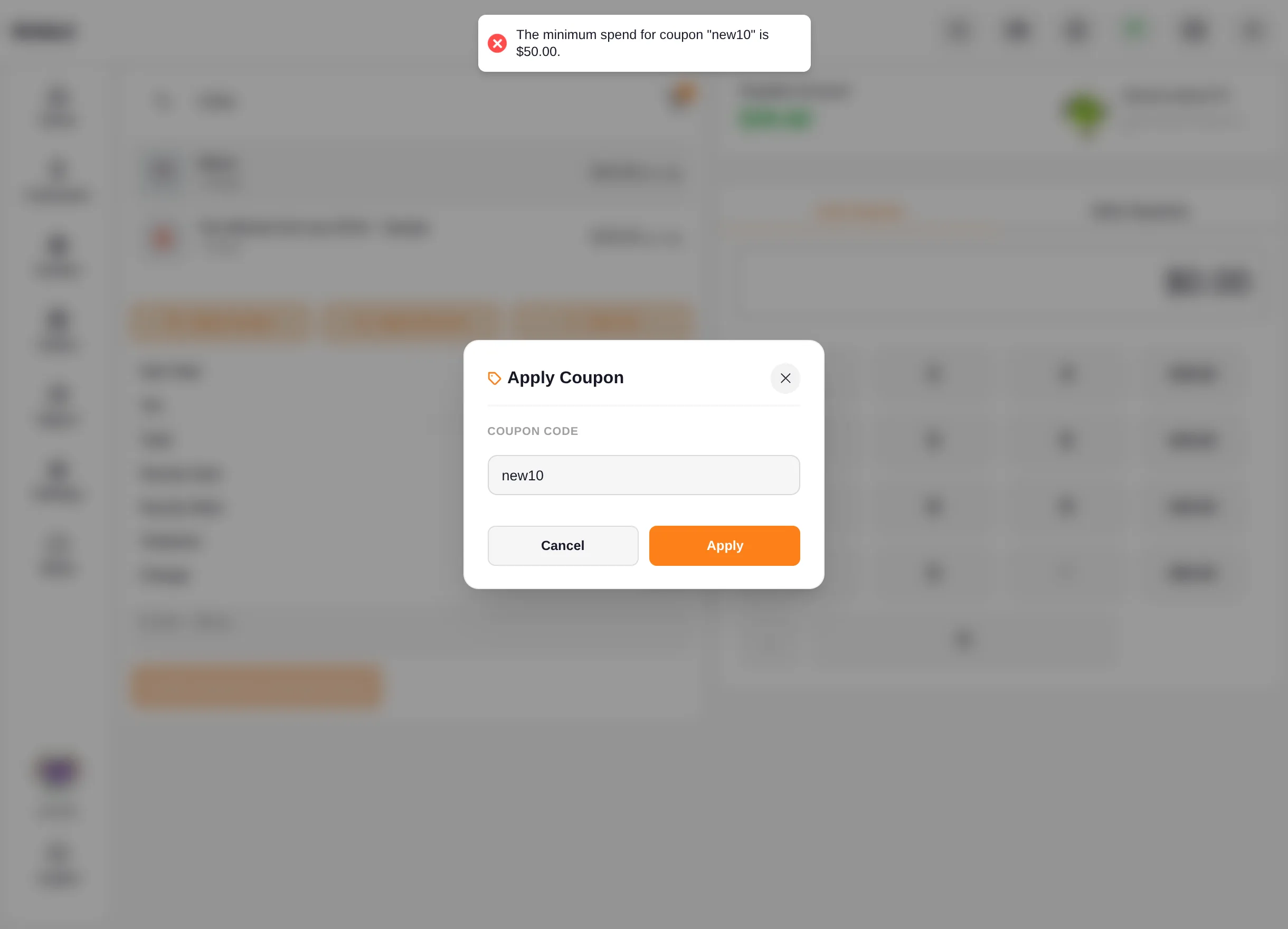
Coupon Restriction Error at POS


Benefits

  • One screen for all adjustments: Discounts, coupons, and fees are applied where payment happens, reducing back-and-forth between cart and checkout.
  • Consistent promotion rules: Coupon restrictions behave identically online and in-store, preventing accidental over-discounting at the counter.
  • Clear customer communication: Every adjustment appears as a labelled line in the order summary before the customer pays.

Related Features

  • Checkout Fees — Add a percentage or fixed custom fee from the same checkout action row.
  • Orders & Cash Drawers — Complete payments and manage POS orders after checkout.
Prev
Orders & Cash Drawer
Next
Checkout Fees