
WooCommerce POS DocumentationWooCommerce POS Documentation
Buy Now
View Demo
  • WooCommerce POS

    • Point Of Sale
    • Overview
    • Features
    • Help Center
    • POS Comparison
    • Installation
    • Admin Configuration
    • Outlets & Users
    • Bulk Assignment
    • Dynamic Theme
    • Notification Tones
    • Variation Layouts
    • Cart Totals & Editing
    • Products & Inventory
    • Stock Visibility
    • Out of Stock Products
    • Per-Outlet Pricing
    • Orders & Drawers
    • Checkout Discounts & Coupons
    • Checkout Fees
    • Z-Report
    • Cash Management
    • Hold Cart
    • Custom Products
    • Hardware Support
    • Cash Drawer
    • Payment Terminal
    • Payment Integration
    • WhatsApp Notification
    • Multisite Compatibility
    • Reports & Analytics
    • POS Agent Guide
    • Desktop & Mobile
    • FAQ & Notes
    • Troubleshooting
  • Core POS System

    • WooCommerce POS Outlet Manager
    • WooCommerce POS Warehouse Management
  • Mobile Apps

    • WooCommerce Flutter Native POS Mobile App
  • Printer Integrations

    • WooCommerce POS Cloud Printer
  • Payment Terminal Integrations

    • WooCommerce Stripe POS Terminal Connector
    • WooCommerce POS Square Payment Terminal Plugin
    • WooCommerce POS PayPal Terminal Reader
    • WooCommerce POS Linkly Terminal Connector
    • WooCommerce POS Stripe Reader M2 Integration
  • Order & Transaction Management

    • POS Order Return & Exchange for WooCommerce
    • WooCommerce POS Partial Payment Plugin
    • POS Booking Reservation Plugin for WooCommerce
    • WooCommerce POS Multicurrency
  • Customer & Loyalty Features

    • WooCommerce & POS Loyalty Management
    • WooCommerce POS Gift Card Plugin
    • WooCommerce POS Happy Hours
    • WooCommerce POS Complimentary Goods
  • Hardware & Barcode Solutions

    • WooCommerce POS Configurable Barcode
    • WooCommerce POS Barcode RFGun
    • WooCommerce POS RFID Card Add-on
    • WooCommerce POS Cloud Printer Add-on
  • Customer Interface & Kiosk

    • WooCommerce POS Customer Kiosk Checkout
    • WooCommerce POS Customer Cart Screen
    • WooCommerce POS QR Code Ordering System
  • Industry-Specific Solutions

    • WooCommerce Restaurant Kitchen POS
    • Delivery Management Addon for WooCommerce POS
  • Advanced Features

    • POS AI Reporting for WooCommerce
Buy Now
View Demo
  • WooCommerce POS

    • Point Of Sale
    • Overview
    • Features
    • Help Center
    • POS Comparison
    • Installation
    • Admin Configuration
    • Outlets & Users
    • Bulk Assignment
    • Dynamic Theme
    • Notification Tones
    • Variation Layouts
    • Cart Totals & Editing
    • Products & Inventory
    • Stock Visibility
    • Out of Stock Products
    • Per-Outlet Pricing
    • Orders & Drawers
    • Checkout Discounts & Coupons
    • Checkout Fees
    • Z-Report
    • Cash Management
    • Hold Cart
    • Custom Products
    • Hardware Support
    • Cash Drawer
    • Payment Terminal
    • Payment Integration
    • WhatsApp Notification
    • Multisite Compatibility
    • Reports & Analytics
    • POS Agent Guide
    • Desktop & Mobile
    • FAQ & Notes
    • Troubleshooting
  • Core POS System

    • WooCommerce POS Outlet Manager
    • WooCommerce POS Warehouse Management
  • Mobile Apps

    • WooCommerce Flutter Native POS Mobile App
  • Printer Integrations

    • WooCommerce POS Cloud Printer
  • Payment Terminal Integrations

    • WooCommerce Stripe POS Terminal Connector
    • WooCommerce POS Square Payment Terminal Plugin
    • WooCommerce POS PayPal Terminal Reader
    • WooCommerce POS Linkly Terminal Connector
    • WooCommerce POS Stripe Reader M2 Integration
  • Order & Transaction Management

    • POS Order Return & Exchange for WooCommerce
    • WooCommerce POS Partial Payment Plugin
    • POS Booking Reservation Plugin for WooCommerce
    • WooCommerce POS Multicurrency
  • Customer & Loyalty Features

    • WooCommerce & POS Loyalty Management
    • WooCommerce POS Gift Card Plugin
    • WooCommerce POS Happy Hours
    • WooCommerce POS Complimentary Goods
  • Hardware & Barcode Solutions

    • WooCommerce POS Configurable Barcode
    • WooCommerce POS Barcode RFGun
    • WooCommerce POS RFID Card Add-on
    • WooCommerce POS Cloud Printer Add-on
  • Customer Interface & Kiosk

    • WooCommerce POS Customer Kiosk Checkout
    • WooCommerce POS Customer Cart Screen
    • WooCommerce POS QR Code Ordering System
  • Industry-Specific Solutions

    • WooCommerce Restaurant Kitchen POS
    • Delivery Management Addon for WooCommerce POS
  • Advanced Features

    • POS AI Reporting for WooCommerce
  • Getting Started

    • WooCommerce Point of Sale (POS)
    • Overview
    • Features
    • WooCommerce POS Comparison
    • Installation
  • Setup & Configuration

    • Admin Configuration
    • Outlets & POS Users
    • Bulk Assignment
    • Dynamic Theme in WooCommerce Point of Sale
    • Notification Tones
    • Variation Card Layouts
    • Cart Totals & Item Editing
  • Store Operations

    • WooCommerce Point of Sale – Products & Inventory Management
    • Stock Visibility Controls
    • Out of Stock Products
    • Per-Outlet Pricing
    • Orders & Cash Drawer
    • Checkout Discounts & Coupons
    • Checkout Fees
    • WooCommerce POS - Cashier Management
    • WooCommerce POS - Hold Cart
    • Z-Report Generation & Printing
    • WooCommerce POS - Custom Product
  • Hardware Integrations

    • WooCommerce POS - Hardware Support
    • WooCommerce POS – Cash Drawer & Cashier Management
    • WooCommerce POS – Payment Methods & Checkout Configuration
    • WooCommerce POS – Payment Terminal Integration
  • Advanced Features

    • WhatsApp Notifications in WooCommerce Point of Sale
    • WooCommerce POS - Multisite Compatibility
    • Reports & Analytics
    • POS Agent Guide
    • Desktop & Mobile POS
  • Help & FAQ

    • POS Help Center
    • FAQ & Notes
    • Troubleshooting
    • Before You Open a Ticket

Per-Outlet Pricing

Introduction

A product rarely carries the same price everywhere. An airport kiosk charges more than a high-street shop, a staff canteen charges less, and an outlet running a local promotion needs its own figure without touching the online store.

Per-Outlet Pricing lets each outlet hold its own selling price for a product or variation. When a price is set, the register shows it, charges it, and records it on the order. When it is left empty, nothing changes — the outlet sells at the WooCommerce price, exactly as before.


Setting an Outlet Price

Outlet prices are set in the Price column of the Bulk Assignment sheet, under the outlet you want to price.

Navigation path:WooCommerce Point of Sale → Outlets → Bulk Assignment
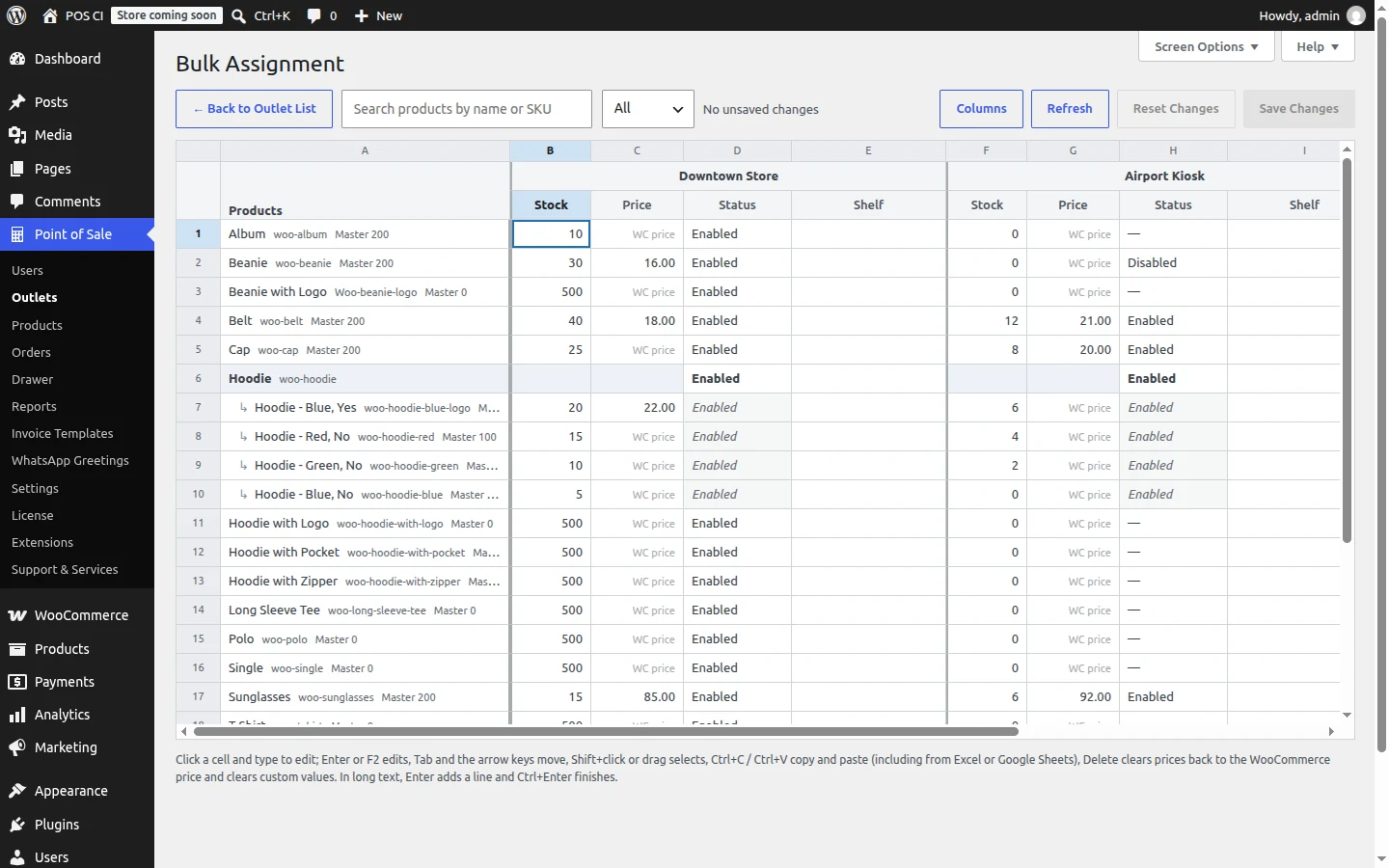
Outlet prices in the Bulk Assignment sheet

  1. Find the product, or a variation of a variable product.
  2. Click the Price cell under the outlet you are pricing.
  3. Type the price and press Enter.
  4. Click Save Changes.

A cell showing WC price has no outlet price: that outlet sells at the WooCommerce price. To go back to that, select the cell and press Delete.

Prices belong to variations

On a variable product, the price is set on each variation, not on the parent row. The parent row's Price cell is blank and read-only.


How the Price Is Applied

When an outlet price is set, it is the selling price at that outlet. The register shows a single price with no strike-through and no On Sale badge, and any WooCommerce sale price is ignored at that outlet.

The register works through these in order and uses the first one it finds:

PriorityPrice
1A multi-price row chosen by the cashier
2The outlet price
3The WooCommerce sale price
4The WooCommerce regular price

A cashier who is allowed to edit prices in the cart is still capped at the resulting price, exactly as before.

Tax

An outlet price is entered in the same tax mode as the WooCommerce price field — inclusive or exclusive of tax according to your WooCommerce tax settings. Tax is then calculated from the outlet price, so the register and the order stay consistent with the rest of the store.


On the Order

The order records what the outlet actually charges. When a cashier edits a price in the cart, the difference is still recorded as a per-product discount, as it is today.

Because registers cache product data, a register that has not reloaded since a price change may still show the old price. The order is protected either way:

  • If the cached price was lower than the current outlet price, the order records the outlet price and the shortfall becomes a discount.
  • If the cached price was higher, the order records what was actually collected at the till, never less.

Reaching the Registers

Saving a price updates a store-wide price marker. The next time a register loads, it notices the change and refreshes its cached products automatically — no manual resync is needed. Registers already open keep their cached prices until they are reloaded or resynced.


Notes and Limits

  • A price of 0 is rejected while Enable zero price products is disabled in POS settings, because a zero price hides the product at the register.
  • Multi-pricing rows do not have per-outlet prices.
  • Weight-priced items keep their weight-based calculation.
  • Prices are per outlet and per product or variation; there is no per-user pricing.

Related Features

  • Bulk Assignment — the sheet where outlet prices are set.
  • Checkout Discounts & Coupons — discounts and coupons applied on top of the selling price.
  • Products & Inventory — master stock and product setup.
Prev
Out of Stock Products
Next
Orders & Cash Drawer