
Column Mapping
Column mapping is the brain of the import. This is where you tell the plugin which column in your file is the SKU, which is the name, which is the price, and so on.
What You See in Step 2
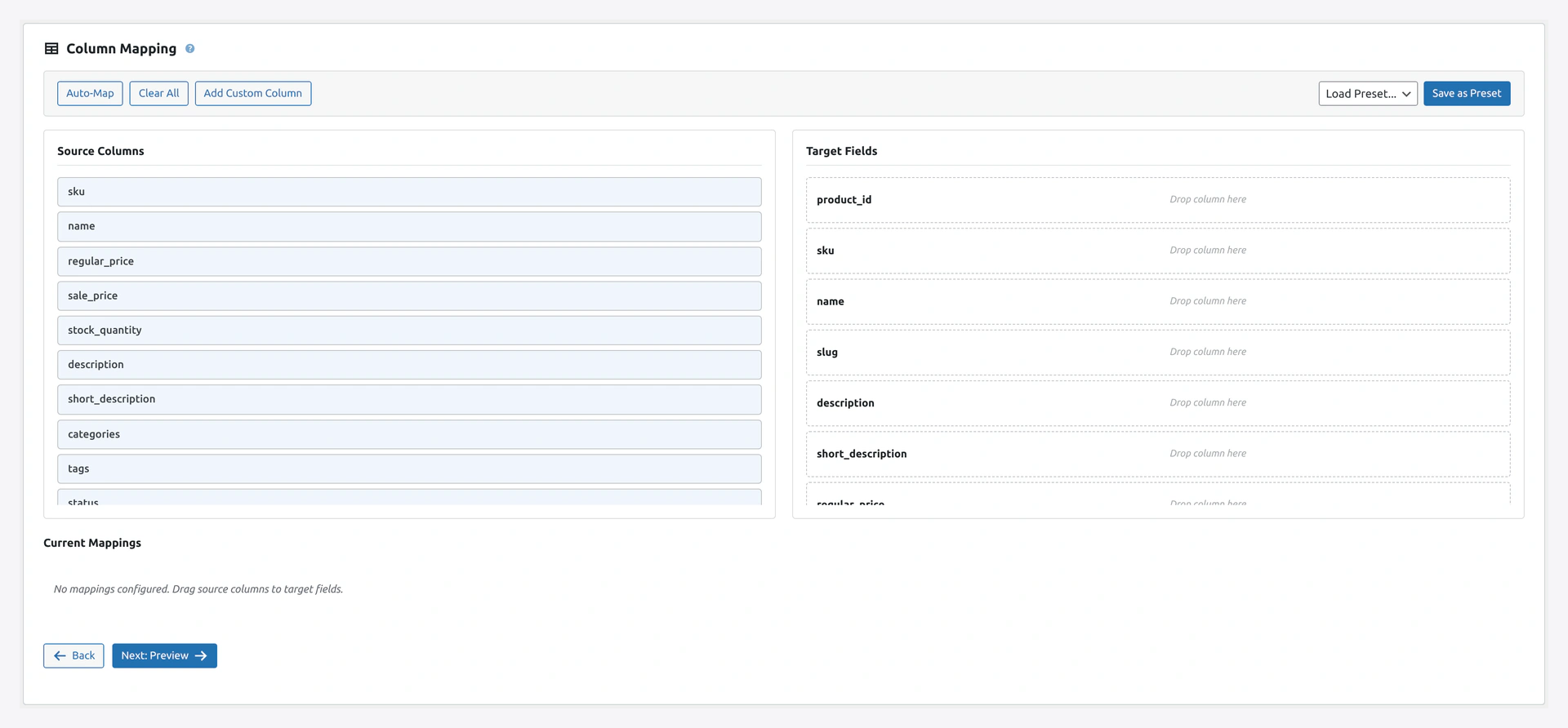 Step 2 of the Quick Import Wizard — left column = file columns, right column = WooCommerce fields.
The page has two sides:
- Left (File Columns): Every column found in the first row of your file
- Right (WooCommerce Fields): Every field you can map to, grouped by category
Between them, you drag and drop.
Auto-Match
When the page loads, the plugin tries to auto-match columns by name. So:
SKUin your file → connects to the SKU fieldRegular Price→ connects to the Regular Price fieldProduct NameorName→ connects to the Name field
For standard CSV files, auto-match handles 80-100% of the work.
What Auto-Match Looks For
The plugin checks (case-insensitive):
- Exact name match:
SKU=sku - Space removed:
Product Name=product_name - Common aliases:
Title=Name,Type=Product Type, etc.
How Aliases Work
The plugin has a built-in alias table with 200+ common column names. So these all map to SKU:
skuSKUproduct_skuitem_codemanufacturer_codepart_number
If your column uses a different name, you will need to map it manually.
Manual Mapping
For any column that did not auto-match:
- Click the column on the left (it highlights in blue)
- Click the target field on the right
- A connection line appears between them
Or use drag-and-drop:
- Click and hold a column on the left
- Drag it to the field on the right
- Release
Required Fields
Some fields are required. They have a red star next to the name.
Required Fields Per Entity
| Entity | Required Fields |
|---|---|
| Products | SKU or Name |
| Orders | Order Number or Customer Email |
| Customers | |
| Categories | Name |
| Tags | Name |
| Attributes | Name |
| Coupons | Code |
| Reviews | Product SKU, Reviewer Email, Rating |
If you do not map a required field, the Next button is disabled.
Unmapped Columns
Columns on the left with no connection are ignored during import.
In the final step (Review), you will see a summary:
15 of 20 columns mapped. 5 columns will be ignored.
Click on the unmapped section to see which columns are being skipped.
"Use Only Mapped Fields" Option
By default, unmapped columns are silently ignored. But if you want the plugin to store unmapped columns as custom post meta, turn this off.
Adding a Column Not in Your File
Sometimes your file is missing a column you need. Example: your file has no "Status" column but you want every product to be publish.
How to Add a Default Value
- Click + Add Field at the bottom of the mapper
- Pick the WooCommerce field (e.g.,
Status) - In the value box, type the default value (e.g.,
publish) - Every row in the import will use this value
Default Value Variables
You can also use dynamic values:
| Variable | What It Becomes |
|---|---|
{date} | Today's date (2026-04-14) |
{datetime} | Today with time |
{timestamp} | Unix timestamp |
{user} | Current admin username |
{row_number} | The current row number |
{sku} | Another column's value (like {sku}-copy) |
Preview Data Button
Before finalizing the mapping, click Preview Data to see the first 10 rows of your file, with your mapping applied.
The preview shows:
- Column-to-field connections
- How your data looks after the mapping
- Any red errors (missing required values)
This is the best way to catch mistakes before running the import.
Save Mapping as Preset
If you import the same file format often, save the mapping to reuse later.
How to Save
- Finish your mapping
- Click Save Mapping button at the top
- Give it a name (e.g., "Supplier X Daily Feed")
- Click Save
How to Load
- On Step 2, click Load Preset
- Pick a saved preset from the list
- Your mapping is applied automatically
Manage Presets
Go to Webkul WC Addons → Advance Import Export → Settings → Presets to:
- Rename presets
- Delete old presets
- Export presets as JSON (share with colleagues)
- Import presets from JSON
Field Categories (Right Side)
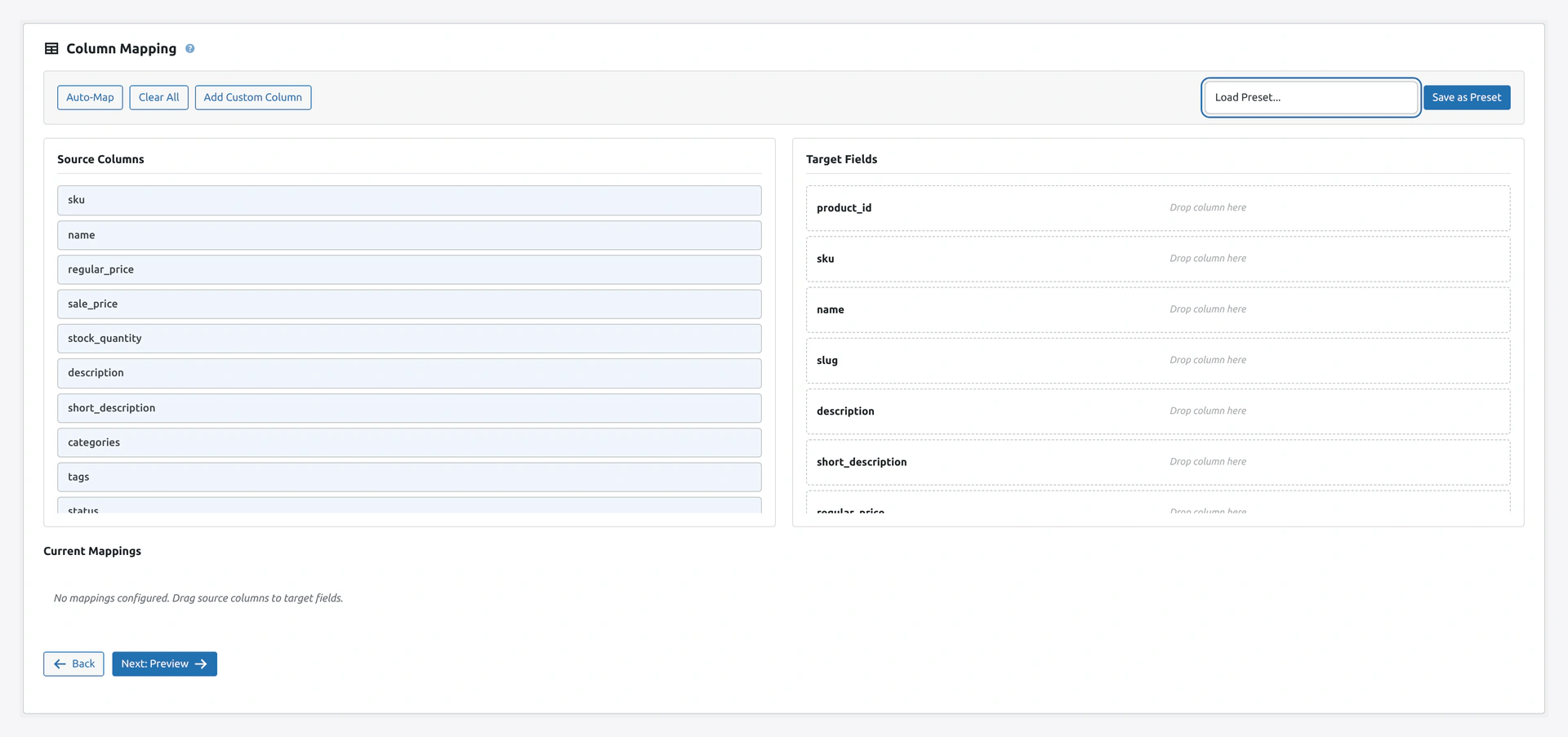 Screenshot: Target-field select expanded — every mappable WooCommerce field grouped by category.
The right side groups fields by topic to make them easier to find.
Products
- Basic — Name, SKU, Description, Short description
- Pricing — Regular price, Sale price, Sale dates
- Inventory — Stock, Manage stock, Backorders, Low stock
- Shipping — Weight, Length, Width, Height, Shipping class
- Categories & Tags — Categories, Tags, Brand
- Images — Featured image, Gallery
- Attributes — Color, Size, Material, etc.
- Variations — Parent SKU, Variation attributes
- SEO — Yoast, RankMath, AIOSEO (if compat on)
- Custom Fields — ACF, Meta Box (if compat on)
- Other — Status, Visibility, Featured, Virtual, Downloadable
Orders
- Basic — Order Number, Date, Status
- Customer — Customer Email, Billing/Shipping fields
- Items — Line items (JSON or concatenated)
- Payment — Payment Method, Transaction ID
- Shipping — Method, Cost
Value Mapping (Translate Values)
Sometimes the values in your file do not match what WooCommerce expects. Example: your file has rouge, bleu, vert but WooCommerce uses Red, Blue, Green.
Use value mapping to translate.
How to Set Up
- Map the column first (e.g.,
Color→attribute: Color) - Click the Transform button next to the column
- Pick Value Mapping
- Add pairs:
rouge→Redbleu→Bluevert→Green
- Save
Now every row with rouge becomes Red in WooCommerce.
See Transformations for more options (find/replace, math, formatting).
Column Separators
For columns with multiple values (like categories), you can set the separator.
Example
Your file has:
Categories
"Clothing > Men's > Shirts"
"Home, Kitchen, Dining"
The first row uses > as the hierarchy separator. The second row uses , as a list separator.
Settings
In Step 2, click Separators to set:
| Separator | Default | What It Does |
|---|---|---|
| Category hierarchy | > | Parent-child path |
| Multiple values | , | List of items in one cell |
| Attribute values | | | Multiple values in one attribute |
Mapping Decision Flow
When you arrive at Step 2, follow this:
Quick rules:
- Red star field = required (must map or set default)
- Auto-match uses aliases (
Name,name,product_nameall match Product Name) - Save presets to skip this step next time
Troubleshooting
| Problem | Fix |
|---|---|
| Auto-match missed my columns | Check for extra spaces or typos in column names |
| Required field is not mappable | You must map a column or add a default value |
| Preview shows empty values | Check your CSV is saved as UTF-8 with proper delimiters |
| "Duplicate column" error | Your header row has two columns with the same name. Rename one |
| Preset does not load my mapping | Presets are tied to column names. If your file has different columns, some mappings may not apply |
Related Pages
- Quick Import Wizard — Step 2 in context
- Transformations — Change values during import
- Migration Presets — Pre-made mappings for Shopify, Magento
- Compatibility — SEO, ACF, Dokan fields